How to fix
Unknown Software Exception 0x40000015 Error
on Windows
Resolve the Unknown Software Exception 0x40000015 error on Windows 10 and 11 effortlessly with our expert-tested solutions. Fixed in minutes!


What causes How to Fix Unknown Software Exception 0x40000015 Error on Windows?
- Corrupted system files
- Incomplete installation of software
- Updates installation problems
- Incorrect uninstall
- Accidental removal or replacement of Windows registry
Repairs Windows system files, removes malware, and restores a clean OS state — without reinstalling.
Hi. It seems that I’m in trouble. I run Windows 10 OS, which I have upgraded a couple of weeks ago. Recently, when I started my PC, a pop-up message showed up, which reads "The exception unknown software exception (0x40000015) occured in the application at location 0x0029fa4d. Click OK to terminate the program." When I click I OK, the message disappears and the system seems to be working fine except a bit slowdown and random freezes. Nevertheless, the pop-up is quite irritating and it makes me think continuously that there is a kind of virus or serious issue on my system. Please advise! Thank you.
Unknown Software Exception 0x40000015 Error is a Windows error message. It might pop-up on the screen on any Windows version. However, most of the complaints come from Windows 10 users. Most of the time the issue occurs due to the corrupted system files.
The 0x40000015 Unknown Software Exception error might show up when using any program. The main reasons that trigger the error:
- corrupted system files;
- incomplete installation of software;
- updates installation problems;
- incorrect uninstall;
- accidental removal or replacement of Windows registry;[ref en-2]
- etc.
Besides, it has been noticed that 0x40000015 error pop-up sometimes shows up due to the cyber infection or after PC’s recovery when a virus/malware/corrupted files are deleted. If you suspect that your device might be infected with malware, you should check and fix it with [rev id=“Reimage”].
Therefore, this application error might show up anytime when using Windows computer. As soon as you hear a Windows error sound, you will notice a pop-up with the following information:
The exception unknown software exception (0x40000015) occurred in the application at location 0x350082db.
Click OK to terminate the program.
Note that the location of the error differs based on the program that was in use when the error appeared. However, methods to fix Unknown Software Exception 0x40000015 Error remain the same. If clicking OK on the error message did not help, and you still have to deal with this application error, try methods presented below to fix this issue.
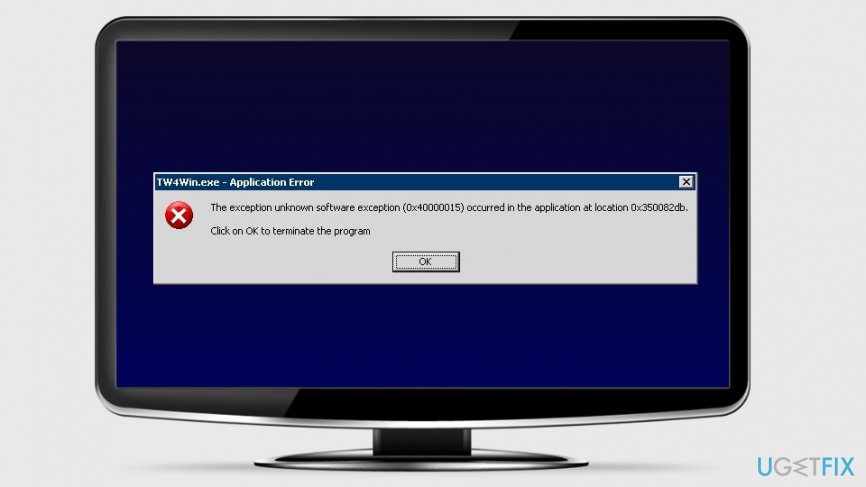
Possible methods to fix Unknown Software Exception 0x40000015 Error on Windows
As soon as you start receiving 0x40000015 error code, our recommendation would be to run a full system scan with [d1] or an alternative program. That’s because it is capable of regognizing system errors, corrupted files, startup problems, and similar issues. Besides, this particular tool has a built-in antivirus (Avira), what means that it checks for viruses and malware as well. In case you are not willing to use additional software for 0x40000015 error fix, you can fix this issue manually.
In this video you will find information required to fix this problem:
[youtube 4i_W90WFHhQ]
Fix 1. Run System File Checker
One of the main reasons why the error occurs is corrupted system files. Hence, running System File Checker[ref en-1] and automatically repairing corrupted files can help to fix 0x40000015 Error on Windows:
- Type cmd in the Windows search box.
- Right-click Command Prompt and choose Run as an administrator.
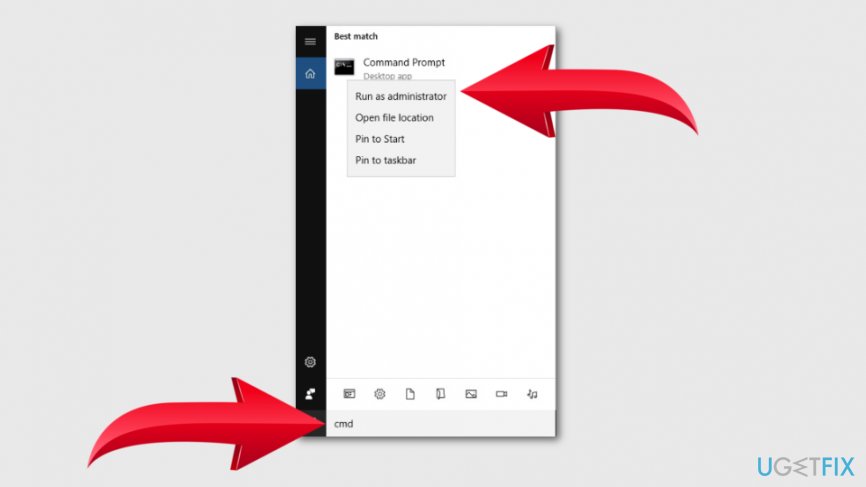
Run command prompt - When in Command Prompt, type the following command and click Enter:
sfc /scannow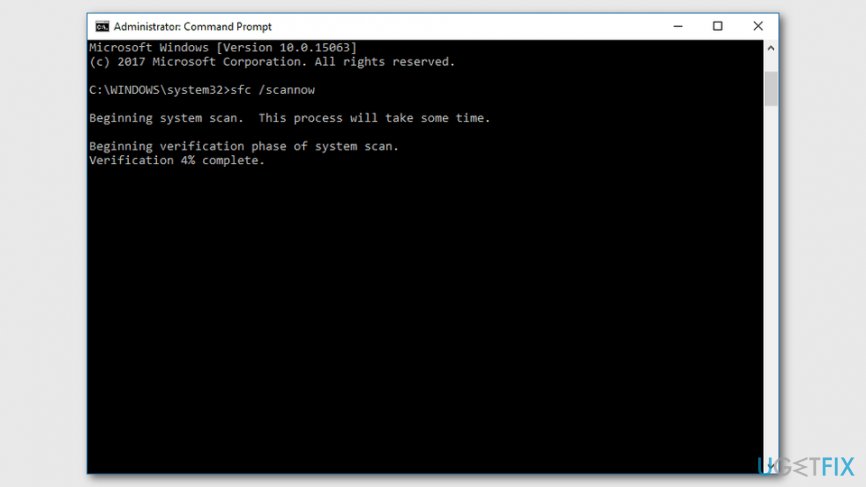
Run system file check - Wait until the program finishes scan and gives the notification about repairing corrupted files.
- Restart the computer and check if the application error is gone.
Fix 2. Update your antivirus
If 0x40000015 bug showed upsoon after Windows upgrade, it’s advisable to check if your anti-virus is up-to-date.[ref en-3] It sometimes happens that Windows updates damage a currently running antivirus. To check that, you should update your anti-virus to the newest version or delete it.
Fix 3. Install available updates
Sometimes available software or operating system updates make programs crash or do not work properly, or they might fix corrupted files. Hence, you should check if there are any available updates:
- Click Start and open Settings.
- Navigate to Update & Security and click Windows Update.
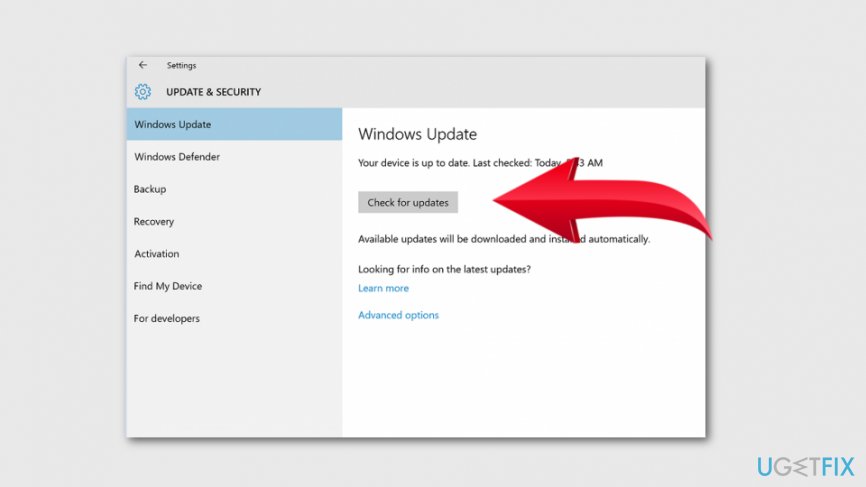
Install windows updates - Click Check for updates button.
- If there are any available updates, install them by following instructions on the screen.
Fix 4. Uninstall useless software
Unknown Software Exception 0x40000015 error may also be the cause of certain software. Some programs tend to load some time after that actual system boot. That’s why this kind of error may appear a couple of minutes after system restart/boot. To check this issue, you should try clean boot of your system. For that, you have to perform the following steps:
- Click search and type msconfig in the search box.
- Select System Configuration and locate Services tab.
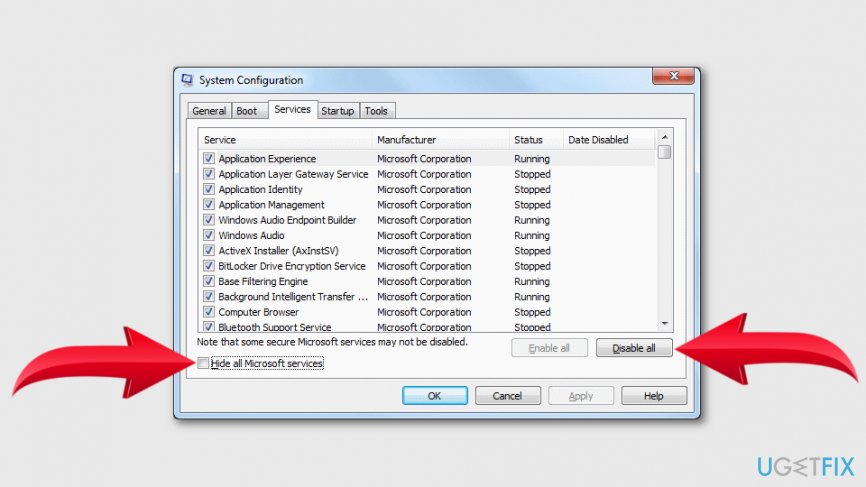
System configuration services tab - Select Hide all Microsoft services and then click on Disable all.
- After that, find and click on Open Task Manager (on the Startup of the System Configuration).
- Here you have to disable all items and then close Task Manager.
- Finally, click OK and restart your PC.
If after that 0x40000015 error is gone, then you should check which programs you are not using for a long time and delete them. After that, reboot your device and check if the error still occurs.
Fix 5. Restore the system
If none of the methods above helped to fix this application error, you should consider System Restore:[ref en-4]
- Boot your PC as an administrator. For that, you have to right-click on the Win key and select Command Prompt (Admin).
- After that, click on Win key and select All Programs > Accessories > System Tools > System Restore
- Select Restore my computer to an earlier time and click Next.
- When a confirmation window occurs, click Next again.
- Finally, restart your PC.
Bottom line
To fix the Unknown Software Exception 0x40000015 error, you can try repairing corrupted system files, reinstalling software, or checking for malware infections. If these methods do not resolve the issue, consider seeking further assistance or using specialized repair tools.
Frequently asked questions
The Unknown Software Exception 0x40000015 error on Windows 10 typically indicates that a program has encountered an unexpected issue, often related to corrupted files or software conflicts.
To fix the Unknown Software Exception 0x40000015 error in Windows 11, try updating your drivers, running a system file check, or performing a clean boot to identify conflicting software.
It's not advisable to ignore the Unknown Software Exception 0x40000015 error on Windows, as it may lead to further system instability or prevent applications from running properly.




Report an issue
What's wrong with this guide? We review every report and update or remove content.
Report received — thank you. We'll review and fix it.
You need a free account to submit a report.
Be the first to comment