How to fix
Avast won’t open or not working properly
on Windows
Resolve Avast issues on Windows 10 or 11 with our effective troubleshooting tips. Expert-tested solutions for seamless performance, fixed in minutes.

What causes How to fix Avast won’t open or not working properly on Windows?
- Broken installation of the software
- Services not working properly
- Corrupted files
- Issues with the main software service
- User inexperience with Windows 10
Repairs Windows system files, removes malware, and restores a clean OS state — without reinstalling.
Hello. I have an issue because Avast won't open or not work properly on my Windows device. I cannot use the program at all. Can you answer what might be the issue or even help to fix this?
Avast won't open or not working properly is a common issue.[ref en-1] There are various problems with all kinds of programs, Avast antivirus application is no exception. Security software has some errors that are common. We list a few of them with possible solutions, too, so you can fix issues with the machine and the application itself.
This Avast won't open or not working issues properly can be caused by various problems with your machine or the software. You might need to repair some operations via Control Panel or restart the program, so the tool is working. However, if you are here, these simple methods probably haven't worked for you.
Avast is a common antivirus, so it is used by many users all over the world. There are different problems that surround the software. The more common causes of such Avast won't open or not working properly on Windows issues can be broken installation of the software or services not working properly in the first place.
You might fix Avast won't open or not working properly on Windows by repairing[ref en-2] or performing a clean install of the tool. If the program is not running as it is supposed to, you might encounter problems with the main software service. Restarting the program should take care of the problem.
If you are a new user of Windows 10 or not a tech-savvy person, you might have some difficulty when trying to fix Avast won't open or not working properly on Windows 10, so we have a few tips and solutions. Just remember that malware[ref en-3] is definitely not responsible, so do not panic.
How to fix Avast won't open or not working properly on Windows 10
Avast won't open or not working properly on Windows in some cases can be related to corrupted files, so you might need to check the machine with [d1] or a similar repair tool that shows what problems might arise from the operating system and incompatibility issues. If there no issues that could be fixed easier, follow the suggested fixes below.
Disable Avast temporarily
- Right-click the icon on the taskbar.
- Go to Avast Shields and then choose to Disable for 10 minutes.
- Confirm by clicking OK.
- Then re-enable Avast Shields again.
Rebuilt WMI repository to fix Avast won't open or not working properly on Windows
- Right-click the Start menu and choose the Command Prompt.
- Type winmgmt /verifyrepository there and press Enter.
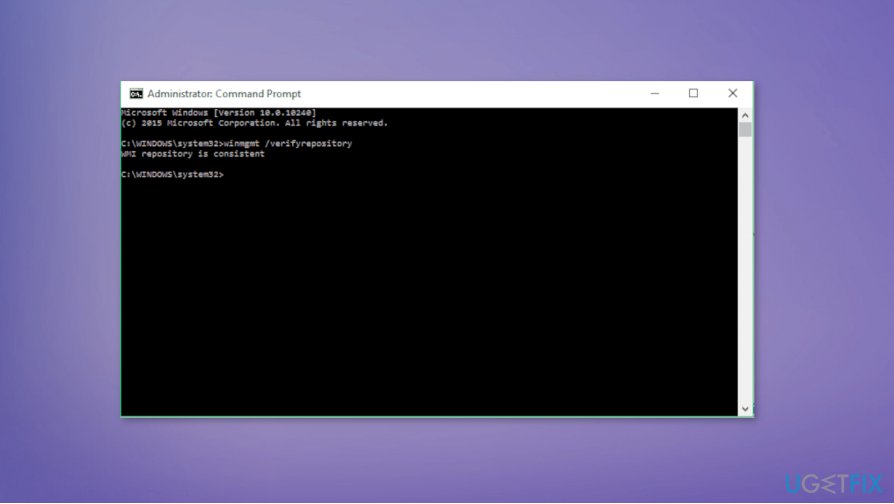
How to fix avast not working on windows command - If you receive WMI repository is consistent -no problems detected, type winmgmt /resetrepository.
- Then press Enter.
- If you get WMI repository is inconsistent -problems detected, type winmgmt /salvagerepository, Enter.
- WMI repository has been successfully rebuilt if you get the answer about salvaged WMI.
- Continue and reset the PC.
Clean boot Windows 10
- Search for System Configuration.
- Select Services.
- Tick the checkmark on Hide all Microsoft services and click Disable all.
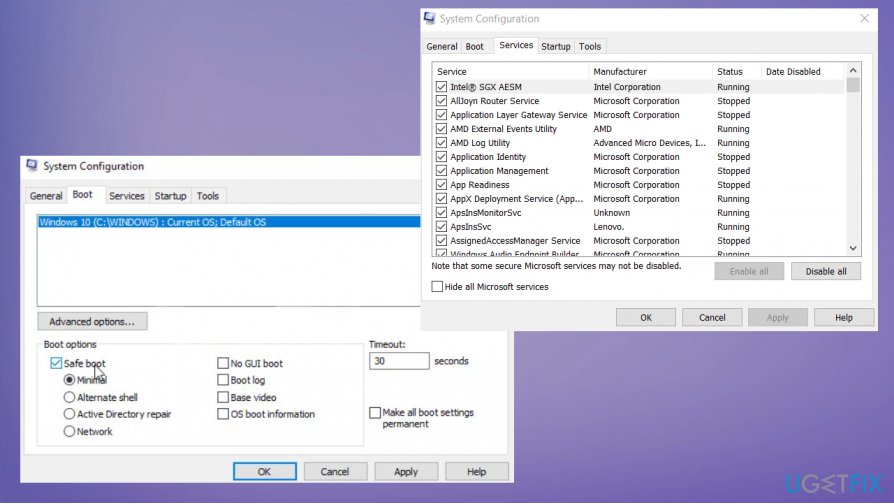
How to fix avast not working on windows services - Then choose the Startup tab and Open Task Manager.
- Right-click each application and disable.
- Close Task Manager.
- System Configuration window. Click Apply and then OK.
- Restart the device.
Repair the program to fix Avast won't open or not working properly on Windows
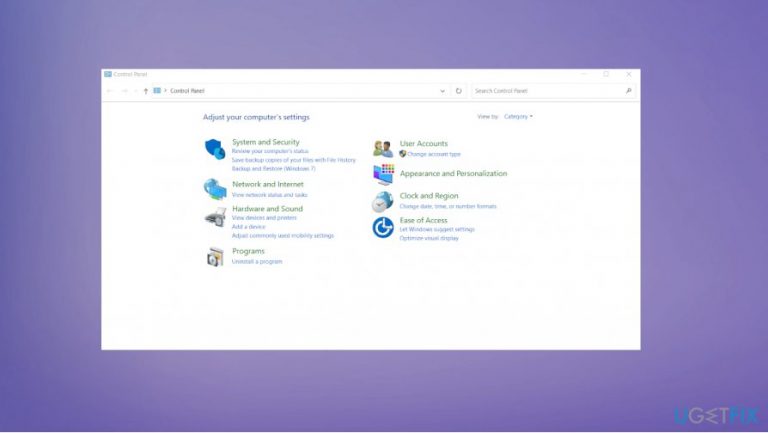
- Go to Control Panel and then find Programs.
- Choose Uninstall a program under that.
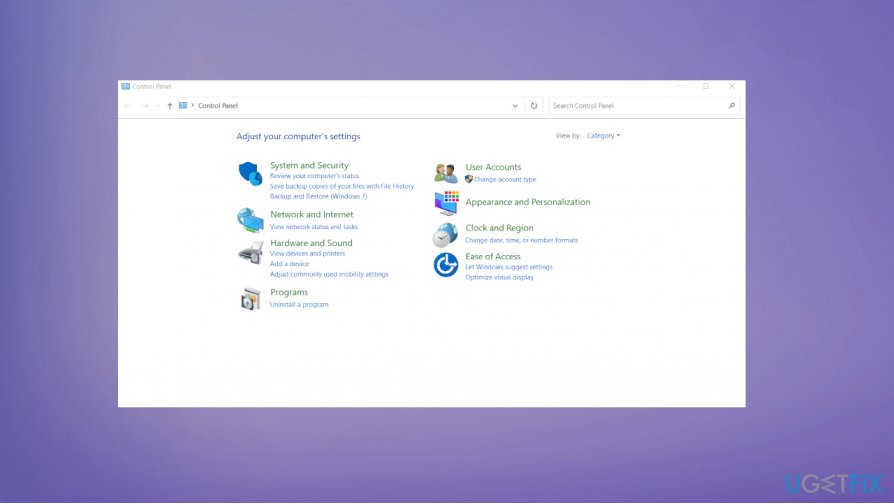
How to fix avast not working on windows contorl panel - Then select Avast and choose Repair.
- The process should run automatically.
- Restart PC when completed.
Bottom line
To fix Avast not opening or working properly on Windows, you can try repairing the installation or performing a clean install of the software. Restarting the program may also resolve the issue. If these solutions do not work, further troubleshooting may be necessary.
Frequently asked questions
Try restarting your computer first, and if that doesn't work, reinstall Avast using the official uninstaller tool to remove any corrupted files.
Ensure that your Windows 11 is updated, and check if Avast is also up to date; if issues persist, consider repairing the installation through the Control Panel.
Yes, you can run the Avast Repair Tool from the Control Panel or uninstall and reinstall the application to resolve any startup issues.




Report an issue
What's wrong with this guide? We review every report and update or remove content.
Report received — thank you. We'll review and fix it.
You need a free account to submit a report.
Be the first to comment