How to fix
Kaspersky does not start
on Windows
Resolve the Kaspersky startup issue on Windows 10 and 11 easily. Follow expert-tested methods for a quick fix and get back to secure browsing.

What causes How to fix Kaspersky does not start?
- Corrupted installation files
- Conflicts with other antivirus software
- Outdated software version
- Malware interference
- System compatibility issues
Repairs Windows system files, removes malware, and restores a clean OS state — without reinstalling.
Hi, I need help with the Kaspersky antivirus. Usually, when a computer boots up, it shows a popup window that Kaspersky is loading, and then nothing more happens - it simply does not start. Any solutions for this issue? Thanks in advance.
While the internet is a commodity, most of us do not imagine our lives without, it is also one of the major malware distribution vectors. Regardless of whether you are exploring new websites, redeeming offers, online shopping, or installing new applications, the potential danger is always there. Unauthorized access to your computer can occur at any time when the situation is right,[ref en-1] so it is pivotal to ensure the security of your computer at all times.
Upon entry, malware can cause serious damage to computers and their users, depending on their type. For example, many trojans are programmed to operate in the background silently and not cause any major signs or symptoms, so they can run for months before being discovered, leaking valuable personal information such as login credentials in the process.
Even though the number of different viruses, backdoors, trojans, ransomware, and other parasites increases with every passing day, there are major players in the security industry who are there to stop cybercriminals from abusing users and defending their machines from harm. That being said, the security industry is vast, and there are many anti-malware or antivirus applications to choose from.
Kaspersky is one of the major internet and computer security providers around, with the company being founded back in 1997. With the expertise and research, Kaspersky Global Research and Analysis Team has found many espionage platforms operated by sophisticated cybercriminals.[ref en-2] With Kaspersky Internet Security, users can feel safe to ensure their computers to be protected from malware, phishing, and other online dangers.
However, just with any other application, there could be issues. Kaspersky does not start is a problem that has been around for a while, and users complained that they could not protect their machines adequately when the security tool simply fails to boot up.
When booting into the computer, users see a notification which says the following:
Kaspersky
Kaspersky Internet Security
Loading the application
However, Kaspersky does not start after this - this renders computers vulnerable to cyberattacks and malware infections. Therefore, it is very important to fix this issue as soon as possible.
Below we provide several solutions to fix Kaspersky does not start issue - these steps should not be too difficult to follow as long as you perform them carefully. Before you start, we highly advise you checking your system with [d1] software, as the issue might be related to corrupted system files or similar operating system problem.
Fix 1. Reboot your computer
Sometimes the solution to problems such as Kaspersky won't start can be fixed very easily, so let's start with simple solutions. If you noticed that the "Loading the application" message does not go away for too long or that nothing happens afterward, you should try to restart your computer.
Fix 2. Update the app to the latest version
If you manage to start your Kaspersky program at some point, you should immediately update it to the latest version to ensure that the issue does not repeat itself. This process depends on the product you are using - here's how to update Kaspersky Internet Security:
- Open the main window of the app
- Select Database Update
- Click Run update
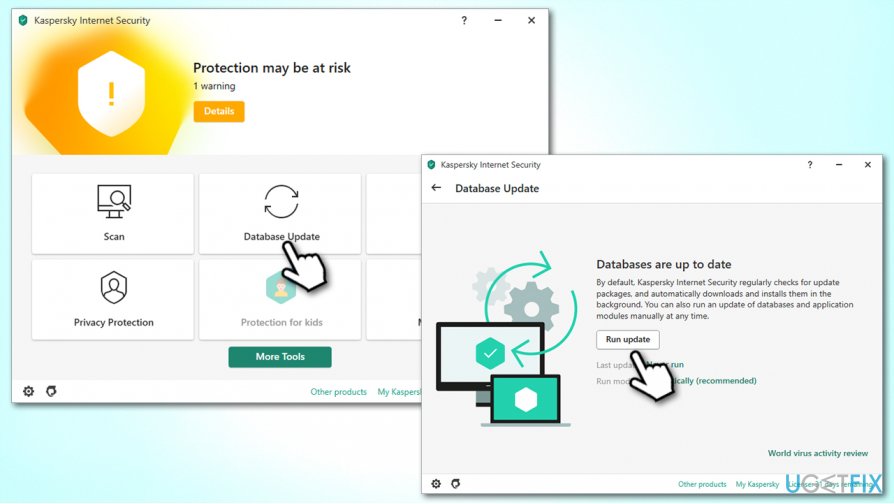
How to fix kaspersky does not start update the program - Wait till the latest updates are installed
- Reboot.
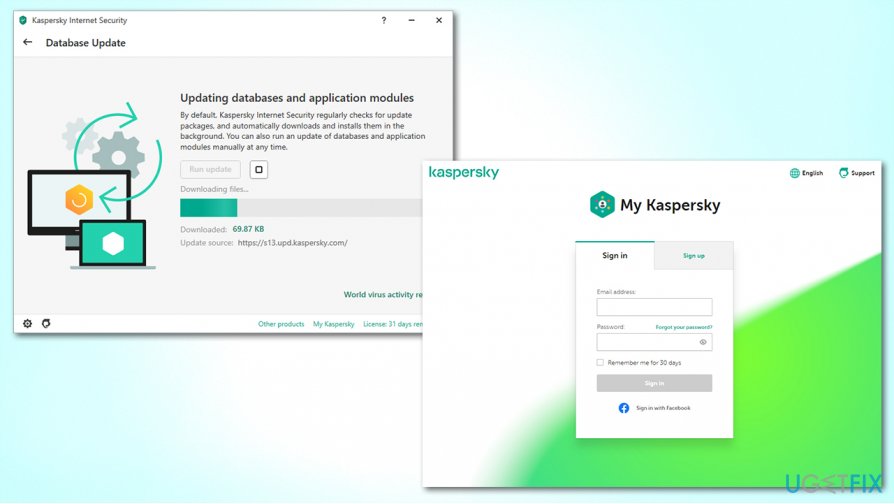
If you are still unable to access the app, you can command the update remotely through "My Kaspersky." You need to login with your account credentials first, however. Note: remote management is not available for Kaspersky Free versions.
Fix 3. Reinstall Kaspersky software
If the above solutions did not work for you, you should simply uninstall Kaspersky software and then install it once again. Here's how to do it:
- Type in Control Panel in Windows search
- Go to Programs > Uninstall a Program
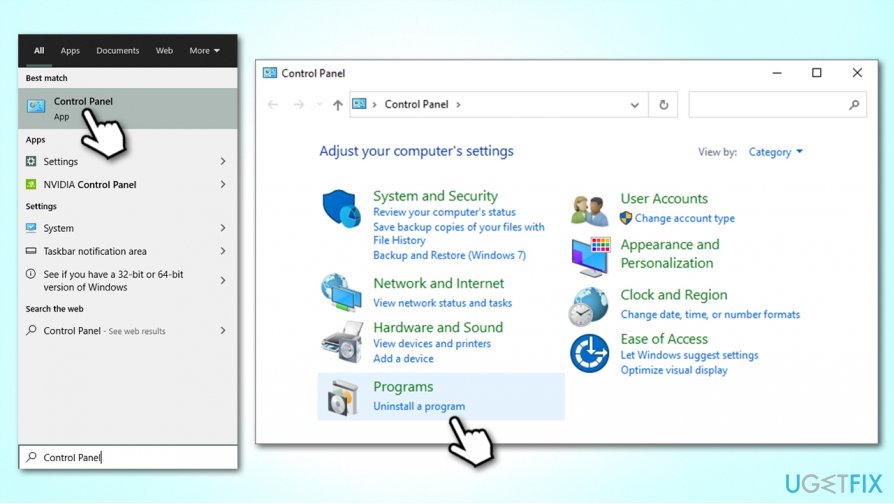
How to fix kaspersky does not start access control panel - In the Programs and Features section, find Kaspersky Internet Security or antivirus
- Right-click and select Uninstall/Change
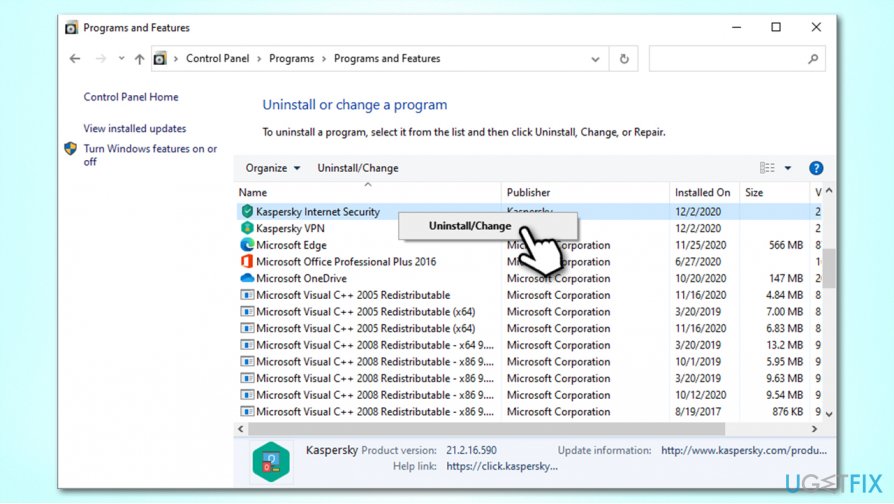
How to fix kaspersky does not start select uninstall change from programs and features - In the prompt, select Yes
- When you reach the Kaspersky removal Setup Wizard, click Next
- In the next step, ensure that License information is ticked (very important!)
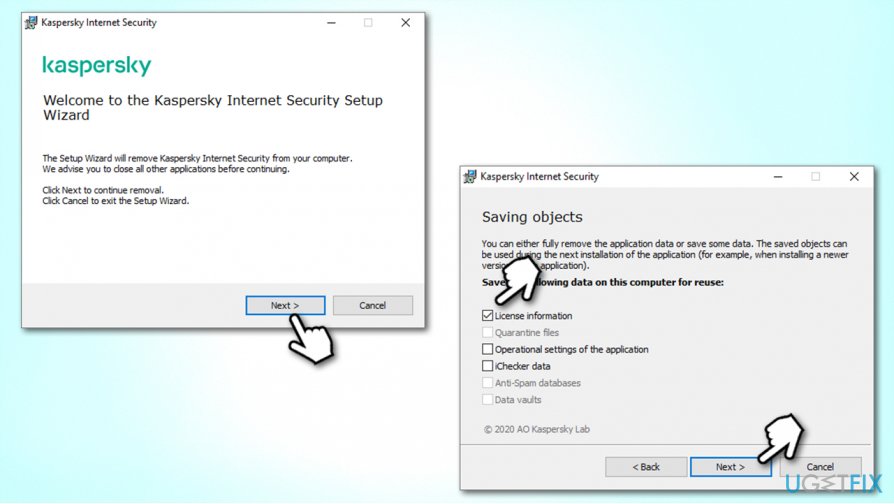
How to fix kaspersky does not start save license information before uninstalling - Click Next and then follow up by Remove
- Wait for the process to complete and then reboot your system.
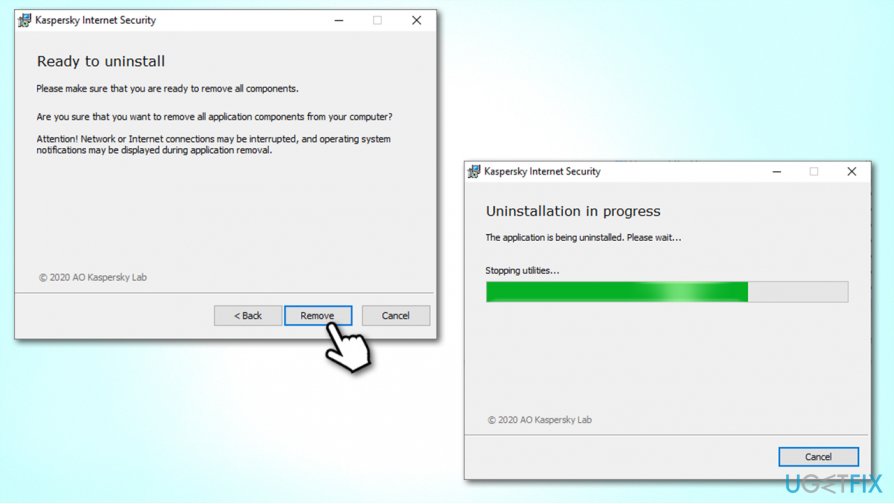
How to fix kaspersky does not start uninstall program
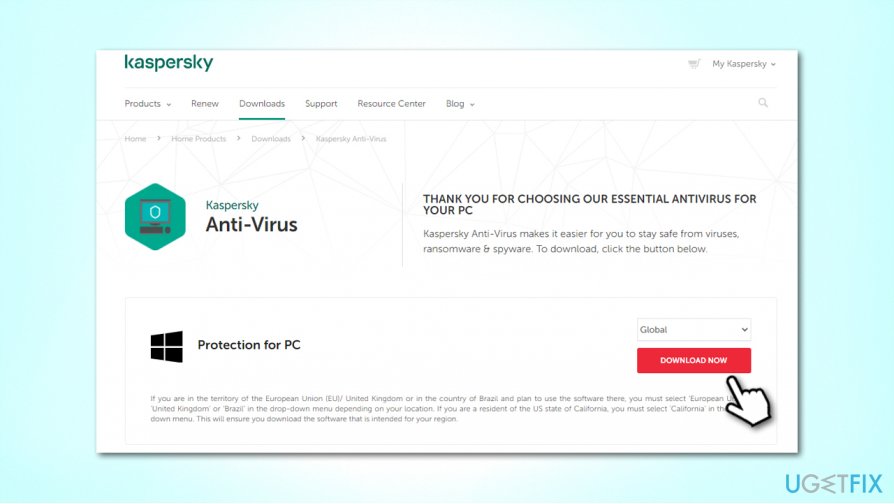
After this, you should navigate to the official website - Kaspersky Anti-Virus, Kaspersky Internet Security, or Kaspersky Total Security. Since you saved the license information when uninstalling, you will not lose it, as Kaspersky will automatically enable it with a new install.
Fix 4. Use a different security app
If you have too many inconveniences and can not launch Kaspersky antivirus or Internet Security even after the reinstall, you could instead install different third-party security software. There are many alternatives on the market available, although please ensure that the AV maker is reputable and can be trusted. If an untrustworthy or fake security program is installed, it will give a false sense of security, and you would be vulnerable to malware attacks.
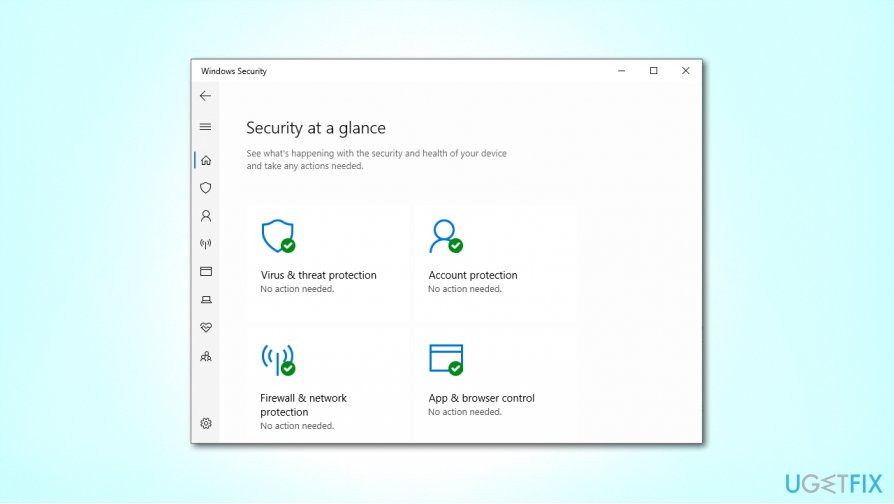
If you want free protection for Windows, Windows Defender is an excellent option, as it is built-in and shows very competitive detection rates on the independent tests.[ref en-3]
Bottom line
To resolve the issue of Kaspersky not starting, users can try reinstalling the software, checking for conflicts with other security programs, updating to the latest version, or scanning for malware. If none of these solutions work, it may be necessary to contact Kaspersky support for further assistance.
Frequently asked questions
First, try restarting your computer and then check if Kaspersky launches. If it still doesn't start, consider reinstalling the application or updating Windows 10.
Ensure that your Windows 11 is up to date and check for any conflicting software that may prevent Kaspersky from starting. If the issue persists, reinstall Kaspersky to fix potential corruption.
Yes, check your Windows 10 firewall settings to ensure that Kaspersky is allowed to run, and verify that no recent updates have disabled its functionality.




Report an issue
What's wrong with this guide? We review every report and update or remove content.
Report received — thank you. We'll review and fix it.
You need a free account to submit a report.
Be the first to comment