How to fix
Windows 10 error code 0x80240031
on Windows
Resolve Windows 10 error code 0x80240031 effortlessly with proven solutions that ensure your system runs smoothly. Expert-tested for quick fixes.

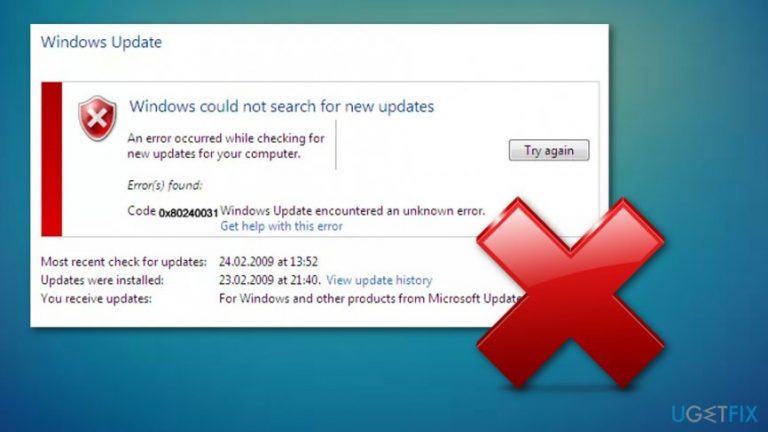
What causes How to fix Windows 10 error code 0x80240031?
- Damaged Windows update files
- Corrupt file registry
- Problems with system files
- Interference from problematic system files or programs
Repairs Windows system files, removes malware, and restores a clean OS state — without reinstalling.
I can’t install Windows 10 Anniversary update because the installation repeatedly stops at around 40% and gets stuck on error 0x80240031. Where is this error coming from and how can I fix it?
0x80240031 is a system error which users mostly encounter while updating old Windows software to a newer one. It has been especially common with the Windows 8 and 8.1 updates, but now the same problem is circling Windows 10 tech support discussion forums as well. So what is this error anyway and why does it obstruct users from enjoying new and improved versions of their favorite operating system?
“There were problems installing some updates, but we’ll try again later.” This explanation usually accompanies the Error code 0x80240031. Seeing it over and over again might become quite frustrating because it does not continue to explain what the actual cause of this problem might be. Having no idea what specific issue needs to be fixed, less experienced users might get stuck in the never-ending loop of errors. So, we’ve decided to shed some light on this issue and provide some tips on how it can be fixed.
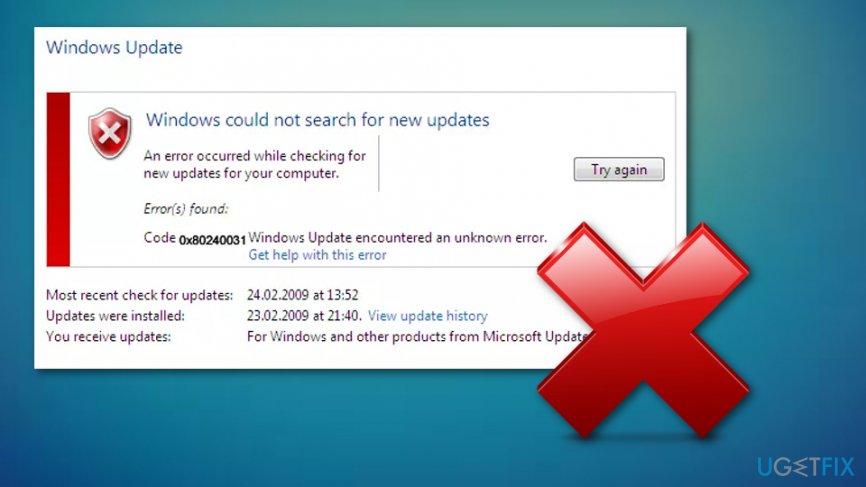
Mostly, Error code 0x80240031 is related to such issues like damaged Windows update files, corrupt file registry or problems with system files. This means that somewhere along the process of update installation, the software has been corrupted and now it cannot be installed due to this infringement.
However, to determine the real cause of the problem you should troubleshoot it via the inbuilt Windows assistance tools or download Windows Update Troubleshooter from the official Microsoft web page. Third-party system optimizers like [d1] can also be helpful in locating the problem. However, if you must fix your computer manually, check out a guide we provide below.
How to fix Error code 0x80240031 on Windows 10?
Method 1. Reboot your Windows system
It might be that some problematic system files or programs are interfering with the update. To shut these programs down, you will have to boot Windows in a clean boot mode. To do that:
- Search for msconfig in your Start search box
- In the search result window select System Configuration
- Once in the System Configuration dialog box, go to the Services tab and select Hide all Microsoft services. Then click Disable all
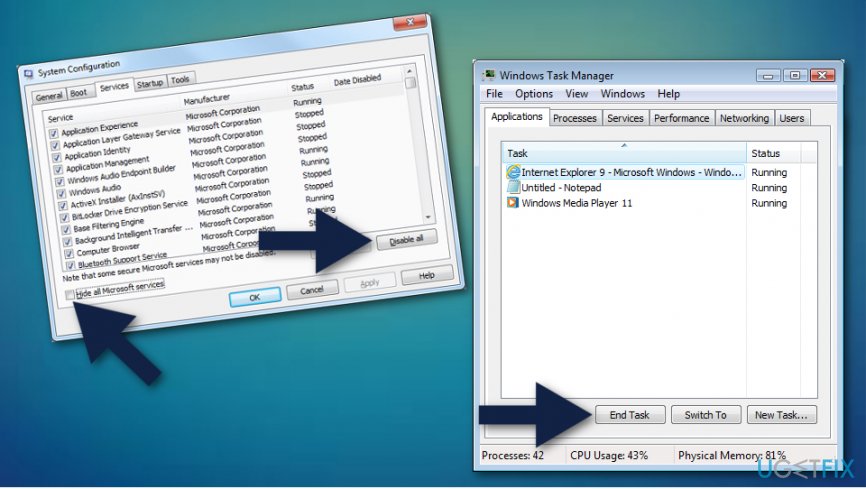
First method - In the same System Configuration dialog go to the Startup tab and click Open Task Manager
- Disable every startup item in the Task Manager
- Close the Task Manager and click OK
- Restart the computer.
Troubleshoot your computer while in the clean boot mode and try installing the update again. If the update is successful, restart the computer in normal mode again.
To start your computer in a regular mode repeat the steps 1 and 2. Then do the following:
- Go to the General tab and click Normal Startup
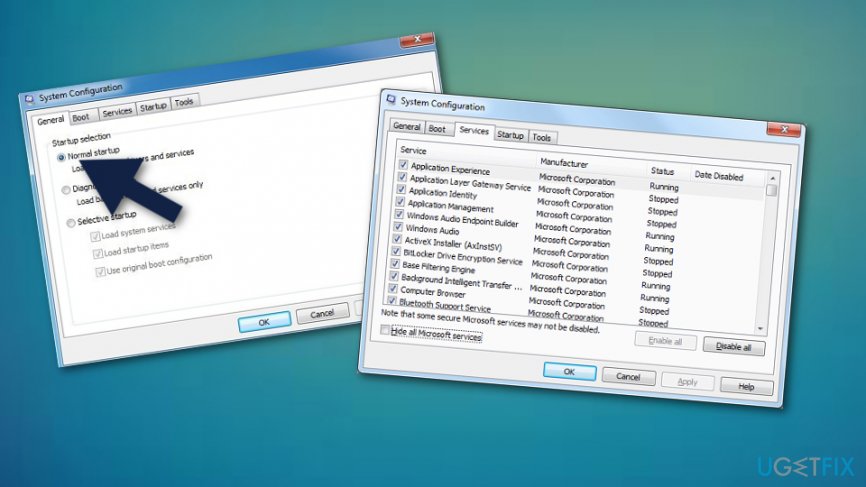
1 2 - In the new window find Services tab unmark Hide all Microsoft services box and open the Task Manager
- When in manager, enable startup programs by clicking Enable all
- Click OK and restart your PC.
Method 2. Disable Windows Update
- Press Windows key and the R button on the keyboard at one time
- When the run box shows, type in services.msc and then click Enter
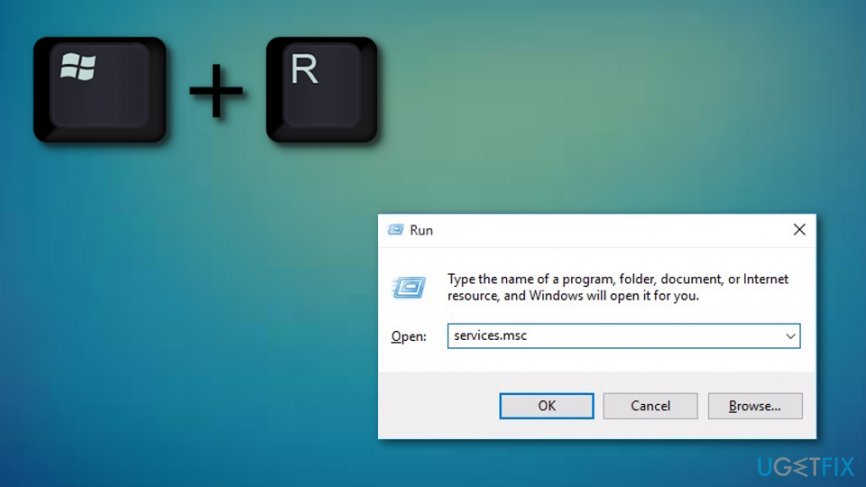
Method 2 - Find Windows Update and double-click it
- When the drop-down menu occurs, choose Disabled
- Reboot your PC
- Press Windows key and X button together
- Choose File Explorer
- Type in the address bar C:\\Windows\\SoftwareDistribution
- Press CTRL and A together
- Right-click on the chosen files and pick Delete
- Repeat steps from 1 to 3
- When the drop-down menu appears, select Manual
- After that, click Start and OK
Method 3. Turn off updates in various places
- Go to your Windows search bar and type Settings
- Select the Update & Security option
- After that, click Windows Update ---> Advanced options
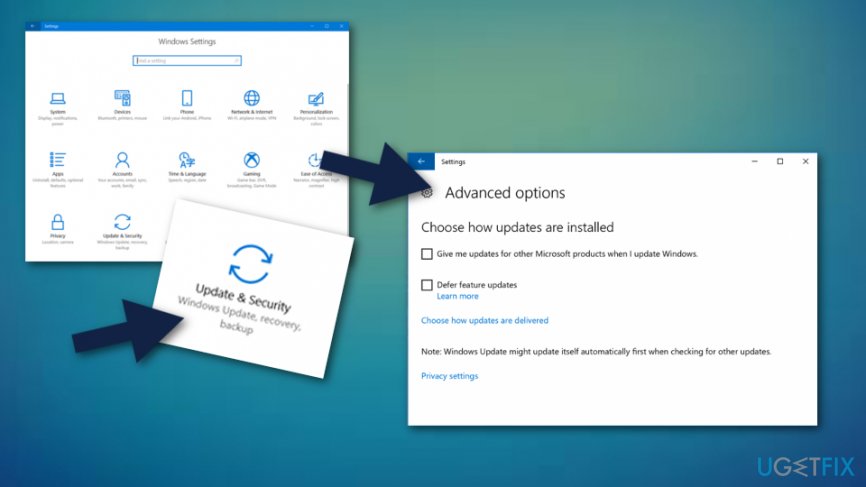
Thirdmethod - Click on Choose how updates are delivered
- Turn off the function which says Updates from more than one place
If this method does not work for you and you still cannot get the Anniversary update installed, try resetting Windows Update Components. You can do that automatically by downloading Windows Update Troubleshooter. For the manual Windows Update Components reset, follow the instructions on the Microsoft support page.
Bottom line
To fix Error code 0x80240031 on Windows 10, you can reboot your system in clean boot mode, use the built-in Windows assistance tools, or download the Windows Update Troubleshooter from Microsoft's official page. If these methods do not resolve the issue, consider using third-party system optimizers or manually troubleshooting further.
Frequently asked questions
Error code 0x80240031 indicates a problem with Windows Update, often related to an incomplete update process. This can prevent your system from receiving important updates and features.
To fix the 0x80240031 error on Windows 11, try running the Windows Update Troubleshooter from Settings, which can automatically detect and fix issues.
Yes, you can manually reset the Windows Update components by stopping the Windows Update service, deleting temporary files, and then restarting the service to resolve error 0x80240031.




Report an issue
What's wrong with this guide? We review every report and update or remove content.
Report received — thank you. We'll review and fix it.
You need a free account to submit a report.
Be the first to comment