How to fix
Boot Configuration Data File is Missing Error
on Windows
Resolve the Boot Configuration Data file error on Windows 10 or 11 quickly and effectively. Expert-tested solutions guaranteed to fix in minutes!

What causes How to Fix Boot Configuration Data File is Missing Error on Windows OS?
- Boot Configuration Data (BCD) entry is missing
- Boot Configuration Data (BCD) file is damaged
- Windows Boot Manager (Bootmgr) entry is not present
- Corrupted system files
- Issues arising from Windows 10 upgrade
Repairs Windows system files, removes malware, and restores a clean OS state — without reinstalling.
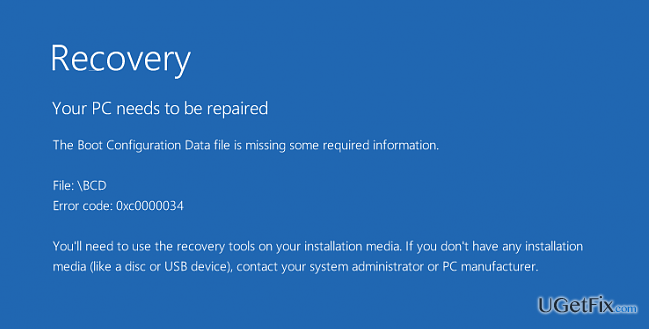
I‘m really fed up with Windows 10 OS. I upgraded to this version just a couple of days ago an what do you think, I‘m encountering a boot error. I heard lots of complains related to Windows 10 bugs, but always though that it‘s an exagerated thing. However, it seems that it‘s not. The problem is that I cannot boot my PC normally. When I try to do so, the message saying “The Boot Configuration Data file is missing“ appears. Usually, I press power button and then the system restarts normally. However, that‘s a very irritating piece of error. Could you please advise on how to solve it?
The Boot Configuration Data file is missing Error Code 0xc0000034 is a common issue faced by Windows OS users in general. Since more and more people upgrade to Windows 10, it might seem that this error emerges on this OS only. However, Windows 7, 8, and 8.1 users may also encounter this irritating boot error.
This BSOD (Blue Screen of Death) error message clearly indicates the fact that the cause of it is Boot Configuration Data (BCD). It is a file used for the boot-time configuration. According to Windows engineers, the Boot Configuration Data error appears when the Windows Boot Manager (Bootmgr) entry is not present in the Boot Configuration Data (BCD) store or when the Boot\BCD file on the active partition is damaged or missing. Consequently, Windows system is not able to boot properly. Luckily, there is a high chance for you to fix The Boot Configuration Data file is missing Error Code 0xc0000034 manually as we will provide a step-by-step guide on how to do this. However, if you have managed to boot up your PC, we would highly recommend you to install [d1] and run the scan with it first. This program is capable of detecting various kinds of system errors, including startup problems. Thus, you may be surprised that after a scan 0xc0000034 error is gone. In case you are not willing to install additional software, follow the instructions given below.
How to fix The Boot Configuration Data file is missing error on Windows?
To fix The Boot Configuration Data file is missing error, make sure that you have a DVD or USB, since we will explain how to deal with this issue using Installation Media. Navigate to the official Windows website and download the version of the OS that you are currently running. After that, perform the following steps:
NOTE: data stored on your PC will not be damaged or lost.
Fix 1. Use Windows Installation Media for Startup Repair
- Boot the system using a newly created Windows Installation Media.
- Here you have to select language, time, currency, and keyboard/input method.
- Once you set all these options, click Next.
- Now you have to select Repair your computer (NOT Install Windows) and opt for Troubleshoot.
- Click Advanced option and select Automatic Repair or Starup Repair.
- When the system detects the OS, pick out the one that is running on your PC.
- Finally, unplug the USB or remove DVD bootable media and boot up your device.
Fix 2. Rebuild Windows Boot Manager Store using Bcdedit.exe tool
In case the previous method did not help to get rid of The Boot Configuration Data file is missing BSOD, try to rebuild BCD using Bcdedit.exe tool . That‘s not a very easy task, so be careful and perform each steps as given:
- Plug-in USB or inset your DVD with the Windows Installation Media and boot up your PC.
- After that, press a key when you are required to do so.
- Set Language, time, currency, keyboard/input method, and hit Next.
- Select Repair your PC (NOT install Windows).
- Select the type of OS you want to fix and click Next.
- When the System Recovery Option opens, select Command Prompt.
- Type the following commands in the Command Prompt window hitting the ENTER key after each of them:
cd /d Partition:\Windows\System32
bcdedit /enum all
bcdedit -create {bootmgr} -d "Description"
bcdedit -set {bootmgr} device partition=Partition:
bcdedit /displayorder {GUID}
bcdedit /default {GUID}
bcdedit /timeout Value - Finally, restart your PC.
We hope that these instructions were helpful and now you don‘t see BSOD The Boot Configuration Data file is missing during startup. If you still face this issue, please contact us and we will try to find out what other reasons may be causing it.
Bottom line
To fix the Boot Configuration Data file is missing error, you can follow a step-by-step guide that may involve repairing the BCD or using system recovery options. Additionally, running a system scan with a reliable program may resolve the issue. If none of these solutions work, consider seeking professional technical support.
Frequently asked questions
You can rebuild the BCD by booting from a Windows 10 installation media, selecting 'Repair your computer', then navigating to 'Troubleshoot' > 'Advanced options' > 'Command Prompt' and running the command 'bootrec /rebuildbcd'.
In Windows 11, you can fix the missing BCD error by accessing the recovery environment, selecting 'Command Prompt', and executing 'bootrec /fixmbr' followed by 'bootrec /fixboot' and 'bootrec /rebuildbcd'.
If you don't have installation media, you can try using the 'Startup Repair' option from the Windows 10 or Windows 11 recovery environment, which automatically attempts to fix boot-related issues including BCD errors.




Report an issue
What's wrong with this guide? We review every report and update or remove content.
Report received — thank you. We'll review and fix it.
You need a free account to submit a report.
Be the first to comment