How to fix
Origin won’t open – Games not launching
on Windows
Solve the Origin won't open issue and get your games launching on Windows 10 or Windows 11 quickly. Expert-tested solutions included!


What causes How to fix Origin won’t open – Games not launching?
- Compatibility issues
- Installation problems
- Windows or program updates
- Software compatibility
- Background processes
- DNS cache errors
Repairs Windows system files, removes malware, and restores a clean OS state — without reinstalling.
I have an issue with the Origin game. It won't open. I tried to reinstall the program a few times, but the issue is not solved. Troubleshooting also did nothing. It is the EA Origin game client. Can you offer any solutions for me?
The situation when Origin won't open - Games not launching is unfortunate. Users[ref en-1] complain about the issue and report that playing any games on PC is not possible for whatever reason. The problem keeps users from accessing their games on the Origin platform. None of the games can be launched, so stress is caused.
Origin won't open issue is possibly related to compatibility[ref en-2] problems or installation of the program. Users claim that they can install the application, but it won't properly open. So this problem may occur right after the installation of the program.
Games not launching or Origin won't open problems can be triggered by various other issues. In many cases, those games stop launching due to the Windows or program update. Other reasons may include software compatibility, background processes, and applications that cannot run at the same time on the machine.
Origin won't open - Games not launching can also be the problem related to DNS cache errors. The game client may open normally, but become unresponsive immediately. There are various scenarios, situations, and root causes for these Origins platform issues.
You should try to resolve the problem by firstly seeing what can be the root cause for this unresponsiveness. Distorted temporary files, problems with the core files of the program, and even corrupted cache or system files can lead to such issues. So try to fix Origin won't open - Games not launching by troubleshooting some issues yourself and then rely on the solutions listed below.
How to fix Origin won't open - Games not launching
Origin won't open - Games not launching can be triggered by some incompatibility issues, so you may run the app as administrator and make sure the program is running as is it supposed to. Also, a great quick fix might be the compatibility mode enabling. You can roll back the update and see if the Origin is running okay on the machine. Some updates have other issues[ref en-3] with the system and functions or files.
Many users state that uninstalling the program was the only solution to fix Origin won't open - Games not launching because the problem was intrusive and annoying. We can offer running a tool like [d1] for a quick check that indicates any system issues, more general problems with the functions of the machine. You can repair corrupted files and possibly fix any underlying issues with the PC. Then run through methods that involve setting changes.
Update drivers
- You can do that manually if you have the needed computer skills and patience. You should find exactly the right driver online, download, install it step by step. Do not forget to get it from a reliable source.
- Automatic methods are also available. It is more recommended to do the driver update automatically. It is quicker and easier. You can rely on tools like [rev id="DriverFix"] and update any needed drivers yourself.
Clear DNS cache to fix Origin won't open issue
- Press Win and R keys.
- Open the Run box.
- Type ipconfig/flushdns and press Enter.
- This should clear DNS cache.
- Try to open Origin games again.
Perform a clean boot
- Launch the Run window.
- Type msconfig and open the System Configuration window.
- Press the Services tab and check Hide all Microsoft services.
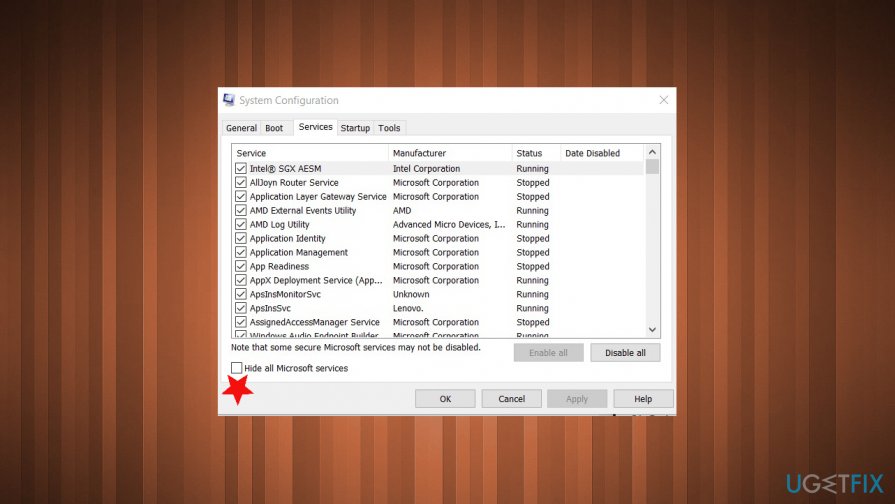
Origins wont open games cant launch fix hide services - Press the Disable All and disable services that are running currently on the system.
- Go to the Startup section.
- Press Open task Manager and disable all services in a startup.
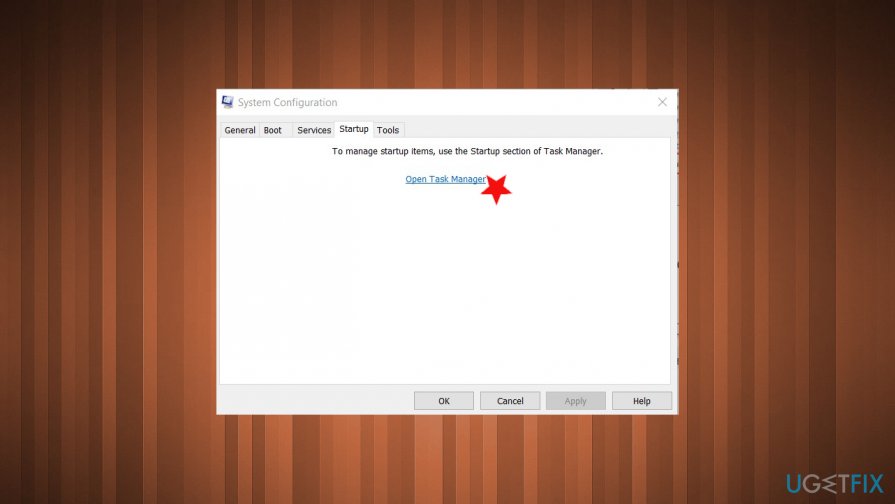
Origins wont open games cant launch fix open taskmanager - Close Task Manager and press OK.
- Restart the PC.
Delete temporary files to fix Origin won't open - Games not launching
- Open the Run box and type %AppData%.
- Press Enter.
- The AppData directory opens.
- Find the Roaming folder and open it.
- Right-click on the Origin folder and choose the delete from the drop-down.
- Go to AppData and locate the Origins folder. Delete it.
Check for Windows Updates
- Go to Windows settings and find Update & Security.
- Check for Updates.
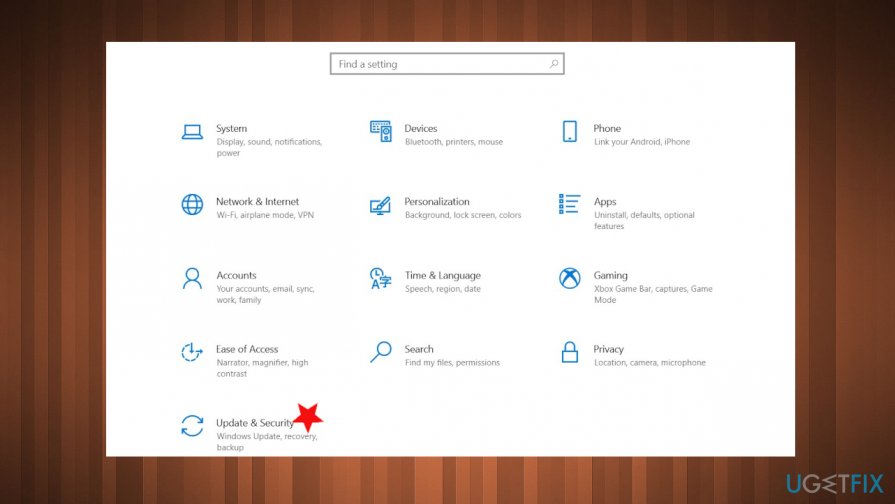
Origins wont open games cant launch fix update - If any updates get found install them.
Run the game in compatibility mode to fix Origin won't open - Games not launching
- Right-click the Origin Client App icon on the desktop or in the installation folder.
- Choose Properties from the drop-down.
- On the window find the Compatibility tab.
- Click Run compatibility troubleshooter. If that is not possible:
Check the box for the Run this program in compatibility mode for and choose the operating system
Disable option for Disable Fullscreen Optimization
Check the box for Run this program as an administrator
Apply and OK. - Launch the Origin application.
Reinstall the app to fix Origin won't open - Games not launching
- Go to the Control panel and choose Uninstall program under Programs.
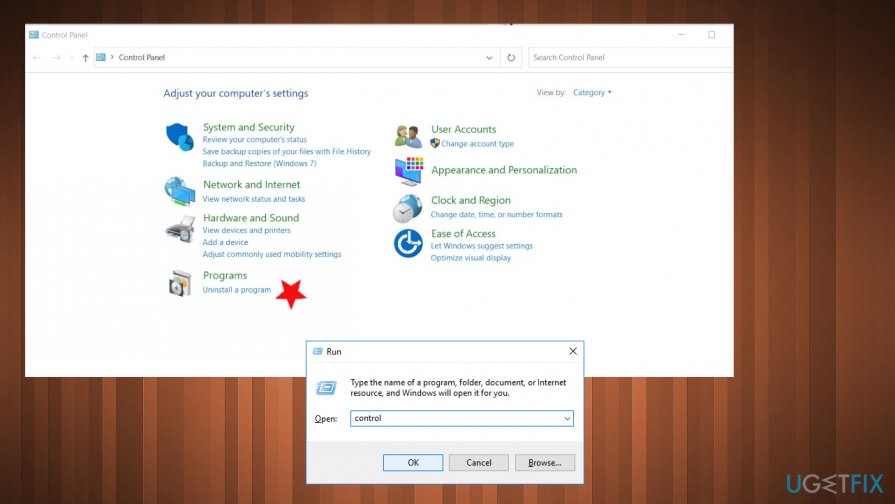
Origins wont open games cant launch uinistall - Find the Origin app and right-click.
- Choose to uninstall.
- Go to the official site of Origin and install the latest program.
Reset host files for Windows
- Open the File Explorer and go to the following location:
C:\\Windows\\System32\\drivers\\etc - Locate the host file in the directory and rename it host.bak.
- Create the notepad file named Hosts and paste the following there:
# Copyright (c) 1993-2009 Microsoft Corp.
#
# This is a sample HOSTS file used by Microsoft TCP/IP for Windows.
#
# This file contains the mappings of IP addresses to host names. Each
# entry should be kept on an individual line. The IP address should
# be placed in the first column followed by the corresponding host name.
# The IP address and the host name should be separated by at least one
# space.
#
# Additionally, comments (such as these) may be inserted on individual
# lines or following the machine name denoted by a ‘#’ symbol.
#
# For example:
#
# 102.54.94.97 rhino.acme.com # source server
# 38.25.63.10 x.acme.com # x client host
# localhost name resolution is handle within DNS itself.
# 127.0.0.1 localhost
# ::1 localhost - Save the notepad file in the C:\\Windows\\System32\\drivers\\etc location.
Bottom line
To fix the issue of Origin not opening and games not launching, try running the app as an administrator and enabling compatibility mode. If these solutions do not resolve the problem, further troubleshooting may be necessary.
Frequently asked questions
First, try restarting your computer and then relaunching Origin. If that doesn’t work, consider repairing the Origin client through the installation folder.
Ensure that your Windows 11 system is updated and check if the games are installed correctly within the Origin client. Additionally, disabling any conflicting software, like overlays or antivirus programs, can help.
Yes, you can uninstall Origin from the Control Panel and then download the latest version from the official website to reinstall it on your Windows system.




Report an issue
What's wrong with this guide? We review every report and update or remove content.
Report received — thank you. We'll review and fix it.
You need a free account to submit a report.
Be the first to comment