How to remove
Uninstall Nvidia drivers
from Windows
Easily uninstall Nvidia drivers on Windows 10 or Windows 11 with our expert-tested guide. Get it done in minutes, leaving zero traces behind!

How does How to uninstall Nvidia drivers end up on your PC?
- Nvidia drivers are still installed when switching to a new GPU
- Software conflicts arise from not uninstalling old drivers
- Incorrect handling of software can lead to device failure
- Windows registry may contain remnants of old drivers
- Installing new drivers before uninstalling old ones can cause issues
Repairs Windows system files, removes malware, and restores a clean OS state — without reinstalling.
Hi, I got a new RX6800 graphics card as a present for my birthday. I used to run GTX 980 before, and I have Nvidia drivers installed. I have never meddled with drivers before, as I know they are important for the PC to work correctly. Can you please explain how to correctly uninstall Nvidia drivers so that I can install the new GPU?
Nvidia is among the most prominent technology companies focusing on GPU design and manufacturing for the gaming industry. Its brand GeForce is likely the most used among users who use dedicated graphics cards for their computers around the world. While its direct competitor AMD is behind when it comes to overall sales, the number of people shifting to the latter increases continually.[ref en-1]
It does not matter from which brand you are shifting, however, as the most important is to do it correctly in order to not break delicate components of the hardware. Our "How to upgrade your graphics card" article explains the peculiarities of the full process, so make sure to check it out before starting.
While replacing hardware correctly is important, it is also imperative to ensure that software is handled correctly as well, as the device might fail to function completely. In other words, if you don't uninstall Nvidia drivers before installing the new graphic card, it will not be picked up by your computer at all and can lead to various software conflicts, resulting in more errors and headaches.
Therefore, there is a great need to uninstall Nvidia drivers correctly. In order to do that, you need to find all the related components besides the drivers that could be present on your device. Windows registry[ref en-2] could also be cleaned for the best results, although meddling with it without advanced knowledge is not recommended.
In any case, if you need to uninstall Nvidia drivers to swap for another GPU or any other reason, proceed with this free guide.
Important: Do not install new drivers for AMD GPU before uninstalling Nvidia drivers, as it can lead to all sorts of software conflicts. Despite the popular belief, your GPU will function without drivers (although very poorly), so you will be able to use your computer to install new drivers without problems
Step 1. Uninstall Nvidia drivers
While it may seem complicated, uninstalling Nvidia or any other driver is not as difficult as it may seem initially. While you can do it through the Device Manager, the uninstallation process is more accurate.
- Right-click on Start and pick Settings
- Go to Apps section (or Apps & Features, depending on your Windows version)
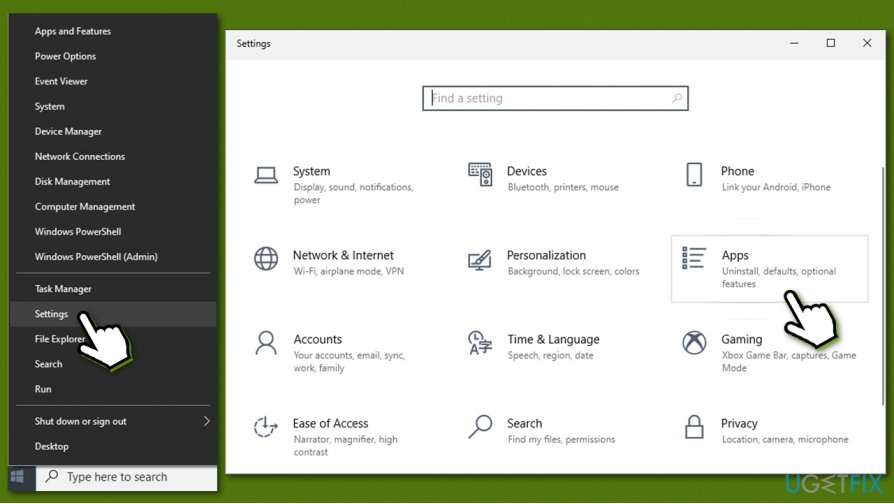
How to uninstall nvidia drivers go to settings - Scroll down until you find bunch of Nvidia entries
- Locate Nvidia Graphics Driver and click it
- Click Uninstall
- When the warning shows up, hit Uninstall once again
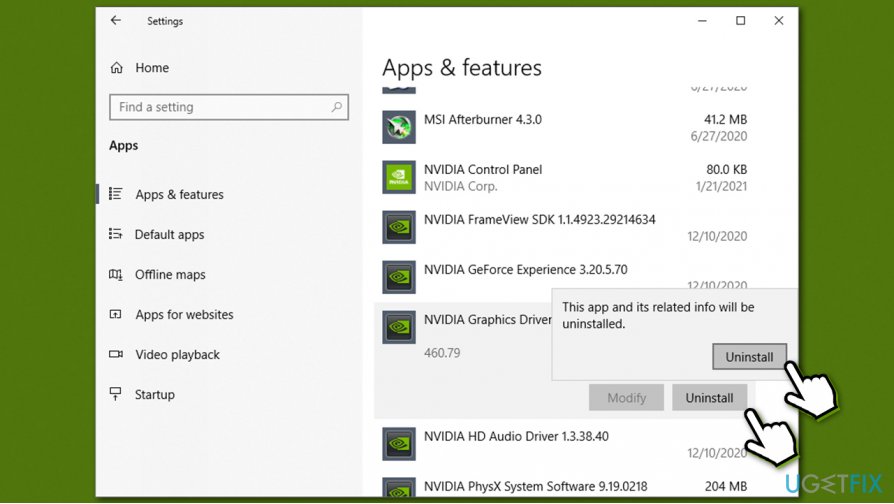
How to uninstall nvidia drivers uninstall via apps and features - When Nvidia Uninstaller shows up, proceed with Uninstall
- Wait and finally click Restart now - your PC will immediately reboot.
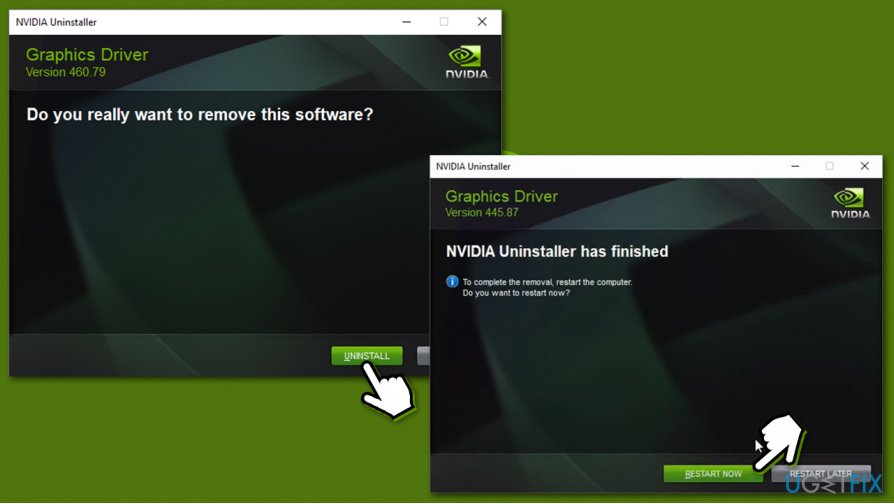
How to uninstall nvidia drivers restart pc
Step 2. Uninstall additional programs related to Nvidia
After a restart and the uninstallation of the main GPU driver, your screen might seem a bit weird - don't worry, it is completely normal. Now you should proceed with uninstalling other Nvidia components, such as Nvidia Control Panel, Nvidia HD Audio Driver, Nvidia PhysiX, GeForce Experience, and software, depending on what you had installed before.
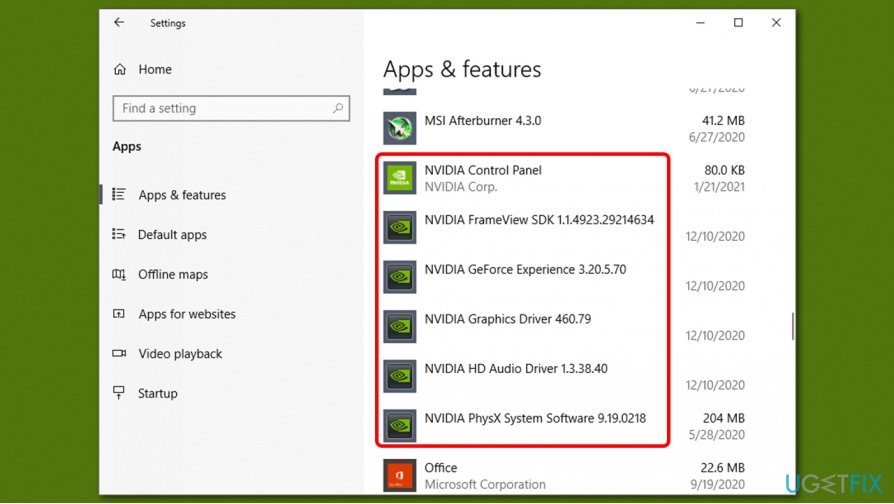
Note that you might have to reboot your PC several times before you uninstall all Nvidia components.
Step 3. Delete leftover files
While this step is not mandatory for those who want to simply reinstall Nvidia drivers, it is relatively important for those swapping from Nvidia to AMD.
First of all, you need to enable hidden file visibility, which can be done via the File Explorer:
- Press Win + E on your keyboard to open File Explorer
- At the top, select the View tab
- Tick the Hidden items option
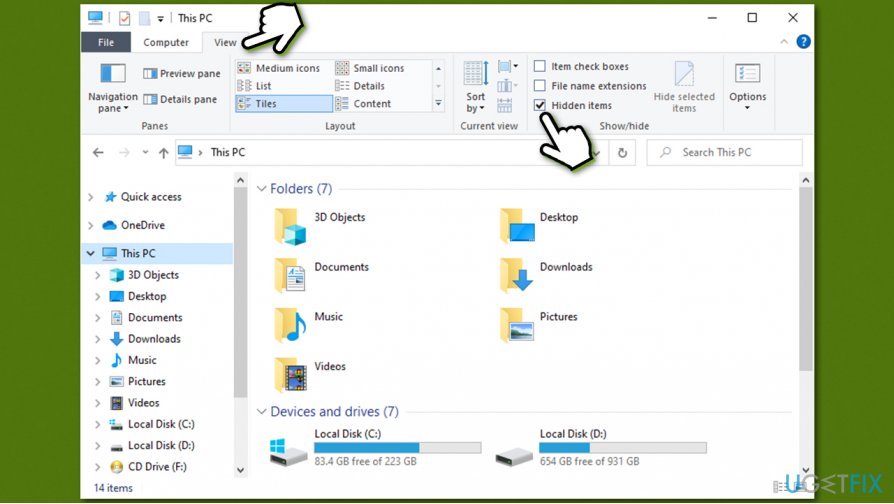
How to uninstall nvidia drivers show hidden items
Now you can delete the leftover components of Nvidia files:
- Press Win + R on your keyboard
- Type in %AppData%
- Scroll down and delete NVIDIA folder.
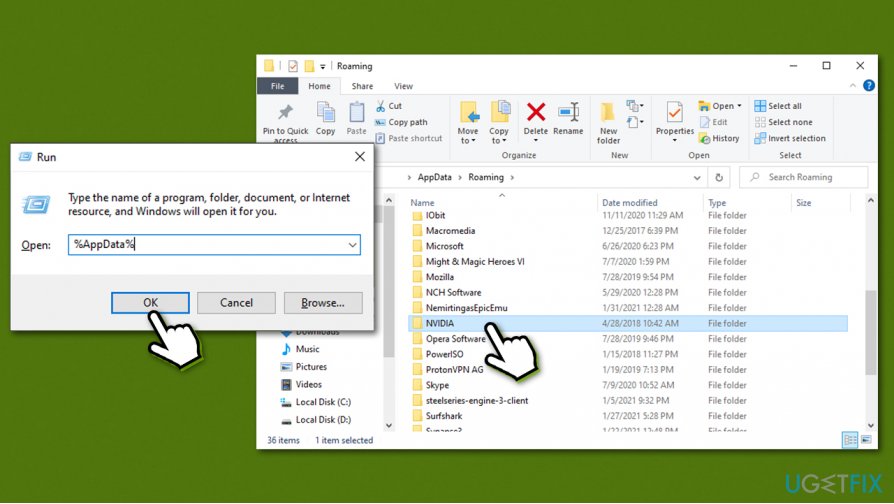
How to uninstall nvidia drivers delete appdata
After this, you should do the same in the following locations:
- %ProgramData%
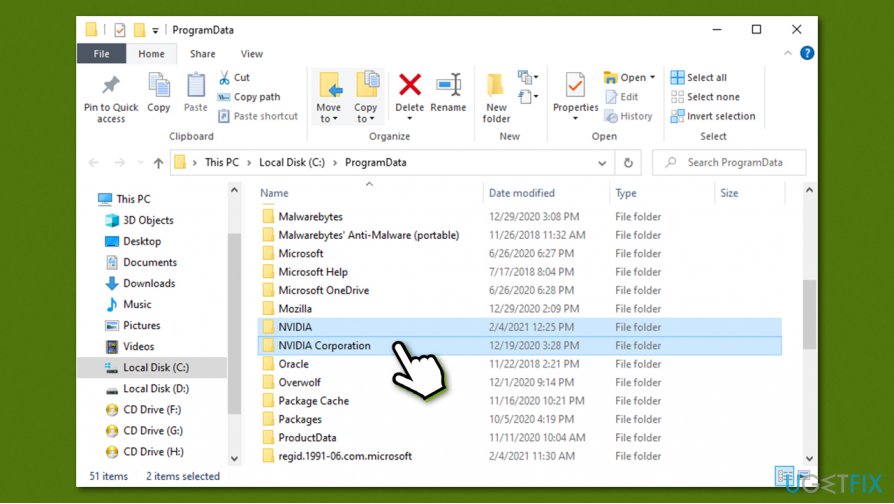
How to uninstall nvidia drivers delete programdata - %ProgramFiles%
- %LocalAppData%
Step 4. Delete Windows registry entries
Warning: we do not recommend meddling with the register unless you know what you are doing, as incorrectly deleting entries might cause serious system malfunctions. Before proceeding with the below steps, backup your registry
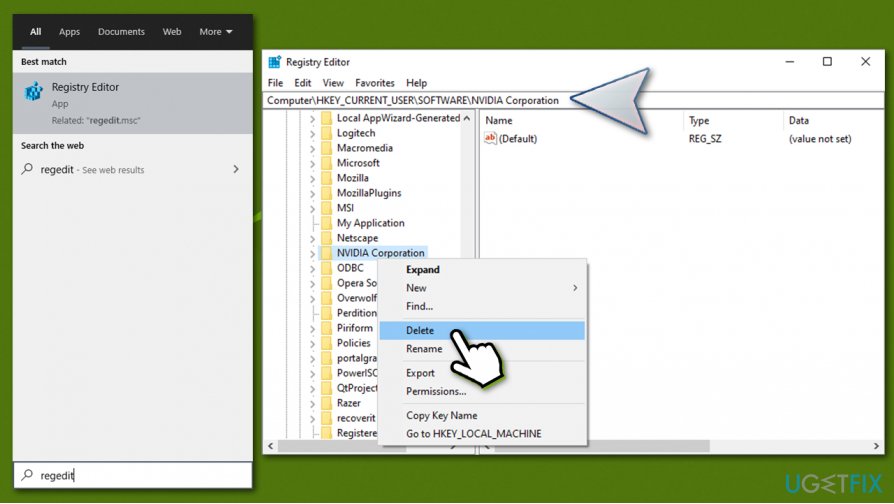
- Type in regedit in Windows search and press Enter
- Got to the following location:
Computer\\HKEY_CURRENT_USER\\SOFTWARE\\NVIDIA Corporation
- Delete NVIDIA Corporation folder
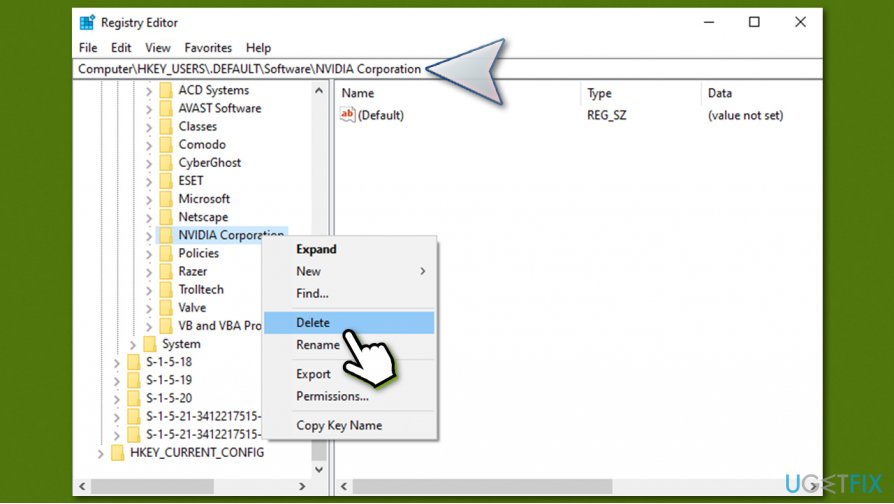
How to uninstall nvidia drivers edit registry - Go to the following location:
Computer\\HKEY_USERS\\.DEFAULT\\Software\\NVIDIA Corporation
- Delete NVIDIA Corporation folder.
How to uninstall nvidia drivers edit registry2
If you are a novice computer user, we highly recommend you not touch the registry at all. Instead, you can clean your registry with the help of optimization software such as [d1]. Besides, if you encounter lag, errors, BSODs,[ref en-3] or other computer issues, this utility can help you fix these problems automatically.
Step 5. Download and install the newest drivers for your new GPU
You should keep in mind that GPU drivers are crucial for the optimal operation of any graphics card. Without them, there is no point in upgrading.
Windows Task Manager can indeed be used for this purpose, but it is far from accurate and might not install the latest drivers that are available for the device. GPU drivers, unlike many other drivers (for example, for mice or keyboards), are very specific and should be acquired from the manufacturer's website.
Here is the list of websites for the three brands for GPU drivers:
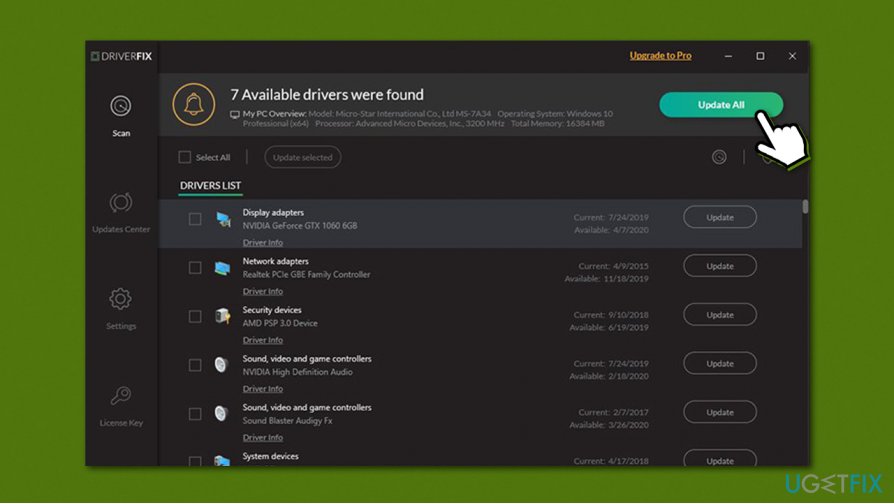
Keep in mind you need to know your precise device model information in order to install the correct drivers. Or, you could rely on a third-party driver updater such as [rev id="DriverFix"]. Not only will it determine which drivers you need automatically, but it will also keep all the other software up-to-date at all times. In other words, you will never have to worry about drivers, their versions, compatibility, and other problems.
Bottom line
To uninstall Nvidia drivers correctly, ensure all related components are removed and consider cleaning the Windows registry. If you encounter issues after following these steps, further troubleshooting may be necessary.
Frequently asked questions
To uninstall Nvidia drivers on Windows 10, go to 'Settings' > 'Apps', find the Nvidia graphics driver, and click 'Uninstall'. Follow the prompts to complete the uninstallation.
Yes, you can use the 'Display Driver Uninstaller' (DDU) tool, which is recommended for completely removing Nvidia drivers from Windows 11 to avoid any leftover files.
If you encounter errors while uninstalling Nvidia drivers on Windows, try booting into Safe Mode and then use the 'Device Manager' to uninstall the driver, or utilize the DDU tool for a cleaner removal.




Report an issue
What's wrong with this guide? We review every report and update or remove content.
Report received — thank you. We'll review and fix it.
You need a free account to submit a report.
Be the first to comment