How to remove
Uninstall Avast Driver Updater
from Windows
Easily uninstall Avast Driver Updater on Windows 10 or 11 with our expert-tested guide. Get rid of unwanted software in minutes!

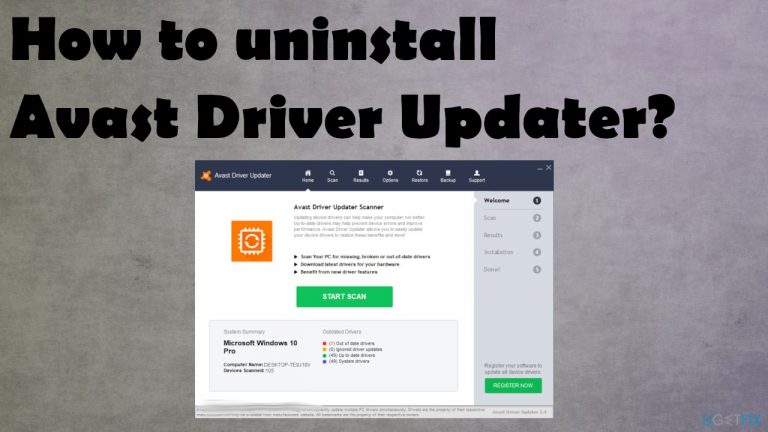
How does How to uninstall Avast Driver Updater end up on your PC?
- Program not found in any folders
- Leftover files triggering processes
- Unwanted pop-ups persist
- Difficulties in locating uninstall file
- Alterations not applied during uninstallation
Repairs Windows system files, removes malware, and restores a clean OS state — without reinstalling.
Hello. I used this Avast Driver Updater, and I am not happy with the program. However, it seems to be impossible to uninstall the tool from my computer. I don't know what to do and how to uninstall this program. It gets annoying because the program shows me files that I need to update and forces various process to cancel. I cannot properly uninstall it because it seems that I have deleted it already, and those pop-ups still occur.
It might sometimes be difficult to get rid of the program that is not found in any folders on the machine. It is difficult to uninstall Avast Driver Updater, according to various reports[ref en-1] online where users claim to delete the program, but the activities seem to still affect the performance and trigger unwanted interruptions.
Avast Driver Updater is a program that should help with the performance of PCs because it scans hardware for broken or outdated drivers, updates them. Such activity should reduce and prevent problems with the computer. The application should help with driver updating that is an important issue when it comes to various system errors and issues with performance.[ref en-2]
However, people that want to remove this program state that it is not that useful, and pop-ups still come to the screen continuously. To uninstall Avast Driver Updater, you should go to the application folder and file the needed uninstall file or right-click on the program icon to find such an option. There might be some issues with these procedures when some alterations are not changed, or files remain on the machine triggering unwanted processes.
Some people might call this tool a PUP[ref en-3] for the unwanted activities and other issues that Avast Driver Updater or related third-parties create. Any leftover files can still trigger the background processes that the updater is set to launch, so you need to clear the machine properly to get rid of the application. Especially when you don't want to use it anymore.
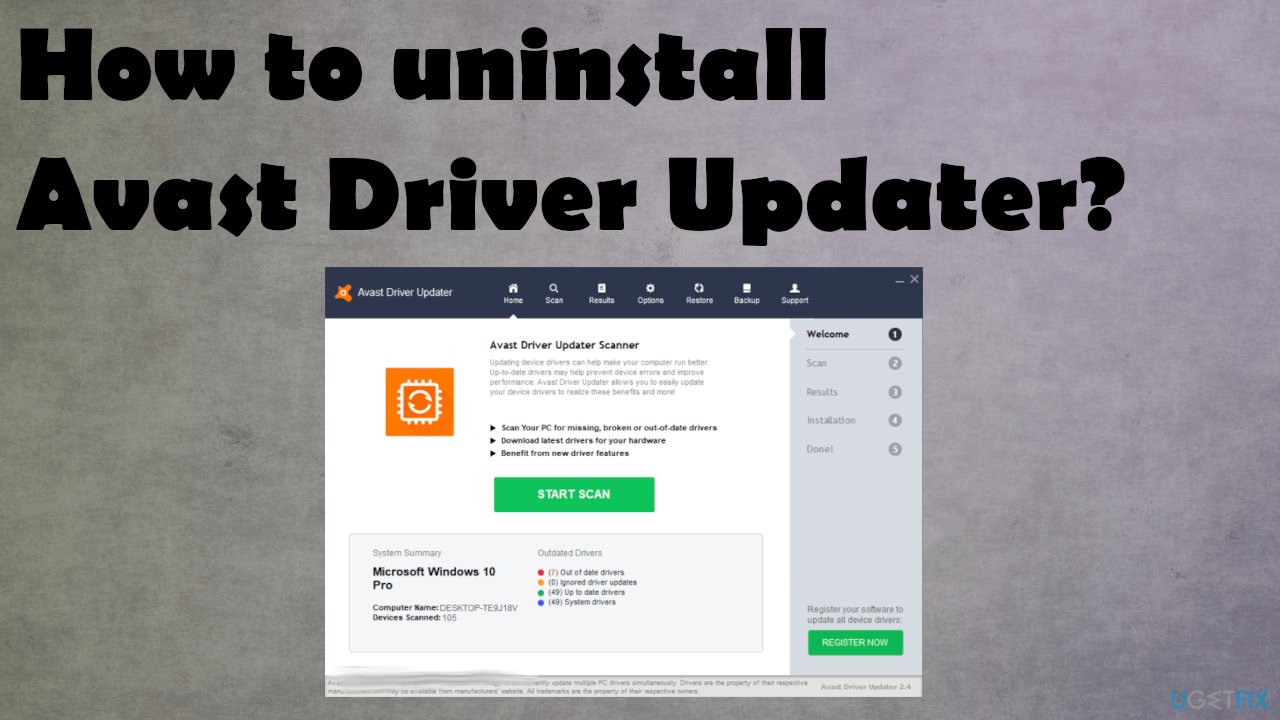
How to uninstall Avast Driver Updater
Generally, driver updates are needed for the issue fixing and ensuring compatibility with the application and operating system. Sometimes, such issues with drivers can trigger errors like Headphone Driver missing or missing Audio Drivers on Windows 10. The issues can be fixed with [rev id="DriverFix"] application, other similar tools that are reputable in such instances. Of course, it is possible to do it manually when you download compatible drivers from the manufacturer and other official sources.
However, outdated drivers can create some security vulnerabilities and enable attackers or infections to find the way to your machine. This is how personal data might be accessed by malicious actors. PUPs can also trigger issues with drivers and system files. It is a circle. You might want to check for any intruders with the anti-malware program or security tool to make sure that cyber infections are not present.
It is possible to quickly check for outdated or corrupted system files, repair registries, and other functions on the PC with [d1] and similar applications. Then you can rely on proper uninstallation procedures and get rid of Avast Driver Updater.
Shut down any related processes
- Click on the taskbar and open Task Manager.
- Click on the Processes tab and right-click on any suspicious task to End Task.
Remove Avast Driver Updater via Control Panel
- Open Control Panel via Run box or Windows Search.
- Click on Programs and Uninstall a program feature.
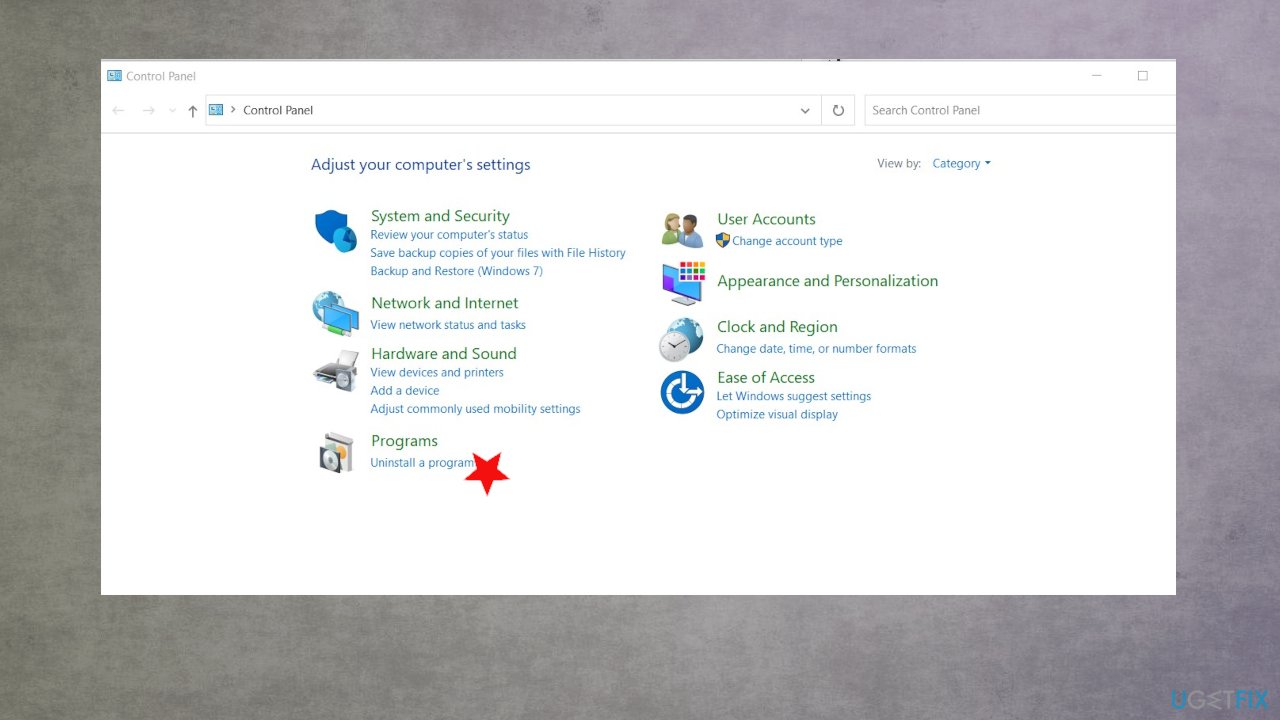
Uninstall avast driver updater program uninstall - Find the Avast Driver Updater and click on the program.
- Choose Uninstall.
Uninstall Avast Driver Updater from Windows 10
- Click the Start button and go to Settings.
- Click on Apps and then choose Apps and Features from the menu.
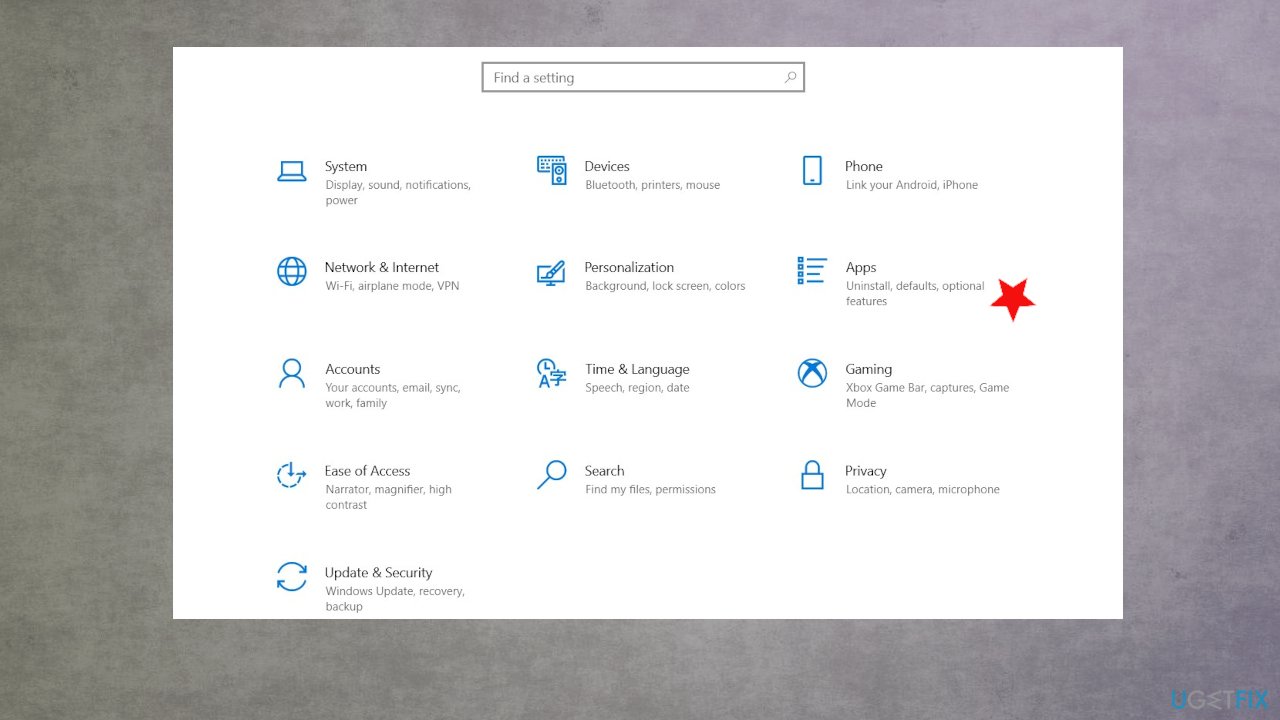
Uninstall avast driver updater apps - Choose Apps & Features on the left and find the Avast Driver Updater.
- Click on it to get the Uninstall button.
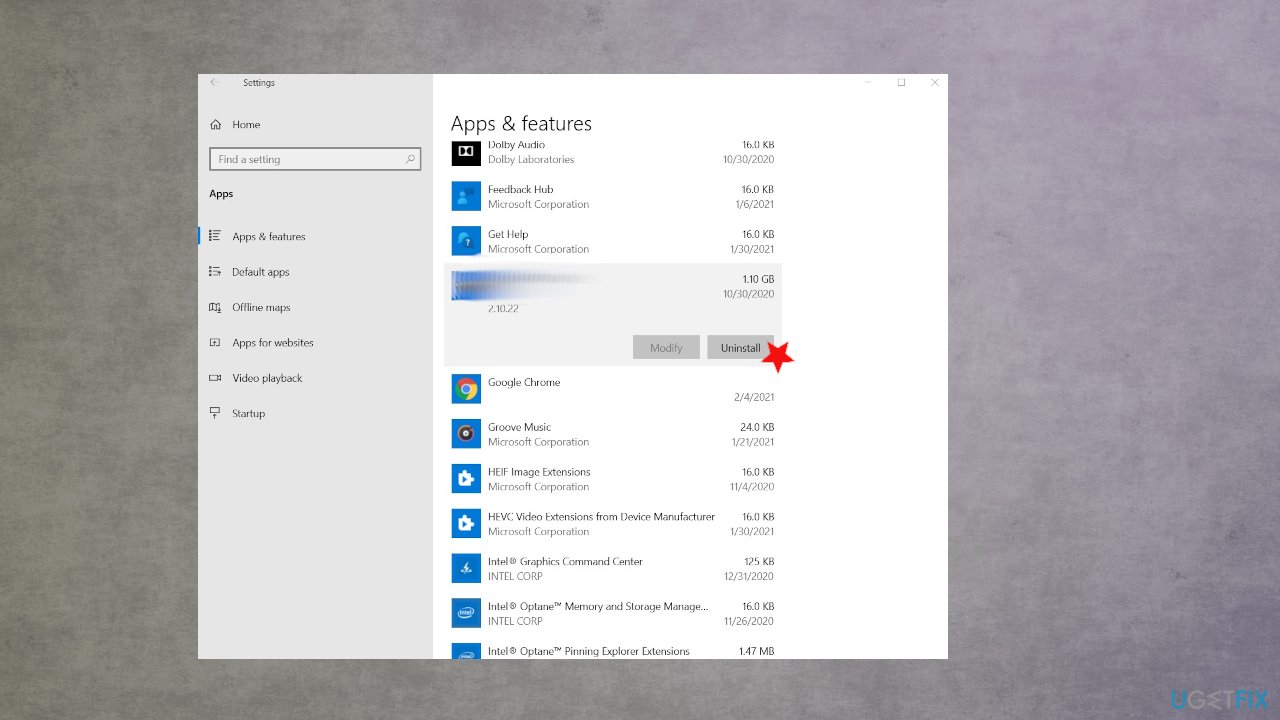
Uninstall avast driver updater uninstall - If you encounter the permission window, click Yes.
- Confirm the Uninstall.
- Wait for the process to finish.
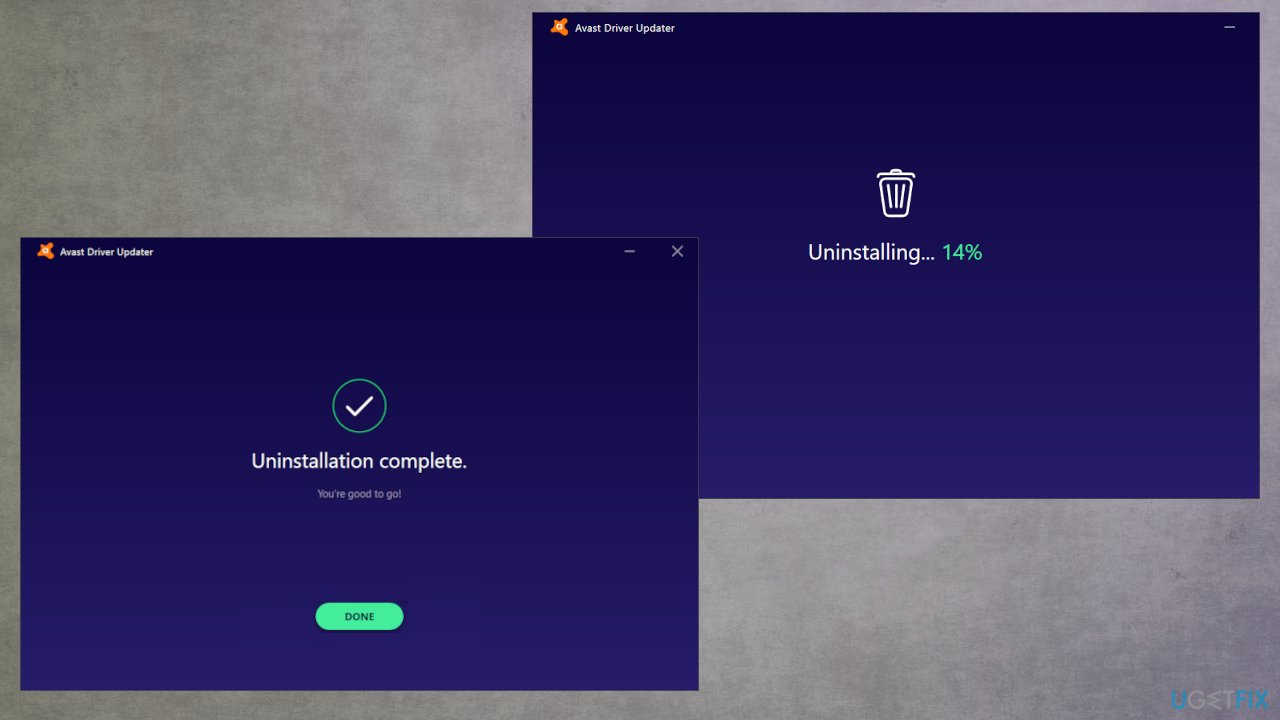
Uninstall avast driver updater done - Click Done to exit the uninstallation wizard.
Avast Driver Updater uninstall from Windows 8
- Press the Windows button and X on your keyboard.
- Choose Programs and features when the menu appears.
- Right-click the Avast Driver Updater and choose to Uninstall/Change from the menu.
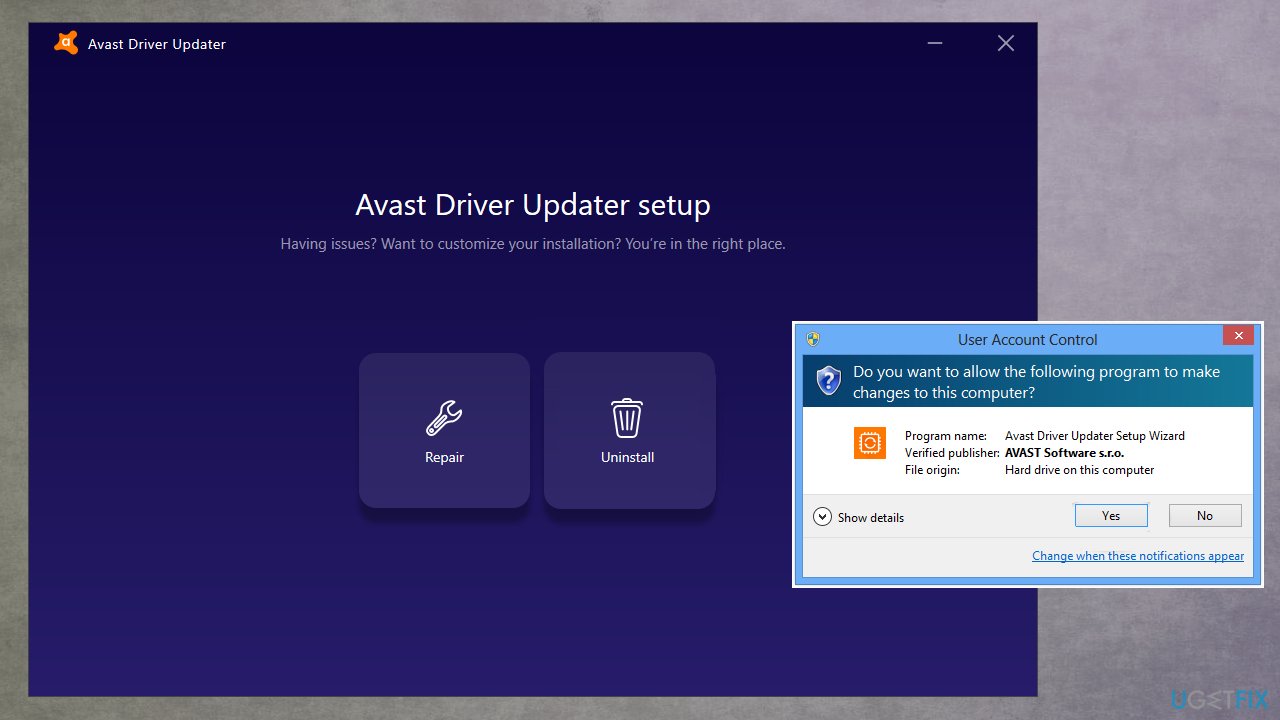
Uninstall avast driver updater uninstall confirm - Approve the uninstallation with Yes if prompted about User Account Control.
- Confirm the Uninstallation o the Avast Driver Updater setup menu.
- Uninstall and wait for the process to be done.
Bottom line
To uninstall Avast Driver Updater, you should locate the uninstall file in the application folder or right-click on the program icon to find the uninstall option. If issues persist, ensure that all leftover files are removed to prevent unwanted processes. If none of these solutions work, consider seeking further assistance or using specialized uninstaller software.
Frequently asked questions
To uninstall Avast Driver Updater from Windows 10, go to Settings > Apps, find Avast Driver Updater in the list, click on it, and select Uninstall.
Yes, you can remove Avast Driver Updater by opening Control Panel, selecting 'Programs and Features,' finding Avast Driver Updater, and clicking 'Uninstall'.
If Avast Driver Updater won't uninstall, try using the Avast Uninstall Utility in Safe Mode on Windows to completely remove the program.




Report an issue
What's wrong with this guide? We review every report and update or remove content.
Report received — thank you. We'll review and fix it.
You need a free account to submit a report.
Be the first to comment