How to fix
0x80073d13 error on Xbox Game Pass
on Windows
Resolve the 0x80073d13 error on Xbox Game Pass effortlessly on Windows 10 and 11. Follow our expert-tested solutions for a seamless gaming experience.

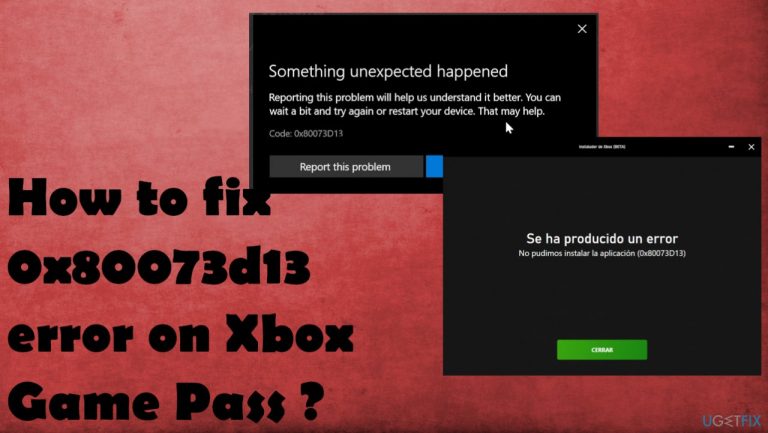
What causes How to fix 0x80073d13 error on Xbox Game Pass?
- Low storage space
- Disk format difference
- Different allocation sizes
- Incompatibility with system files or settings
Repairs Windows system files, removes malware, and restores a clean OS state — without reinstalling.
Hello. I have an issue with Xbox Game Pass and Windows store. While installing the game, I get the 0x80073d13 error. During any install, the error occurs. Microsoft Store app, Xbox app both give the same result with the error. The download appears to start and go up a few percent or as far as 20, but the error appears, and there is nothing I can do. Help!
0x80073d13 error on Xbox Game Pass is a problem that reportedly[ref en-1] appears under various circumstances repeatedly. However, the main issue is the error occurring during the installation of games on the Xbox Game Pass PC application. The problem arises when the download gets stuck, and the experience is stopped by the error message.
Users cannot experience what Xbox offers, and the game cannot be downloaded or played when a 0x80073d13 error occurs. The notification states about the sudden problem, but not much information is provided. The Xbox Game Pass by Microsoft[ref en-2] is the feature that allows users to play games on Windows 10 computers with Xbox one console.
The fix for the 0x80073d13 error on Xbox Game Pass is needed when people encounter the error and cannot install some or any games. The download gets stuck at 4.5 or 10%, and the message with an error appears. There are possible reasons and causes for the issue. One of them can be low storage space, so making some space or downloading the game on a different, more spacious drive might help.
Another cause of the error can be disk format difference or different allocation sizes. You can possibly fix the 0x80073d13 error on Xbox Game Pass by formatting the drive or change the allocation. XGP games work in 4kb format, so a disk that has 16kb format can clash with the game and trigger the error. This is not the issue of Xbox or Windows updates, programs,[ref en-3] so solving the problem includes your interference with settings.
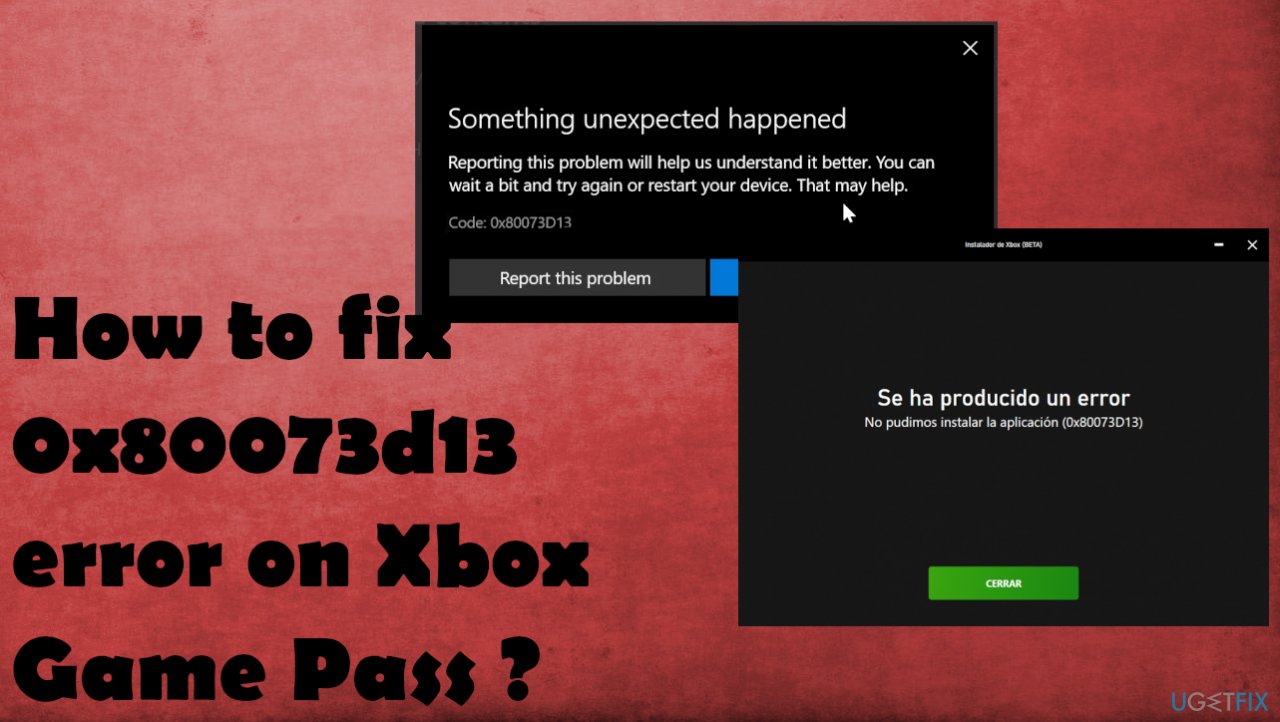
How to fix 0x80073d13 error on Xbox Game Pass
The issue with Windows devices is that some system files or settings, compatibility problems can trigger additional issues with machines. You can sometimes fix such problems with files or application compatibilities using the [d1] program or similar tools designed for the system repair. Some of the more serious errors can trigger issues with crucial processes, but most of them can be fixed, as well as the 0x80073d13 error on Xbox Game Pass. You should follow the solutions below and try to change settings to fix the error.
Set the C drive to default
- Open Settings and go to Storage Settings.
- Look for More Storage Settings.
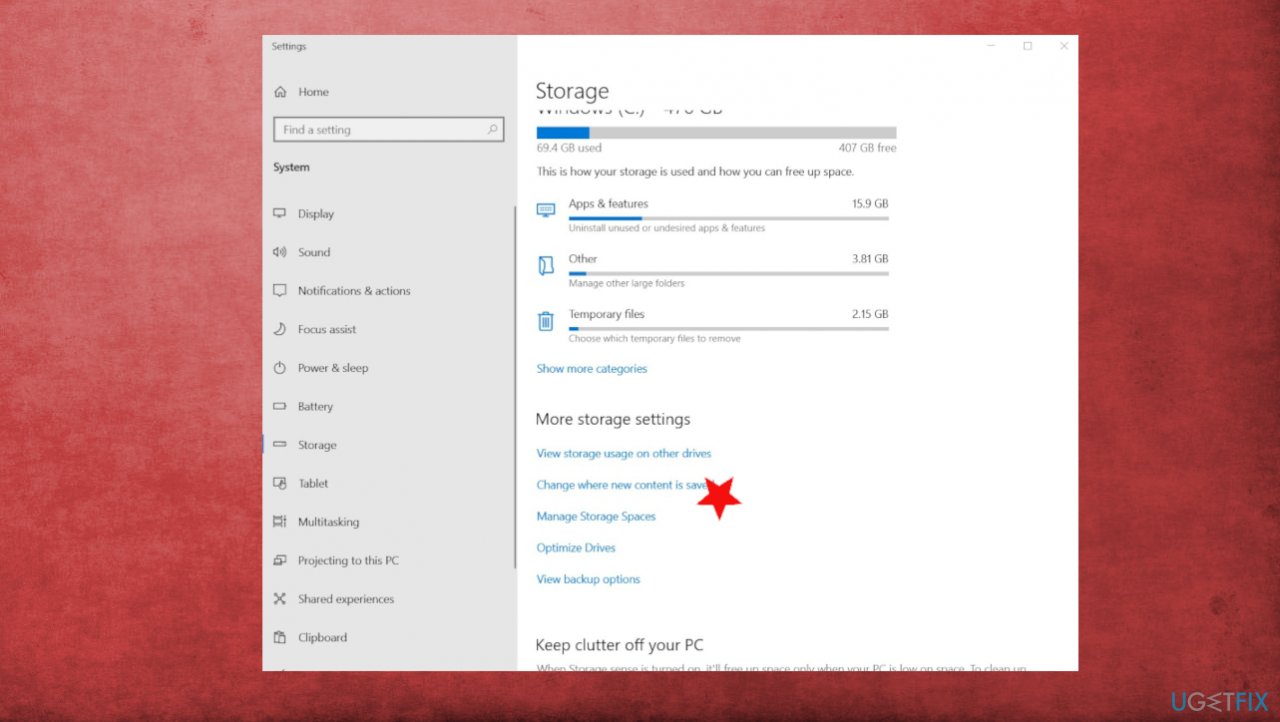
Game pass xbox error 0x80073d13 storage - Click Change where the new content is saved.
- Go to New apps will save to section.
- Choose Local disk C.
- Confirm with OK.
Create new partition to fix 0x80073d13 error on Xbox Game Pass
- Press Win and R keys and type diskmgmt.msc, Click OK.
- Click the C drive once the Disk Management window appears.
- Choose Shrink Volume at the top.
- Type the amount of space.
- Click Shrink.
- Unallocated Space at the bottom and choose New Simple Volume.
- Set File System to NTFS.
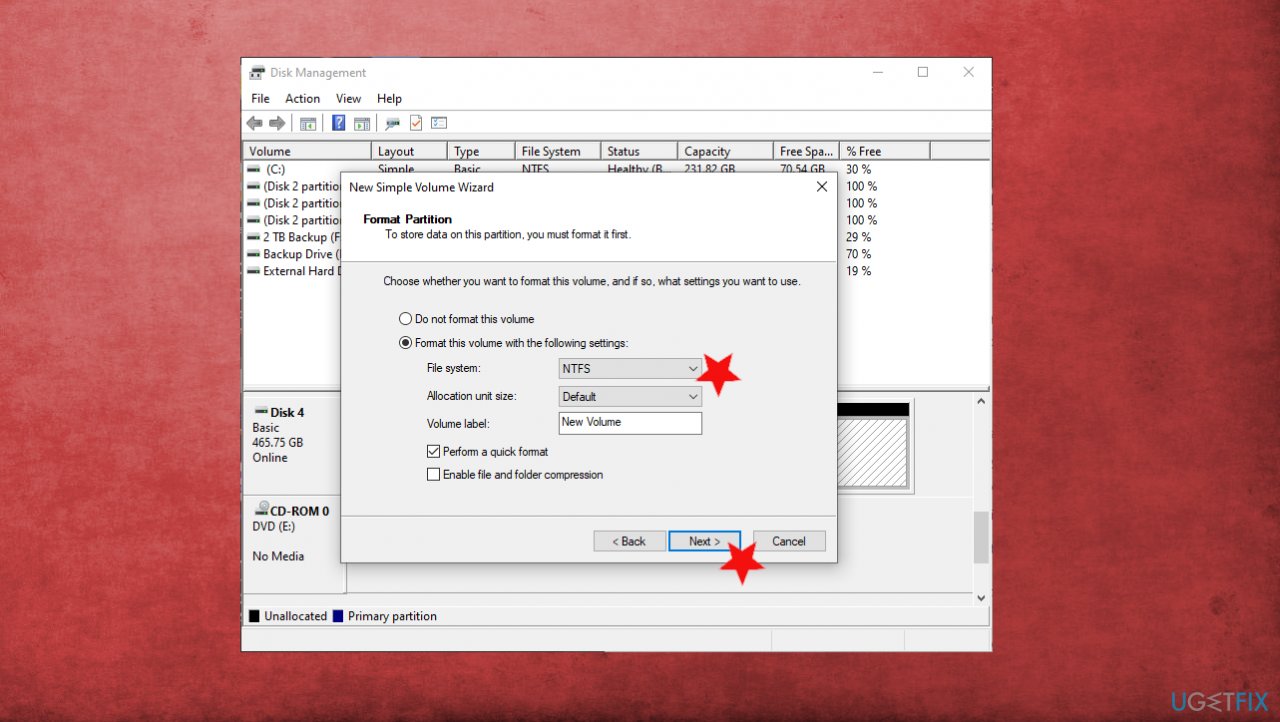
Game pass xbox error 0x80073d13 disk management - Set Allocation Unit Size to Default or 4096b.
- Click Next and you will have a new D drive to install games to.
- Go to Xbox PC App ad choose the settings. Found General and drive selection.
- Choose drive D ad the default directory.
Reset the Microsoft Store
- Press Win and R keys to open Run.
- Type WSReset.exe and hit Enter.
- Wait for the reset process.
Reinstall the Xbox app on Windows to fix 0x80073d13 error
- To reinstall the app, uninstall it first.
- Click on the Start button and go to Settings.
- Choose Apps.
- Then Apps & features.
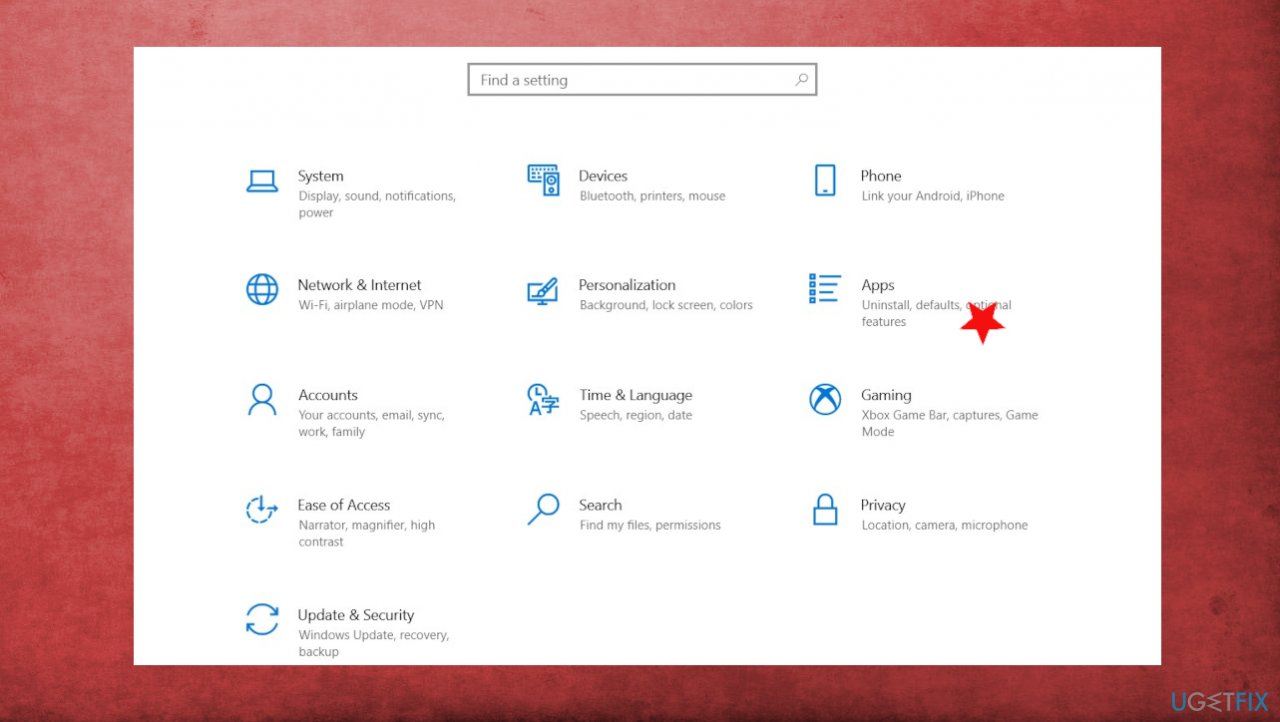
Game pass xbox error 0x80073d13 apps - Look for the Xbox Beta app and click on it.
- Choose to Uninstall button.
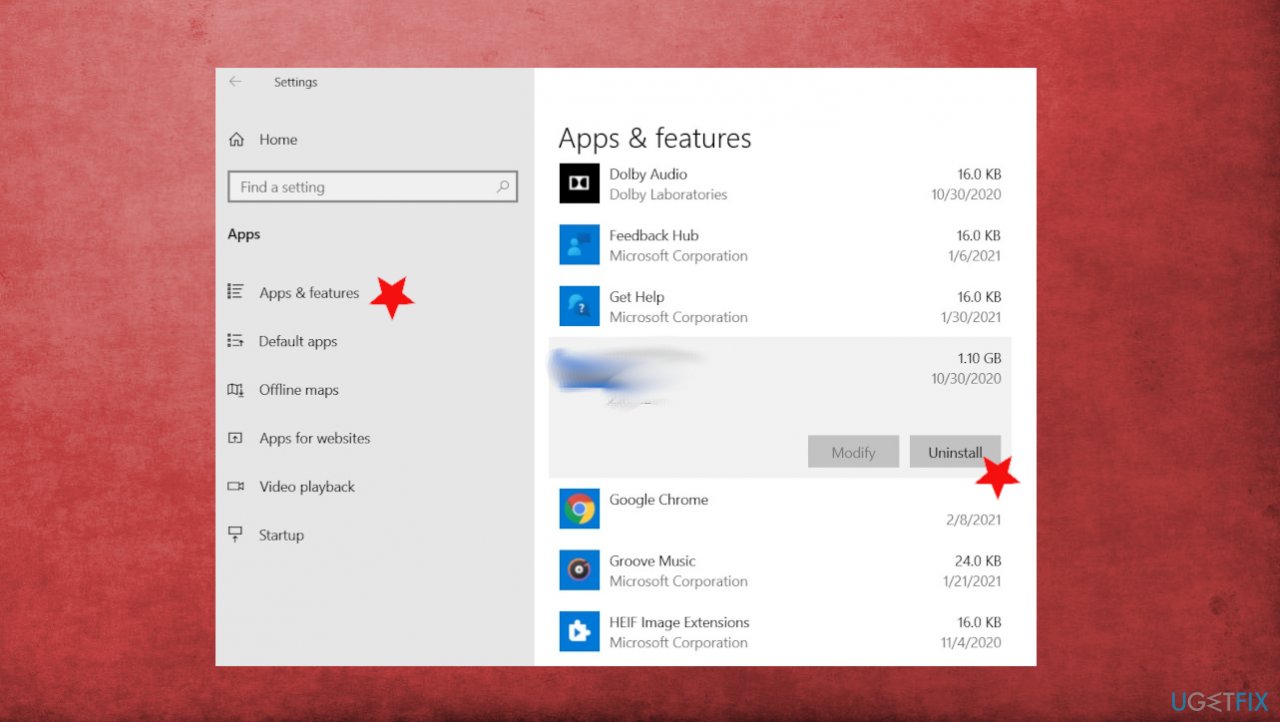
Game pass xbox error 0x80073d13 uninstall - Go to Microsoft Store and in the search type Xbox.
- Install the app and check if the error appears again.
Bottom line
To fix the 0x80073d13 error on Xbox Game Pass, you can try freeing up storage space, formatting the drive, or changing the allocation size. If these solutions do not resolve the issue, further investigation into system settings may be necessary.
Frequently asked questions
The 0x80073d13 error typically occurs due to corrupted game files or issues with the Xbox app installation on Windows 10. It may also be related to outdated system files or permissions settings.
To fix the 0x80073d13 error on Windows 11, try resetting the Xbox app and checking for system updates. You can do this by going to Settings > Apps > Apps & features, selecting the Xbox app, and choosing 'Advanced options' to reset.
Yes, you can try repairing the Xbox app through the Settings menu by going to Apps > Apps & features, selecting the Xbox app, and clicking on 'Repair'. This often resolves the error without needing a full reinstall.




Report an issue
What's wrong with this guide? We review every report and update or remove content.
Report received — thank you. We'll review and fix it.
You need a free account to submit a report.
Be the first to comment