How to fix
Windows 10 cumulative update error KB3194496 and restore mouse/keyboard settings
on Windows
Resolve the Windows 10 cumulative update error KB3194496 and restore your mouse and keyboard settings effortlessly. Expert-tested solutions await!

What causes How to fix Windows 10 cumulative update error KB3194496 and restore mouse/keyboard settings?
- Cumulative update KB3194496 installation interruption
- BSOD with keyboard layout selection prompt
- Loss of mouse and keyboard functionality after update
- Rebooting leads to the same error loop
- Lack of official solutions prior to the fix script release
Repairs Windows system files, removes malware, and restores a clean OS state — without reinstalling.
I just downloaded Windows 10 cumulative update KB3194496 on my Dell laptop. It was installing like usual, but after some time the installation was interrupted by a BSOD with a message "choose your keyboard layout." But the neither the mouse nor the keyboard works. What is the best fix for this?
Cumulative KB3194496 update was just released, and it has already received some unhappy users’ feedback. Windows enthusiasts complain that this update brought more problems than it has actually fixed. Indeed, Microsoft could have held back the update for a little while longer, until all of the details are in line. Nonetheless, the update has reached the user's last week, addressing more than 10 problematic areas. The update might have been successful for some, while the other have been left struggling with errors. One of the major problems people report is the issue with the keyboard and mouse functionality. The users claim that they lose control of their mouse or keyboard after or in the middle of the KB3194496 update. The error delivers them to a BSOD (blue screen of death) page which then asks the user to select the preferred keyboard layout. Unfortunately, at this point the keyboard and mouse become inactive. This might be especially frustrating if you get caught in the loop of errors and rebooting your computer is only drops you off where you started.
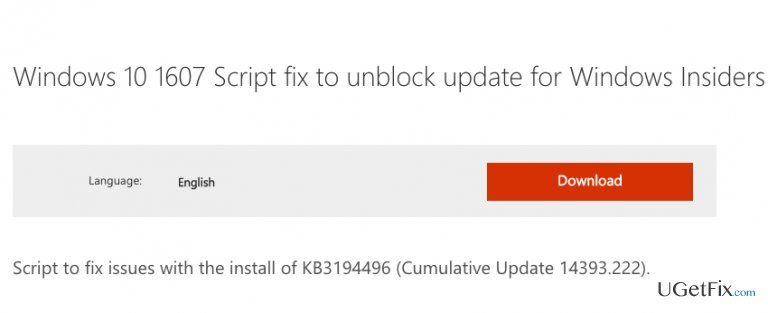
Official Microsoft support page counts over a thousand of users with the same issue, while the global numbers are unknown. Though there users managed to come up with ways to bypass this bug, no official solution has emerged. Well, not until quite recently when Microsoft has finally released the KB3194496 fix script. The script can be downloaded from the official Windows website where it is described as “Windows 10 1607 Script fix to unblock update for Windows Insiders”. So, despite the fact that there Windows user have come up quite a few workarounds in attempt to fix this issue, we do not suggest applying them to your computer. Instead, download the official fix script, which will not only fix the keyboard functionality problem but also the other issues which could have been bothering you after the KB3194496.
You can download the update here: https://www.microsoft.com/en-us/download/details.aspx?id=53942 or let Windows search for updates automatically.
Bottom line
To resolve the issues caused by the KB3194496 update, users should download the official fix script from the Windows website. This script is designed to unblock the update and restore keyboard and mouse functionality. If the official fix does not work, users may need to seek further assistance or explore additional workarounds.
Frequently asked questions
To fix the error KB3194496, you can try running the Windows Update Troubleshooter and then manually resetting the Windows Update components if the issue persists.
You can restore your mouse settings by going to Settings > Devices > Mouse and adjusting the settings, or by reinstalling the mouse drivers through Device Manager.
If your keyboard settings are disrupted, you can reset them by navigating to Settings > Time & Language > Language and ensuring the correct input method is selected.




Report an issue
What's wrong with this guide? We review every report and update or remove content.
Report received — thank you. We'll review and fix it.
You need a free account to submit a report.
Be the first to comment