How to fix
Device Manager Error Code 41
on Windows
Resolve Device Manager Error Code 41 on Windows 10 or 11 efficiently. Get expert-tested solutions for seamless device functionality! Fixed in minutes.

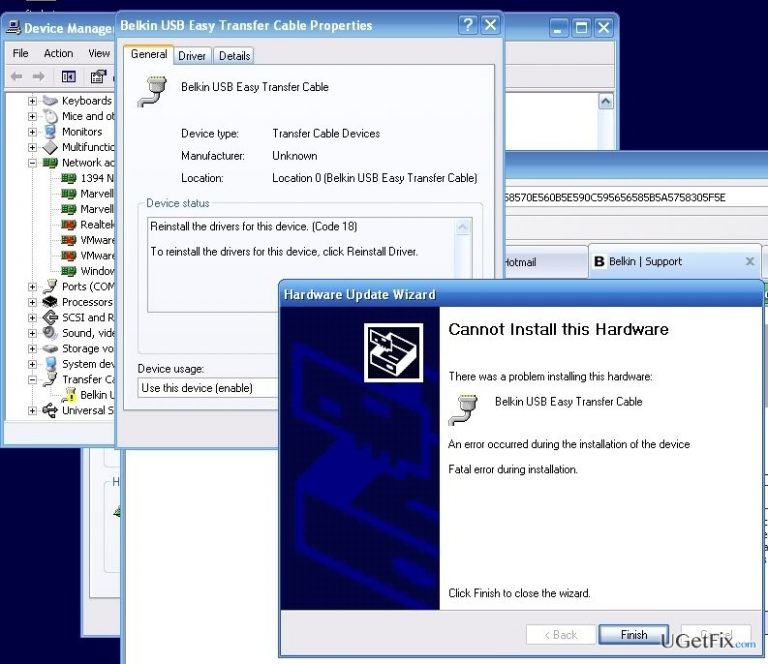
What causes How to Fix Device Manager Error Code 41?
- Faulty installation of device drivers
- Device driver inconsistencies
- Immediate system changes
- Installation of wrong apps
- Virus/malware infections
Repairs Windows system files, removes malware, and restores a clean OS state — without reinstalling.
I need help with Code 41 error removal. The full message I received this morning looks like this: “Windows successfully loaded the device driver for this hardware but cannot find the hardware device. (Code 41).”
Poorly maintained operating system sooner or later throws various errors and stops running smoothly. However, even the well-maintained system can deliver various errors due to immediate system changes, installation of wrong apps, virus/malware infections, and similar issues. Recently, people started asking for help to fix Code 41, which states that “Windows successfully loaded the device driver for this hardware but cannot find the hardware device.” This Device Manager Code 41 is typically triggered by faulty installation or device driver inconsistencies. Windows XP and Windows Vista OS appear to be prone to this bug the most, but it doesn’t mean that Windows 8, 7 or 10 cannot be affected as well. According to people’s reports, Error Code 41 tend to lock the screen when trying to run CD/DVD driver. Once the error is thrown, the system freezes, which is why people have to restart the system by force. Nevertheless, experts have already come up with the Windows Device Manager Error Code 41 fixes, which are listed in the next paragraph.
How to fix "Windows successfully loaded the device driver for this hardware but cannot find the hardware device (Code 41)"?
In comparison to BSOD errors, Device Manager Error Codes like Code 41 are less serious and easier to resolve. There are several things that you can do, i.e. uninstall problematic drivers, reinstall them, replace the hardware, update drivers manually, and more. We will list all the fixes down below:
Fix 1. Replace the hardware
If you are using plug-in device, then it might be attached in the wrong way or badly configured. Therefore, the first thing that you can try in Code 41 fix is to replace/reattach the device you attempt using. If, nevertheless, the problem is related to hardware, then you will have to try replacing your hardware.
Fix 2. Uninstall/Reinstall the drivers that are problematic
- Go to Start, type Device Manager in the search bar, and hit Enter.
- Click on the first option from the search results to open Device Manager.
- Go through the list of drivers and locate the one that is marked with a yellow exclamation mark.
- Once detected right-click on it and select Uninstall.
- When the confirmation window appears, click OK to proceed.
- Once the process is finished, restart your PC.
- Now you have to install the driver you have just removed in a correct way. Navigate to the Device Manager again.
- Click Action tab on the toolbar.
- Select Scan for Hardware Changes and let the system detect and install the missing driver automatically.
Fix 3. Fix registries
In case you have recently removed/replaced some registries via Registry Editor, there is a possibility that you did something incorrectly, which is why Code 41 emerges on your screen. To fix that, you have to:
- Click Windows key + R, type regedit in the run dialogue box, and hit OK to open Registry Editor.
- Now you have to navigate to this location (on the left pane): HKEY_LOCAL_MACHINE/System/CurrentControlSet/Control/Class/{4d36e965-e325-11ce-bfc1-08002be10318}
- Once you click on this value, select Export, type savedkey in the dialogue box, and select Save.
- Now you have to click on REG_MULTI_SZ data type UpperFilters.
- Then find Edit menu and select Delete.
- When the confirmation window opens, click Yes to complete the removal.
- Do the same with REG_MULTI_SZ data type LowerFilters.
- Finally, close Registry Editor window and reboot your PC.
Bottom line
To fix Device Manager Error Code 41, you can replace or reattach the hardware, uninstall and reinstall problematic drivers, or update drivers manually. If these solutions do not resolve the issue, consider replacing the hardware or seeking professional assistance.
Frequently asked questions
Device Manager Error Code 41 indicates that a device is not functioning properly because it has been disconnected or is not recognized by the system. This can happen due to hardware issues, driver problems, or power supply failures.
To troubleshoot Error Code 41, first check the physical connections of the device, then update or reinstall the device drivers through Device Manager. Additionally, running the Windows Troubleshooter can help identify and fix the issue.
Yes, you can fix Error Code 41 by performing a system restore to revert your system to a previous state or by updating your Windows 11 system to ensure all drivers are current. Checking for hardware malfunctions is also recommended.




Report an issue
What's wrong with this guide? We review every report and update or remove content.
Report received — thank you. We'll review and fix it.
You need a free account to submit a report.
Be the first to comment