How to fix
Blue Screen Error THREAD_STUCK_IN_DEVICE_DRIVER
on Windows
Resolve the THREAD_STUCK_IN_DEVICE_DRIVER blue screen error on Windows 10 and 11 quickly and effectively with our expert-tested solutions. Fixed in minu…

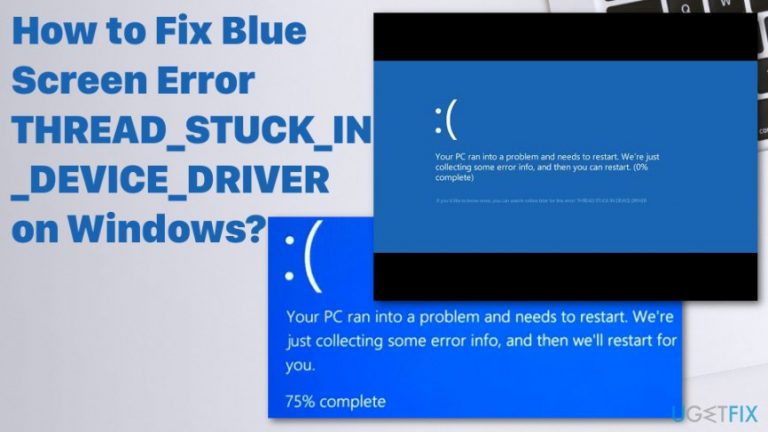
What causes How to Fix Blue Screen Error THREAD_STUCK_IN_DEVICE_DRIVER on Windows?
- Incorrectly configured device drivers
- Old or corrupted device drivers
- Corruption in Windows registry
- Bugs in Windows operating system updates
- Damaged hard disk
- Memory corruptions
Repairs Windows system files, removes malware, and restores a clean OS state — without reinstalling.
Help!! THREAD_STUCK_IN_DEVICE_DRIVER error appears all the time I try to use the Internet while playing games. I have upgraded to Windows 10 just a couple of weeks ago. I assume that’s the case. Please help since I’m really frustrated.
THREAD_STUCK_IN_DEVICE_DRIVER is a BSOD (Blue Screen of Dearth) error, which is also known as stop error code 0x000000EA. It may freeze the screen under various conditions, for example, right after Windows boot/reboot, when loading software, when downloading software/hardware, and so on.[ref en-1]
However, in most of the cases, THREAD_STUCK_IN_DEVICE_DRIVER error or 0xEA error prevents users from playing games or using multimedia since it’s caused by faulty video card driver or damaged graphics card. This error may be referred to an infinite loop problem, which means that the device driver is continuously spinning in an infinite loop waiting for hardware to become idle or occupied by other procedures.
THREAD_STUCK_IN_DEVICE_DRIVER BSOD tends to appear on PCs/laptops have both AMD and Nvidia graphics cards.[ref en-2] Although this issue is quite serious and requires specific IT-related knowledge to be fixed, we have prepared comprehensive guidelines to help you, so all you need to do to fix THREAD_STUCK_IN_DEVICE_DRIVER error is to be careful and perform all steps correctly. 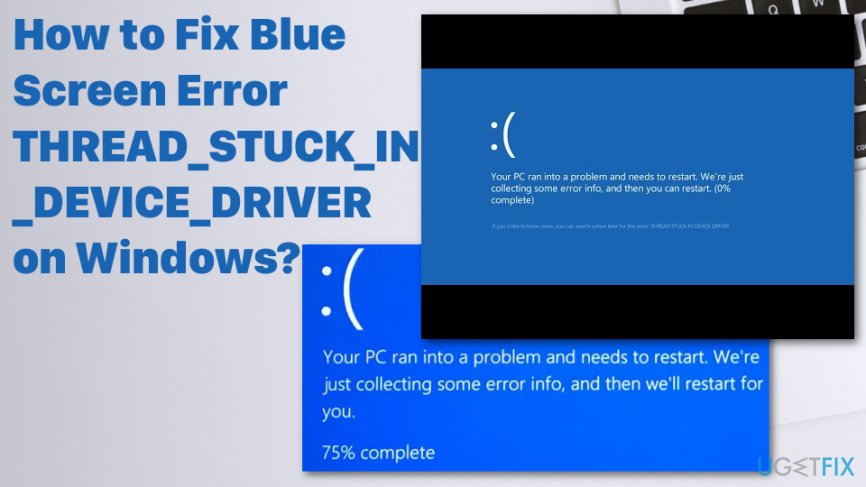
Causes of THREAD_STUCK_IN_DEVICE_DRIVER error mainly involves incorrectly configured, old or even corrupted device drivers. This blue screen error also appears due to corruption in Windows registry from recent software installation or uninstallation. Also, these errors with drivers may be caused by Windows operating system updates that include bugs or different issues.[ref en-3] Damaged hard disk or memory corruptions can also be the reason for Blue Screen of Death Error 0xEA.
How to fix THREAD_STUCK_IN_DEVICE_DRIVER error
We would like to add that your PC’s or laptop’s performance depends on you for the most part. That’s why it’s very important to clean the system regularly, avoid installation of untrustworthy applications, ensure proper security, and so on.
That’s why specialists recommend having two types of software installed on your system all the time, i.e. antivirus and optimization tool. There are lots of professional tools available on the Internet, so you can choose what you prefer. Nevertheless, in case of optimization tools, we would highly recommend using [d1] as it cleans the system and works as a second option anti-malware. It has a huge database of Windows files that can be used to recover needed parts of the system.
Update Video Card Drivers
- Right-click on the Win key and select Device Manager.
- Locate Display Adapters on the list and expand it by clicking.
- Find your graphics card, right-click on it, and select Update Driver Software.
- This way system will automatically check and update your drivers. The only thing you have to do after this task is to restart your PC.
- Once done, go to the official website of your GPU manufacturer, download, and install the latest version of your driver.
Uninstall and Reinstall the program associated with THREAD_STUCK_IN_DEVICE_DRIVER error
- Locate to Control panel.
- Find Programs and Features.
- Locate THREAD_STUCK_IN_DEVICE_DRIVER associated program in the Name column.
- Click on Windows Operating System associated entry.
- Select the Uninstall/Change on the top menu.
- Complete the uninstallation as the directions suggest.
Reset Hardware Acceleration
If the first method did not help to fix THREAD_STUCK_IN_DEVICE_DRIVER error, you should try setting hardware acceleration to None. For that, perform the following steps:
- Click Win key, type Display, and select Display from the search results.
- After that, find Advanced Display Settings at the bottom of the page and click it.
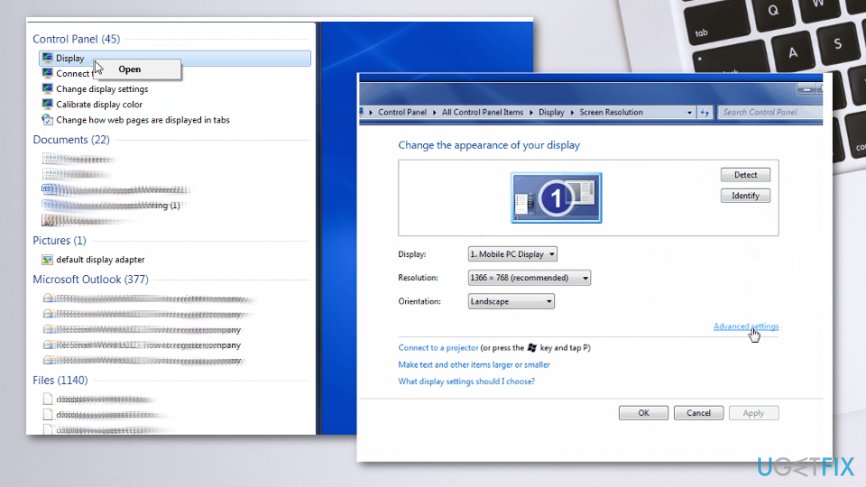
How to fix blue screen error thread stuck in device driver on windows display settings - Select Troubleshoot and then Change Settings.
- Inside this window, find Acceleration with a drag alongside it. Set the drag to None and click OK.
- Finally, restart your PC and check if THREAD_STUCK_IN_DEVICE_DRIVER BSOD is gone.
Run available BIOS updates to fix THREAD_STUCK_IN_DEVICE_DRIVER error
- Click Win key + R, type msinfo32, and hit Enter.
- Select System Summary and find your BIOS version. Make sure that you remember the type of your BIOS. At best, write down its name somewhere.
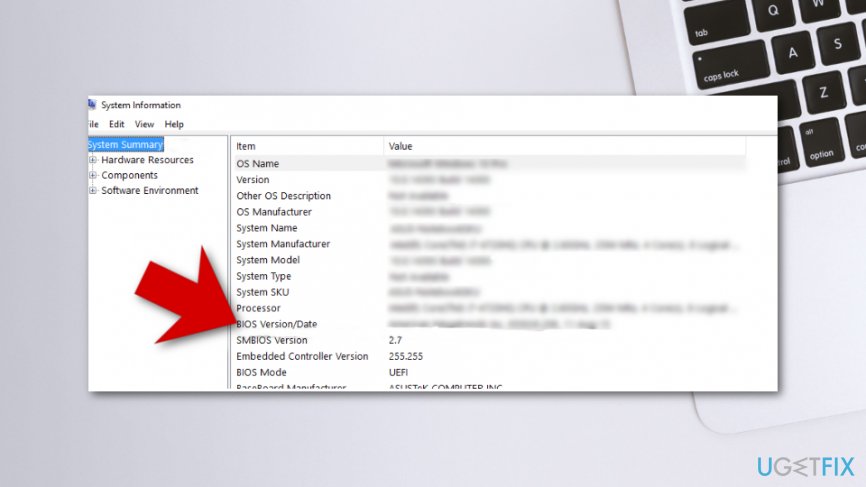
How to fix blue screen error thread stuck in device driver on windows bios - After that, navigate to the official website of your PC’s/laptop’s motherboard manufacturer and check if there is a newer version of the type of your BIOS available. If it is, download it and run its .exe file.
- Finally, restart your PC.
Bottom line
To fix the THREAD_STUCK_IN_DEVICE_DRIVER error, you should update or reinstall your video card drivers, check for Windows updates, and clean your system regularly. If these steps do not resolve the issue, consider seeking professional help or using specialized software tools.
Frequently asked questions
This error is typically caused by outdated or incompatible graphics drivers, hardware issues, or conflicts with other software on your system.
You can update your graphics drivers by visiting the manufacturer's website or using Device Manager in Windows 10 or Windows 11 to search for the latest driver updates.
Yes, you can try booting into Safe Mode, rolling back recent driver updates, or performing a system restore to a point before the error occurred.




Report an issue
What's wrong with this guide? We review every report and update or remove content.
Report received — thank you. We'll review and fix it.
You need a free account to submit a report.
Be the first to comment