How to fix
Kernel Auto Boost Lock Acquisition With Raised IRQL
on Windows
Fix the Kernel Auto Boost Lock Acquisition error on Windows 10 or 11 quickly and easily. Get expert-tested solutions for seamless performance.

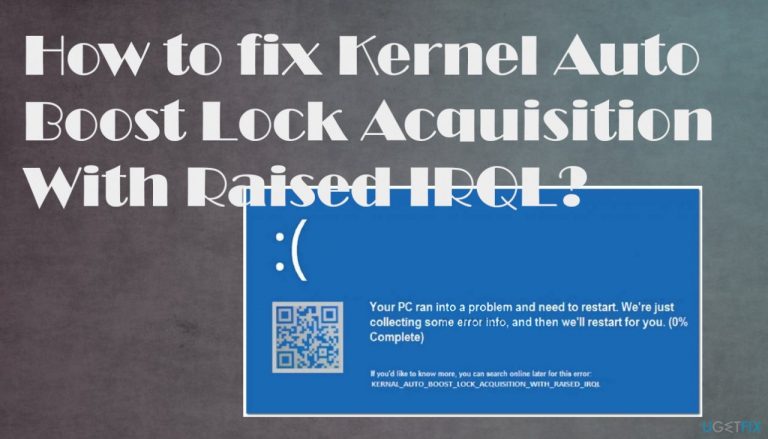
What causes How to fix Kernel Auto Boost Lock Acquisition With Raised IRQL?
- Bluetooth devices issues
- Wireless adapter problems
- Driver crashes
- Touchpad or mouse usage
- Bluetooth headphones connection issues
Repairs Windows system files, removes malware, and restores a clean OS state — without reinstalling.
Hello. I have an issue with my Windows device. I have recently updated my Windows 7 to Windows 10 and started to experience blue screen errors that I have never had an issue with before. I receive the error, and it states that Kernel Auto Boost Lock Acquisition With Raised IRQL is some kind of a problem. I don't know what happened. Help me!
Kernel Auto Boost Lock Acquisition With Raised IRQL issue is related to Bluetooth devices and wireless adapters, so a problem with one of them can trigger this error. You can solve the problem by updating drivers and using proper versions of such pieces, so the associated processes can run smoothly.
People who suffer from his error report,[ref en-1] that Kernel Auto Boost Lock Acquisition With Raised IRQL error is persistent and that the general troubleshooting is not solving the problem at all. The error can appear when you try to launch a program, watch a video, or play a videogame on the computer.
BSOD Kernel_Auto_Boost_Lock_Acquisition_With_Raised_Irql error is one of many Windows 10 issues, but the problem shouldn't be related to common OS update issues.[ref en-2] However, it creates frustration and makes the computer unusable, so people complain about the issue all the time.
The issue with system crashes and frequent errors can frustrate, but when an issue like Kernel Auto Boost Lock Acquisition With Raised IRQL error triggers the system restart - you can possibly solve some causes yourself. The problem can occur when you use a touchpad or mouse, other people state that Bluetooth headphones cannot connect once the machine is woken up from the sleep mode.
It is possible to fix Kernel Auto Boost Lock Acquisition With Raised IRQL BSOD error. Unfortunately, the system should be able to restart and work properly to change these settings listed below. Make sure to react as soon as you receive these errors, so you can fix the root cause and forget about OS crashes.
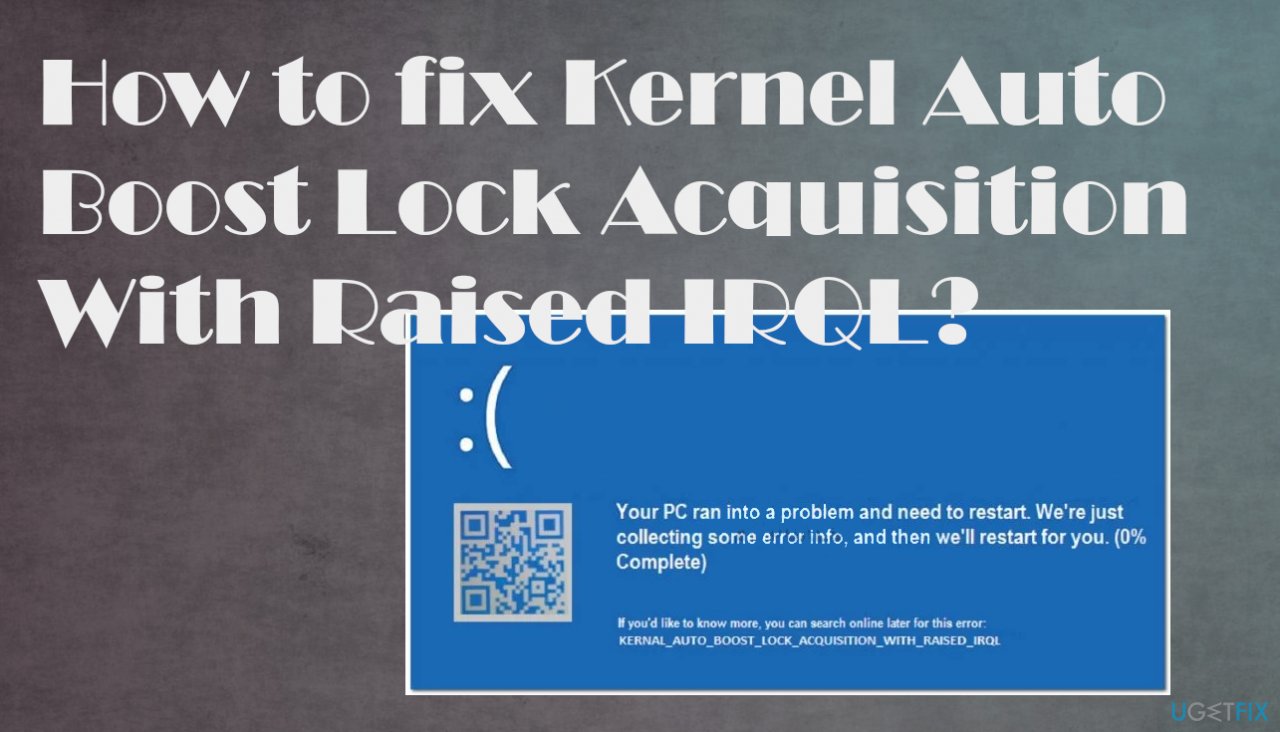
How to fix Kernel Auto Boost Lock Acquisition With Raised IRQL
The particular BSOD Kernel_Auto_Boost_Lock_Acquisition_With_Raised_Irql is the problem possibly triggered by driver crases or Bluetooth issues. More common reasons that can cause this Blue Screen of Death[ref en-3] are external hard drive driver issues, Bluetooth driver crashes, wireless adapter problems. It is possible to fix the root cause of this problem by updating or repair those drivers, other system files.
You can run a tool like [d1] for the system function repair and a quick check on already damaged or corrupted system files. This tool can repair issues automatically for you, so time is saved. If you struggle with the fix for Kernel Auto Boost Lock Acquisition With Raised IRQL error, rely on the guide and troubleshooting methods below. Go through all of them, and you will finally find the one that helps.
Fix 1. Disable the wireless adapter
- Go to Device Manager by right-clicking on the Win logo.
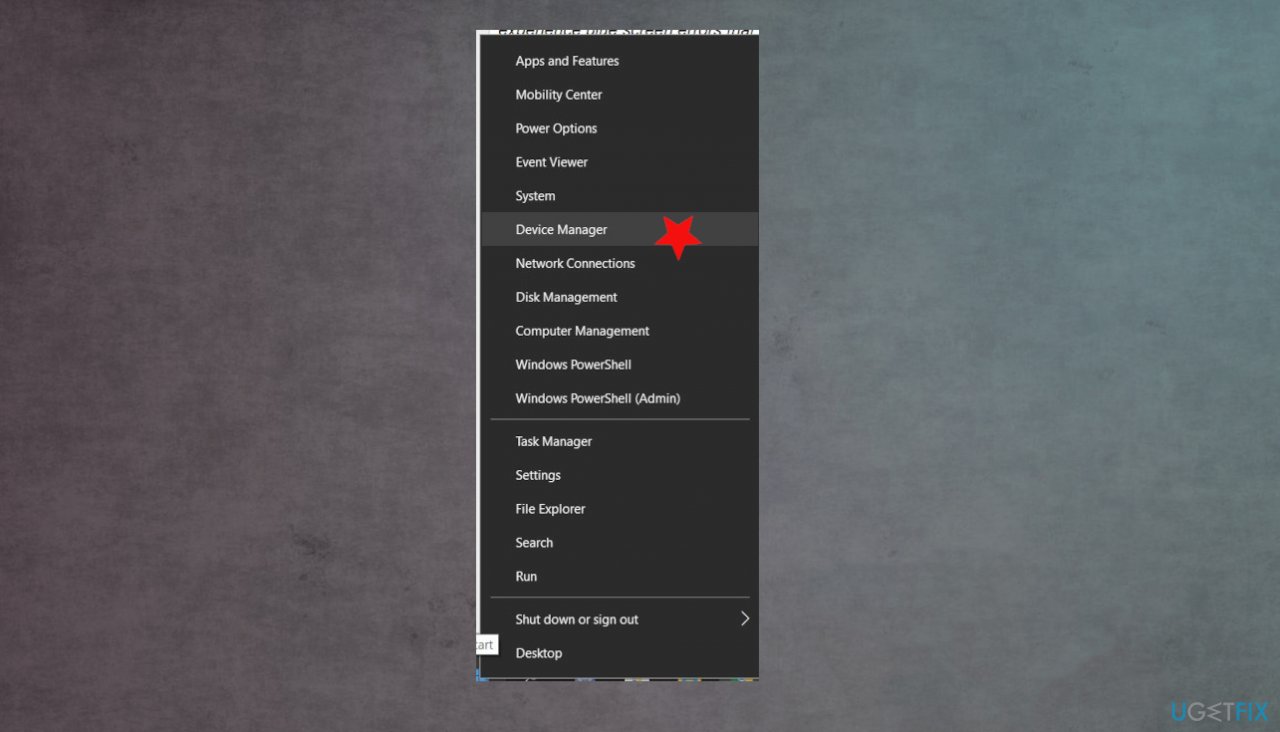
Kernel auto boost lock aquisition error fix device manager - Find the wireless adapter under Network adapters and right-click it.
- Choose Disable driver.
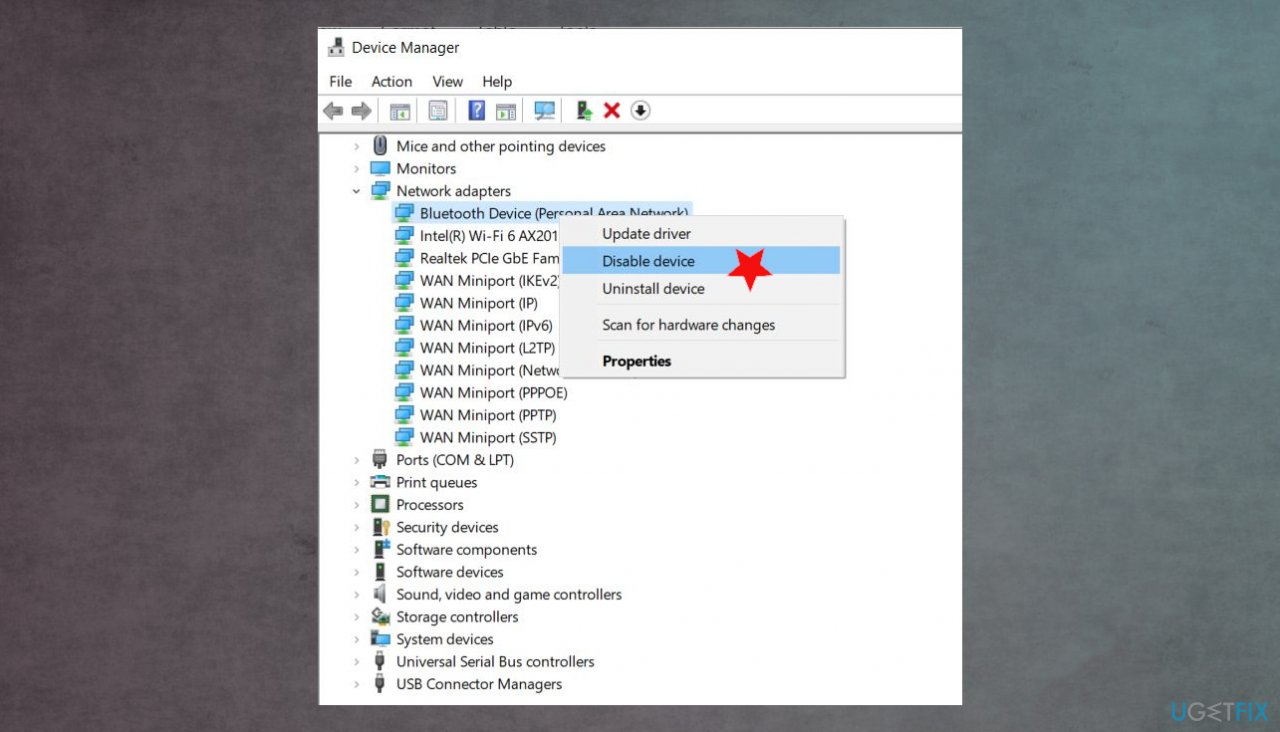
Kernel auto boost lock aquisition error fix disable driver - Check if the issue is resolved.
Fix 2. Check for the disk errors to fix Kernel Auto Boost Lock Acquisition With Raised IRQL
- Type cmd in the Windows Search
- Open Command Prompt with Administrative powers.
- Once the black dialogue box appears, type in the chkdsk /f command and press Enter.
- Follow any commands that you are provided with.
Fix 3. Update drivers automatically
You can update/uninstall various drivers on the machine automatically. It is not the easiest procedure because people need some knowledge for this process. It is important to update various drivers, so you can save some hassle and time with the help of [rev id="DriverFix"] that quickly improves the performance.
Damage caused by wrong installations and file versions, bad pieces of drivers can lead to various error messages and additional issues like Kernel_Auto_Boost_Lock_Acquisition_With_Raised_Irql. This driver maintenance application recommends new drivers, updates outdated ones, and helps make a difference with compatibility issues. It relies on a database with various drivers compatible with different systems.
Fix 4. Update drivers to fix Kernel Auto Boost Lock Acquisition With Raised IRQL
- Press the Win and R keys to open the Run window.
- Enter devmgmt.msc.
- Hit Enter and open Device Manager.
- Double-click Wireless Network Adapter and right-click the display adapter.
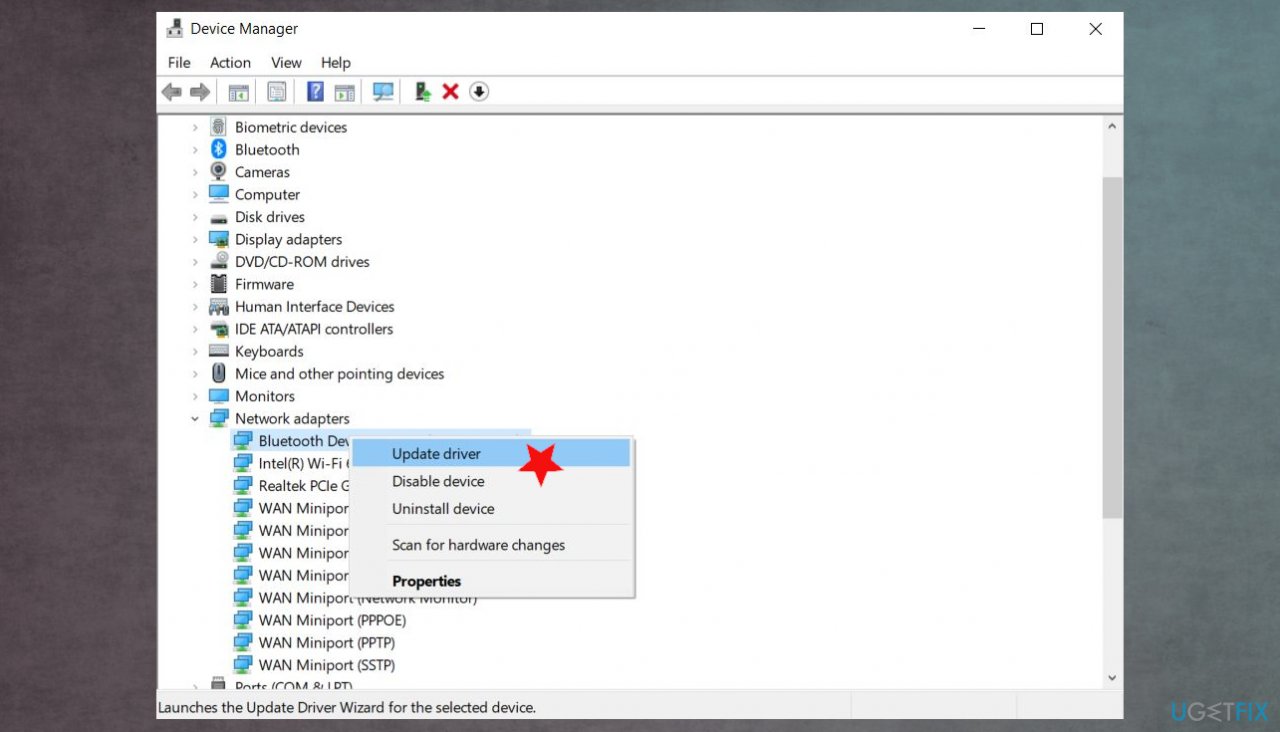
Kernel auto boost lock aquisition error fix update driver - Choose to Update driver.
- Select browse my computer for driver software and choose the location you downloaded the piece.
- Press Browse and then Next to install the driver.
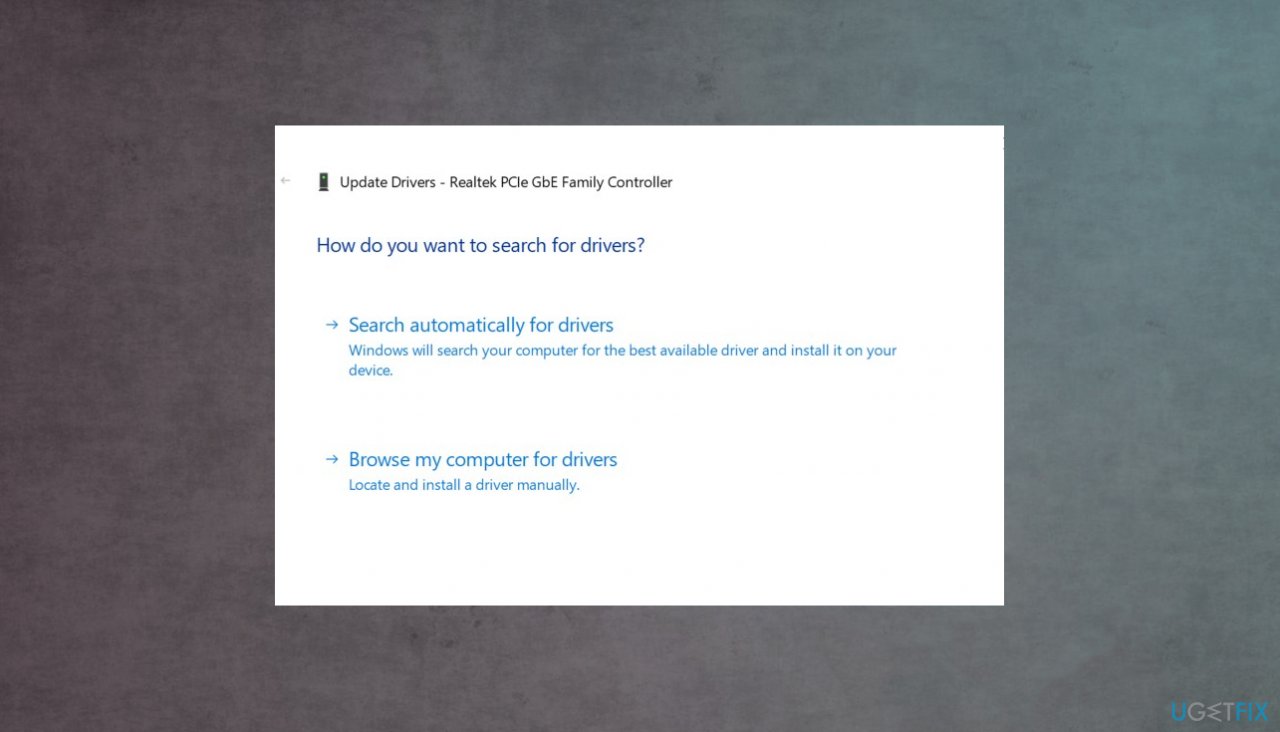
Kernel auto boost lock aquisition error fix update options - You can also choose to search automatically and find drivers online if you don't want to download drivers yourself.
- You can also uninstall the driver, restart the machine, and Windows should automatically search and install the needed drivers.
Fix 5. Rollback drivers
- Go to the Device Manager.
- Expand the Mice and other pointing devices section.
- Right-click on Mouse Bluetooth driver and select Properties.
- Go to Driver tab.
- Click on Roll Back Driver.
- Select the reason why you are rolling back and then pick Yes.
- Reboot your system.
Fix 6. Perform a System Restore to fix Kernel Auto Boost Lock Acquisition With Raised IRQL
- Insert the installation media and press any key.
- Click Repair your computer in the wizard.
- Next, choose to Troubleshoot and select System Restore from the list.
- Click Next on the System Restore window and choose a restore point.
- Click Next.
- Finish and confirm with Yes.
Fix 7. Check for a system update
- Right-click on Start and select Settings.
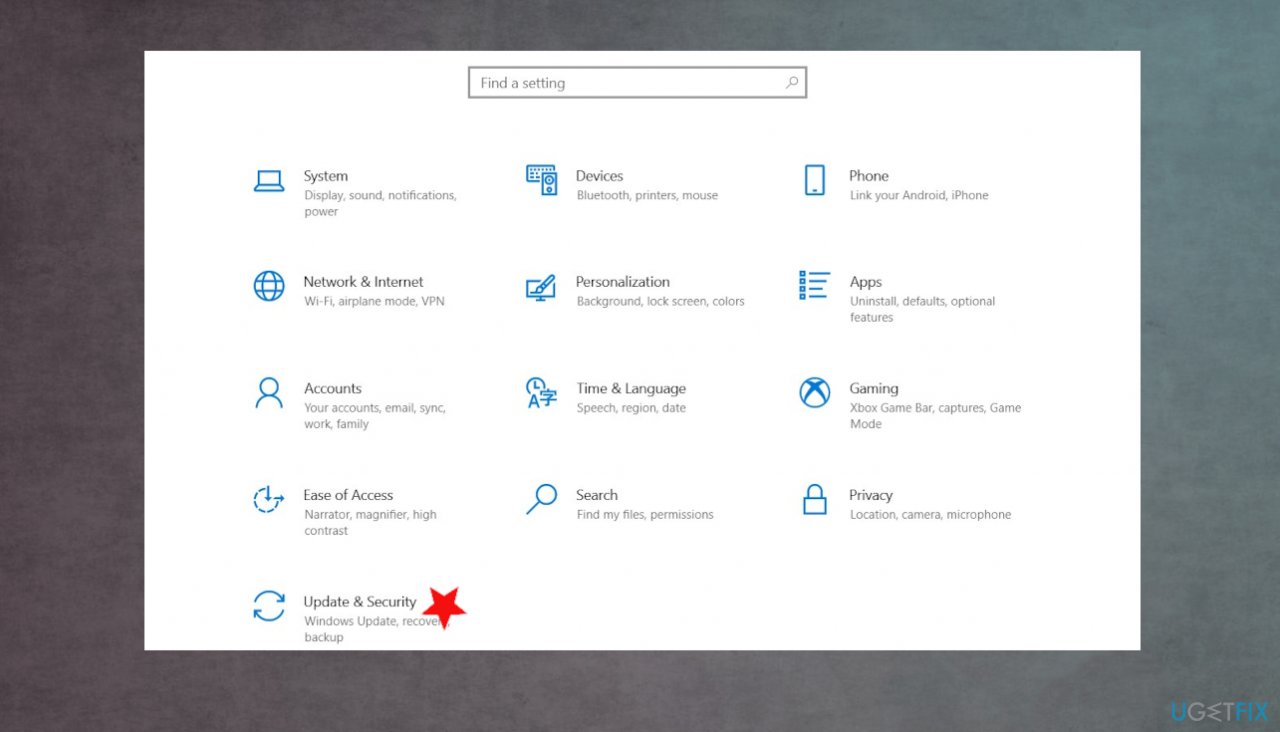
Kernel auto boost lock aquisition error fix update and security - Go to Update & Security.
- On the right side, click Check for updates.
- Install update.
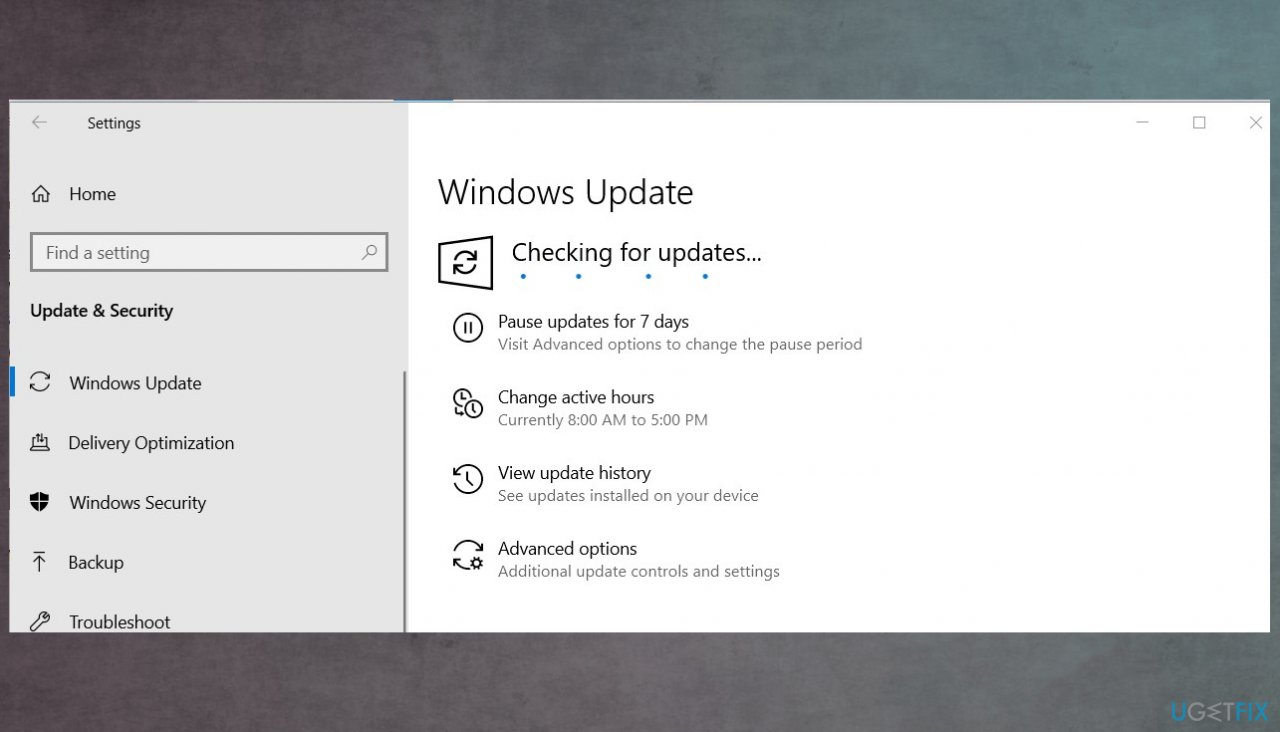
Kernel auto boost lock aquisition error fix checking os updates - Wait till Windows downloads and installs updates.
- Reboot your system.
Bottom line
To fix the Kernel Auto Boost Lock Acquisition With Raised IRQL error, you should update drivers and ensure you are using the proper versions. If the problem persists after trying these solutions, further troubleshooting may be necessary.
Frequently asked questions
This error typically indicates a problem with a driver or hardware conflict that causes the system to attempt to access a resource at an inappropriate interrupt request level (IRQL). It can lead to system instability or crashes.
You can start by updating your drivers, especially for graphics and network devices, and running the Windows Memory Diagnostic tool to check for memory issues. Additionally, performing a clean boot can help identify if third-party software is causing the problem.
Yes, you can often resolve this error by using the System File Checker (sfc /scannow) and the DISM tool to repair corrupted system files without needing to reinstall Windows 10 or Windows 11.




Report an issue
What's wrong with this guide? We review every report and update or remove content.
Report received — thank you. We'll review and fix it.
You need a free account to submit a report.
Be the first to comment