How to fix
Windows Store error 0x80240439
on Windows
Fix Windows Store error 0x80240439 on Windows 10 effortlessly. Our expert-tested guide will help you restore functionality in minutes, with screenshots.


What causes How to fix Windows Store error 0x80240439 on Windows 10?
- Faulty Windows Upgrade install
- Corrupt update files
- Windows Store cache issues
- Minor system inconsistencies
- Malware or corrupted files
Repairs Windows system files, removes malware, and restores a clean OS state — without reinstalling.
Hi, this time I’m in a real trouble. I tried to download Xbox Accessories app, but an error 0x80240439 pop-up was thrown to me. After that, I tried to install other apps, but none of them worked. I’m running Windows 10 Pro, version 1151. Everything was OK a couple of days ago, so I don’t even imagine what has happened. Please help.
After a close investigation on 0x80240439 error, it turned out that has already been plaguing thousands of Windows users.[ref en-1] It appears now that it hasn’t been fixed permanently, so due to some new Windows configurations 0x80240439 error appeared again.
From the first glimpse, Windows Store seems to be working as it used to before. However, when the user attempts to download an application, the downloading process stops at some point and throws a pop-up message with an error code 0x80240439.
At the moment of writing, the causes of the bug are not known. However, Windows enthusiasts speculate that it may be triggered by faulty Windows Upgrade install, corrupt update files, Windows Store cache or other minor system inconsistencies.
According to people’s reports, it appears the workarounds that there available with the earlier 0x80240439 error wave are not effective anymore. Nevertheless, Microsoft Community has already provided a couple of methods that can help to fix 0x80240439 error on Windows Store. Microsoft has already heard a lot of complaints about the Windows Store.[ref en-2]
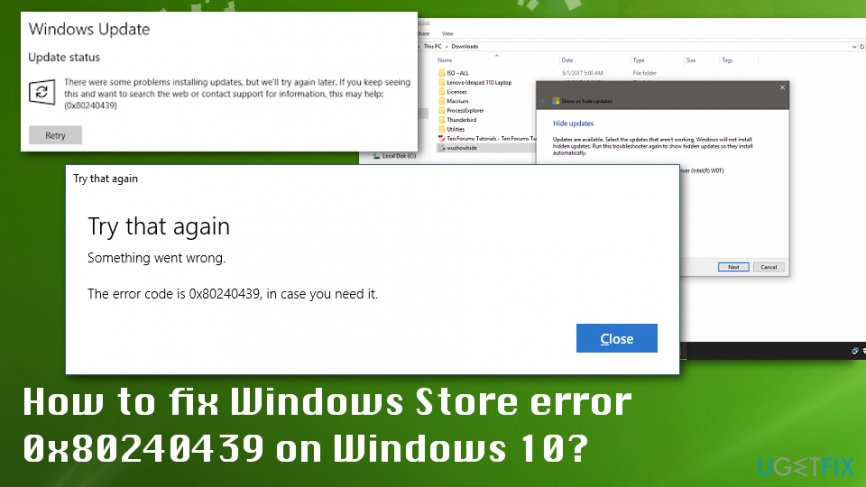
Methods to fix Windows Store error 0x80240439 on Windows 10
The main reason behind this error probably relies on the OS itself. However, there always can be an issue related to malware[ref en-3] or corrupted files. The first thing that you can try before manual methods is a full system scan with a PC optimization tool. This may work in case 0x80240439 error is triggered by some registry failure or malware infection. Thus, install [d1] and run it without a delay. Then try the methods listed below.
Cleanup Windows Store cache
- Click Win key + X and select Command Prompt (Admin) from the list.
- Type dism /online /cleanup-image /startcomponentcleanup and hit Enter.
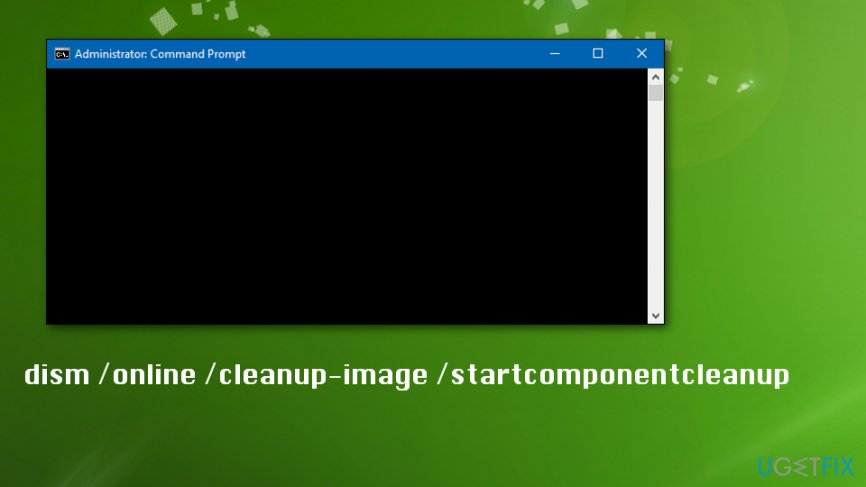
Fix windows store error 0x80240439 command prompt - After that, let the system finish Windows Store cleanup automatically and then reboot your PC.
Upgrade to the newest Windows version available automatically
- Click Win key + S and type Settings in the search bar.
- Then select the first option from the search results to open Settings menu.
- After that, select Updates & Security and click on Windows Update.
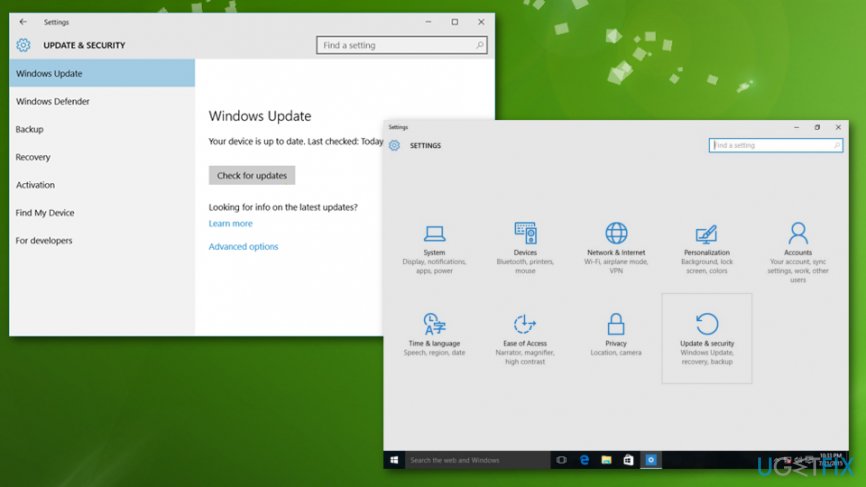
Fix windows store error 0x80240439 win update - Opt for Check for Updates option and let the system finish the search automatically.
- If the pending Windows update is found, select Update now.
- Once the update is installed, the system should restart automatically.
Check data and time settings for 0x80240439 error fix
- Go to Start> Run and type cmd.
- Run it as administrator.
- Type wsreset and press Enter
You can do it manually in Control Panel and Date and Time settings. Make sure that data is set to the correct time and time zone also is selected correctly.
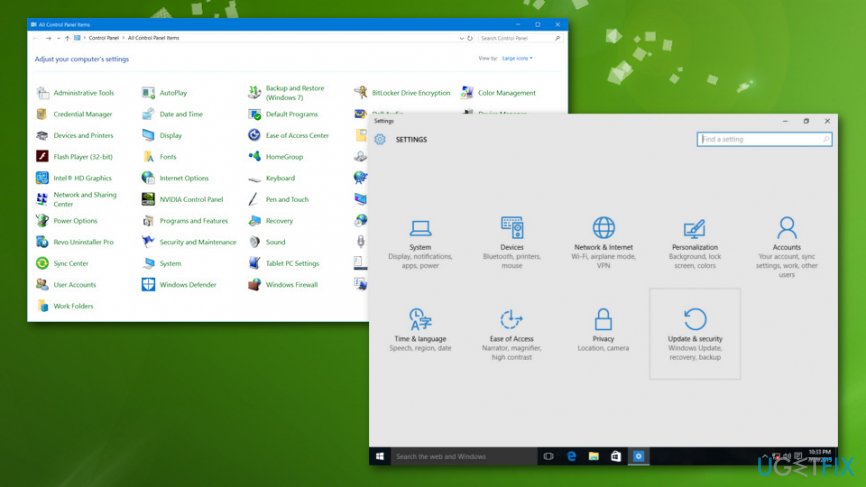
Upgrade to the newest Windows version available manually
For this purpose, you will have to download Media Creation Tool. Thus, navigate to the official Microsoft's website and find Media Creation Tool Download. Once found, do the following:
- Click Download Tool option and then perform the following steps.
- When the ISO file is downloaded, right-click on it, and select Run as Administrator.
- On the first page, click Accept.
- After that, select Upgrade this PC now and click Next.
- If you are upgrading for the first time, you will have to enter the Product License Key.
- Click on Change option to indicate what data you want to keep on your machine (Keep personal files and apps, Keep personal files only, or Nothing).
- Finally, select Install.
Bottom line
To fix the Windows Store error 0x80240439, you can try performing a full system scan with a PC optimization tool and cleaning up the Windows Store cache. If these methods do not resolve the issue, consider seeking further assistance or exploring additional troubleshooting steps.
Frequently asked questions
Error 0x80240439 typically indicates issues with the Windows Store's ability to connect to the server, often due to network problems or corrupted store cache.
To troubleshoot this error, try resetting the Windows Store cache by running the 'wsreset' command in the Run dialog, and ensure your internet connection is stable.
Yes, updating Windows 10 can resolve error 0x80240439 as updates often include fixes for various system issues, including problems with the Windows Store.




Report an issue
What's wrong with this guide? We review every report and update or remove content.
Report received — thank you. We'll review and fix it.
You need a free account to submit a report.
Be the first to comment