How to fix
Network Error 0x800704cf
on Windows
Resolve Network Error 0x800704cf on Windows 10 and 11 quickly with expert-tested solutions. Get back online in minutes, no traces left!


What causes How to fix Network Error 0x800704cf on Windows?
- Incorrect system configuration
- Connection problems
- Registry errors
- Network location not reachable
Repairs Windows system files, removes malware, and restores a clean OS state — without reinstalling.
I am running Windows 10 on Asus laptop. The matter is related to my home network. I don’t know why, but I can see other PCs on my home network under the Network area. If I click on any PC shown, the pop-up message saying ”Error 0x800704cf the network location cannot be reached” emerges. If I click on my own PC there, it shows three options: user, public or videos. Clicking on any of them ends up with the same error message. Could you please tell me what does this message mean?
0x800704cf is a network error and can arise when trying to connect to networked computers, when syncing your accounts on a particular device, or when updating Windows OS. Nevertheless, the first option occurs most frequently, so we will focus on how to fix 0x800704cf network error when not being able to connect to the local Workgroup,[ref en-2] although we will also provide solutions for other problems.
To share files and folders, Windows system users may employ File Explorer. To enable this feature, the system should be connected as a part of a domain and have well-defined network connections - this function is referred to as Workgroup. It is widely used on Window 8 and later versions, including 10.
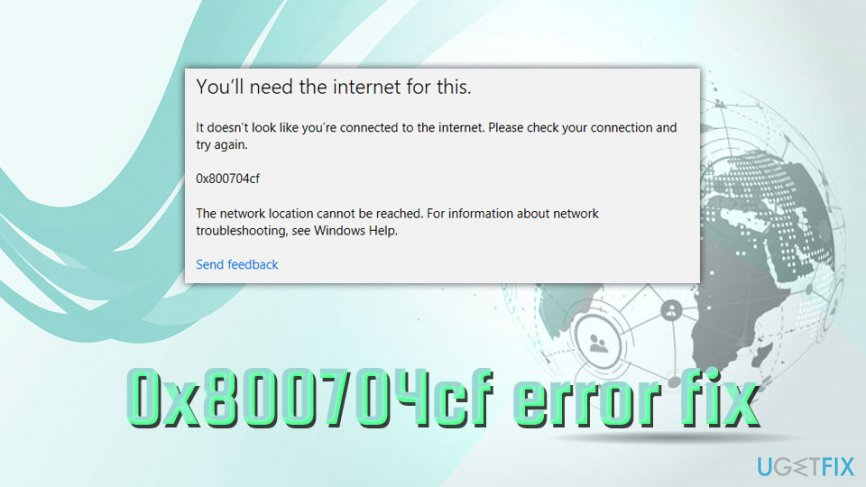
However, recently, we came around with an irritating problem, which prevents people from accessing Network PCs due to the 0x800704cf error. Whenever they try to do this, the following error message is shown:
Error code: 0x800704cf. The network location cannot be reached.
Consequently, people can’t share files using File Explorer or any other file managing program.[ref en-3] Just like with many other Windows errors, the exact causes of 0x800704cf error are not known. We can only speculate that it may be triggered by some incorrect system configuration, connection problems, or registry[ref en-4] errors.
However, we have prepared a couple of workarounds that help to you fix the 0x800704cf error. For most of the users, the following methods worked, and we hope that you are not an exception.
Nevertheless, before you start doing anything, we would highly recommend running a full system scan with a professional PC optimization tool to make sure that registry issues do not cause 0x800704cf error. For this purpose, we recommend using [d1].
How to fix Network Error 0x800704cf on Windows?
If you are unable to connect to your Workgroup, be it at home or work, it can create many inconveniences - it can slow down your work dramatically when trying to share particular files with other users. While there are alternative solutions like using communication programs like Skype or Discord, a shared drive has way too many advantages in comparison.
Therefore, if you cannot connect to your Workgroup because of error 0x800704cf, try the methods that should be able to fix it.
Method 1. Uncheck Network Client for Windows Network
For the first solution, you will have to reach Network and Sharing center. Please follow these steps:
- Right-click on the Network icon that should be located on the taskbar.
- Click on Network and Internet Settings
- On the right side of the window, select Change adapter options
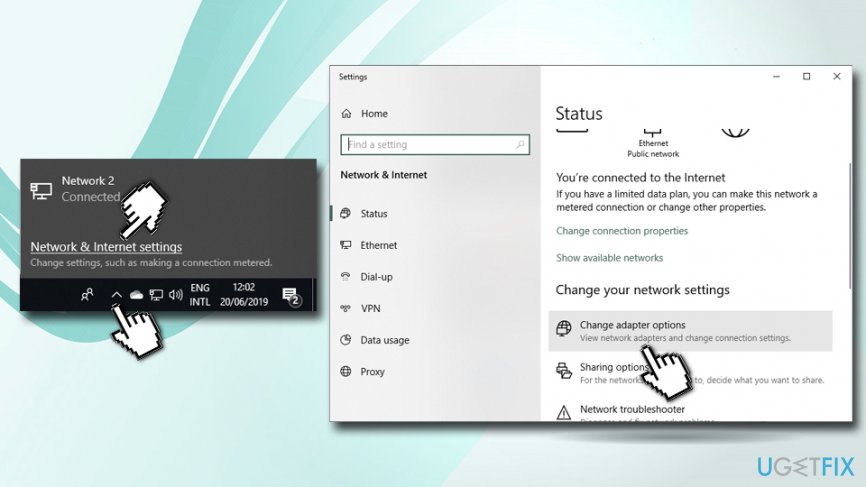
0x800704cf error fix open network and internet settings - Now you should see the window with all the Network Connections
- Right-click on your Wi-Fi or Ethernet and select Properties
- Uncheck Client for Microsot Network and click OK. Once done, you should no longer see 0x800704cf error on your screen.
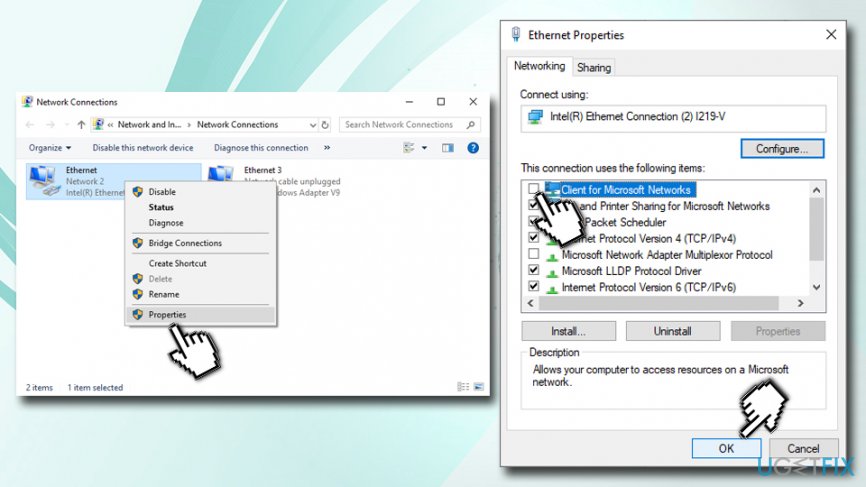
0x800704cf error fix disable client for microsoft
Method 2. Reset TCP/IP stack
TCP/IP stands for Transmission Control Protocol/Internet Protocol and is a set of communication protocols that are used to connect all networked devices to the internet.[ref en-1] Therefore, if you see a 0x800704cf error, the chances are that there is something wrong with TCP/IP. To reset it, please follow these steps:
- Type in cmd into Cortana's search box.
- From the search results, right click on Command Prompt and select Run as administrator.
- Once Command Prompt window opens, type in the following and hit Enter:
ipconfig /flushdns
By performing this command, you will clean the DNS cache, which may be a part of the 0x800704cf error cause. - After that, type in the next command and press Enter again to refresh NetBIOS name:
nbtstat –RR
- Follow up with the following line and then press Enter once more to reset IP settings:
netsh int ip reset
- Finally, reset Reset Winsock Catalog. For that, type in the the next command line, followed by Enter:
netsh winsock reset
- Restart you PC and try to access Windows Network. Hopefully, you can do that without encountering 0x800704cf error.
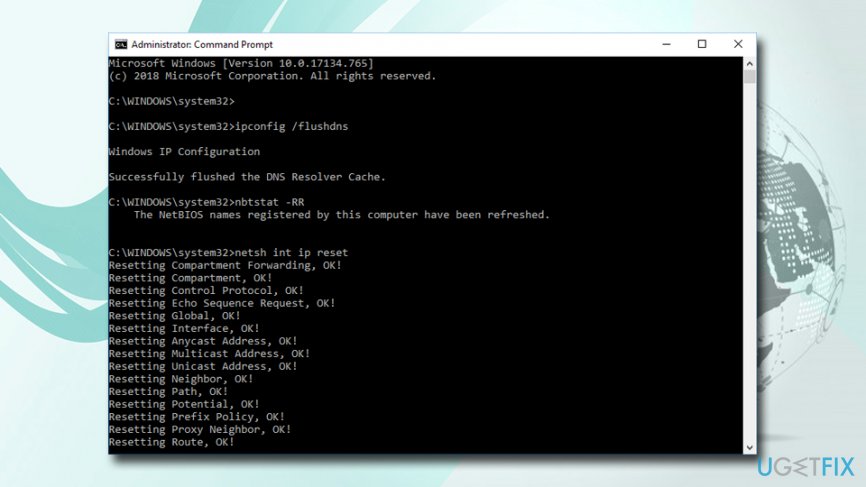
0x800704cf error fix reset tcpip
Method 3. Reinstall Network Adapters
Because 0x800704cf is a network error, there is a chance there is something wrong with Network adapters. Thus, reinstall them in order to fix the problem:
- Right-click on Start and select Device Manager.
- Click on Network Adapters to expand it and see all available adapters on your PC.
- Now you have to click on each of them and select Uninstall.
- In the pop-up window, make sure you tick the Delete the driver software for this device and then click on Uninstall.
- Restart your PC
- Once booted, go back to Device Manager and select Action and click on Scan for Hardware changes.
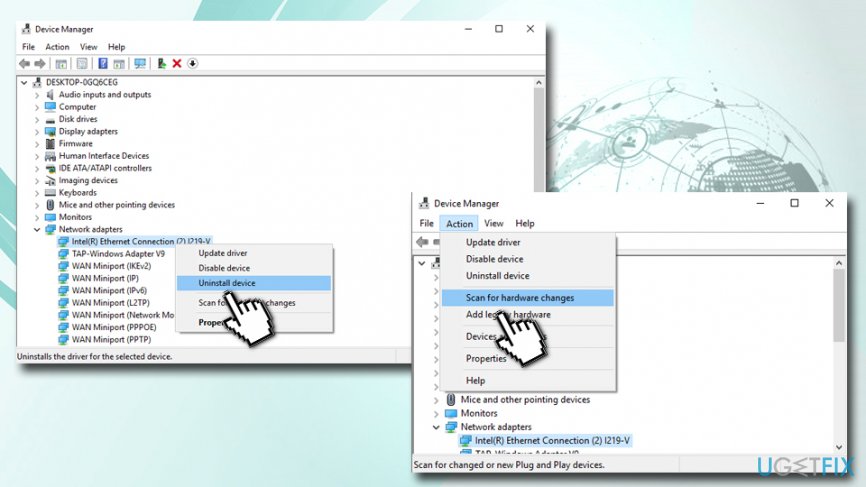
0x800704cf error reinstall drivers - Restart your machine once more.
How to fix 0x800704cf error when trying to login to Microsoft account?
Another type of 0x800704cf error is when users cannot seem to login to their OneDrive, Microsoft Store, Email, OneNote, and other apps automatically. When trying to do so, they receive the following message:
You'll need the internet for this.
It doesn't look like you're connected to to the internet. Please check your connection and try again.
0x800704cf
The network location cannot be reached. For more information about network troubleshooting, see Windows Help.
While it is true that some users might not be connected to the internet, the issue usually arises when they are connected. Please try the steps below if you are encountering the 0x800704cf error when trying to connect to various accounts.
Method 1. Run Windows Troubleshooter
This option is straightforward - a Troubleshooter is an automatic tool that diagnoses Windows problems and attempts to fix them. Here's how to get to it:
- Right-click on Start button and select Settings.
- Click on Update & Security.
- On the left side, select Troubleshoot.
- In the right pane, scroll down and locate Network Adapter.
- Click on Run the Troubleshooter.
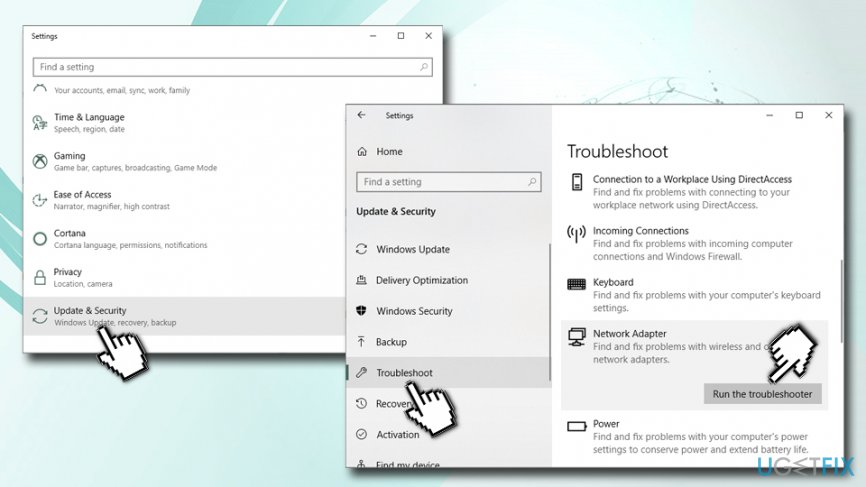
0x800704cf error fix run troubleshooter - Wait till if finishes the scan and reports any issues found.
You can also run other troubleshooters - such as Incoming Connections, Shared Folders, Windows Store Apps, and others.
Method 2. Sign in with Microsoft account
Instead of using a local account on your computer, make use of Microsoft account - it should sync all your apps automatically:
- Right-click on the Start button and select Settings.
- Select Accounts > Your Info.
- Click on Sign in with a Microsoft account instead.
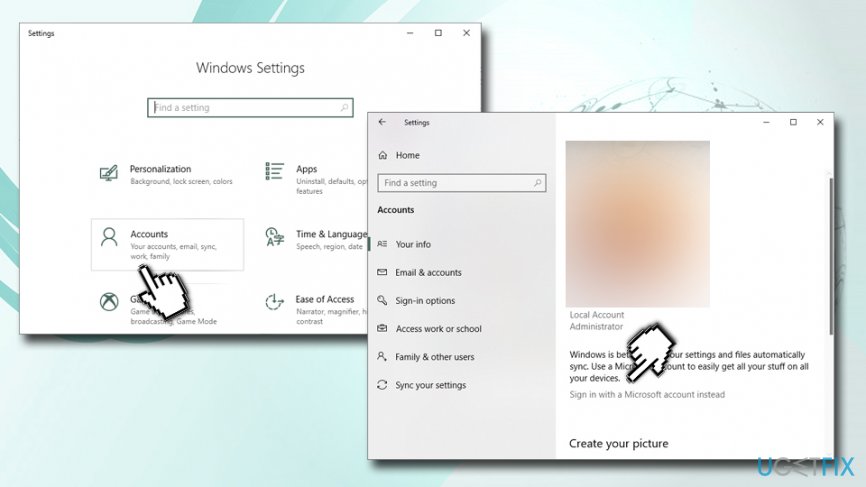
0x800704cf error fix sign in with mictosoft account - In the Microsoft account window, Sign in with your credentials.
- You will be asked to create a PIN - do so.
- Once you set up your Account, go back to Your Info and select Verify.
- Next, you can select different ways to verify your account, such as a text message.
- Once complete, these actions should help you fix 0x800704cf error when trying to sync your Windows PC with applications.
Note: if you are already connected to your Microsoft account and still having problems, first select Sign in with a local account instead, login, and then log out. Finally, repeat all the above-mentioned steps.
Bottom line
To fix the 0x800704cf error, users can try several workarounds, including checking network connections, ensuring proper Workgroup settings, and running a full system scan. If none of these solutions work, further investigation into system settings or seeking professional help may be necessary.
Frequently asked questions
This error typically occurs due to network connectivity issues, corrupted network settings, or problems with your network adapter. It can also arise from incorrect DNS settings or firewall configurations.
To fix this error, try resetting your network settings by navigating to Settings > Network & Internet > Status, then select Network reset. Additionally, ensure that your network drivers are updated and check for any Windows updates.
Yes, you can open Command Prompt as an administrator and run the commands 'netsh winsock reset' followed by 'netsh int ip reset' to reset network configurations and potentially resolve the error.




Report an issue
What's wrong with this guide? We review every report and update or remove content.
Report received — thank you. We'll review and fix it.
You need a free account to submit a report.
Be the first to comment