How to fix
Taskhostw.exe high CPU usage
on Windows
Resolve Taskhostw.exe high CPU usage on Windows 10 or 11 quickly and effectively. Get expert-tested solutions for a smoother performance, fixed in minutes!


What causes How to fix Taskhostw.exe high CPU usage?
- High resource usage by multiple instances of Taskhostw.exe
- Corrupted or altered system files
- Third-party applications causing conflicts
- Potential malware infection masquerading as exe files
- Dynamic Link Library (DLL) issues
Repairs Windows system files, removes malware, and restores a clean OS state — without reinstalling.
Hello. I have this taskhostw.exe file always running in the back, and it causes an extremely high CPU. A few miles are running at the time, and the CPU is always more than 60%. Is it a virus or something important for the OS? Help!
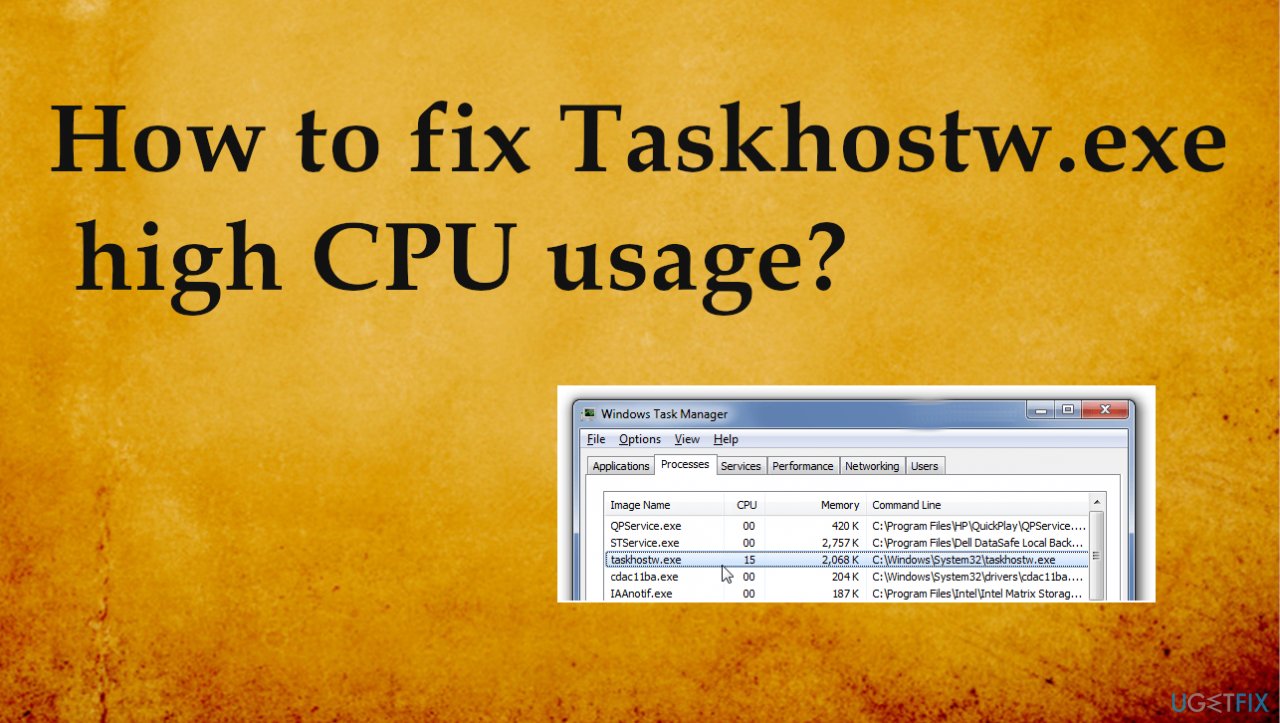
User reports and complaints show that Taskhostw.exe's high CPU usage is a problem.[ref en-1] Windows system runs a few processes at the time, and those can be found on Task Manager, which is not uncommon since the machine needs many functions at one time. However, suspicions arise when some of the files and processes use high resources or appear to be related to a third-party application or suspicious program instead of the OS.[ref en-2]
Taskhostw.exe high CPU usage issue is triggered by a Task Host Process that is the executable users notice running in the background. This is the Microsoft-developed file for Windows and the process recognized as a Host Protocol. It is related to other DLL files and Dynamic Link Library services.
These dll files are important because the operating system needs them to launch certain functions, finding files, processes, running programs. Multiple instances of the same file can lead to usage of resources, and often such issues can indicate that cyber infection is the one that triggers the problem since trojans tend to be masked as exe files. So you might want to run an anti-malware tool scan to fix Taskhostw.exe high CPU usage.
Some of the issues with this executable file also appear as particular error messages:
- Taskhostw.exe – Access Denied
- Taskhost.exe – Application Error
- Taskhost.exe – Error.
It is possible to fix Taskhostw.exe high CPU usage. It is not a virus, but checking the machine with an AV tool is always a good idea. Other solutions for the problem include file repair procedures and restoring the PC to a previous state. Make sure to follow these steps below and double-check if the issue is occurring after you take action.
#1. Repair altered or corrupted files
Windows systems can encounter issues, and it is annoying and frustrating for the user. The system has tons of different files, settings, and other components that need to run smoothly to have the system performing properly. These components interact with each other, so if something goes wrong, Windows might start experiencing various issues. As well as the users. File issues and the Taskhostw.exe high CPU usage problem might be one of them.
One of the main reasons why users experience such problems is system file corruption. Some of the problems can be fixed with more in-depth solutions, but not every user can do these tasks. Therefore, you are advised to try using an automatic repair tool like [d1]. Such a program can replace the missing or damaged system files with brand new ones from the database and fix issues for you.
#2. Run SFC scan
- Type cmd in Windows search.
- Right-click on Command Prompt result and select Run as administrator.
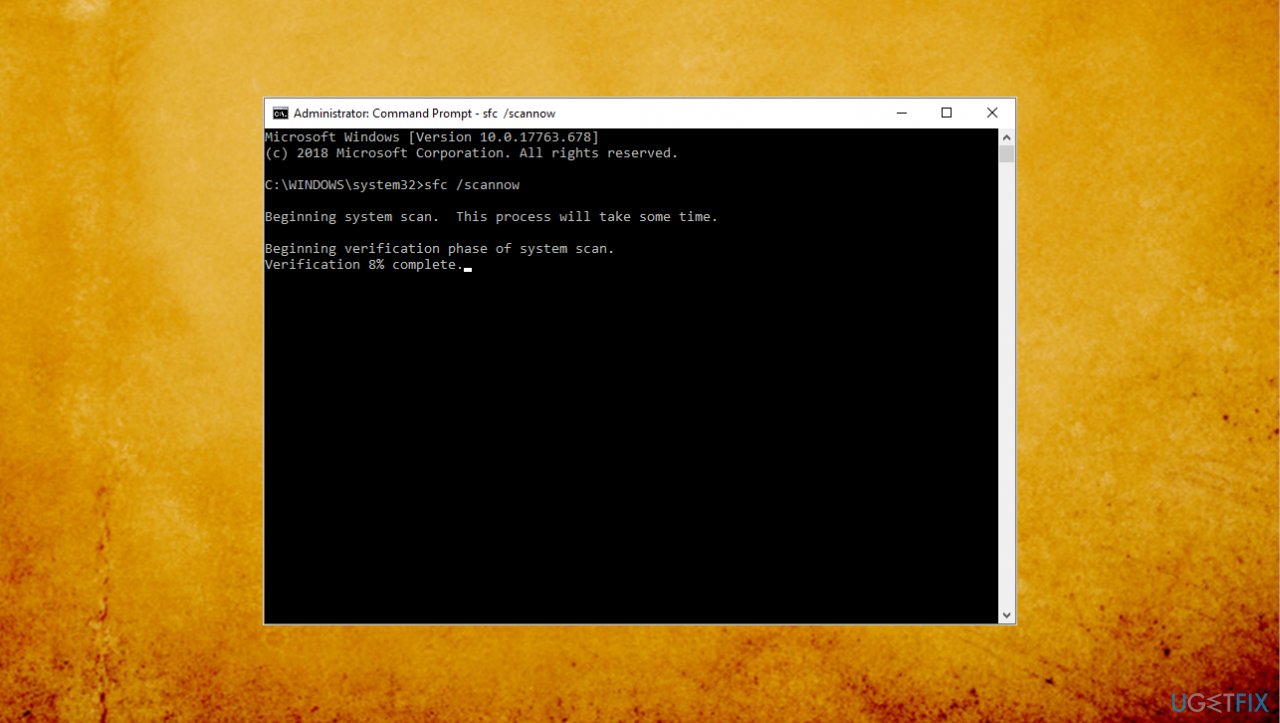
Taskhostw exe high cpu usage fix sfc scan - In the new window, copy and paste the following command: sfc /scannow
- Press Enter and wait for the scan to finish.
- Restart the PC.
#3. Reset Windows reliability monitor to fix Taskhostw.exe high CPU usage
- Open Control Panel.
- Find System and Security.
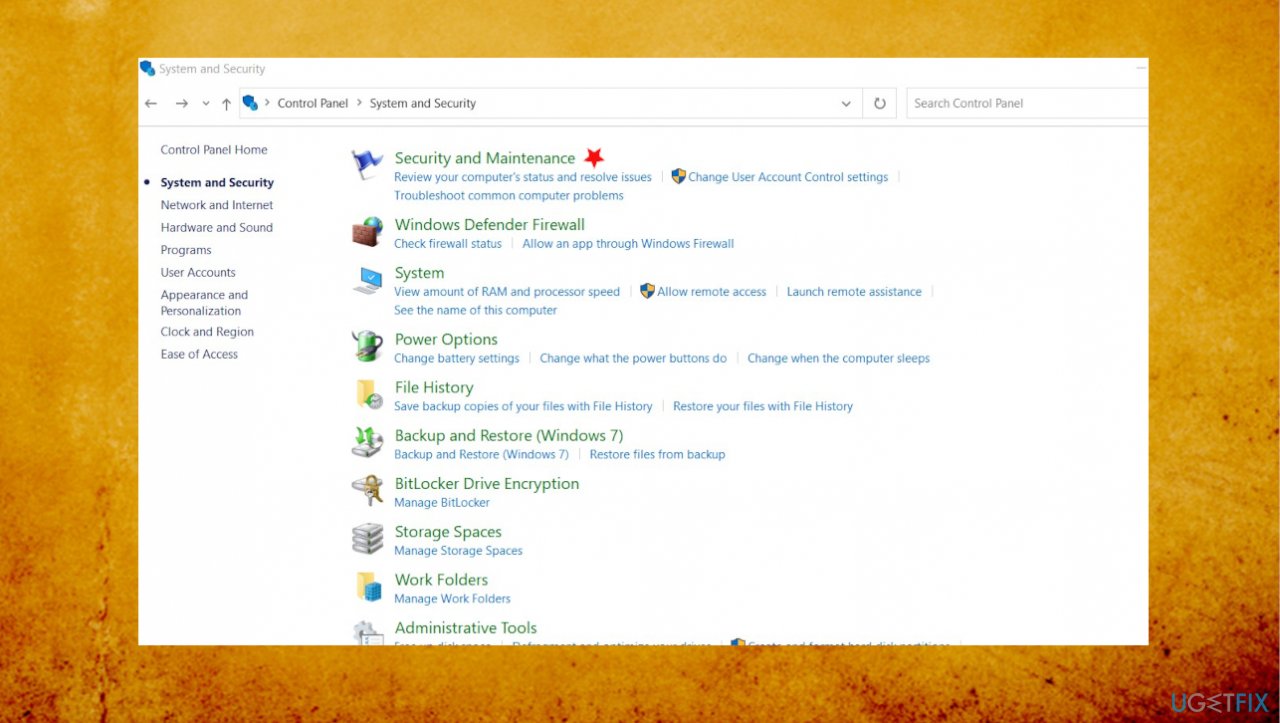
Taskhostw exe high cpu usage fix maitenance - Choose Security and Maintenace.
- Select the View reliability history line under the Maintenance.
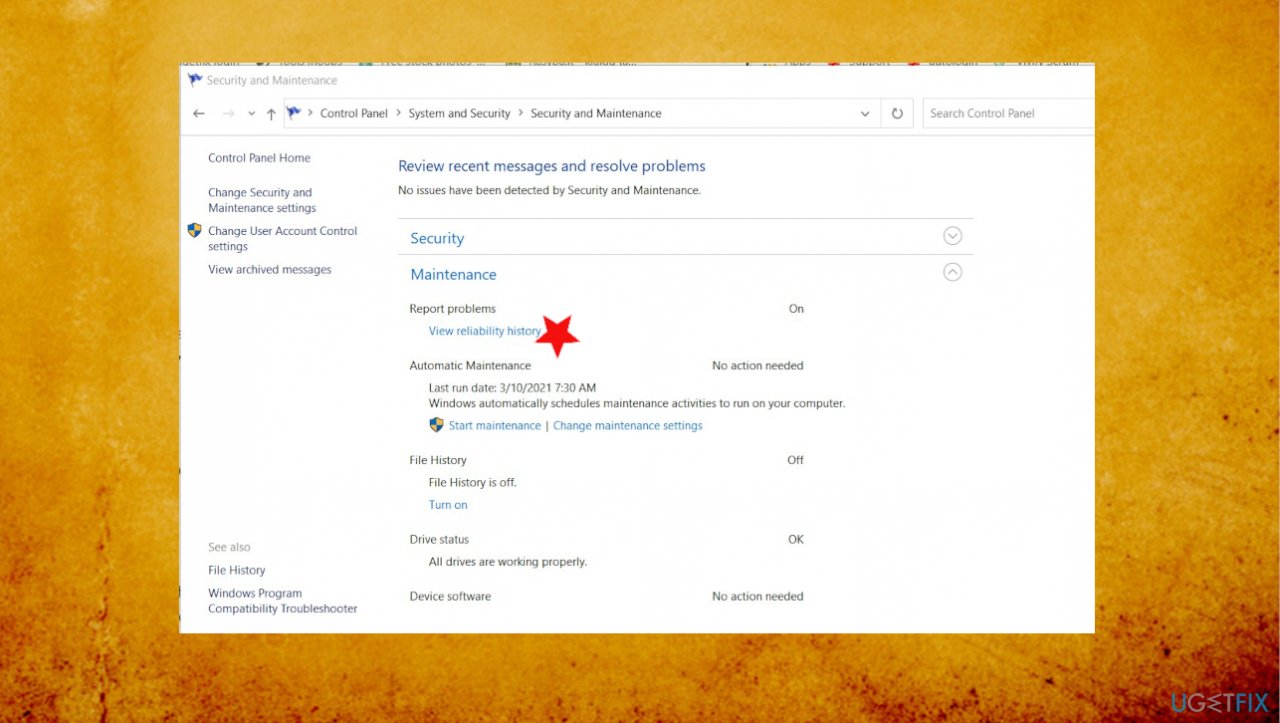
Taskhostw exe high cpu usage fix view reliability - Once the window opens up, scroll to find view all problem reports at the bottom.
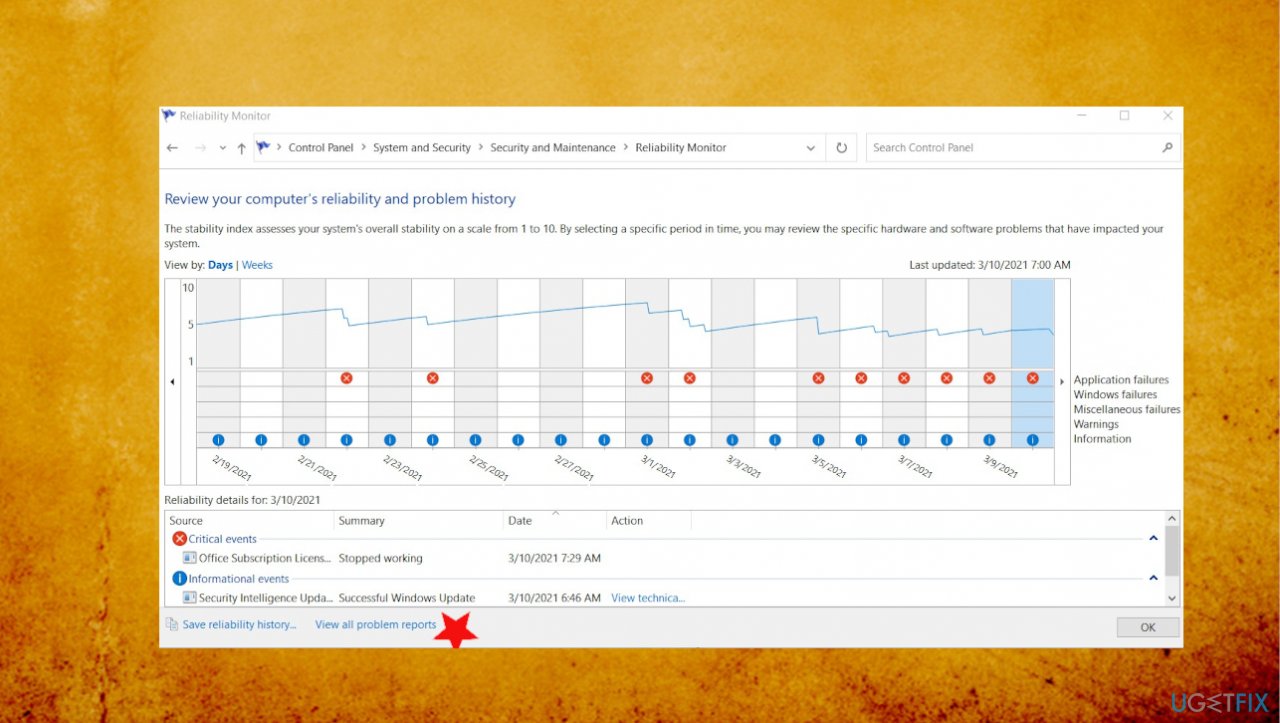
Taskhostw exe high cpu usage fix view all problem reports - Choose Clear all problem reports.
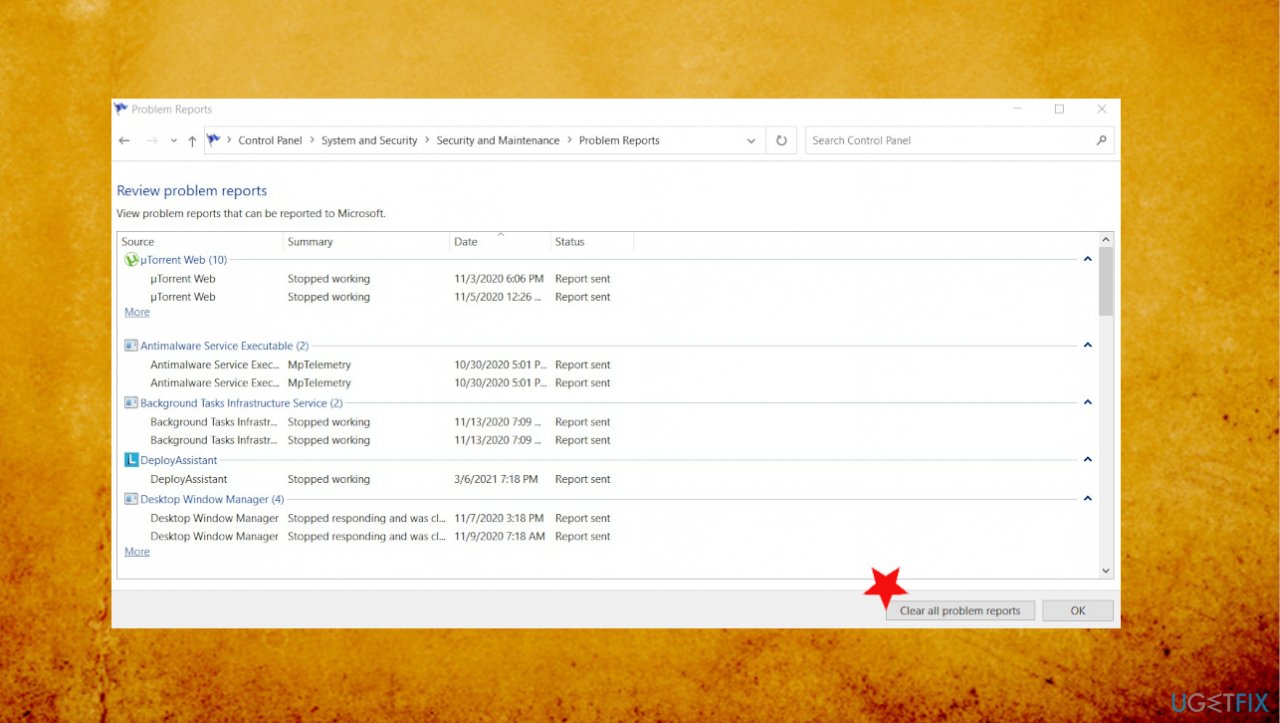
Taskhostw exe high cpu usage fix issues clear - Confirm with Clear all when prompted.
#4. Restore the system
- Click the Windows Start button.
- Type System Restore in the search and hit Enter.
- Click System Restore.
- Follow steps in the system restore wizard and choose a relevant restore point.
- Restore your computer.
#5. Check for corruption via PowerShell to fix Taskhostw.exe high CPU usage
- Go to Search and type powershell.
- Right-click the result and choose Run as administrator.
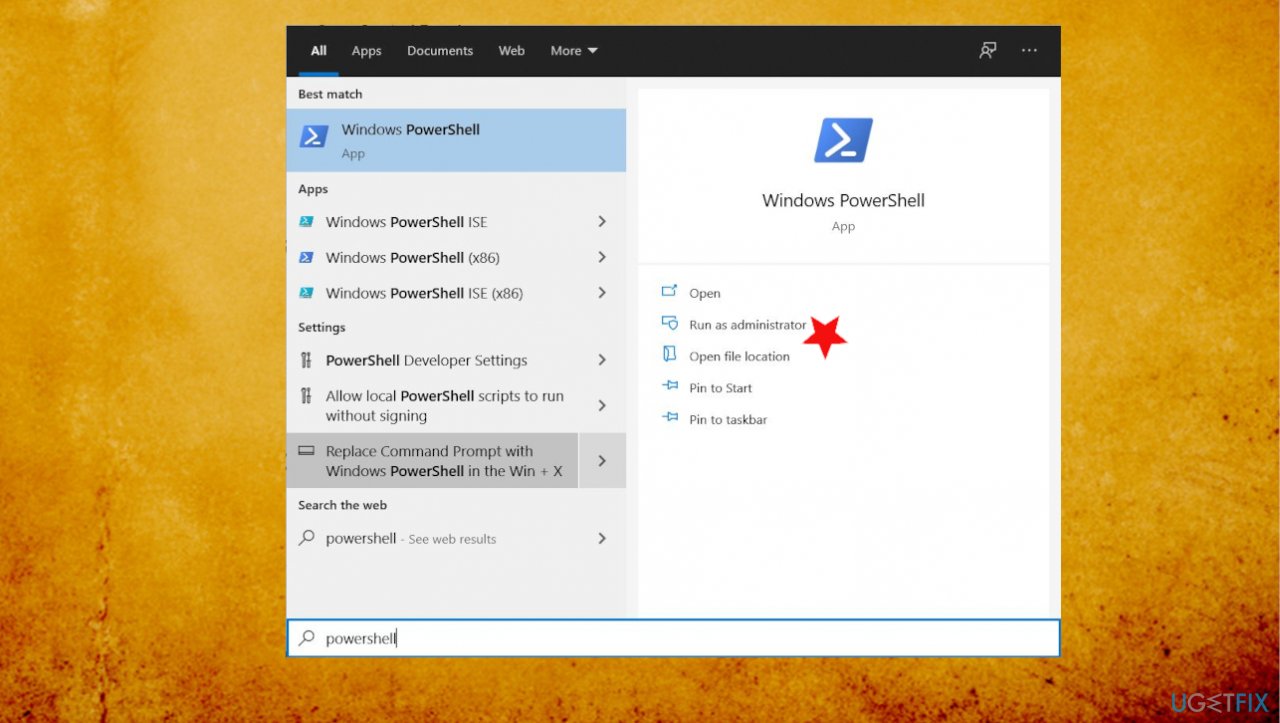
Taskhostw exe high cpu usage fix pwrsh - Type in the command: dism.exe/Online/Cleanup-image/Restorehealth
- DISM should replace any corrupted files and fix issues.
#6. Scan the machine with an anti-malware tool
You should have a trustworthy anti-malware tool on the machine or rely on the in-built virus protection solution. Run such applications from time to time to avoid any malware[ref en-3] issues and problems with malicious files or even trojans and other cyber infections. Checking the system more often can help to keep the machine safe, so rely on the official source, a developer that can be trusted and download a program that can detect and remove PUPs and other more serious infections.
Bottom line
To fix Taskhostw.exe high CPU usage, you can repair corrupted files, run an anti-malware scan, or restore your PC to a previous state. If these solutions do not resolve the issue, further investigation into system processes may be necessary.
Frequently asked questions
High CPU usage by Taskhostw.exe on Windows 10 can be caused by misbehaving applications or services running in the background. It can also be related to corrupted system files or Windows updates that didn’t install properly.
To reduce Taskhostw.exe CPU usage in Windows 11, try ending unnecessary processes in Task Manager and running a system file check to repair any corrupted files. Additionally, ensure your Windows is up to date to prevent compatibility issues.
Disabling Taskhostw.exe in Windows 10 is not recommended as it is a crucial part of the operating system that handles various background tasks. Instead of disabling it, focus on identifying and resolving the underlying issue causing the high CPU usage.




Report an issue
What's wrong with this guide? We review every report and update or remove content.
Report received — thank you. We'll review and fix it.
You need a free account to submit a report.
Be the first to comment