How to fix
Sound, calling and other problems on Your Phone app
on Windows
Resolve sound, calling, and other issues in the Your Phone app for Windows 10 and Windows 11. Get expert-tested solutions for a seamless experience!

What causes How to fix sound, calling and other problems on Your Phone app?
- Bluetooth connectivity issues
- Application malfunction
- Missing system files
- Corrupted data
- Poor network connection
Repairs Windows system files, removes malware, and restores a clean OS state — without reinstalling.
Hello. I have an issue with the Your Phone app. It worked before, and I was satisfied, but now it cannot perform as before. I have an issue with the calling function. I cannot get the sound when the call is received, but the music is playing with the headset I use. I think is not the headset issue. The poor quality of calls and cutting off is annoying. Help me!
Your Phone is the application that makes it easy to send or receive texts, make calls from your phone via Windows computer. This is a useful application, but people[ref en-1] continuously report problems on the Your Phone app that include call, audio, other issues.
Such issues and error messages mainly give no indication of what causes the problem. It only shows " Can't receive call audio" or a different pop-up, if any. So people search for options and solutions for the sound, calling, and other problems on the Your Phone app. If the computer is properly connected to the Bluetooth device or different piece you use, but the call is not connecting, the issue is most definitely with the initial application or the machine.
The application was introduced in 2018,[ref en-2] and the function gained popularity pretty quickly. This is the connectivity problem, in most cases. It is not believed that such problems with fixing the sound, calling, and other issues on Your Phone app could be related to any cyber threats[ref en-3] and damage done to the machine. However, running a proper anti-malware tool might be a first quick step while troubleshooting for the solution.
You can solve these sound, calling, and other problems on Your Phone app if you follow the steps below. These fixes might include connection error solutions, missing system files, or corrupted data repair. You can run the AV tool, as we mentioned as a quick option, or rely on [d1] that can find and fix any issues with files in the system folders and help to keep the performance smooth. Troubleshooting calls in the Your Phone app directly might also help.
Fix 1. Restart the processes of the application
- Press CTRL + SHIFT + ESC to open the Task Manager.
- Find Your Phone under the Processes tab and right-click on it.
- Select End task from the menu to close this process.
- Repeat with other processes like Runtime Broker, Your Phone, etc.
Fix 2. Reconnect devices to fix sound, calling, and other problems on Your Phone app
- Try disconnecting devices and connecting them again.
- If that do not work, try to unpair devices.
- After this, press the Windows key + I and launch Windows Settings.
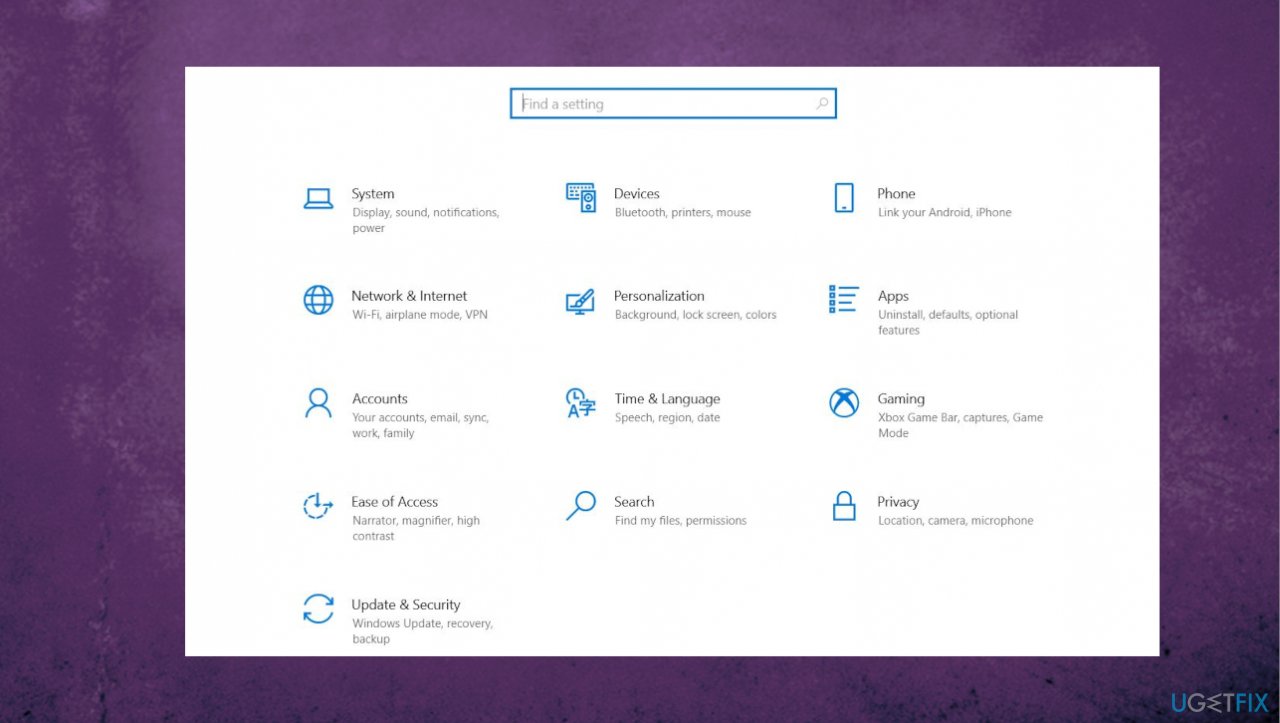
How to fix issues with your phone app windows settings - Navigate to Devices in Windows Settings.
- Remove all of the Bluetooth devices you’ve paired with in the past.
- Restart the PC and reconnect your devices.
Fix 3. Set a default audio device
- Go to Control Panel.
- Select Hardware and Sound in Control Panel and click on Sound from the right-hand panel.
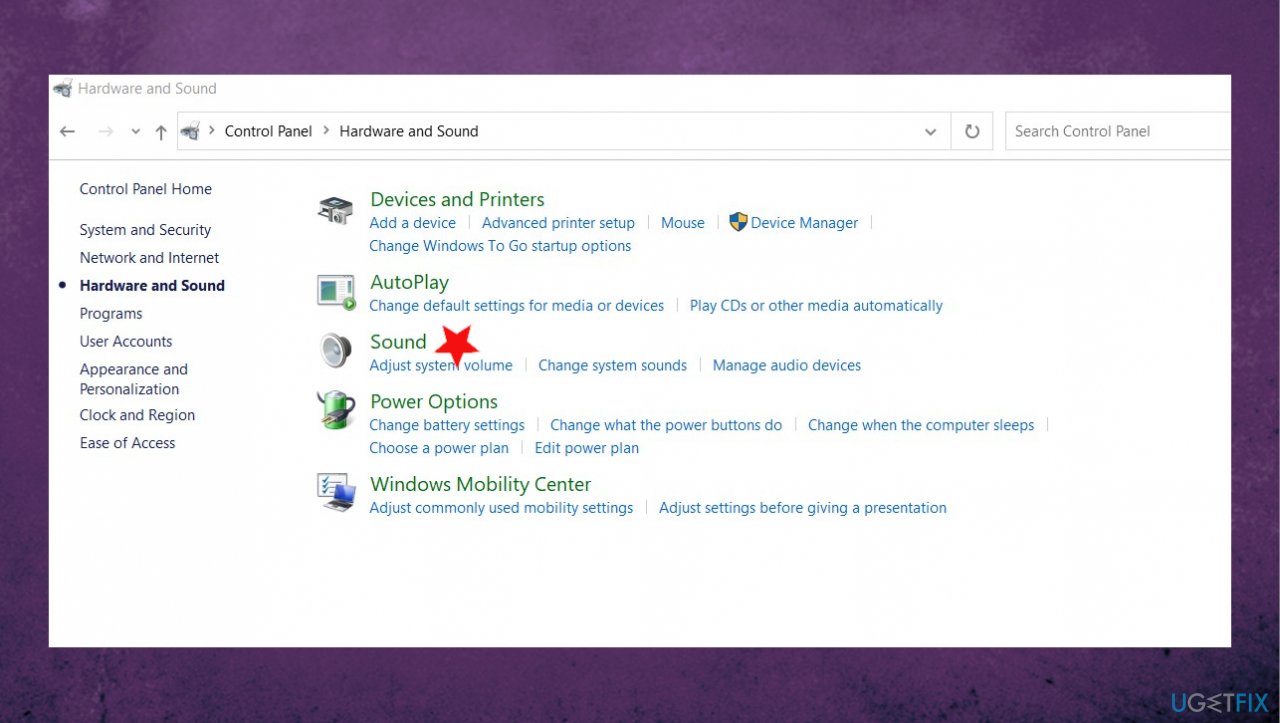
How to fix issues with your phone app sound - Navigate to the Playback tab and right-click on your Bluetooth headset.
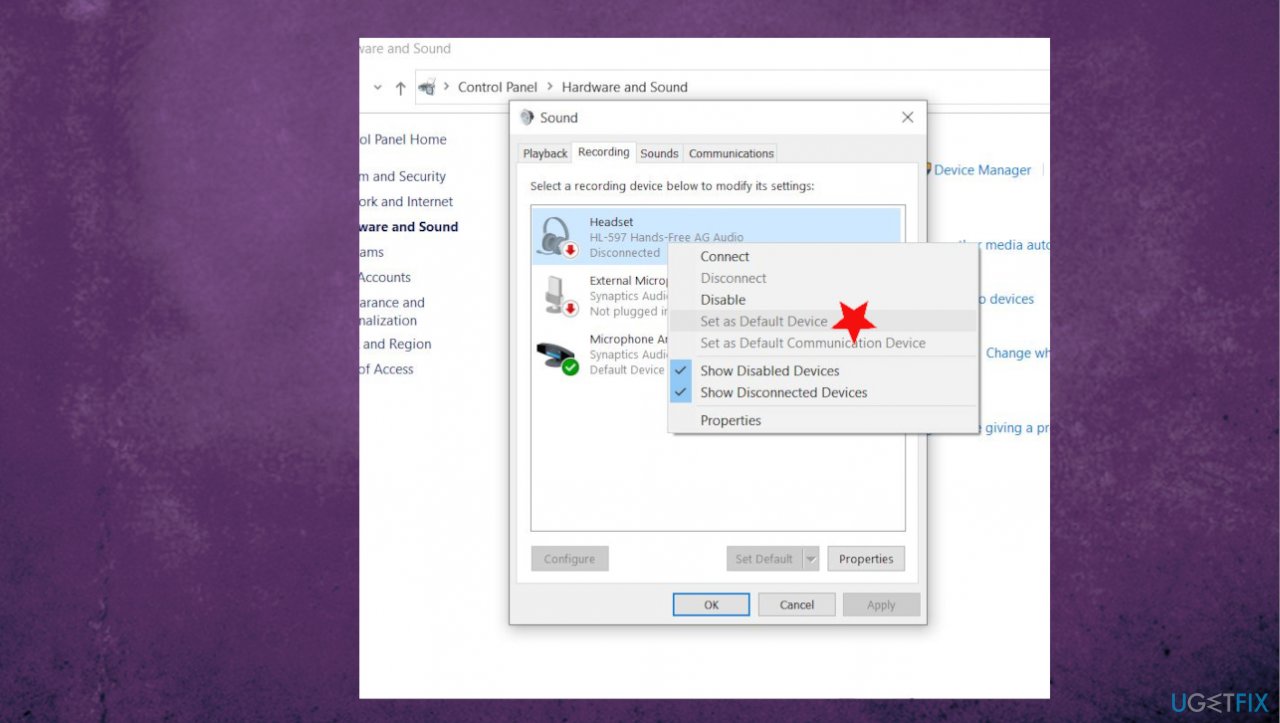
How to fix issues with your phone app device default - Choose the Set as Default Communication Device option from the context menu.
- Go to Recording tab, select your Bluetooth headset, and set it as the default recording device.
Fix 4. Reinstall drivers to fix problems on Your Phone app
- Press Windows key + R to open Run dialog.
- Type devmgmt.msc and press Enter/OK.
- Expand the Sound, video and game controllers.
- Right-click on the Realtek High Definition Audio Driver and select Uninstall.
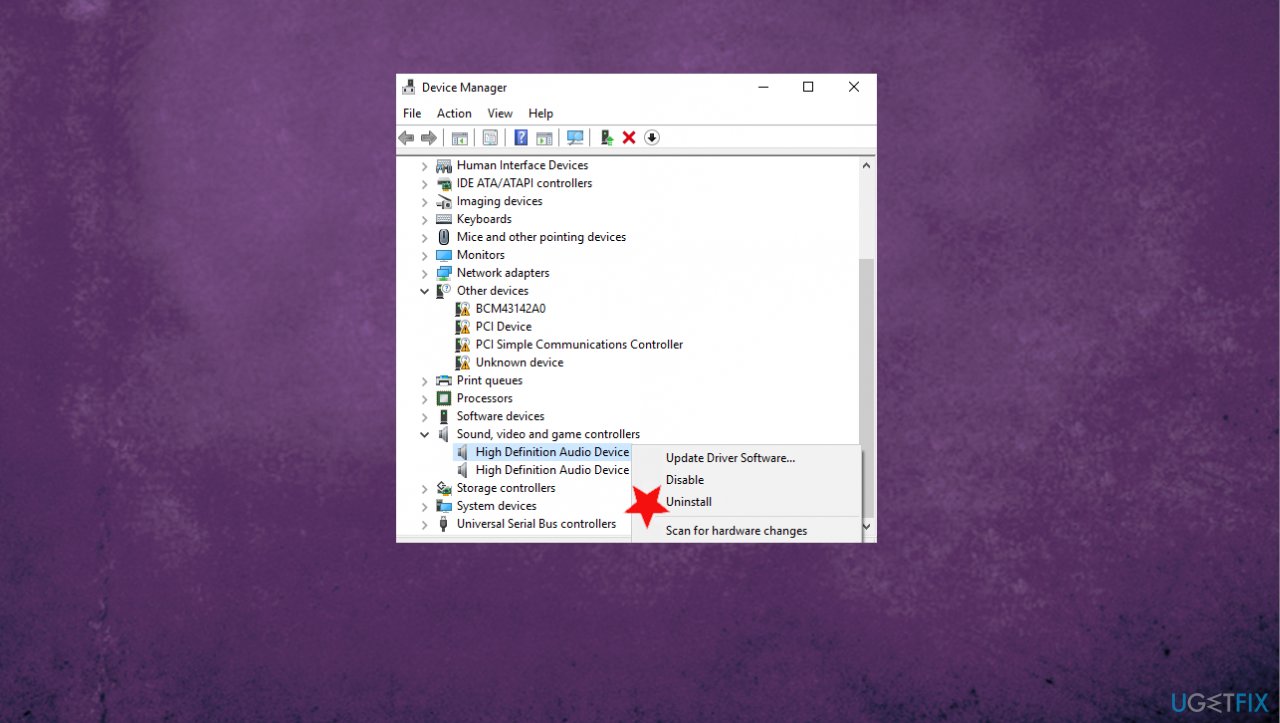
How to fix issues with your phone app driver uninstall - If you are asked for a confirmation, mark the box next to Delete the driver software for this device and press OK.
- Reboot your PC.
- After that, open Device Manager as explained in the steps 1-3.
- Expand the Sound, video and game controllers again.
- Right-click on the Realtek High Definition Audio Driver and click Scan for hardware changes.
- Install drivers.
Fix 5. Update audio drivers
- Locate to Device manager.
- Expand the Sound, video and game controllers section.
- Look for the device with SST as a part of the name. Righ-click and select Update Driver.
- When the new window appears select Browse my computer for driver software.
- Click Next.
- Select High Definition Audio and then Next.
- Your audio driver should now work perfectly.
- Or you can rely on automatic driver updater program - [rev id="DriverFix"].
Fix 6. Enable or unmute the device to fix the sound, calling, and other problems on Your Phone app
- Go to Windows settings.
- Navigate to System and select Sound.
- Under Advanced Sound options on the right-hand panel, click on the App volume and Device Preferences option.
- Set your Bluetooth headset as the output and input device.
- Set the App Volume for Your Phone to the maximum.
Fix 7. Disable metered connection on Android
- Open Settings.
- Tap on Data usage.
- Tap on Network Restrictions.
- Turn off the toggle switch for the connection.
Fix 8. Disable metered connection on Windows
- Open Settings.
- Click on Network & Internet.
- Click on Status.
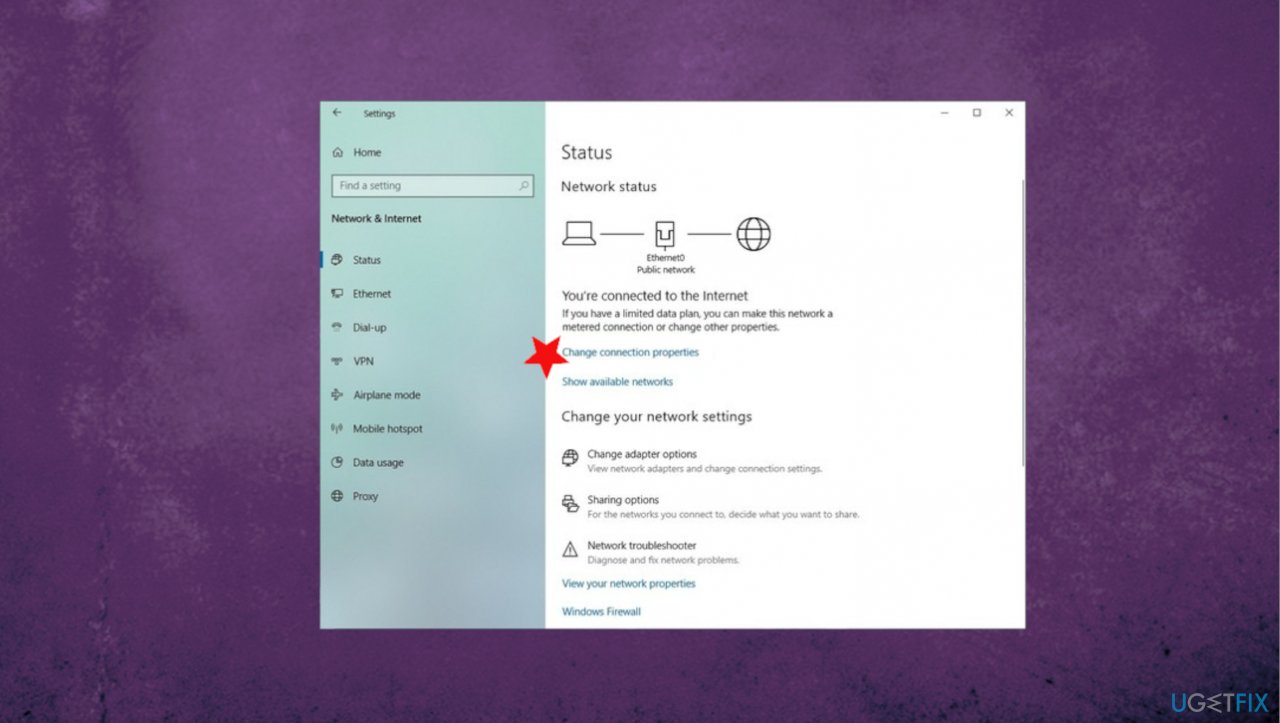
How to fix issues with your phone app connection properties - Click the Change connection properties link.
- Turn on the Set as metered connection toggle switch.
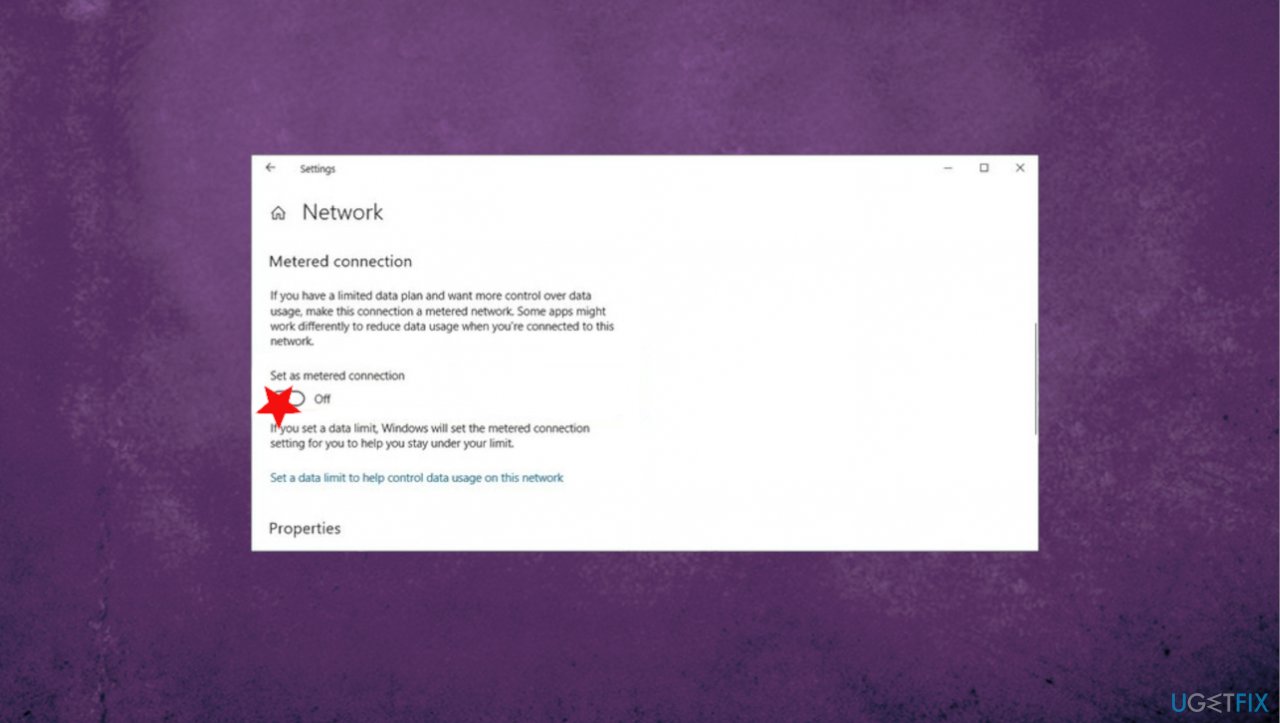
How to fix issues with your phone app metered connection
Fix 9. All the app to run in the background to fix Your Phone app problems
- Open Settings.
- Click on Privacy.
- Click on Background apps.
- Turn on the Your Phone toggle switch.
Bottom line
To resolve sound, calling, and other issues with the Your Phone app, you can try restarting the app, checking Bluetooth connections, and running an anti-malware tool. If these steps do not work, consider troubleshooting the calls directly or using a system file repair tool.
Frequently asked questions
Make sure that the audio settings in the Your Phone app are configured correctly and that your device's volume is turned up. Additionally, check if the app has the necessary permissions to access your microphone and speakers.
Ensure that your phone and PC are connected to the same Wi-Fi network and that Bluetooth is enabled. If the issue persists, try reinstalling the Your Phone app on both devices.
Check that notifications are enabled in the app settings on both your PC and your phone. Also, verify that your phone's notification settings are configured to allow the Your Phone app to display alerts.




Report an issue
What's wrong with this guide? We review every report and update or remove content.
Report received — thank you. We'll review and fix it.
You need a free account to submit a report.
Be the first to comment