How to fix
Edgegdi.dll was not found
on Windows
Resolve the Edgegdi.dll not found error on Windows 10 and 11 effortlessly. Get expert-tested solutions to restore functionality in minutes.

What causes How to fix Edgegdi.dll was not found?
- Compatibility issues with Windows 10 systems, particularly version 2004
- Third-party applications like antivirus tools or optimizers
- Missing or corrupted DLL files
- System conflicts affecting other processes
- Uninstalled or improperly installed programs
Repairs Windows system files, removes malware, and restores a clean OS state — without reinstalling.
Edgegdi.dll was not found triggers issues with my PC. Can you help? Task Manager is opening, but the error appears, and I see it when opening the settings, Event Viewer. The full error comes like The code execution cannot proceed because edgegdi.dll was not found. Can I do something myself?
Edgegdi.dll was not found issue is the problem triggered by compatibility. This particular error occurs in Windows 10 systems, particularly the 2004 version. The unusual behaviors reported[ref en-1] pretty often. It seems that users cannot find the universal solution or execute the suggested methods properly to help their device.
The code execution cannot proceed because edgegdi.dll was not found often appears when attempting to open or launch some applications on Windows. Accessing applications becomes impossible, and Task Manager, Event Viewer, other windows default apps and features cannot be launched.
Edgegdi.dll was not found error also is triggered by third-party applications like antivirus tools or optimizers, different apps, but this is not an issue of PUPs[ref en-2] or cyber intruders. The full error message states about the system issue and execution failure due to the edgegdi.dll file and looks like this:
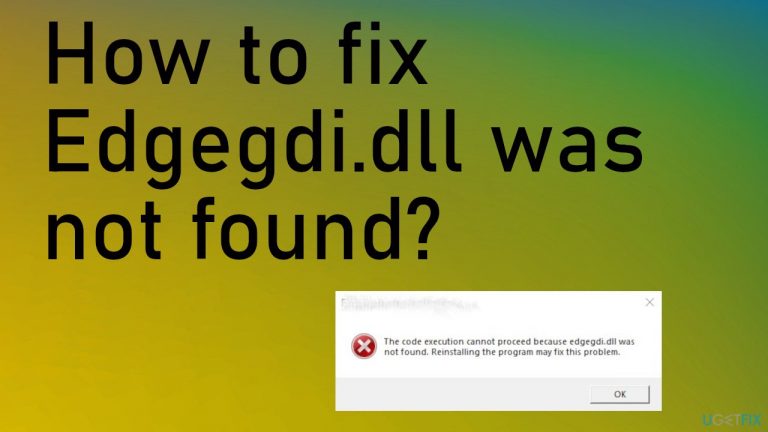
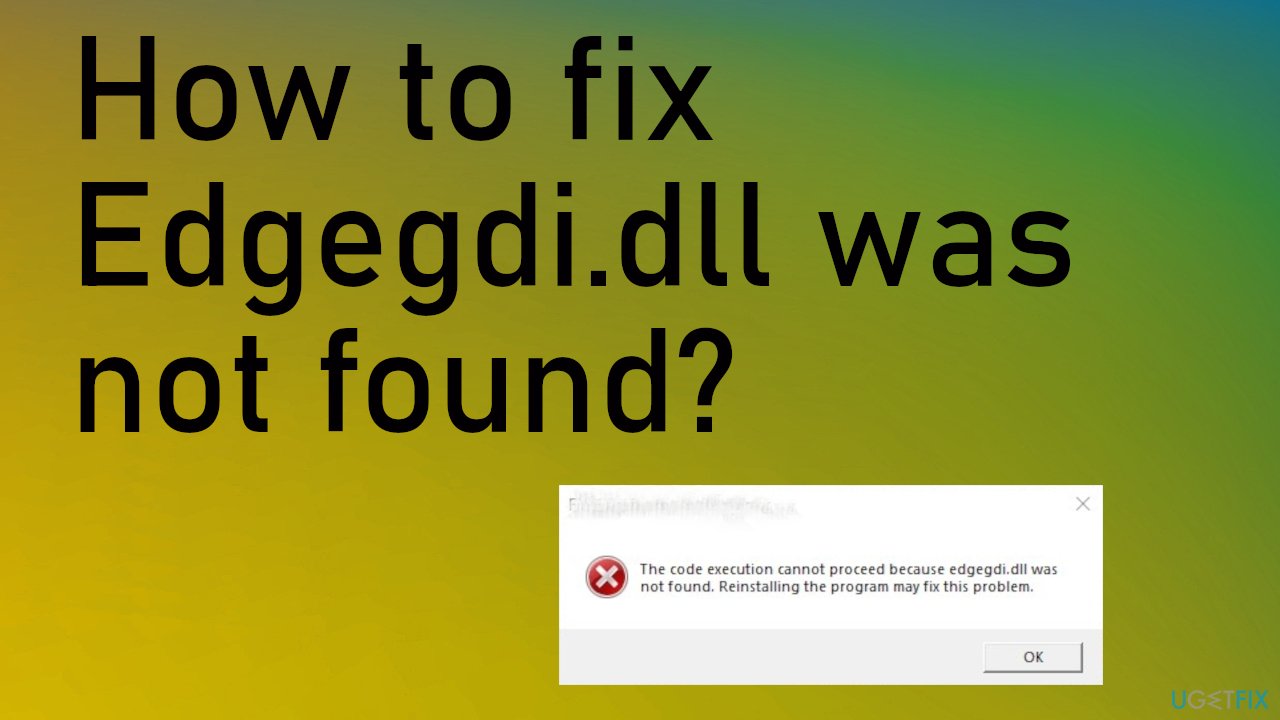
The code execution cannot proceed because edgegdi.dll was not found in Windows 10. Reinstalling the program may fix this problem
Edgegdi.dll was not found error is triggered by a system conflict, so you should note that the problem may interfere with other processes and affect apps. However, if you click the OK button, your program might also run normally. If you continuously encounter the error, you need to take measures and solve the root cause.
One of the methods to fix Edgegdi.dll was not found include recovering DLL files[ref en-3] because such pieces can trigger problems with the system when missing or even corrupted. You can restore processes and functions by running a tool like [d1]. This application improves performance and can even solve issues quickly, saving time for you.
1. Reinstall the program to fix Edgegdi.dll was not found
- You can uninstall the program via Apps section in the Settings.
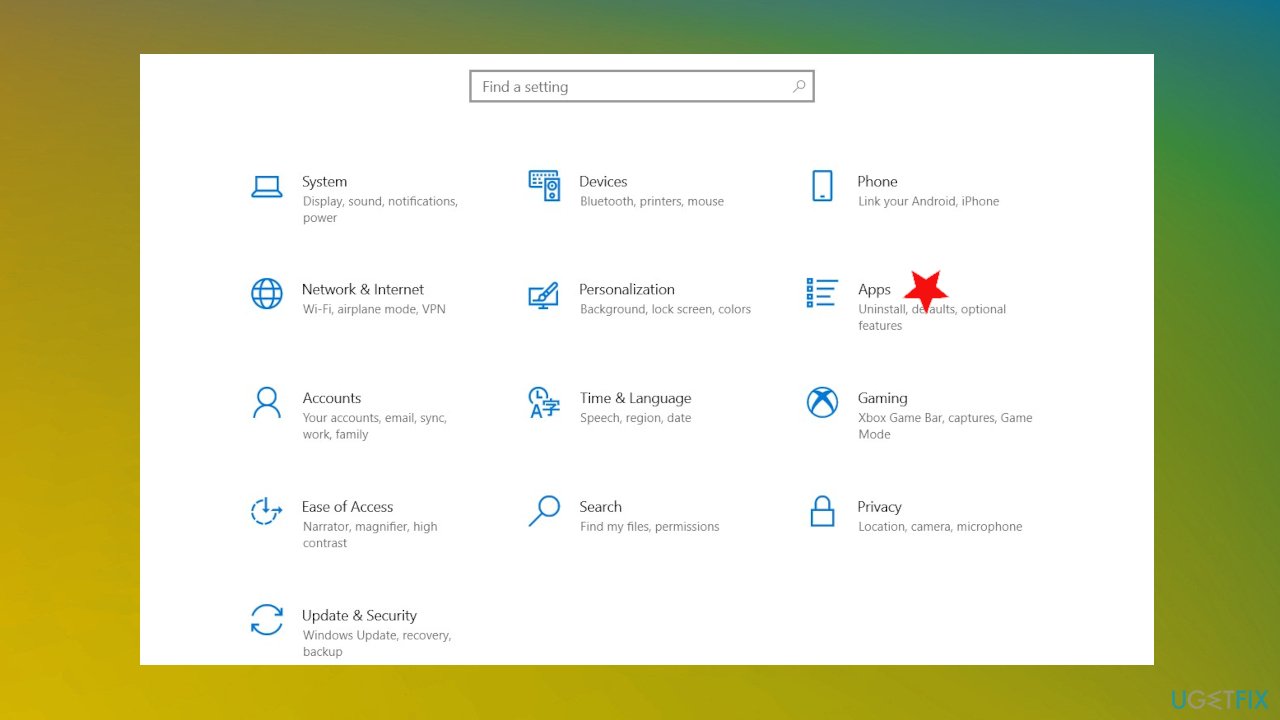
Edgegdi dll missing error fix apps - Find the program and hit uninstall.
- Then install the program again.
- Also, you can do that via Control Panel.
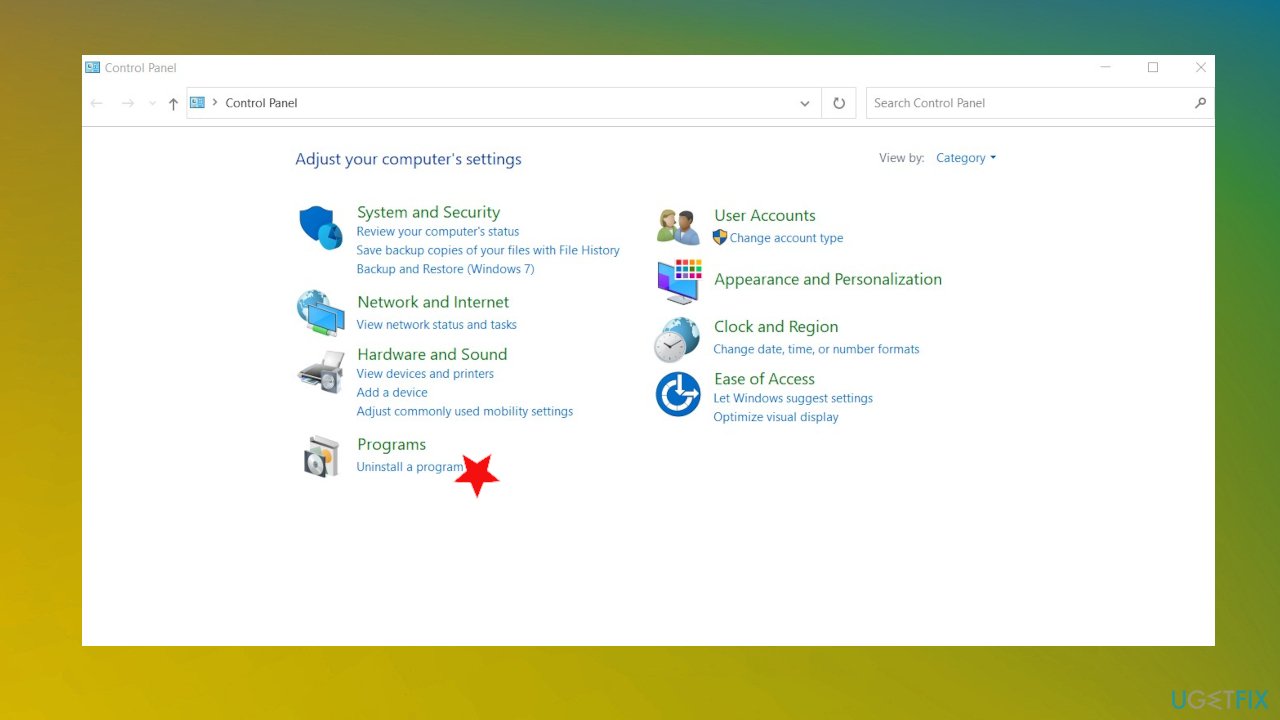
Edgegdi dll missing error fix control panel - Choose Uninstall the program under Programs.
- Select the app and right-click to get the Uninstall option.
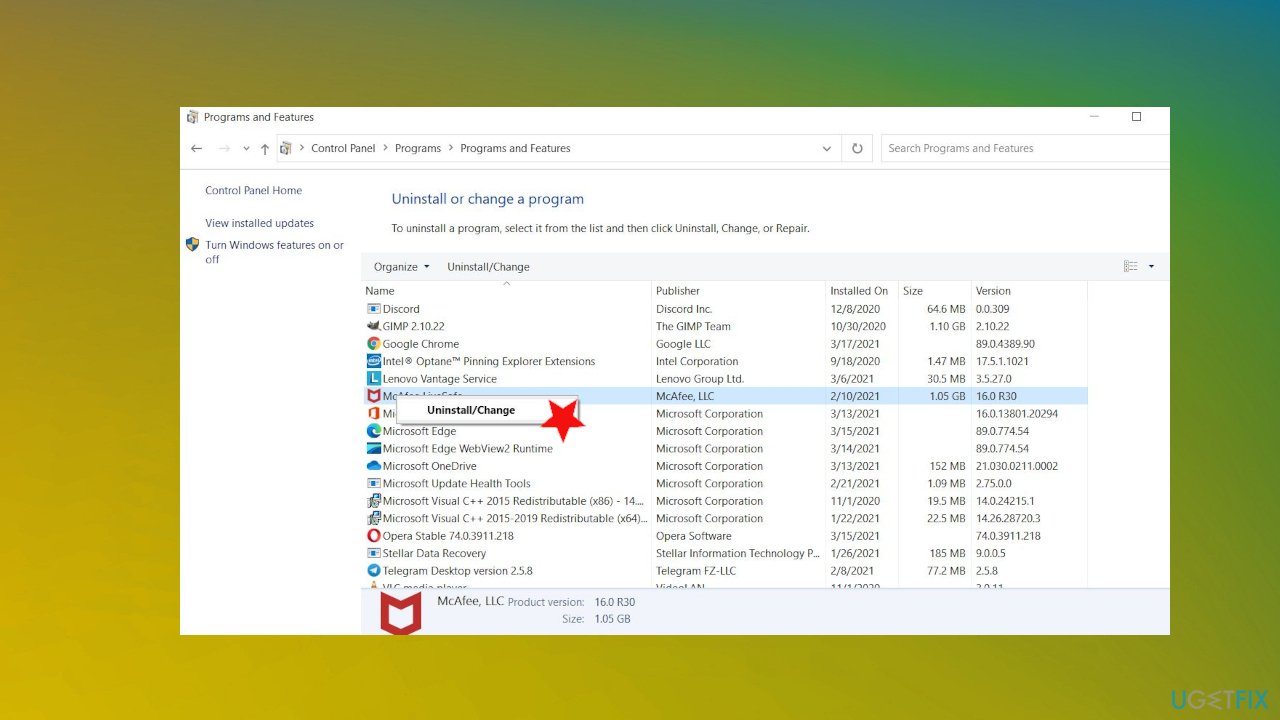
Edgegdi dll missing error fix uninstall program - Reinstall the application again.
2. Run the app in compatibility mode to fix Edgegdi.dll was not found
- Right-click the application that triggers the issue and go to Properties.
- Click on the Compatibility tab.
- Then uncheck the box next to Run this program in compatibility mode.
- Hit Apply and run the program again.
3. Scan for malware in Safe Mode
- Right-click on the Start button and then pick Settings.
- Go to Update & Security.
- Then Recovery.
- Under Advanced startup section, click Restart now.
- After a restart, Choose an option appears.
- Go to Troubleshoot and then Advanced options.
- Choose Startup Settings and click Restart.
- Press F5 or 5 to enter Safe Mode with Networking.
- Run a full system scan with anti-malware software.
4. Update drivers
- Right-click on the Windows Start and select Device Manager.
- Expand Display Adapters section.
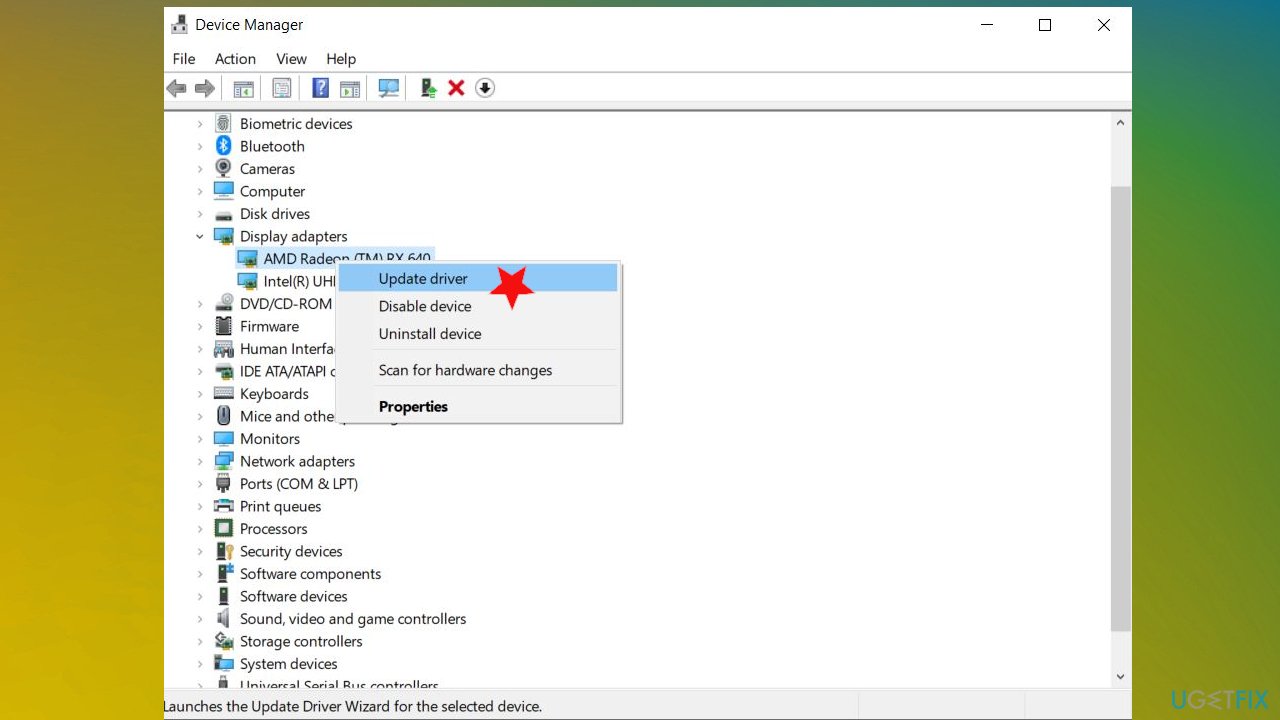
Edgegdi dll missing error fix driver update - Right-click on the particular driver and select Update Driver.
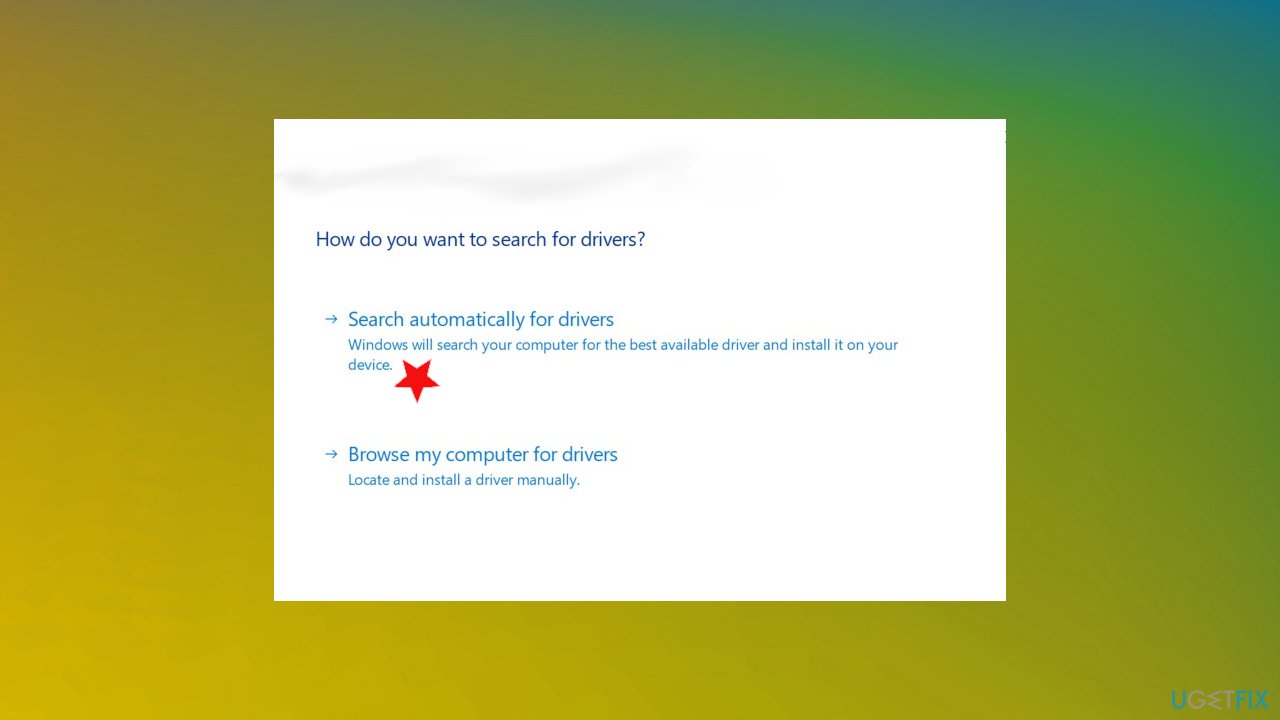
Edgegdi dll missing error fix update option - Select Search automatically for updated driver software.
- Wait for the update process to be finished.
- You can repeat this with other drivers that have exclamation points near them on the list.
You can also run a tool like [rev id="DriverFix"] that automatically renews all the drivers and picks the compatible versions, so the system runs smooth. You don't need to pick drivers yourself and search for the needed versions or find which drivers are malfunctioning and require the update. Software like this saves a lot of time.
5. Restore system to fix "The code execution cannot proceed because edgegdi.dll was not found" error
- Click the Windows Start button.
- Type System Restore in the search and hit Enter.
- Click System Restore.
- Follow steps in the system restore wizard and choose a relevant restore point.
- Restore your computer.
Bottom line
To fix the Edgegdi.dll was not found error, you can try reinstalling the affected program or recovering the DLL files. If the problem persists, consider running a tool to improve performance or restore system functions.
Frequently asked questions
You can try to restore the missing Edgegdi.dll file by running the System File Checker tool, which scans for and repairs corrupted system files. Open Command Prompt as an administrator and type 'sfc /scannow'.
Ensure that your Windows 11 is updated to the latest version, as updates often fix such issues. If the problem persists, consider reinstalling Microsoft Edge to replace any missing or corrupted files.
Downloading DLL files from third-party websites is not recommended, as it can expose your system to malware and other security risks. It's safer to use built-in Windows tools or official software to resolve the Edgegdi.dll error.




Report an issue
What's wrong with this guide? We review every report and update or remove content.
Report received — thank you. We'll review and fix it.
You need a free account to submit a report.
Be the first to comment