How to fix
PAGE_FAULT_IN_NONPAGED_AREA Blue Screen
on Windows
Resolve the PAGE_FAULT_IN_NONPAGED_AREA blue screen error on Windows 10 and 11 quickly. Follow our expert-tested solutions for a seamless fix.

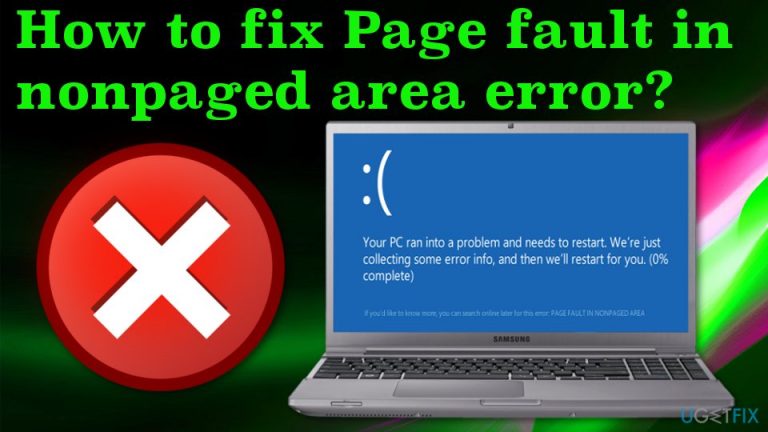
What causes How to fix PAGE_FAULT_IN_NONPAGED_AREA Blue Screen on Windows?
- Faulty RAM
- Incorrect memory addresses
- System references to discharged memory
- Driver issues
- Software conflicts
Repairs Windows system files, removes malware, and restores a clean OS state — without reinstalling.
Hello. I really hope that you will be able to help me. I’ve started receiving BSOD PAGE_FAULT_IN_NONPAGED_AREA out of nowhere and is interrupted by it every single day. I’ve looked for the information related to this stop error, but probably it’s not among the most common, so I did not find anything suitable. Could you please check it and help me? Thank you in advance!
PAGE_FAULT_IN_NONPAGED_AREA error is a frustrating problem because it makes the system more prone to crashes if the error itself is not causing those Blue Screen of Death errors. In most cases, the issue triggers restarts of the system immediately after the error window is displayed. Reinstalling program drivers could help to fix the issue, but there are various issues related to faulty RAM and memory issues.
This "Page fault in nonpaged area" error message refers to the particular 0x50 stop error on Windows OS supporting devices. In simple words, this blue screen of death appears when Windows cannot access the needed page to achieve the needed process it started to run.
The PAGE_FAULT_IN_NONPAGED_AREA is a BSOD (Blue Screen of Death) or Stop error, which can also be identified with a full value of 0x00000050. This is a relatively old issue, which has been reoccurring on older Windows versions (7, 8, 8.1, Vista, and XP) for years. However, more and more people are reporting this phenomenon to be happening on Windows 10 OS especially after the installation of updates or applications.[ref en-1]
"Page fault in nonpaged area" or PAGE_FAULT_IN_NONPAGED_AREA or Error Code 0x00000050 means that the system has referred to invalid memory. In other words, this happens due to incorrect memory addresses or system references to discharged memory.[ref en-2] Consequently, data or software that you prefer using/running cannot be located in the RAM memory, which is why Page fault in nonpaged area Blue Screen may be thrown.
The computer has many different components that are used for storing data like a hard drive and random access memory. Data often gets swapped between RAM and the page file when there is too much information in the hard drive and the RAM itself. Page fault in nonpaged area error occurs when data that is stored in the Page file gets required by the OS and not found.
How to fix PAGE_FAULT_IN_NONPAGED_AREA Windows error
BSOD and similar system crashes are commonly triggered by viruses, missing updates, registry errors, and similar issues.[ref en-3] That’s why it would be wise to check your PC/laptop with a professional optimization tool and fix all issues that it informs to be existing.
We would recommend using [d1] that can recover Windows files and find issues besides malware, but you can always choose an alternative program. This program can repair registry entries and help with different system issues or data corruption. If you still receive a Page fault in nonpaged area error, perform the steps provided down below.
Fix 1. Manage audio and display drivers
You can uninstall, rollback, or update audio or display drivers and fix the PAGE_FAULT_IN_NONPAGED_AREA issue this way. You can do that by running a tool like [rev id="DriverFix"] and upgrading all the pieces automatically. Such an application can find the compatible versions of drivers in the database and keep all the programs running smoothly, as it supposed to. or you can manually change these parts of the machine yourself.
Rollback to previous drivers
- Go to the Device Manager.
- Expand the Display drivers or Sound, video and game controllers section.
- Right-click on the particular driver and select Properties.
- Go to Driver tab.
- Click on Roll Back Driver.
- Select the reason why you are rolling back and then pick Yes.
- Reboot your system.
Update drivers
- Right-click on the Start button and select Device Manager.
- Expand the display adapters and find the driver.
- Select and right-click it to choose Update Driver.
- Then, select Search automatically for updated driver software.
- Wait till Windows installs new updates.
- Then reboot your computer.
Uninstall drivers
- Go to Device Manager.
- Find the Sound, video, and game controllers/ Display or different section and expand it.
- Choose the driver and right-click to choose Uninstall.
Fix 2. Disable automatic paging file size management to fix Page fault in nonpaged area error
- Press the Windows logo and E at the same time. File Explorer opens up.
- Right-click This PC and then choose Properties.
- Click Advanced system settings.
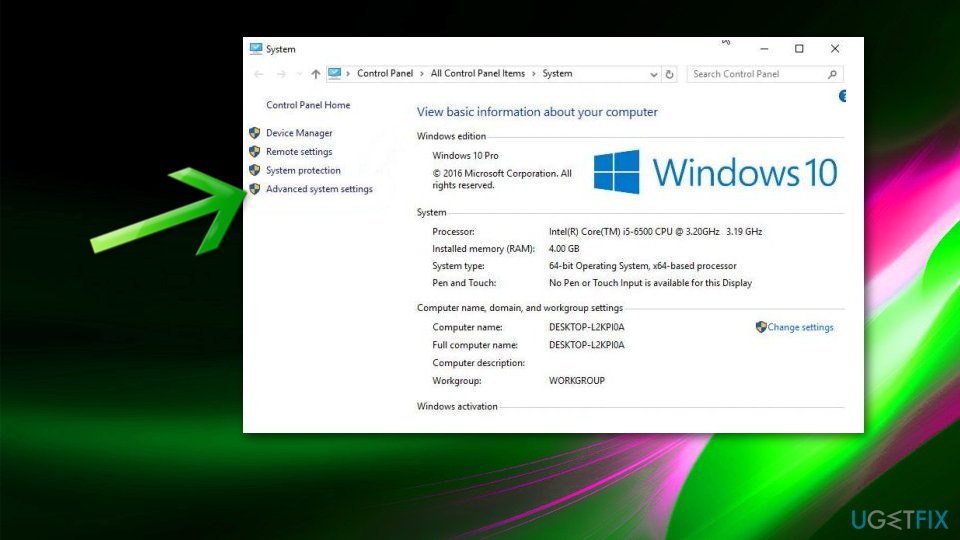
How to fix page fault in nonpaged area advanced settings - In the Performance section click Settings.
- Then go to the Advanced tab and click Change.
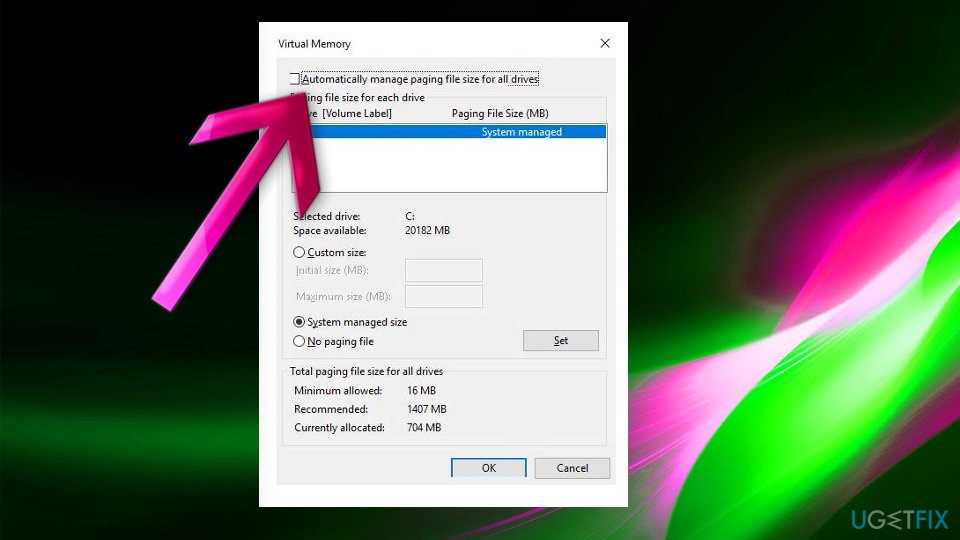
How to fix page fault in nonpaged area automatic paging file size - Make sure that Automatically manage paging file size for all drives box is unchecked and click OK.
- Restart the machine.
Fix 3. Run the Windows Memory Diagnostics tool
- Click Start or Win key and type Memory in the search bar.
- Select Windows Memory Diagnostics from the search results.
- Click Check my computer's memory problems.
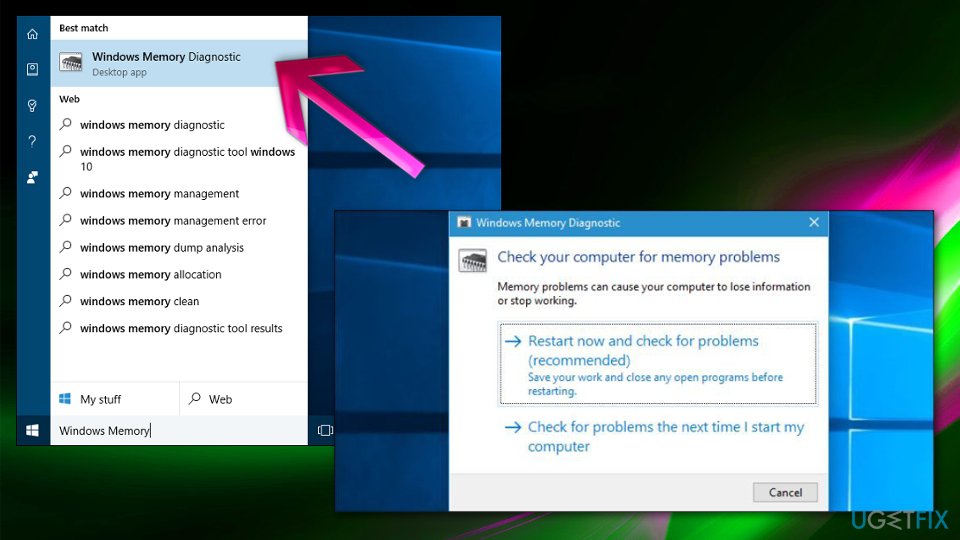
How to fix page fault in nonpaged area memory diagnostics - Use Event Viewer to view scan results under the System Log.
Fix 4. Disable non-Microsoft services to fix the Page fault in nonpaged area issue
- Click on search and type msconfig.
- Select System Configuration.
- Once opened, go to Services tab and disable all non-Microsoft services.
- After that, try to check if the BSOD still emerges. If it is gone, enable non-Microsoft services one by one or in groups so that you could know which one is causing the issue.
Fix 5. Run Windows Updates to fix PAGE_FAULT_IN_NONPAGED_AREA error
- Click on the search and type Check for Updates.
- Click on this option and let the system check if any updates are missing.
- If you receive a list of outdated drivers, select Install Updates.
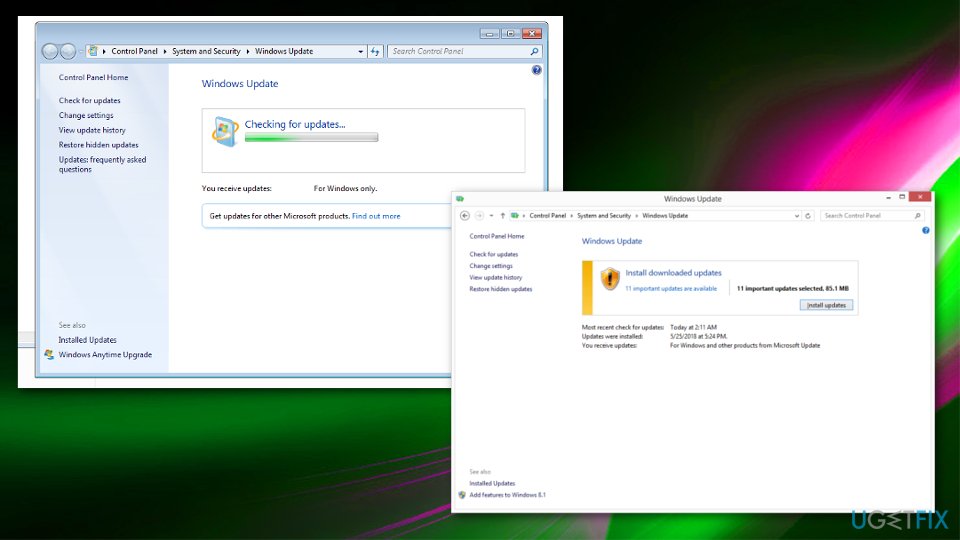
How to fix page fault in nonpaged area windows updates - After the process is finished, reboot your PC.
Fix 6. Disable antivirus to find the reason behind Page fault in nonpaged area issue
Although this does not grant that PAGE_FAULT_IN_NONPAGED_AREA BSOD will be gone, it’s worth trying because anti-malware software commonly conflicts with software/hardware delivering stop errors and similar inconveniences consequently.
Bottom line
To fix the PAGE_FAULT_IN_NONPAGED_AREA error, consider reinstalling program drivers, checking for faulty RAM, and ensuring that your system references are correct. If these solutions do not resolve the issue, further troubleshooting may be necessary.
Frequently asked questions
This error indicates that Windows has attempted to access a page of memory that is not available, which can occur due to faulty hardware, corrupted drivers, or issues with system files.
You can start by booting into Safe Mode and updating your drivers, running a memory diagnostic, or checking for disk errors using the CHKDSK command.
Yes, you can often resolve this issue by performing system restores, modifying the paging file settings, or using the System File Checker tool to repair corrupted system files.




Report an issue
What's wrong with this guide? We review every report and update or remove content.
Report received — thank you. We'll review and fix it.
You need a free account to submit a report.
Be the first to comment