How to fix
0x800707E7 – 0x3000D error
on Windows
Resolve the 0x800707E7 - 0x3000D error on Windows 10 or 11 with our expert-tested solutions. Get your system running smoothly again, fixed in minutes!


What causes How to fix 0x800707E7 – 0x3000D error on Windows?
- Installation media used on a different computer
- Incompatible user profile
- Issues with device drivers
- Problematic third-party software
- Corrupted system files
Repairs Windows system files, removes malware, and restores a clean OS state — without reinstalling.
Hello, I want to upgrade my Windows 7 to Windows 10, but I can't due to the 0x800707E7 - 0x3000D error. The process starts, but the system reboots all the time, and the installation is failing for me. I don't know what is wrong. the installation media was used before on a different computer, and that worked fine. Help me!
0x800707E7 - 0x3000D error occurs on the screen when users try to upgrade the operating system to the latest version. The message might include a bigger text about the failure, but the "installation failed" is the error's general meaning. Users[ref en-1] state that the particular indication issue sometimes follows this error code, but this repeated failure of installation is really common in general.
Troubles while trying to install the operating system can trigger other issues, but the appearance of the 0x800707E7 - 0x3000D error on Windows creates frustration and questions. The cause of this error can be indicated with the full error message like ERROR_PROFILE_DOES_NOT_MATCH_DEVICE, for example. it even can appear as a BSOD error.[ref en-2] However, not every case of this error comes with a specified issue.
Nevertheless, the different device's specified profile can cause the 0x800707E7 - 0x3000D error on Windows generally. Changing this setting can help install the Windows properly. The error occurs when the installation process is triggered, but other issues might occur during the feature update[ref en-3] and other processes involving the OS upgrades.
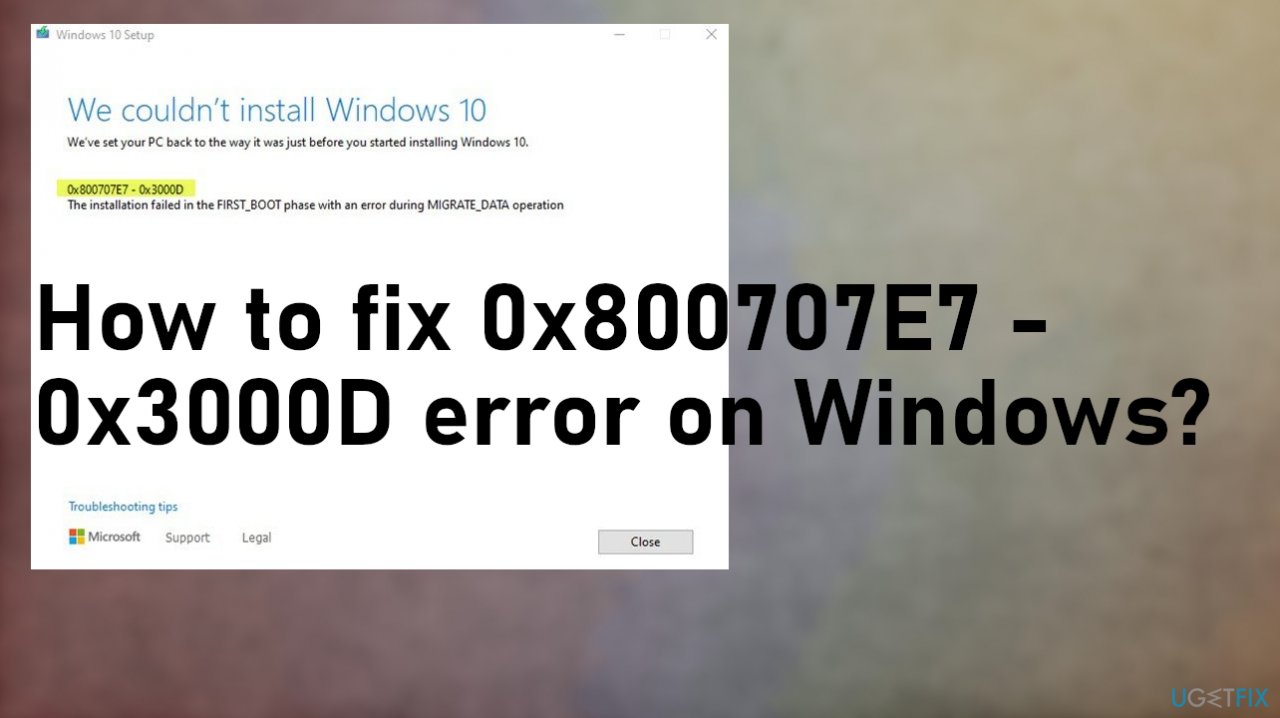
Affected people state that the error message often displays the full:
We couldn’t install Windows 10. We’ve set your PC back to the way it was just before you started installing Windows 10.
Since third-party programs trigger the cause of the failed install, issues with device drivers or problematic software, files, you need to fix the 0x800707E7 - 0x3000D error on Windows by relying on proper methods. There are a few solutions for the problem, but a quick check with the [d1] tool can help avoid some of the methods' failure. This program can repair system files or fix other issues that lead to system process malfunction.
#1. Delete Unusual user profile
- Right-click the Computer icon from the desktop and select Properties.
- Choose Advanced system settings.
- Click User profile (settings).
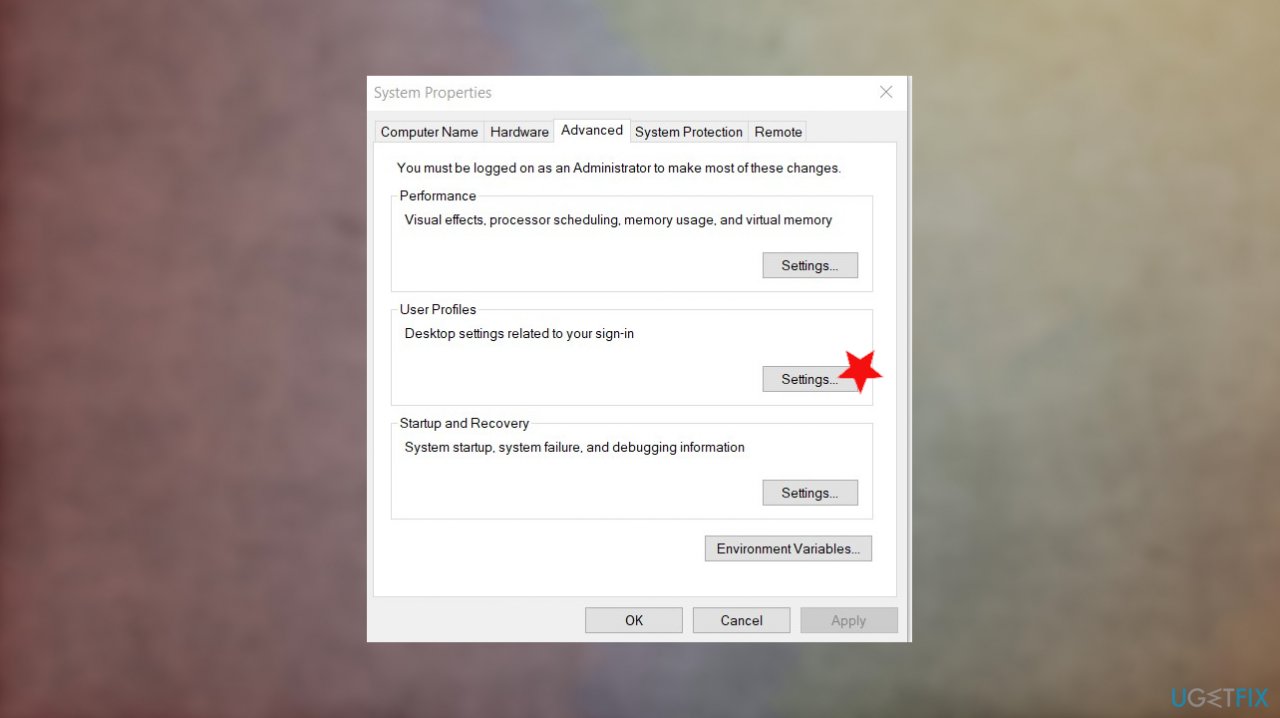
How to fix 0x800707e7 0x3000d error on windows users - Check the usernames in the Profiles stored on this computer.
- Delete UpdatusUser.
- Find if more unusual usernames here and remove them.
- Next, go to C:\\Users\\ and delete the same user profiles.
#2. Edit registry
- Start the Run box with Wind and R keys.
- Regedit can be opened when you type Regedit in it, then press enter.
- Navigate to the following registry key : HKEY_LOCAL_MACHINE\\SOFTWARE\\Microsoft\\Windows NT\\CurrentVersion\\ProfileList
- And remove all entry which contains a value with UpdatusUser in it.
- After all that, I did a reboot to be safe.
#3. Uninstall third-party software to fix 0x800707E7 - 0x3000D error on Windows
- Press the Win+R and open the Run box.
- Type appwiz.cpl.
- Hit Enter.
- Locate the software and right-click on it.
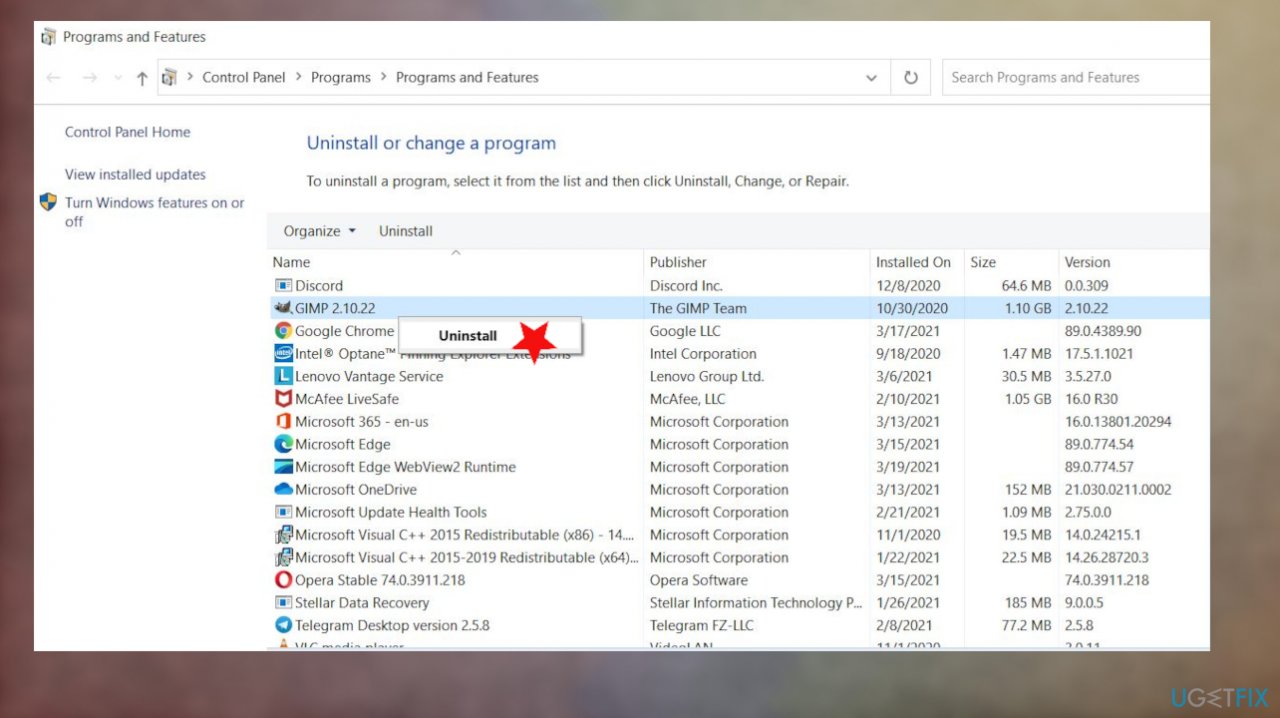
How to fix 0x800707e7 0x3000d error on windows programs features - Select the Uninstall.
- Follow instructions and then reboot your system.
#4. Update drivers
- Right-click on Start and select Device Manager or search for it.
- Expand the section you want to update, f.e., Display adapters.
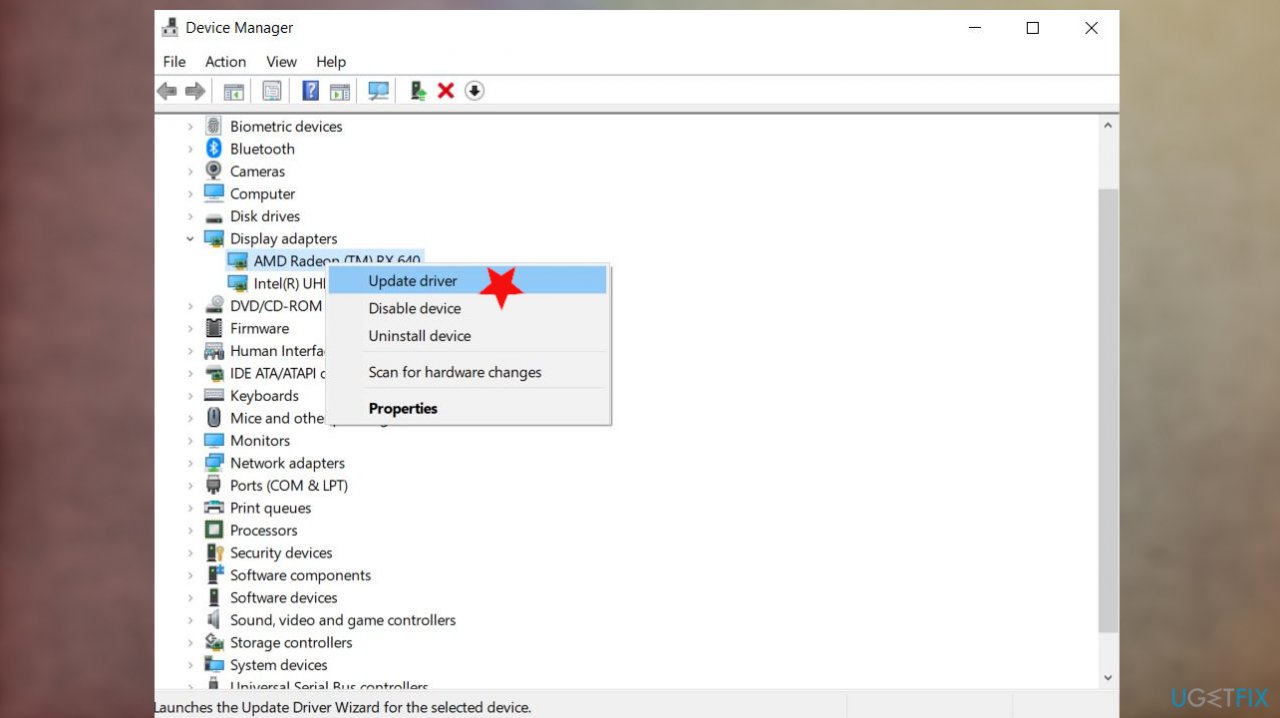
How to fix 0x800707e7 0x3000d error on windows driver update - Right-click and select Update Driver.
- Select Search automatically for drivers from the options, so the process is automatic.
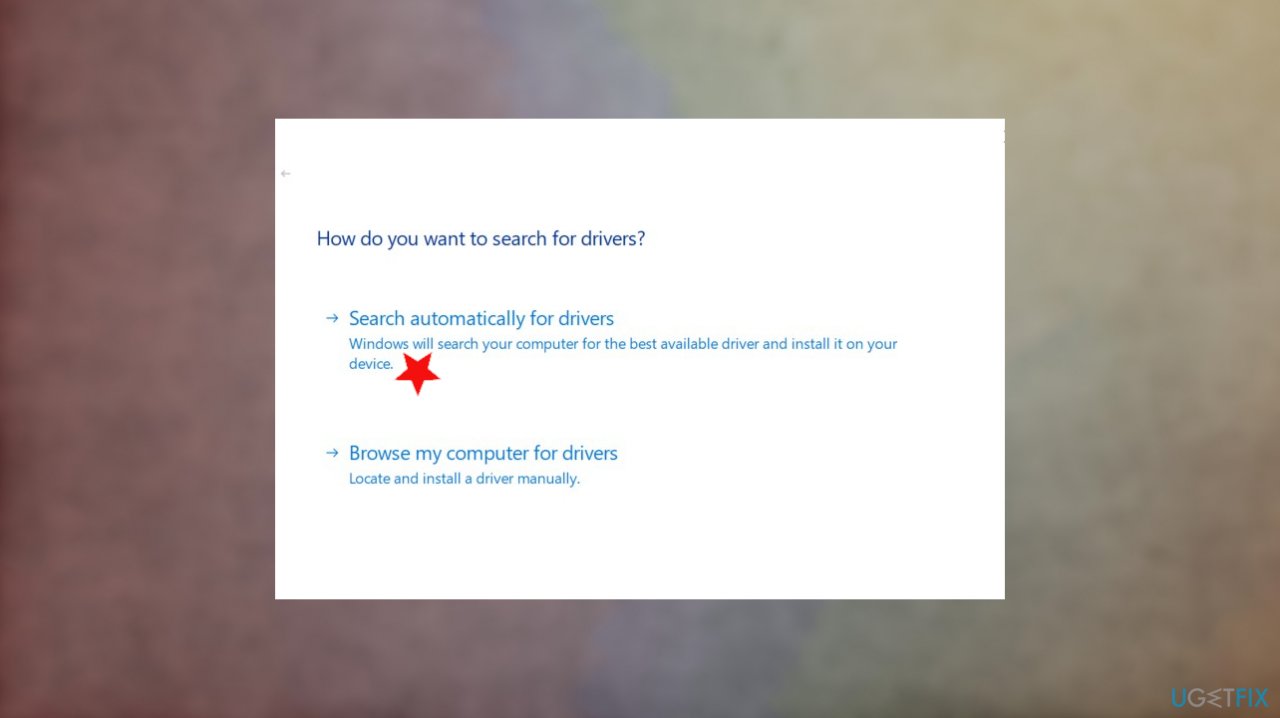
How to fix 0x800707e7 0x3000d error on windows driver upd options - Or you can employ [rev id="DriverFix"] for the job.
#5. Rely on clean install of Windows
- Start your system using the install media.
- Press any key to start booting your device.
- While on the Windows Setup section, hit Next.
- Choose the correct time, currency, and language settings.
- Click Install Now.
- Enter the product key.
- Hit Next to proceed.
- Choose your preferred Windows 10 edition.
- Click Next.
- Tick the box next to I accept the license terms option.
- Hit Next.
- Choose the Custom: Install Windows Only (Advanced) option.
- Select the partition that contains the installation.
- Click Delete.
- Confirm with Yes.
- Choose the empty drive.
- Press next and follow the wizard.
Bottom line
To fix the 0x800707E7 - 0x3000D error, you can delete unusual user profiles, check for device driver issues, and repair system files using a specific tool. If these methods do not resolve the issue, consider seeking further assistance or exploring additional troubleshooting steps.
Frequently asked questions
This error typically indicates an issue with the Windows Update service or a problem related to the installation of system components, preventing updates or installations from completing successfully.
You can try running the Windows Update Troubleshooter, resetting the Windows Update components, or performing a system file check using the command 'sfc /scannow' in the Command Prompt.
Reinstalling Windows 11 can resolve the error, but it should be considered a last resort; try other troubleshooting methods first to avoid data loss.




Report an issue
What's wrong with this guide? We review every report and update or remove content.
Report received — thank you. We'll review and fix it.
You need a free account to submit a report.
Be the first to comment