How to fix
FAT FILE SYSTEM error
on Windows
Resolve the FAT FILE SYSTEM error in Windows 10 quickly and effectively with our expert-tested solutions. Get your system running smoothly again!


What causes How to fix FAT FILE SYSTEM error in Windows 10?
- Driver conflicts
- Outdated drivers
- Corrupted Windows system files
- Altered file system
- Data corruption
Repairs Windows system files, removes malware, and restores a clean OS state — without reinstalling.
Hey. I get this error that states about the FAT FILE SYSTEM issue. My PC worked fine, I updated the OS a while ago and had no issues, but this BSOD now bothers me. It restarts after the BSOD error of FAT_FILE_SYSTEM, but the issue repeats, and sometimes my computer cannot reboot normally. Can you help me fix this?
FAT_FILE_SYSTEM error bothers users, and the worst thing about it is the failure of the reboot[ref en-1] frustrates people. These crucial errors are commonly triggered by problems with a hard disk drive or required OS, driver updates. You might want to uninstall software that can interfere or update those pieces that are out of date and fix the issue this way.
Resetting or reinstalling Windows OS completely would be the last solution for an error like this when other possible methods do not work, so do not panic. FAT FILE SYSTEM error is one of many Blue Screen of Death errors that show up with the full screen and triggers the immediate system restart to avoid crucial damage to the machine.
The particular stop code error can be serious and lead to more issues if not fixed as soon as possible. FAT FILE SYSTEM error is related to the FAT - Allocation Table file system that is a system designed for the small disk and developed for personal computers.[ref en-2]
Causes for such a FAT_FILE_SYSTEM error in Windows 10 can differ from driver conflicts, outdated drivers on the device, and even corrupted or altered Windows system files or the file system itself. Virus or malware infections shouldn't trigger the error, but the dama corruption can be a result of the infection.
When data corruption and damage to the system is the trigger, you can try to fix the FAT FILE SYSTEM error in Windows 10 by running a PC repair application like [d1]. This is the tool that can alter registry entries, check for the alterations in system data, and replace affected pieces with the save versions from the wide database of Windows OS files. If this quick option is not helpful, rely on the more in-depth methods below.

1. Update drivers to fix FAT FILE SYSTEM error in Windows 10
- Press Windows + X select Device manager.
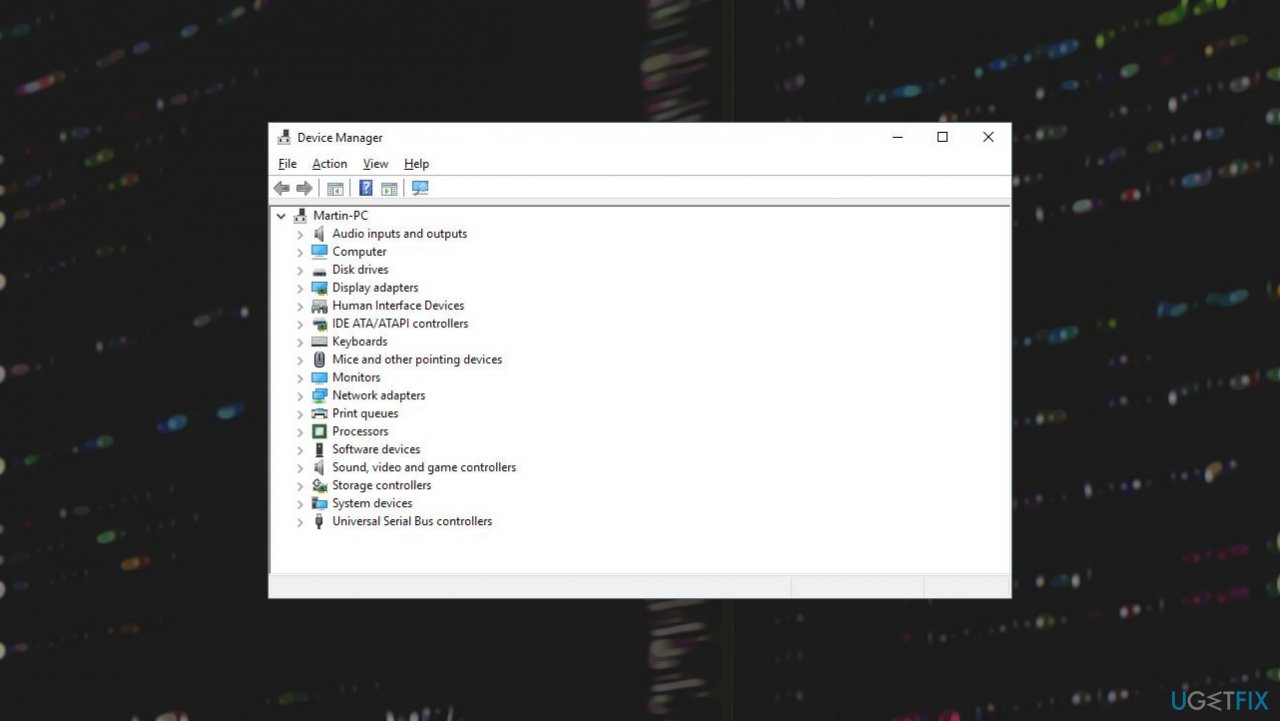
Fat file system error fix on windows device manager - Expand Display adapters.
- Right-click the installed driver and then select Update Driver.
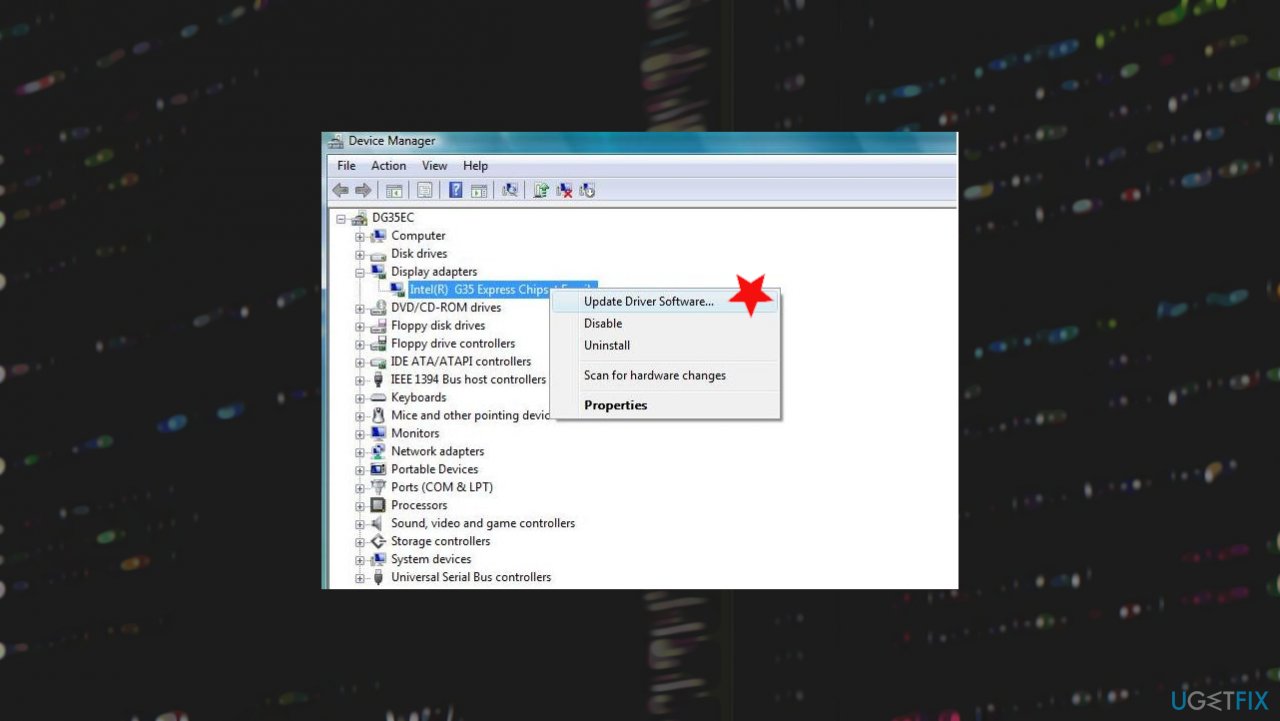
Fat file system error fix on windows update driver - This will check for the latest updated audio driver for your PC.
- Choose to Search automatically and download, install drivers for you.
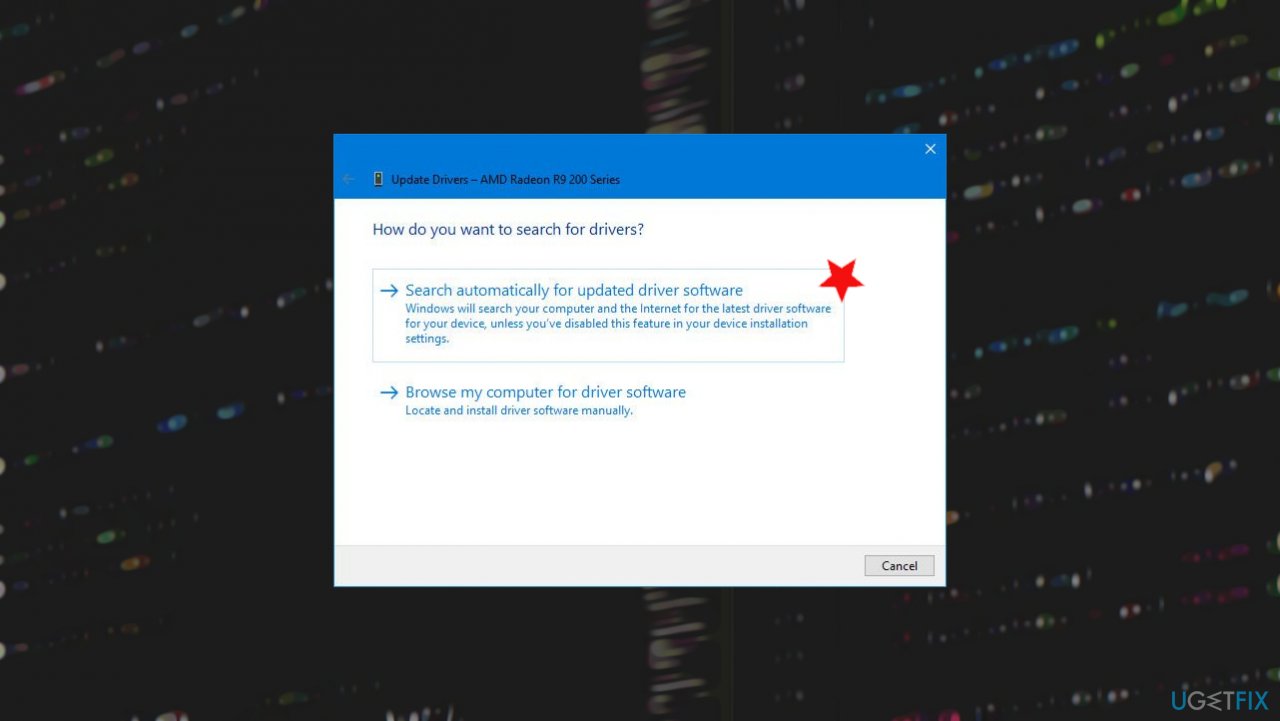
Fat file system error fix on windows search automatic - Restart Windows.
Tools like [rev id="DriverFix"] can help to find and install driver updates compatible with the machine. The app offers to check for needed updates, and the scan results show you all the drivers that need issue fixing.
2. Troubleshoot
- Go to the Settings app and open Update and Security options.
- Click on the Troubleshoot option on the left-side menu.
- After that, you need to select the BSOD option and click on the Run the troubleshooter button.
- Instruction will appear on the screen. You need to follow them completely.
3. Run SFC to fix FAT FILE SYSTEM error in Windows
- Right-click the Start menu button and open Command Prompt with Admin rights.
- Type the sfc/scannow and hit Enter.
- Wait for the process to be done.
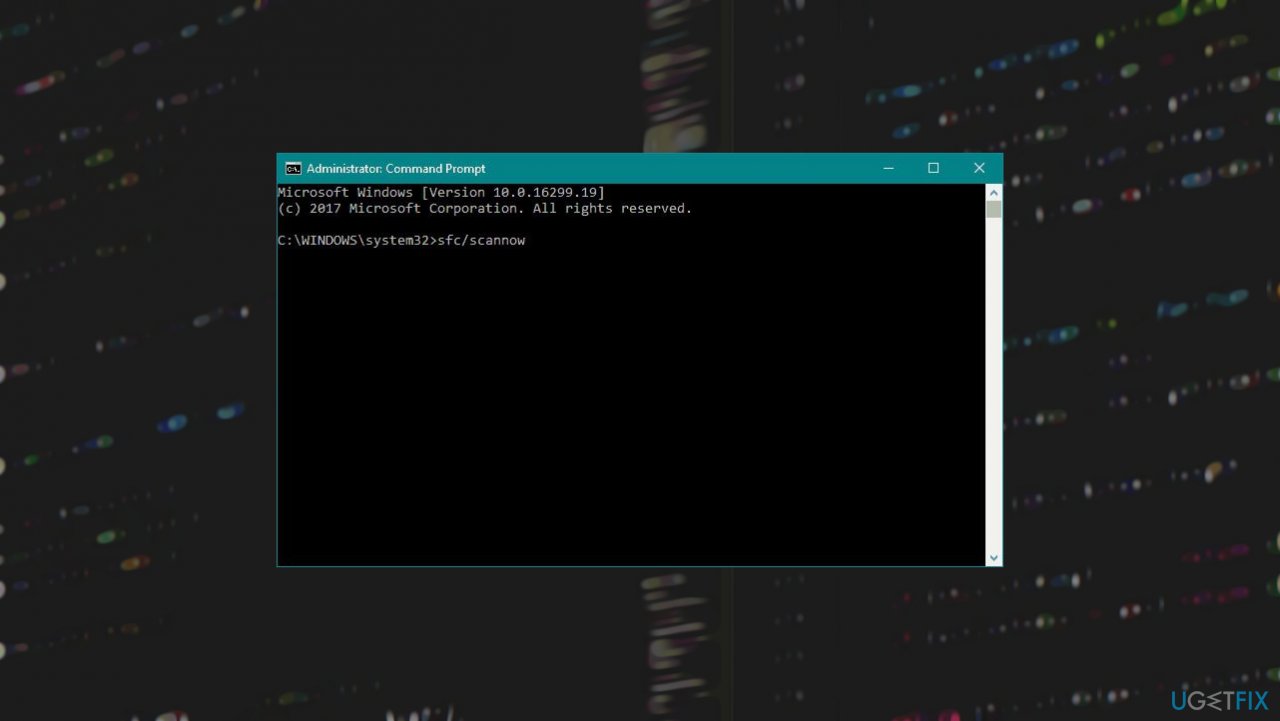
Fat file system error fix on windows sfc - The solution, if found, will be automatically applied.
- Close the Command Prompt and restart the computer.
4. Run DISM commands
- Open Command Prompt with admin rights
- Type following commands and hit Enter after each one:
"DISM /Online /Cleanup-Image /RestoreHealth"
dism /online /cleanup-image /scanhealth
dism /online /cleanup-image /restorehealth
DISM /Online /Cleanup-Image /RestoreHealth /source:WIM:X:SourcesInstall.wim:1 /LimitAccess - Restart to see if the issue is solved.
5. Uninstall Folder protect and Folder lock software
If you are using such tools, the software can interfere with hard drives and trigger file issues, so the BSOD[ref en-3] or different stop codes appear, so uninstall them from the PC. First, you might want to enter the Safe Mode.
- At first, restart your computer while it is booting, and repeat the process until the computer starts the Automatic Repair process.
- You have to choose Troubleshoot.
- Go for Advanced Options.
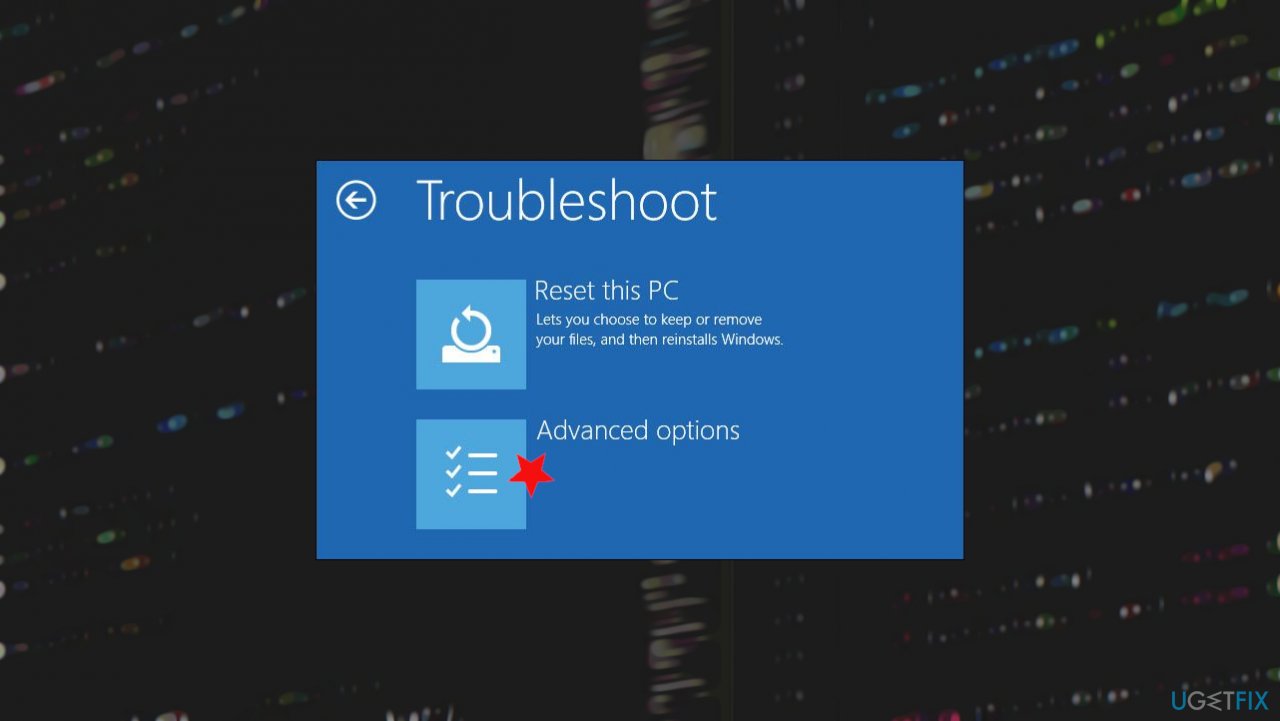
Fat file system error fix on windows advaced reset - Then Startup Settings.
- Click on Restart.
- Once that is done, you are required to press F4/F5 to access Safe Mode with Networking.
6. Reset Windows to fix FAT FILE SYSTEM error in Windows 10
- Go to Settings and then Update & Security section.
- Navigate to Recovery to find and click Get Started from the Reset this PC option.
- Choose the option of what happens with your files.
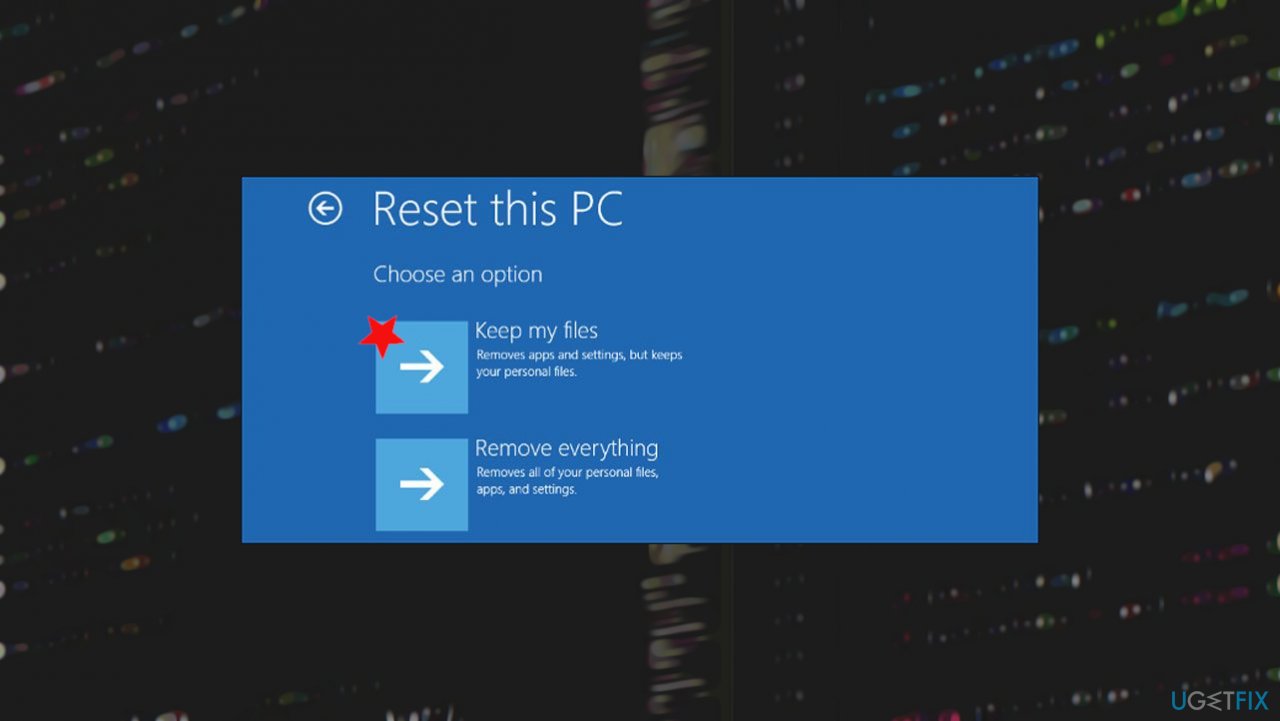
Fat file system error fix on windows keep files - We recommend going with Keep your files.
- Finish the operation by following what the wizard says.
Bottom line
To fix the FAT FILE SYSTEM error in Windows 10, you can uninstall interfering software, update outdated drivers, or run a PC repair application to address registry and system data issues. If these methods do not resolve the problem, consider resetting or reinstalling the Windows OS as a last resort.
Frequently asked questions
The FAT FILE SYSTEM error in Windows 10 is often caused by corrupted system files, issues with the hard drive, or improper shutdowns that lead to file system damage.
You can run a disk check by opening Command Prompt as an administrator and typing 'chkdsk /f C:' where 'C' is the drive letter, then press Enter.
While some third-party tools can be effective, it's important to choose reputable software to avoid causing further issues on your Windows 10 system.




Report an issue
What's wrong with this guide? We review every report and update or remove content.
Report received — thank you. We'll review and fix it.
You need a free account to submit a report.
Be the first to comment