How to fix
Configuration system failed to initialize
on Windows
Resolve the "Configuration system failed to initialize" error in Windows 10 and 11 quickly. Follow expert-tested solutions for a hassle-free fix.


What causes How to fix Configuration system failed to initialize in Windows?
- Corrupted system files
- Wrong configurations
- Third-party applications running
- Previous intruders and security issues
- Incorrect alterations in system directories
Repairs Windows system files, removes malware, and restores a clean OS state — without reinstalling.
Hello. I encounter the error about configuration system failure. The full error - Error: Another instance is running Configuration System failed to initialize - Windows 10. I installed a program a few days ago and this issue bothers me every time I log in on the computer. I can log in, but then the screen goes black. Help me.
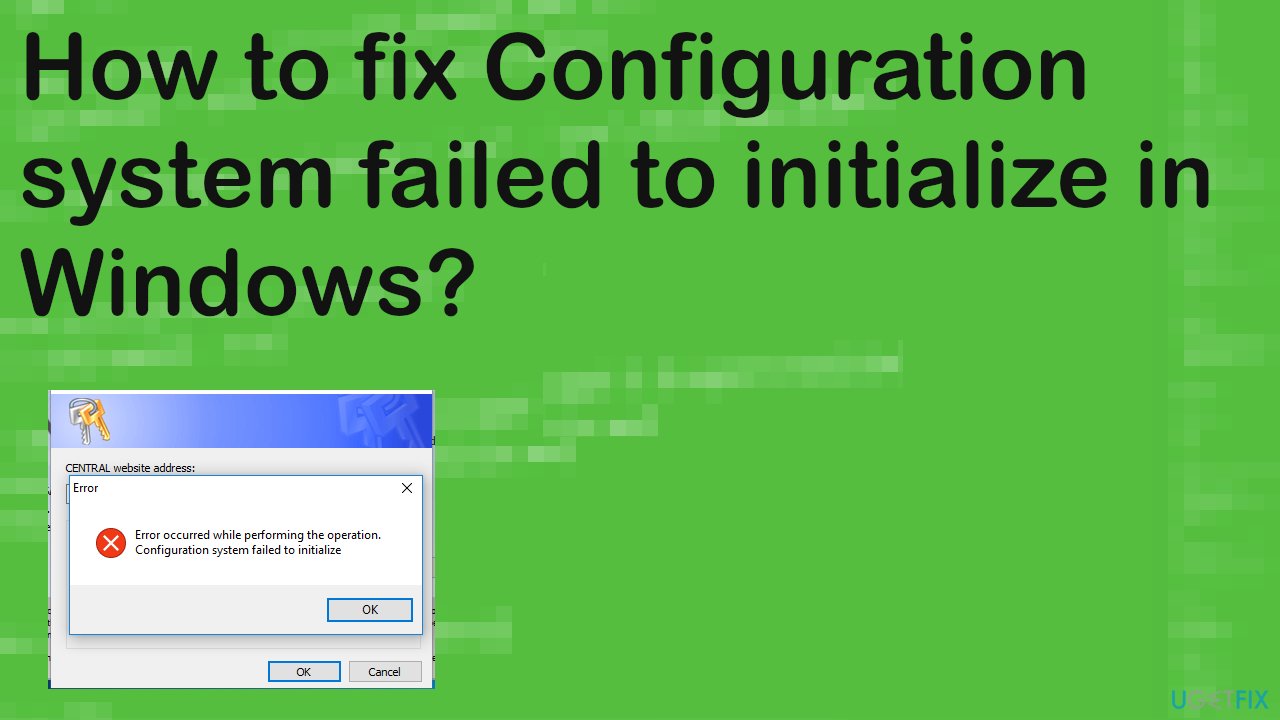
Configuration system failed to initialize in Windows is the problem that is appearing when users[ref en-1] try to access the newly installed applications. These error messages state about corrupted system files or wrong configurations. Such a pop-up message and the error can be solved pretty quickly.
The problem comes to the screen at random times and even at the reboot of the machine, but this is a common error that requires some changes to settings and interference with applications. It can be fixed by uninstalling apps, updating the operating system to the latest version[ref en-2] and other solutions for the Configuration system failed to initialize error listed below.
Configuration system failure to initialize in Windows is mainly caused by some third-party application that is running on the machine. It is not a malware-related problem.[ref en-3] However, previous intruders and security issues on the machine might leave some damage and cause corruption to files.
In most cases, issues with system files that get damaged or corrupted can be fixed automatically and it is recommended to rely on certain tools like [d1] instead of altering the registry and other pats manually. There might be more difficult issues triggered by the incorrect alterations in such directories on the system. So we offer to run the application designed for the PC repair as the first step.
Then you can move on to the manual solutions below and try to fix the Configuration system that failed to initialize in Windows. You can find a few methods, and we recommend trusting a few of them before you give up entirely because all of them should work for different instances.
#1 Run an SCF scan to fix the Configuration system failed to initialize in Windows
- Type in cmd in Windows search.
- Right-click on Command Prompt and select Run as administrator.
- Type in sfc /scannow and hit Enter.
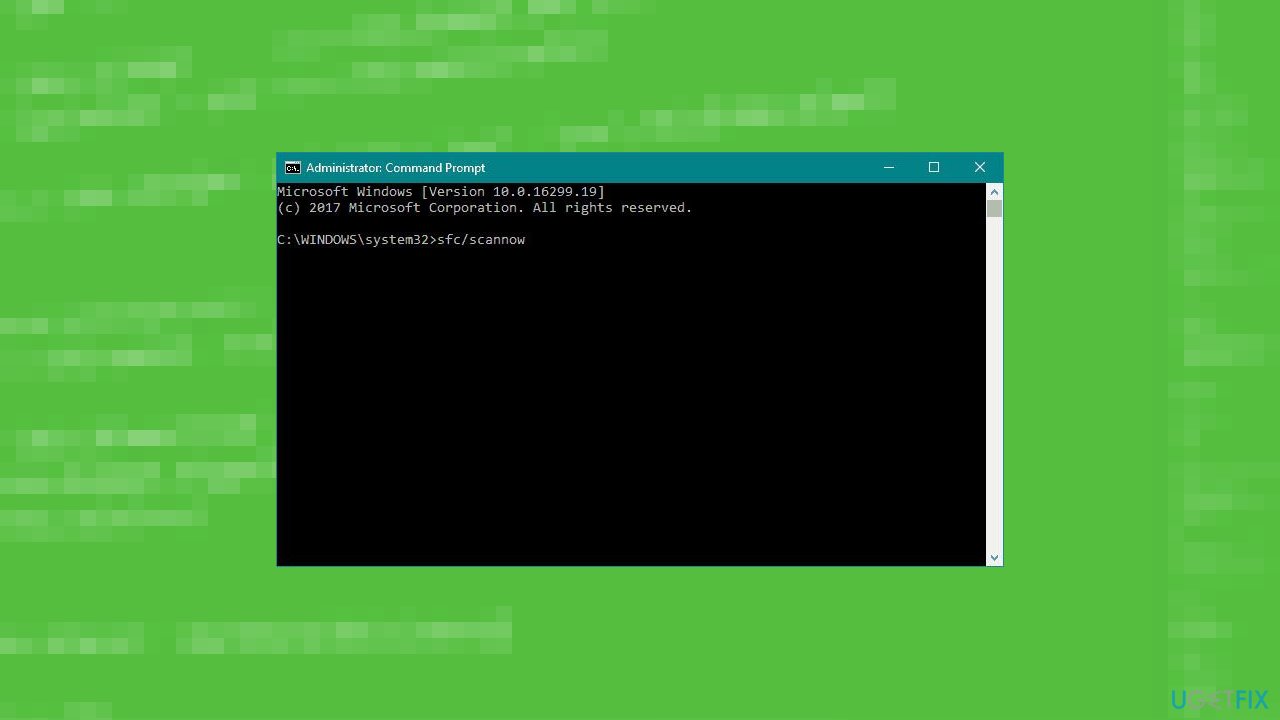
Fix configuration system failed to initialize sfc - The scan will begin – wait till it is complete.
- Once finished, reboot your PC.
#2 Check the Configuration file
- Press the Windows logo key and E at the same time to open the File Explorer.
- Go to C:\\ Windows \\ Microsoft.NET \\ Framework64 \\ v2.0.50727 \\ CONFIG.
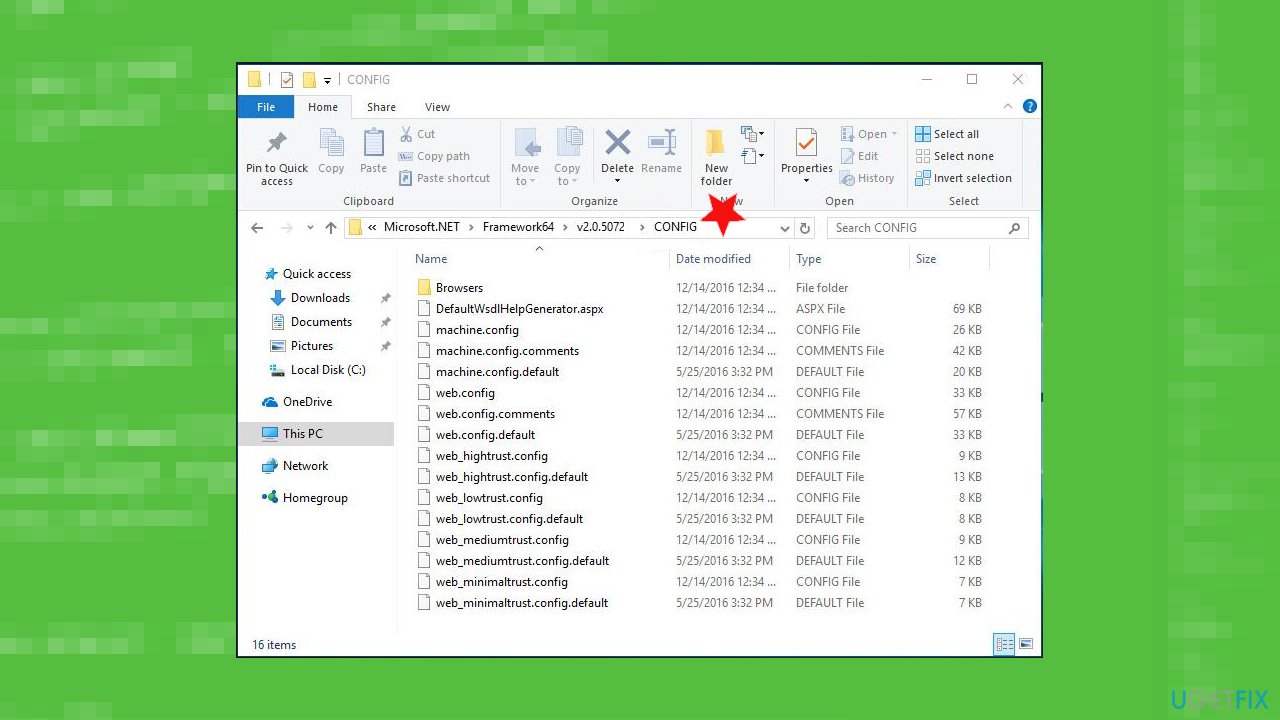
Fix configuration system failed to initialize config - Right-click on the config file of the app which exist the error.
- Choose Edit.
- When the config file is open, check inside the configuration element, ensure the first child is configSections element.
- Then you can remove the configuration element between <configuration> and <configSections>.
- Save the changes and close the edit window.
- Check if the error still appears.
#3 Delete the old Config file
- Press the Windows logo and E keys to open the File Explorer.
- Go to C: \\ Users \\ username \\ AppData \\ Local \\ appname and delete the app config file.
- Go to C: \\ Users \\ username \\ AppData \\ Roaming \\ appname and delete the app config file.
- Restart your app and check if the error still occurs.
#4 Clean boot to fix Configuration system failed to initialize in Windows
- Right-click on the Windows icon and then click on the Run.
- Type msconfig in the Run panel and click on OK.
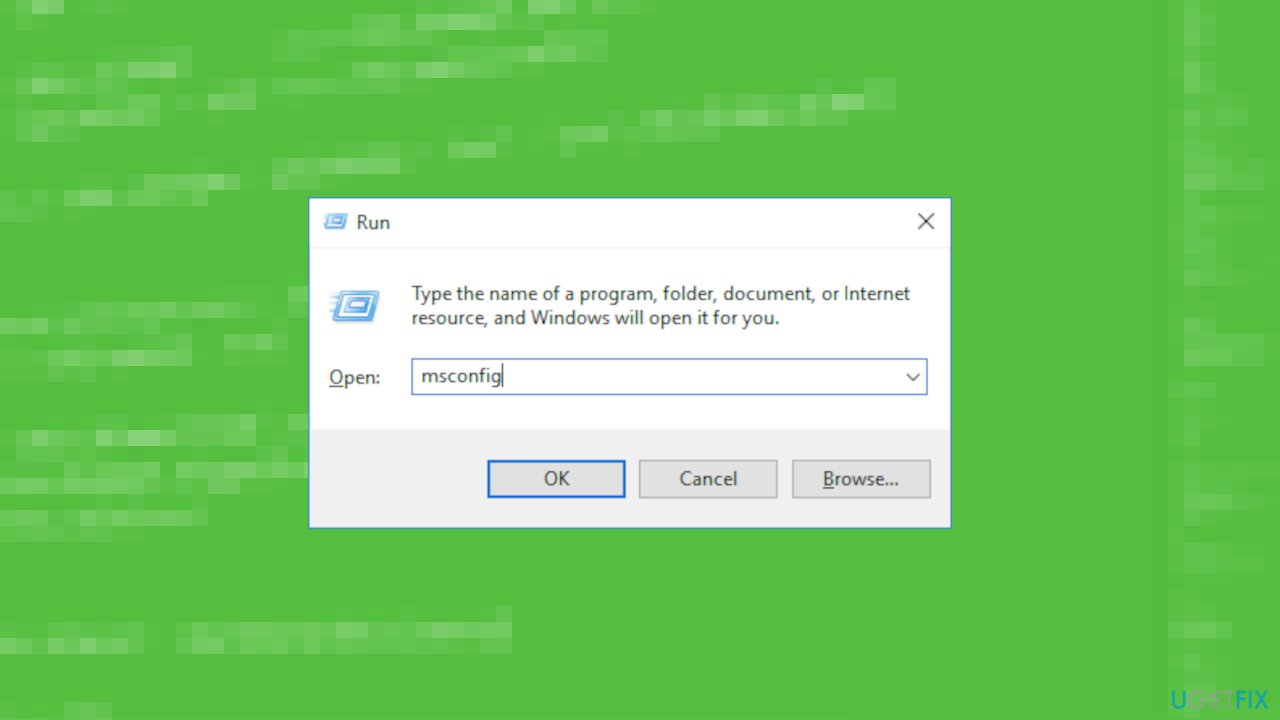
Fix configuration system failed to initialize msconfig - Once you reach the System Configuration window, visit the General section.
- Here you need to select the Selective startup option.
- Check the box beside the Load system services.
- Go to the Services tab.
- After that, click on the Hide all Microsoft services.
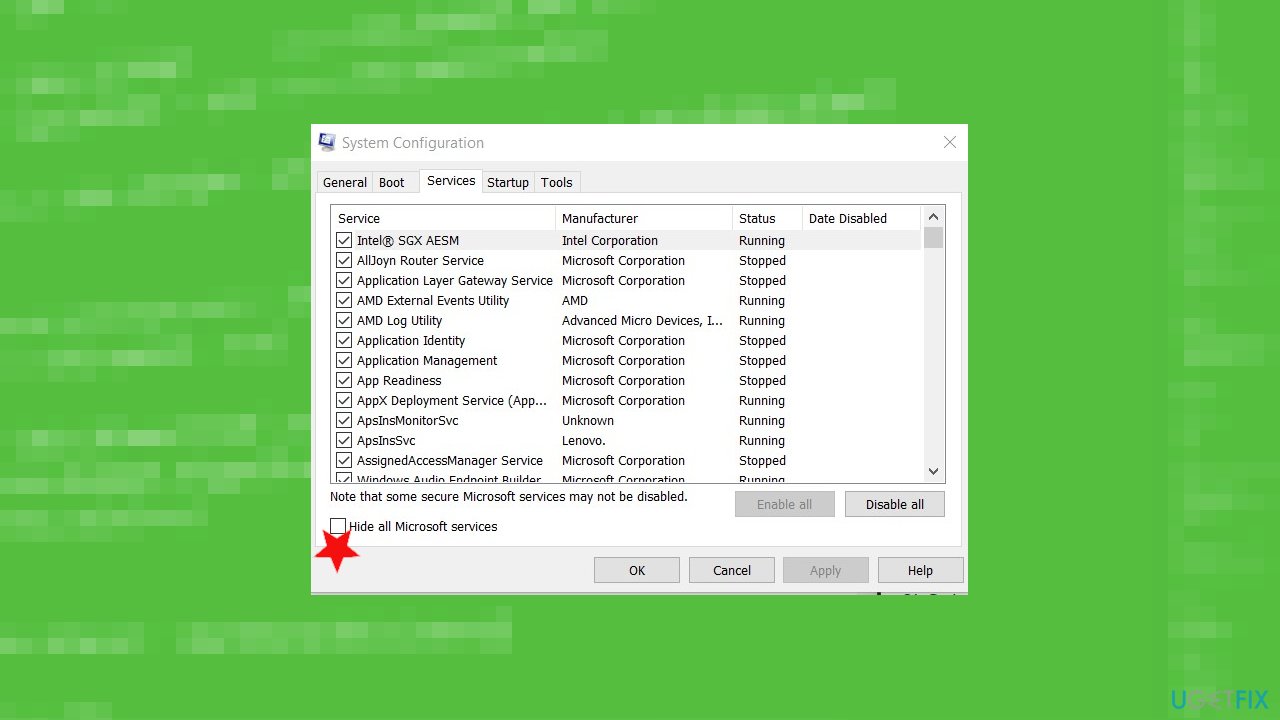
Fix configuration system failed to initialize hide all - Then, to disable the third-party services you have to click on Disable all.
- Go to the Startup panel in the same window.
- Then, click on the Open Task Manager.
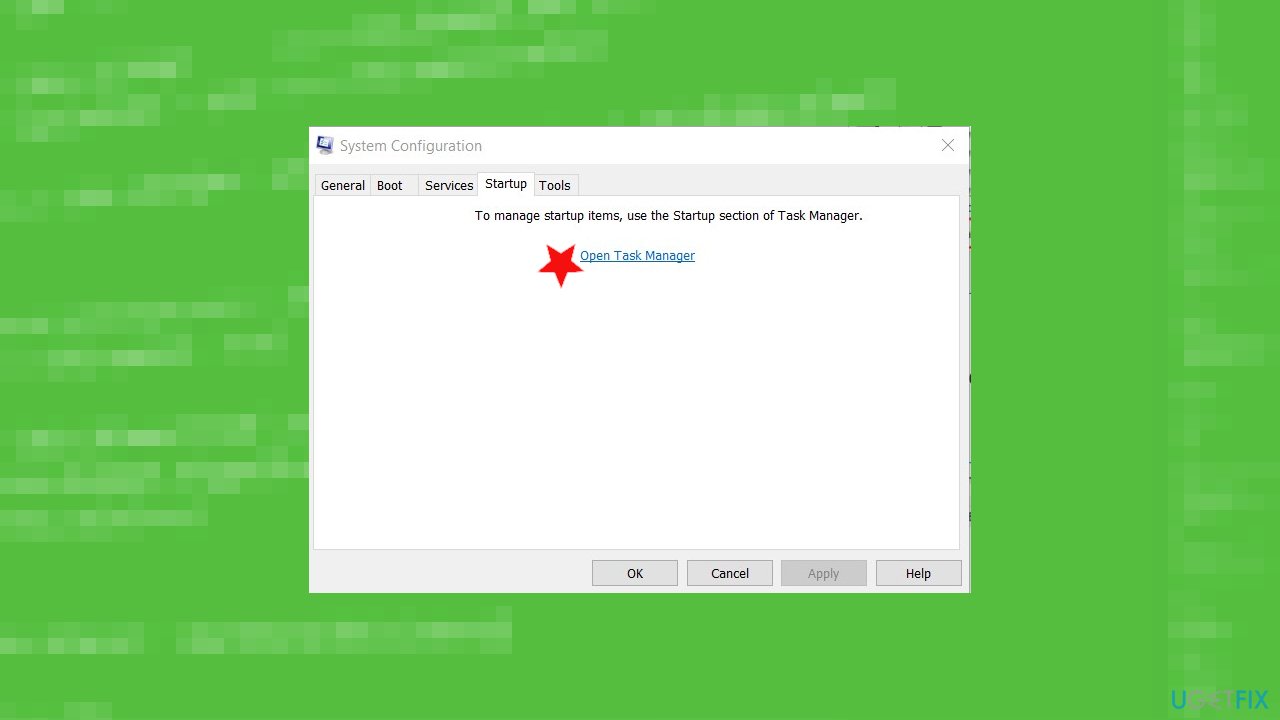
Fix configuration system failed to initialize open task manager - Here disable all the services by right-clicking on each one-by-one.
- Then click on Disable these all.
- Close the Task Manager window.
- Coming back to the System Configuration panel, just click on Apply and OK.
- Restart your PC to boot it with only the necessary drivers.
- Check if you are still facing the issue or not.
Bottom line
To fix the Configuration system failed to initialize error, you can uninstall problematic applications, update your operating system, and run an SCF scan. If these solutions do not resolve the issue, consider using a PC repair application or seeking further assistance.
Frequently asked questions
This error typically occurs due to corrupt configuration files or issues with the .NET Framework. It can also arise from improper application installations or Windows updates.
You can resolve this error by restoring the configuration files from a backup, repairing the .NET Framework, or resetting your Windows settings to default.
To prevent this error, ensure that your Windows 10 or Windows 11 system is regularly updated, and avoid abrupt shutdowns or uninstallation of important software.




Report an issue
What's wrong with this guide? We review every report and update or remove content.
Report received — thank you. We'll review and fix it.
You need a free account to submit a report.
Be the first to comment