How to fix
Volume icon missing
on Windows
Restore your Volume icon on Windows 10 quickly with our expert-tested solutions and detailed fixes. Get it back in minutes, with zero traces left!

What causes How to fix Volume icon missing on Windows 10?
- File Corruption
- Driver Problems
- Malware Infection
- Recently Installed Applications
- System Data Damage
Repairs Windows system files, removes malware, and restores a clean OS state — without reinstalling.
Hello. I have the issue with my volume control button missing. The icon itself is not found in the tray, so I need to find these settings manually. Do I need to change something? I can't find anything. Help me!
Volume icon missing on Windows is the issue that frustrates various people with different Windows versions.[ref en-1] These system icons like volume one are stored in the notification area at the bottom-right corner of the TaskBar. With the volume icon, you can easily adjust the output volume of the computer and access sound problem troubleshooter or manage external audio devices.
When the Volume icon is missing on Windows, troubleshooting solutions are needed. It is important to see what triggered the issue with the disappeared icon and settings of the sound. You might want to adjust some of the particular settings or alter drivers if those are the triggers for the problem.
Such issues like Volume icon missing on Windows 10 can be caused by file corruption or driver problems. Minor inconveniences like this are annoying, but malware[ref en-2] can be the one responsible for the system data damage. You might want to go through recently installed applications, restart the machine a few times before going for the methods below.
If you managed to solve the problem by quickly restarting processes, this issue is not major, but if you still need a solution for the sound icon missing, we can recommend start with the automatic system repair tool. An application like [d1] can find and solve problems with any files damaged due to alterations or even infections.
This is the great first step when trying to fix the Volume icon missing on Windows. Of course, you can also upgrade your Windows 10[ref en-3] or clear useless programs before you go for the methods below. When you do, pay attention to steps and details.
1. Restart explorer.exe to fix Volume icon missing on Windows 10
- Click Ctrl + shift + Esc key to open Task Manager.
- Right-click on explorer.exe and click End task.
- Click Windows key + R, to open the run.
- Type explorer.exe and click Enter key.
2. Manually set icons on the notification area
- Press Windows key, go to Settings.
- Find System and click Notification & actions.
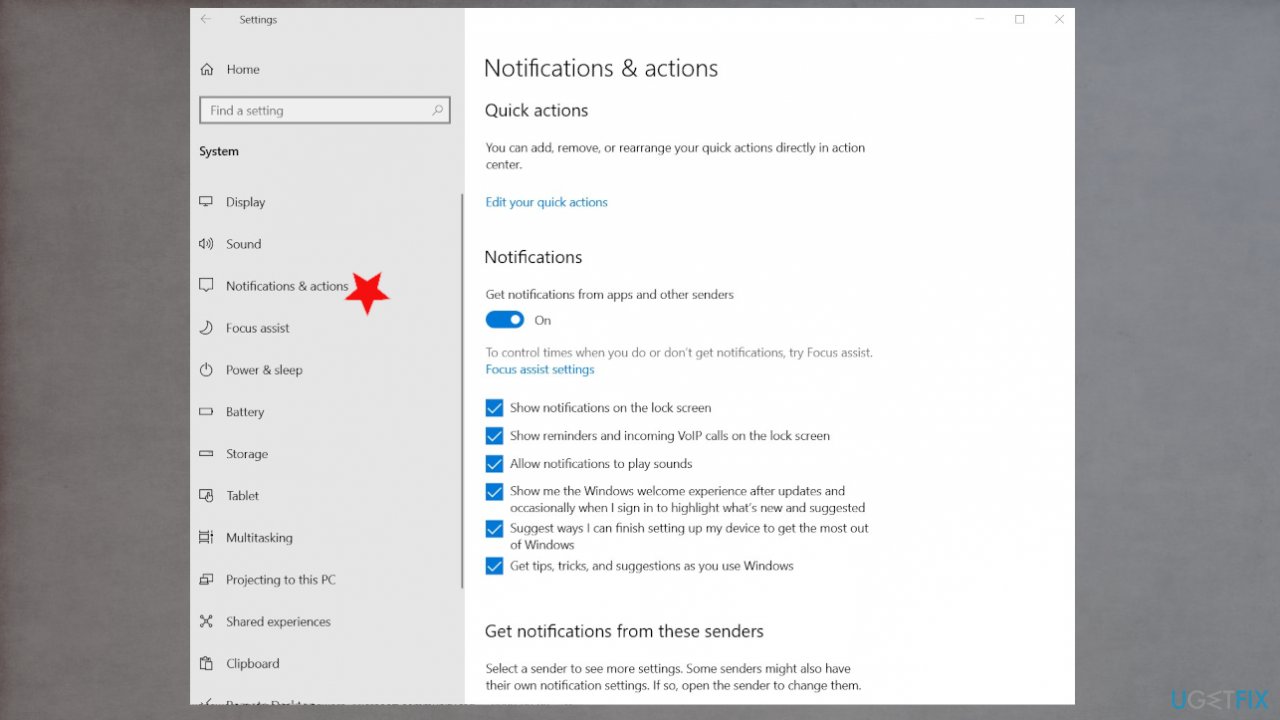
Volume icon missing on windows fix notifications actions - Turn the system icon on or off.
- Now you can set icons you want to display on the Notification area, just click on/off and Exit.
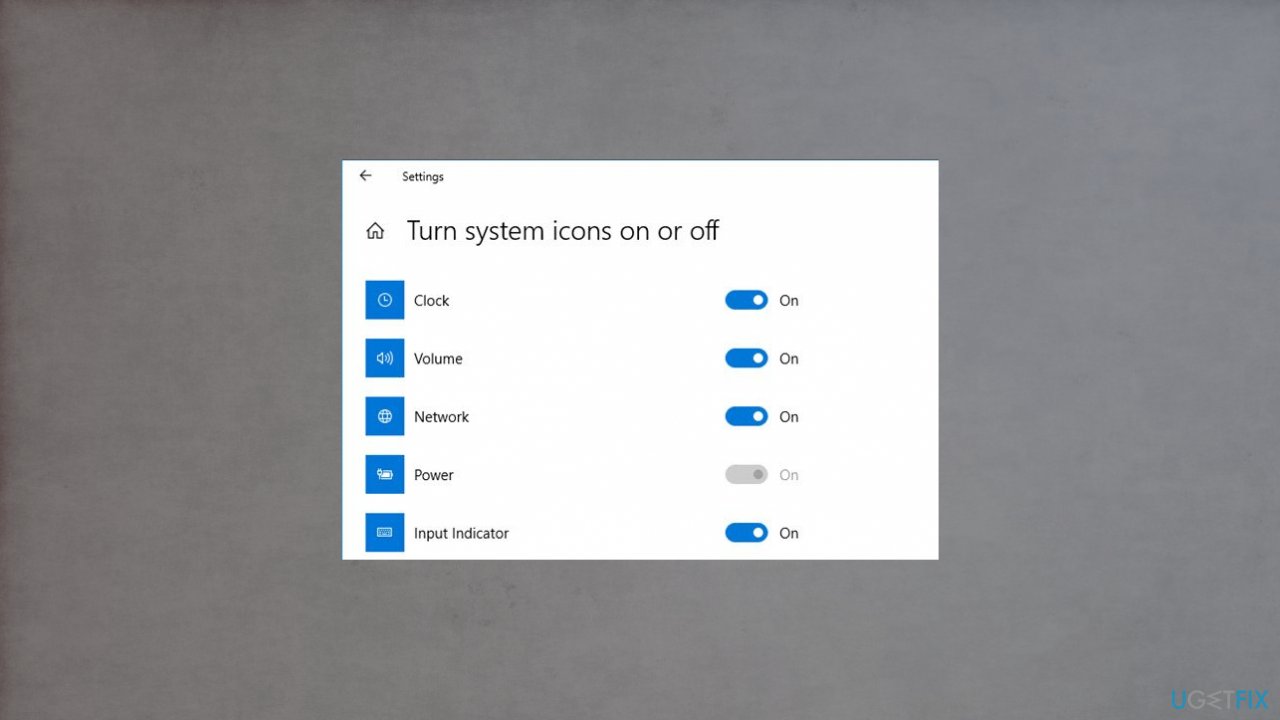
Volume icon missing on windows fix spund notifications
3. Update drivers to fix Volume icon missing on Windows 10
- Press Windows Key + R to open Run
- Type hdwwiz.cpl and hit Enter to open the device manager
- Under Sound, video and game controllers you will find an unidentified device.
- Right click it select Update Driver software.
- Search automatically for the drivers and let it install. If the correct driver is not found go to the website of your computer’s manufacturer and find the correct drivers there.
- Restart your PC.
4. Check Windows Group Policy Settings
- Launch the Windows Run box using the Windows key + R keys.
- Type gpedit.msc into the dialog box and select OK.
- In the User Configuration section.
- Expand the Administrative Templates category and select Start Menu and Taskbar.
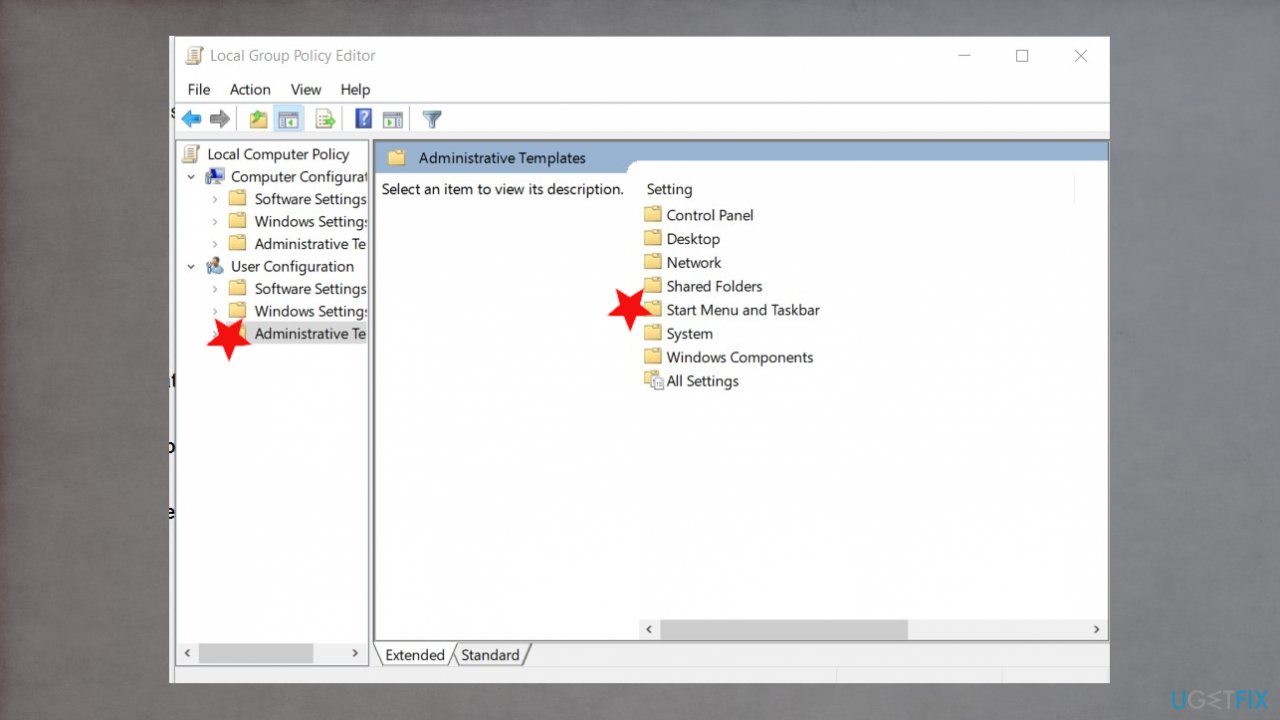
Volume icon missing on windows fix administrative templates - Scroll through the policy settings on the page and locate Remove the volume control icon.
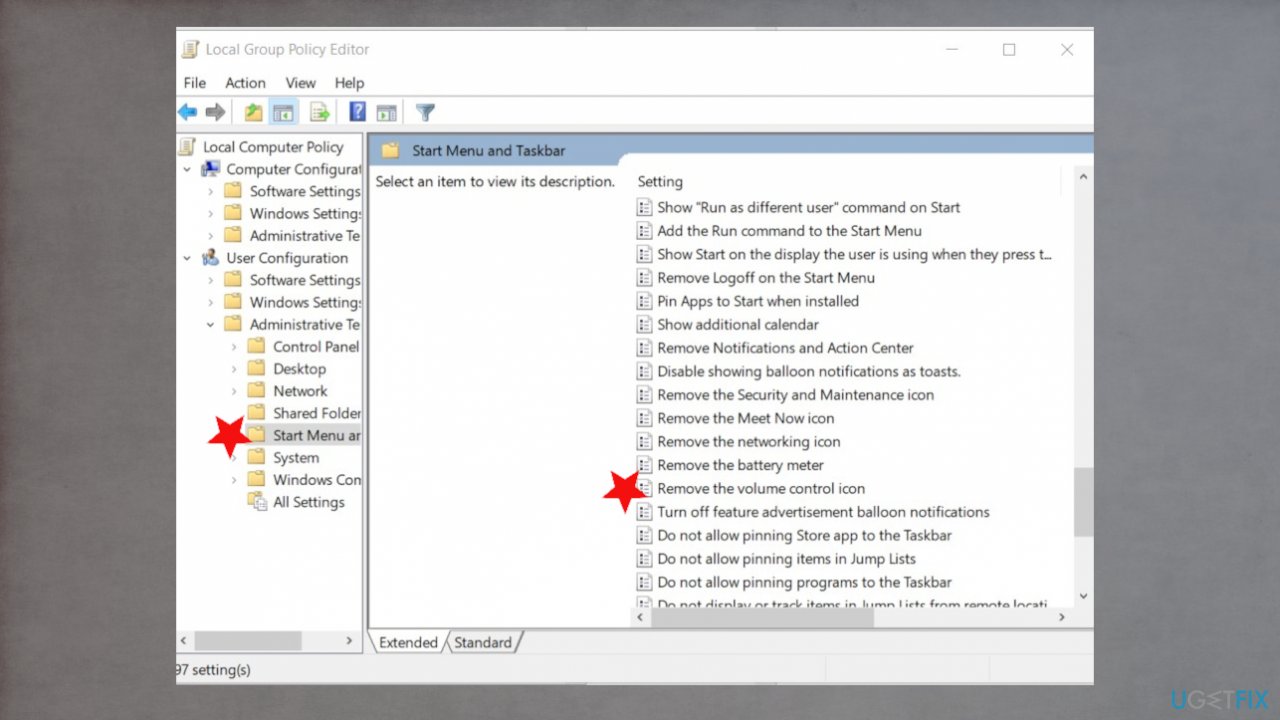
Volume icon missing on windows fix remove - Double-click on it to check its status.
- If the policy setting is enabled, set it to either Not Configured or Disabled.
- Select OK to save the changes.
5. Check for Windows OS update
- Type in Windows Update in Windows Search and press Enter.
- In here, click on Check for updates and wait till the updates are installed.
- Restart your computer and see if the problem persists.
Bottom line
To fix the missing Volume icon on Windows 10, you can restart explorer.exe, use the automatic system repair tool, or upgrade your Windows. If these methods do not resolve the issue, consider checking for malware or clearing unnecessary programs.
Frequently asked questions
You can try restarting the Windows Explorer process from the Task Manager, which often restores missing icons, including the volume icon.
Go to Settings > Personalization > Taskbar, then click on 'Turn system icons on or off' to check if the volume icon is toggled on.
Yes, ensuring your Windows 10 is up to date can resolve many glitches, including the missing volume icon, as updates often contain bug fixes.




Report an issue
What's wrong with this guide? We review every report and update or remove content.
Report received — thank you. We'll review and fix it.
You need a free account to submit a report.
Be the first to comment