How to fix
ACPI_BIOS_FATAL_ERROR BSOD
on Windows
Resolve the ACPI_BIOS_FATAL_ERROR BSOD in Windows 10 easily. Follow our expert-tested solutions for a hassle-free fix in minutes!

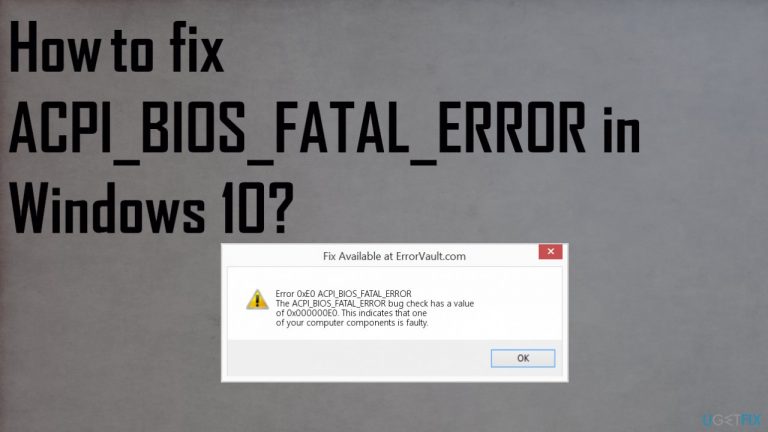
What causes How to fix ACPI_BIOS_FATAL_ERROR BSOD in Windows 10?
- System driver issues
- Misconfiguration
- Too old or affected drivers
- Different system files
- Conflict between different applications
- Corrupted or changed registry entries
Repairs Windows system files, removes malware, and restores a clean OS state — without reinstalling.
Hello. I get this error with a blue screen, and it states the code ACPI_BIOS_FATAL_ERROR on there. I manage to run the machine again after this, but it repeats again and again. How can I fix this?
ACPI_BIOS_FATAL_ERROR in Windows 10 is the bug that indicates the faulty components of your computer. It also has a value of 0x000000E0 code, and people[ref en-1] claim that the issue occurs when they use the machine or even when the system is newly rebooted. This problem is related to Advanced Configuration and Power Interface that most likely got affected, so the BSOD[ref en-2] appears.
People can start panicking because the error that appears as a Blue screen seems critical and unfixable. But the ACPI error that represents the power management specifications controls various components and devices, but the error can be solved. ACPI_BIOS_FATAL_ERROR BSOD in Windows is the faulty hardware or software result, so it is important to fix the issue properly.
ACPI_BIOS_FATAL_ERROR Blue Screen of Death appears when installing Windows 10, using versions 7 or 8 of Windows, and even resuming after the hibernation. There are various instances including starting the system or working on different programs during which this issue occurs.
Common causes for this issue might include system driver issues, misconfiguration, too old or affected drivers, different system files. ACPI_BIOS_FATAL_ERROR BSOD in Windows 10 can occur due to conflict between different applications and even after some entries in the registry get corrupted or changed. Those changes can be caused by malware[ref en-3], but not the error itself.
It is more likely that your device is affected by the outdated software pieces or infection damage than the virus itself. So to fix ACPI_BIOS_FATAL_ERROR BSOD in Windows 10, you must repair that damage and change settings in the particular parts that can get damaged. For the first step of the solution, we could recommend running a tool that tackles the file damage and repairs the performance. [d1] can recover and fix damaged pieces for you and quickly help with these issues with the error and data damage.
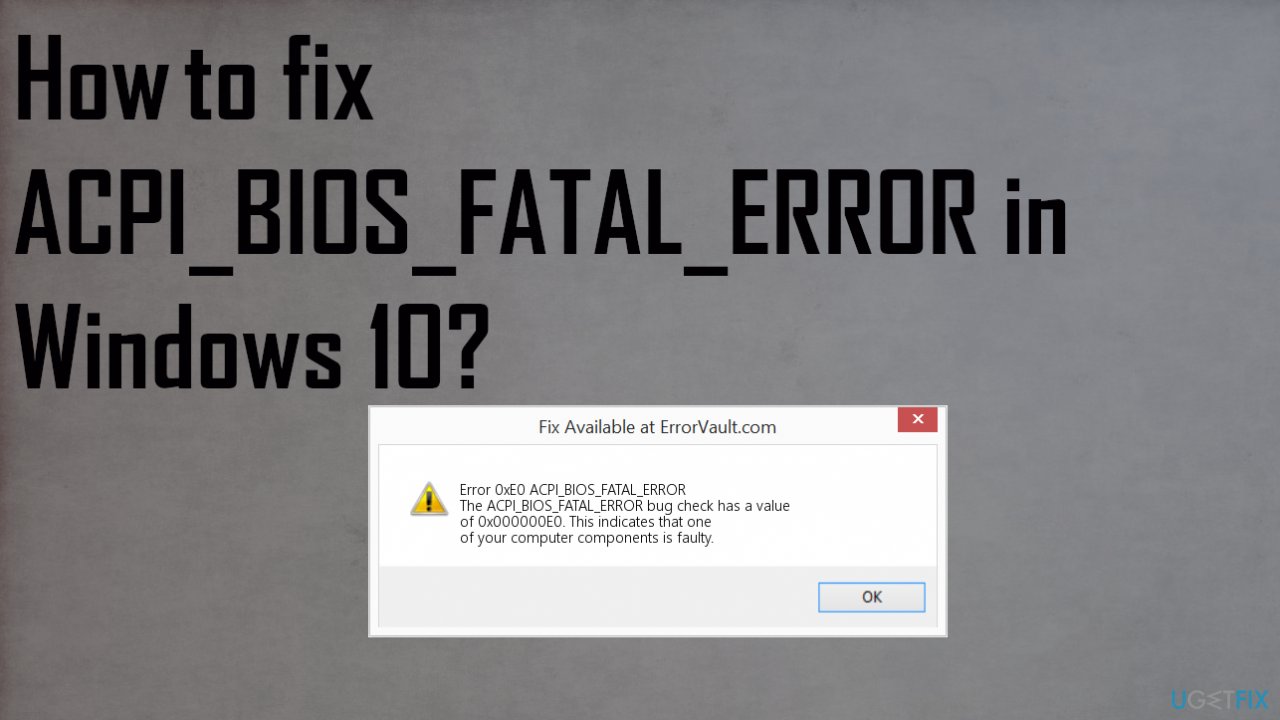
#1 Update drivers to fix ACPI_BIOS_FATAL_ERROR BSOD in Windows 10
- Press Windows + X select Device manager.
- Expand Display adapters, f.e.
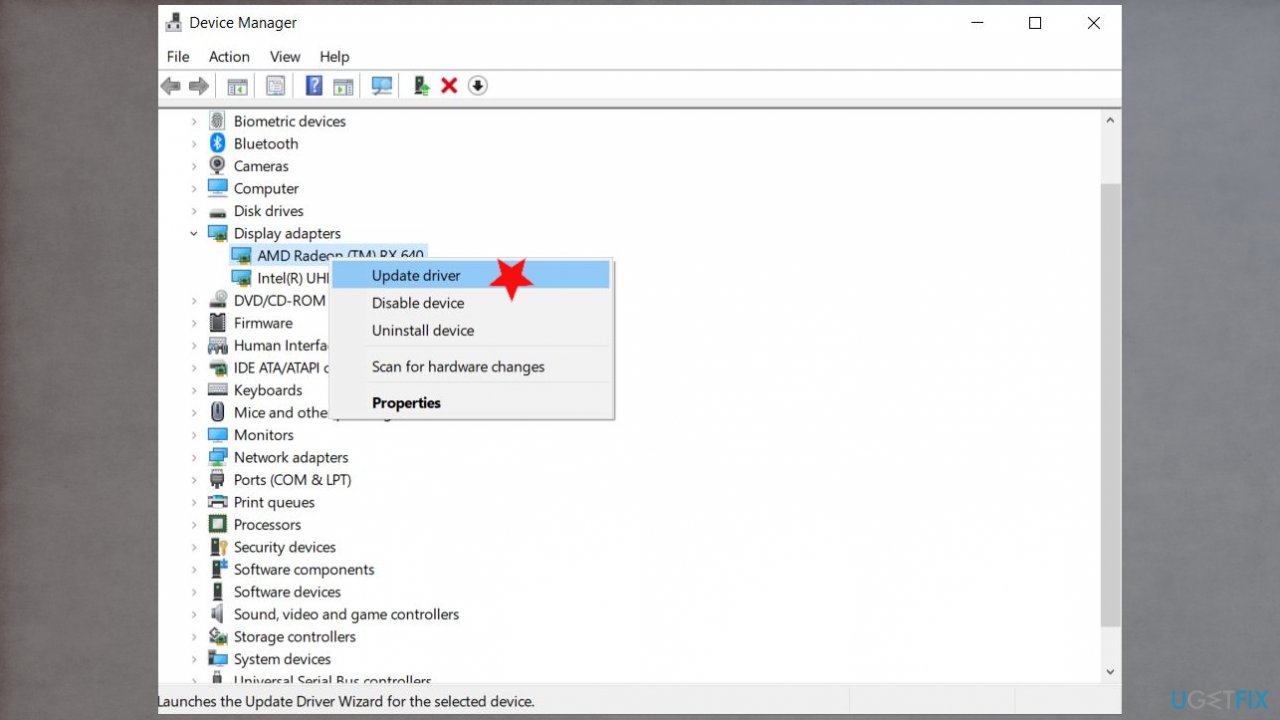
Blue screen acpi fatal error fix driver update - Right-click installed sound driver and then select Update Driver
- You can find exclamation points near corrupted drivers that need updates.
- This will check for the latest updated audio driver for your PC.
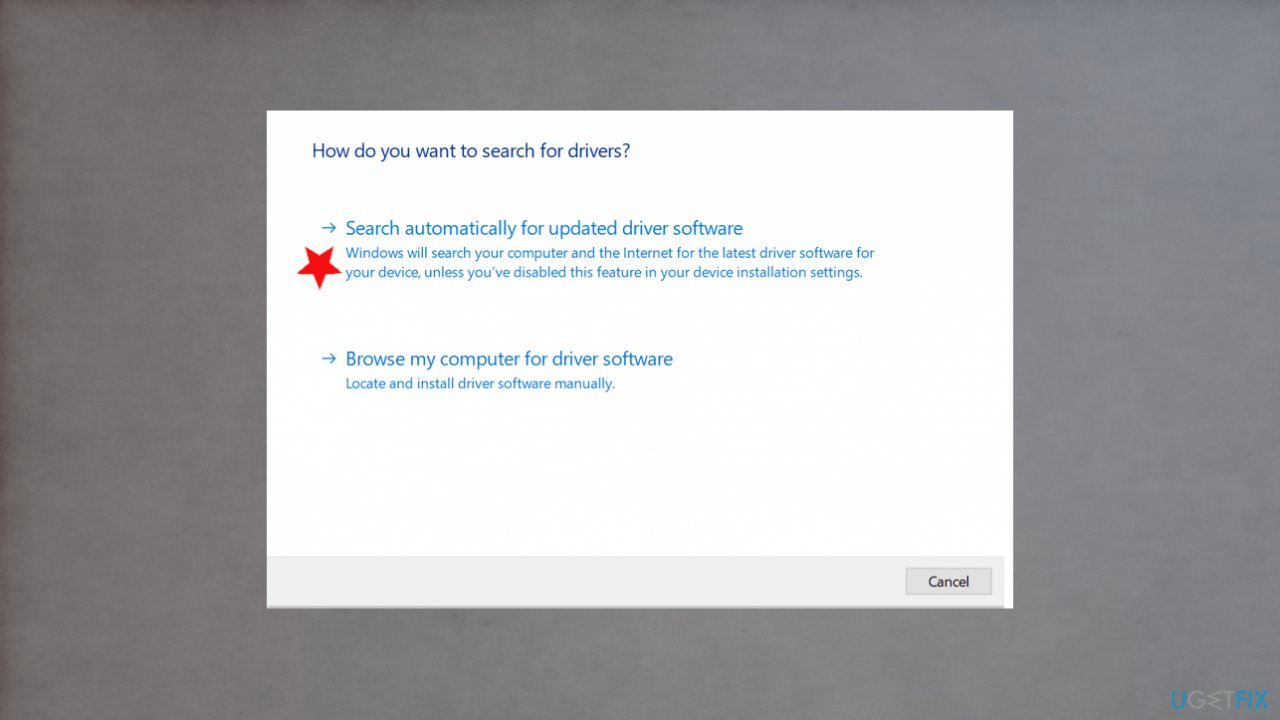
Blue screen acpi fatal error fix search for drivers - Choose to automatically download and install drivers for you.
- Restart Windows.
You can also use a tool like [rev id="DriverFix"] for the driver updating purpose.
#2 Check for Windows Updates
- Go to Start menu and select Settings.
- In the Settings window go to Update and Security tab.
- To install the latest Windows updates click on Check for updates and wait until they are found and installed.
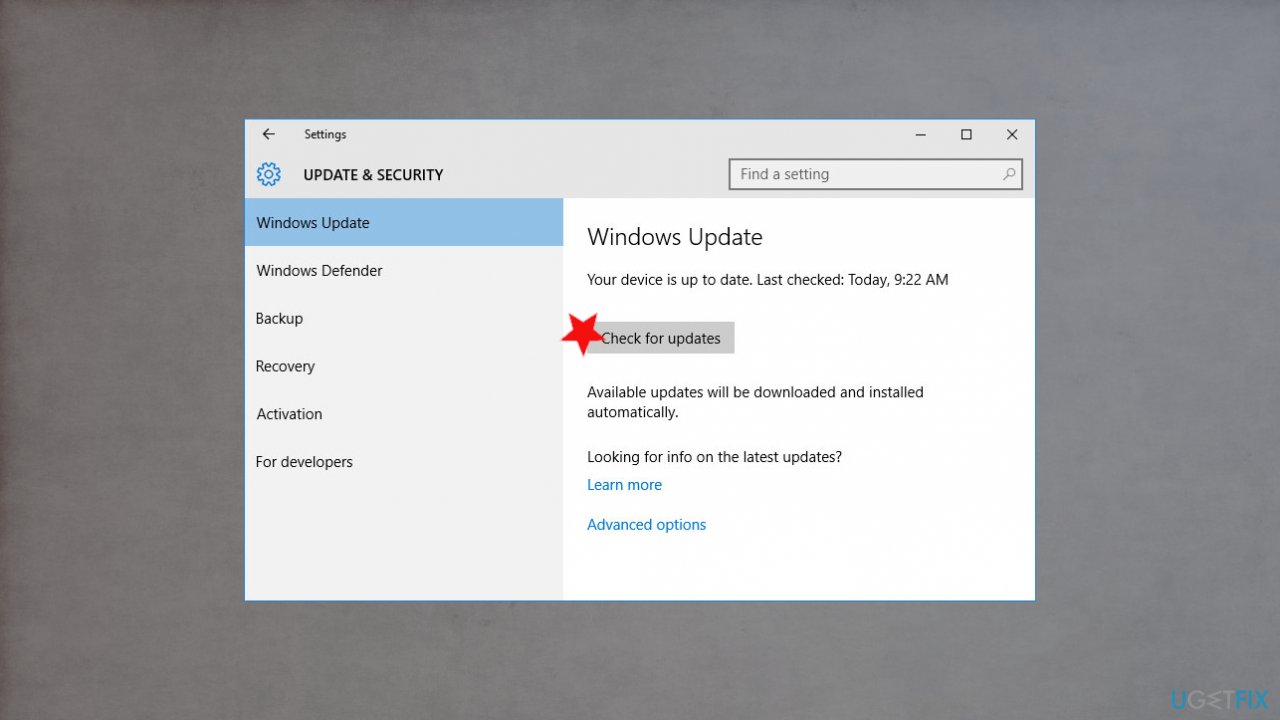
Blue screen acpi fatal error fix check updates - It is recommended to set up automatic download and installation of system updates with the help of Advanced Options.
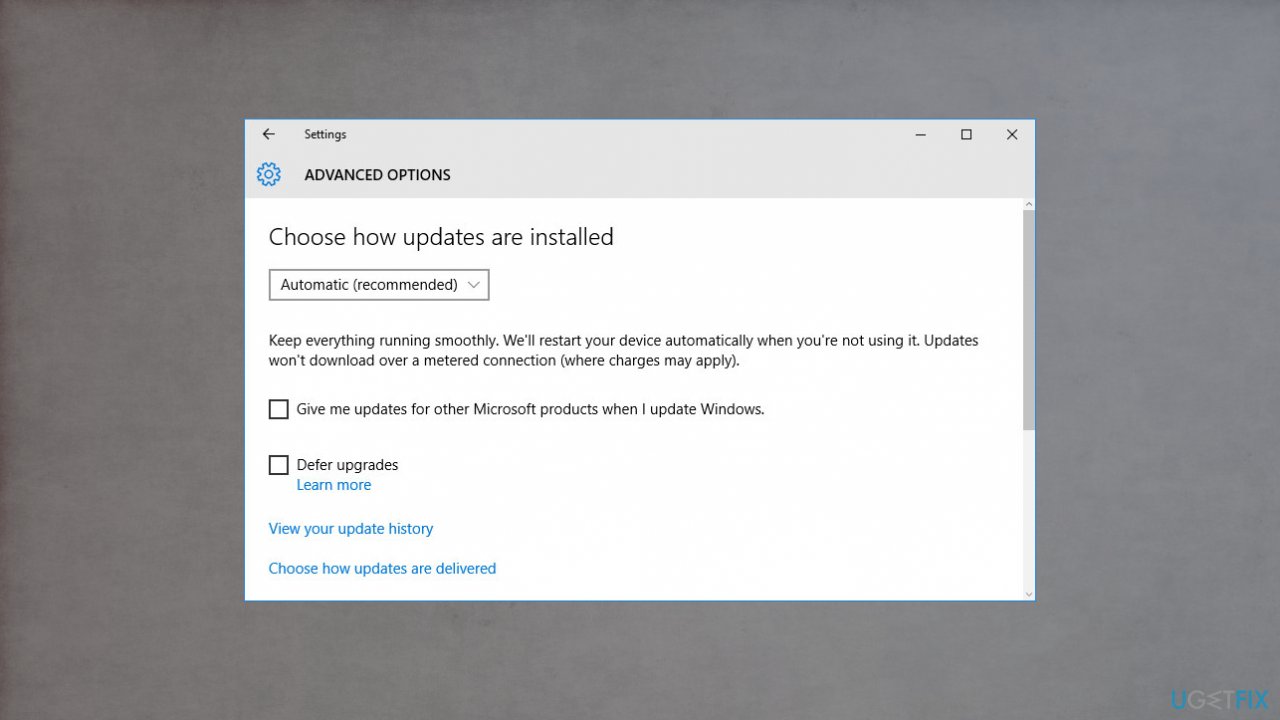
Blue screen acpi fatal error fix os update options
#3 Run the SFC scan to fix ACPI_BIOS_FATAL_ERROR
- Right-click on the Start Menu button, and open Command Prompt (Admin).
- Enter the following line and press Enter: sfc/scannow
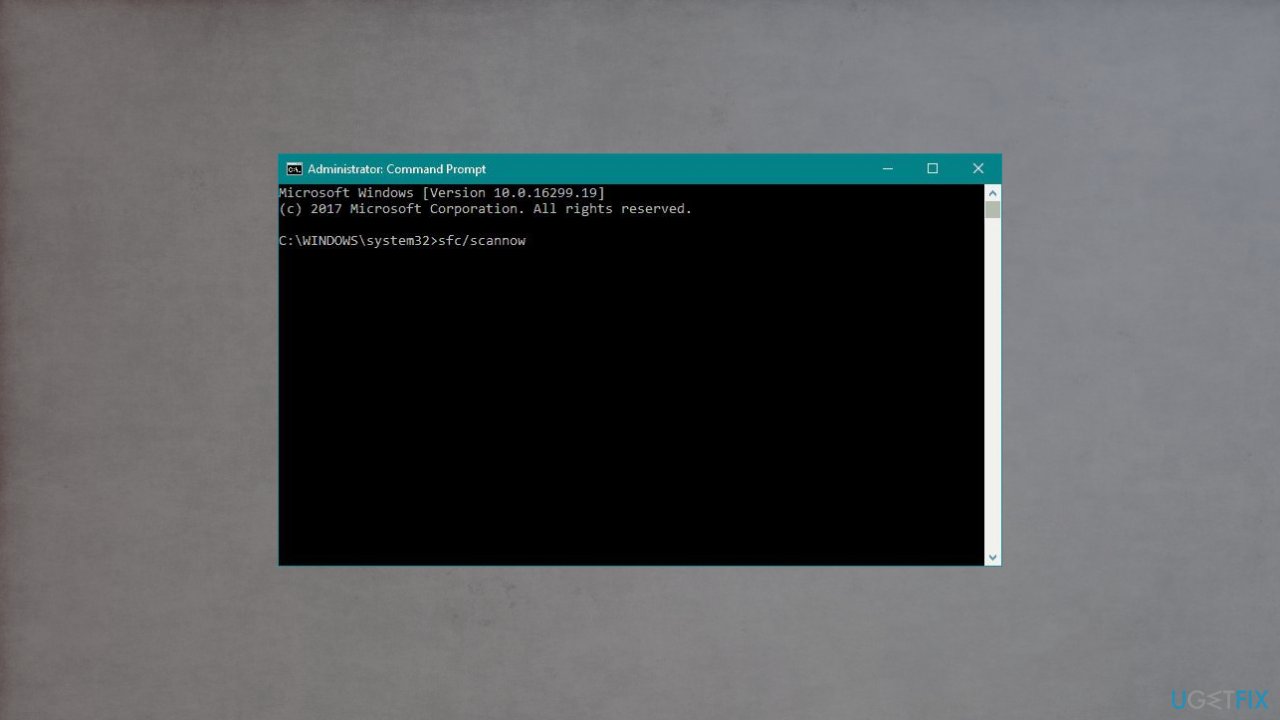
Blue screen acpi fatal error fix sfc scan - Wait until the process is done (it may take a while).
- If the solution is found, it will automatically be applied.
- Now, close the Command Prompt and restart your computer
#4 Run DISM Reset Windows
- Right-click Start and open Command Prompt (Admin).
- Paste the following command and press Enter:
DISM /Online /Cleanup-Image /RestoreHealth - Wait until the scan is finished.
- Restart your computer and try updating again.
#5 Run hardware troubleshooter to fix ACPI_BIOS_FATAL_ERROR BSOD in Windows 10
- Open the Settings app and go to Update & Security section.
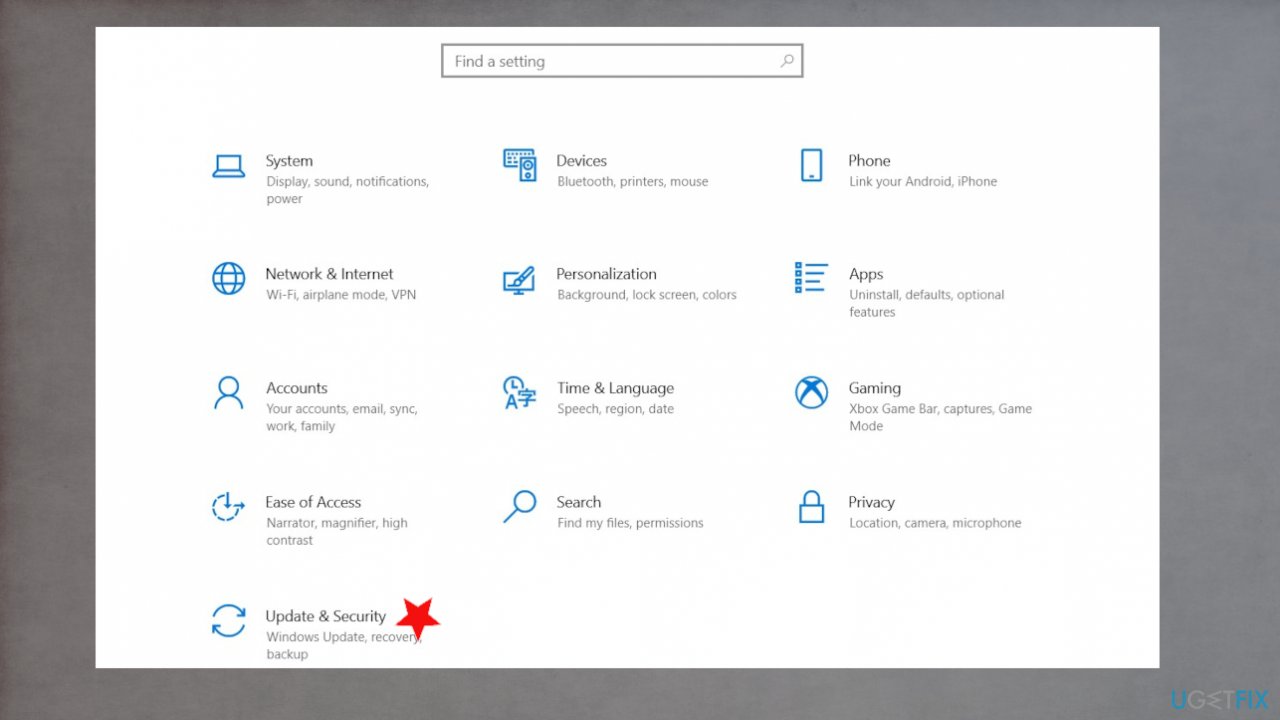
Blue screen acpi fatal error fix settings - Select Troubleshoot from the menu on the left.
- Select BSOD from the right pane and click Run the troubleshooter.
- Follow the instructions on the screen to complete the troubleshooter.
Bottom line
To fix the ACPI_BIOS_FATAL_ERROR BSOD in Windows 10, you should update your drivers, run a tool to repair file damage, and check for misconfigurations. If these solutions do not resolve the issue, consider further diagnosing your hardware or seeking professional assistance.
Frequently asked questions
The ACPI_BIOS_FATAL_ERROR BSOD in Windows 10 is often caused by outdated or incompatible BIOS firmware, driver conflicts, or hardware issues related to power management.
To update your BIOS, visit your motherboard manufacturer's website, download the latest BIOS version compatible with your system, and follow their instructions for installation.
Yes, ensure that your chipset and power management drivers are up to date, as outdated drivers can contribute to the ACPI_BIOS_FATAL_ERROR.




Report an issue
What's wrong with this guide? We review every report and update or remove content.
Report received — thank you. We'll review and fix it.
You need a free account to submit a report.
Be the first to comment