How to fix
NET::ERR_CERT_REVOKED error in Google Chrome
on Windows
Resolve the NET::ERR_CERT_REVOKED error in Google Chrome on Windows 10/11 effortlessly. Expert-tested solutions with screenshots for swift fixes!

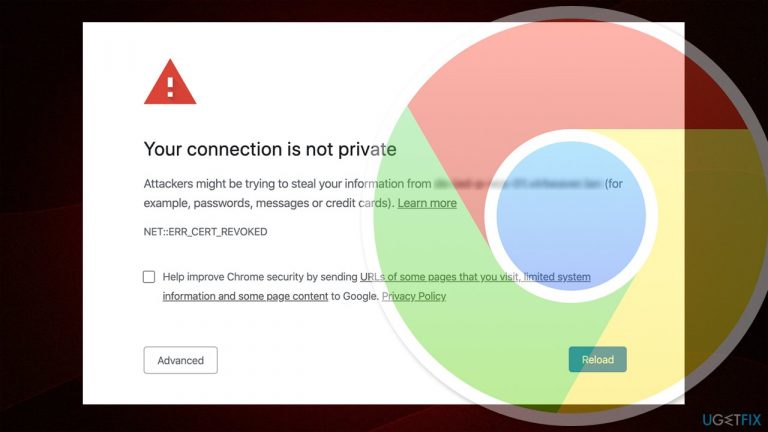
What causes How to fix NET::ERR_CERT_REVOKED error in Google Chrome?
- SSL certificate has been revoked by the issuer
- Incorrect time/date settings on the computer
- Antivirus software is overly aggressive
- Accessing a dubious or insecure website
Repairs Windows system files, removes malware, and restores a clean OS state — without reinstalling.
Hello, I am having problems with reaching some websites on Google Chrome due to an error NET::ERR_CERT_REVOKED. This is somehow weird because I can reach the same websites on another computer at home. Are there any ways to fix this error?
NET::ERR_CERT_REVOKED is a Google Chrome error that some users might encounter when trying to access a particular website. In some cases, the problem is more universal and people are unable to reach multiple sites, which makes it so much more frustrating.
Initially, the error code itself indicates that the error occurred while trying to reach the webpage because the SSL certificate[ref en-3] for it has been revoked. This typically happens due to certificate issuer canceling and removing the provided certificate to the website itself. In such a case, there is nothing that visitors can do to fix NET::ERR_CERT_REVOKED error on Google Chrome.
However, many users said that they are getting this error when visiting several different websites. While this may be a coincidence and the reason for it may be the one mentioned above, it is likely that the problem lies somewhere else.
Multiple issues on users' computers could be causing the NET::ERR_CERT_REVOKED error, which means that a solution for it is available. Thus, if you have been experiencing this problem on multiple websites, it is likely that your time/date settings are incorrect, or that your antivirus is overly aggressive and is blocking the access to perfectly secure website.
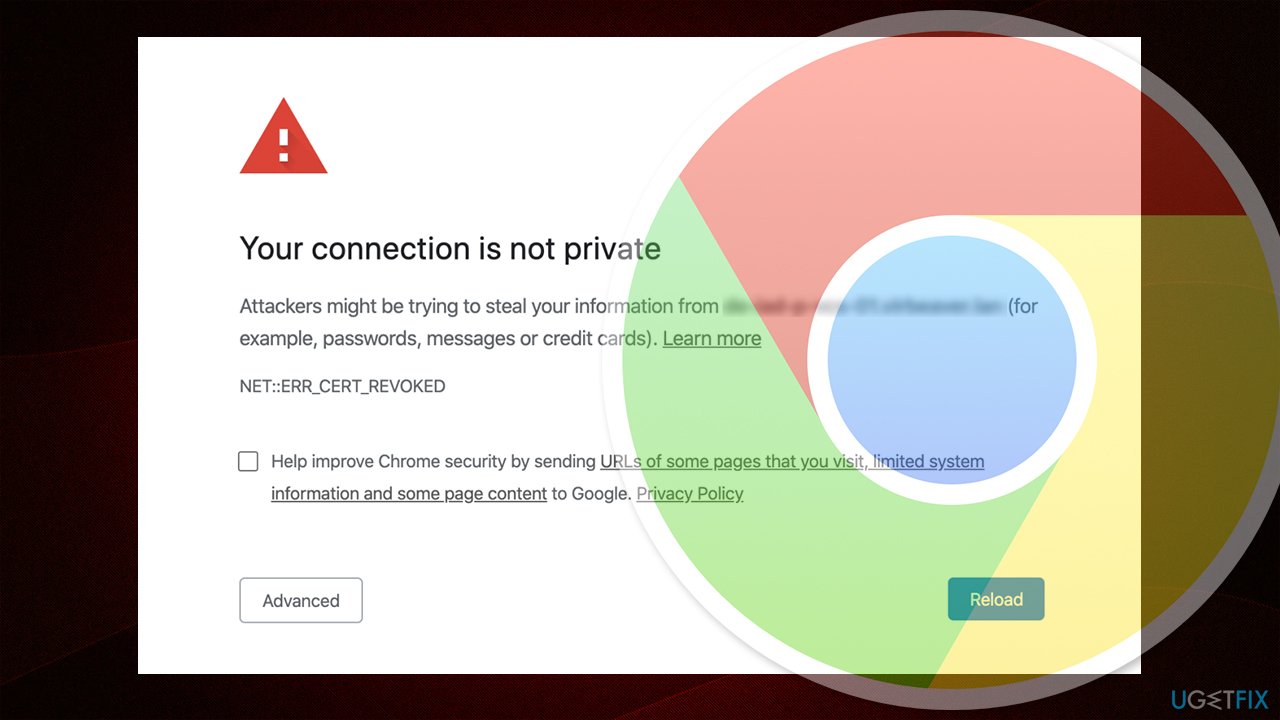
In any case, the initial cause of the error is there to prevent users from accessing websites that do not provide a secure connection (HTTPS instead of HTTP,[ref en-2] which makes such websites more susceptible to man-in-the-middle and other kinds of cyber attacks). Thus, if you encountered NET::ERR_CERT_REVOKED while trying to access a dubious site, you should likely stay away from it in the first place.
Otherwise, proceed with the solutions we provide below. Note that scanning your device with [d1] can often fix all types of Windows-related problems, such as missing DLLs, corrupted system files, BSODs, etc.
Fix 1. Check your time and date settings
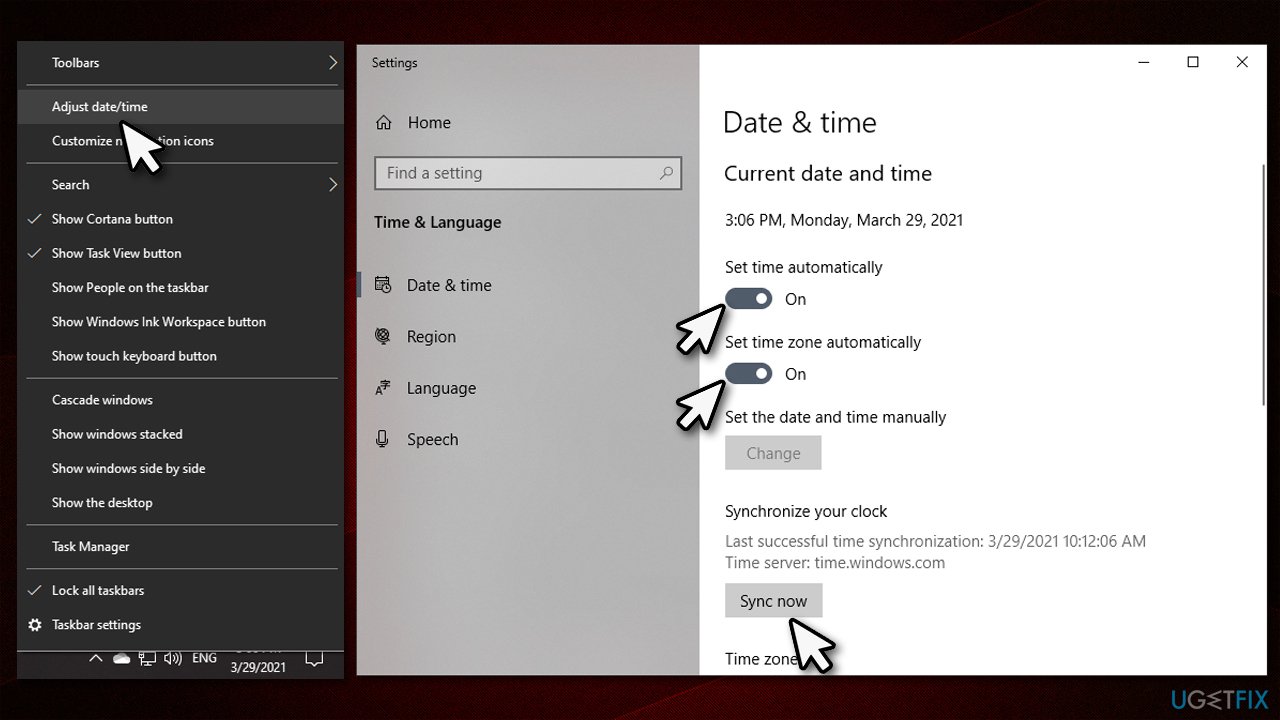
Since the error indicates about a revoked certificate, incorrect time settings on your computer could result in an error. Here's how to make sure these settings are correct:
- Right-click on your time/date in the right-corner of your taskbar and click Adjust time/date
- Here, make sure that Set time automatically and Set time zone automatically are set to On setting. Then, click Sync now
How to fix net err cert revoked error in google chrome check date and time - Type in Control Panel in Windows search and hit Enter
- Go to Clock and Region and select Date and Time
- Choose the Internet Time tab and pick Change Settings
- Thick the Synchronize with an Internet time server box
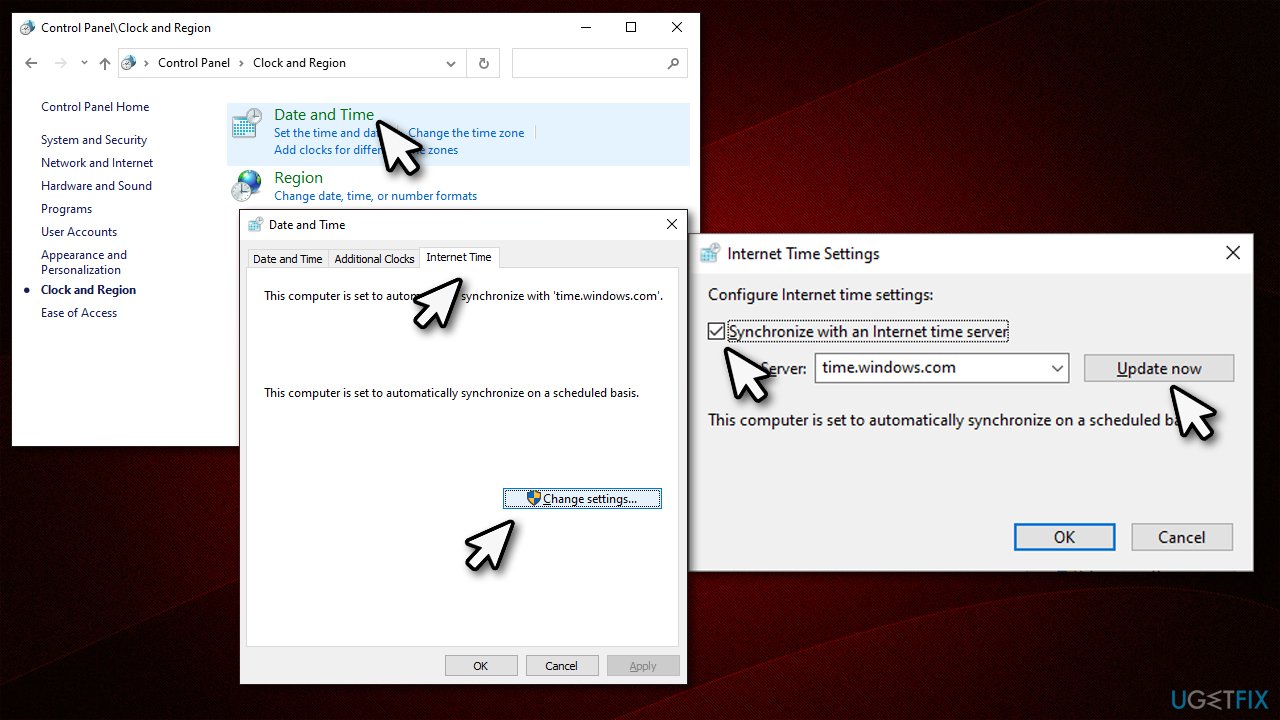
How to fix net err cert revoked error in google chrome check date and time2 - Click Update now and then OK.
Fix 2. Disable your anti-virus
Some anti-virus programs prevent users from accessing sites that do not provide a secure HTTPS connection. Therefore, you should temperately disable your third-party anti-virus and see if the problem persists.
If you error disappears once you have disabled your security software, you should access its settings and add the website you are trying to access into exclusions list. For more information on how to do that, visit the official website of your anti-malware software provider.
Fix 3. Change the security settings [workaround]
If you are 100% sure that the website you are unable to access due to this error is safe to use, you can bypass it by changing the security settings in the Internet Properties section.
- Type in inetcpl.cpl in Windows search and press Enter
- Go to Advanced tab
- Scroll down through all the options until you reach Security section
- Here, untick the following sections:
Check for publisher’s certificate revocation
Check for server certificate revocation - Click Apply and OK.
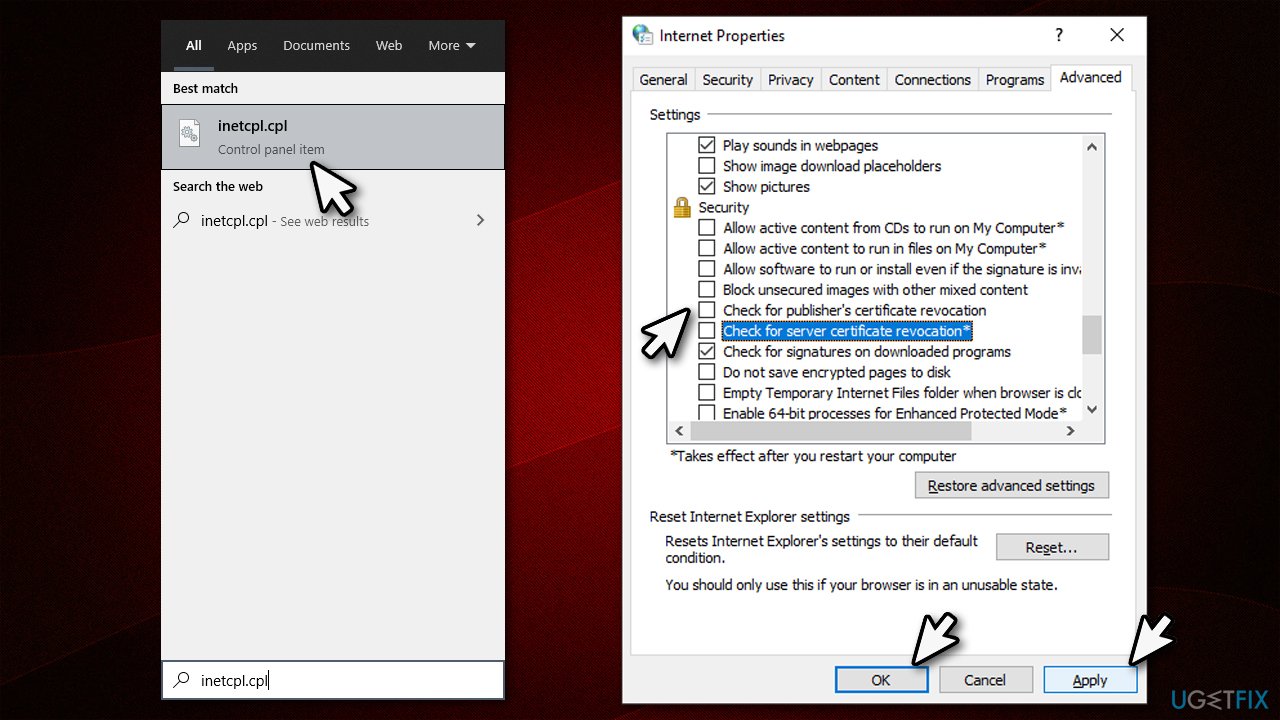
How to fix net err cert revoked error in google chrome disable the warning
Fix 4. Reset your internet connection
Unstable internet might be the cause of the error. Thus, you should reset your internet connection and see if that helps:
- Type cmd in Windows search
- Right-click on Command Prompt result and pick Run as administrator
- In the new window, copy and paste the following commands, pressing Enter after each:
ipconfig /flushdns
ipconfig /registerdns
ipconfig /release
ipconfig /renew
netsh winsock reset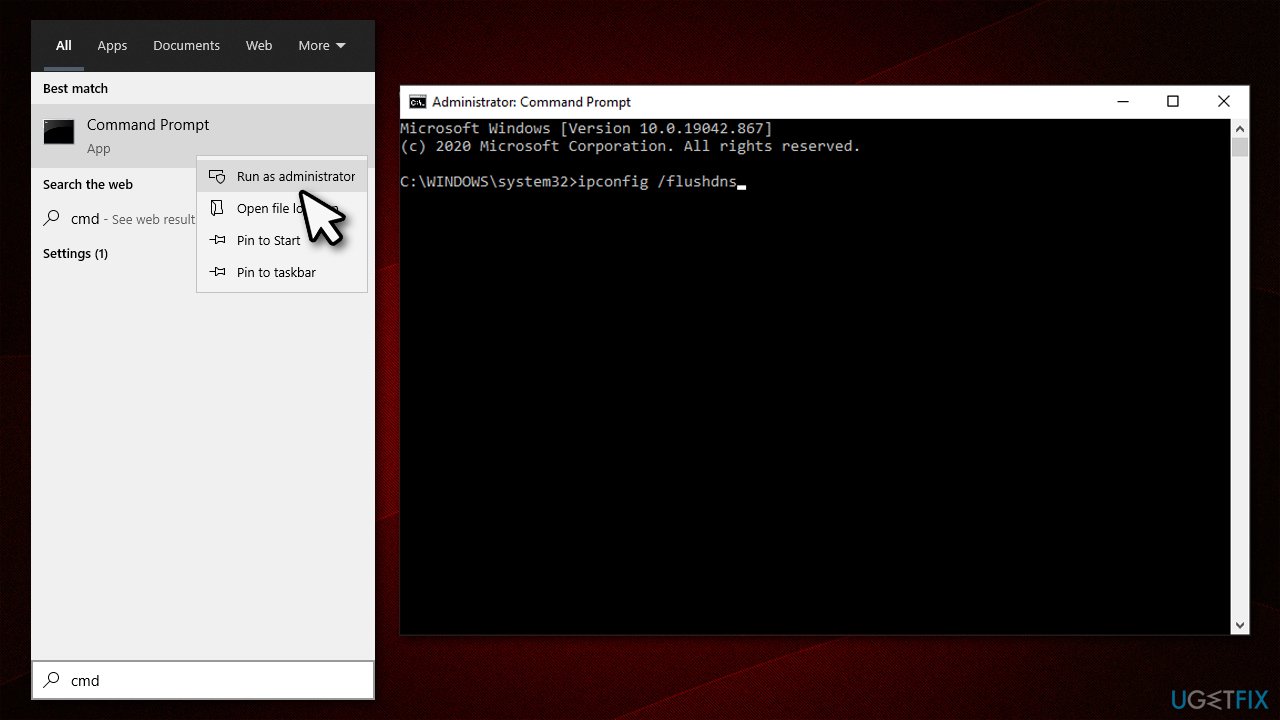
How to fix net err cert revoked error in google chrome reset internet connection
Fix 5. Reset Google Chrome
You can also try resting the web browser and seeing if that helps.
- Open Google Chrome
- Click on the three vertical dots at the top-right corner of the window
- Select Settings
- Scroll down and click Advanced
- Find Reset and clean up section ad the very bottom
- Click Restore settings to their original defaults
- Click Reset Settings.
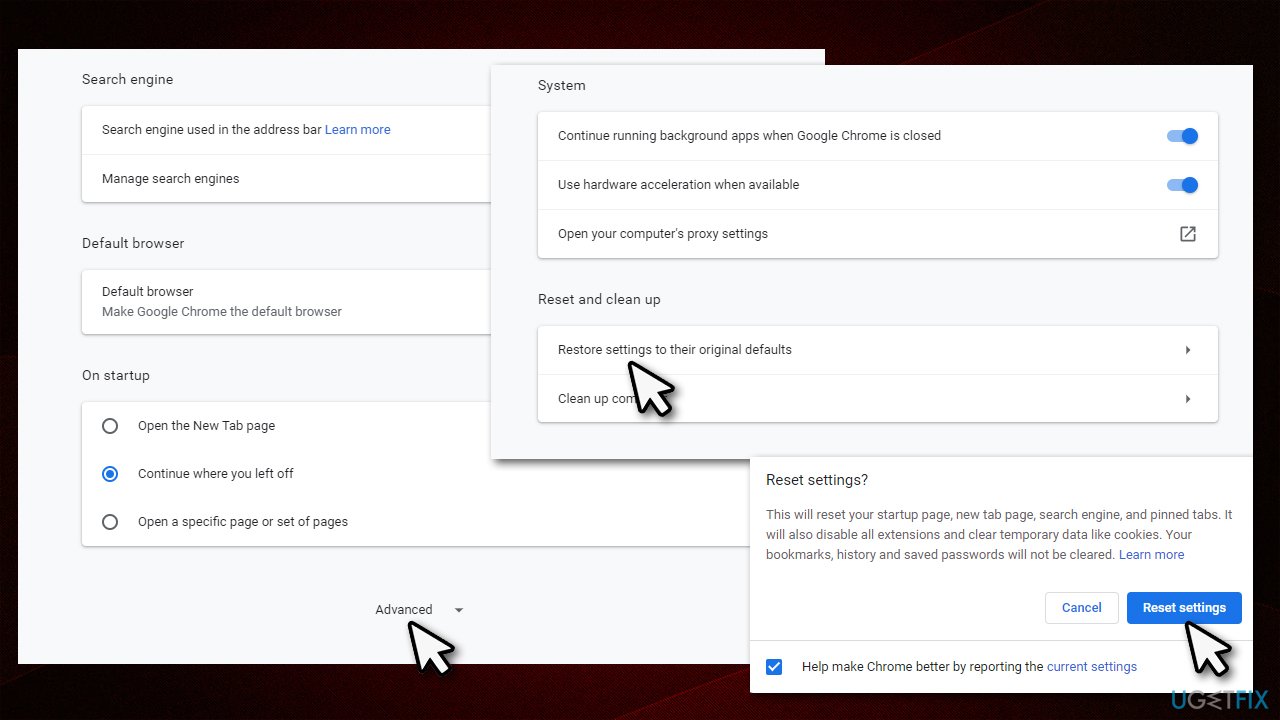
How to fix net err cert revoked error in google chrome reset chrome
Fix 6. Use another web browser
Google Chrome, while still the most popular web browser among users, had seen its fair share of criticism over the years. Be it some privacy issues due to a well-known Google's orientation of tracking users for personalized ads (Google is now facing a potential fine of $5 billion for tracking users in the incognito mode without their consent)[ref en-1] or security issues that arise from time to time (malicious apps are continually being pulled out of Google Store, but not after they were downloaded by thousands, sometimes - millions).
Besides, many web browsers, including the new MS Edge, integrated most of the functions that are accessible via Google Chrome, e.g., extensions now can be added from Chrome Web Store just as easily as it would be on Chrome (you can also set homepage and new tab to whatever you like, including google.com).
Thus, if you were unable to fix NET::ERR_CERT_REVOKED error after applying all the solutions we provided in this article, we recommend switching to a different browser, such as MS Edge, Opera, or Mozilla Firefox.
Bottom line
To fix the NET::ERR_CERT_REVOKED error, check your time and date settings, and consider adjusting your antivirus settings. If the problem persists, ensure you are not trying to access a dubious site. If none of these solutions work, further investigation may be needed.
Frequently asked questions
You can try clearing your browser's cache, updating Google Chrome to the latest version, and checking your system date and time settings on Windows 10.
Yes, you can click on 'Advanced' in the error page and select 'Proceed to [website]' to bypass the warning, but this is not recommended for secure sites.
You can use the 'certutil' command in Command Prompt to check the status of the certificate, or visit the Certificate Revocation List (CRL) provided by the certificate issuer.




Report an issue
What's wrong with this guide? We review every report and update or remove content.
Report received — thank you. We'll review and fix it.
You need a free account to submit a report.
Be the first to comment