How to fix
Blurry text
on Windows
Resolve blurry text in Windows 10 effortlessly with proven solutions and expert tips. Enjoy crystal-clear display settings, expert-tested for you!

What causes How to fix blurry text in Windows 10?
- Blurry text after connecting a second display
- Compatibility issues with files and programs
- Direct bugs in the Windows operating system
- Issues related to updates
- Problems with external display connectivity
Repairs Windows system files, removes malware, and restores a clean OS state — without reinstalling.
Hello, I would love to fix the issue with blurry text in my Windows. The text is blurry, and many applications have this issue. I think my secondary screen is to blame, but I doubt that because I have used it before normally. Can you help?
The blurry text in Windows 10 is common because people encounter the issue[ref en-1] pretty often. It can be related to images and text displayed in a blur or the desktop applications that appear showing blurry content. This can be the problem with only some of the apps when compared to other programs or the secondary screen connection.
When people report having the problem with blurry text in Windows 10, often they state that the issue occurred after the second display got connected, so the text and even images started to show up blurry on the second screen used.
These issues with a display like the blurry text in Windows can be caused by various compatibility issues with files and programs on the machine. Such problems can lead to performance and program corruption, so it is better to fix any occurring error or bug when it comes up.
There are issues related to direct bugs and issues in the Windows operating system, sometimes related to updates.[ref en -2] This is not the case with the display issues, so it is possible to fix blurry text in Windows 10 with a simpler solution than full OS reinstall. For example, tools like [d1] can help with PC data repair and damage fixing when system files trigger issues with the performance.
Do not panic if you encountered the problem, and do not think about malware[ref en-3] or different issues. You can restart the device, log out and log in as quick fixes. Checking the connectivity and external display on the different pieces might troubleshoot issues. Otherwise - move on with the guide below and the methods listed.
1. Update graphics drivers
- Open the Device Manager.
- You can do that via Run box that opens once you press Windows key and R.
- Find Display adapters and expand.
- Right-click the driver.
- Choose Update driver software.
- Select to Search automatically for updates.
- Check for the issue again after rebooting the PC.
2. Turn on the blurry fixing option to fix blurry text in Windows 10
- Right-click on your desktop, then select Display settings.
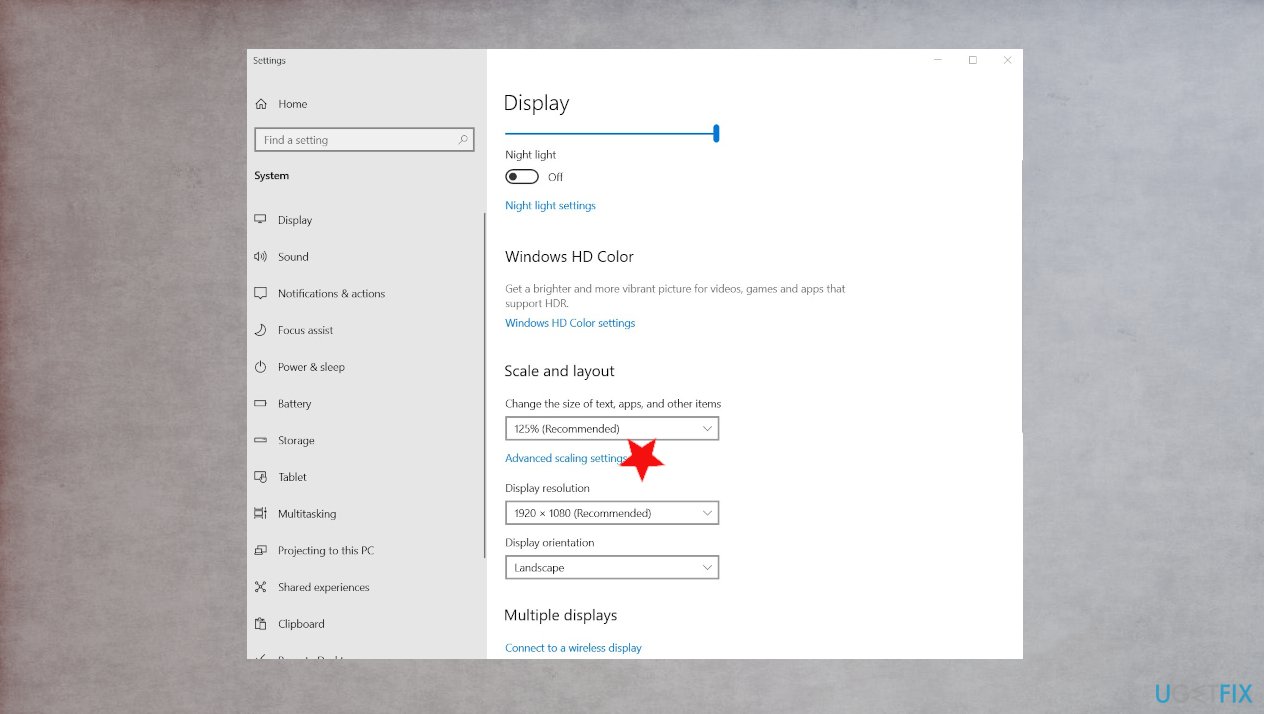
Fix blurry text in windows 10 display settings - Click Advanced scaling settings.
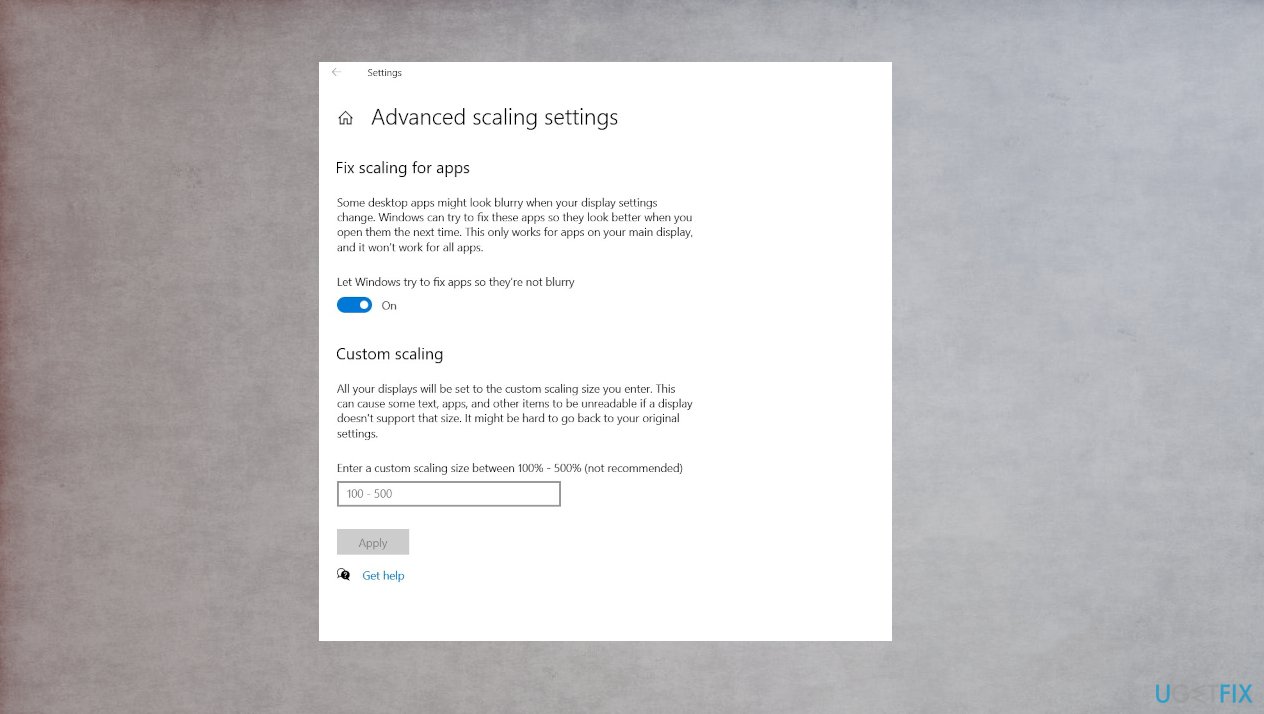
Fix blurry text in windows 10 advanced settings - Turn on Let Windows try to fix apps so they’re not blurry.
- Close the app that you initially had issues with, and then open it again to see if Windows has fixed the problem.
3. Check for settings of the Display
- Go to display settings again.
- Under Scale and layout, make sure that it is on 100 percent and not some higher number.
- Reopen the app that appears blurry to check the result.
- If you have two screens, try logging out and logging in, then both screens should have crisp text.
4. Change display settings for the particular app to fix blurry text in Windows 10
- Type the name of the app in the Windows search box.
- Right-click the search result, then select Open file location.
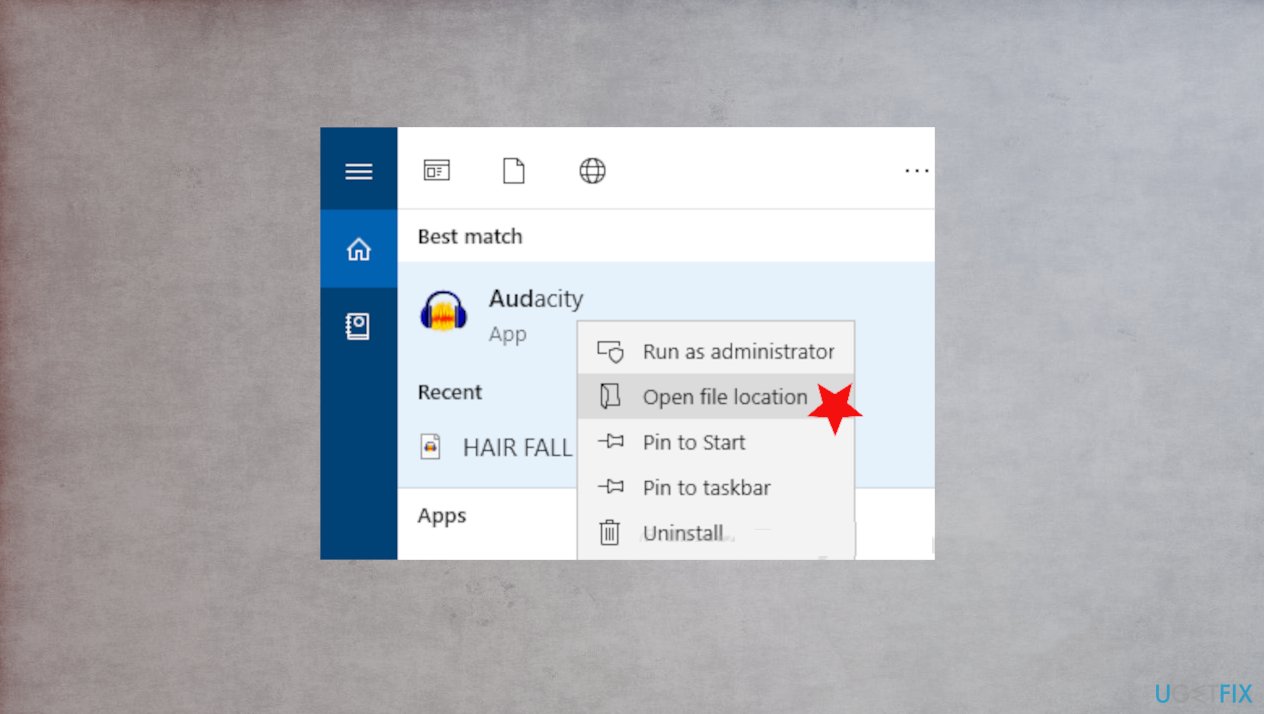
Fix blurry text in windows 10 open file - Right-click the app, then select Properties.
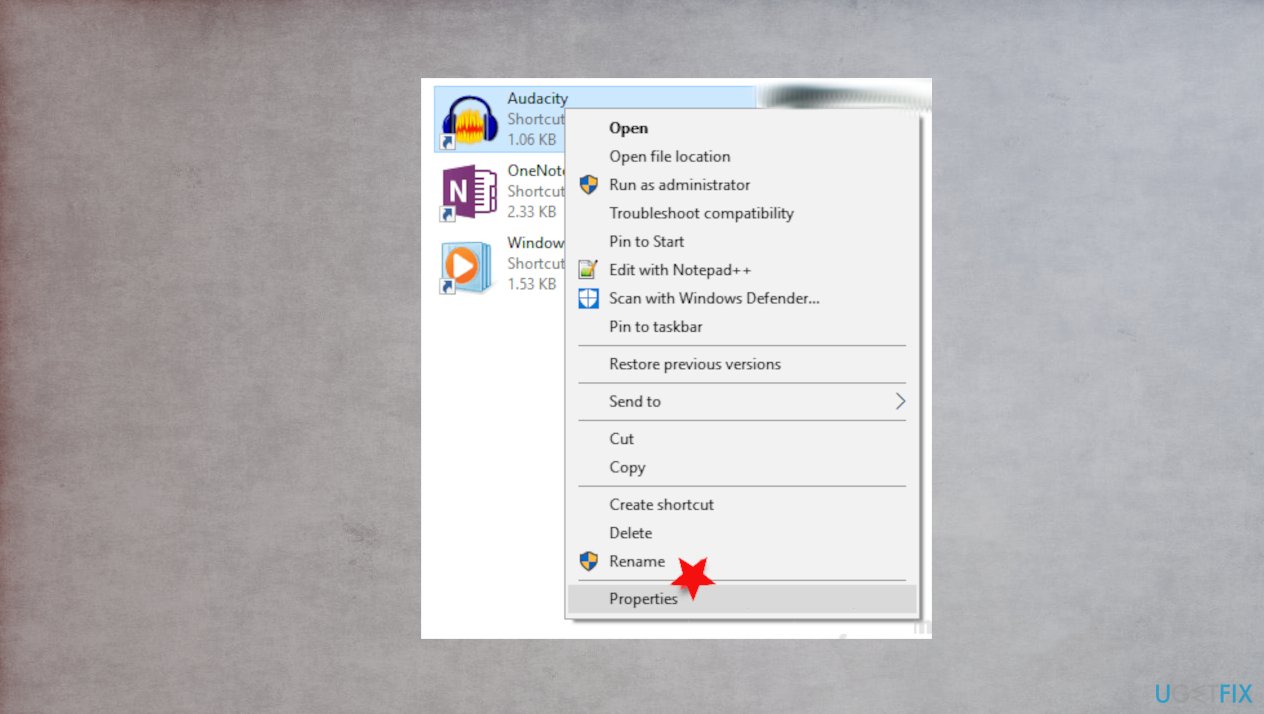
Fix blurry text in windows 10 properties - Click the Compatibility tab.
- Click the Change high DPI settings.
- Select the Use this setting to fix scaling problems for this program… check box.
- In the High DPI scaling override area, select the Override high DPI scaling behavior check box.
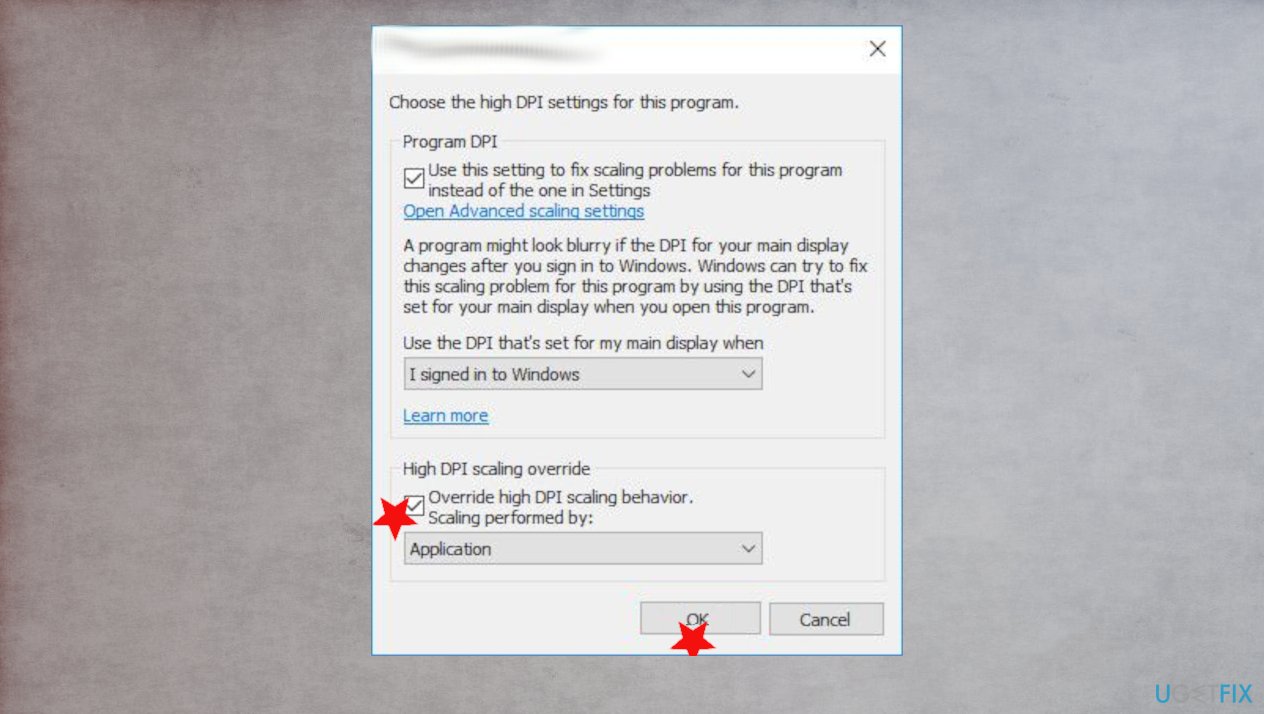
Fix blurry text in windows 10 overrride - Make sure Application is selected from the drop-down menu, which option was called Disable display scaling on high DPI settings in previous versions of Windows.
- Hit OK.
- Close and check the app for the issue.
Bottom line
To fix blurry text in Windows 10, you can update graphics drivers, restart the device, or check the connectivity of external displays. If these methods do not resolve the issue, consider using tools for PC data repair or further troubleshooting steps.
Frequently asked questions
You can adjust the display scaling settings and turn off the 'Let Windows try to fix apps so they're not blurry' option in the Display settings.
You can access ClearType settings by searching for 'Adjust ClearType text' in the Start menu and following the on-screen instructions to fine-tune the text appearance.
Yes, updating your graphics drivers can often resolve blurry text issues by ensuring that your display settings are optimized for your hardware.




Report an issue
What's wrong with this guide? We review every report and update or remove content.
Report received — thank you. We'll review and fix it.
You need a free account to submit a report.
Be the first to comment