How to fix
WHEA UNCORRECTABLE ERROR pshed.dll
on Windows
Resolve the WHEA UNCORRECTABLE ERROR pshed.dll in Windows 10 with our expert-guided solutions. Fixed in minutes for smooth performance!

What causes How to fix WHEA UNCORRECTABLE ERROR pshed.dll in Windows 10?
- Failing or incompatible hardware
- Corrupted registry files
- Incompatible or damaged drivers
- Overheating computer components
- Corrupted system files
Repairs Windows system files, removes malware, and restores a clean OS state — without reinstalling.
Hello. I am constantly getting a Blue Screen WHEA UNCORRECTABLE ERROR pshed.dll. I tried reinstalling Windows already, but it did not help. Are there any suggestions for this problem? It is very frustrating as it can happen at any time when I'm using my PC.
WHEA UNCORRECTABLE ERROR pshed.dll is a Blue Screen error that makes the computer perform an immediate restart. It has a bug check value of 0x124 and indicates that a fatal hardware error has occurred (WHEA stands for Windows Hardware Error Architecture). Those who receive it might also come across another DLL file[ref en-2] as the cause - hal.dll.
While BSOD errors can be particularly annoying to Windows users, they are there for a reason. Their main purpose is to stop the system from being damaged after a critical error occurs. In most cases, the computer can recover as soon as the restart is performed. That is where the good news ends, though, since repeated WHEA UNCORRECTABLE ERROR pshed.dll BSOD might indicate that your hardware is failing.
Unfortunately, those who encounter this error are not provided with much information, despite the error code being there - all they can see is a generic Blue Screen message that counts the percentage of Windows gathering error info. It does not explain to users how to fix WHEA UNCORRECTABLE ERROR pshed.dll or what is causing it. Hence, a road to find this reason might be lengthy.
There are multiple reasons why this error could show up on your screen one day - here are the most common ones:
- Failing or incompatible hardware
- Corrupted registry[ref en-3] files
- Incompatible or damaged drivers
- Overheating computer components
- Corrupted system files, etc.
If you are not willing to troubleshoot quite a bit, we highly recommend you employ [d1] - an automatic repair solution that can easily deal with various Windows problems. It can find the underlying issues of the operating system and fix them automatically, without users having to reinstall the OS. Otherwise, you can check the manual WHEA UNCORRECTABLE ERROR pshed.dll fixes provided below.
Solution 1. Reinstall drivers
Many users pointed out that Nvidia drivers were causing the BSOD, although this might not necessarily be the case for you. For example, Realtek, Intel, and other drivers might also be at fault.
- Right-click on Start and pick Device Manager
- Expand the relevant section, e.g., Display adapters
- Right-click on the device and select Uninstall Device
- Tick the Delete the driver software for this device
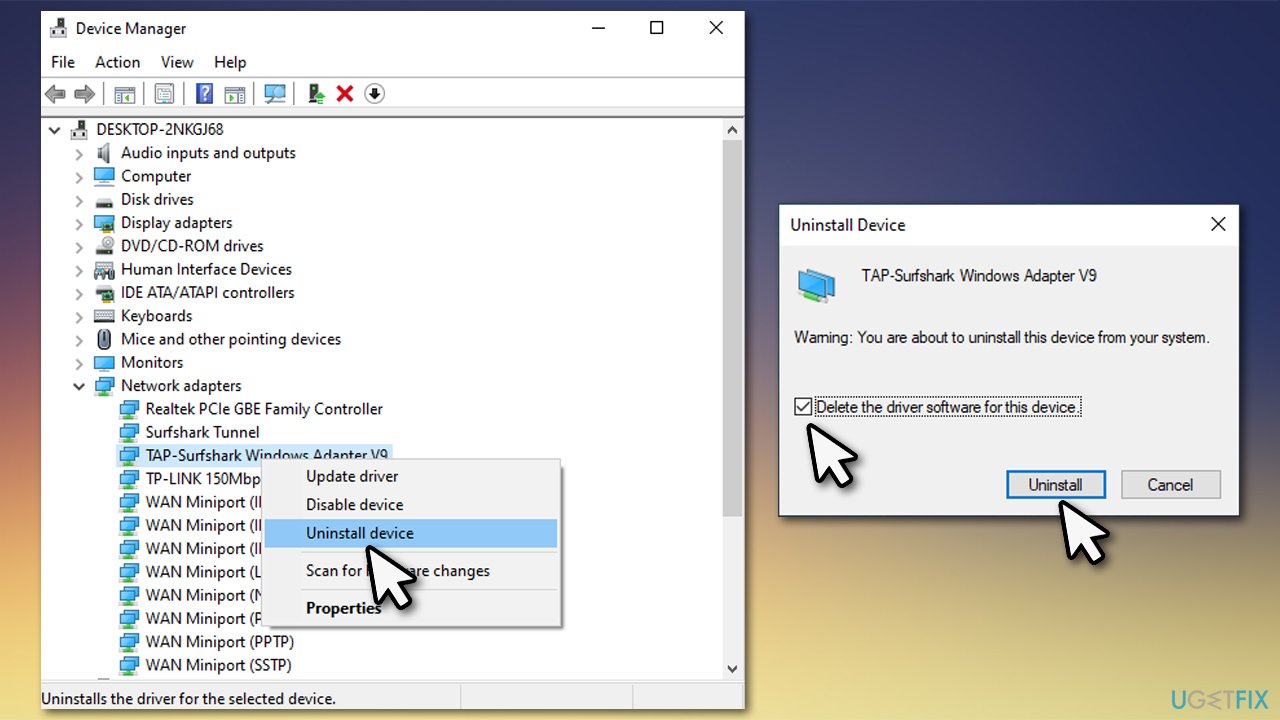
How to fix whea uncorrectable error pshed dll in windows 10 reinstall drivers - Restart your PC.
Once you reboot, you should look for the newest drivers for your hardware and install them. To update all your drivers automatically and prepare backups, we recommend using [rev id="DriverFix"].
Solution 2. Roll back drivers
Many users claimed that rolling back drivers helped them solve the problem:
- Open Device Manager and expand the relevant section
- Right-click on the device and select Properties
- Go to Driver tab
- Click Roll Back Driver
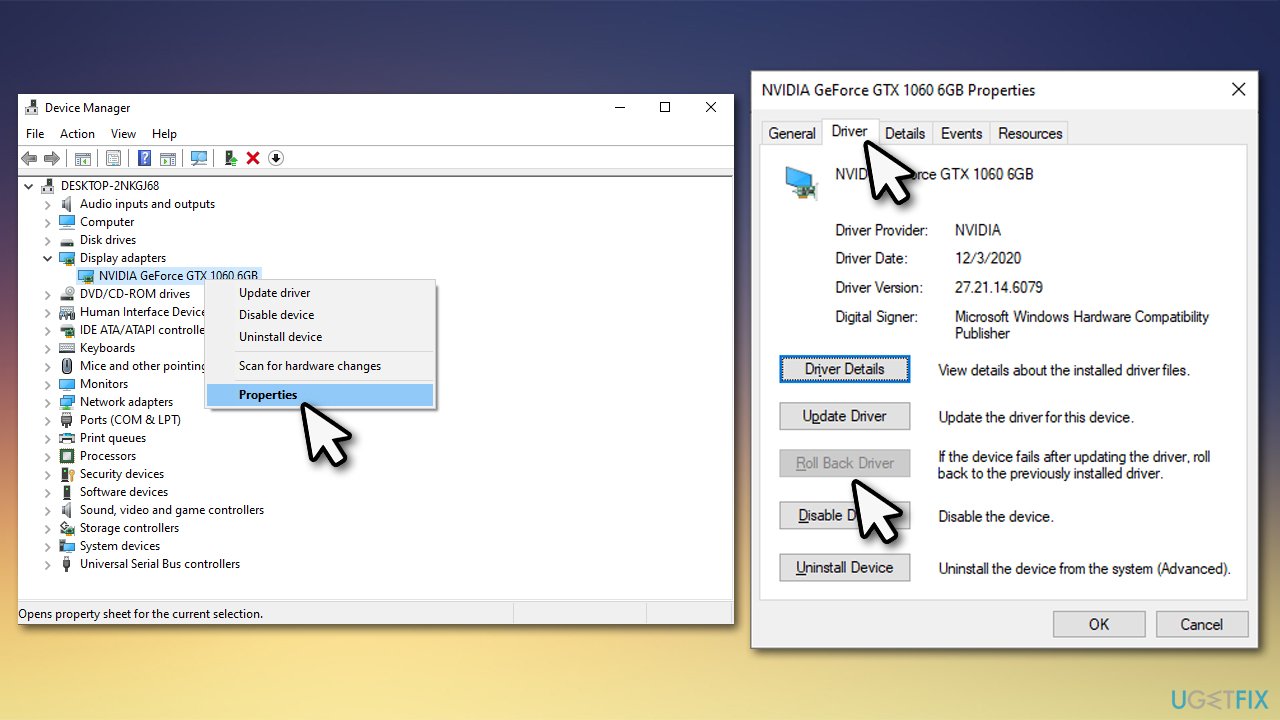
How to fix whea uncorrectable error pshed dll in windows 10 roll back drivers - Select one of the reason and then click Yes
- Restart your computer.
Solution 3. Run SFC and DISM
To check your system for file corruption, proceed with the following:
- Type cmd in Windows search
- Right-click on Command Prompt result and select Run as administrator
- Copy and paste the following command and press Enter:
sfc /scannow
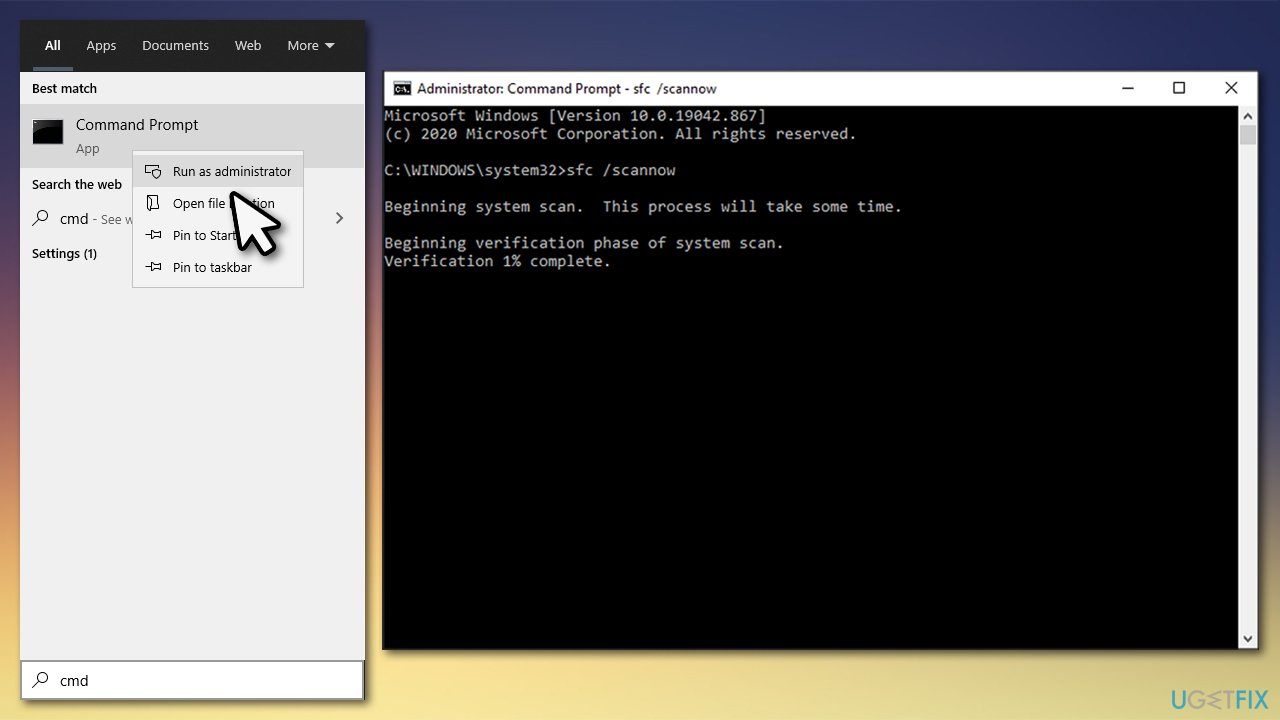
How to fix whea uncorrectable error pshed dll in windows 10 run sfc scan - After the scan finishes, paste next set of commands and press Enter each time:
DISM /Online /Cleanup-Image /CheckHealth
DISM /Online /Cleanup-Image /ScanHealth
DISM /Online /Cleanup-Image /RestoreHealth - Restart your PC after all scans are complete.
Solution 4. Disable overclocking
If you are overclocking your graphics card or CPU for better gaming performance, you should stop doing so - access BIOS to reset to default settings or turn off the function manually. One of the main reasons for WHEA UNCORRECTABLE ERROR is hardware malfunctions, and overheating hardware can be at fault.
In general, while overclocking can push your GPU to the limits, there are several negative aspects to this process (it can sometimes cause damage to CPU, motherboard, or RAM),[ref en-1] hence hardware manufacturers and IT experts ask to use caution when using this feature in the first place.
Solution 5. Disable XMP in BIOS
- Restart your computer and, once Windows start booting, repeatedly press F2, F8, F12, Del, or another button on your keyboard (check with your motherboard manufacturer) until you access BIOS
- Here, you need to find the XMP setting - its location may vary. Look in Overclocking, Advanced, or other sections
- Disable XMP and reboot your system.
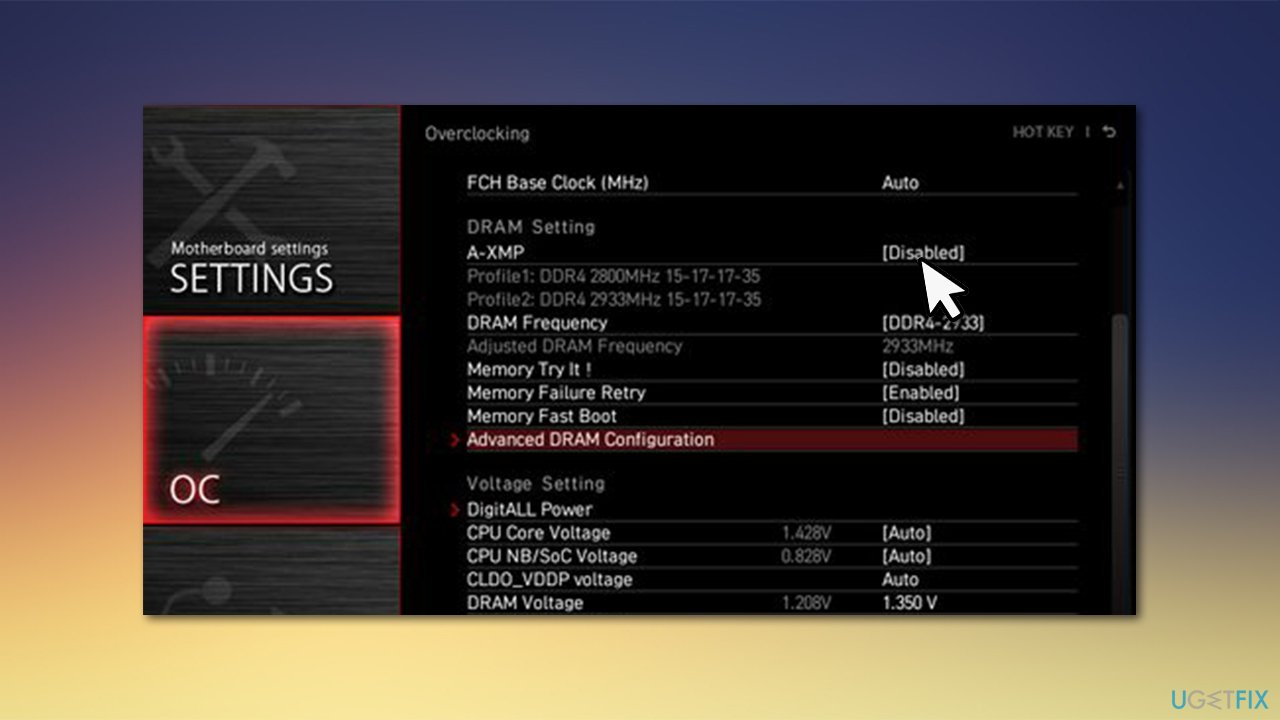
How to fix whea uncorrectable error pshed dll in windows 10 disable xmp
Solution 6. Update BIOS
Updating BIOS might be a bit tricky, and, most importantly, it may cause some issues if the process is not performed correctly. Therefore, if you are not sure what you are doing, skip this step completely.
- Type in System Information in Windows search and press Enter
- Note down the information under BIOS Version/Date and BaseBoard Product
- Once you have the relevant information, visit the official website of your motherboard manufacturer
- Download the latest version of BIOS for your motherboard model and install it
- Once done, reboot the PC.
Solution 7. Run Windows Memory Diagnostic
RAM errors can also cause WHEA UNCORRECTABLE ERROR pshed.dll error.
- Type Memory in Windows search and press Enter
- Select Restart now and check for problems (recommended)
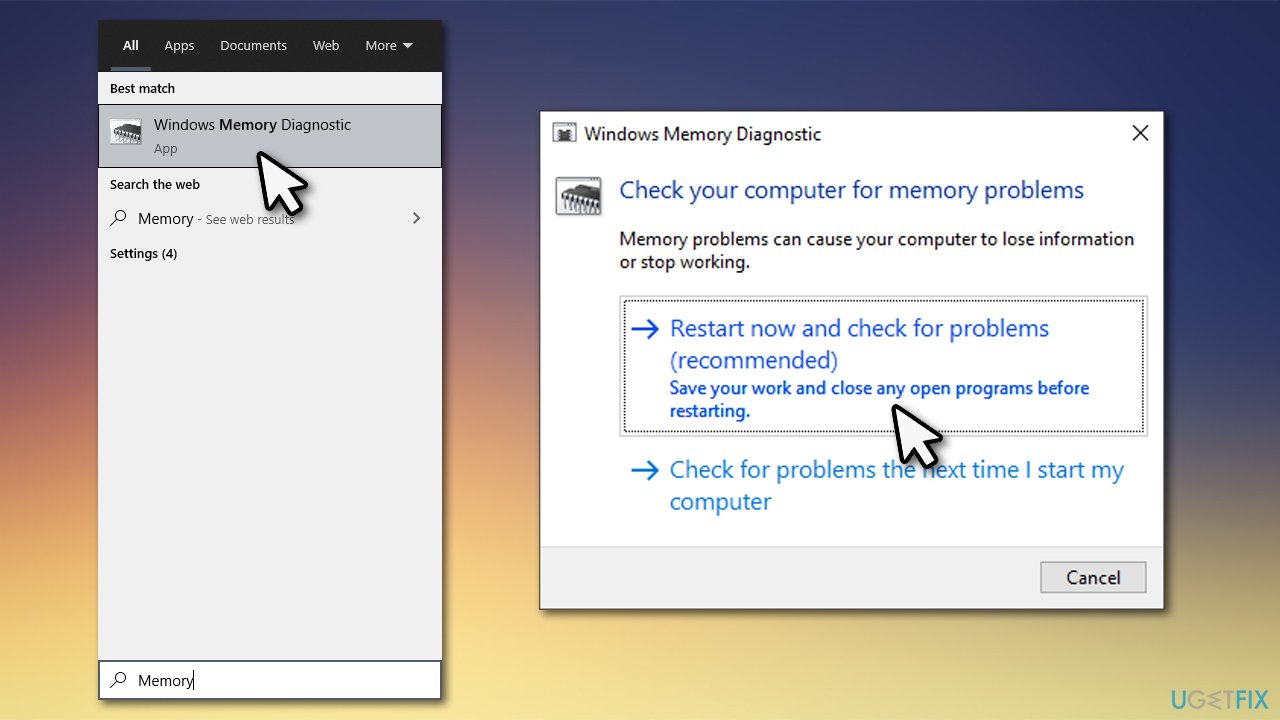
How to fix whea uncorrectable error pshed dll in windows 10 run windows memory diagnostic - This will immediately restart your PC and the check will begin
- Wait till its finished and check the results.
Bottom line
To fix the WHEA UNCORRECTABLE ERROR pshed.dll, you can try reinstalling drivers, particularly Nvidia drivers, as they have been reported to cause the BSOD. If you are not willing to troubleshoot, consider using an automatic repair solution. If none of these fixes work, further investigation into hardware issues may be necessary.
Frequently asked questions
This error is often caused by hardware issues, such as failing components or incompatible drivers, that interfere with the system's ability to communicate properly.
You can start by updating your drivers, checking for Windows updates, and running hardware diagnostics to identify any failing components.
Yes, you can often resolve the pshed.dll error by performing system restores, running the System File Checker, or replacing any faulty hardware.




Report an issue
What's wrong with this guide? We review every report and update or remove content.
Report received — thank you. We'll review and fix it.
You need a free account to submit a report.
Be the first to comment