How to fix
Entry Point Not Found error
on Windows
Resolve the Entry Point Not Found error on Windows 10 and Windows 11 effortlessly. Get expert-tested solutions and fix it in minutes!


What causes How to fix Entry Point Not Found error in Windows?
- Missing DLL file
- Corrupted DLL file
- Damaged DLL file
- Incorrect DLL version
- Incompatible software
Repairs Windows system files, removes malware, and restores a clean OS state — without reinstalling.
Hello, I need help. Whenever I try to open programs, I get an error which is titled program name.exe - Entry Point Not Found. This rather annoying since I can't use half of the programs on my PC. Is there anything that could be done about this?
Entry Point Not Found is an error that indicates that there is a missing or corrupted file within a particular process, which results in the program's inability to launch. In particular, this happens when a DLL file is affected, for example, msvrt.dll, api-ms-win-core libraryloader l1-1-1.dll, SQLite.dll, and many others.
The error can occur when trying to launch or install various programs, for example, iTunes, Photoshop, Trillian, as well as games such as Grand Theft Auto V. That being said, this issue can be particularly frustrating, as it prevents users from operating their device as intended - and failure to launch multiple programs is a major problem that should be addressed. This is why this article will hopefully help you fix Entry Point Not Found error once and for all.
This error typically includes the information on which entry point is affected (path), as well as which DLL file, in particular, is missing/corrupted/damaged. Example of an error:
program.exe - Entry Point Not Found
The procedure entry point could not be located in the dynamic link library [path]
Dynamic Link Library[ref en-1] files are very common - you would find thousands of them used by Windows operating system, as well as third-party software. DLL files are very similar if not identical to the EXE[ref en-2] files when it comes to their functionality - they are used by programs to launch a particular code or data for a function that is needed at the present time.
Unlike EXE files, however, DLL files are only called up when some of the data within them is required. As a result, the latter can not be launched without the former. When one of such files is missing a component of one of such Dynamic Link Library files, an Entry Point Not Found error can occur, consequently terminating the application launch or install process.
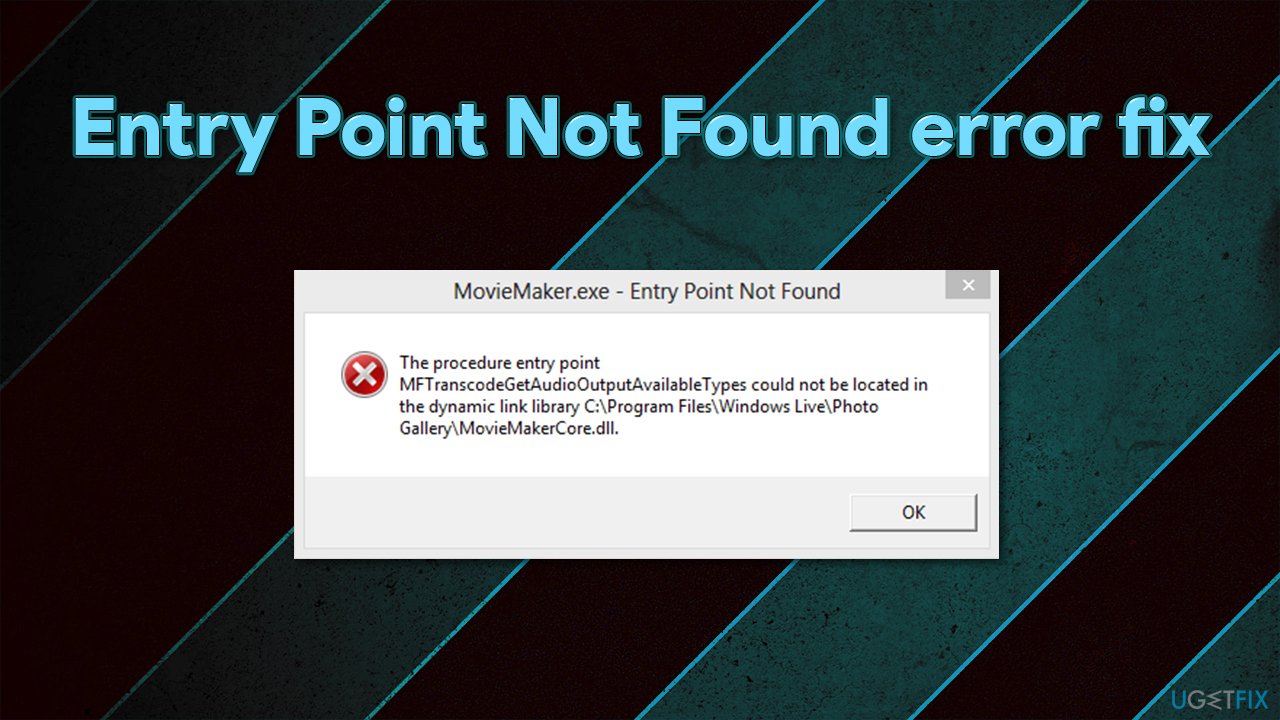
That being said, one of the main reasons for this issue to occur is when a DLL in question is replaced by another one, hence it needs to be repaired. Thus, to fix Entry Point Not Found error quickly, we highly recommend scanning your device with the [d1] repair tool.
If the missing or damaged component comes from Windows operating system, this app will be able to replace it automatically, and you will be able to avoid the tedious troubleshooting steps that can take a while. Below you will find the step-by-step guide if you want to resolve the issue manually.
Fix 1. Install the latest Visual C++ Redistributable package
Visual C++ Redistributable package could include the missing/damaged components that are causing the error. Thus, download and install the latest version:
- Visit the official Microsoft website for Visual C++
- You should download both 32-bit and 64-bit versions[ref en-3] - x86: vc_redist.x86.exe and x64: vc_redist.x64.exe files
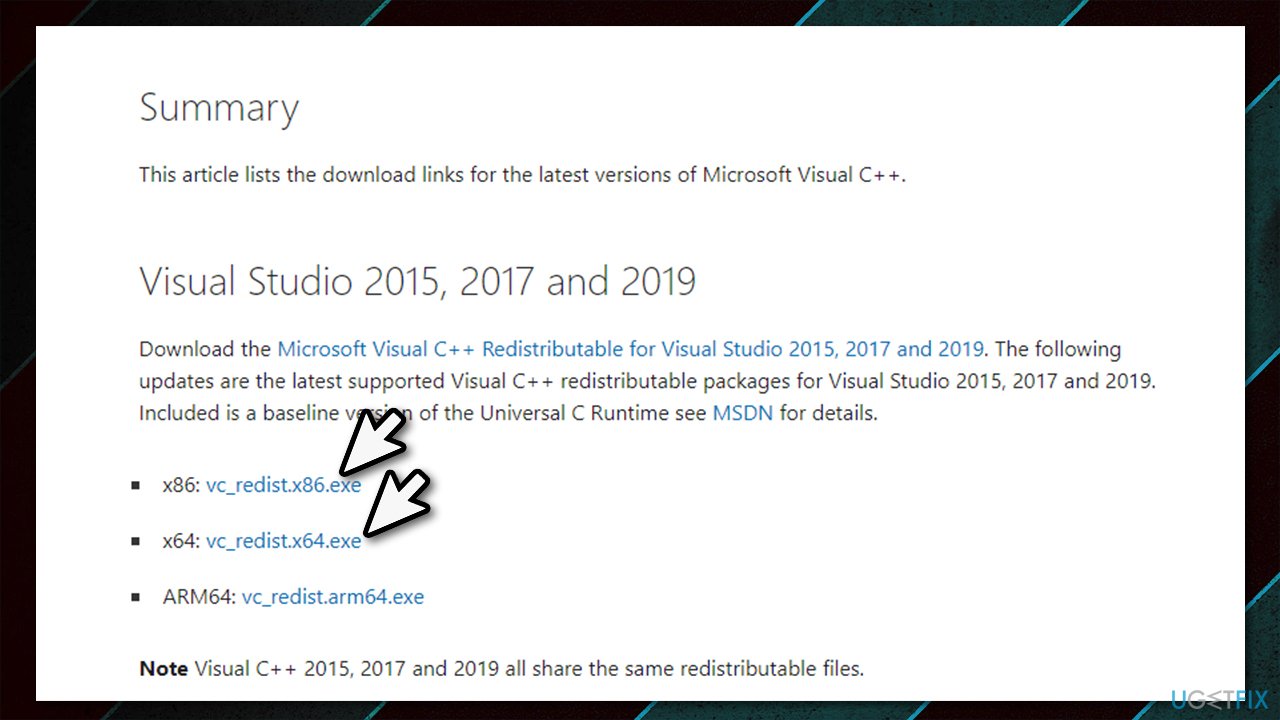
How to fix entry point not found error on windows install visual c plus plus redistributable - Launch each of the installers and proceed with on-screen instructions to finalize the process
- Restart your computer and see if the error is gone.
Fix 2. Run System File Checker
System File Checker is an excellent tool that could help you fix corrupted system files via Command Prompt.
- Type cmd in Windows search
- Right-click the Command Prompt result and select Run as administrator
- Once the new window opens, paste the following command:
sfc /scannow
- Press Enter and wait till scan is finished
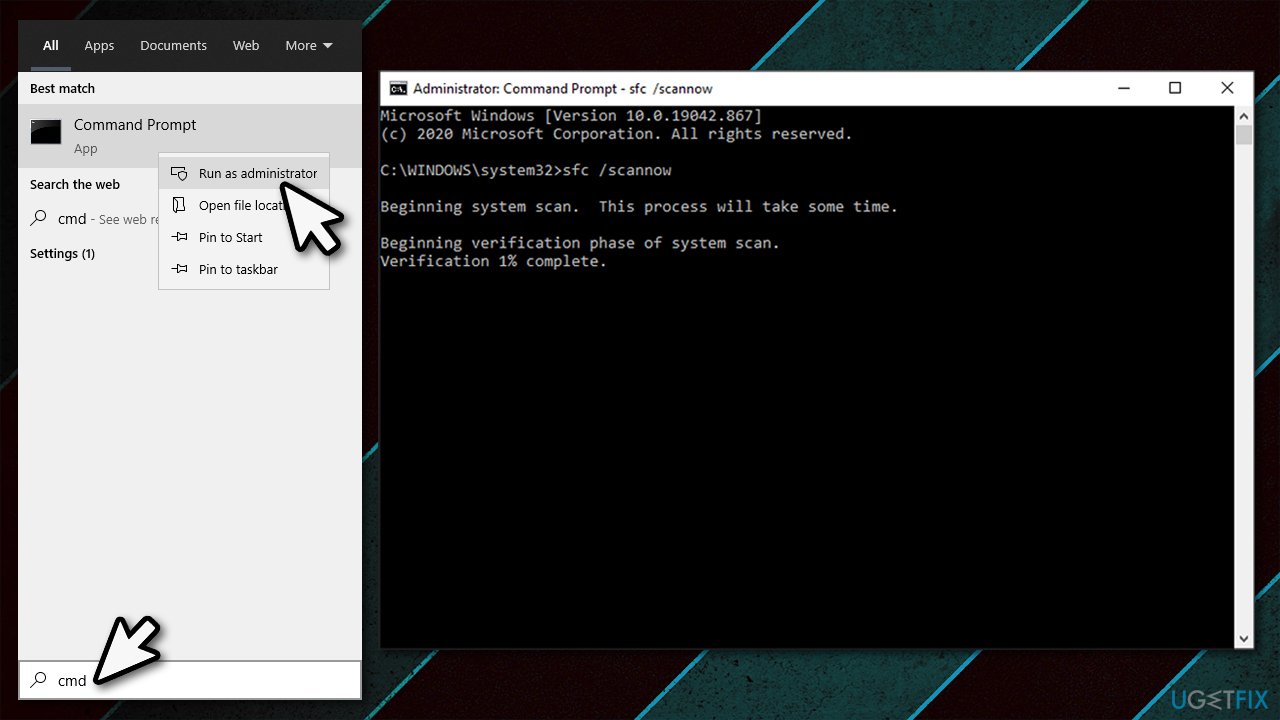
How to fix entry point not found error on windows run sfc scan - Restart your computer.
Fix 3. Repair or reinstall program in question
You could try repairing the program in question, although it is only possible for Microsoft apps:
- Right-click on Start and pick Apps & Features
- On the right, scroll down to find the app in question
- Click on the app once and select Advanced options
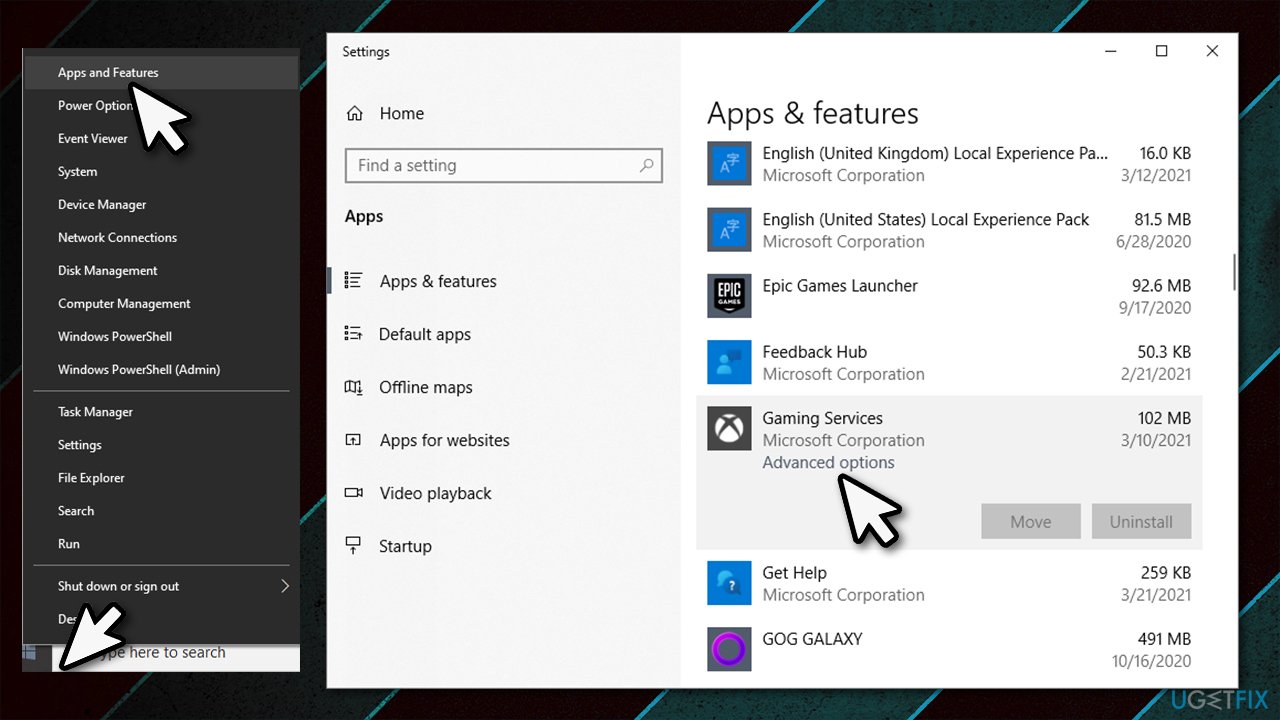
How to fix entry point not found error on windows reset app - Here, click Terminate followed by Repair
- You can also try resetting the app - use Reset option for that.
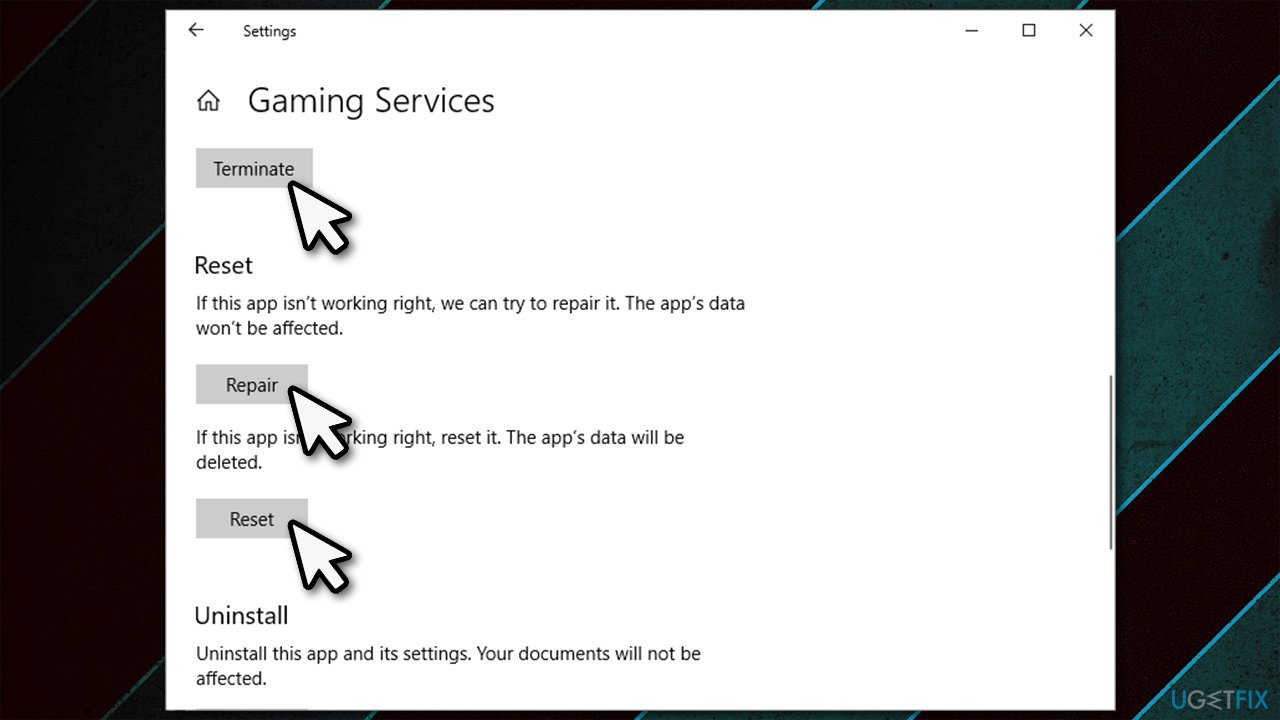
How to fix entry point not found error on windows reset app2
However, most programs that deliver the error are likely to be third-party. In such a case, you should reinstall the program that is causing you the error.
Fix 4. Reregister the DLL file
- Open Command Prompt as administrator as explained previously
- In here, type in the following commands and press Enter after each (replacing XXX.dll with the correct DLL file that is shown in your error message):
regsvr32 /u a XXX.dll
regsvr32 a XXX.dll - After that, restart your PC.
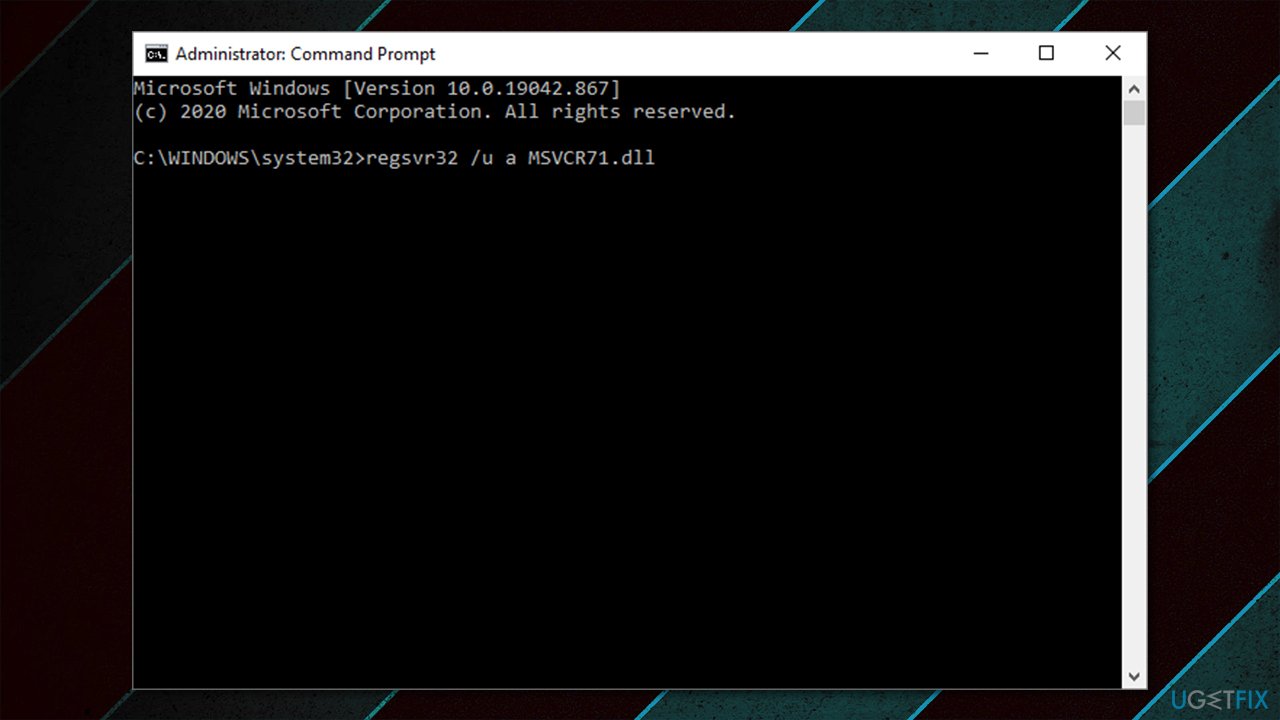
How to fix entry point not found error on windows reregister dll file
Fix 5. Use System Restore
System Restore can roll your PC back in time without touching personal files that accumulated over a period. By doing so, you can revert the process that caused the error in the first place.
- Press Win + R, type rstrui.exe and hit Enter
- Pick Next
- Tick the Show more restore points option
- Select a date when the error on did not exist and hit Next once again
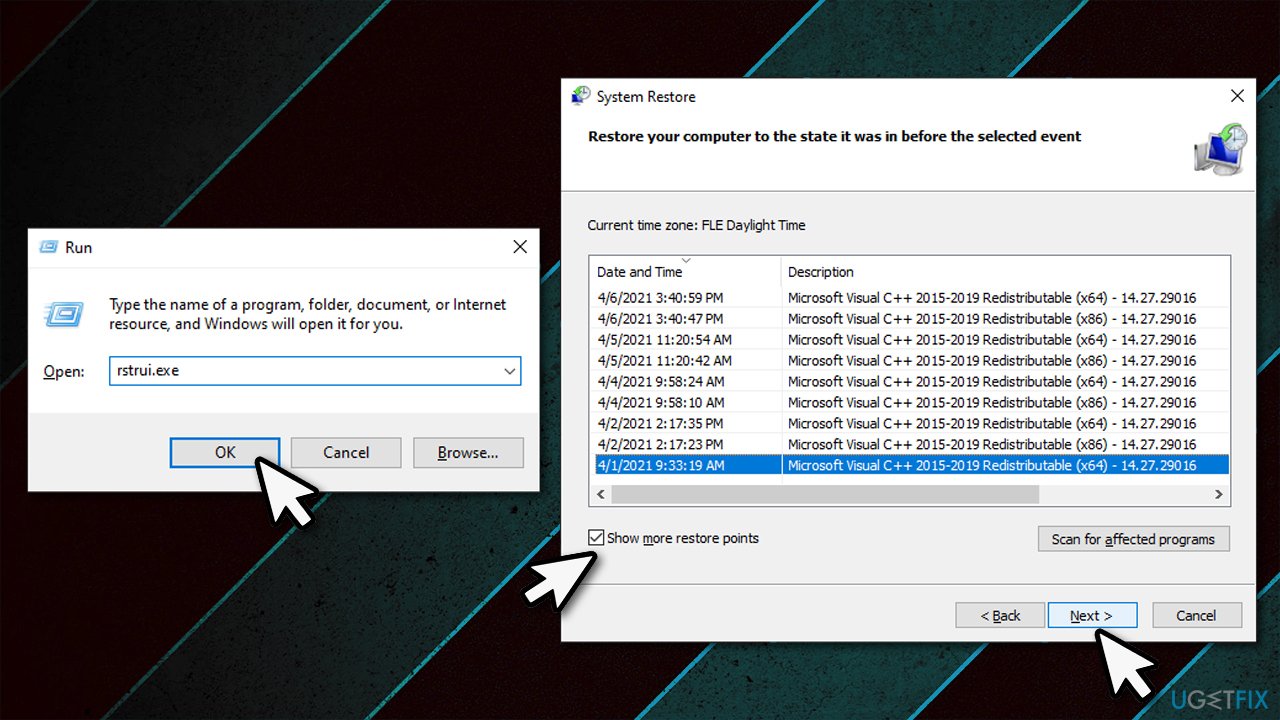
How to fix entry point not found error on windows use system restore - Reboot your system.
Fix 6. Use Media Creation Tool
If you encounter Setup.exe - Entry Point Not Found error (The procedure entry point DecodePointer could not be located in the dynamic link library KERNEL32.dll) while trying to install Windows, you should use Media Creation to pull the missing files:
- Visit the official Microsoft website to download the installation media
- Launch the installer, agree to terms and click Next
- Select Create installation media (USB flash drive, DVD or ISO file) for another PC and click Next
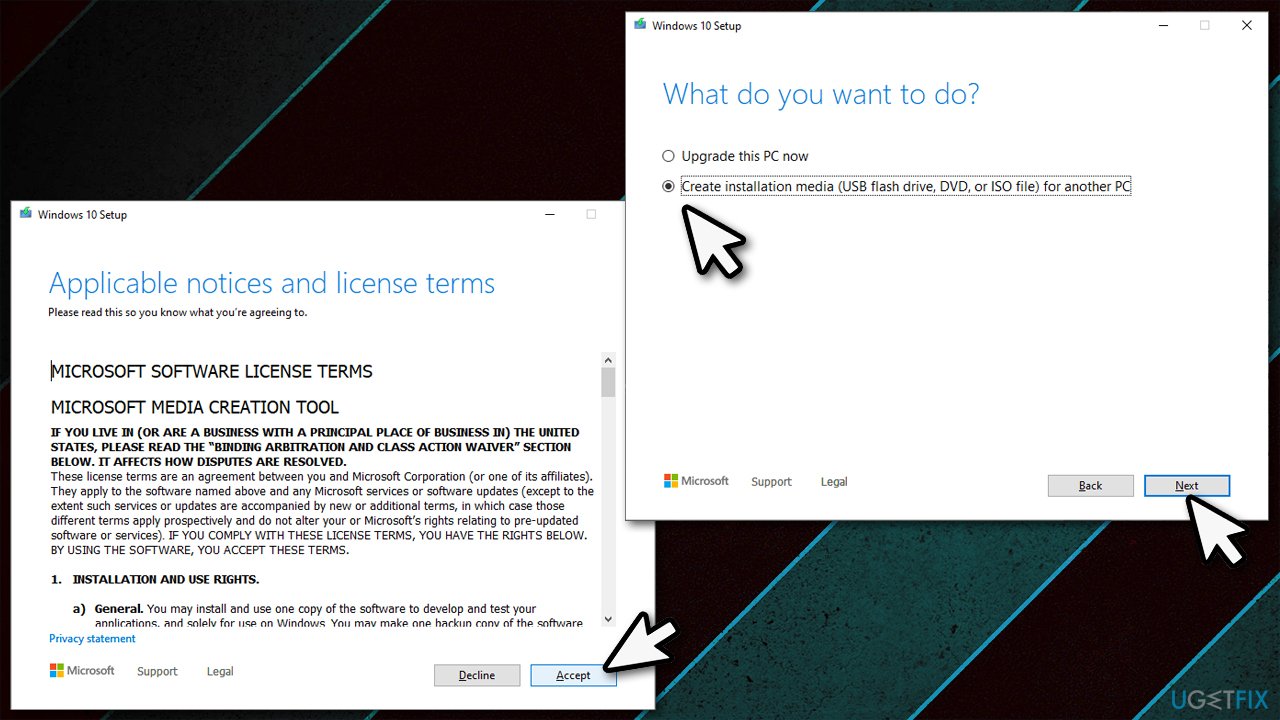
How to fix entry point not found error on windows use media creation tool - Pick USB flash drive (make sure you have USB connected to your PC)
- Now follow on-screen instructions, and once the option to pick partition style shows up, select UEFI
- Proceed with on-screen instructions to finalize the process
- Once done, double-click the Ready to install option
- Select Keep personal files and wait for the process to complete.
Bottom line
To fix the Entry Point Not Found error, you can try reinstalling the affected program, updating your Windows operating system, or restoring the missing DLL file from a backup. If these solutions do not resolve the issue, consider running a system file checker or seeking further technical support.
Frequently asked questions
This error typically occurs when a program tries to access a function that is not present in the required DLL file, often due to corrupted files or mismatched software versions.
You can fix this error by reinstalling the affected application or updating your Windows 10 to ensure all system files are up to date.
Yes, running the System File Checker (SFC) tool can help identify and repair corrupted system files that may be causing the Entry Point Not Found error in Windows 11.




Report an issue
What's wrong with this guide? We review every report and update or remove content.
Report received — thank you. We'll review and fix it.
You need a free account to submit a report.
Be the first to comment