How to fix
High CPU Usage by gfxui.exe Process
on Windows
Resolve high CPU usage caused by gfxui.exe on Windows 10 and Windows 11 effortlessly. Get expert-tested solutions that deliver results fast!

What causes How to Fix High CPU Usage by gfxui.exe Process?
- Clash of two graphics cards
- Virus/malware infection
- Driver software issues
- High resource consumption by gfxui.exe
Repairs Windows system files, removes malware, and restores a clean OS state — without reinstalling.
I’ve noticed that a gfxui.exe process consumes lots of system recourses. I’ve checked Task Manager for several times and found this process taking more than 70% CPU. Could you please tell me if it’s normal? I suspect that it may be slowing down my PC.
For one or another reason, Windows processes can start consuming more system recourses than they are supposed to. We have found out that these days one of the problematic system processes is gfxui.exe. It is related to Intel GPUs, so naturally, computers that have other graphic cards can hardly face a high CPU usage by gfxui.exe issue. Statistically, problems related to the aforementioned process usually occur on PCs and laptops that have two graphic cards, i.e. Intel HD and NVIDIA/AMD graphics cards.
This issue might not be noticed for ages as long as the computer/laptop runs smoothly. Unfortunately, but with the gfxui.exe high CPU usage, this is hardly possible. Specialists warn that this process is a very big consumer as it may “eat” up to 100% CPU, which is why the system may become extremely sluggish, freezing, irresponsive, the boot-up process may take a long time, and so on.
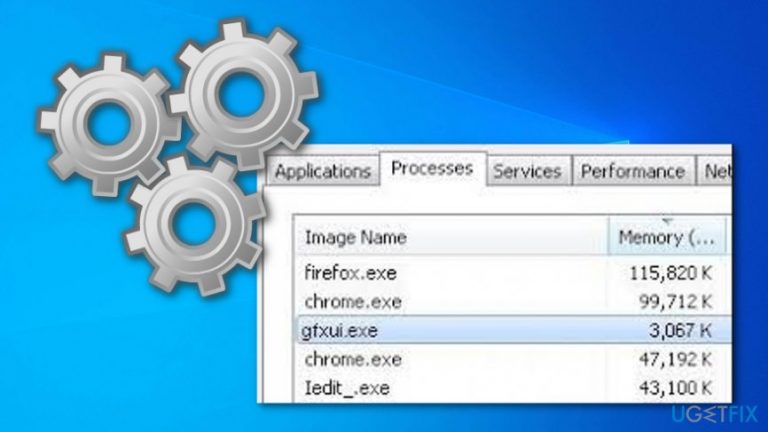
If this is happening on your system right now, you ought to open Task Manager (click Ctrl + Alt + Delete simultaneously) and check how many CPU takes each process that is currently running. If you find gfxui.exe surpassing the threshold of 50% or more, do not ignore that because it’s a clear sign that your PC needs optimization.
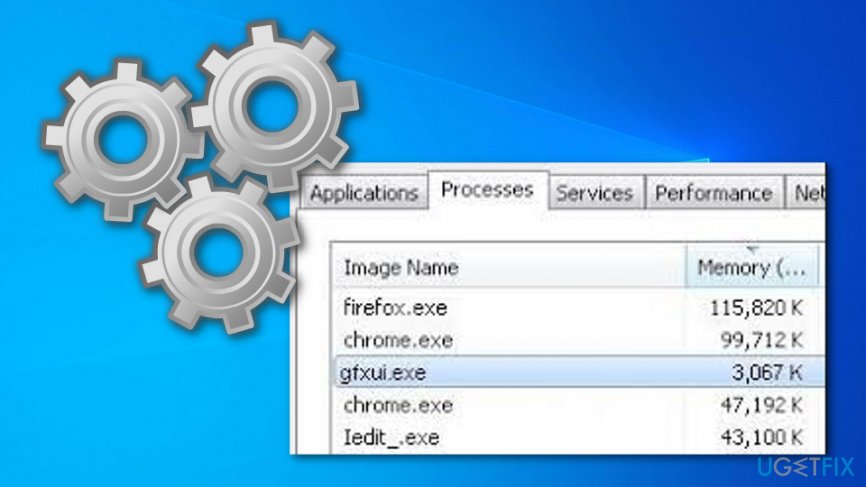
According to specialists, gfxui.exe error occurs due to the clash of two graphics cards that we have mentioned before. However, although this cause is the most common, this Windows process may also be triggered to absorb much CPU power due to virus/malware infection. Luckily, Windows enthusiasts have already come up with the method that helps to work around gfxui.exe draining CPU power issue.
How to fix high CPU usage by gfxui.exe process?
Fixing method. Uninstall some driver software
Our experts have made a research on how to Fix High CPU Usage by gfxui.exe Process and we want to share our findings with you. If you are also a person that has been having trouble with this problem, take a look at the following steps and complete all of them for the best results possible:
- Click Win key + R to open the Run dialogue.
- Type hdwwiz.cpl in the search bar and press Enter to open Device Manager.
- Click twice on the Display adapters and find Intel HD Graphics on the list.
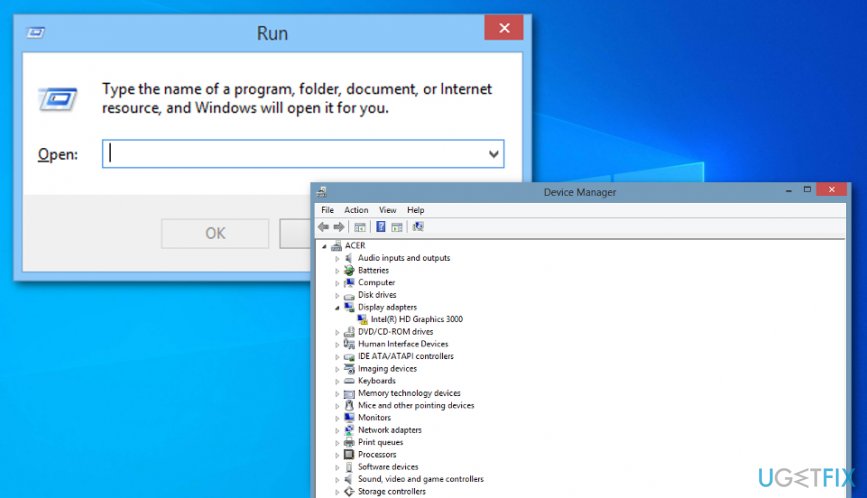
Fix method - Right-click on it and select Uninstall.
- Place a tick alongside Delete the driver software for this device and click OK.
- Once the adapter and the driver will be uninstalled, reboot your PC.
- When the system boots up, it’s time to reinstall Intel HD Graphics driver. To do so, navigate to the manufacturer’s website and type your adapter’s model in the search bar.
- Find the one that suits your PC, download it and install.
- Restart your PC one more time and check if gfxui.exe high CPU usage has been fixed.
If these simple steps did not help, our recommendation would be to check your PC with a professional software utility, such as [d1]. This particular program collaborates with Avira Antivir, which is a powerful anti-malware tool, which means that it's extremely useful in case of virus infection. Therefore, Reimage will not only ensure the proper condition of your system files, registries, memory, updates, etc., but will also ensure system security.
Bottom line
To fix high CPU usage by gfxui.exe, consider uninstalling some driver software and optimizing your system. If these methods do not resolve the issue, further investigation into your system's configuration may be necessary.
Frequently asked questions
The gfxui.exe process is associated with the Intel Graphics User Interface, and it may cause high CPU usage due to driver issues or conflicts with other software on Windows 10.
To reduce CPU usage from gfxui.exe in Windows 11, try updating your graphics drivers or disabling the Intel Graphics Control Panel if it's not needed.
Yes, it is generally safe to terminate the gfxui.exe process in Task Manager on Windows, but it may restart automatically and could affect graphics settings.




Report an issue
What's wrong with this guide? We review every report and update or remove content.
Report received — thank you. We'll review and fix it.
You need a free account to submit a report.
Be the first to comment