How to fix
DRIVER UNMAPPING INVALID VIEW error
on Windows
Fix the DRIVER UNMAPPING INVALID VIEW error in Windows 10 quickly and easily. Our expert-tested solutions will have you back to normal in no time!


What causes How to fix DRIVER UNMAPPING INVALID VIEW error in Windows 10?
- Faulty hardware
- Driver issues
- Faulty OS update or installation
- Windows registry issues
- Software issues
Repairs Windows system files, removes malware, and restores a clean OS state — without reinstalling.
I received the blue screen, but the computer loaded after. I think it is all good, but I got the same DRIVER UNMAPPING INVALID VIEW error again. I haven't updated my OS or installed any programs, so there is no reason for this issue to occur, I think. Can you help me solve this?
The problem with this Blue Screen Of Death is the fact that the error indicates faulty hardware or driver issues when the DRIVER_UNMAPPING_INVALID_VIEW error shows up in Windows 10. These BSOD[ref en-1] errors can be serious and damage the machine, so users[ref en-2] might panic or be scared.
Troubleshooting the DRIVER UNMAPPING INVALID VIEW error in Windows 10 is crucial because this is how to see what issue needs to get a fix to avoid any blue screen errors and to solve the issue entirely. Random errors are annoying, but the system crash and freeze errors like this can lead to permanent damage and even changes to your machine.
It is possible to fix DRIVER UNMAPPING INVALID VIEW error, but a few things need to be determined. If you use the Windows 10 operating system, you should know that bugs and errors are common and often can trigger driver-related issues, software, hardware programs.[ref en-3]
DRIVER UNMAPPING INVALID VIEW error in Windows 10 and other BSOD errors can also be the result of the faulty OS update or installation. If the problem occurs after installing something new, that could be the tell-all. If the issue is triggered by the Windows registry or software issues - [d1] can help you. Make sure to run the system check with a similar tool to move on with more difficult manual solutions.

1. Download the latest updates to fix DRIVER UNMAPPING INVALID VIEW error in Windows 10
- Go to Settings.
- Choose Update & security section.
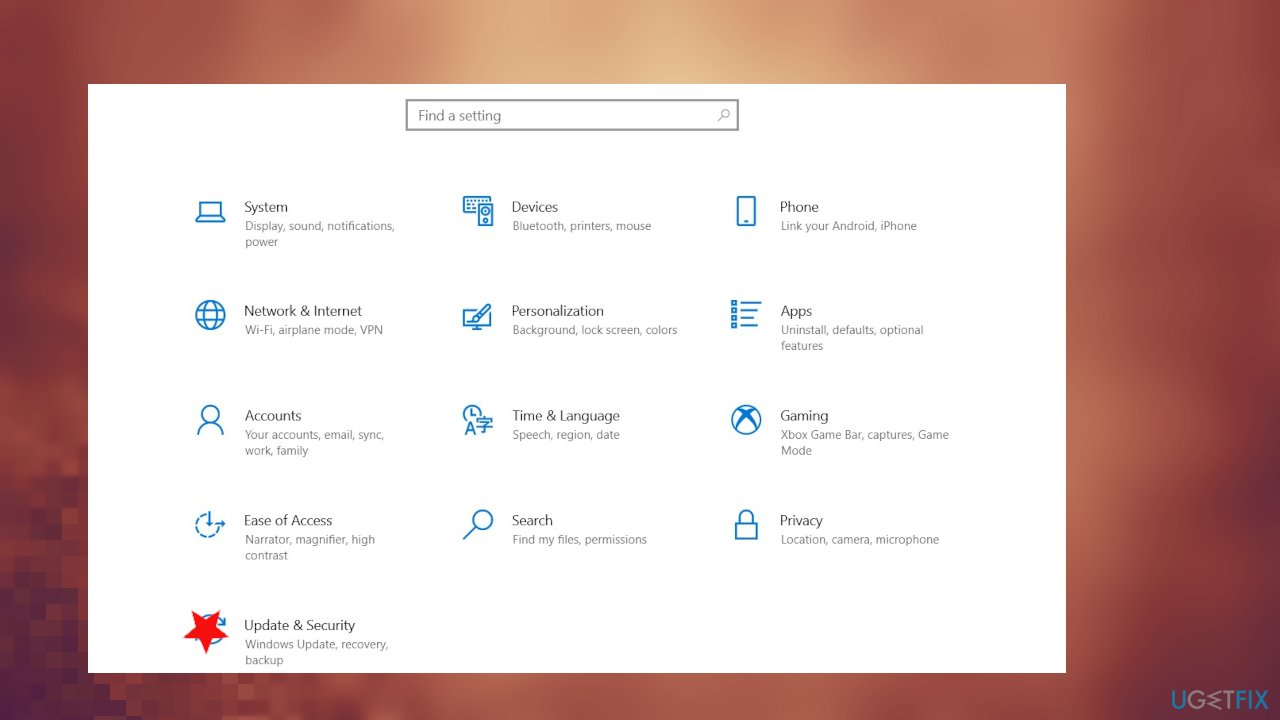
Driver unmapping invalid view fix update - On the right side, click Check for updates.
- Wait for the update install and reboot your device.
2. Run the hardware troubleshooter
- Right-click on Start and pick Settings.
- Go to Update & security section.
- Choose Troubleshoot.
- Choose BSOD on the right and click Run the troubleshooter.
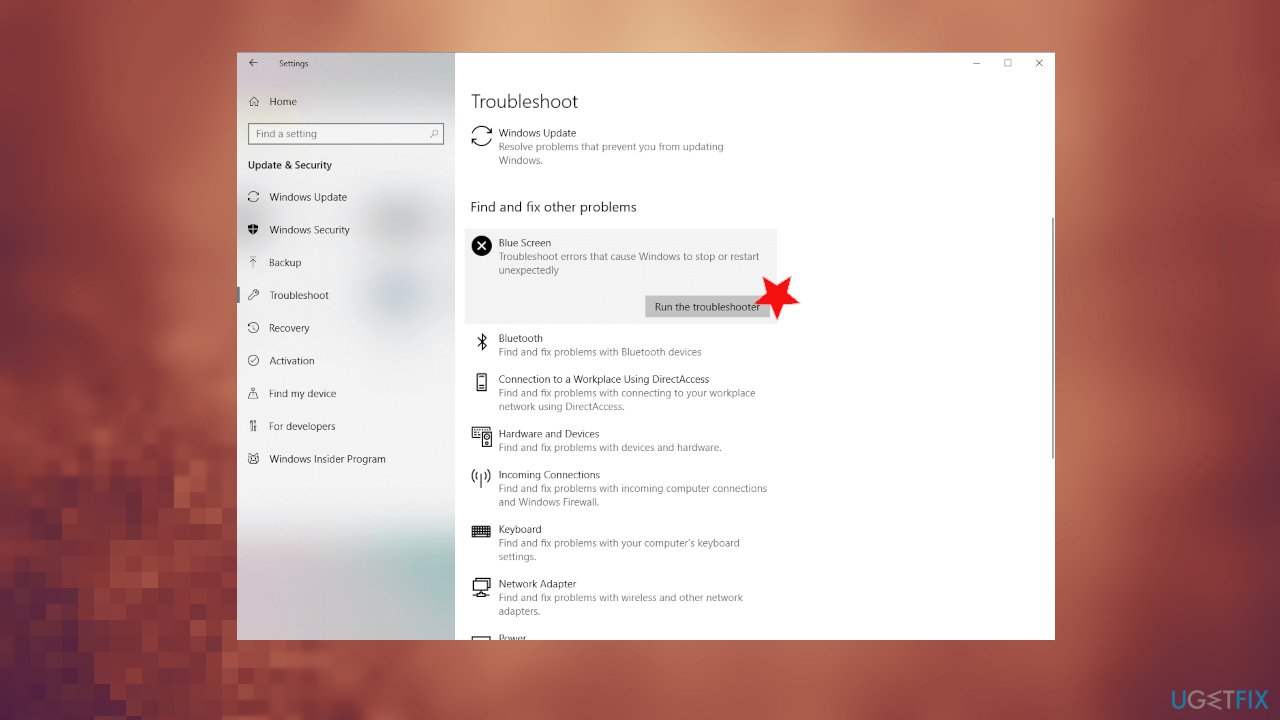
Driver unmapping invalid view fix trouleshooting - Follow the wizard.
3. Update drivers to fix DRIVER UNMAPPING INVALID VIEW error
- Press Windows + X select Device manager.
- Expand the particular section.
- You can find faulty drivers with exclamation points near them.
- Right-click installed driver and then select Update Driver.
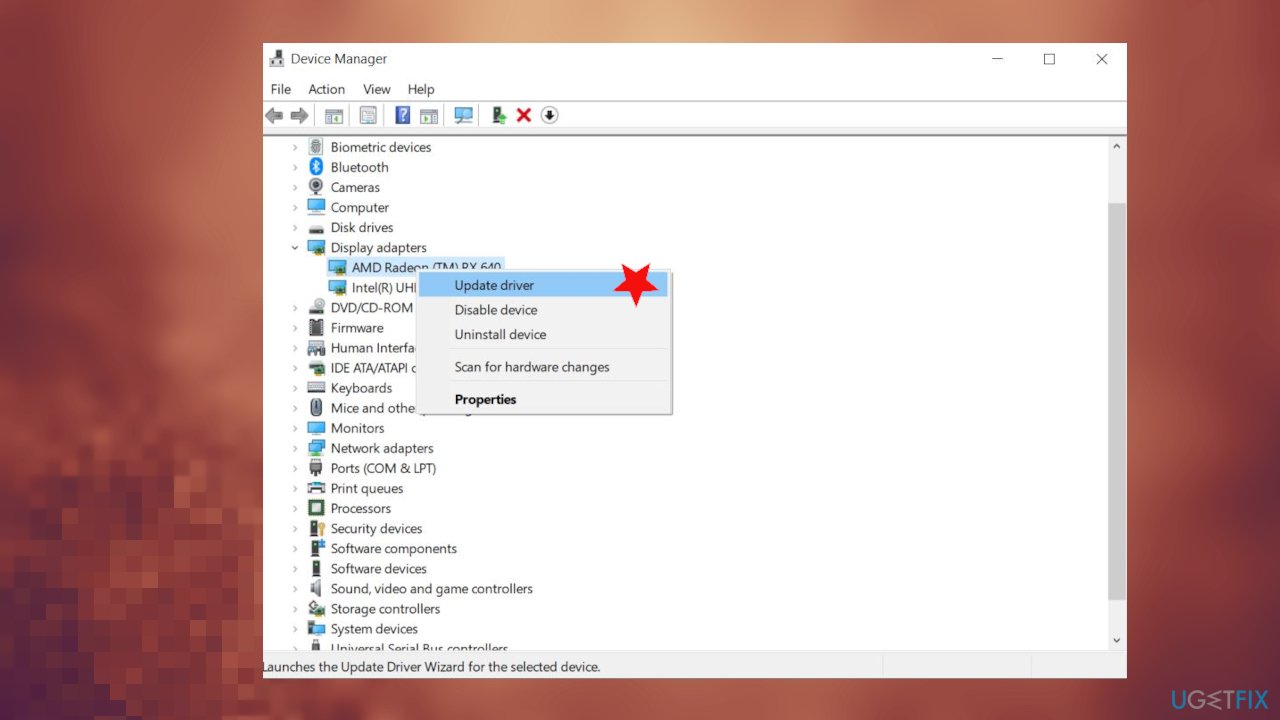
Driver unmapping invalid view fix update driver - Press Windows + X select Device manager.
- Expand Sound, video, and game controllers.
- Right-click installed sound driver and then select Update Driver.
4. Run SFC scan and DISM
- Type cmd in Windows search
- Right-click on Command Prompt and select Run as administrator
- Type the following command and press Enter:
sfc /scannow
- Wait till scan finishes and reboot your PC.
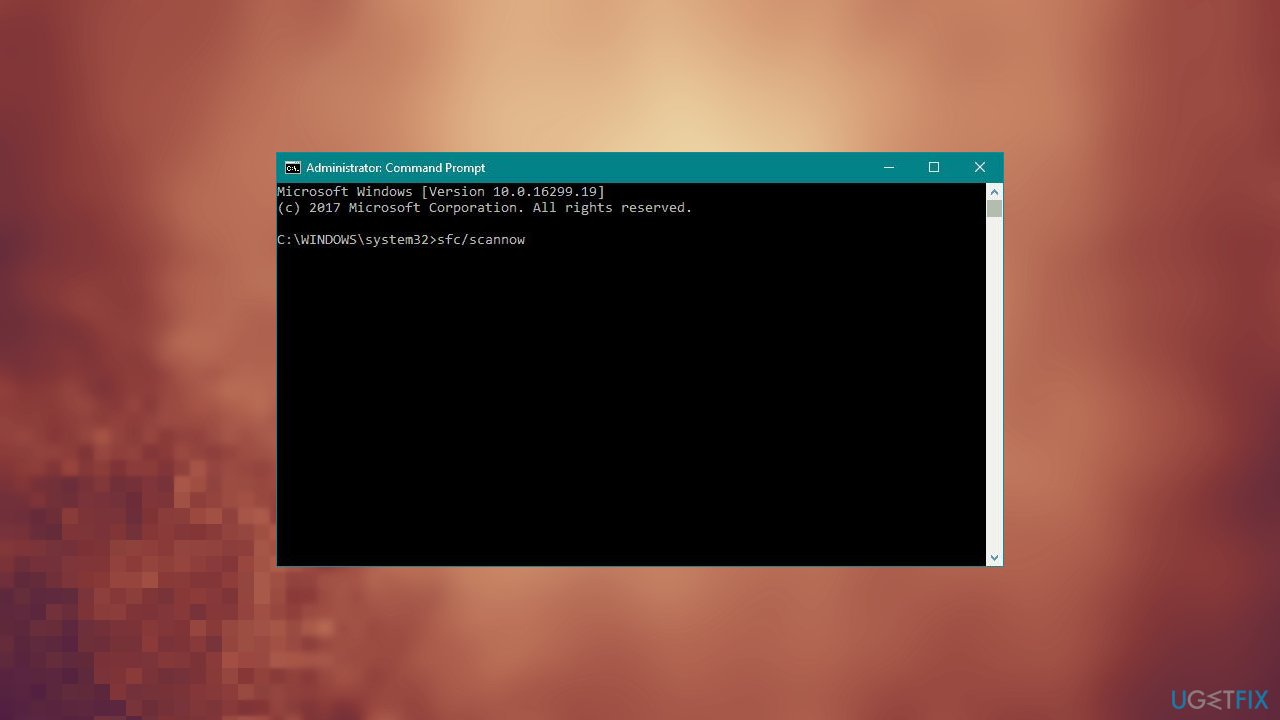
Driver unmapping invalid view fix sfc - Open Command Promp again.
- Copy and paste:
DISM.exe /Online /Cleanup-image /Scanhealth - Press Enter.
- Now enter:
DISM.exe /Online /Cleanup-image /Restorehealth - Press Enter to execute it.
5. Disable problematic apps to fix DRIVER UNMAPPING INVALID VIEW error in Windows
- Press Windows Key + R to open Run box.
- Type MSConfig and press Enter.
- Click Selective startup and uncheck Load startup items.
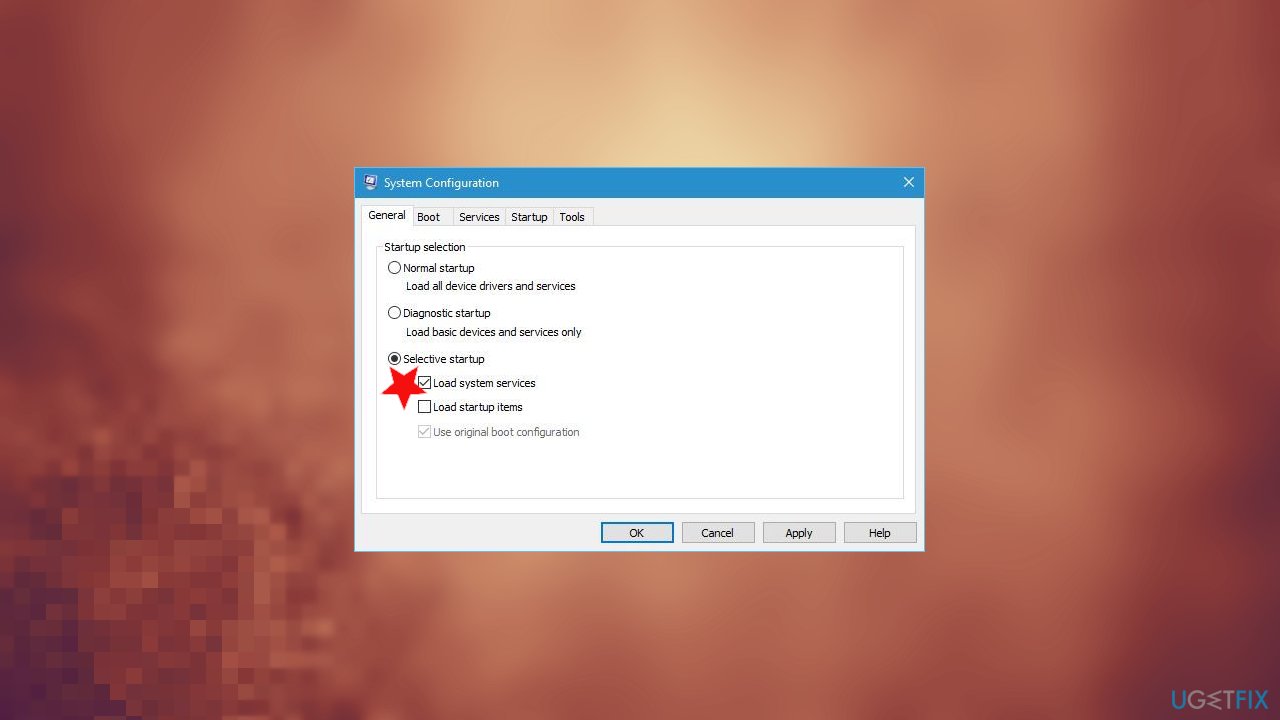
Driver unmapping invalid view fix startup - Go to the Services tab and check Hide all Microsoft services.
- Press the Disable all button.
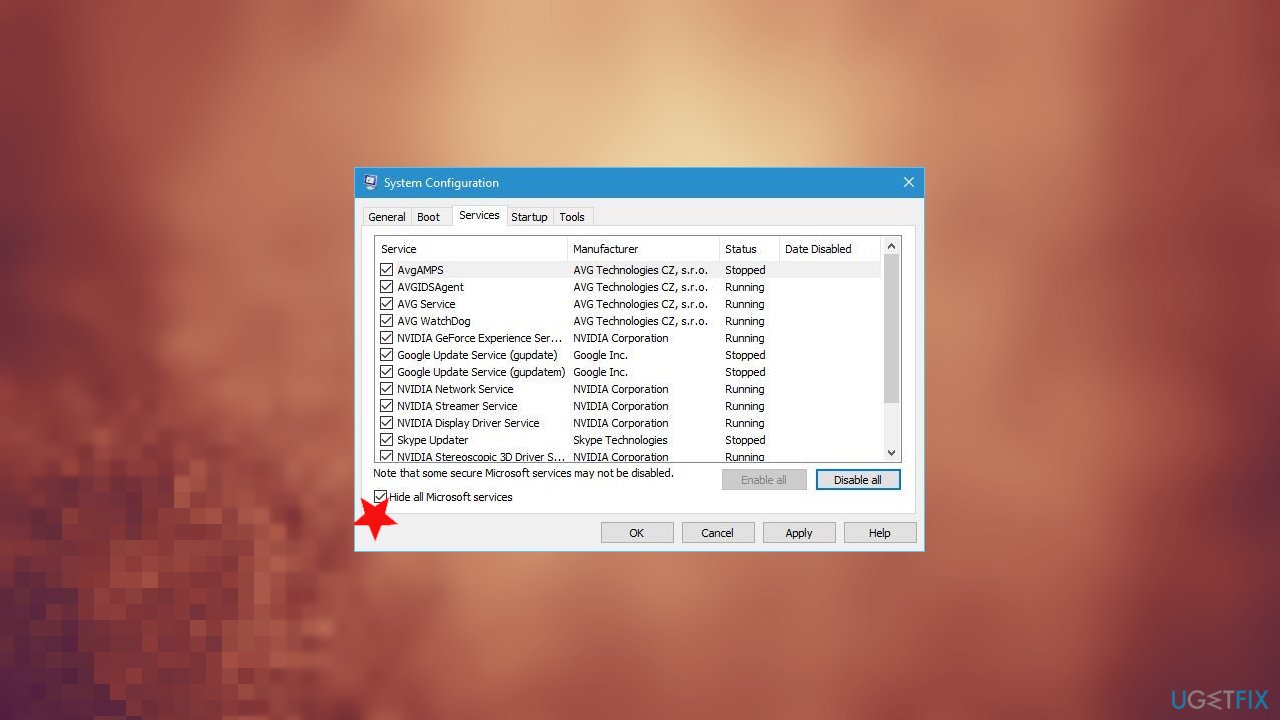
Driver unmapping invalid view fix hide services - Click Apply and OK to save changes.
- Start Task Manager by pressing Ctrl + Shift + Esc
- Go to the Startup tab.
- Right-click each item on the list and select Disable from the menu.
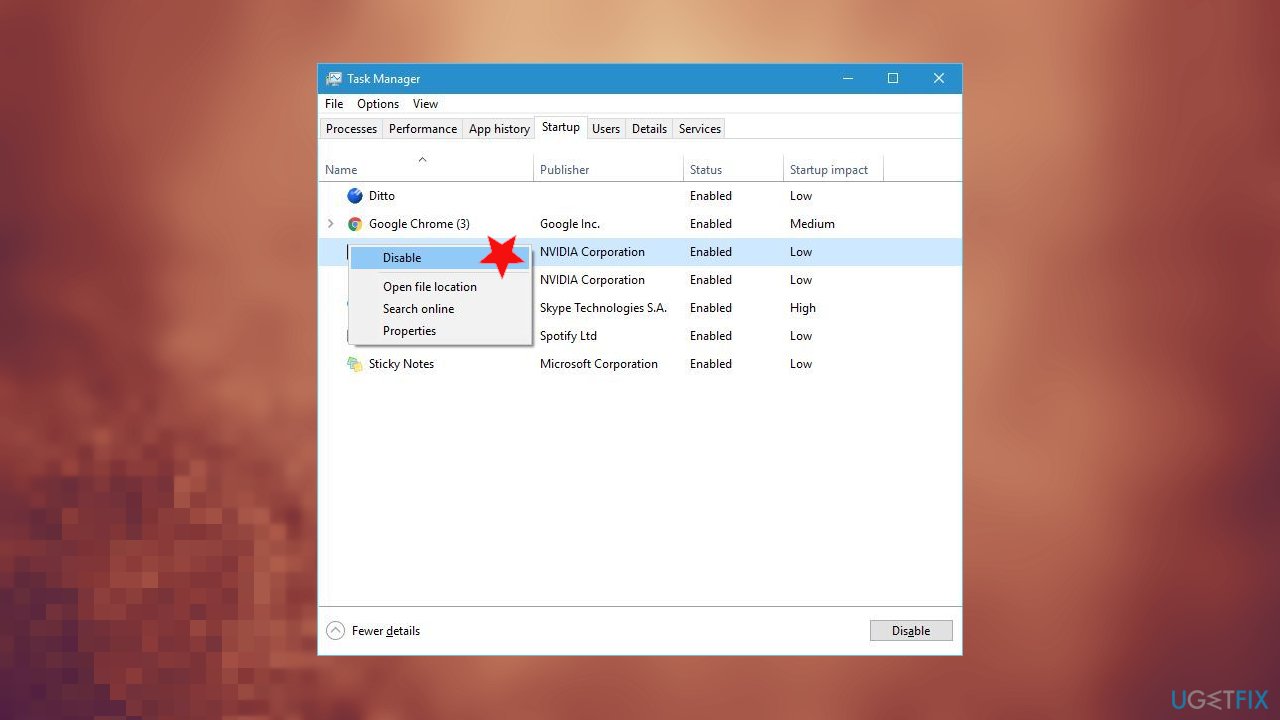
Driver unmapping invalid view fix disable - Restart the PC.
6. Reset Windows
- Restart your computer a few times to start Automatic Repair.
- Select Troubleshoot.
- Then Reset this PC.
- Click Remove everything.
- You might be asked to insert Windows 10 installation media.
- Select Only the drive where Windows is installed.
- Just remove my files.
- Click Reset to start the Windows 10 reset and follow the instructions
Bottom line
To fix the DRIVER UNMAPPING INVALID VIEW error in Windows 10, you can download the latest updates, run the hardware troubleshooter, and update your drivers. If these solutions do not resolve the issue, further investigation into hardware or software conflicts may be necessary.
Frequently asked questions
This error is often caused by faulty drivers, particularly graphics or network drivers, that fail to map memory correctly. It can also result from system file corruption or incompatible hardware.
You can update drivers by going to Device Manager, right-clicking the affected device, and selecting 'Update driver.' Alternatively, you can visit the manufacturer's website to download the latest drivers.
Yes, you can run the System File Checker tool by opening Command Prompt as an administrator and typing 'sfc /scannow.' This will scan and repair any corrupted system files that may be causing the error.




Report an issue
What's wrong with this guide? We review every report and update or remove content.
Report received — thank you. We'll review and fix it.
You need a free account to submit a report.
Be the first to comment