How to fix
ATTEMPTED_EXECUTE_OF_NOEXECUTE_MEMORY BSOD
on Windows
Resolve the ATTEMPTED_EXECUTE_OF_NOEXECUTE_MEMORY BSOD on Windows 10 effortlessly. Fix it in minutes with expert-tested solutions.

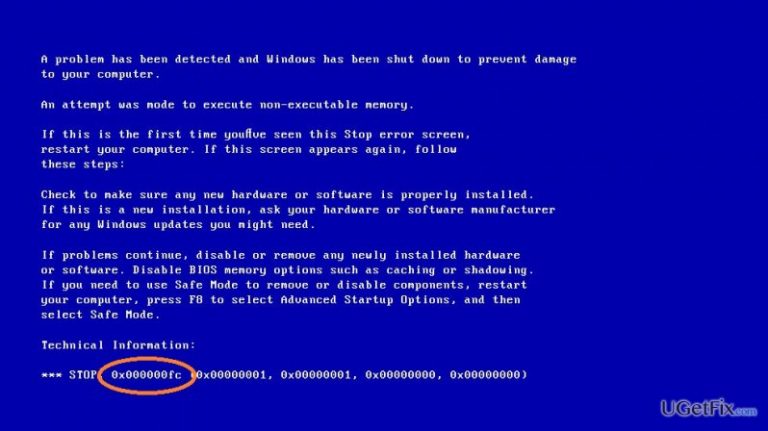
What causes How to Fix ATTEMPTED_EXECUTE_OF_NOEXECUTE_MEMORY BSOD on Windows 10?
- Malicious software infection
- Outdated software
- Outdated hardware
- Software incompatibilities
- Corrupted system files
Repairs Windows system files, removes malware, and restores a clean OS state — without reinstalling.
To be honest, this is the first time I’m asking for help on online forums. Although I has had some Windows bug earlier, they appeared to be easy to solve, but this time seems to be different. I have gotten a Blue screen ATTEMPTED_EXECUTE_OF_NOEXECUTE_MEMORY and I’m wondering what the culprit could be. I’ve upgraded to Windows 10 as soon as it has been released and install its updates regularly. Everything was working fine up till now. I don’t know where to start to fix this error, so any insight would be immensely appreciated.
Blue Screen of Death (BSOD) errors on Windows 10 should be treated seriously as they signal about serious system problems, such as malicious software, outdated software/hardware, various incompatibilities, corrupted system files, and so on. Quite recently, people started making a fuss about a BSOD ATTEMPTED_EXECUTE_OF_NOEXECUTE_MEMORY on Windows 10. Most of them claim that this error is as annoying as an error could be due to the fact that it triggers constant system freezes and forced restarts. In fact, this happens with all BSOD errors because system restart is supposed to protect the system from further damage.
ATTEMPTED_EXECUTE_OF_NOEXECUTE_MEMORY is also known as Stop Error Code 0x000000FC or Attempted Execute of Noexecute Memory Error. According to the experts, the culprit of this bug is device driver, which is trying to access the memory that is no longer existent or that is used by the Windows operating system only. Nevertheless, 0x000000FC error or ATTEMPTED_EXECUTE_OF_NOEXECUTE_MEMORY BSOD phenomenon may be the result of malicious software infection or software incompatibilities. Therefore, it’s very important to fix ATTEMPTED_EXECUTE_OF_NOEXECUTE_MEMORY error ASAP not only to restore your PC’s performance, but also to protect it from further damage.
How to Fix ATTEMPTED_EXECUTE_OF_NOEXECUTE_MEMORY BSOD with an Error Code 0x000000FC?
Fix 1. Update Drivers
To check if there are some malfunctioning drivers on the system, you have to access Device Manager. This can be done by performing the following steps:
- Click Win key and type Device Manager.
- Click on the Device Manager option and expand the list of drivers on the left pane. The ones that are malfunctioning should be marked with a yellow exclamation mark.
- If you found the one that is outdated/damaged/corrupted, right-click on it and select Update Driver Software.
- Once the driver is updated, close everything and restart your PC.
If for some reason drivers cannot be updated automatically, then you should navigate to the manufacturer’s website, download and install the updates manually. However, be careful and download the updates that are compatible with the type of your OS.
Fix 2. Install Windows Updates
- Navigate to Settings – Update & security.
- Click Check for updates and wait for the list of available updates to appear.
- After that, select Install the Updates.
- Restart your PC.
Fix 3. Disable Windows Defender
Sometimes Windows Defender may initiate problems due to incompatibility with a particular software. Therefore, try to disable it using Registry Editor and check if it helped to fix ATTEMPTED_EXECUTE_OF_NOEXECUTE_MEMORY bug.
- Click Win key + R simultaneously, type regedit, and press Enter.
- Once inside, navigate to HKEY_LOCAL_MACHINE\SOFTWARE\Microsoft\Windows Defender on the left pane.
- Find DisableAntiSpyware DWORD option on the right, double-click it and set the value data to 1.
- After that, click OK and close Registry Editor.
Fix 4. Clean boot the system
- Open Cortana, type System Configuration, and press Enter.
- Navigate to the Services, select Hide all Microsoft services and then Disable all.
- Go to the Startup tab and select Task Manager.
- Select all items and click Disable.
- Close Task Manager and click OK on the System Configuration dialogue box.
- Finally, restart your PC.
Finally, if none of the above mentioned methods helped you to get rid of 0x000000FC error, we would recommend you to disable/remove your anti-malware, and perform Windows 10 reset. However, we believe that you won’t need to leave your system unprotected or invest lots of time conducting Windows 10 restore. Last, but not least, you should also try to run a scan a PC optimization tool, such as [d1] because it may also help to fix this and other system bugs.
Bottom line
To fix the ATTEMPTED_EXECUTE_OF_NOEXECUTE_MEMORY BSOD, you should start by updating your device drivers through Device Manager. If the issue persists, consider checking for malware and ensuring all software and hardware are up to date. If none of these solutions work, further investigation into system files may be necessary.
Frequently asked questions
This BSOD error is typically caused by faulty hardware, such as RAM or a corrupted driver, or issues with system memory management. It can also be triggered by malware infections or software conflicts.
You can troubleshoot this error by running Windows Memory Diagnostic to check your RAM, updating your drivers, and performing a system restore to revert to a previous state. Additionally, scanning for malware using Windows Defender can help resolve any underlying issues.
To prevent this BSOD, ensure that your Windows 10 system is fully updated, regularly check for driver updates, and maintain good antivirus protection. Additionally, consider running hardware diagnostics to catch potential issues early.




Report an issue
What's wrong with this guide? We review every report and update or remove content.
Report received — thank you. We'll review and fix it.
You need a free account to submit a report.
Be the first to comment