How to fix
Windows Store error 0x80073CF3
on Windows
Resolve Windows Store error 0x80073CF3 quickly and effectively. Boost your Windows 10 or Windows 11 experience today with expert-tested solutions.


What causes How to fix Windows Store error 0x80073CF3?
- Existing version of the game on the device
- Inability to download apps or updates
- Outdated applications
- Potential software vulnerabilities
- Issues with Windows updates
Repairs Windows system files, removes malware, and restores a clean OS state — without reinstalling.
Hi. I am trying to download a game Subnautica from Microsoft Store, and it simply doesn't work - I get an error code 0x80073CF3. I tried to wait a few days and try again (just like the message said), but that did not help at all, and I still can't download nor play the game. Advice would be appreciated.
Error code 0x80073CF3 shows up on Microsoft Store when trying to download new apps or update the existing ones. While the applications related to this problem may vary, mostly it occurs when trying to download games such as Minecraft, Gears of War, Phantasy Star Online 2, Outer Worlds, Dishonored, Forza, and many others.
While some users said that the problem persists only with one game, others claimed that the error shows up when downloading any app or game. Inability to download apps from the online store can be extremely frustrating; also, some users might not be able to update any applications when facing this error.
This brings all sorts of issues altogether, as outdated games, for example, miss new features and content. Besides, outdated programs might potentially be a security hazard - software vulnerabilities[ref en-1] are often abused by hackers to install malware[ref en-2] automatically. In some cases, the issue can also be encountered when trying to download Windows updates, although it is relatively rare. Without a doubt, the need to fix the 0x80073CF3 error is one of the top priorities.
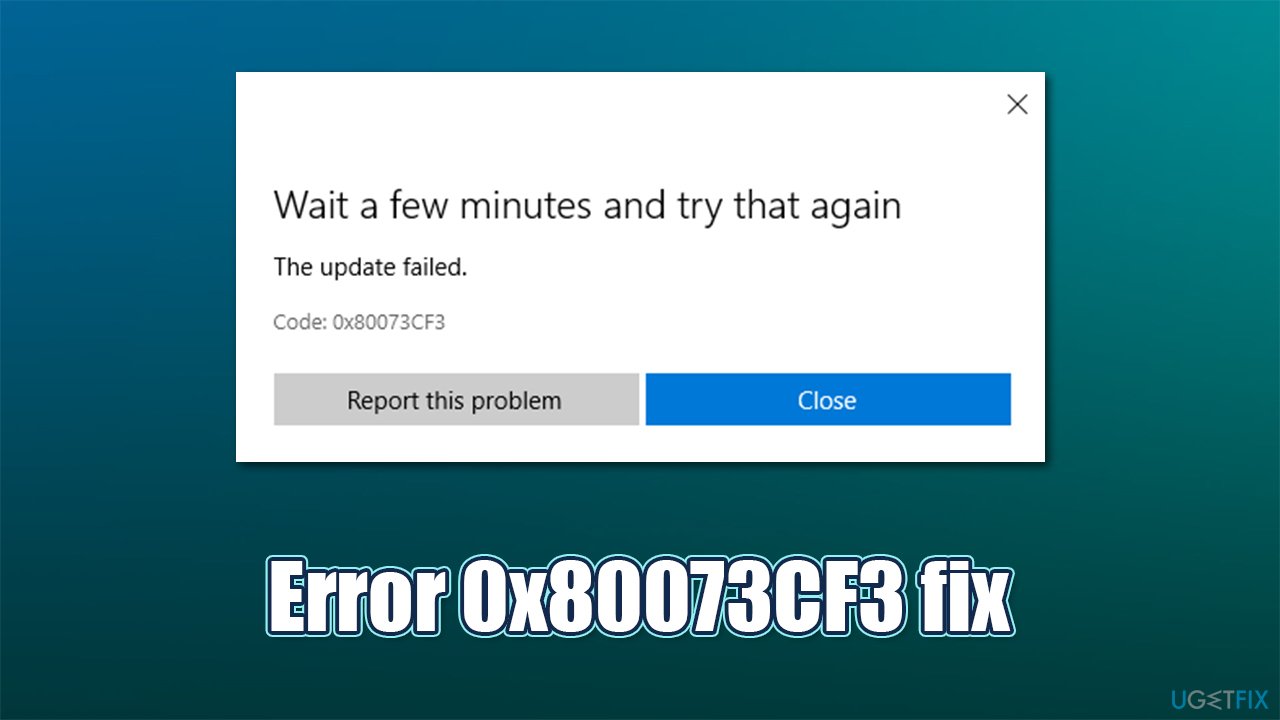
The full error message reads as follows (there are also a few variations of the message):
Wait a few minutes and try again
The update failed
Code: 0x80073CF3
Many users try waiting not only a few minutes but days or even weeks, but the problem persists. Luckily, several solutions below could help you fix this error once and for all. According to some claims online, some people also got the error along with the following message:
The update failed. This means that there’s already an existing version of the game on your console or Windows 10 device.
Despite this, users don't have a particular app, such as Minecraft, installed on their system at all, which makes the whole error message contradict itself. Luckily, there are several ways how the 0x80073CF3 error could be fixed.
In most cases, the problem is related to accumulated or faulty Windows caches or temporary files. Also, corrupted registries[ref en-3] might be causing this error. Therefore, before you proceed with the following steps, we strongly advise you to try [d1] as an automatic solution. If the problem lies within corrupted system files, you won't have to bother with tedious steps and troubleshooting.
Solution 1. Run Windows Store Apps troubleshooter
A Troubleshooter is a tool that could help you resolve various issues on your Windows PC.
- Type Troubleshoot in Windows search and press Enter
- Click Additional troubleshooters if you can't see them listed
- Scroll down to find Windows Store Apps
- Click and select Run the troubleshooter
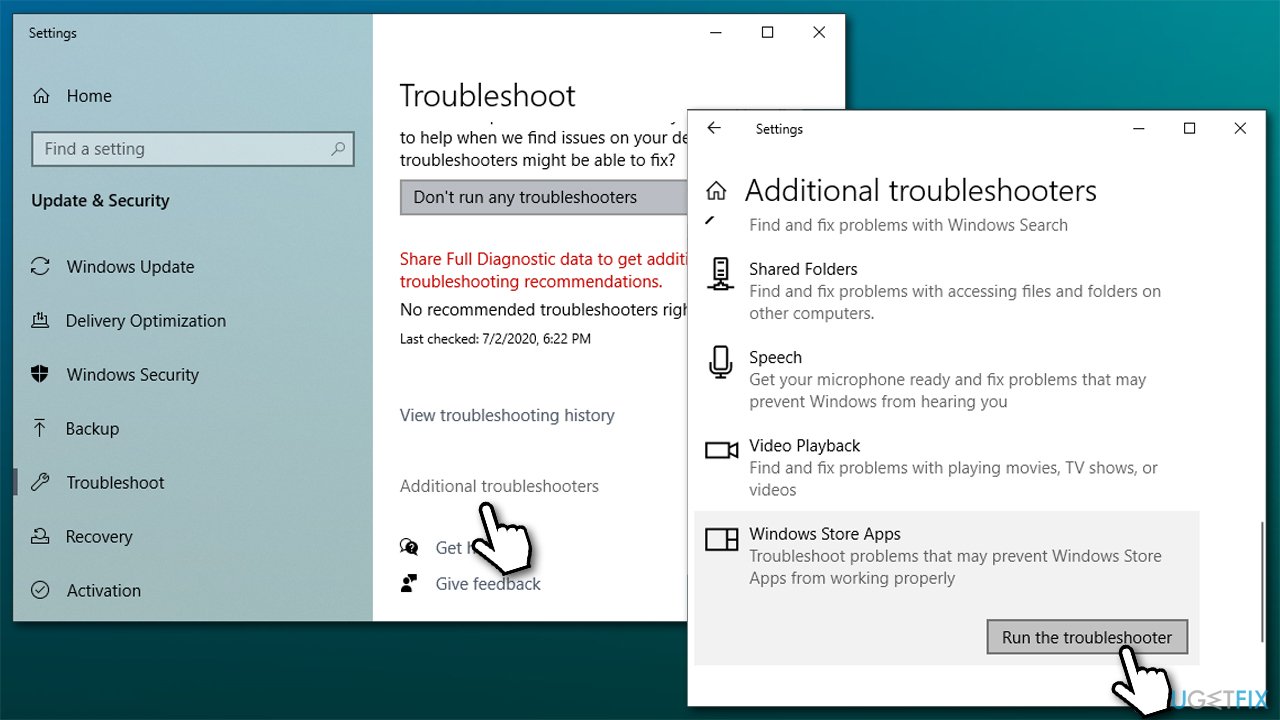
- Wait till the scan is over and the suggested fixes are applied.
Solution 2. Reset Windows Store cache
- In Windows search, type wsreset and press Enter
- Wait till a black window shows up - do not close it
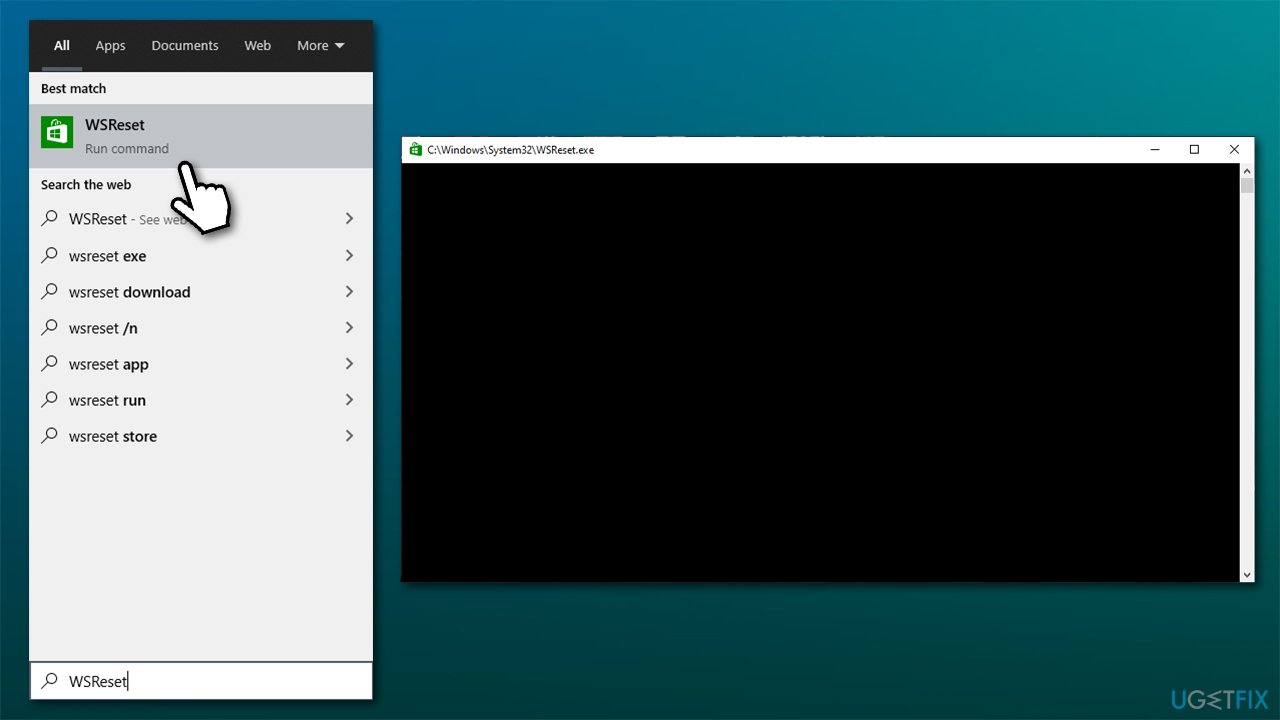
- Once it's gone Microsoft Store should start up
- Try downloading the app in question once again.
Solution 3. Reset Windows Store
A more proper way to reset the Store is by using Apps and Features section:
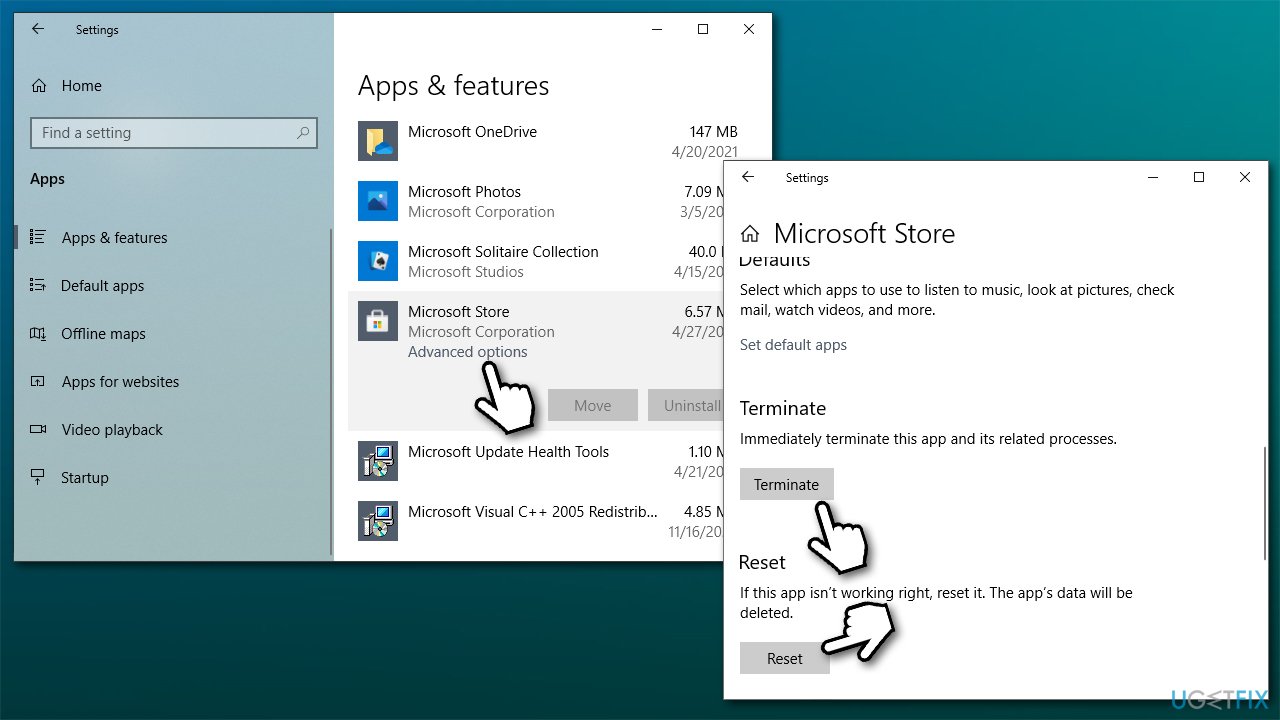
- Right-click on Start and select Apps & Features
- Scroll down to find Microsoft Store and click Advanced options
- Scroll down again and click Terminate and Reset.
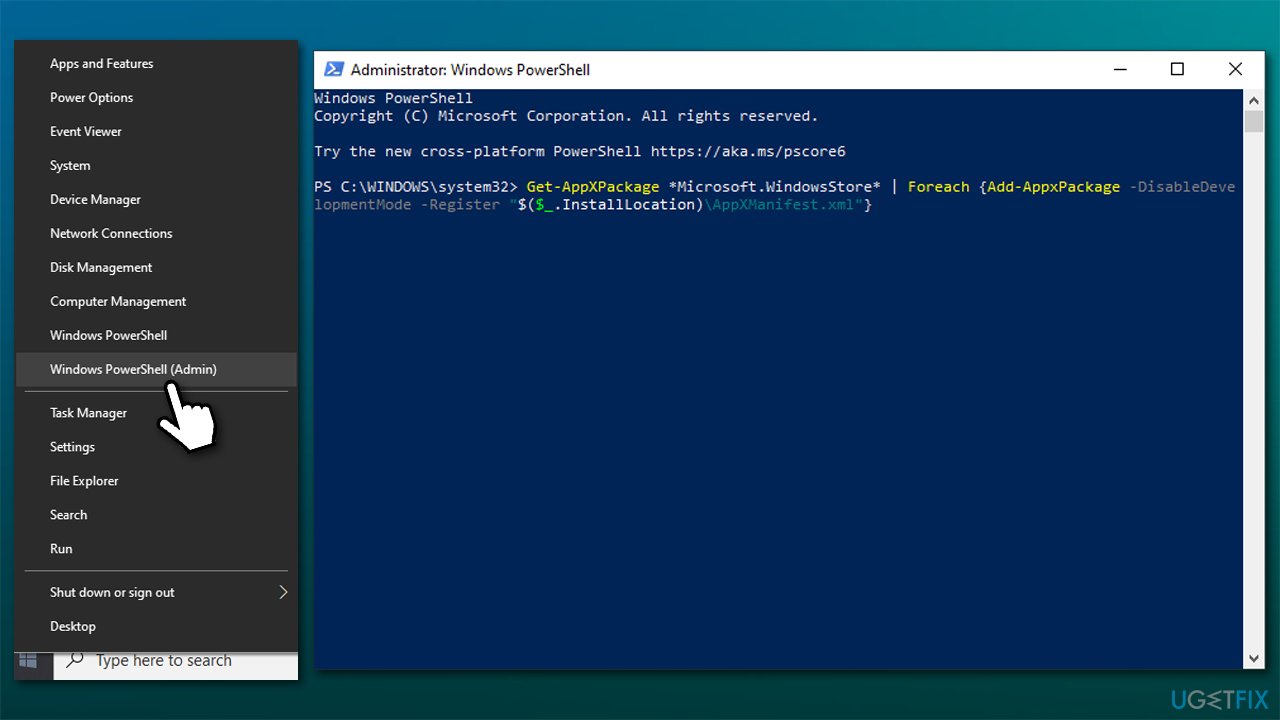
Solution 4. Re-register Microsoft Store app
- Make sure your Microsoft Store is closed and not running in the background
- Right-click on Start and select PowerShell (Admin)
- Paste the following command and press Enter:
Get-AppXPackage *Microsoft.WindowsStore* | Foreach {Add-AppxPackage -DisableDevelopmentMode -Register “$($_.InstallLocation)\\AppXManifest.xml”}
- Close PowerShell and try downloading apps again.
Solution 5. Try using Xbox app
All the games that are available from the Microsoft Store are also available on the Xbox app. Some users said that changing the download source helped them to resolve the error.
- Type Xbox in Windows search and select the Xbox app
- Select Store at the top
- Select the game you want to play
- Buy it or play with Game Pass if available
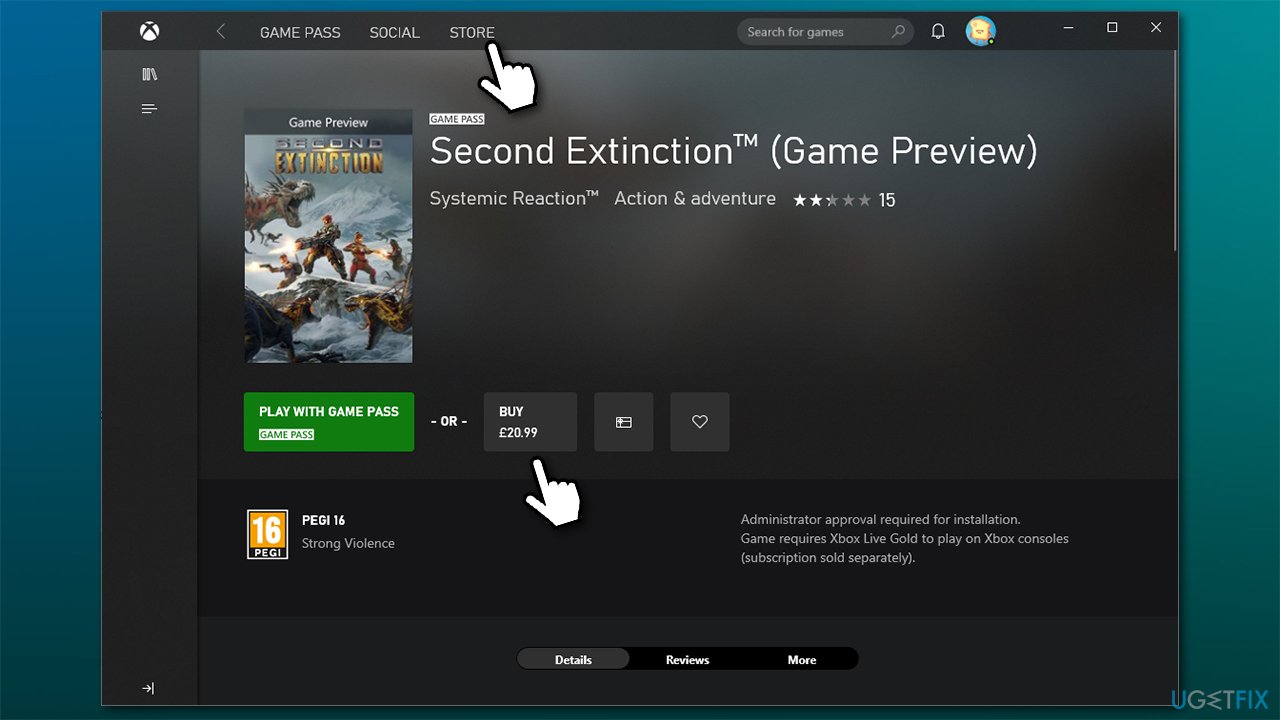
- Download and install the game.
Solution 6. Reset Windows update components
- Type cmd in Windows search
- Right-click on Command Prompt and select Run as administrator
- When UAC prompt shows up, click Yes
- Type in the following commands, pressing Enter after each (note that some of these services might not be running, but that's ok - ignore it for now)
net stop wuauserv
net stop cryptSvc
net stop bits
net stop msiserver - Now press Win+E and go to the C:\\Windows\\System32\\catroot2 location and delete the contents of the folder
- Do the same in C:\\Windows\\SoftwareDistribution location
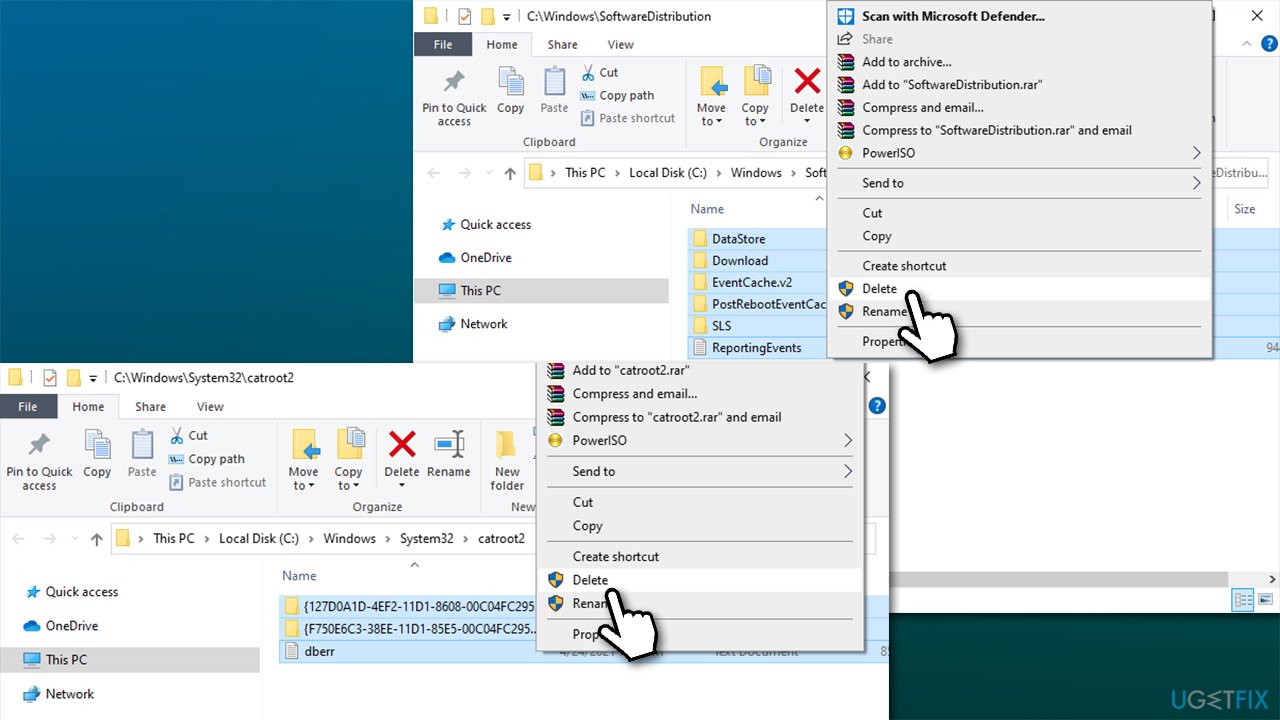
- Now go back to Command Prompt and paste these commands, pressing Enter after each line (this is where the needed services would be started):
net start wuauserv
net start cryptSvc
net start bits
net start msiserver
Solution 7. Try Clean Boot
- Type msconfig in Windows search and press Enter
- Navigate to Services tab
- Tick Hide all Microsoft services option and then click Disable all
- Go to Startup tab and select Open Task Manager
- Right-click on every entry and pick Disable and close the Task Manager
- Go back to System Configuration Window and select Boot tab
- Mark the Safe Boot option, click Apply and OK
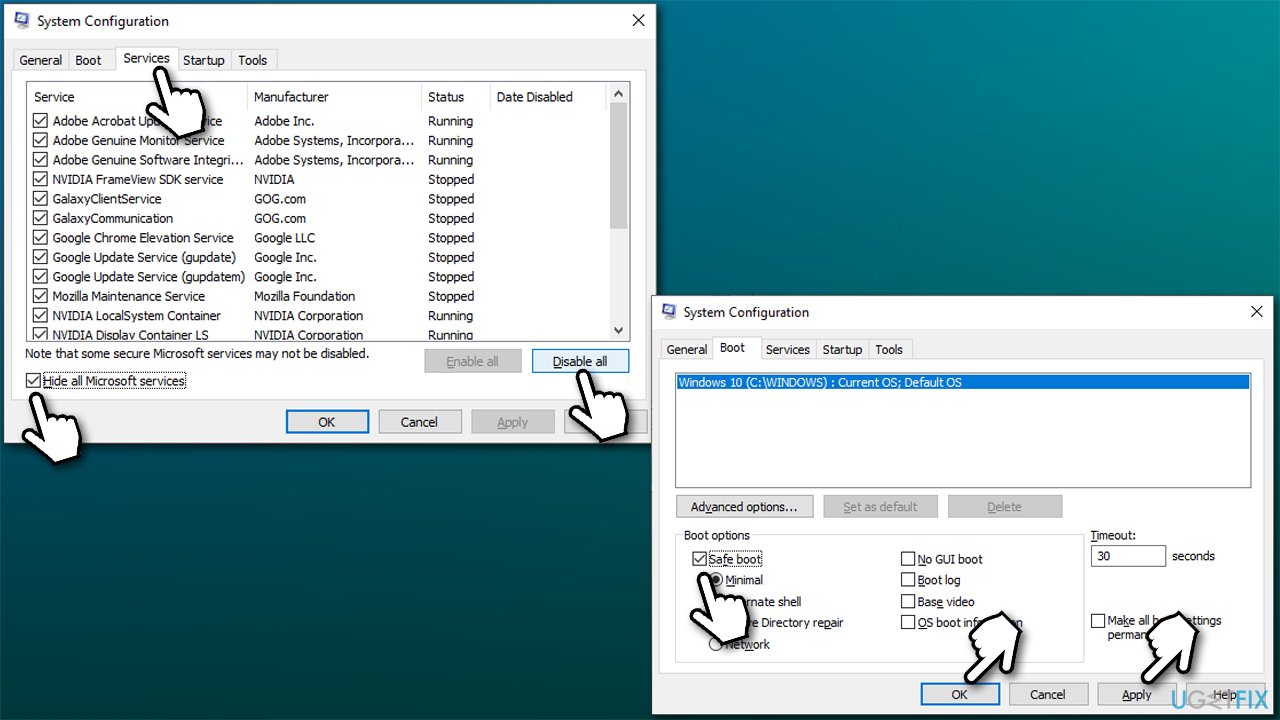
- Restart your computer and try downloading the app that causes the error once again.
If this helps you, it is likely that some software conflict or background processes are interfering with proper download processes.
Solution 8. Apply all the pending updates
If your problem lies just with one app, you should first install all the pending updates for your OS and apps.
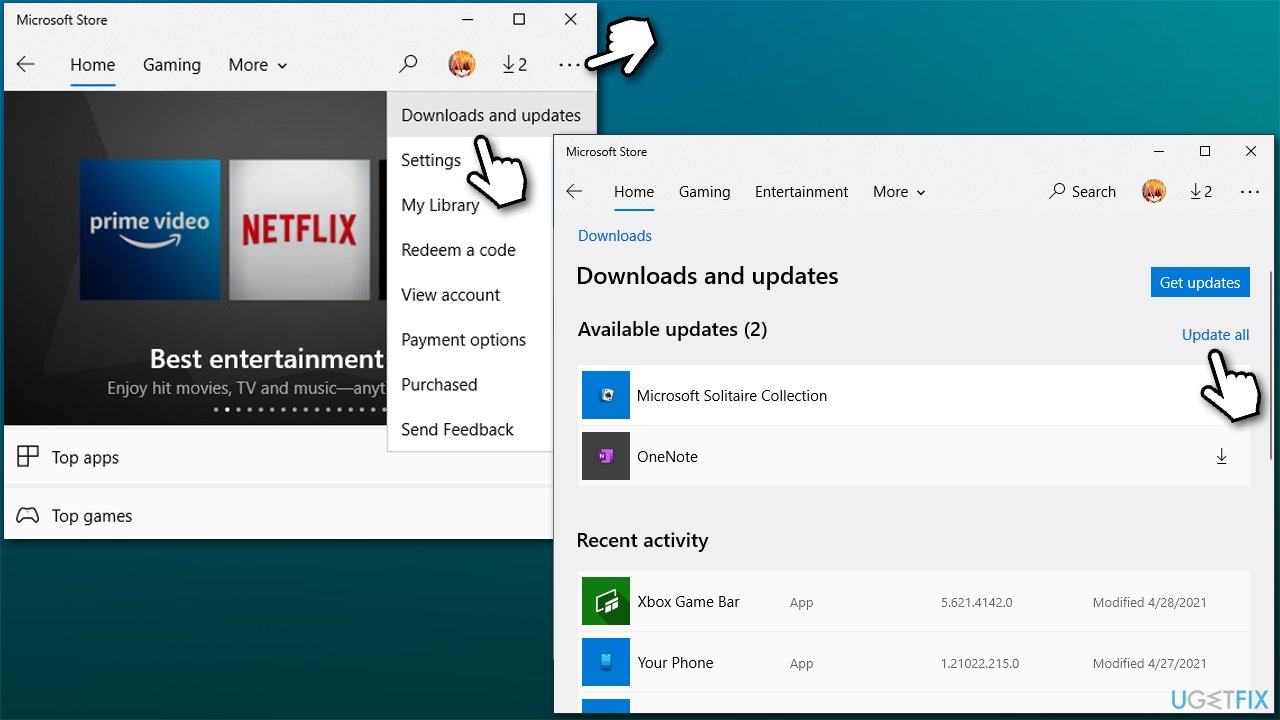
- Open Microsoft Store
- Click on See More (three horizontal dots near your account icon) and select Downloads and updates
- Apply all the pending downloads here and close down the Store
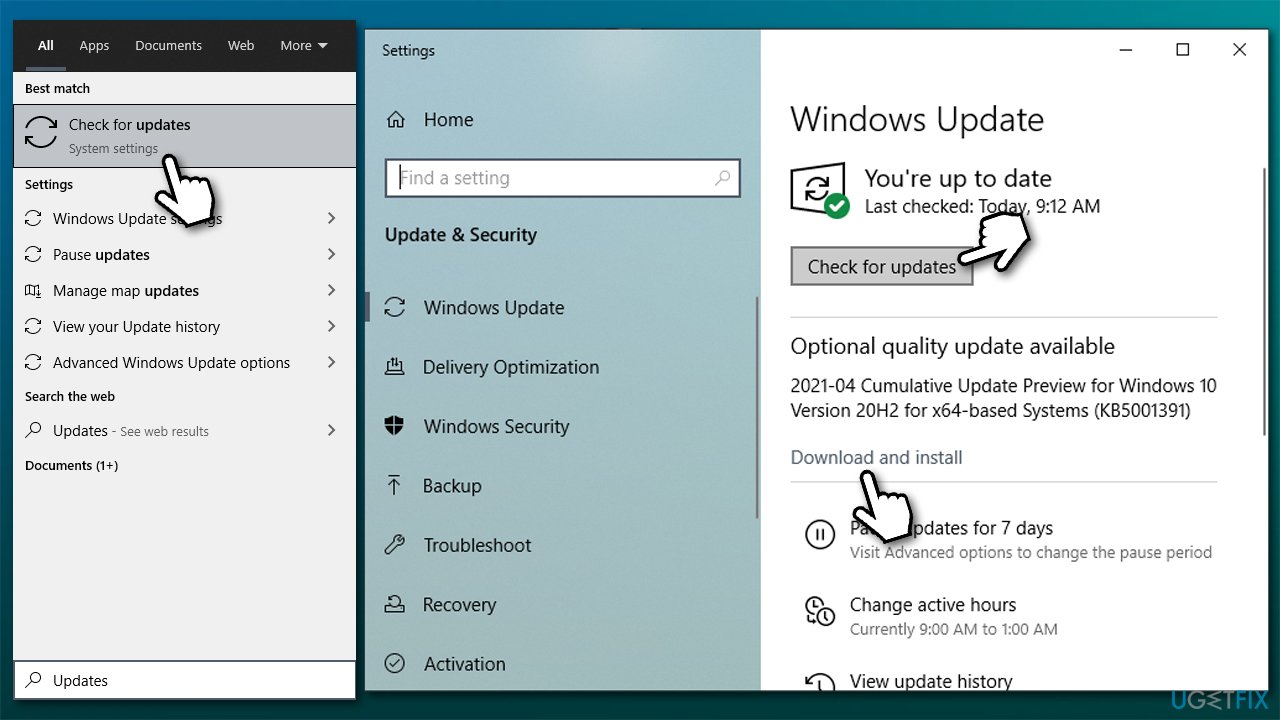
- Type Updates in Windows search and press Enter
- If optional updates are available, install them
- Also, click Check for updates and install them too
- Restart your PC and see if that helped.
Solution 9. Use Windows Registry Editor
Keep in mind that using the Registry might be unsafe, as deleting or corrupting some keys might make some apps or even Windows unstable. Therefore, before you proceed with the following solution, you should backup your registry.
- Type regedit in Windows search, right-click on Registry Editor, and select Run as administrator
- When User Account Control pop-up shows up, click Yes
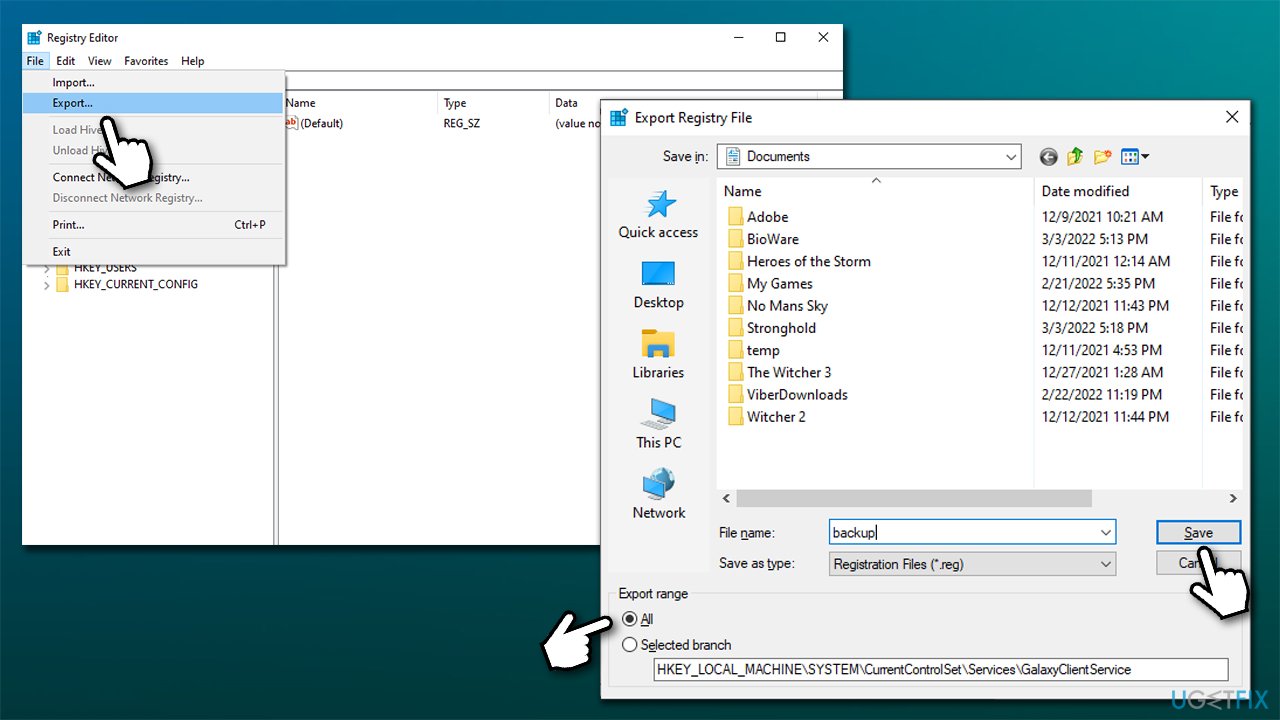
- Click File > Export
- Under Export range, pick All
- Name the file as backup and select Save (note the location where you're saving it)
- Next, you need to find the following:
HKEY_LOCAL_MACHINE\\SYSTEM\\CurrentControlSet\\Services\\GamingServices
HKEY_LOCAL_MACHINE\\SYSTEM\\CurrentControlSet\\Services\\GamingServicesNet - Right-click on each and select Delete.
Bottom line
To fix the 0x80073CF3 error, users can try uninstalling any existing versions of the game, ensuring their applications are up to date, and checking for Windows updates. If these solutions do not resolve the issue, further troubleshooting may be necessary.
Frequently asked questions
Error 0x80073CF3 typically indicates that there is a problem with the Windows Store app installation or corrupted files that prevent the app from functioning properly.
You can reset the Windows Store by opening the Run dialog (Win + R), typing 'wsreset.exe', and pressing Enter, which clears the cache and may resolve the error.
Yes, you can open Command Prompt as an administrator and run 'sfc /scannow' followed by 'DISM /Online /Cleanup-Image /RestoreHealth' to repair system files that might be causing the error.




Report an issue
What's wrong with this guide? We review every report and update or remove content.
Report received — thank you. We'll review and fix it.
You need a free account to submit a report.
Be the first to comment