How to fix
Assertion failed: C++ Runtime Library Expression vulcan_ error
on Windows
Resolve the Assertion failed: C++ Runtime Library Expression vulcan_ error on Windows 10 or 11 quickly and effectively. Expert-tested solutions inside!


What causes How to fix Assertion failed: C++ Runtime Library Expression vulcan_ error?
- Incorrectly configured Windows system settings
- Incorrectly configured application settings
- Corrupted Visual C++ Redistributable packages
- Malware presence
- Accumulated junk files
Repairs Windows system files, removes malware, and restores a clean OS state — without reinstalling.
Hi. Every time I start or restart my Windows 10, I receive an error titled "Microsoft Visual C++ Runtime Library," and it says "Assertion failed! Expression vulcan_" and this is rather annoying. I am not sure what any of this is and why this is happening. If you could provide some solutions, it would be great!
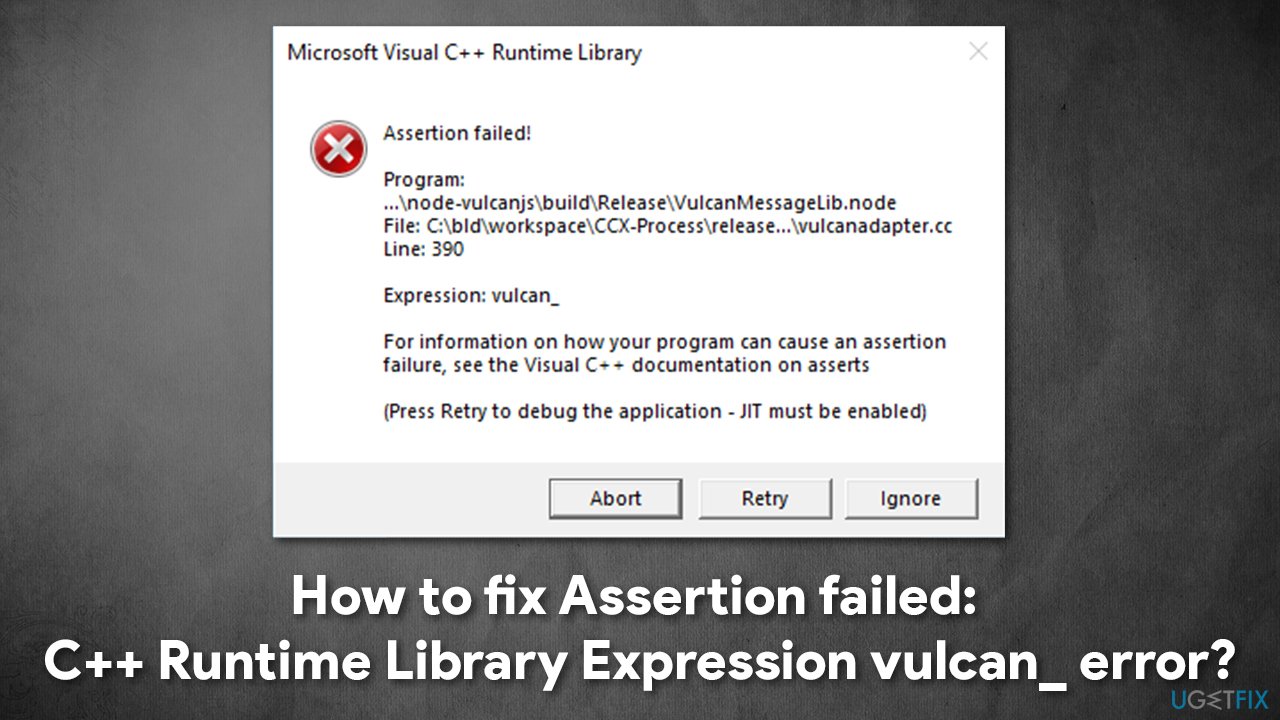
C++ Runtime Library Expression vulcan_ error is one of the problems that users might encounter on their Windows computers. While it is not a critical issue such as BSOD[ref en-1] (since it rarely interferes with an operating system or other applications operation), it is definitely annoying, so it is not surprising that users are trying to find a fix.
In most cases, this error indicates the program path, which explains which component and which line failed. The most commonly encountered component is Vulcanadapter.cc - it is a part of the Adobe program. Here's the full message you might see:
Assertion failed!
Program: [path]Expression: vulcan_
For more information on how your program can cause an assertion failure, see the Visual C++ documentation on asserts
In most cases, people reported that the error shows up as soon as they launch Windows 10, although it might sometimes pop-up when a particular application is launched, e.g., Photoshop. The main reason why users encounter this error is due to the incorrectly configured Windows system or application settings.
In order to fix the Visual C++ Runtime Library Expression vulcan_ error, you should follow the solutions we provide below. Keep in mind that you might have to try several before finding the one that works for you.
Before you begin, we highly recommend you try using a Windows repair tool [d1] - it can find and replace damaged or corrupted system files for you automatically. Besides, the program can also remove already existing malware[ref en-3] and clean the system from accumulated junk within just a few minutes.
Fix 1. Reinstall or repair Visual C++ package
You should first try repairing the already installed Visual C++ Redistributable[ref en-2] packages:
- Type Control Panel in Windows search and press Enter
- Go to Program > Uninstall a program
- If you have multiple Microsoft Visual Redistributable packages installed, right-click on each of them and select Change
- Pick Repair and proceed with on-screen instructions
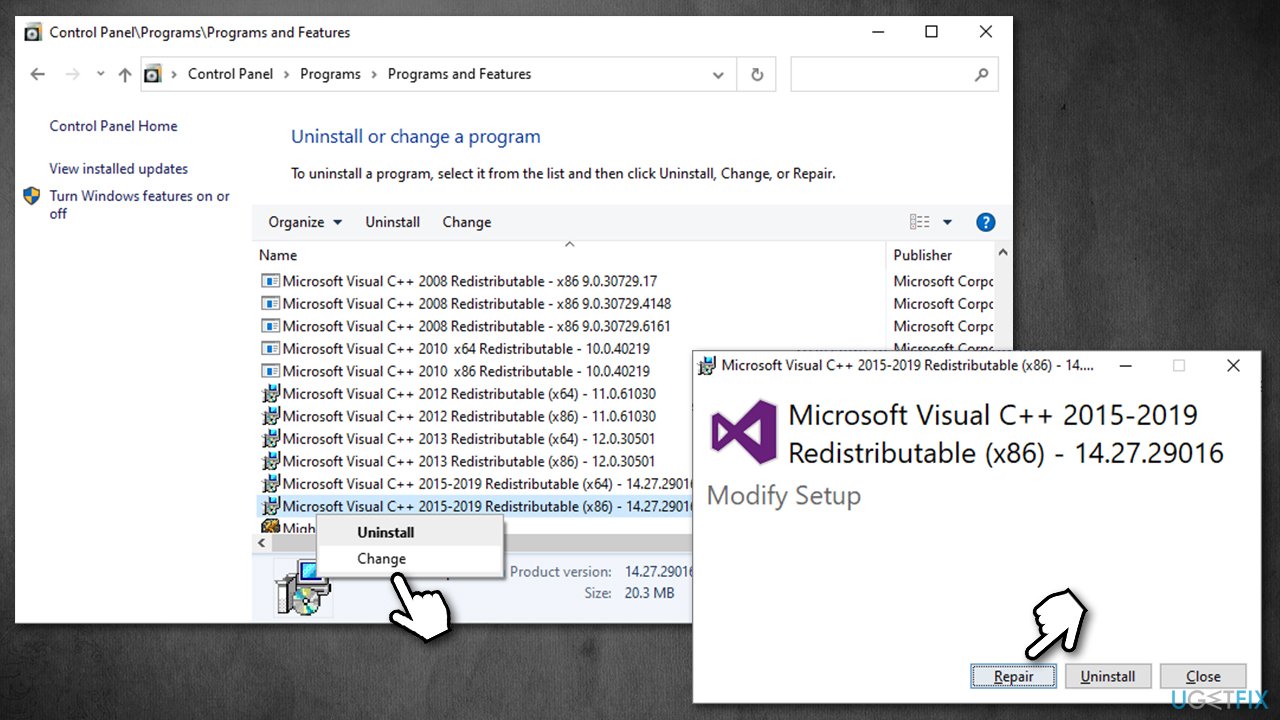
If that does not help, reinstall the packages altogether:
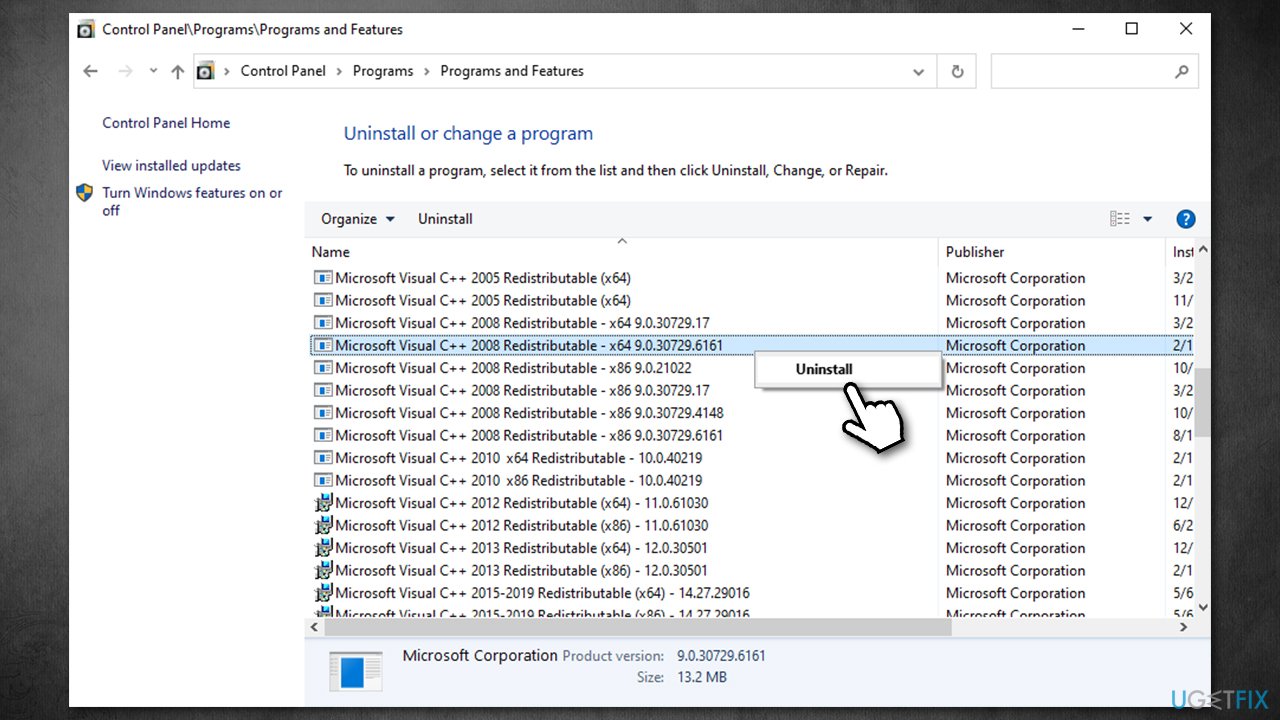
- Right-click on each of the entries and select Uninstall
- Once done, visit the official Microsoft website
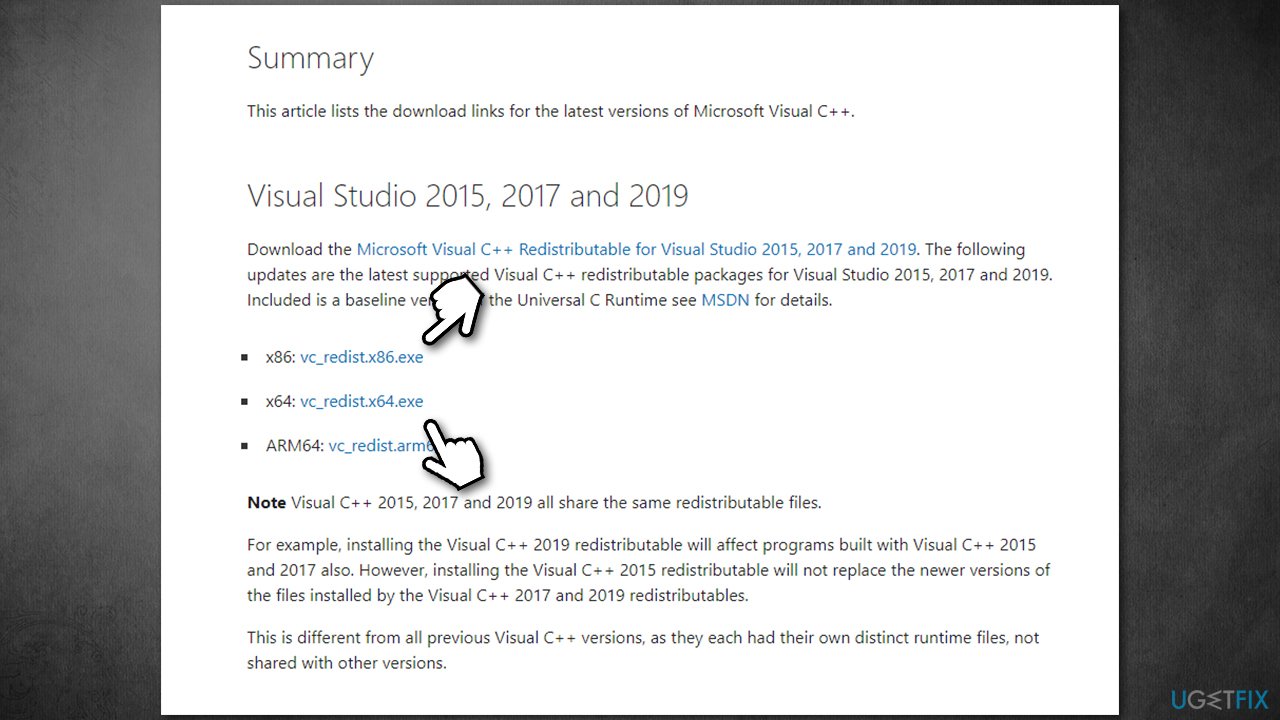
- Download and install the latest packages - vc_redist.x86.exe (32-bit) and vc_redist.x64.exe (64-bit) versions
- Restart your system.
Important note: If you have several versions of VisualC++ installed, make sure you remove the oldest ones and leave the latest ones available. For example, if you have Microsoft Visual C++ Redistributable 2008 - x64 9.0.30729.17 installed and there is an older version next to it, remove it completely.
Fix 2. Run SFC and DISM scans
System file corruption might be the reason for the error to occur. Thus, you should first try fixing system file integrity violations and then repairing Windows image. Here's how:
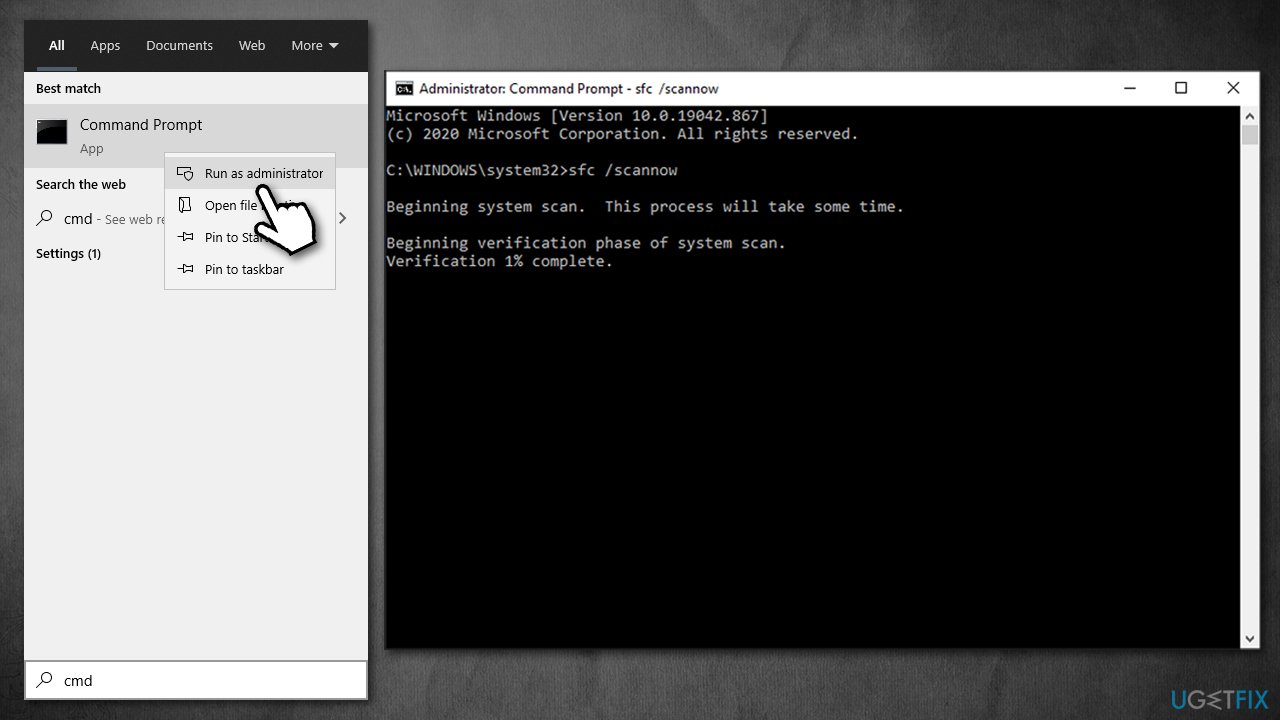
- Type cmd in Windows search
- Right-click on Command Prompt and select Run as administrator
- When User Account Control shows up, click Yes
- In the new window, type in the following commands, pressing Enter after each:
sfc /scannow
DISM /Online /Cleanup-Image /CheckHealth
DISM /Online /Cleanup-Image /ScanHealth
DISM /Online /Cleanup-Image /RestoreHealth
- Do not interrupt any of the scans and wait till each of them are fully finished (it may take awhile)
- Restart your PC
Fix 3. Reinstall Adobe-related software
If the failed component is related to Adobe products such as Creative Cloud or Premiere, you should try reinstalling the app and see if that helps:
- Right-click on Start and pick Apps and Features
- Find the program in question
- Click Uninstall and confirm with Uninstall
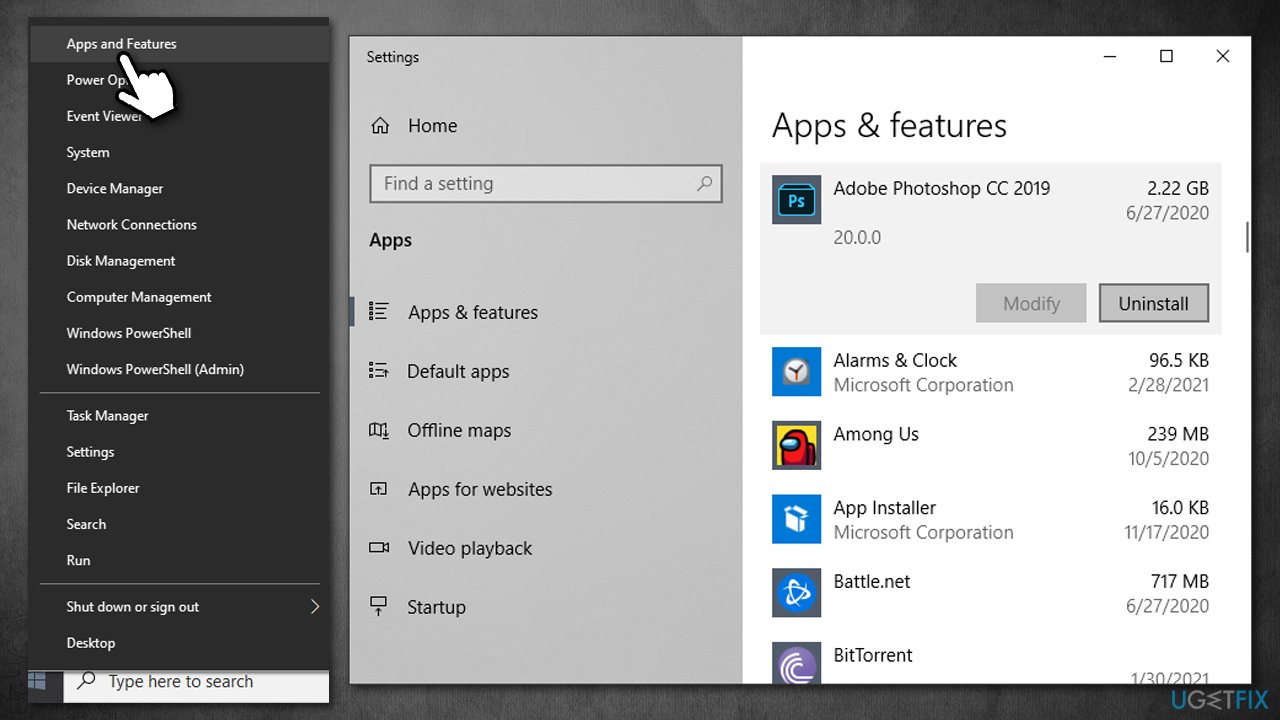
- Redownload and install the app once again.
Fix 4. Rename related processes [workaround]
If you have Adobe Creative Cloud installed and are experiencing this error, you can rename certain EXE files within its directory to prevent them from loading, consequently resolving the error. Keep in mind that certain aspects of the app might not work (CC Libraries in particular):
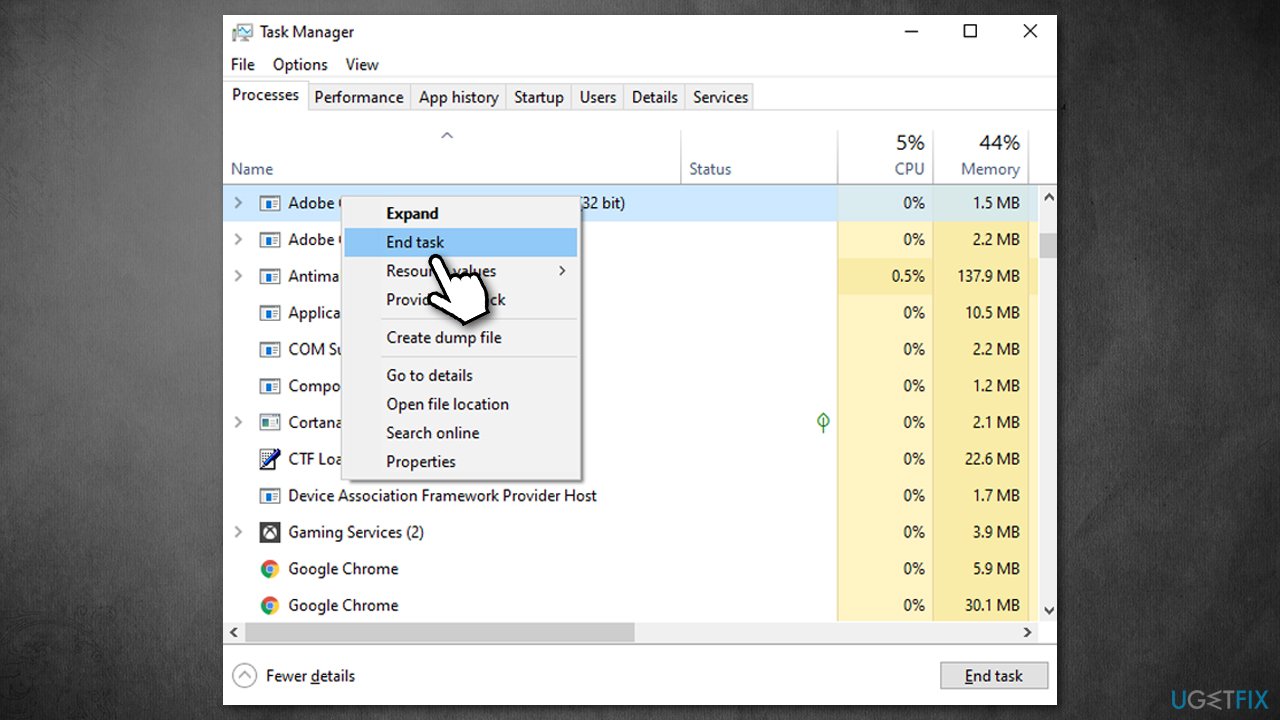
- Press Ctrl + Shift + Esc to open the Task Manager
- Close CCLibrary.exe and CCXProcess.exe processes by pressing End Task
- Press Win + E to open File Explorer
- Navigate to C:\\Program Files (x86)\\Adobe\\Adobe Creative Cloud\\CCLibrary and rename CCLibrary.exe to CCLibrary.exe.off
- Next, go to C:\\Program Files (x86)\\Adobe\\Adobe Creative Cloud\\CCXProcess and rename CCXProcess.exe to CCXProcess.exe.off
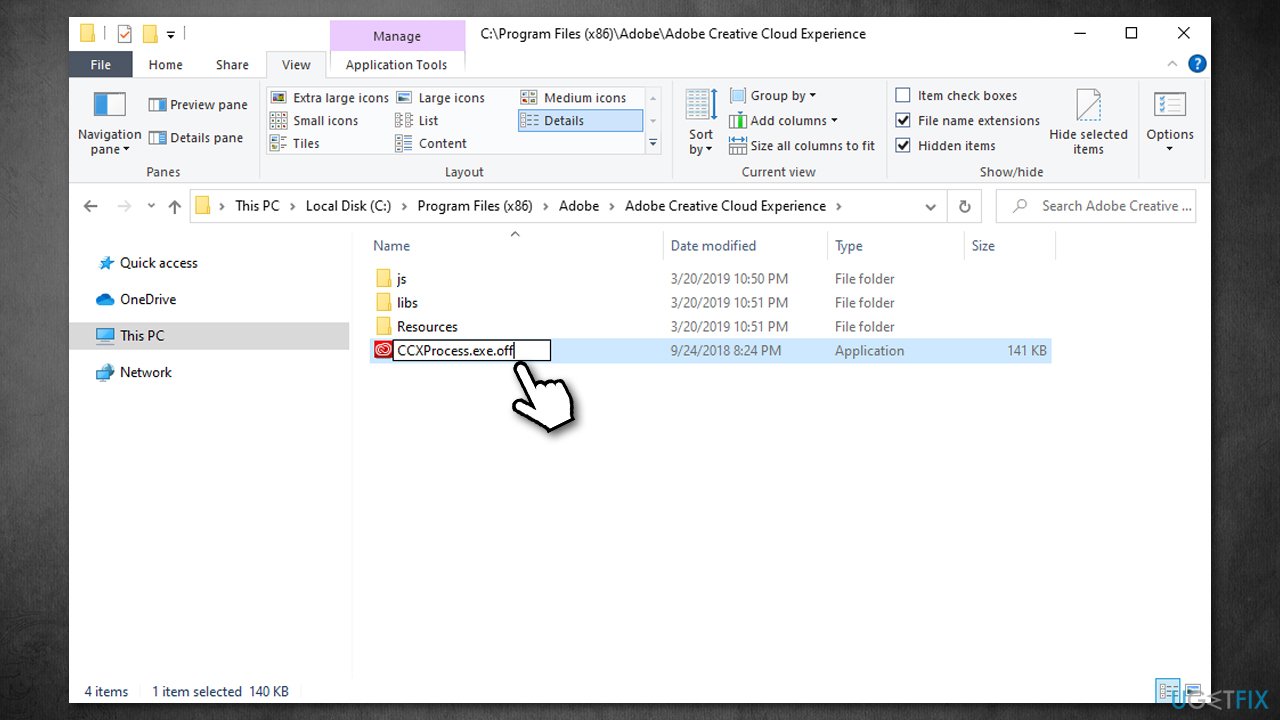
- The error should now not show up anymore.
Fix 5. Reset Windows
If none of the steps above helped, you should reset Windows. Here's how (note that you will have to reinstall your programs):
- Right-click on Start and select Settings
- Go to Update & Security section and pick Recovery on the left
- Under Reset this PC, select Get Started
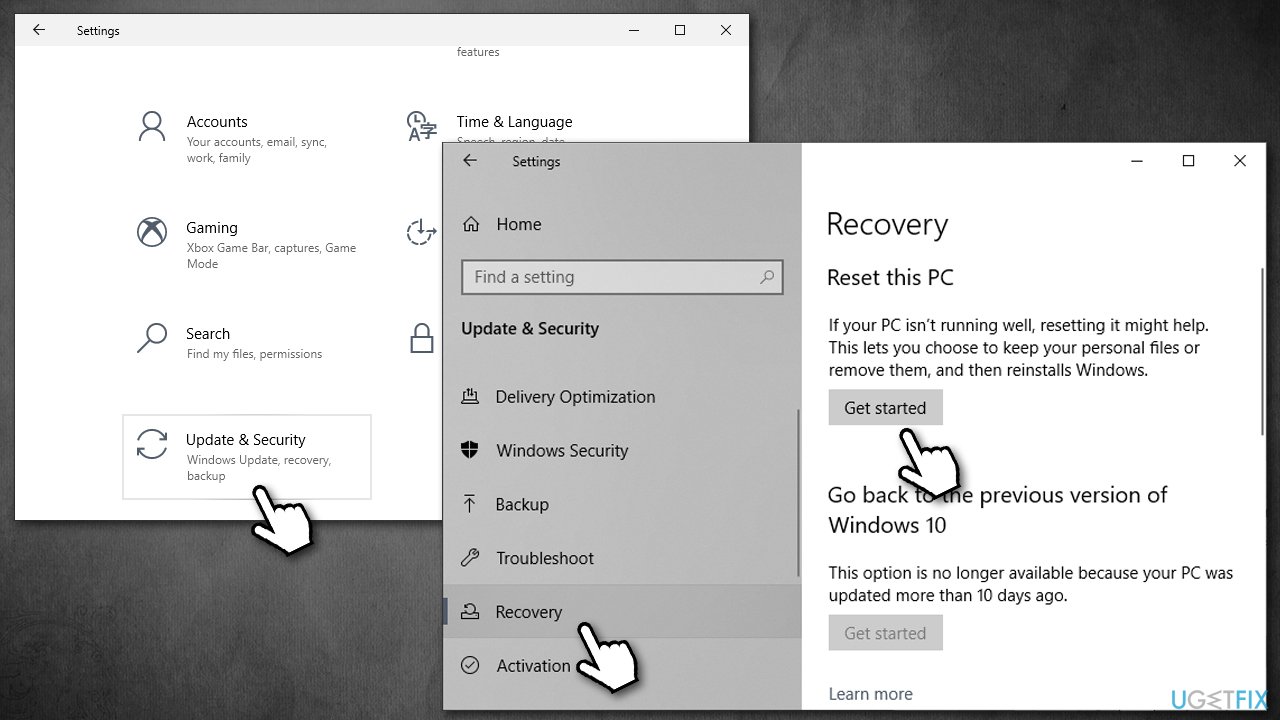
- Pick Keep my files and Cloud download to finish.
Bottom line
To fix the Visual C++ Runtime Library Expression vulcan_ error, you can try reinstalling or repairing the Visual C++ Redistributable packages, using a Windows repair tool, or checking for malware. If none of these solutions work, you may need to explore additional troubleshooting steps or seek further assistance.
Frequently asked questions
This error typically arises due to issues with the Vulkan API or related graphics drivers on Windows 10, often from outdated or incompatible software components.
To fix this error on Windows 11, ensure that your graphics drivers are up to date and consider reinstalling the Vulkan Runtime components.
Yes, this error is commonly encountered in games or applications that utilize the Vulkan API for rendering graphics, especially if they are not fully compatible with Windows 10 or Windows 11.




Report an issue
What's wrong with this guide? We review every report and update or remove content.
Report received — thank you. We'll review and fix it.
You need a free account to submit a report.
Be the first to comment