How to fix
Spell Checker that does not indicate mistakes
on Windows
Resolve your Windows 10 or Windows 11 spell checker issues effortlessly with our expert-tested solutions and get back to error-free writing in minutes.

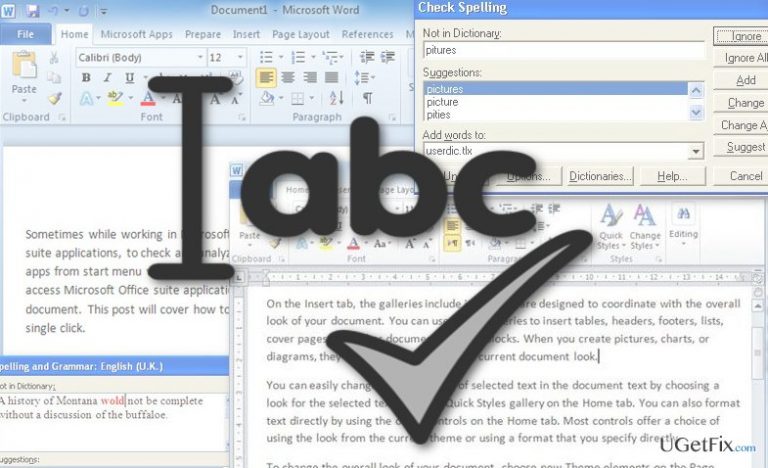
What causes How to fix Spell Checker that does not indicate mistakes?
- Proofing tools are not installed
- Proofing tools are corrupted
- Speller EN-US add-in is not enabled
- "Do not check spelling or grammar" option is pre-marked
- Another language is set as default
- Registry issue with HKEY_CURRENT_USER\Software\Microsoft\Shared Tools\ProofingTools\1.0\Override\en-US
Repairs Windows system files, removes malware, and restores a clean OS state — without reinstalling.
Spell Checker on Windows suddenly stopped working. I purposefully misspelled words to test it out, but nothing has been underlined like it used to be in the previous Windows versions. It is strange that proofing tools are enabled. What could be the problem?
Spelling check is one of the useful features that Microsoft Office can offer. This tool helps you to quickly spot and fix minor spelling, grammar and syntax mistakes and even automatically change the misspelled words with the correct one throughout the extended text. You can only imagine how annoying it would be to lose this ability. You would have to proofread texts manually. Unfortunately, this hardship often befalls for a variety of reasons.
First, and the most obvious cause of malfunctioning proofreading function might be that these tools are not installed at all or are corrupted. In such a case, you will have to reinstall them. It might also be that the problem lays in the program’s settings. For instance, if the Speller EN-US add-in is not enabled or if the “Do not check spelling or grammar” option is pre-marked by default. What is more, another language set as a default can interfere with checking your intended one. Finally, it might be the problem of HKEY_CURRENT_USER\Software\Microsoft\Shared Tools\ProofingTools\1.0\Override\en-US existing in your Windows registry. No matter what the problem might be, it can most likely be fixed. Below we provide a couple of solutions that might help set the settings according to your needs.
How to fix Spell Checker on Windows?
Solution 1: If you have not proofing tools installed, you can start by installing them on your computer.
- Close all the running programs
- Enter the Start menu and go to Control Panel
- Go to Add/Remove programs
- Locate Microsoft Office Edition and click Change
- Then, in the new window select Add or Remove Features and proceed by clicking Continue.
- Under the Office Shared Features drop-down menu select Proofing Tools and select Run all from My Computer.
Solution 2: Enable EN-US add-in
To enable the Speller EN-US add-in, follow the steps below:
- In the Word or any other document you want to use spellchecker on, click the File in the top toolbar and navigate to Options.
- Click Add-Ins option located on the left.
- In the Word Options dialog box click for the list of the extended options and select Disabled items and proceed by clicking Go.
- In the appeared dialog box make sure Speller EN-US (nlsdata0009.dll) is enabled by clicking Enable.
- Close the dialogue box, and the changes confirm the changes by clicking OK.
Bottom line
To fix the Spell Checker issue, you can install the proofing tools, enable the Speller EN-US add-in, or check the program's settings. If none of these solutions work, consider checking for registry issues or reinstalling Microsoft Office.
Frequently asked questions
This issue may arise if the Spell Checker feature is disabled in your Windows 10 settings; ensure it's turned on in the Language settings under Keyboard options.
To reset the Spell Checker in Windows 11, go to Settings > Time & Language > Language & Region, and then remove and re-add your preferred language.
If the Spell Checker fails to work after updates, try running the Windows Troubleshooter for keyboard problems found in Settings > Update & Security > Troubleshoot.




Report an issue
What's wrong with this guide? We review every report and update or remove content.
Report received — thank you. We'll review and fix it.
You need a free account to submit a report.
Be the first to comment