How to fix
“Search for app in the Store?” error
on Windows
Resolve the "Search for app in the Store?" error on Windows 10 or 11 quickly and efficiently. Expert-tested solutions ensure zero traces left.


What causes How to fix “Search for app in the Store?” error on Windows?
- App not found
- Missing app installation
- Corrupt registries
- Corrupt system files
- Issues with EXE files
Repairs Windows system files, removes malware, and restores a clean OS state — without reinstalling.
Hi. Whenever I start the PC, I receive an error “Search for app in the Store? You need to install an app for this task. Would you like to search for one in the Store?” There are two buttons available - Yes and No. Regardless of which one I pick, nothing happens. Any ideas on how to deal with this?
Windows Store has been around since Windows 8.1 and since then became a huge part of any Windows operating system. It allows users to download, update and uninstall various apps and games.
Unfortunately, not everything goes smoothly, as users claimed issues when doing so via this app (a good example is Microsoft Flight Simulator installation problems). This time, we are dealing with an error that is quite a bit different, however.
Users have reported the "Search for app in the Store? You need to install an app for this task" pop up on many IT forums. As the error message suggests, allegedly, an app has not been found, and it needs to be downloaded from the store. However, as soon as users click either "Yes" or "No," they are either faced with the Store loading infinitely or not starting up at all.
There are several different apps that can be affected by the problem. Some people said that the error occurs every time they start an EXE file (seems like Phone App[ref en-1] is likely to be affected), while others faced it when attempting to sign in to Windows 10, which prevented them from booting into Windows in the first place.
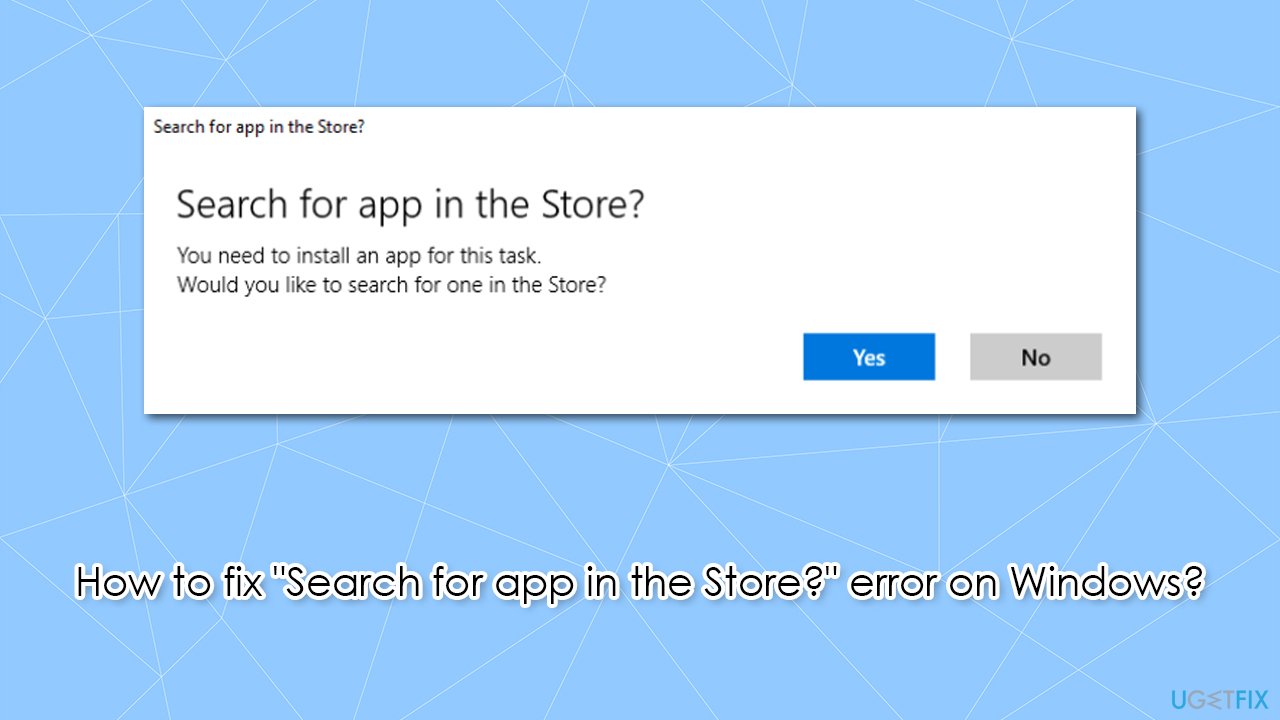
As evident, "Search for the app in the Store?" can be a real issue, so we are here to help you fix it. Before you proceed, we would like to offer you to try running a scan with [d1] repair software - it is capable of solving various underlying Windows issues (missing DLLs,[ref en-2] corrupt registries or system files, etc.) automatically.
Fix 1. Reinstall the related app
Users said that there are plenty of different apps that are related to this problem. This might be because the version of the app you have installed is not legitimate, or something else happened to it. In any case, try reinstalling the app in question and see if it solves your issue:
- Right-click on Start and pick Apps and Features
- Scroll down to find the related app
- Select Uninstall > Uninstall
- Once done re-download the app and install it again.
Note: if you are dealing with Microsoft app, you won't be able uninstall it in a regular way. Instead, you should reset it:
- In Apps & Features section, select the app and click Advanced options
- Click Terminate and then select Reset.
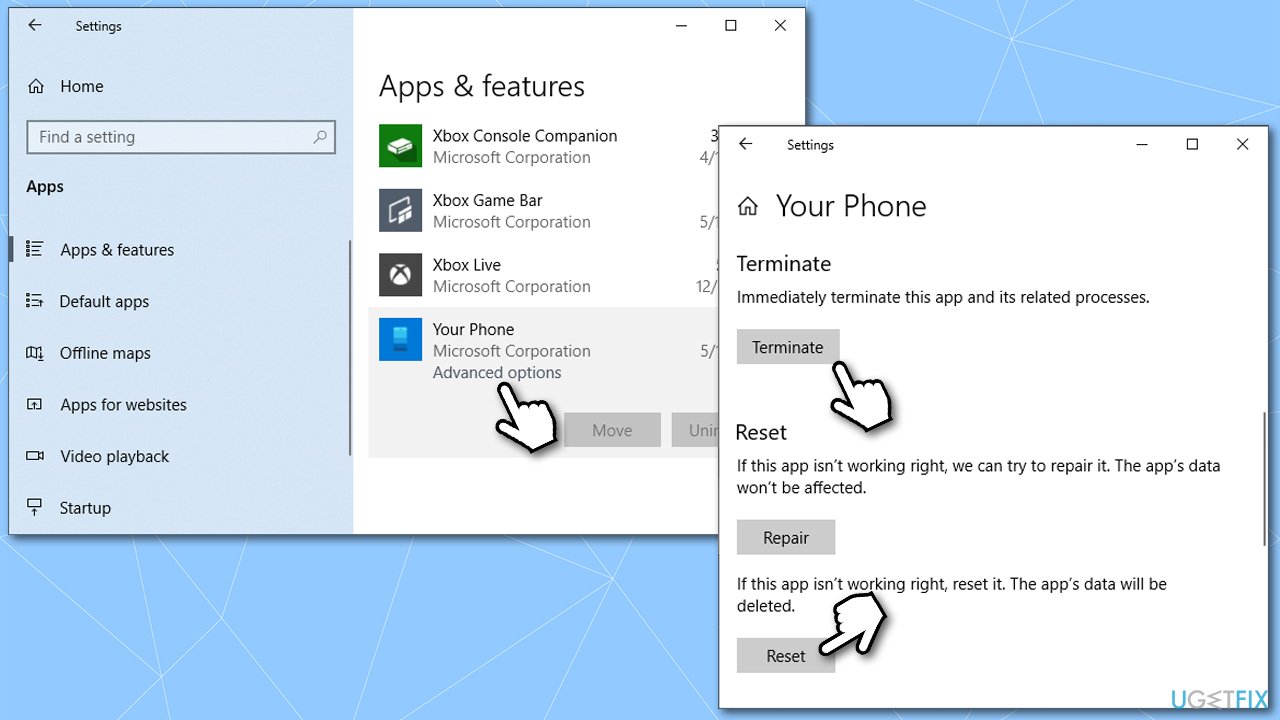
How to fix search for app in the store error on windows reinstall or reset the app
Fix 2. Disable "Check apps and files" in Windows security settings [workaround]
One of the main reasons why people get the "You need to install an app for this task" error is due to security reasons. If an unsigned app[ref en-3] is trying to be launched, Windows will block it due to potential security risks. To bypass this, you should alter the settings in Microsoft Defender:
- Type Windows Security in Windows search and press Enter
- Go to App & browser control
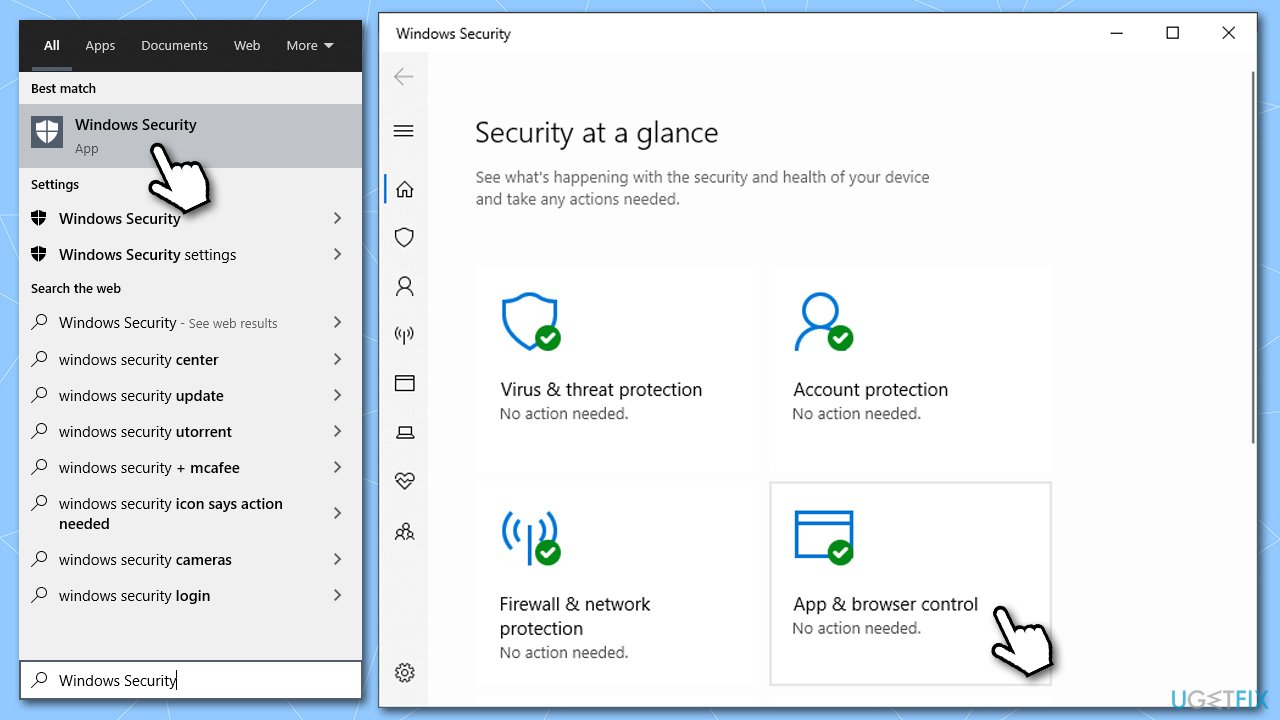
How to fix search for app in the store error on windows disable check apps and files - Pick Reputation-based protection settings
- Turn off the Check apps and files feature.
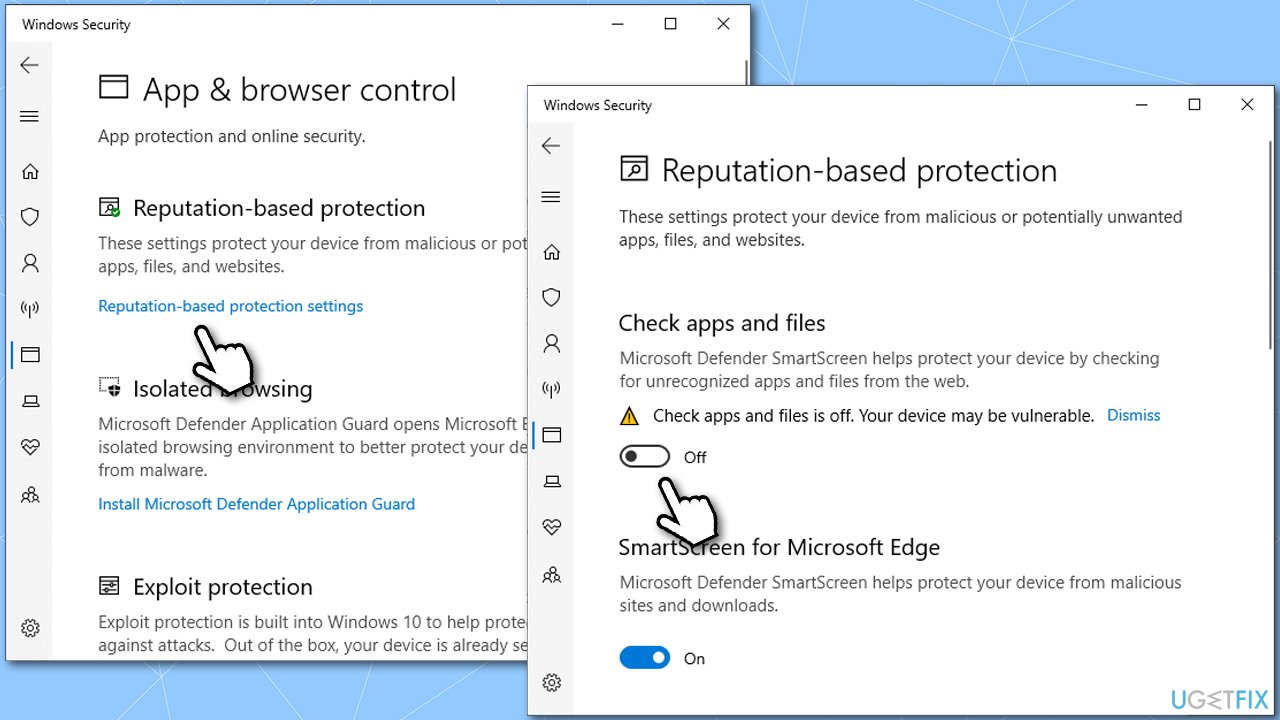
How to fix search for app in the store error on windows disable check apps and files2
Fix 3. Run Windows Store troubleshooter
Troubleshooter is a good way of identifying various problems on your PC.
- Type in Troubleshoot in Windows search bad and press Enter
- On the right side, select Additional troubleshooters
- Find Windows Store Apps section, click it and select Run the troubleshooter
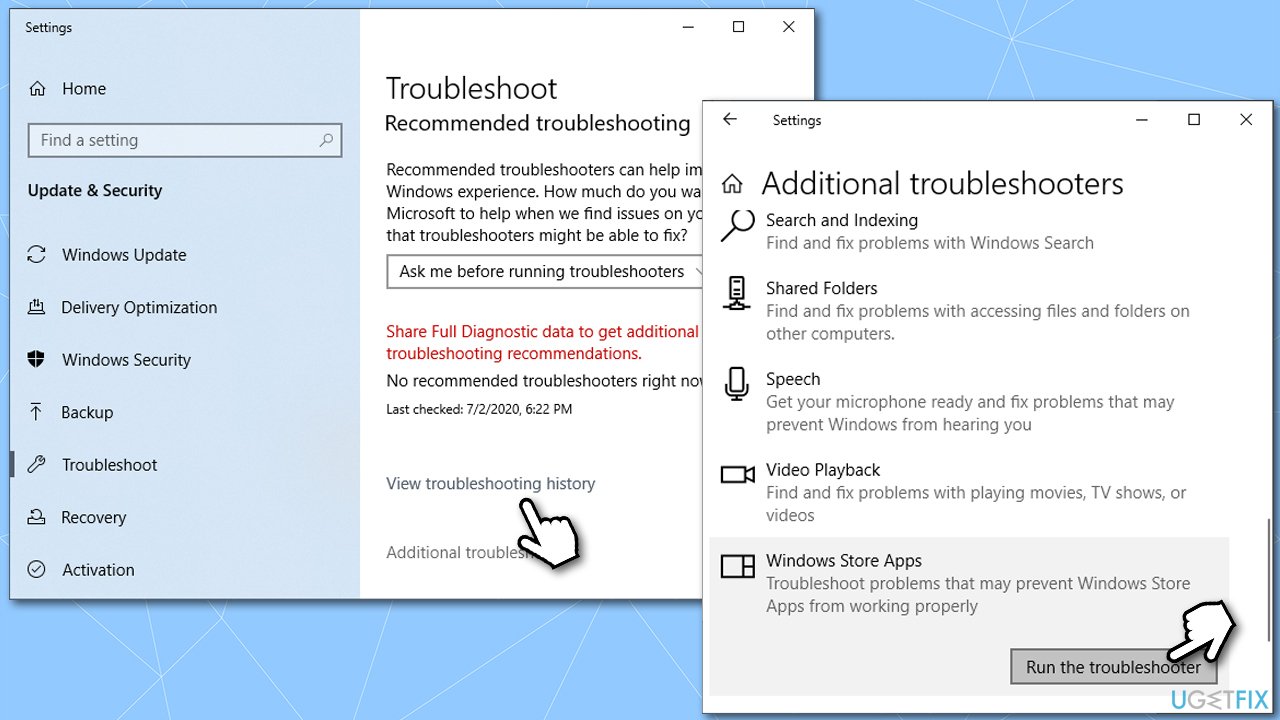
How to fix search for app in the store error on windows run troubleshooter - Wait till it completes the diagnostics process.
Fix 4. Use System Restore
You can always resort to System restore and go back in time when the problem did not exist. Here's how:
- Type in Create a restore point in Windows search and hit Enter
- Go to System Restore
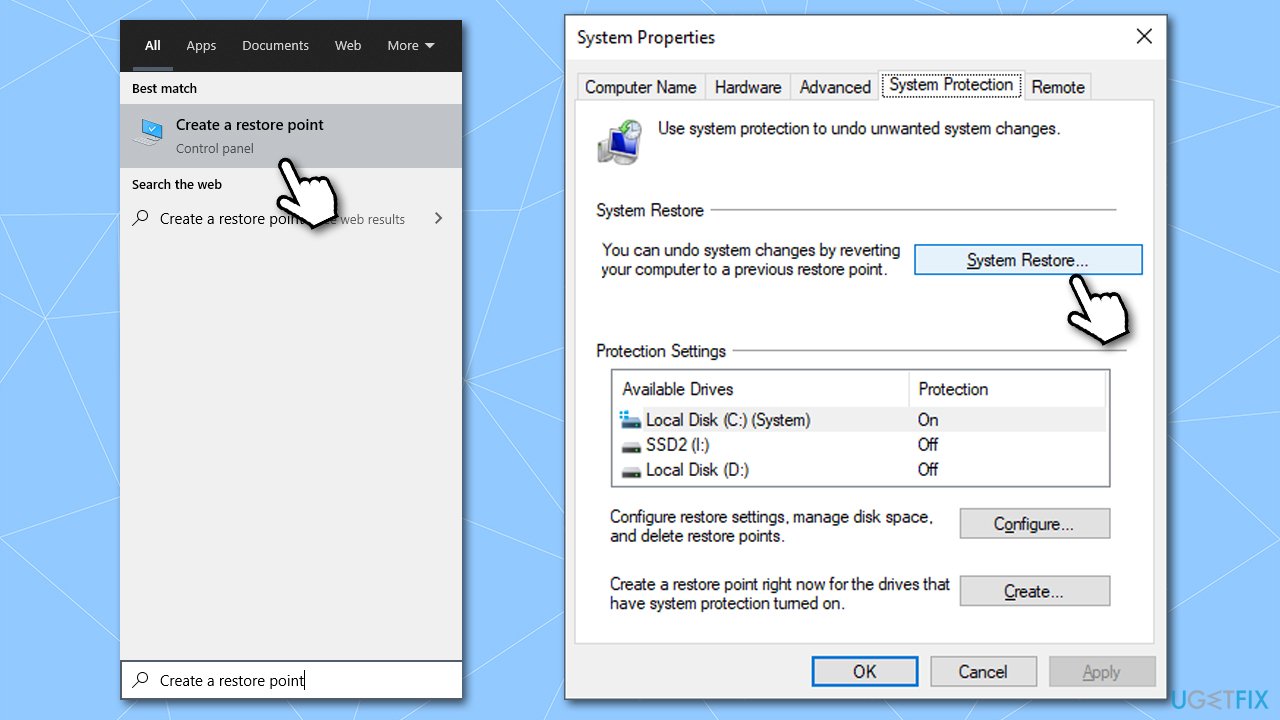
How to fix search for app in the store error on windows use system restore - If available, pick Choose a different restore point and go for Next
- Select the Show more restore points option (if available)
- Select and appropriate point and click Next.
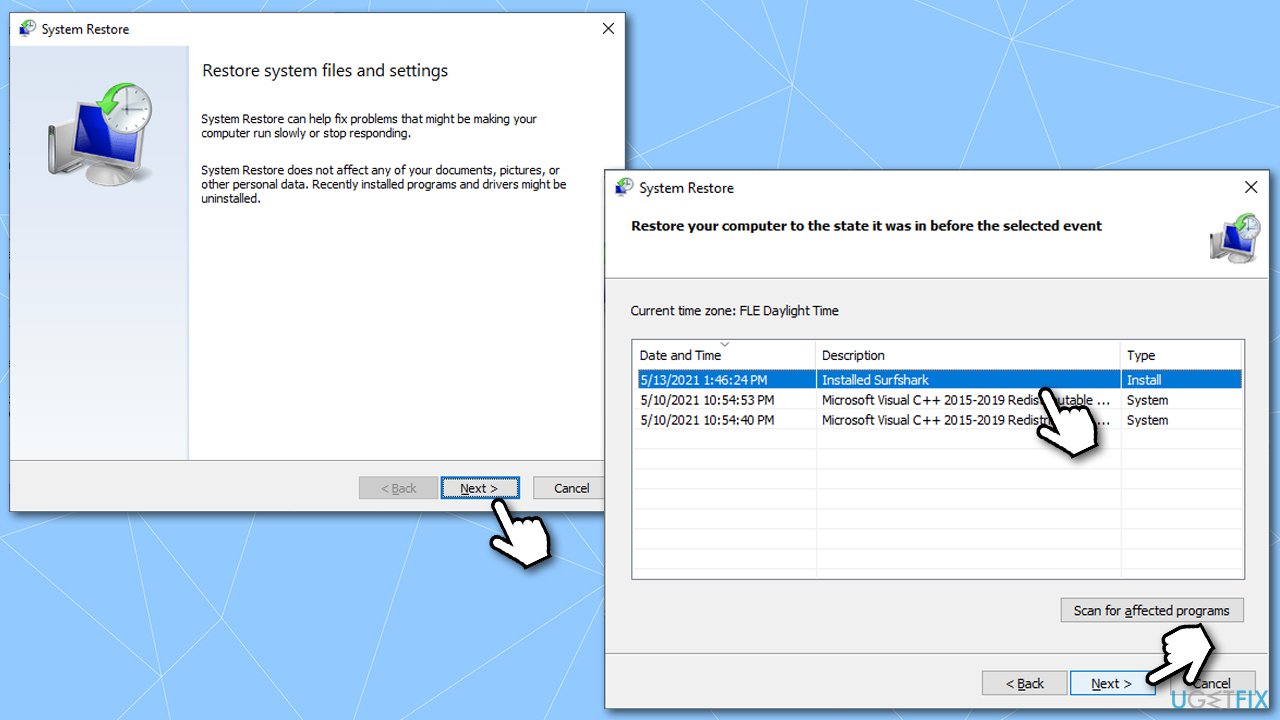
How to fix search for app in the store error on windows use system restore2
Fix 5. Solution for "Search for app in the Store?" on Sign in on Windows
Those who receive this error on Windows Sign in can't access the OS normally, which means that they can't apply the fixes in a normal mode. If you can't sign in due to this error, please follow these steps:
- Restart your PC
- When Windows starts booting (once you see dots spinning), press and hold Power button until your PC shuts down
- Repeat this process two more times and you should enter the Windows Recovery Environment
- Select Troubleshoot > Advanced options. From here, you have a few options available
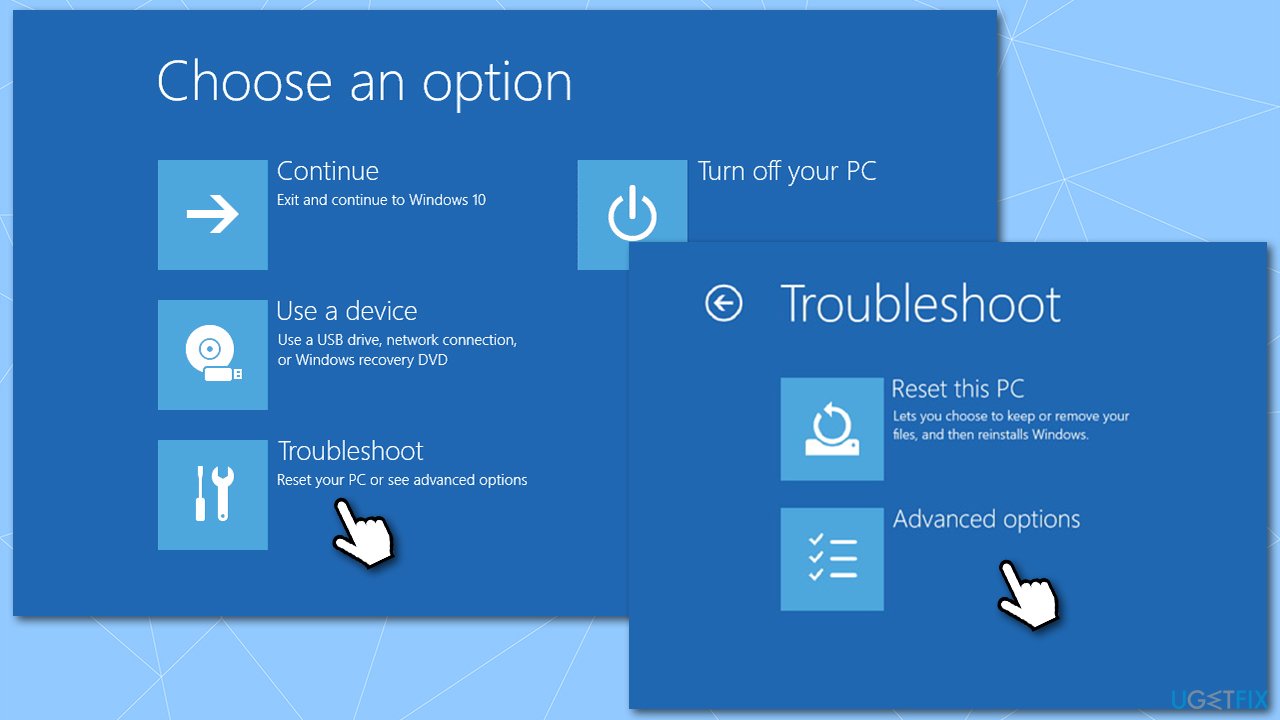
How to fix search for app in the store error on windows advanced options - We recommend starting from Startup Repair - choose this option and see if it helps you to log back in
- If it did not work, pick the System Restore option and see if Windows allows you to proceed.
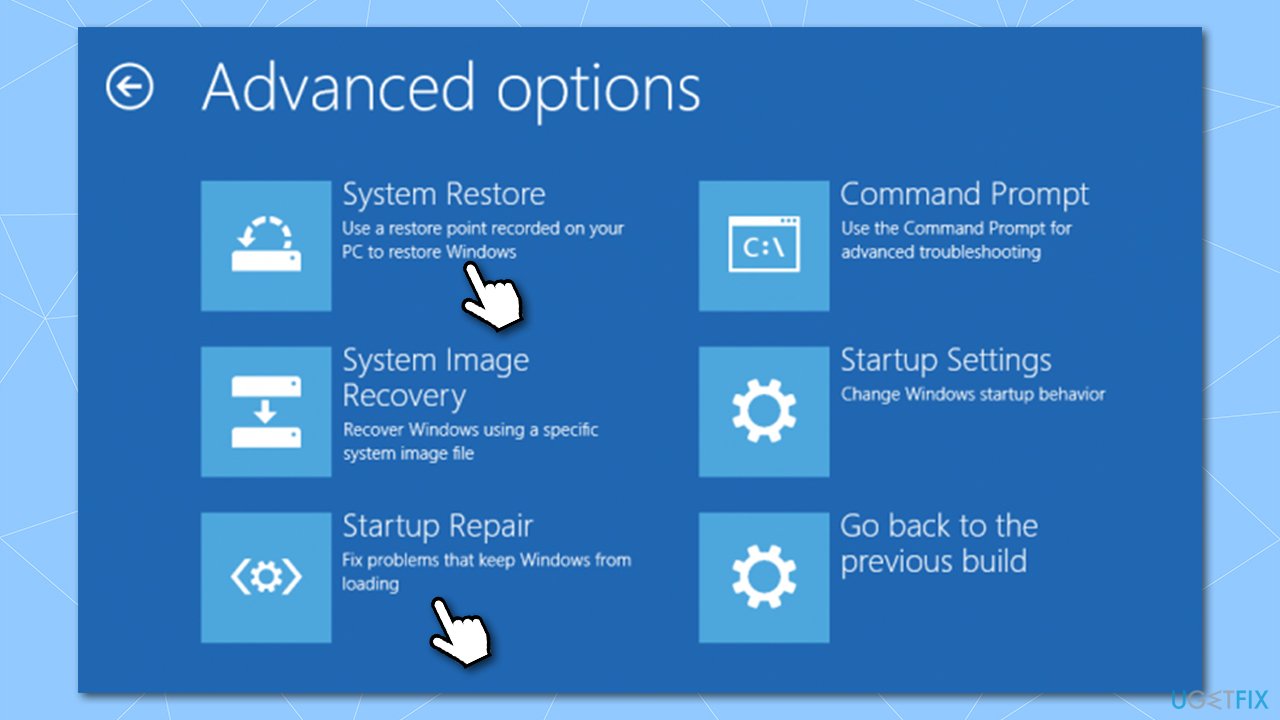
How to fix search for app in the store error on windows use system repair or system restore
Finally, if that does not help, you should select Troubleshoot > Reset this PC option (you will be given an option to keep your files).
Bottom line
To fix the 'Search for app in the Store?' error, you can try reinstalling the related app, running a scan with repair software, or addressing issues with corrupt files. If none of these solutions work, further troubleshooting may be required.
Frequently asked questions
This error typically occurs due to issues with the Microsoft Store app, corrupted system files, or problems with Windows updates.
You can reset the Microsoft Store by going to Settings > Apps > Apps & features, selecting Microsoft Store, and clicking on 'Advanced options' to find the 'Reset' button.
Yes, you can use the System File Checker tool by running 'sfc /scannow' in the Command Prompt as an administrator to repair corrupted system files.




Report an issue
What's wrong with this guide? We review every report and update or remove content.
Report received — thank you. We'll review and fix it.
You need a free account to submit a report.
Be the first to comment