How to fix
Error 1720
on Windows
Resolve error 1720 on Windows 10 effortlessly. Follow our expert-tested tips and regain your system's stability in no time, zero traces left.

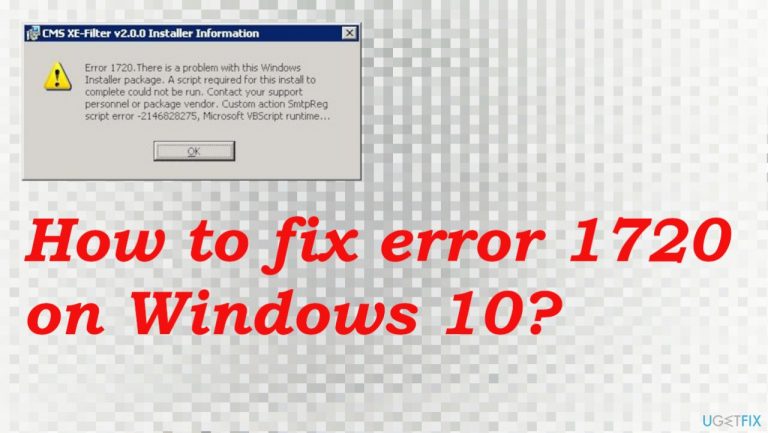
What causes How to fix error 1720 on Windows 10?
- Registry errors
- File errors
- Malware
- Issues with installation settings
Repairs Windows system files, removes malware, and restores a clean OS state — without reinstalling.
Hello. I need your help with the error that annoys me. The error 1720 appears on my Windows computer, and it keeps repeating. My device is not that old, but I tried updating some software. I have encountered it a few times already. Do you have any suggestions for it?
The particular error 1720 on Windows 10 is the Microsoft issue occurring when installing particular components cannot happen. Users[ref en-1] claim that it appears when installing software packages updating applications. The main causes for the problem can be related to the particular registry or file errors, or even malware.[ref en-2]
When the system cannot process needed files and required settings, the particular Windows installer package cannot be run. This error occurs when the problem is with such installation. Your system parts needed for these processes trigger the appearance of the error message.
More common causes for the error could be registry issues, problems with those settings, or entries. Those settings can be essential, so when anything goes wrong, error 1720 presents itself on Windows. You need to repair registry errors or different issues, so the process can run as it is supposed to.
This error can be fixed by cleaning those problems with Windows. You can find and solve system file or registry errors using [d1], for example. The program checks what issues your device has and repairs them to solve the annoying issue that delivers this "Error 1720: There is a problem with this Windows Installer package" pop-up.
Machines that run Windows operating systems can display various errors when updates or installations fail.[ref en-3] This is the Windows Installer Package error, so the installation or update cannot be run. If you solve the issues, fix anything that has failed but is required for the complete process - your issues should be the thing of the past. You can find the methods listed, so follow them closely. You might want to disable third-party security tools for a bit to see if those interfere with installer processes, for example.
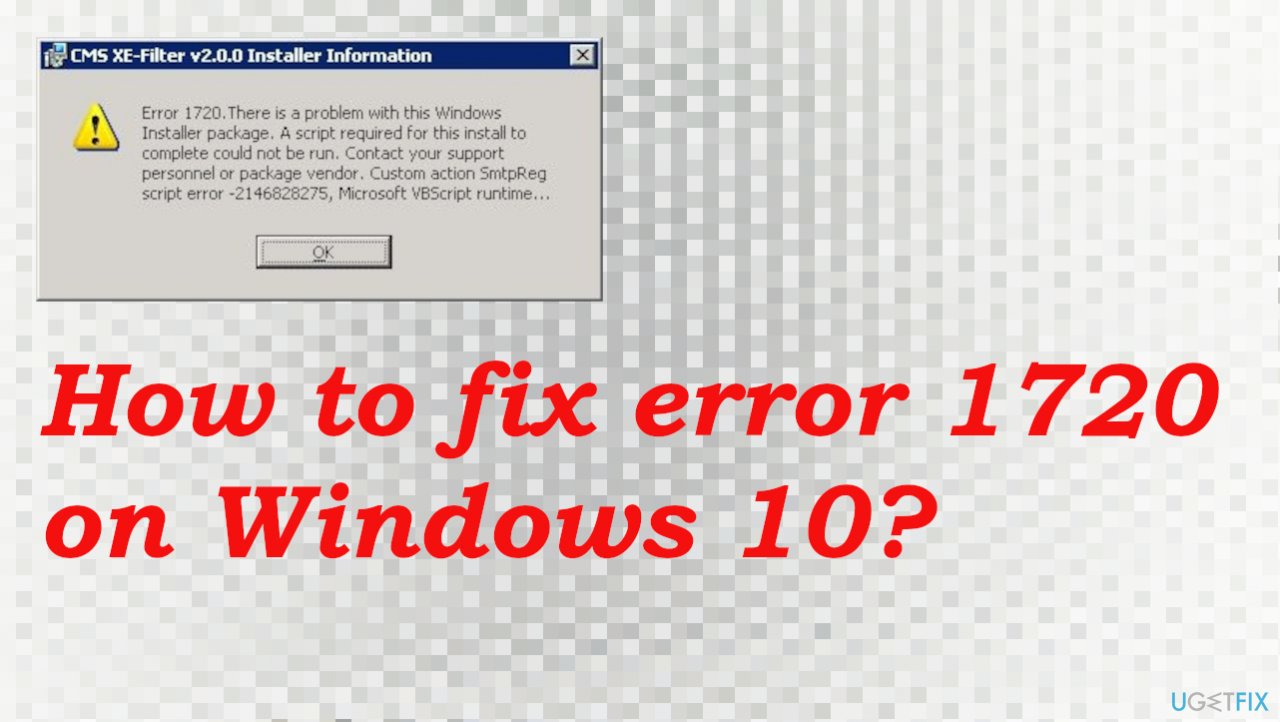
1. Update Windows
- Go to Settings.
- Click Update & security.
- Find Windows update.
- Click Check for Updates.
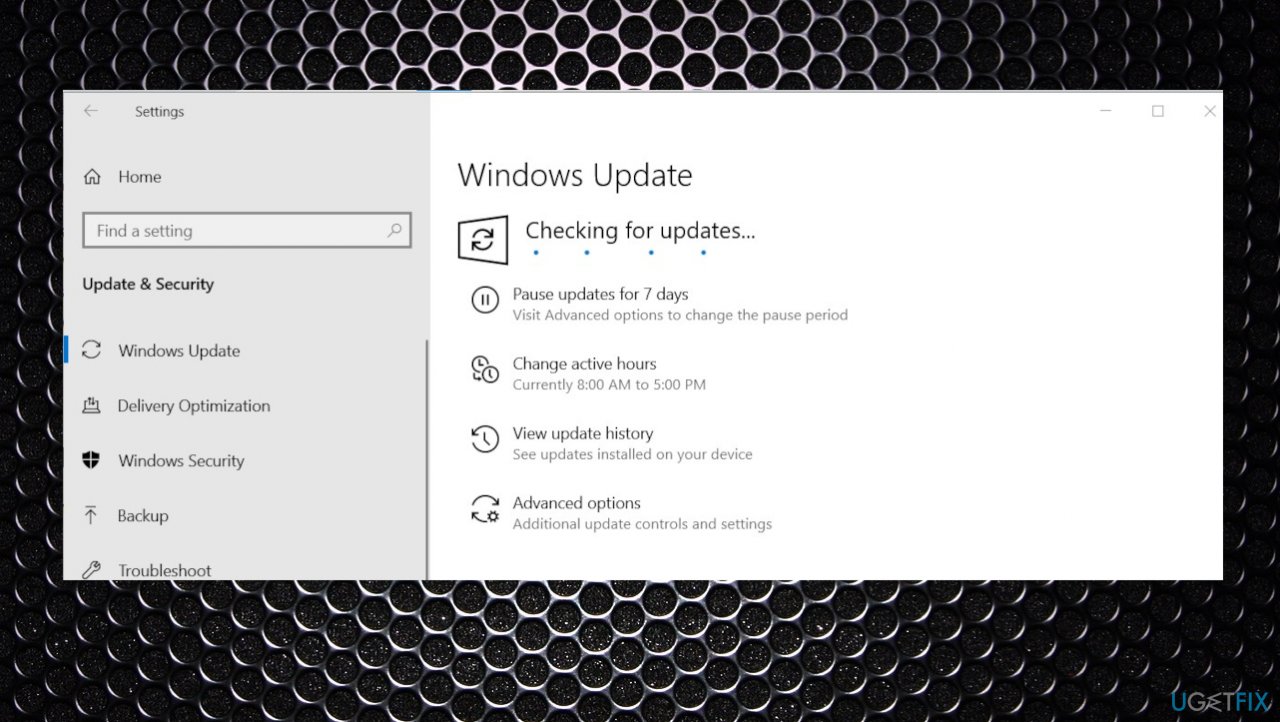
Error 1720 fix update - If updates are available for download, click Install Updates.
- After the update is completed, restart your PC.
2. Check the Windows installer service
- Type in search - Services, and press Enter.
- Scroll down and find the Windows Installer.
- Double-click Windows Installer in the Services list.
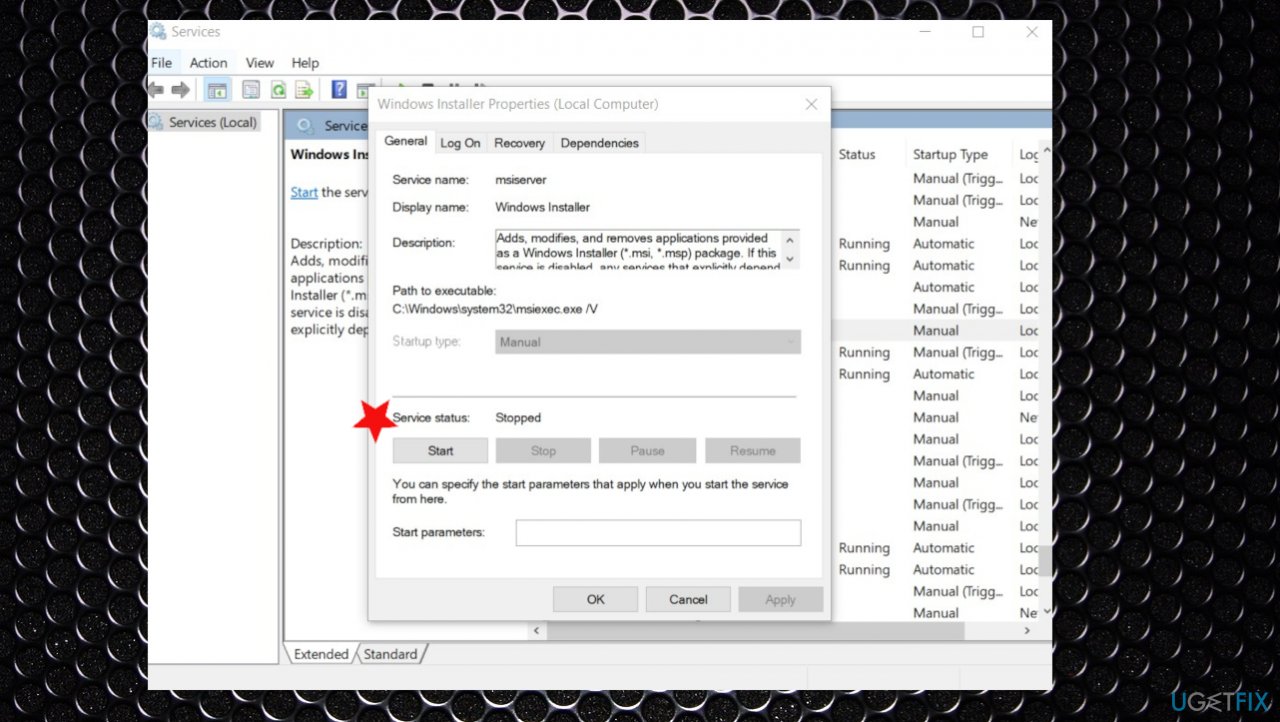
Error 1720 fix services - On the General tab, make sure the service is started under Service status.
- If the service is not running, under Service status, click Start, and then click OK.
3. Change the startup type
- Press Windows key + R.
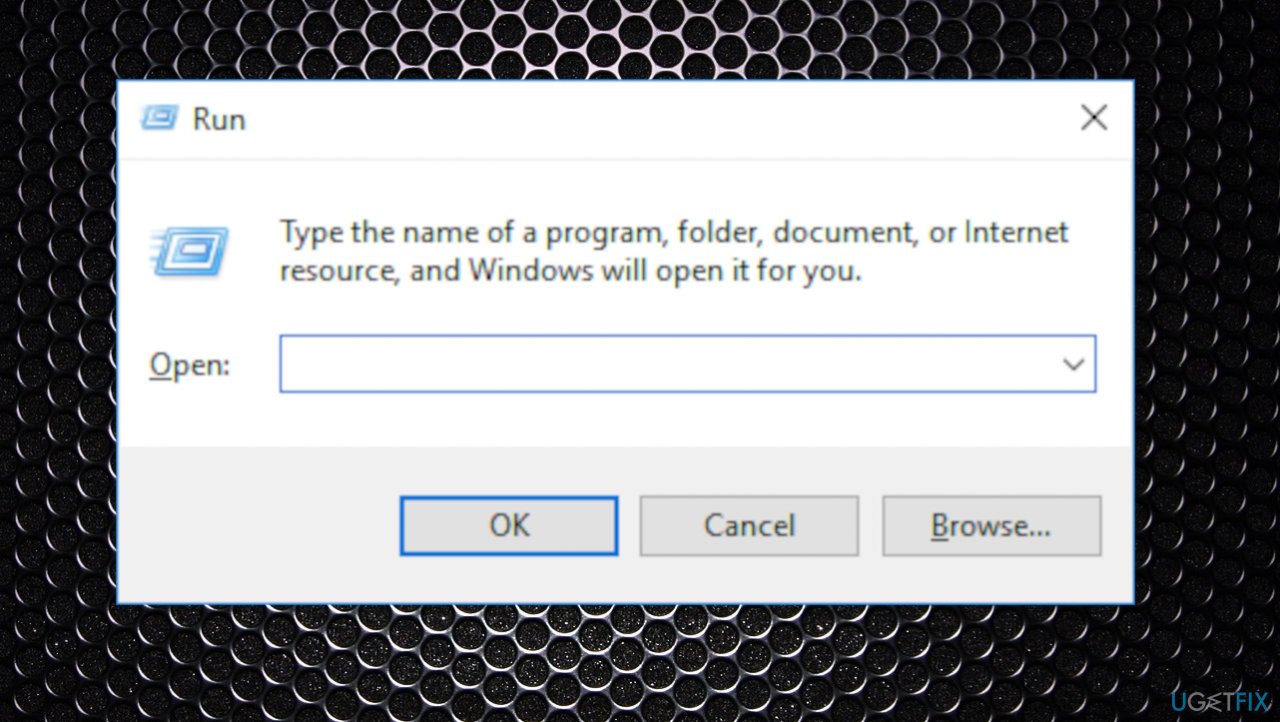
Error 1720 fix run box - Type services.msc.
- Look for Windows Installer, start the service, and set the Startup type to Automatic.
4. Run the troubleshooter
- Go to Settings.
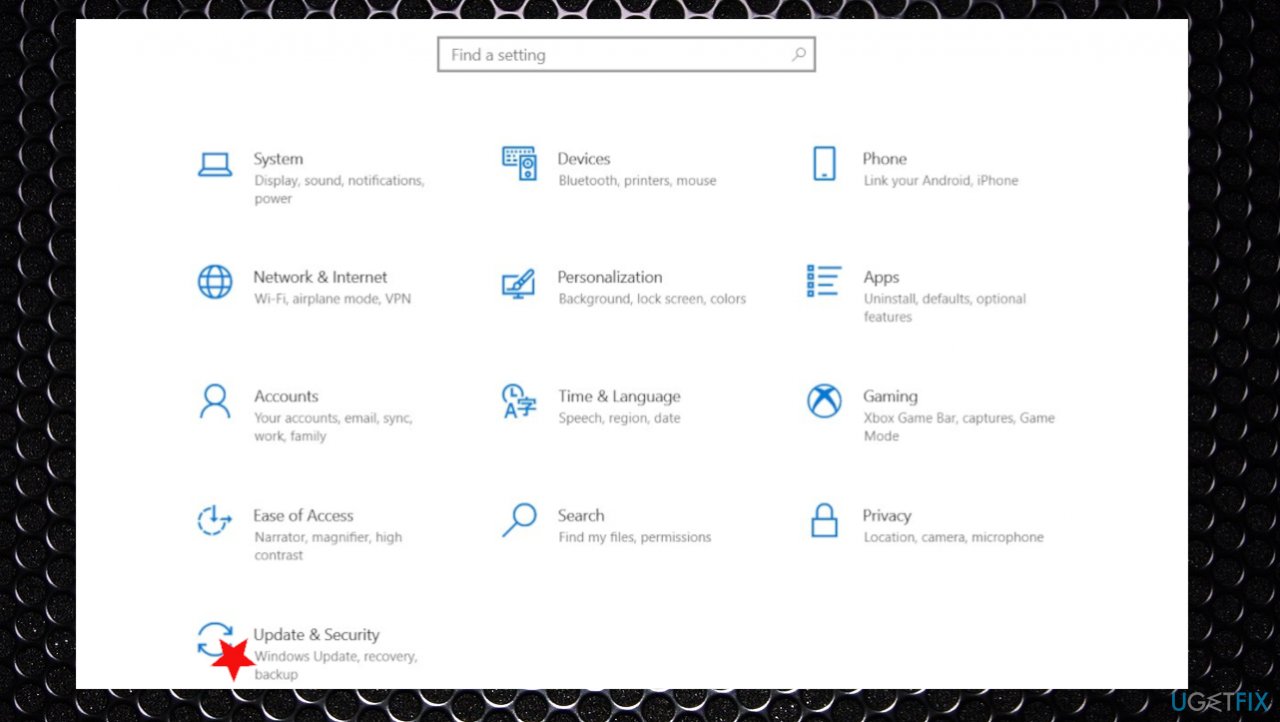
Error 1720 fix settings - Then click Update & Security.
- Click Troubleshooting.
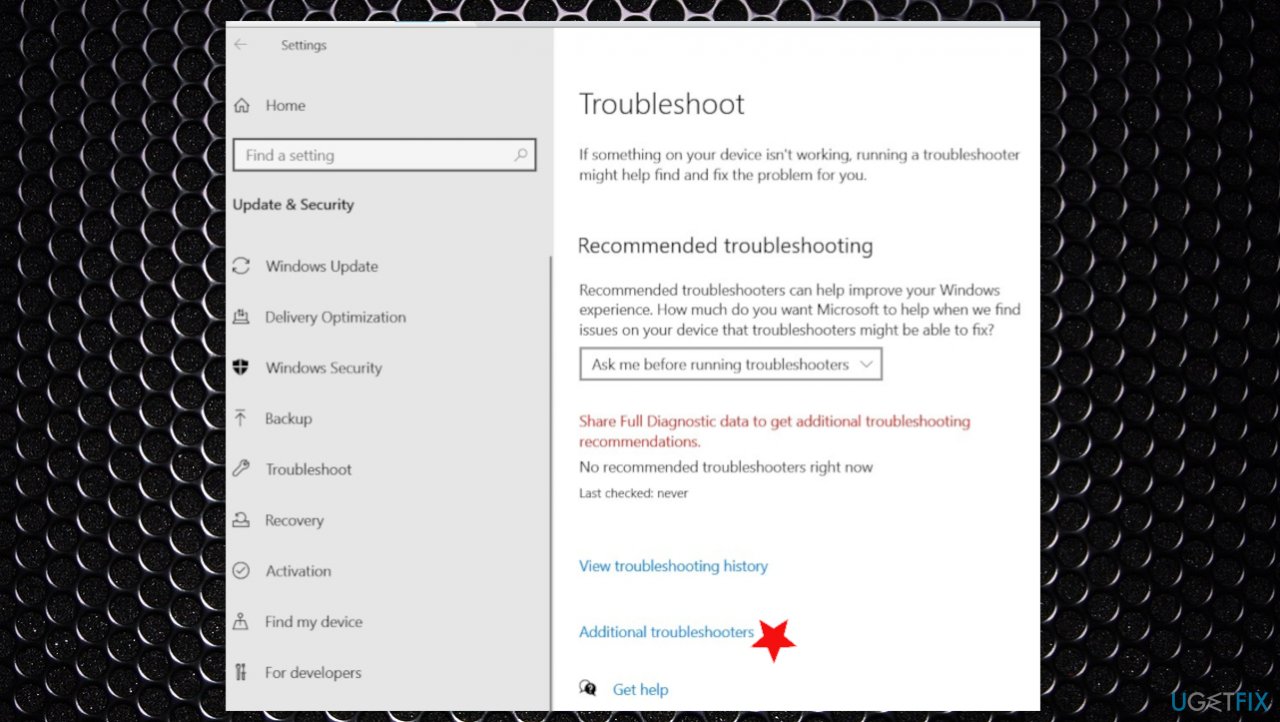
Error 1720 fix troubleshooters - Then click Advanced troubleshooter on the panel.
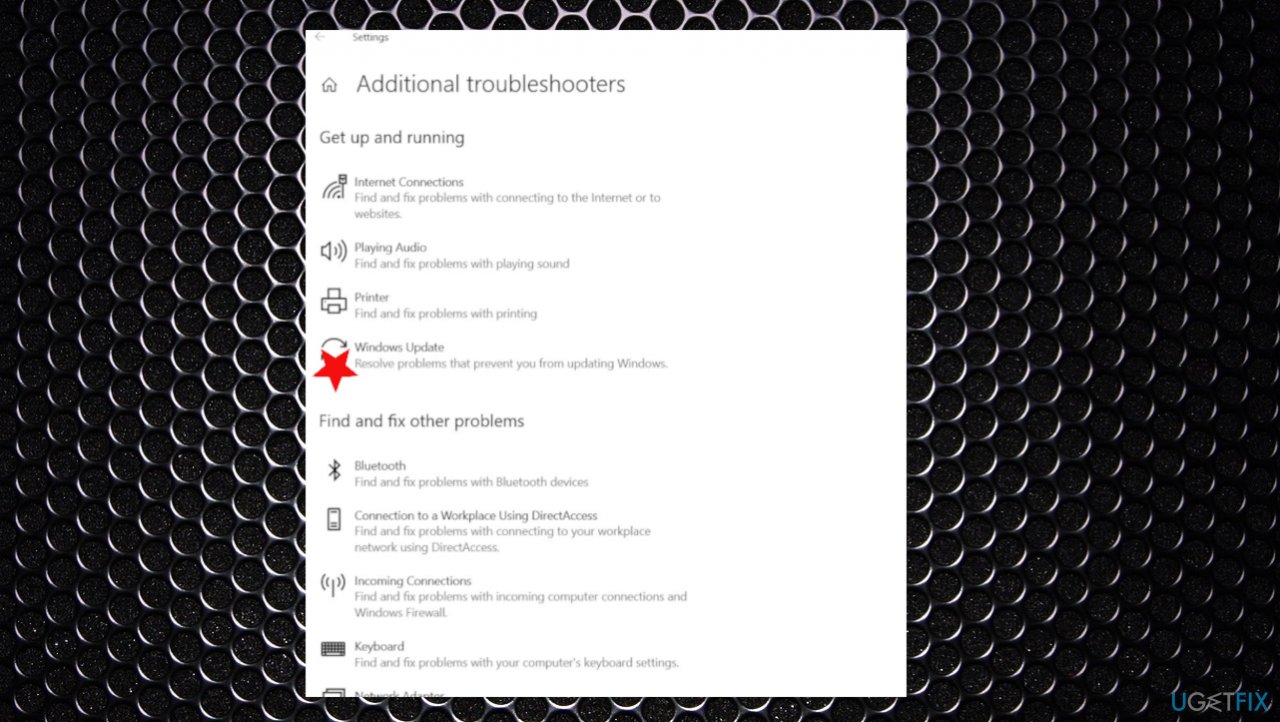
Error 1720 fix troubleshooting options - Click on Windows Update.
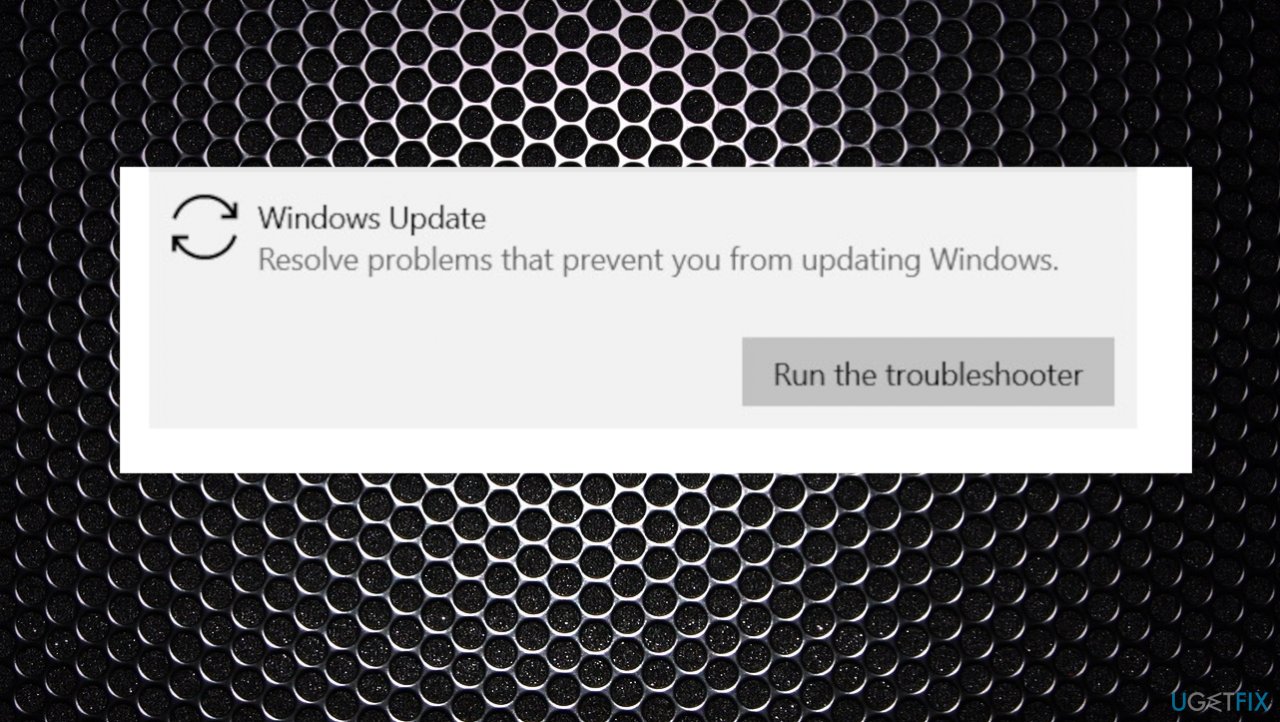
Error 1720 fix run troubleshooter - Then run the troubleshooting.
5. Stop and then reregister the scrrun.dll file
- Press Windows Key + R simultaneously.
- Type services.msc and click OK.
- Scroll down the list.
- Right-click Windows Installer, select Properties.
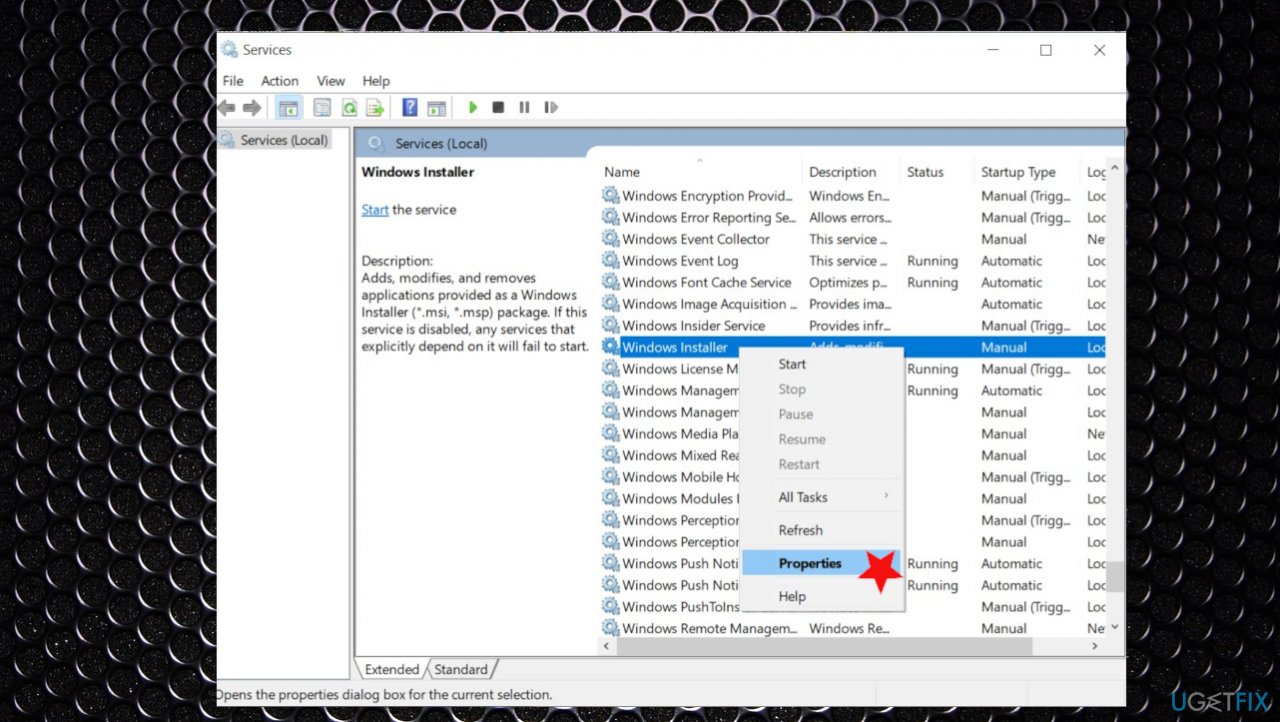
Error 1720 fix properties - Configure the service not to run automatically.
- Click Apply.
- Restart your computer now.
- Open the Command prompt.
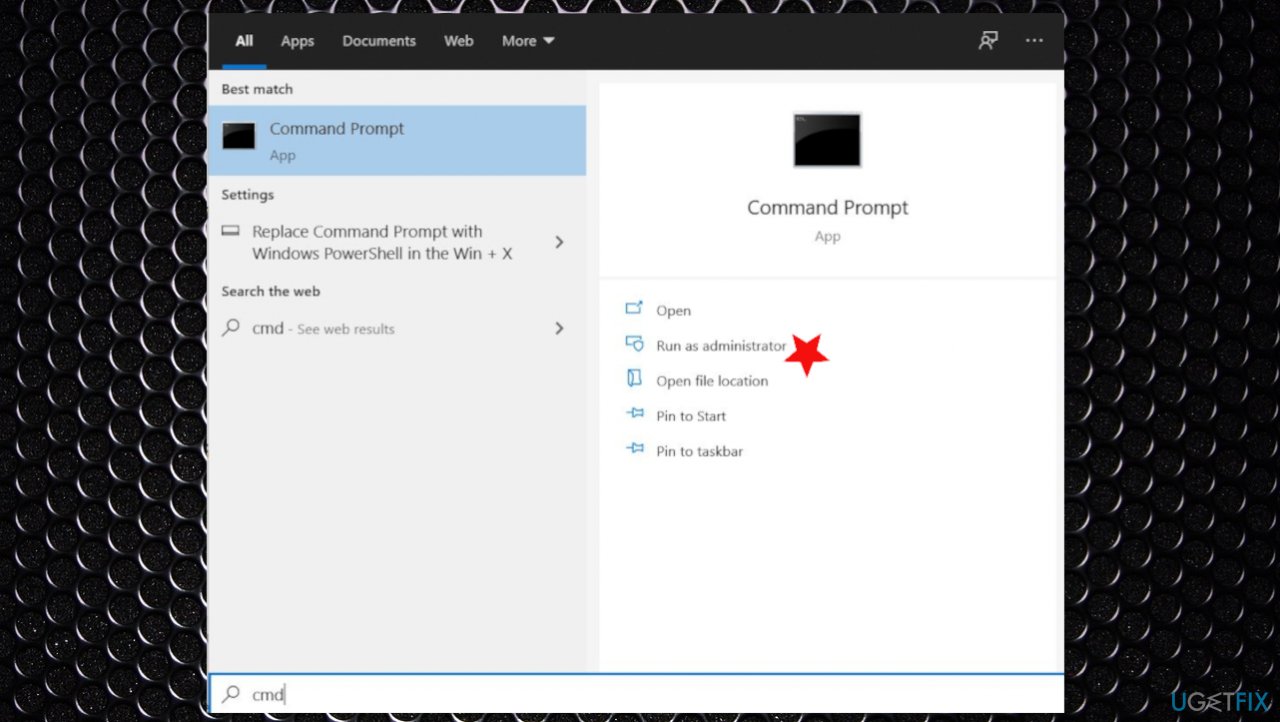
Error 1720 fix cmd - Type following command to change current location:
For Windows 32 bit: cd C:\\windows\\System32
For Windows 64 bit: cd C:\\Windows\\SysWow64 - Type following command to re-register concerning DLL:
regsvr32 scrrun.dll - Restart your PC.
Bottom line
To fix error 1720, you should repair registry errors and clean up any file issues. Additionally, consider updating Windows and temporarily disabling third-party security tools that may interfere with the installation process. If these solutions do not resolve the issue, further investigation into system files may be necessary.
Frequently asked questions
Error 1720 typically occurs due to issues with the Windows Installer package, often related to a corrupted installation file or a problem with the installation service.
To fix error 1720, you can run the Windows Installer Troubleshooter, ensure that the Windows Installer service is running, and check for any corrupted files using the System File Checker.
Yes, keeping Windows 10 updated can resolve underlying issues that may contribute to error 1720, especially if the error is related to outdated system components.




Report an issue
What's wrong with this guide? We review every report and update or remove content.
Report received — thank you. We'll review and fix it.
You need a free account to submit a report.
Be the first to comment