How to fix
“Power plan information is not available”
on Windows
Resolve the "Power plan information is not available" error on Windows 10 quickly and easily. Expert-tested solutions ensure your settings are restored …

What causes How to fix “Power plan information is not available” on Windows 10?
- Malware leftovers affecting system files
- Direct damage to system files
- Faulty Windows OS upgrade
- Insufficient user permissions
- Corrupted power plan settings
Repairs Windows system files, removes malware, and restores a clean OS state — without reinstalling.
Hello. Can you help gain access to the power plans and other options? I cannot change settings when the laptop gets shut down by closing the lid. It says that power plan information is unavailable, the access is denied. I am not able to change any power plan options. Do you have any solutions for this?
"Power plan information is not available" on Windows is the issue that occurs on the machine with the full error message and can be found on Windows 8 machines as well as on Windows 10 OS running devices. Users report[ref en-1] that power options are not displayed, so changes cannot be made. The administrator or user accounts provide no difference, and these issues persist.
Usually, you can choose what happens when your device sleeps, when you power off the machine. You can manage programs and personal information properly. However, the error keeps you from taking care of the business machine or the personal device. Troubleshooting such issues can help to indicate what is the cause of the problem but not every troubleshooting ends up with additional information.
The error can be fixed with a simple reboot of the machine or OS update, driver renewal, for example. However, these simple solutions work for only some people. There is always an opportunity that some leftovers of malware[ref en-2] triggered issues with the system, so the "Power plan information is not available" on Windows 10 appeared with these messages:
Your power plan information is unavailable. Access is denied
However, either infection triggered or direct damage to your system files needs to get fixed. You can rely on an application like [d1] and find, check, repair any files on system folders that lead to issues with functions or performance. Other solutions for the problem can involve updates of the Windows OS because faulty upgrade leads to issues with settings and features.[ref en-3]
Do not skip the steps listed below and try to fix "Power plan information is not available" on Windows by following the instructions thoroughly. There are a few options because this issue occurs in different scenarios due to various reasons. If the troubleshooting is not indicating the particular root cause - trust this guide.
1. Run Windows Update troubleshooter
- Go to Settings.
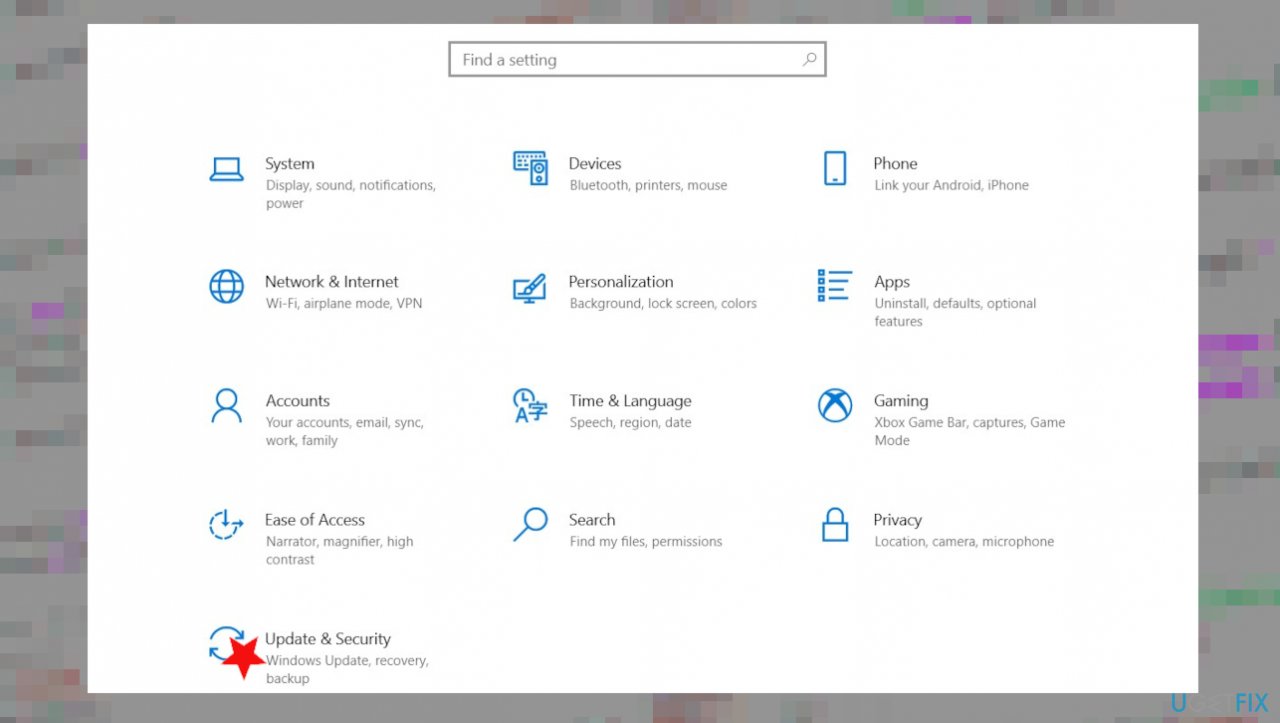
Power plan information is not avail fix update security - Then click Update & Security.
- Click Troubleshooting.
- Then click Advanced troubleshooter on the panel.
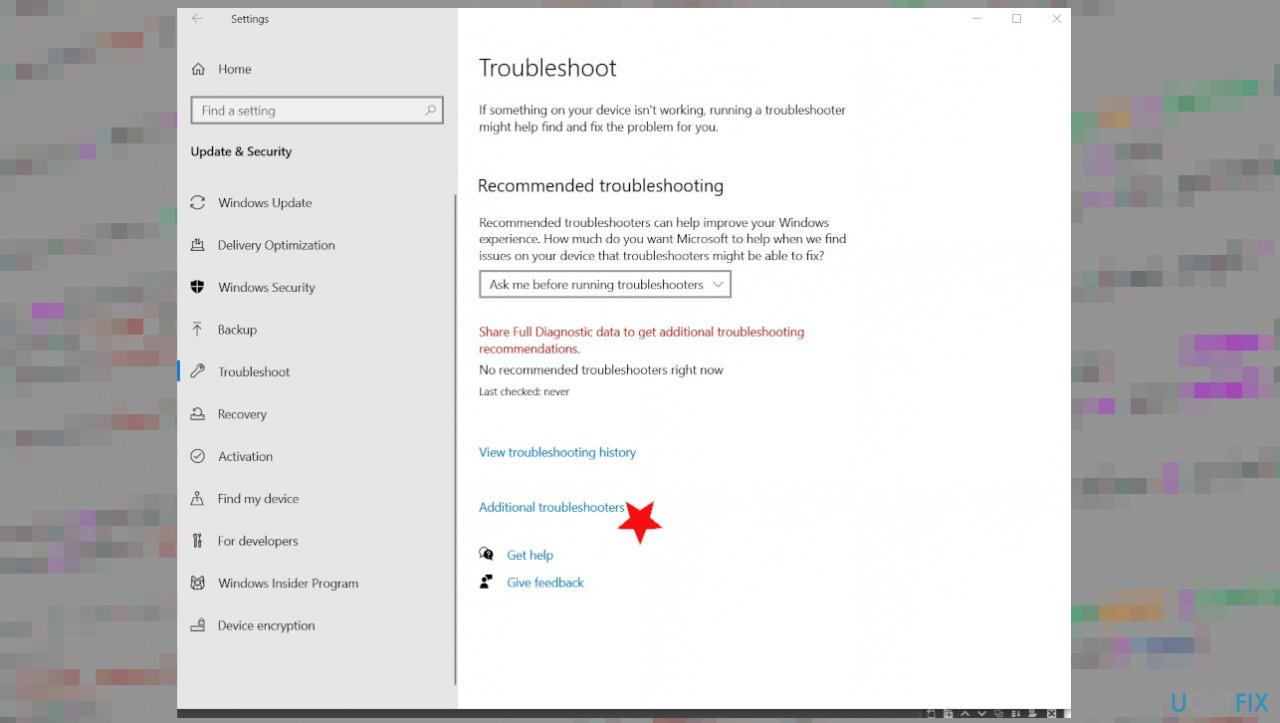
Power plan information is not avail fix additional troubleshooters - Click on Windows Update.
- Then Run the troubleshooting.
2. Troubleshoot Power issues
- Press the Windows key on the keyboard.
- Find the Gear icon and go to Settings.
- Update & Security.
- ChooseTroubleshoot.
- Then Additional troubleshooters.
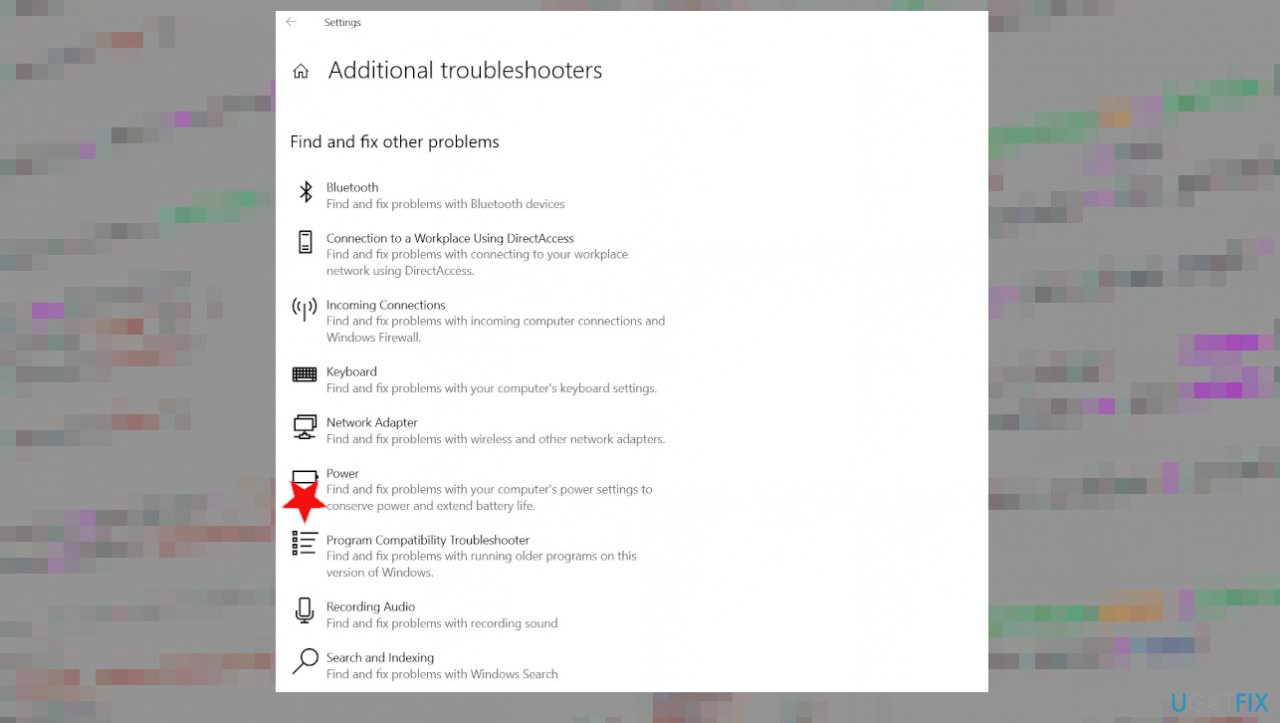
Power plan information is not avail fix power - Click on Power click.
- Next - run the troubleshooter.
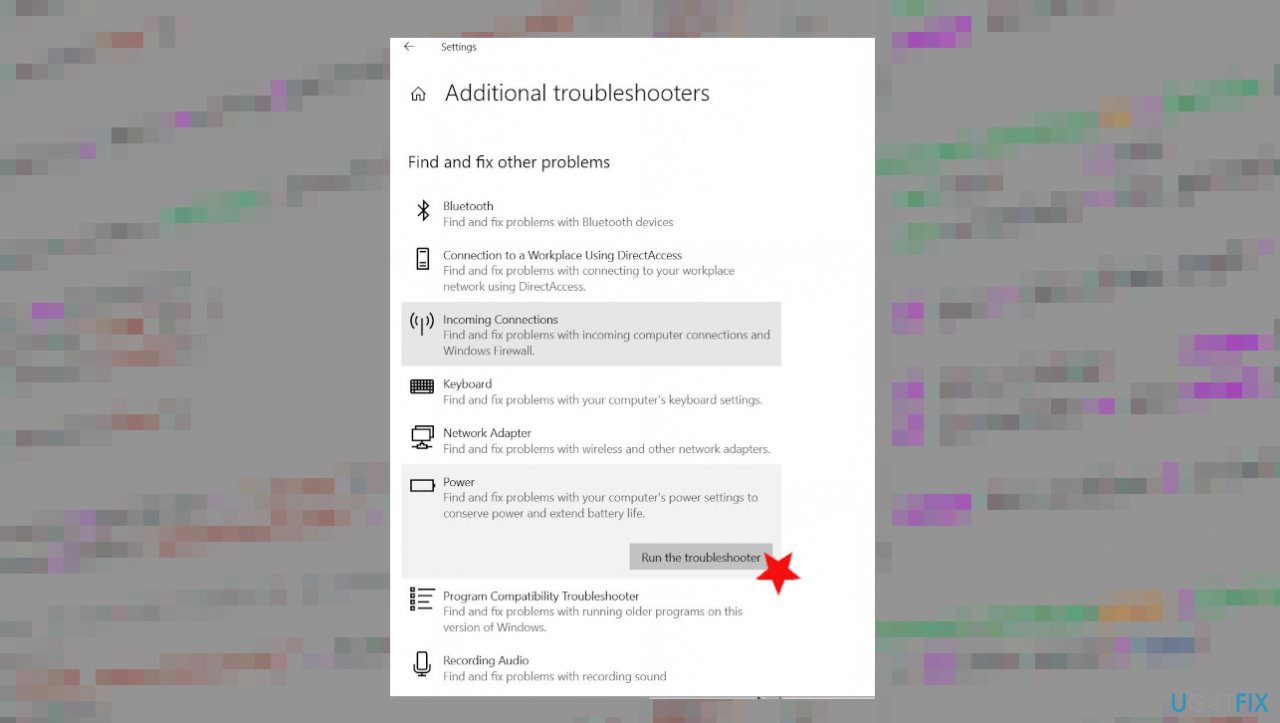
Power plan information is not avail fix power troubleshooting
3. Alter the registry
- Press Win Key + R to launch the Run sequence.
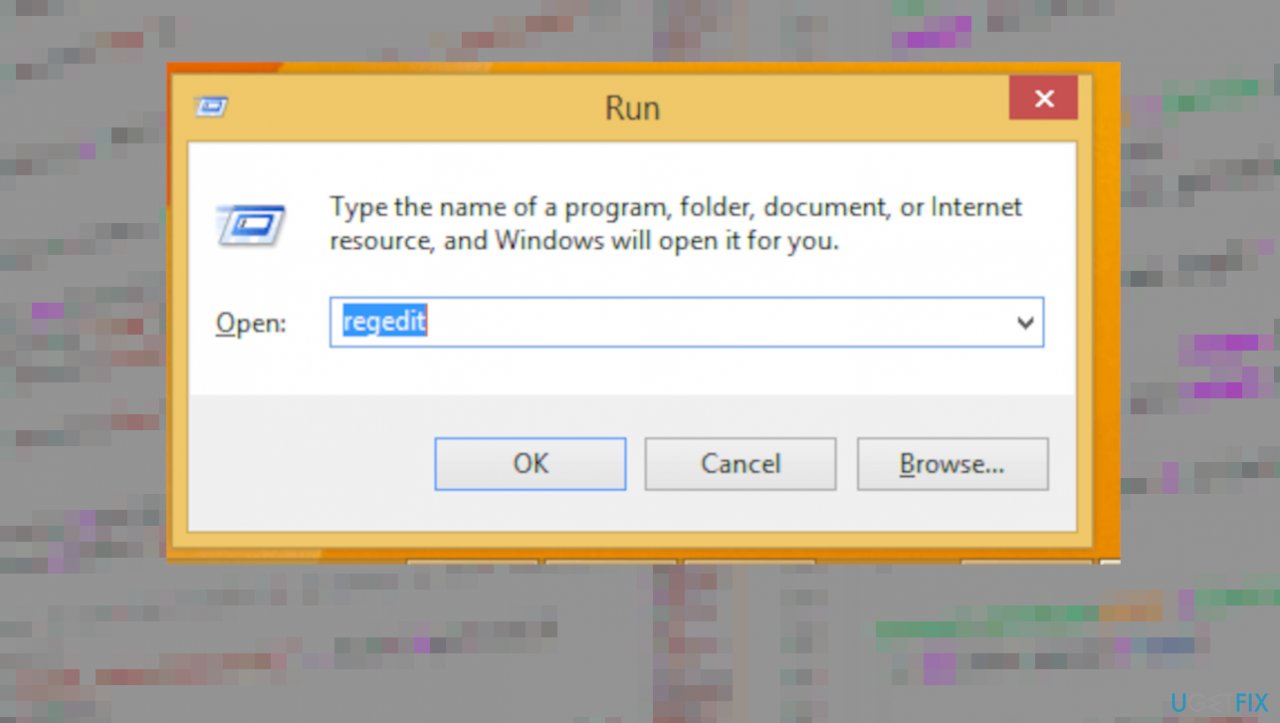
Power plan information is not avail fix regedit - In the Run box, type regedit and press Enter.
- The Registry Editor will then be displayed on your computer.
- From the left panel of the main window, navigate to:
HKEY_LOCAL_MACHINESYSTEMCurrentControlSetControlMUI. - Right-click on the MUI key and select New then Key.
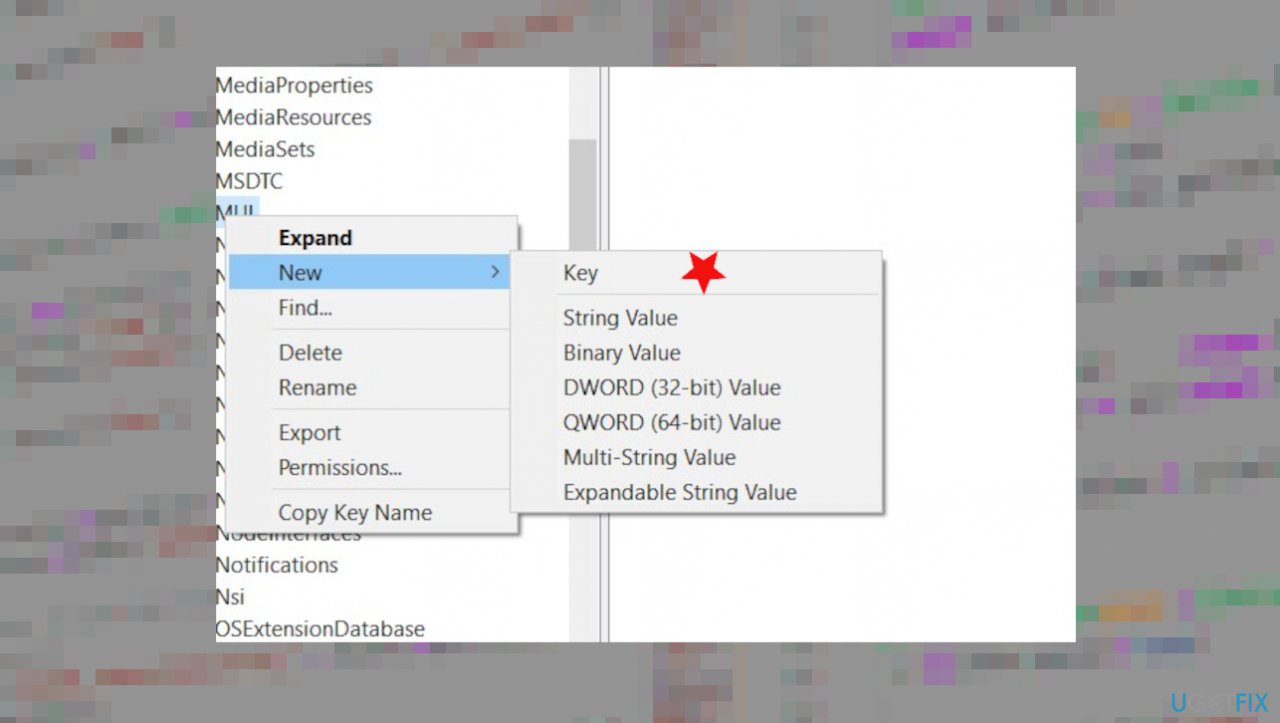
Power plan information is not vail fix registry - Name the new key StringCacheSettings.
- On the right panel, right-click on an empty space and select New -> DWORD value with the StringCacheGeneration value name.
- At this point, click on the newly created value and change its value data to 38b and check the Hexadecimal box; in the end, click on OK.
- Restart your computer.
4. Reset power plans to default
- Search for CMD.
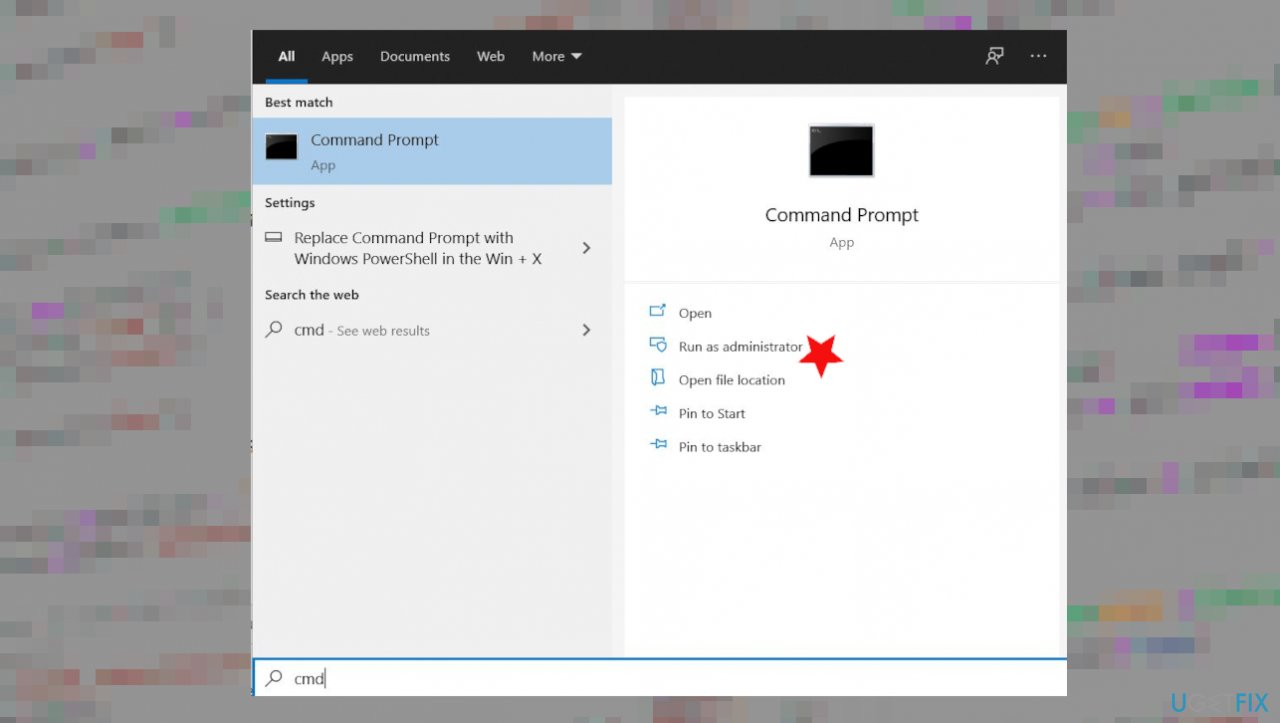
Power plan information is not avail fix cmd - Choose the Command Prompt (Admin).
- In the command prompt, type
powercfg –restoredefaultschemes - Hit Enter.
- Exit command prompt.
5. Run a full system scan
- Hold down Windows logo key.
- Type security.
- Select Virus & threat protection.
- Click the link Scan options.
- Choose Full scan.
- Scan now.
Bottom line
To fix the "Power plan information is not available" error, you can try rebooting your machine, updating the OS, renewing drivers, or using a repair application to check system files. If these solutions do not resolve the issue, further investigation into potential malware or system file corruption may be necessary.
Frequently asked questions
You can try resetting the power plans by running the command 'powercfg -restoredefaultschemes' in Command Prompt with administrator privileges.
Press Windows + X, then select 'Windows Terminal (Admin)' or 'Command Prompt (Admin)' to open it with administrative rights.
Yes, you can navigate to Settings > System > Power & sleep > Additional power settings and choose 'Create a power plan' to generate new power configurations.




Report an issue
What's wrong with this guide? We review every report and update or remove content.
Report received — thank you. We'll review and fix it.
You need a free account to submit a report.
Be the first to comment