How to fix
Fix: Can’t update Windows 10 because VirtualBox needs to be uninstalled
on Windows
Resolve Windows 10 update issues caused by VirtualBox with our expert-tested solutions. Get back to smooth updates in minutes!

What causes Fix: Can’t update Windows 10 because VirtualBox needs to be uninstalled?
- VirtualBox is not listed in the Control Panel or Apps and Features section.
- Other applications may be using VirtualBox's functionality for emulation purposes.
- Users may have never installed or used VirtualBox but still receive the error message.
- The error message provided by Windows is generic and lacks specific error codes.
- The open-source nature of VirtualBox leads to widespread use, complicating uninstallation.
Repairs Windows system files, removes malware, and restores a clean OS state — without reinstalling.
Hello, I need some help. In the last week, I have been receiving notifications that I need to uninstall VirtualBox manually because the app is not compatible with Windows 10. I tried to do so via the Control Panel, but VirtualBox is simply not listed there. Because of this, I can't update Windows also.
VirtualBox is a third-party virtualization application that allows users to emulate any operating system, including any version of Windows Linux, Hackintosh,[ref en-1] and more. Due to the app being open-source[ref en-2] software, it is extremely widespread, and many people use it for one reason or another.
During its operation, VirtualBox uses the currently installed operating system and runs the OS of one's choosing on top of it without needing specialized hardware for it. This environment is commonly referred to as a "virtual machine."
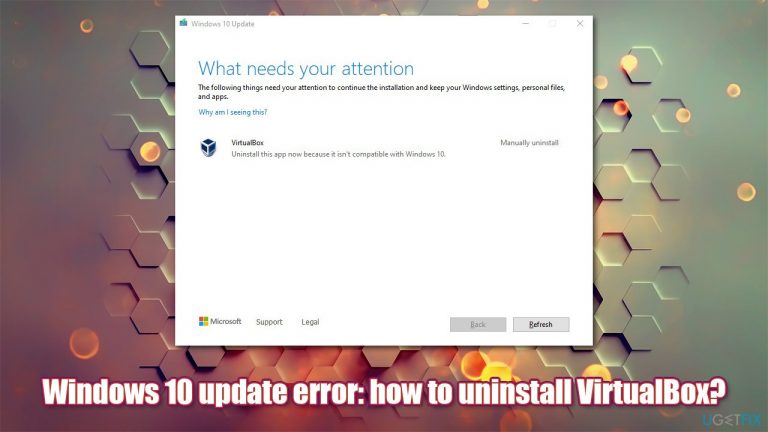
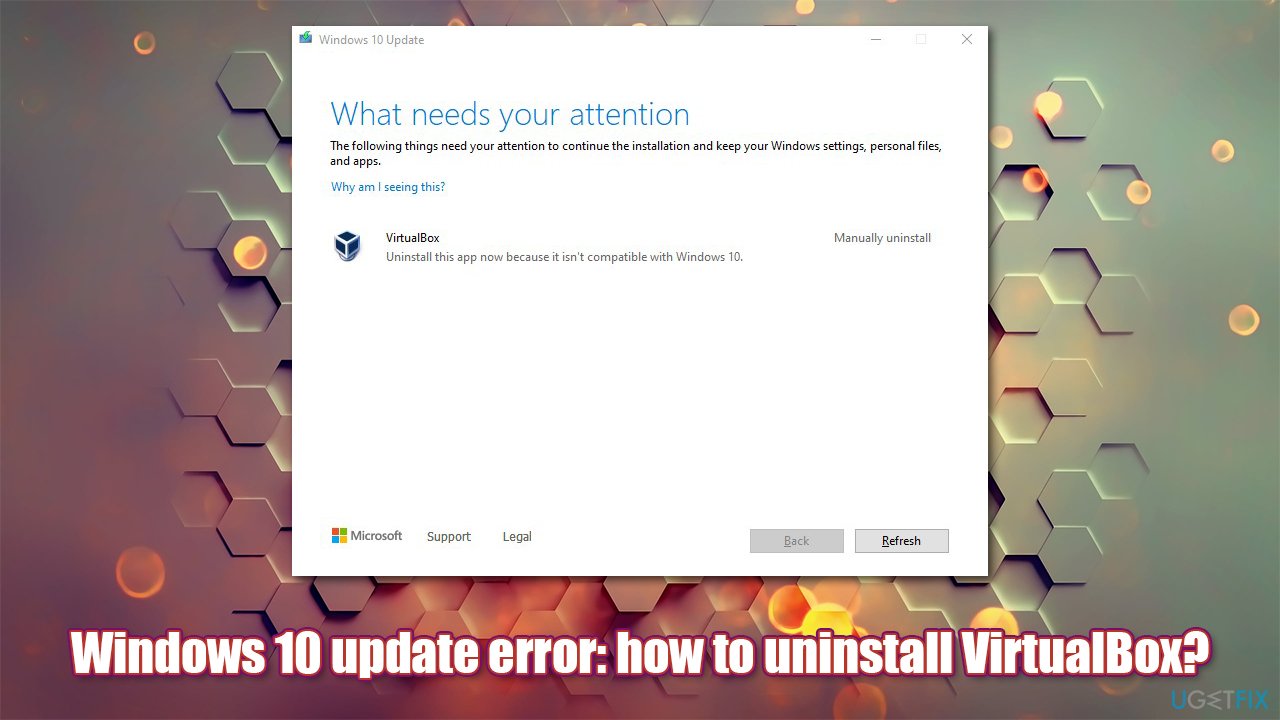
There have been several reports on Microsoft and other IT forums about users being asked to uninstall VirtualBox manually for Windows update to be successful. Here's the message that they receive:
What Needs your attention
The following things need your attention to continue the installation and keep your Windows settings, personal files, and apps.
Virtual Box
Uninstall this app because it isn't compatible with Windows 10.
Unfortunately, many people said that they were unable to uninstall VirtualBox manually via the Control Panel or Apps and Features section since the program entry is simply not there. Interestingly, many users who reported this problem said they never installed or used the app on their systems before.
The error message does not help to clear the situation either, as it sounds very generic - as most Windows messages without the error code are. Due to this, users are baffled and are stuck with the current version of the operating system.
The reason why Windows asks you to uninstall VirtualBox, and you can't find it on your system is because it is other apps that use its functionality for emulation purposes. Therefore, to fix this and be able to update Windows once again, you should check whether you have other emulation software installed on the system.
If you do use VirtualBox, you should delete registry[ref en-3] entries and leftover files to properly eliminate the app. Below you will find several tips that should help you get rid of the problem.
1. Delete the remnants of VirtualBox
First of all, check if the app is installed:
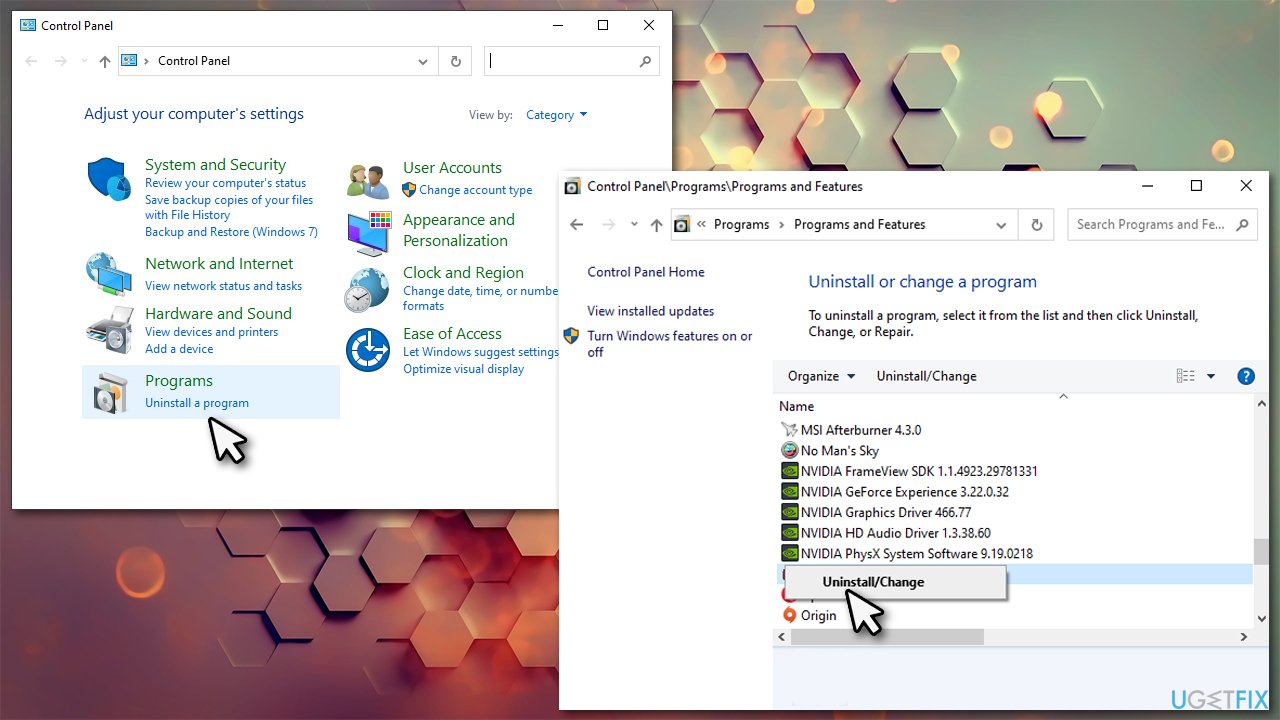
- Type in Control Panel in Windows search and press Enter
- Go to Programs > Uninstall a program
- Scroll down through the list
- If you find VirtualBox entry, right-click, select Uninstall and follow the on-screen instructions.
Fix cant update windows 10 because virtualbox needs to be uninstalled delete from control panel
Once done, proceed with deleting the leftover files from your machine (note: make sure the Hidden items on File Explorer are being shown):
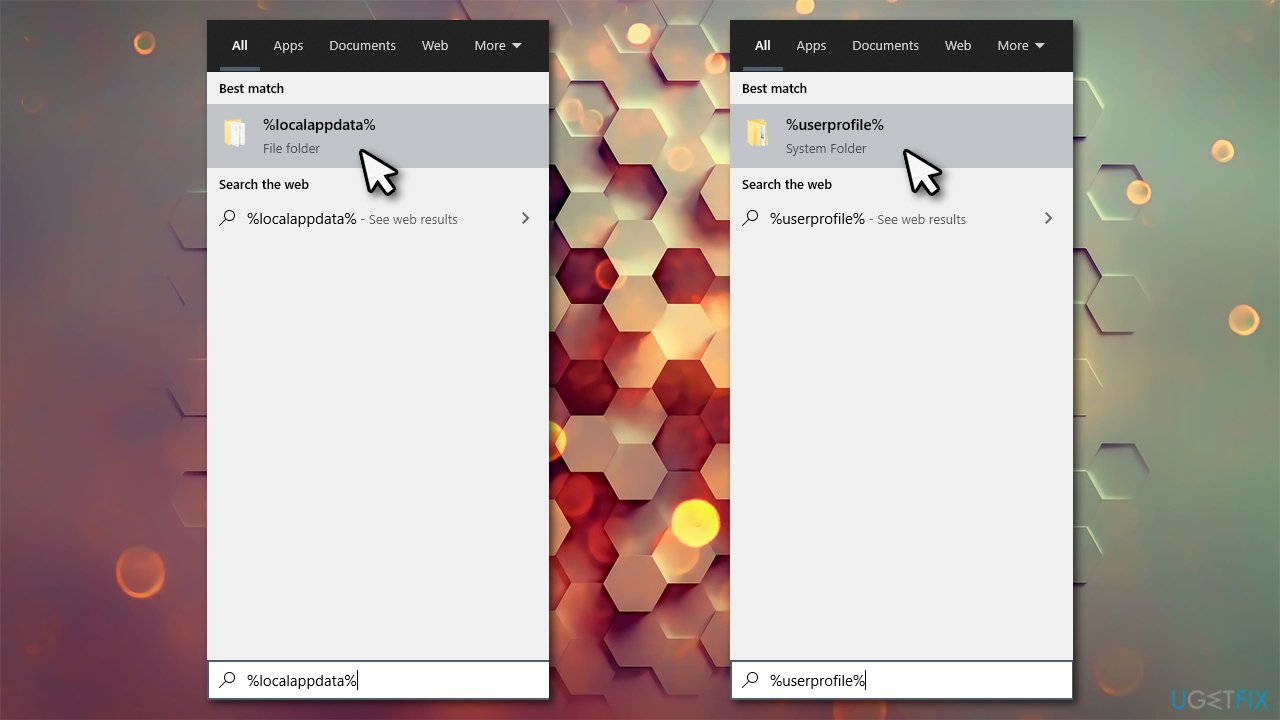
- Type in %localappdata% in Windows search and hit Enter
- Find .virtualbox folder and delete it by pressing Shift + Del
- Type in %userprofile% in the search box, find the correlating entry, and delete it as well
Fix cant update windows 10 because virtualbox needs to be uninstalled delete leftover files - Press Win + E to open File explorer
- Navigate to C:/Program Files/Oracle/VirtualBox folder and delete the folder.
2. Use the official installer
With the original installer, you are granted and option to remove the program, so you should try this option:
- Download the VirtualBox installer from the official website
- When downloaded, run the .exe file by double-clicking it
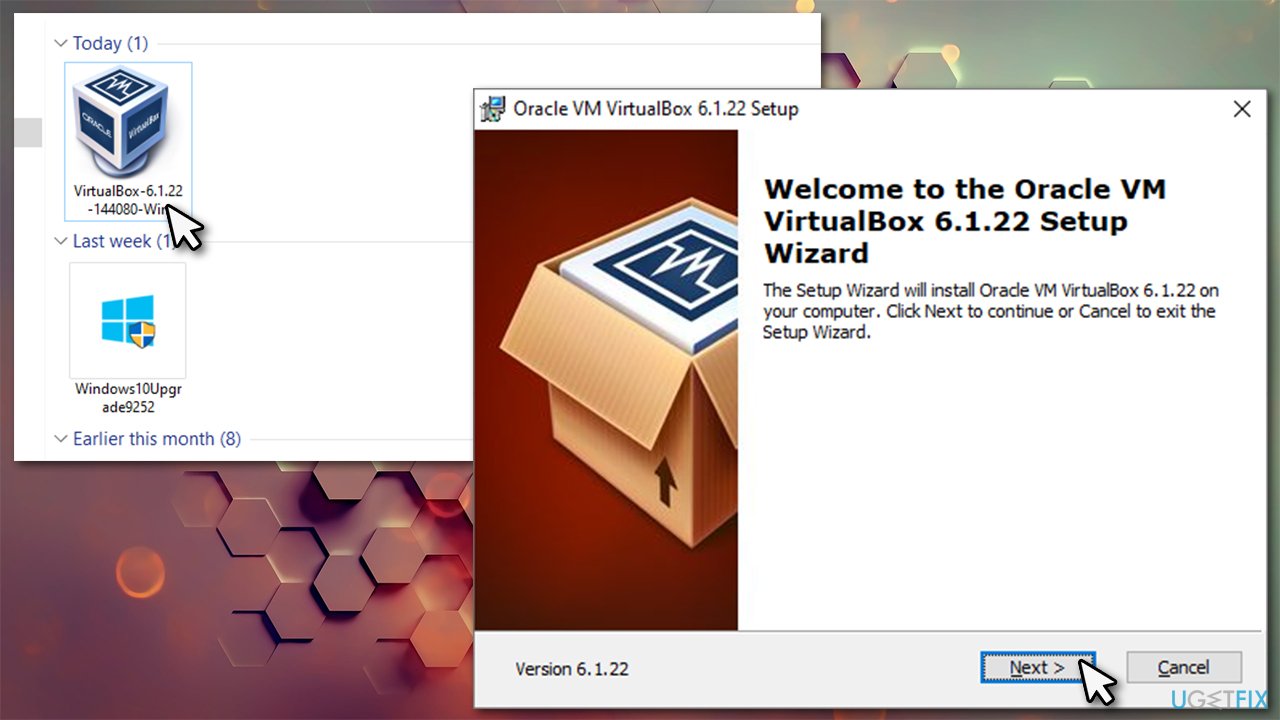
Fix cant update windows 10 because virtualbox needs to be uninstalled use official installer - At some point during the installation process, you will be asked whether you want to install, repair or remove the software - choose the latter option and proceed with on-screen instructions
- Once done, restart your PC.
3. Check for other emulation software
As already mentioned, one of the main reasons why users can't see VirtualBox installed on their system is because other apps use certain elements of it. Therefore, in order to get rid of the problem, you should uninstall all emulators you have installed, for example, Bluestacks, Android Studio, Nemu, XQEMU, etc. Some people said that LD Player was the culprit of the problem.
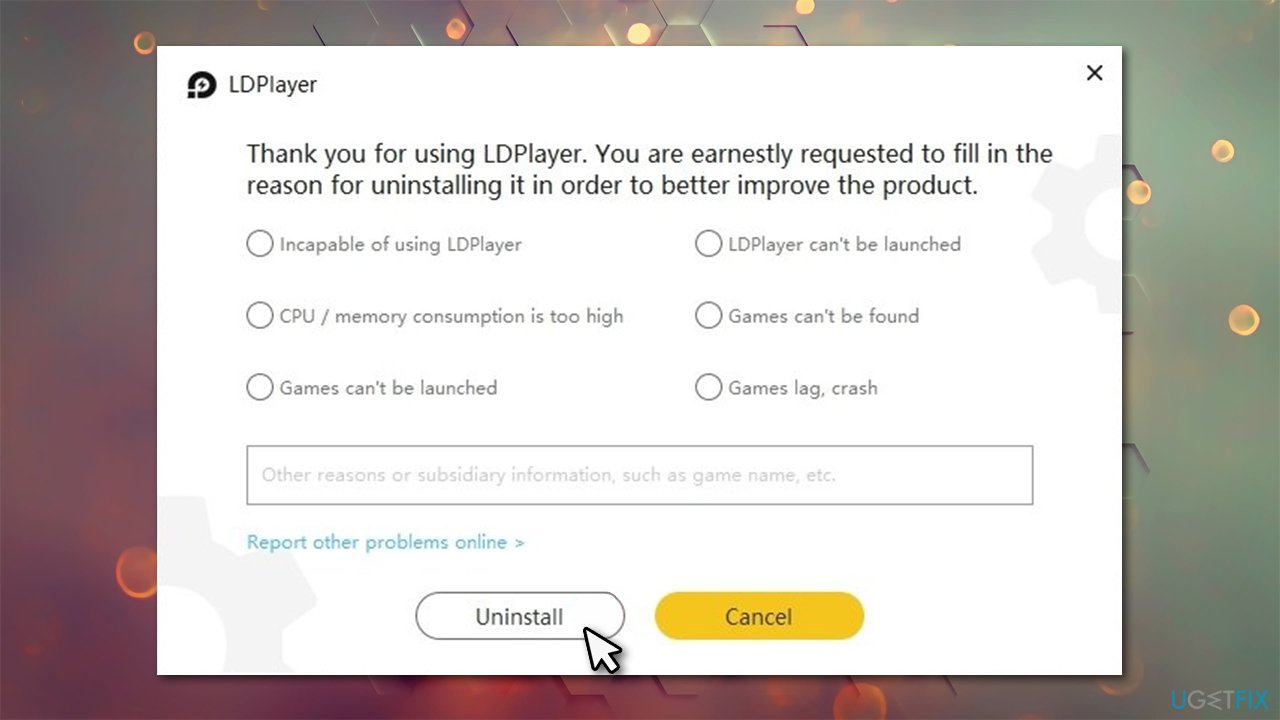
If you did have one of these programs present on your machine, you should eliminate all the leftover files as explained above; checking the registry is also advisable - proceed with the next solution.
4. Check the registry
Messing with the Windows registry is relatively risky, as erasing important keys or values might cause serious problems. Therefore, if you want to clean your registry from remnants of software, we highly recommend you do that automatically with [d1] repair. Otherwise, please backup your registry before proceeding.
Before you do a scan or follow the manual steps, please make sure you disconnect your computer from the internet, shut down OneDrive, Google Drive, and other system-invasive tools.
- Type regedit in Windows search box and hit Enter
- When Use Account Control shows up, click Yes
- Click on Edit > Find Next
- Type in VirtualBox and hit Enter or click Find Next
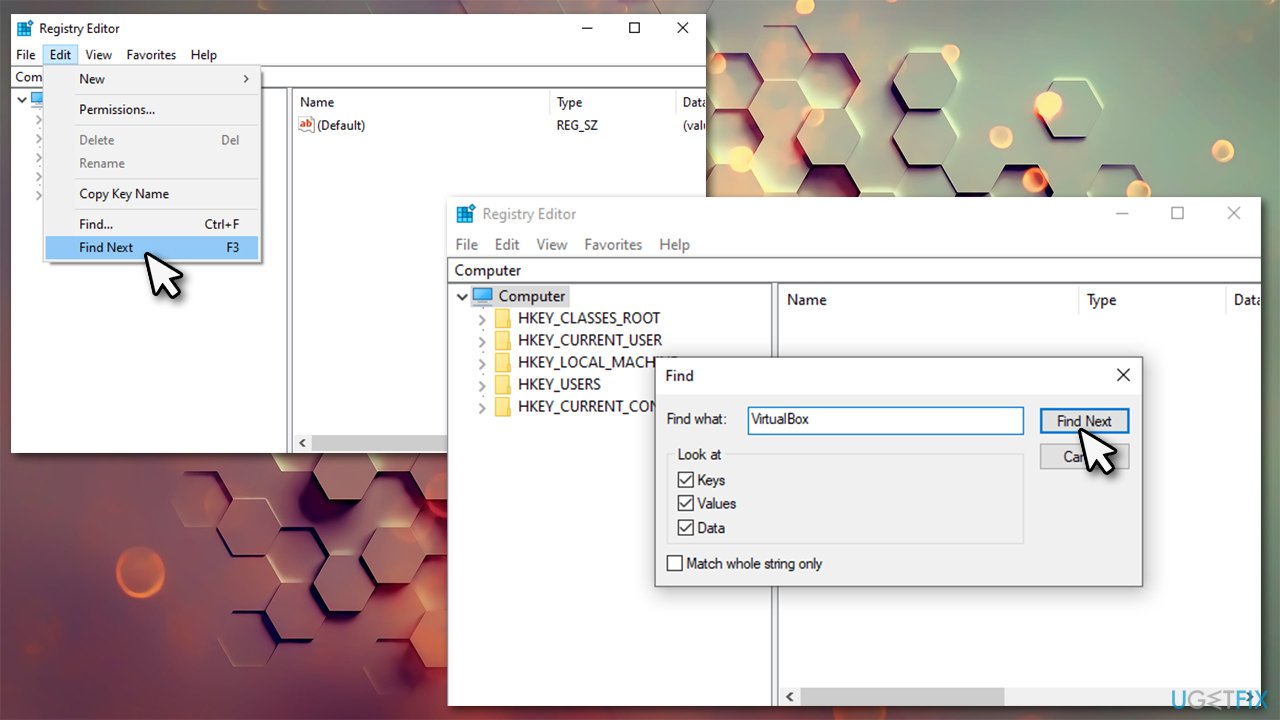
Fix cant update windows 10 because virtualbox needs to be uninstalled delete registry entries - Delete all folders, keys and values that are found.
Keep in mind that the reason why you can't uninstall VirtualBox is that there might be another emulation program installed on your system, so use the same principle by using the name of the software.
Bottom line
To resolve the issue, users should check for other emulation software installed on their systems and consider deleting registry entries related to VirtualBox if they are present. If these steps do not work, further investigation into installed applications may be necessary.
Frequently asked questions
Windows 10 updates may conflict with VirtualBox, causing installation errors. Uninstalling VirtualBox allows the update process to complete successfully.
To uninstall VirtualBox on Windows 11, go to Settings, select Apps, find VirtualBox in the list, and click Uninstall. Follow the prompts to remove it completely.
After uninstalling VirtualBox, restart your computer and attempt the Windows 10 update again through Settings > Update & Security > Windows Update.




Report an issue
What's wrong with this guide? We review every report and update or remove content.
Report received — thank you. We'll review and fix it.
You need a free account to submit a report.
Be the first to comment