How to fix
Exception error code 0xc0000409
on Windows
Resolve the 0xc0000409 error on Windows 10 or 11 effortlessly. Expert-tested solutions ensure your system runs smoothly again. Fixed in minutes!


What causes How to fix exception error code 0xc0000409 on Windows?
- Particular Windows 10 Insider Preview build 19624
- Registry entries
- Corrupted files
- Failed functions
- Malware attack
Repairs Windows system files, removes malware, and restores a clean OS state — without reinstalling.
I get the same error over and over. The error code 0xc0000409appears when I try to download OS updates. It also gives me the exception location some of the times. The Windows 10 update issue is annoying. I think everything else is okay, but I want to update the system since I haven't done that in a while. I guess this is not the particular update issue, as I found out online. But there are no solutions for this, or I couldn't find them. Help me, please!
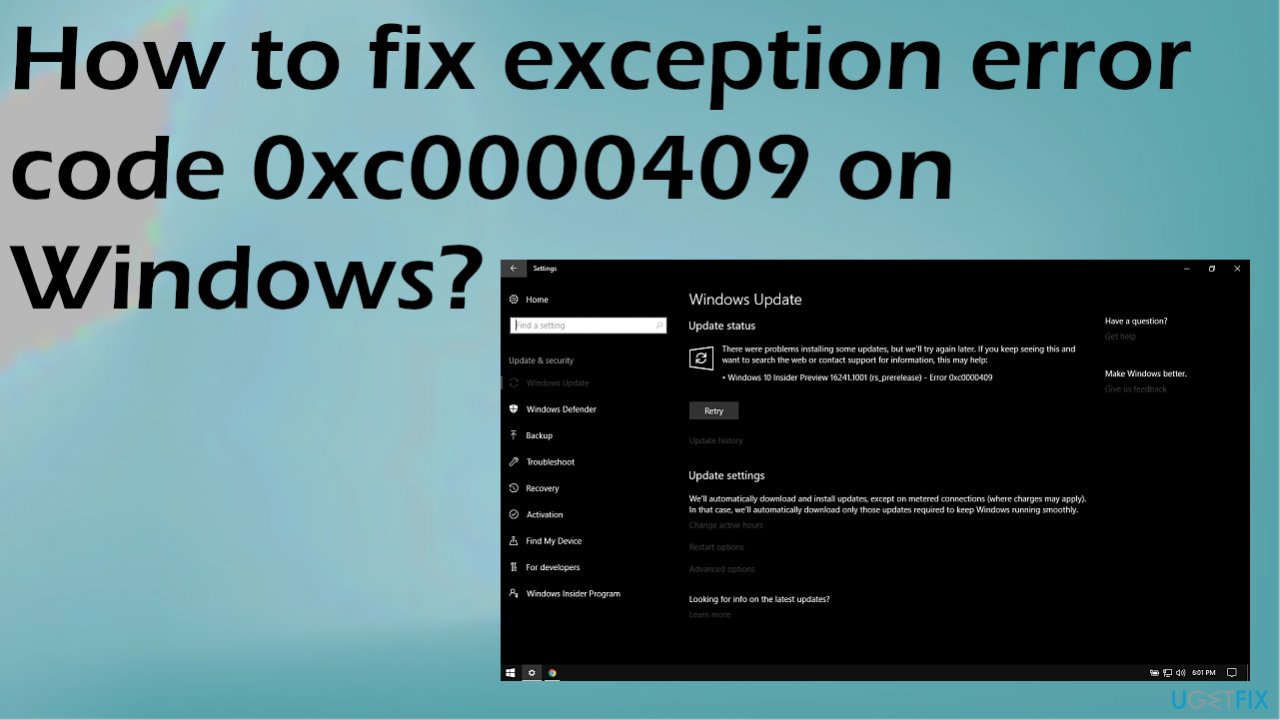
The exception error code 0xc0000409 on Windows is the problem with particular Windows 10 Insider Preview build 19624. You can also receive the error message due to different issues as users report in online forums.[ref en-1] Updating the OS to the newest version can fix some problems with the system when the built version is the trigger.
With Windows 10, these issues occur quite often.[ref en-2] We have covered a lot of different errors and system issues closely related to buggy operating system updates that require patches and fixes. Microsoft constantly looks for solutions when issues occur, so checking for the patch or renewed version of the update can be a great method for various errors and system issues.
These errors can be critical and triggered by some registry entries, corrupted files, failed functions. The exception error code 0xc0000409 on Windows can be overwhelming and require particular interaction, setting alterations. Another possible cause for the error could be malware[ref en-3] attack or the results after such infection. Some files or functions can get altered during such instances.
Improper installations, corrupted system files, and functions can be fixed by running a tool like [d1]. This is the application that can locate affected parts on the machine and help repair files or programs, so the system is working properly. This option can be one of the troubleshooting steps or a quick fix.
Other exception error code 0xc0000409 fixes can include changing settings or repairing functions. You should try the methods listed below if the quick option is not helping you. Try a few to solve the issue with a particular root cause.
1. Run a System File Checker
- Type cmd in Windows search.
- Right-click on Command Prompt result and select Run as administrator
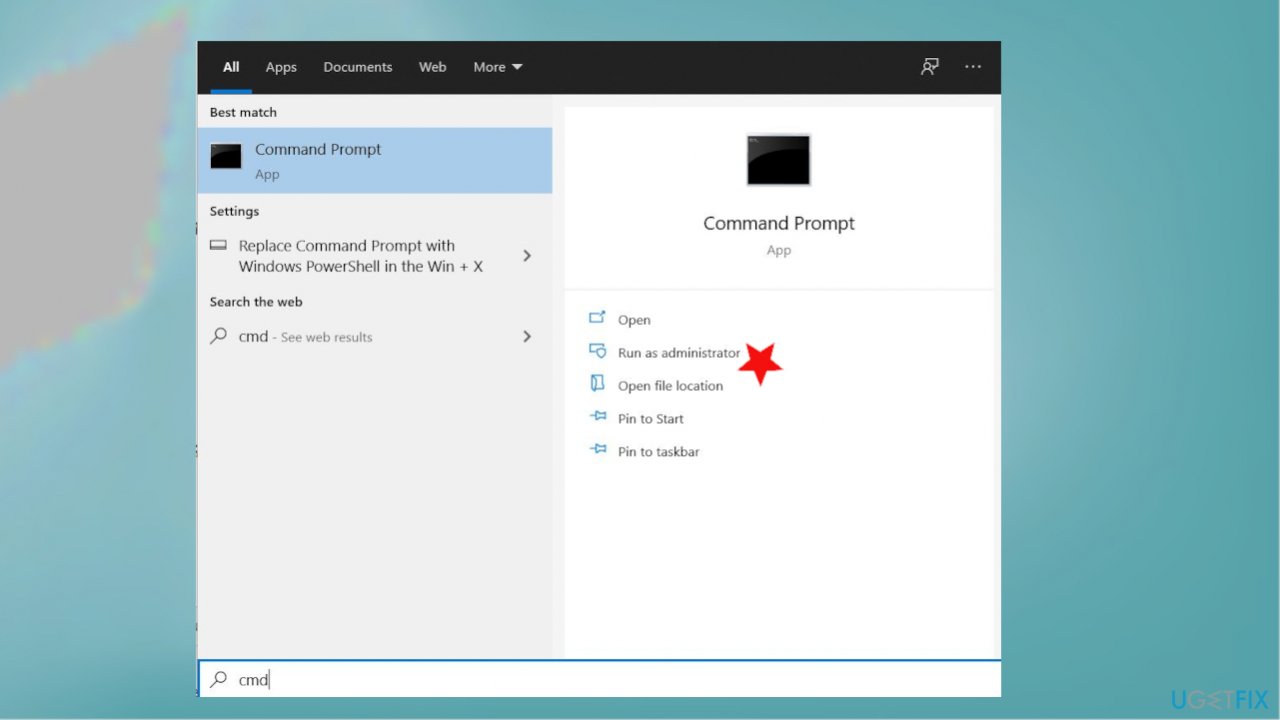
0xc0000409 error code fix admin cmd - Copy and paste this command and press Enter:
sfc /scannow - Wait till the scan is finished.
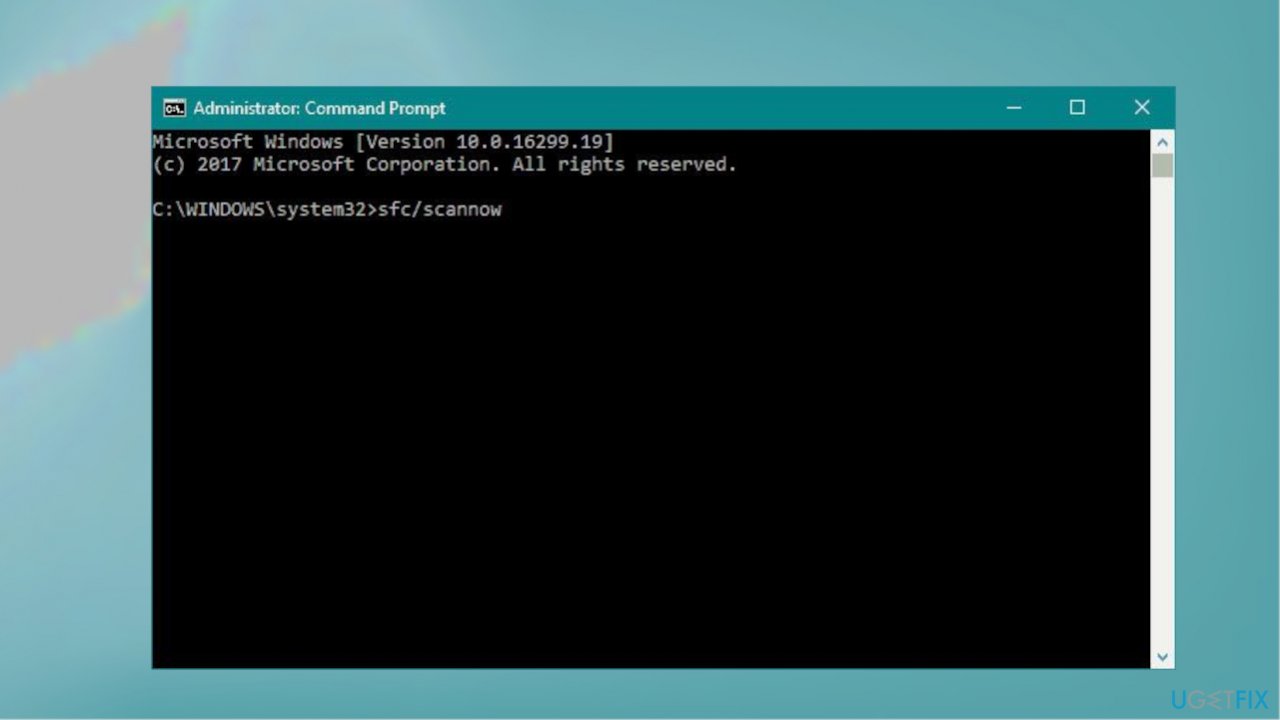
0xc0000409 error code fix sfc
2. Try the repair install
- Open the Windows 10 installation media.
- Run setup.exe for the Windows 10 Setup process to begin.
- Click Yes on the User Account Control window.
- In the Windows 10 Setup screen, opt for the Upgrade this PC now and click on Next.
- You will get to see Windows getting prepared with a percentage meter.
- Click on Download and install updates on the next page that opens.
- Click on Next.
- The Windows 10 Setup will progress and will also lead to your PC restarting during the process.
- Accept the license terms.
- In the Ready to install page that opens, click on Install.
- Make sure to Install Windows 10 Home and Keep personal files and apps are selected.
- Once the repair installation is completed - login.
- Follow on-screen instructions.
- Your system is now ready with a fresh installation of Windows 10.
3. Restore the system
- Start your computer and log in as administrator.
- Click the Start button, select All Programs, Accessories, System Tools, and then click System Restore.
- In the new window, select Restore computer to a previous date and click Next.
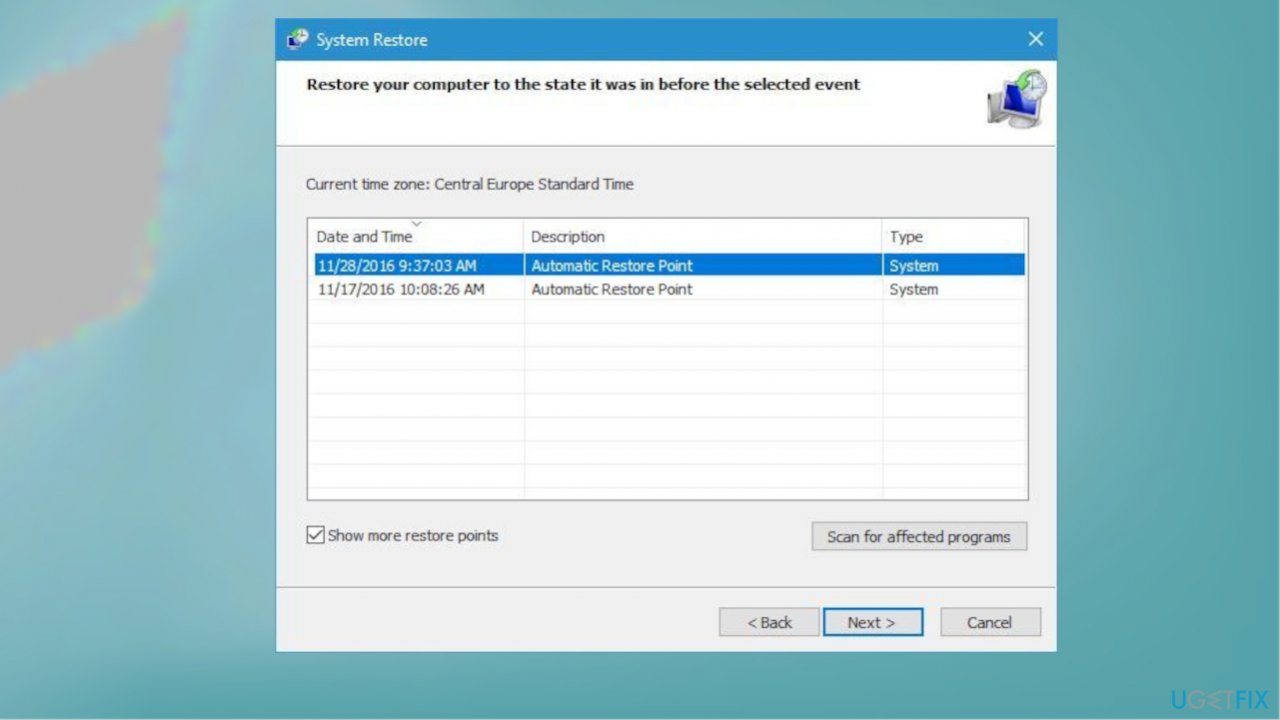
0xc0000409 error code fix system restore - Select the last system restore point from the list, click a restore point list, then click Next.
- Click Next in the confirmation window.
- Restart.
4. Perform a clean boot
- Press Windows key and R key together to open Run dialog.
- Type MSConfig in the box and click OK to continue.
- Go to the Service tab and check the option Hide all Microsoft services.
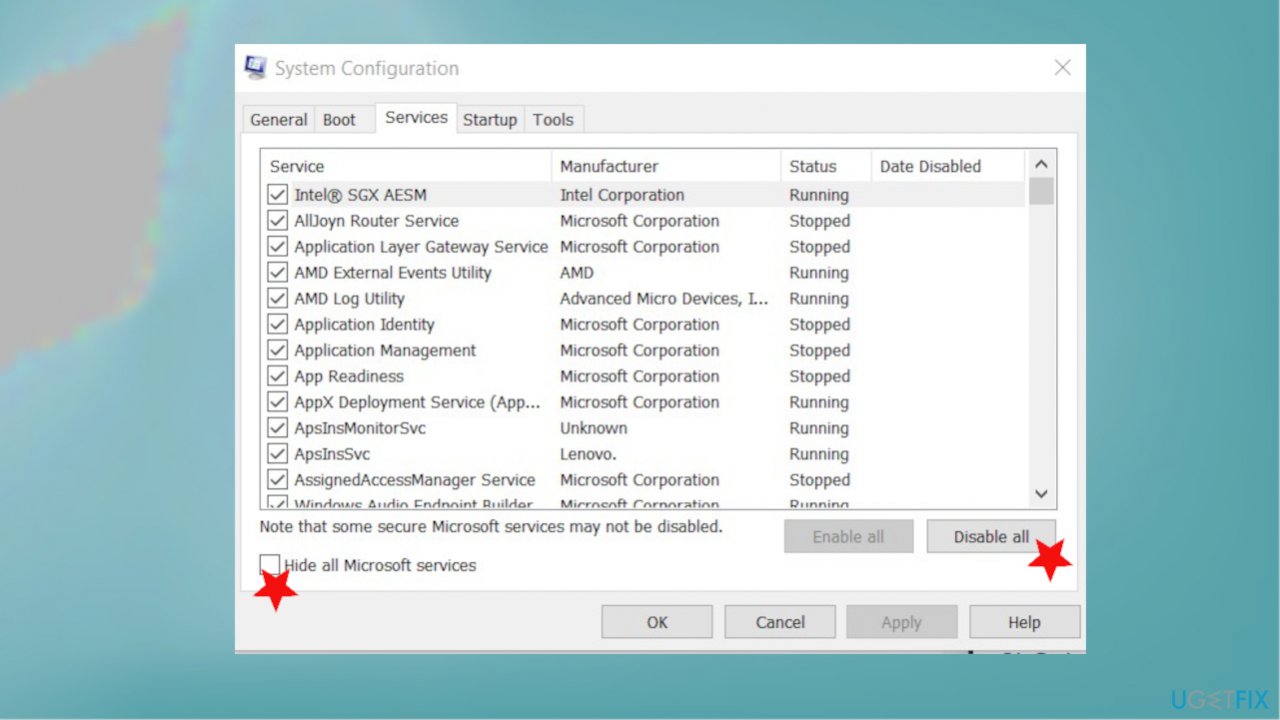
0xc0000409 error code fix micrososft services - Click Disable all to continue.
- Then navigate to the Startup tab and click Open Task Manager to continue.
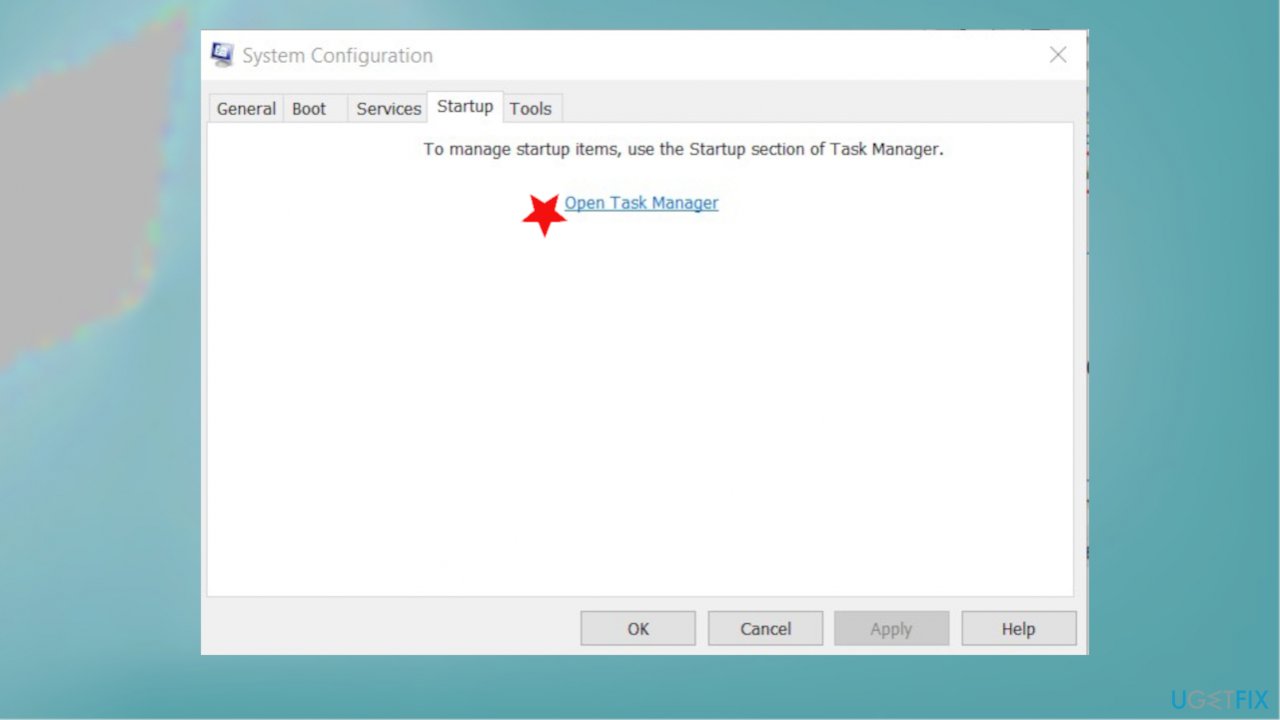
0xc0000409 error code fix open task manager - Select the startup program you do not need and click Disable.
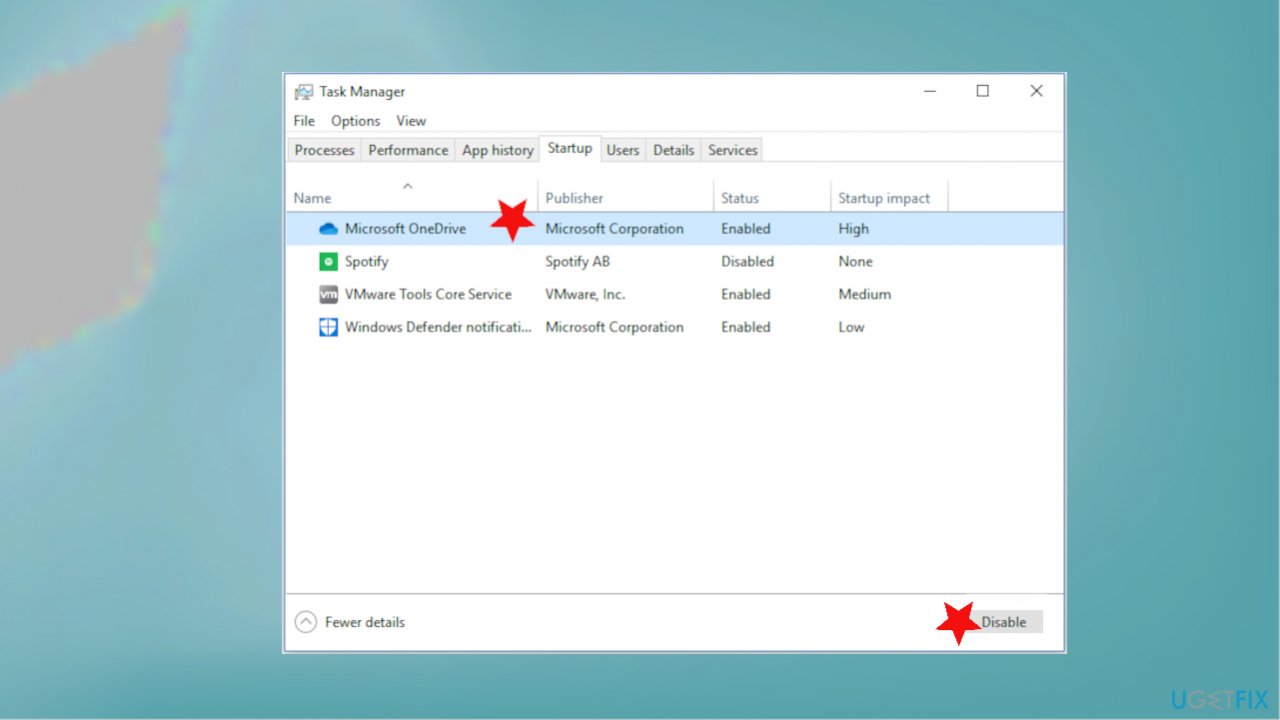
0xc0000409 error code fix disable
Bottom line
To fix the exception error code 0xc0000409, you can try updating the OS to the newest version, running a repair tool, or changing settings. If these methods do not resolve the issue, consider seeking further assistance or exploring additional troubleshooting steps.
Frequently asked questions
The exception error code 0xc0000409 typically indicates a stack buffer overflow or an application failure, often related to corrupted system files or problematic software. This error can prevent applications from launching correctly.
To fix the 0xc0000409 error on Windows 11, you can run the System File Checker tool by opening Command Prompt as an administrator and typing 'sfc /scannow'. Additionally, consider updating your drivers and checking for Windows updates.
Yes, you can attempt to fix the 0xc0000409 error on Windows 10 by performing a clean boot, which helps identify if startup programs are causing the issue. You can also try restoring your system to a previous point where it was functioning correctly.




Report an issue
What's wrong with this guide? We review every report and update or remove content.
Report received — thank you. We'll review and fix it.
You need a free account to submit a report.
Be the first to comment