How to fix
Cannot shrink a volume beyond the point where any unmovable files are located
on Windows
Resolve volume shrink issues on Windows 10 or 11 effortlessly with proven fixes. Get expert-tested solutions to free up space in minutes!

![[Solved] Cannot shrink a volume beyond the point where any unmovable files are located](https://ugetfix.com/wp-content/uploads/articles/askit/fix-cannot-shrink-volume-beyond-the-point-where-any-unmovable-files-are-located_en-768x432.jpg)
What causes [Solved] Cannot shrink a volume beyond the point where any unmovable files are located?
- Hibernation
- Paging File
- System Protection
- Hidden Windows components requiring extra space
Repairs Windows system files, removes malware, and restores a clean OS state — without reinstalling.
I have a relatively large (2TB) hard drive, which I would like to divide into separate volumes. However, every time I try, I receive an error that says that the drive cannot shrink beyond the point where any unmovable files are located. What does that mean? Help is appreciated.
There are two primary hardware types that users use to hold their data in - Hard drives (HDDs) and Solid State drives (SSDs).[ref en-1] Nowadays, having several terabytes of space within the storage units is not uncommon (although SSDs are commonly provide less space in the same price range as their counterparts), and there are several reasons why users would like to shrink their disks into smaller volumes.
The process can be easily done with the help of the built-in Windows Disk Management[ref en-2] tool - it is easy to use and does not cause people many troubles when using it. The problems arise when users try to shrink the volume with which they have their Windows operating systems installed - they might come across the "You cannot shrink a volume beyond the point where any unmovable files are located" error.
Some users reported that they were unable to shrink the volume at all, even though they had free space for that. Others said they could only reduce the size by a certain margin, which was larger than the free space available on the disk. The full message is available to see via the Event Viewer:
You cannot shrink a volume beyond the point where any unmovable files are located. See the “Defrag” events in the application log for detailed information about the operation when it has completed
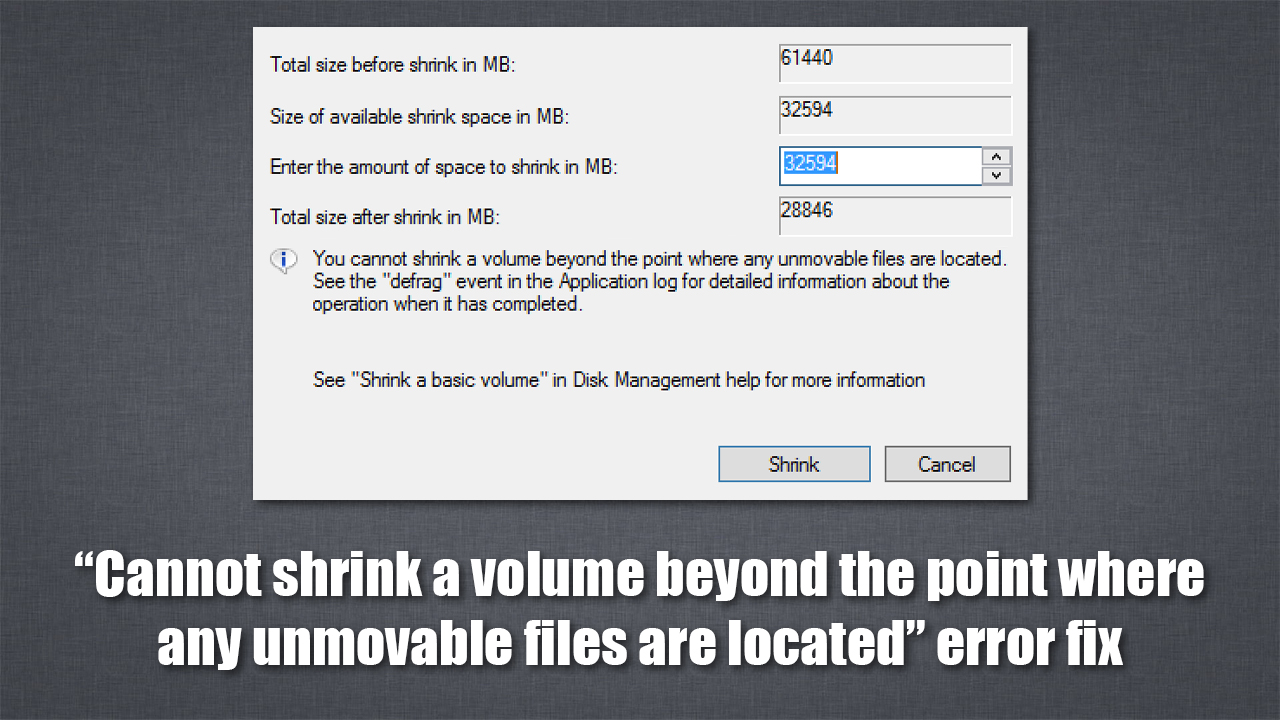
The reason why some users experience this issue is that certain Windows components are hidden and require extra space that is not visible initially. Therefore, in order to fix the "You cannot shrink a volume beyond the point where any unmovable files are located" error, you would have to temporarily disable those components - they include:
- Hibernation
- Paging File
- System Protection
Below you will find the steps that should help you disable these components and then re-enable them once the operation is completed successfully. In some cases, there could be underlying problems that can cause various errors. If you are having continuous issues with your Windows PC on a regular basis, we recommend you try using an automatic repair tool [d1].
Step 1. Make sure you can see hidden files
In order for the fix to be successful, you need to interact with files that are initially hidden. You can make these files visible via File Explorer:
- Press Win + E on your keyboard to open File Explorer
- Go to the View tab
- Tick the Hidden items checkbox
- Then, click on Options > Change folder and search options
- Go to View tab and untick the Hide protected operating system files (Recommended) option
- Click OK.
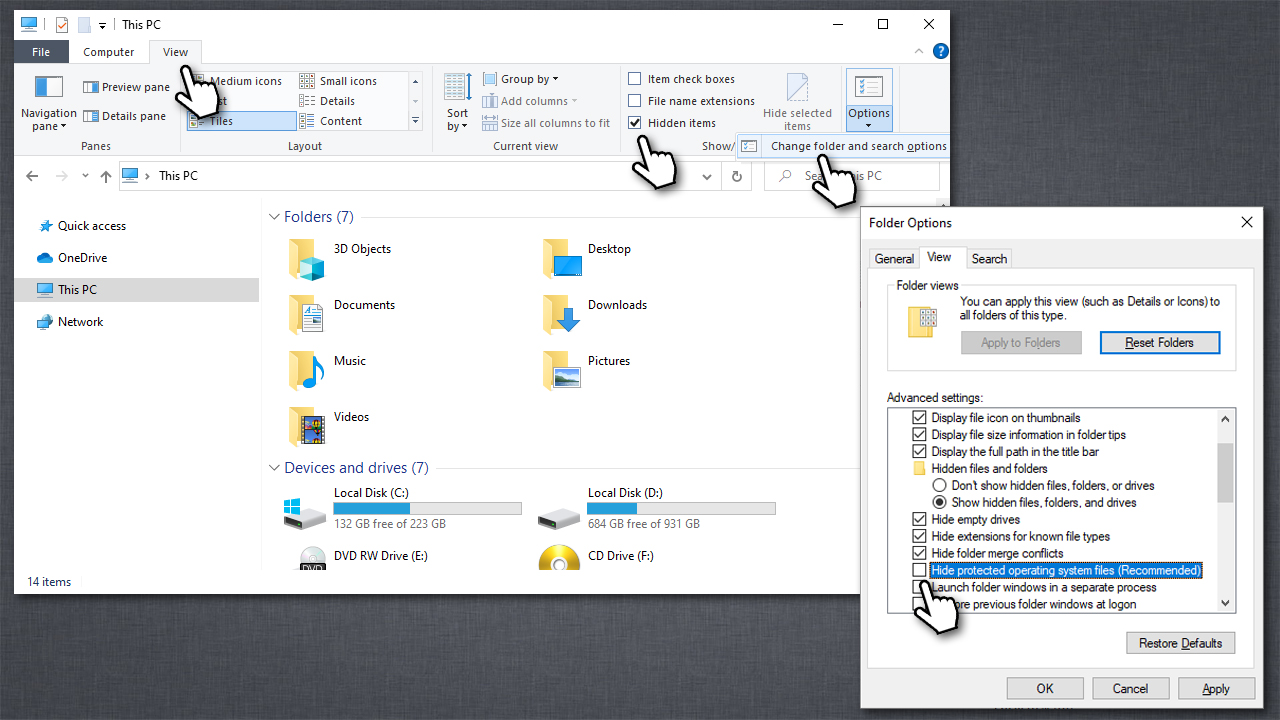
Fix cannot shrink volume beyond the point where any unmovable files are located show hidden items
Step 2. Disable Hibernation
In order to disable this component, you will have to use an elevated Command Prompt.
- Type cmd in Windows search and hit Enter
- When User Account Control shows up, click Yes
- In the new window, type in the following command:
powercfg.exe /hibernate off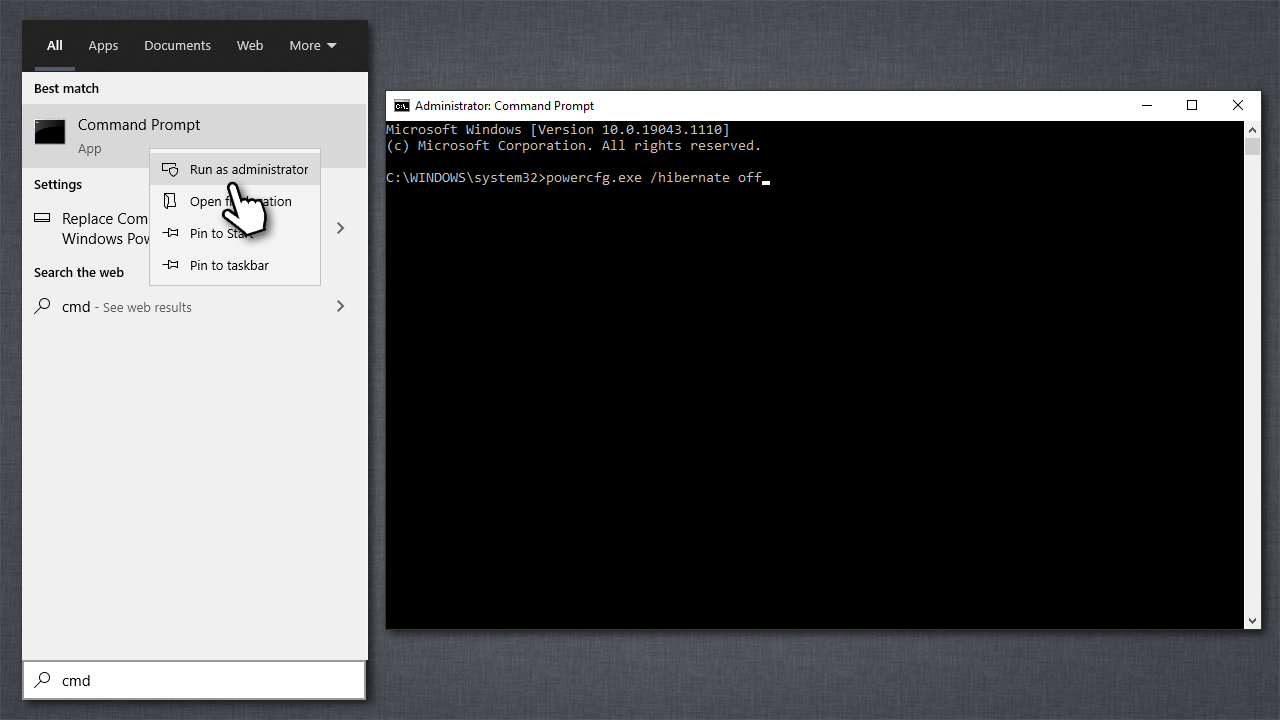
Fix cannot shrink volume beyond the point where any unmovable files are located turn off hibernation - Press Enter and close down Command Prompt.
Step 3. Disable System protection
- Type Control Panel in Windows search bar and press Enter
- Check the top-right corner of the window - you should see the View by: Category there
- Click on Category and select Small icons
- Select System
- In the new window, scroll down until you see System protection - click it
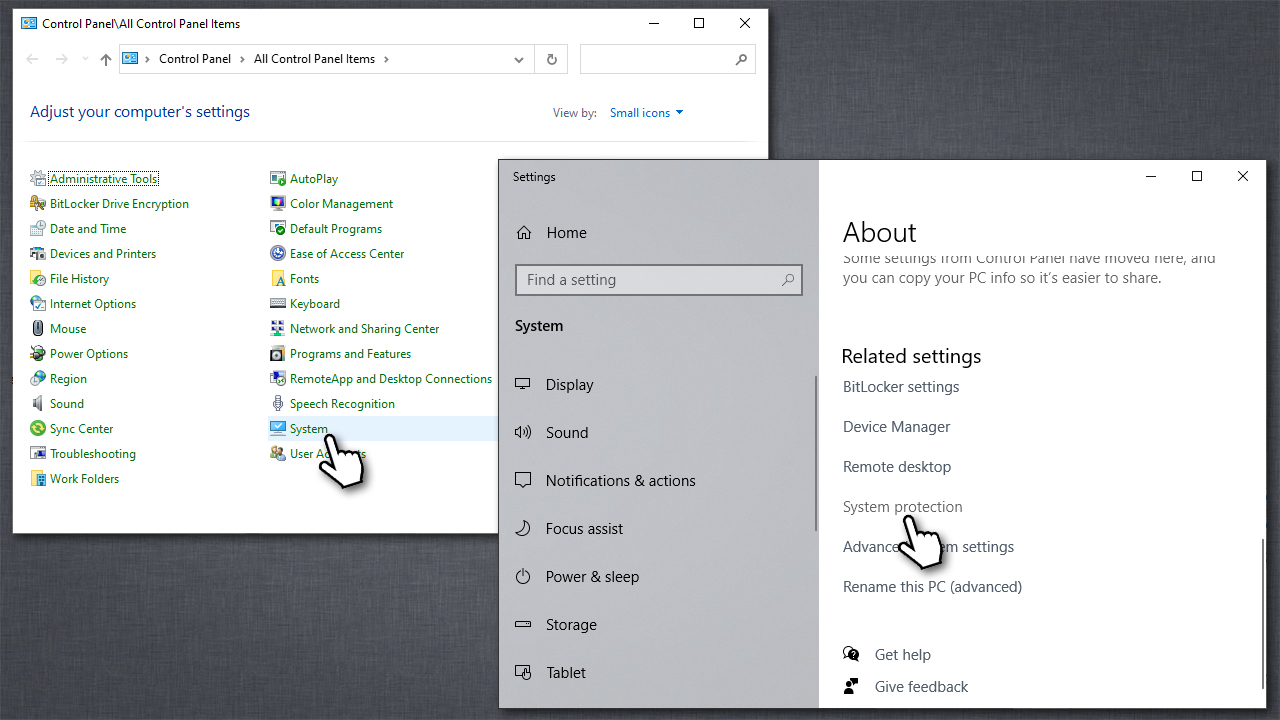
Fix cannot shrink volume beyond the point where any unmovable files are located turn off system protection - Under Protection settings, select your system drive and click Configure
- Select Disable system protection and click Apply, then OK.
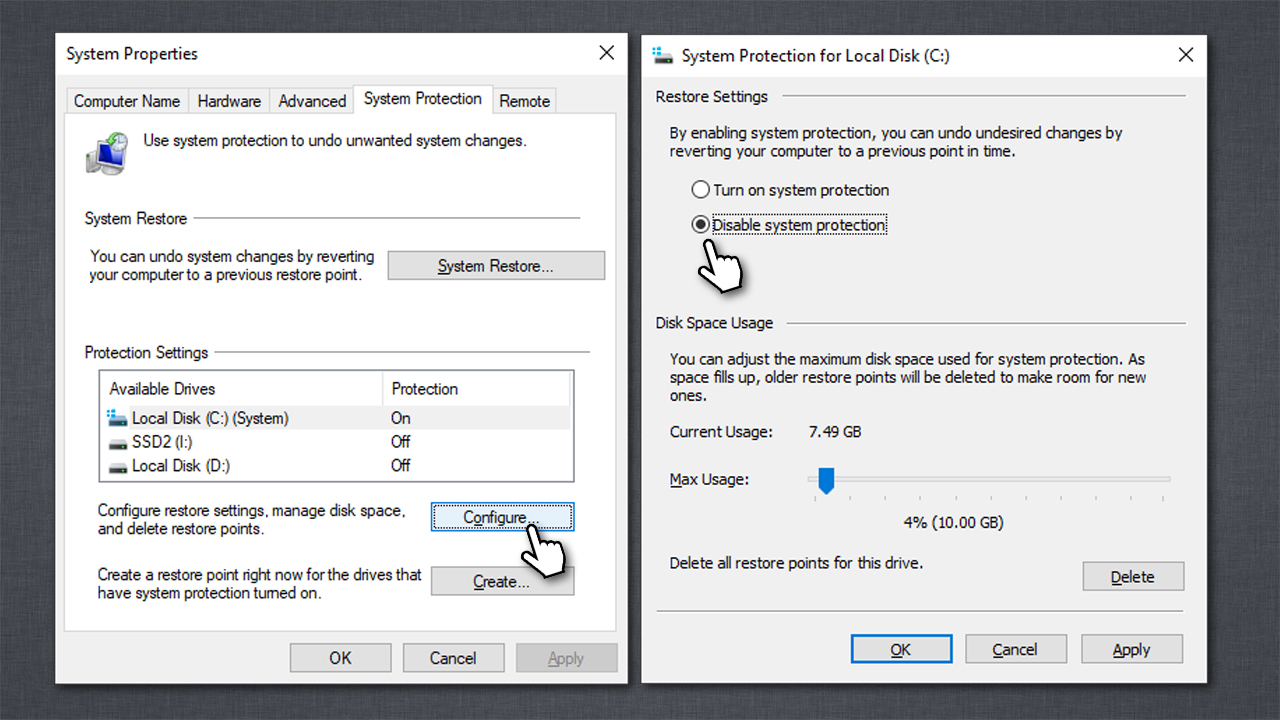
Fix cannot shrink volume beyond the point where any unmovable files are located turn off system protection2
Step 4. Disable Paging file
- Type systempropertiesadvanced.exe in Windows search and hit Enter
- Go to Advanced tab
- Under Performance, click Settings
- Go to Advanced tab and click Change under Virtual Memory
- Untick the Automatically manage paging file size for all drives box
- Select your main drive
- Tick the No paging file option and click Set
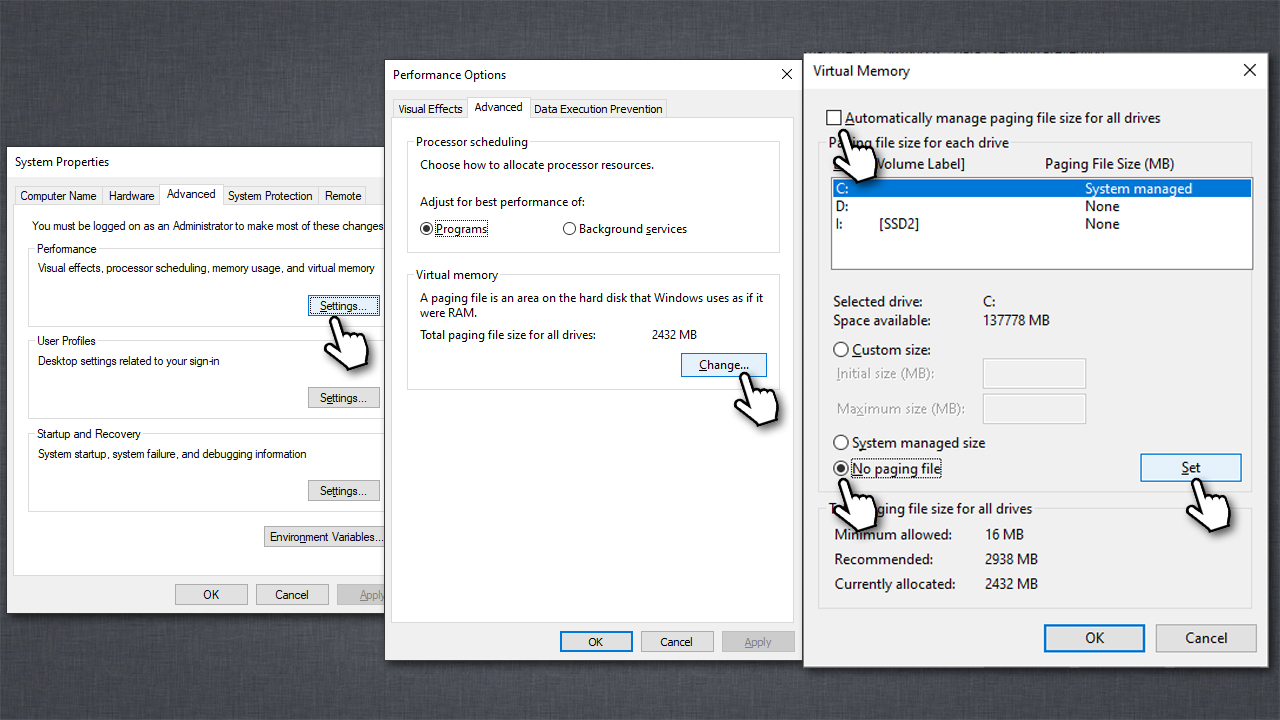
Fix cannot shrink volume beyond the point where any unmovable files are located turn off paging file - Click OK.
After these steps are all complete, you should restart your PC.
Step 5. Defrag [optional]
If you run into an error "There is not enough space available on the disk(s) to complete this operation" when resizing the partition, you should defrag your hard drive. Here's how:
- Type defrag in Windows search
- Pick Defragment and Optimize Drives
- Select your main drive and click Optimize
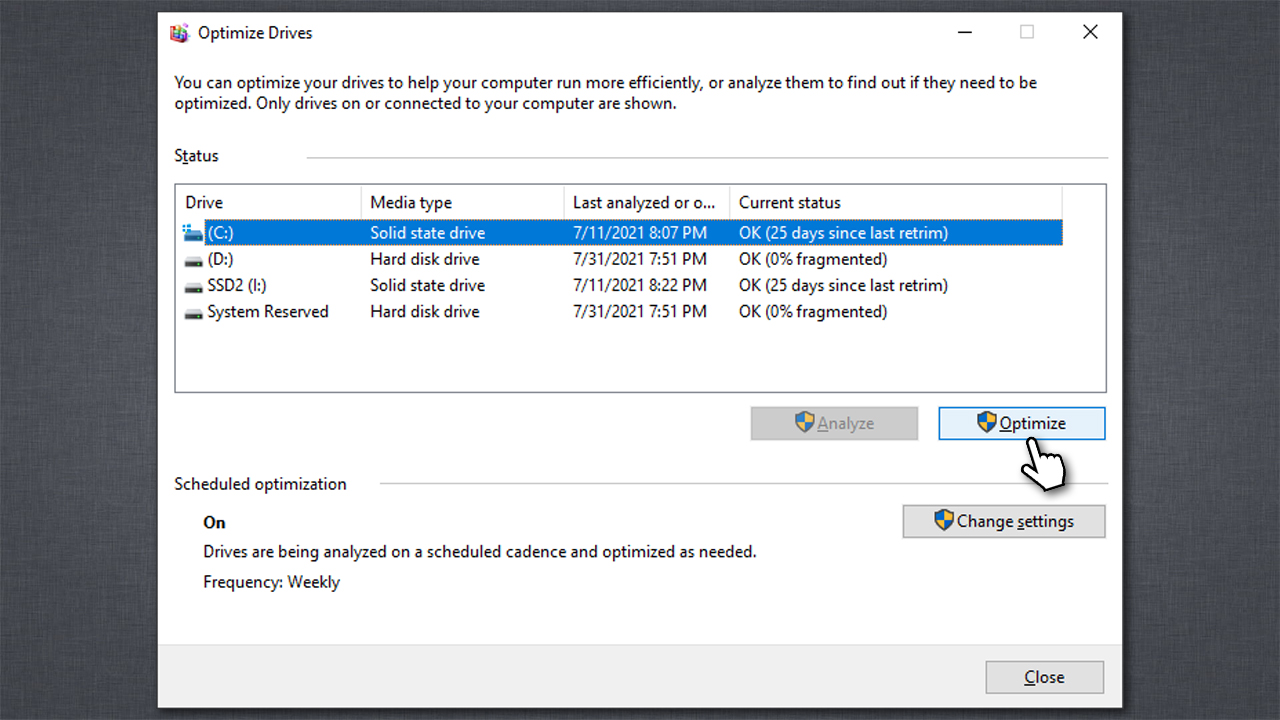
Fix cannot shrink volume beyond the point where any unmovable files are located defrag - This might take some time
- Reboot your PC.
Finally, you can shrink your volume size without experiencing the "You cannot shrink a volume beyond the point where any unmovable files are located" error. Once you are with the volume shrink, you should then re-enable Hibernation, System Protection, and Paging file.
Bottom line
To resolve the error 'You cannot shrink a volume beyond the point where any unmovable files are located', you can temporarily disable Hibernation, Paging File, and System Protection. If these steps do not resolve the issue, consider checking for hidden Windows components that may require additional space.
Frequently asked questions
You can try using the Disk Cleanup tool to remove unnecessary files or consider defragmenting the drive to move files towards the beginning of the volume.
Yes, you can use the built-in Disk Management tool or third-party software like MiniTool Partition Wizard to help manage and move unmovable files.
You can use the Command Prompt to run the 'chkdsk' command, which helps identify issues with the disk and might reveal files that are preventing volume shrinkage.




Report an issue
What's wrong with this guide? We review every report and update or remove content.
Report received — thank you. We'll review and fix it.
You need a free account to submit a report.
Be the first to comment