How to fix
Microsoft Photo App hangs on Save As or Save
on Windows
Struggling with the Microsoft Photo App freezing on Save As or Save in Windows 10 or 11? Follow our expert-tested solutions for a quick fix!

![[Fix] Microsoft Photo App hangs on Save As or Save](https://ugetfix.com/wp-content/uploads/articles/askit/microsoft-photo-app-hangs-on-save-as-or-save-fix_en-768x433.jpg)
What causes [Fix] Microsoft Photo App hangs on Save As or Save?
- Windows updates causing performance issues
- Altered permissions preventing file changes
- Malware infections affecting app functionality
- Changes in system folders or features
- User interaction with settings and preferences
Repairs Windows system files, removes malware, and restores a clean OS state — without reinstalling.
Hey, I have this issue with Microsoft Photo App because it just hangs on Save As or Save when I try to download photos. It appears to work fine when importing and editing, but saving is the problem. Do you have any advice for me on how to fix this? Is it possible that the issue is on my end?
The issues with Microsoft Photo Application often concern users, crashes and freezes are normal with various programs, so it shouldn't be a surprise that something is creating problems. Photo App stuck on Save issue is reported online[ref en-1] since it is not the problem with a clear reason of occurrence.
People state that saving any media via the Microsoft Photos app became impossible after the particular upgrade of the operating system. It is common because Windows updates[ref en-2] cause some issues with your devices' performance and functions that control applications and functions of the main OS. It can be solved by getting the more recent version of Windows installed if the update is the reason.
Unfortunately, the problem creates issues and the annoying glitch when you cannot edit photos, but see the file preview only becomes a problem. The particular error stating that something is not okay with permissions, so you cannot make changes and save them to the chosen file. Sometimes, saving the copy is an option. Still, people who encounter the Microsoft Photo App stuck on Save As or Save sometimes do not receive any additional indication, only the problem with saving the wanted file.

When the particular permissions are altered due to the changes with your OS, you can solve it easily with the upgrade, but other reasons why this App hangs on Save As or Save can include alterations in system folders, features, programs. Those can either be caused by malware[ref en-3] infections and virus damage leftovers or by your interaction with settings and preferences.
Particular damage and altered pieces can be fixed with apps like [d1] because this software automatically repairs problematic data for you. Other solutions include direct upgrades of the App itself and the OS, more in-depth alterations of preferences. So make sure to closely follow the steps and do all the needed changes yourself to fix the Photo App stuck on the Save problem.
1. Update the Photos App
- Open Microsoft Store.
- Click on the 3 dots on the top-right to open the context menu.
- Choose Downloads and updates.
- Select Get updates to install updates.
2. Update the Windows OS
- Click on the Start and find the gear icon to open Settings.
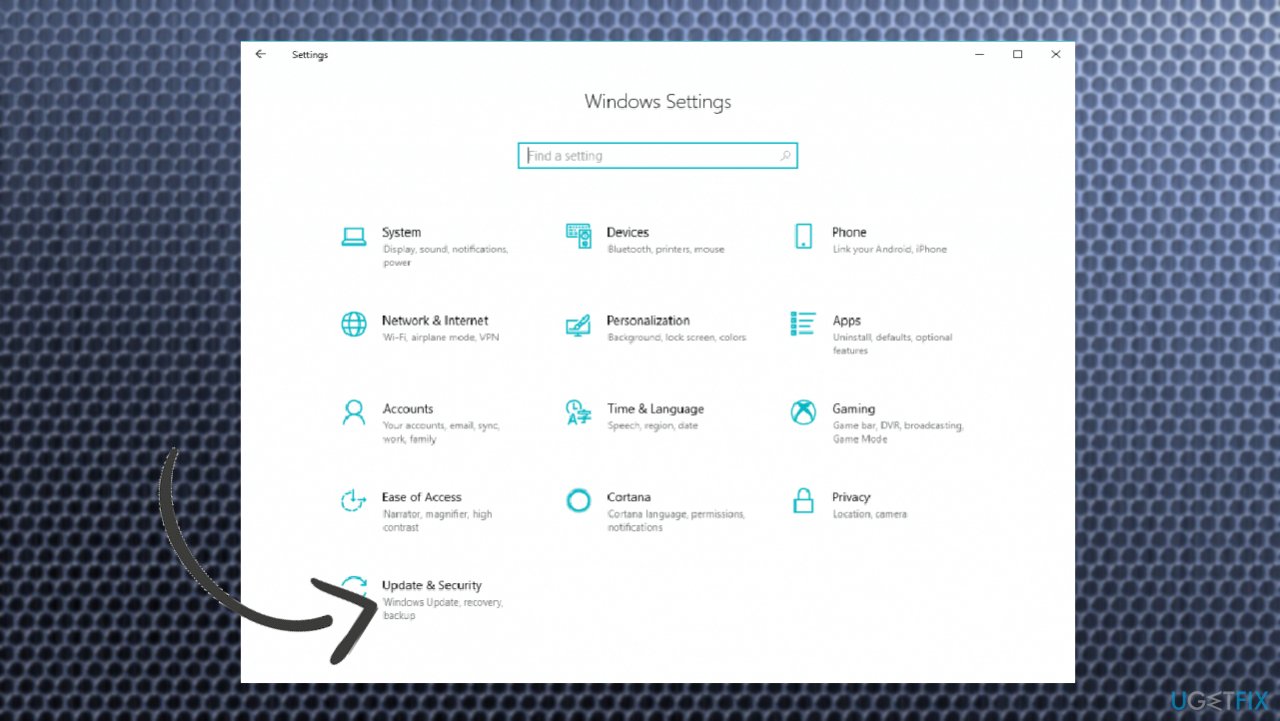
Microsoft photo app hangs on save as or save update security - Click Update & Security.
- Choose to Check for updates.
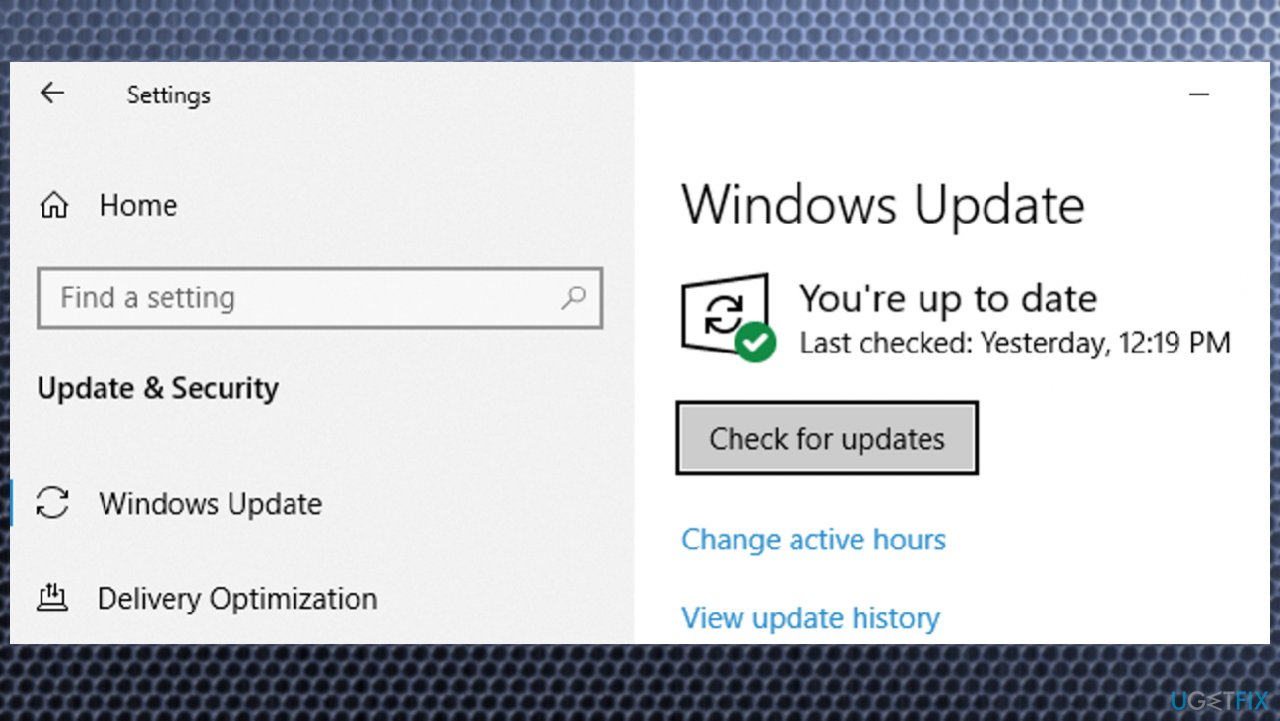
Microsoft photo app hangs on save as or save updates - Install any pending updates to fix particular issues.
3. Troubleshoot
- Navigate to Settings.
- Choose Update & Security.
- Select Troubleshoot.
- Click on Windows Store Apps from the list.
- Hit Run the troubleshooter.
- Restart your PC.
4. Remove read-only from photos
- Right-click on the file you are not able to save and select Properties.
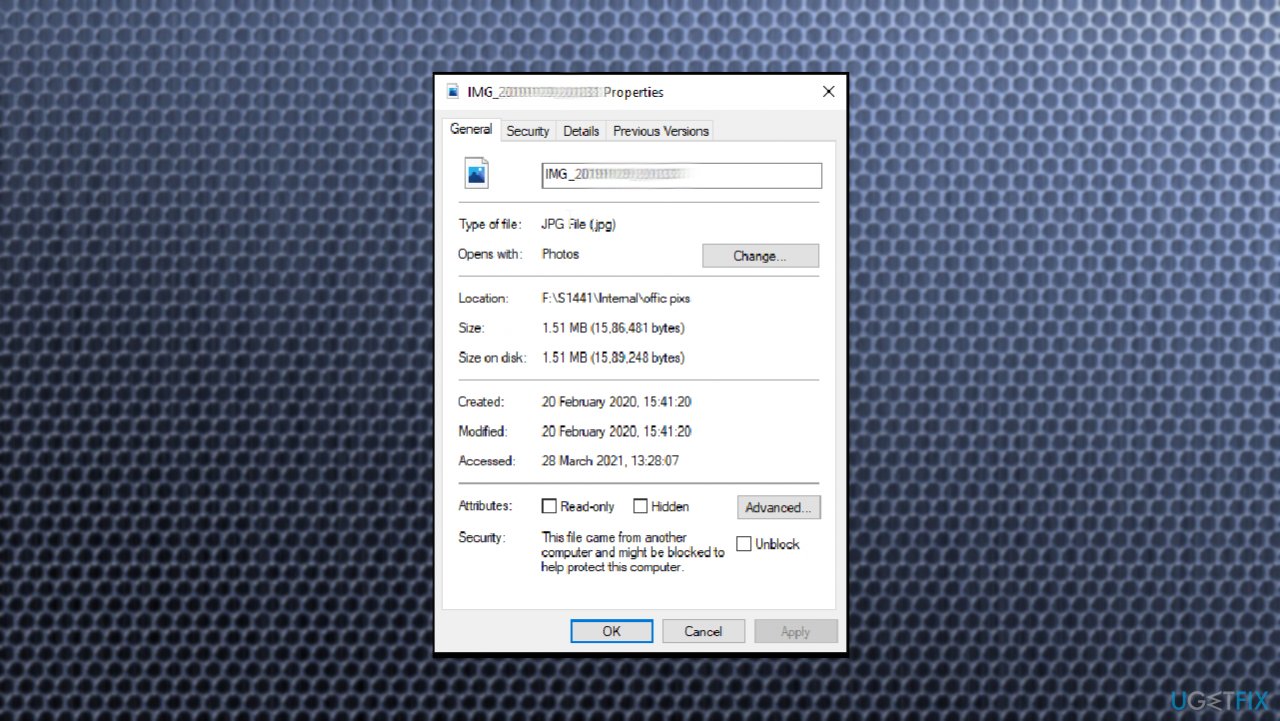
Microsoft photo app hangs on save as or save file properties - Select the General tab.
- Under Attributes, uncheck the Read-only box.
- Click Apply.
- Then choose OK to save the changes fully.
5. Repair the Microsoft Photos App
- Go to Settings.
- Choose Apps.
- Click on Apps & Features on the left.
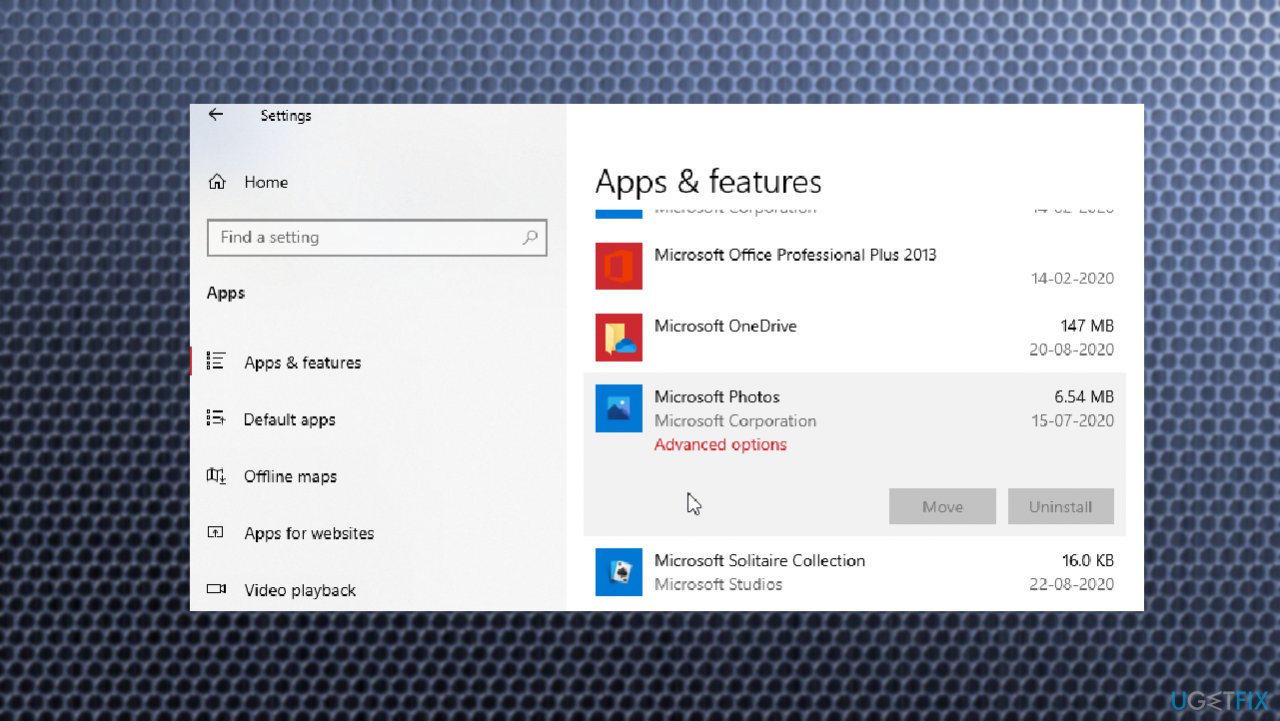
Microsoft photo app hangs on save as or save advanced options - Then choose the Microsoft Photos app and click Advanced options under it.
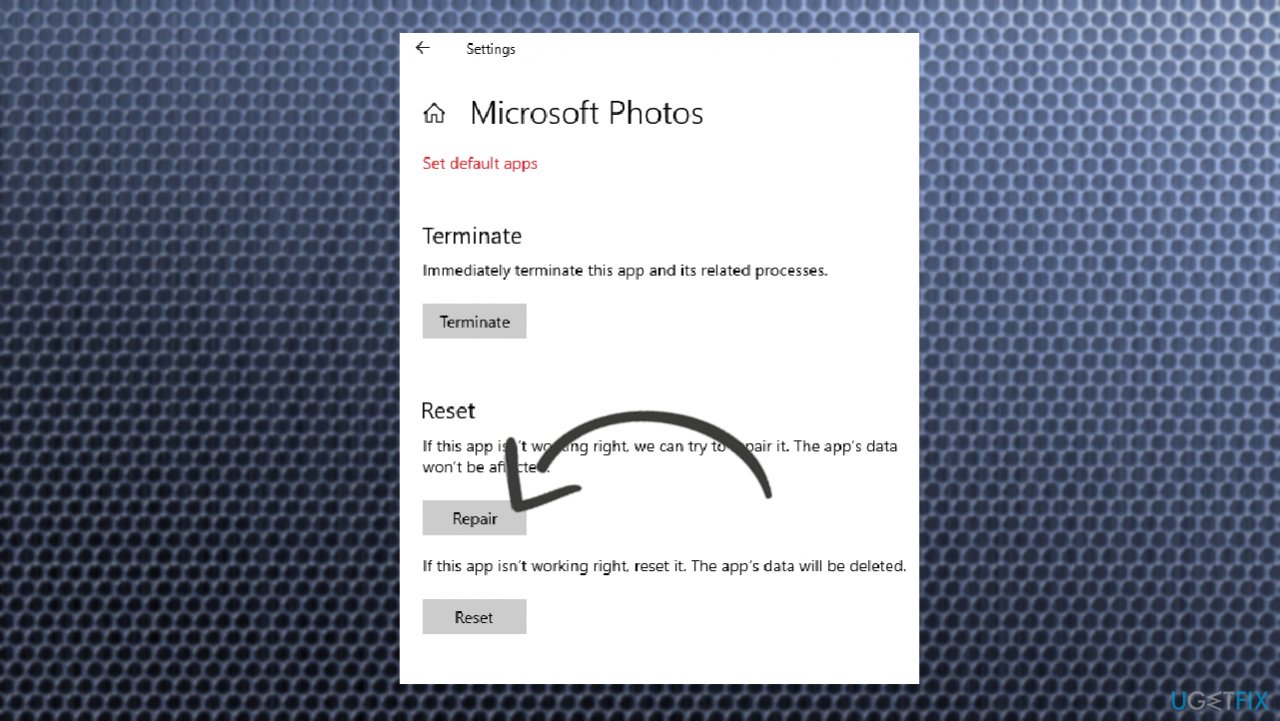
Microsoft photo app hangs on save as or save repair - Hit the Repair button.
6. Reset the Microsoft Photos App
- Go to Settings again, and under the Advanced options of the Microsoft Photos App, choose the Reset button.
- This option will delete data.
7. Get the ownership of the folder
You might not have permission to save the media to a particular folder because the destination folder is not set properly. Check the ownership or choose a different folder for the saving.
- Search for CMD in the bar at the bottom.
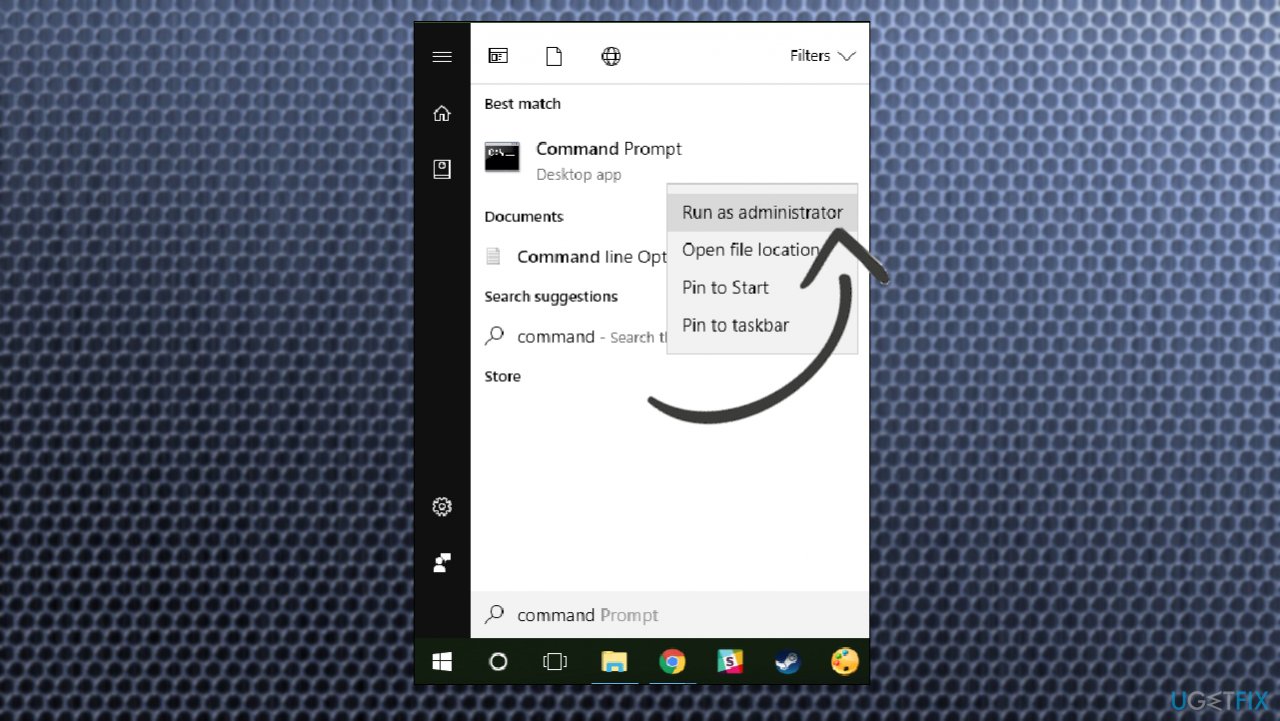
Microsoft photo app hangs on save as or save cmd admin - Choose the Command Prompt with Administrator rights.
- If you receive the User Account Control (UAC) prompt, click Yes.
- Type:
TAKEOWN /F - Press Enter.
- Here the path is the location of the file/folder in File Explorer, where you want to save the media.
- Type:
ICACLS /grant administrators:F - Press Enter.
- Restart the computer.
8. Try to reinstall the app
- Type powershell in the Search box.
- Right-click Windows Powershell and select Run as Administrator.
- Type the following command and hit enter:
Set-ExecutionPolicy Unrestricted - Try the command and follow enter:
Get-AppxPackage -allusers Microsoft.Windows.Photos | Foreach {Add-AppxPackage -DisableDevelopmentMode -Register "$($_.InstallLocation)\\AppXManifest.xml"}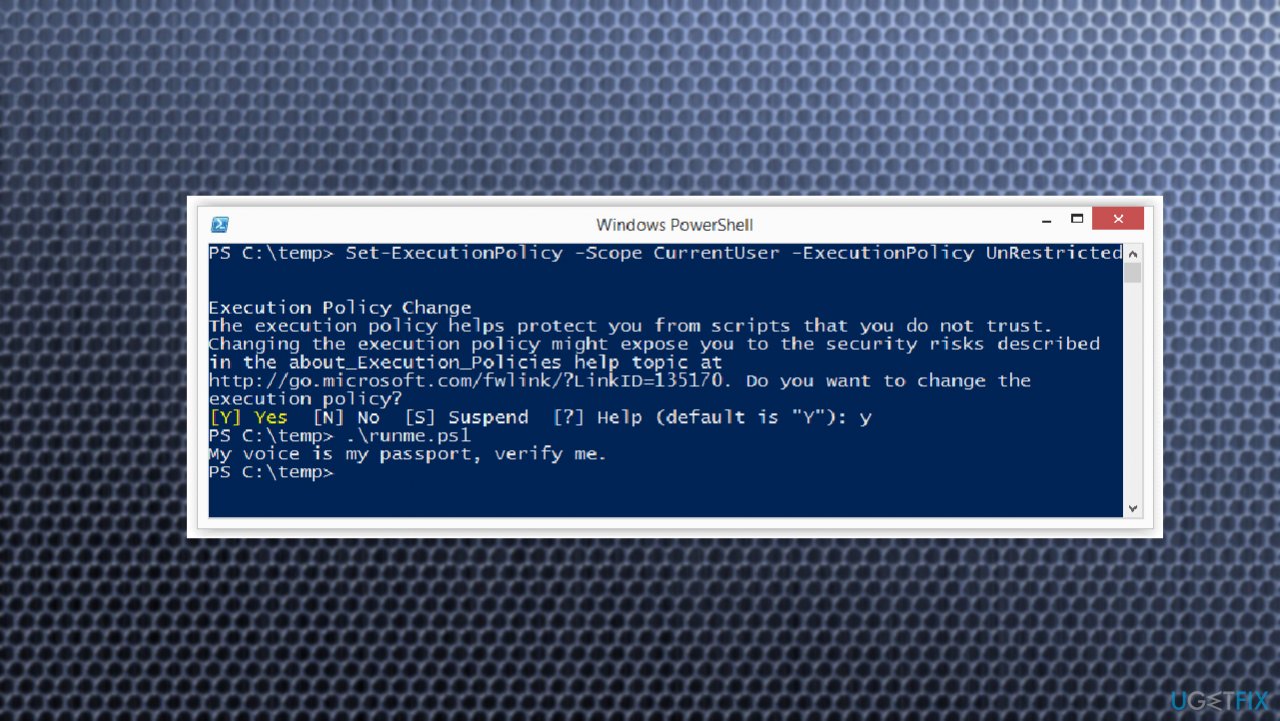
Microsoft photo app hangs on save as or save cmd - The app should be reinstalled.
Bottom line
To resolve the Microsoft Photo App hanging on Save As or Save, consider upgrading to the latest version of Windows and the app itself. Additionally, using repair software can fix damaged data. If these solutions do not work, further investigation into system settings may be necessary.
Frequently asked questions
This issue may occur due to corrupted app data or insufficient permissions. Try resetting the app or running it as an administrator to resolve the hanging problem.
You can check for updates for the app, or reinstall it from the Microsoft Store to fix potential bugs causing the freeze.
Yes, you can use the built-in Windows troubleshooter for apps and also ensure your graphics drivers are up to date to improve app performance.




Report an issue
What's wrong with this guide? We review every report and update or remove content.
Report received — thank you. We'll review and fix it.
You need a free account to submit a report.
Be the first to comment