How to fix
“Don’t have any applicable devices linked to your Microsoft account” error
on Windows
Resolve the "No applicable devices linked to your Microsoft account" error on Windows 10 or 11 efficiently. Expert-tested solutions for a hassle-free fix!

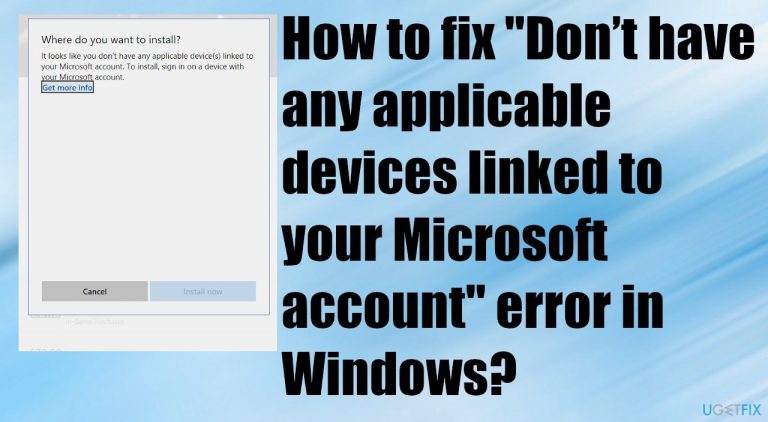
What causes How to fix “Don’t have any applicable devices linked to your Microsoft account” error in Windows?
- Issue with Windows 10 operating system requiring an update
- Device not registered with Microsoft account
- Interrupted connection or missed communication between device and Microsoft account
- Bugs and glitches causing installation problems
- Leftover malware or corrupted files affecting the store database
- Limit on the number of devices registered
Repairs Windows system files, removes malware, and restores a clean OS state — without reinstalling.
Hello. I receive the error on my Windows 10 device. It looks like you don’t have any applicable devices linked to your Microsoft account. I was trying to install the game from the Microsoft Store and now I cannot even update the operating system. Can you help me solve this, so I can use the machine normally again?
"Don’t have any applicable devices linked to your Microsoft account" error in Windows is the issue that gets frequently reported online[ref en-1] by many users because it is frustrating, and there are not many answers why this error occurs. The installation cannot happen, and other processes fail with the pop-up appearing. It is a serious problem because all the programs and devices are linked to the Microsft Store and Microsoft accounts.
It might be the issue with your Windows 10 operating system and requirement for an update since upgrades[ref en-2] themselves can cause issues, and when the machine is not up to date, problems quickly arise. The issue, in most cases, is related to Xbox when users try to install the game, but the device is not registered while trying to achieve that purchase.
This error mainly occurs due to interrupted connection or missed communication between the device and your Microsoft account. The "Don’t have any applicable devices linked to your Microsoft account" error in Windows can be fixed by resetting the Microsoft store or deleting the store database, but that may not be helpful for everyone.
Your OS update can have a major play in this issue, or you may not be logged in with the correct account, so the problem is repeating itself. Bugs and glitches randomly can cause the problem with the installation. The same goes for some issues with leftover malware[ref en-3] or corrupted files. The affected database of the store can lead to such issues.
This is why we include some methods based on particular reasons and possibilities. You should check if there are not many devices registered because there is a limit. Also, before you fix the "Don’t have any applicable devices linked to your Microsoft account" error in Windows manually with the solutions below, you can try to run [d1] and check for corrupted or affected data in system folders, so any additional issues get fixed for you.
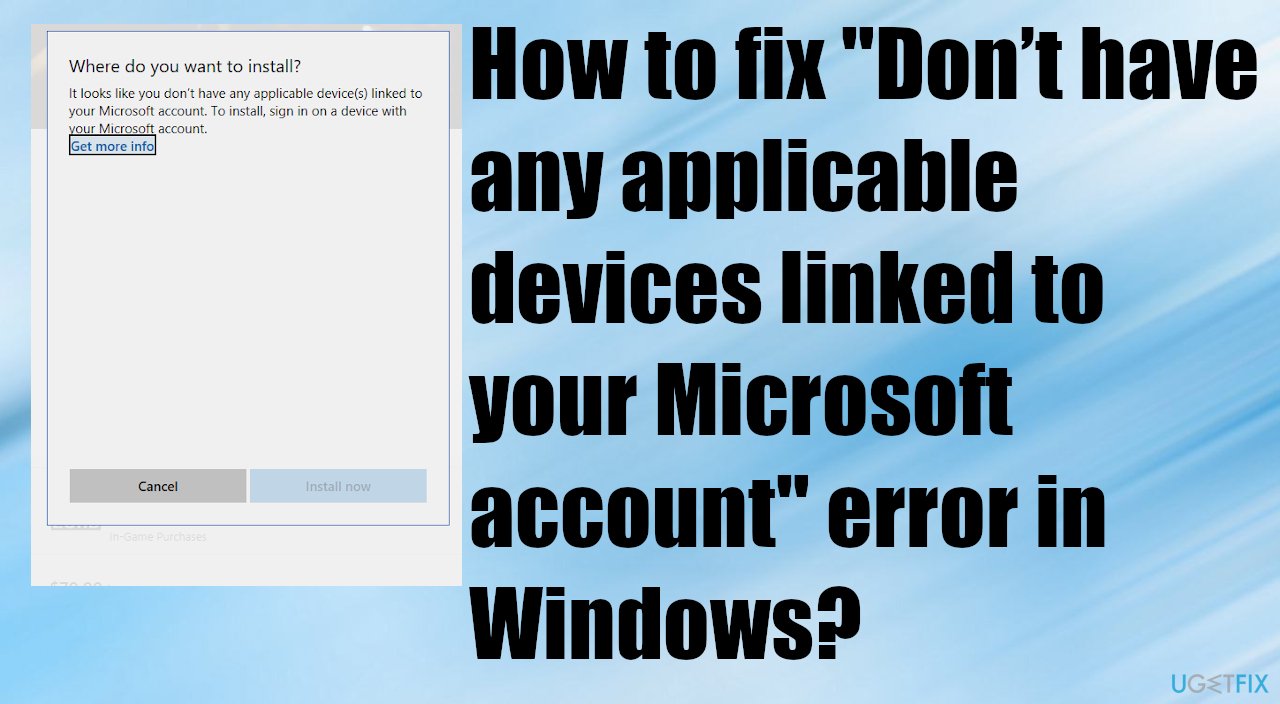
1. Verify your Microsft account
- Go to Settings by pressing Windows Key + I.
- Click on the Accounts.
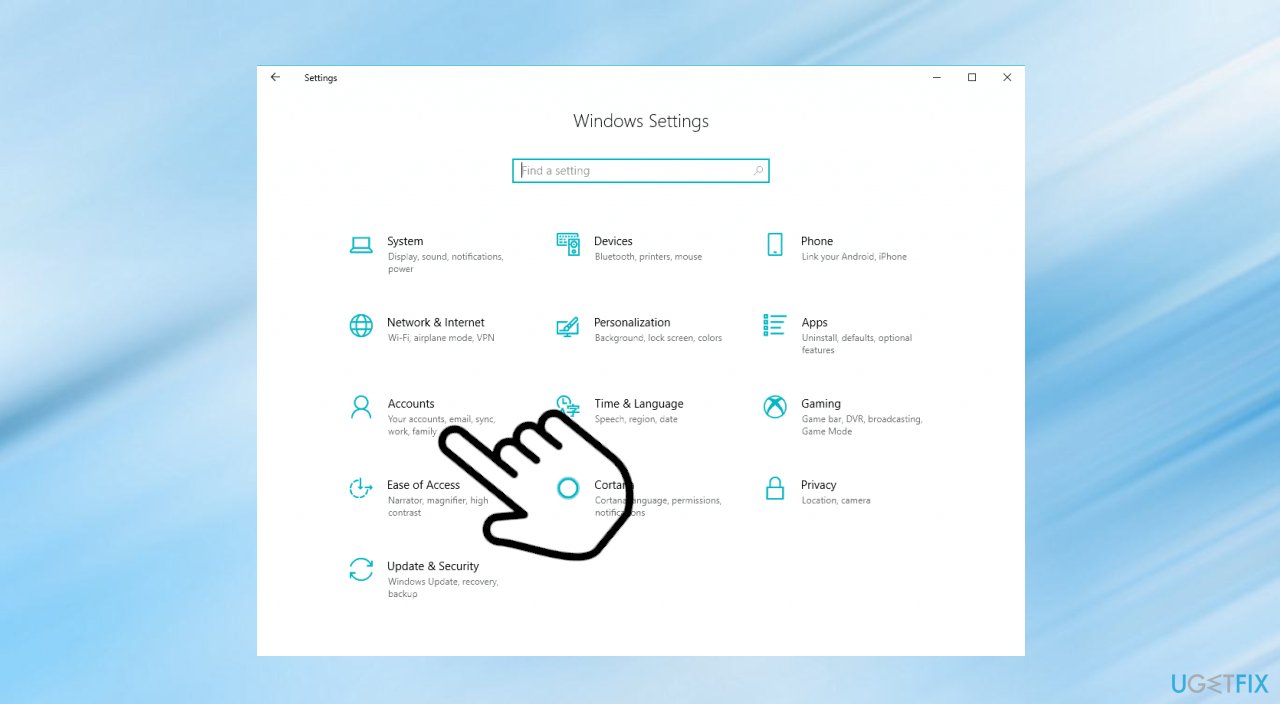
Dont have any applicable devices linked to your microsoft account settings - Then on the left of the Account window, choose Email & app accounts.
- Check if the account information is correct.
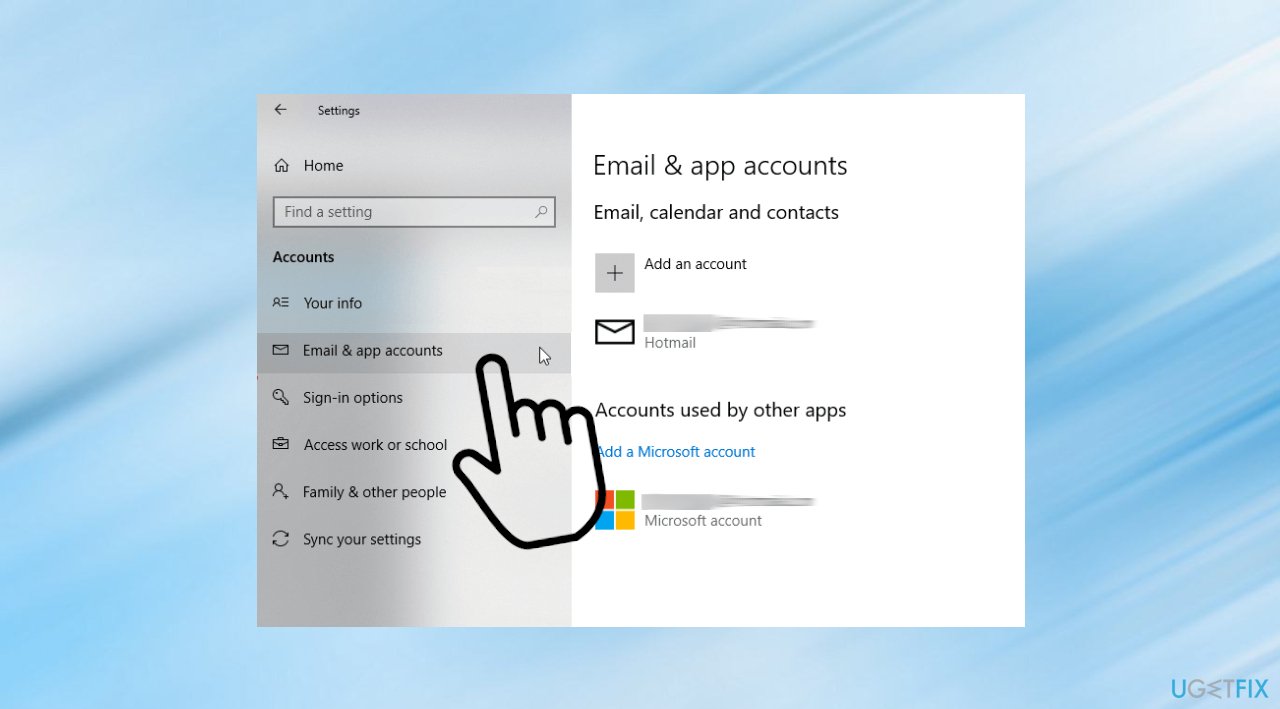
Dont have any applicable devices linked to your microsoft accounts
2. Reset the Microsoft Store
- Hit Windows + I key for opening the Settings app
- Now click on the Apps section.
- Click on the search box and type Microsoft store.
- Double-click on the Advanced options.
- Now find and click on the Reset option.
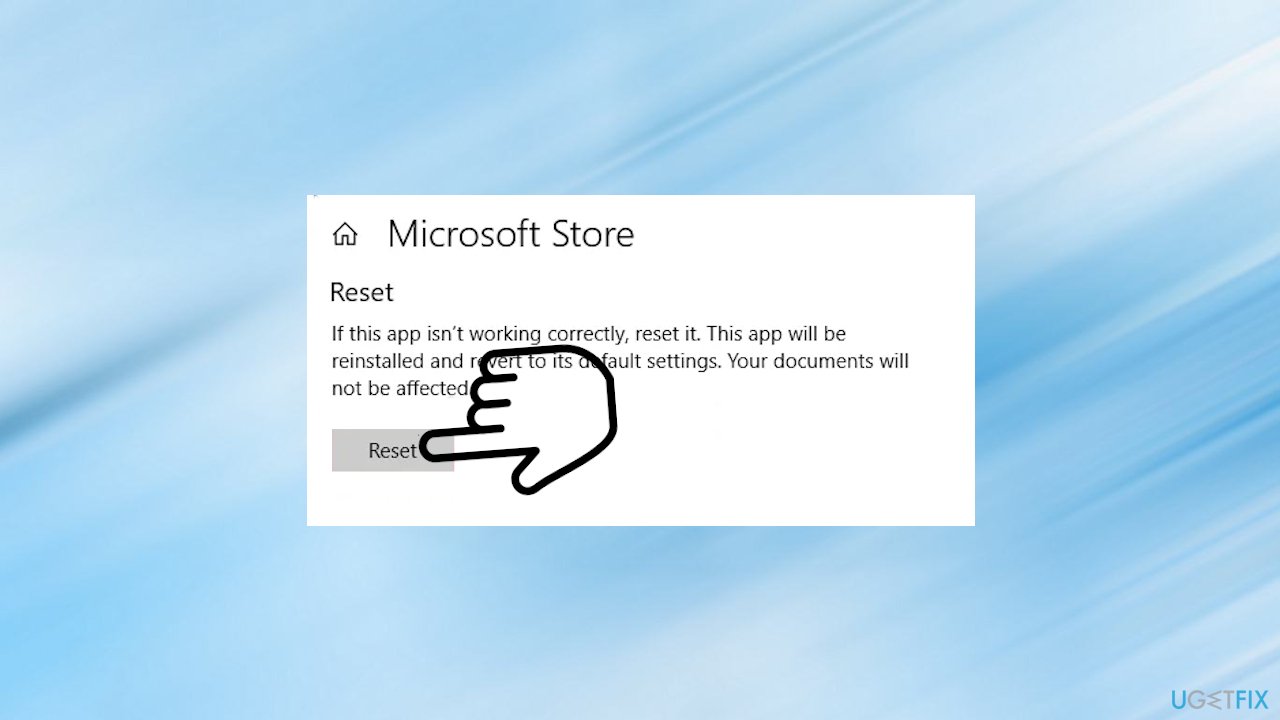
Dont have any applicable devices linked to your microsoft account reset apps - You will see a confirmation button, click on Reset and close it.
- Wait and once the process is completed, reboot the PC to check if the error is resolved.
3. Update the Windows OS
- Open the Settings App.
- Click on the Update & Security option, then choose Check for Updates.
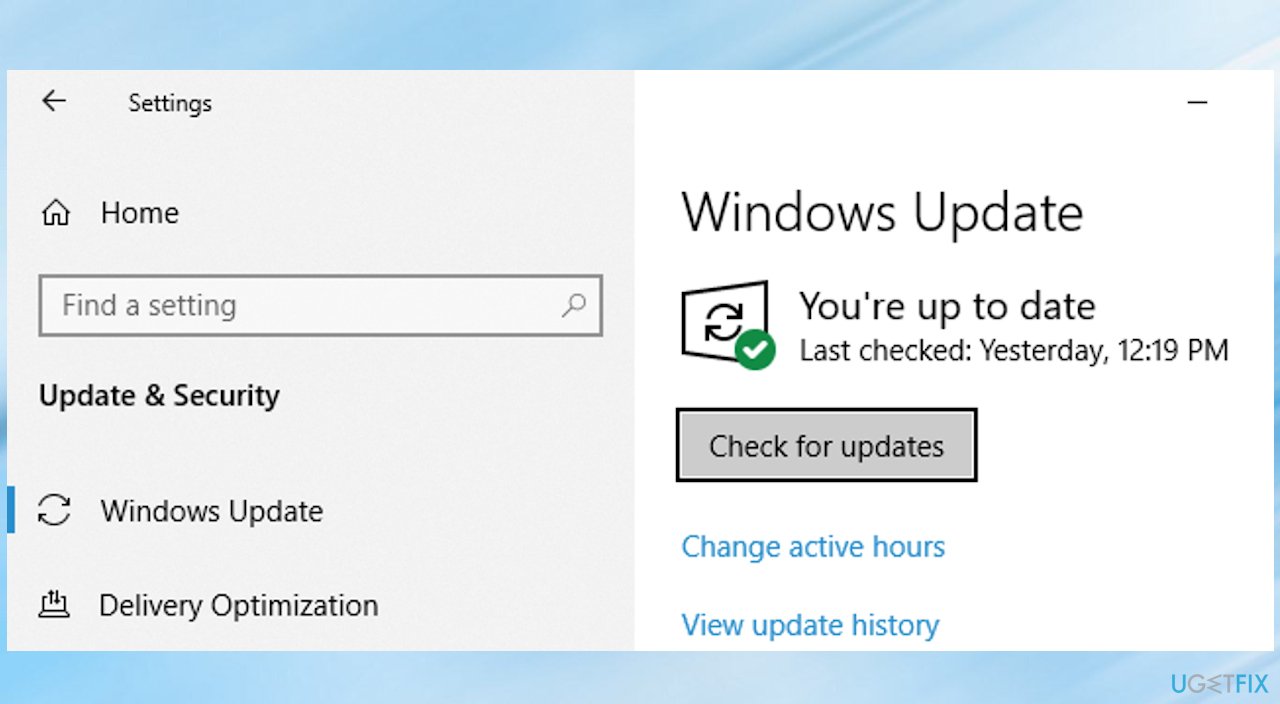
Dont have any applicable devices linked to your microsoft account update - Once that is done, install the available updates.
4. Remove the Microsoft Store database files
- Go to C drive open it.
- Click on Windows.
- Click on SoftwareDistribution.
- Then click on DataStore.
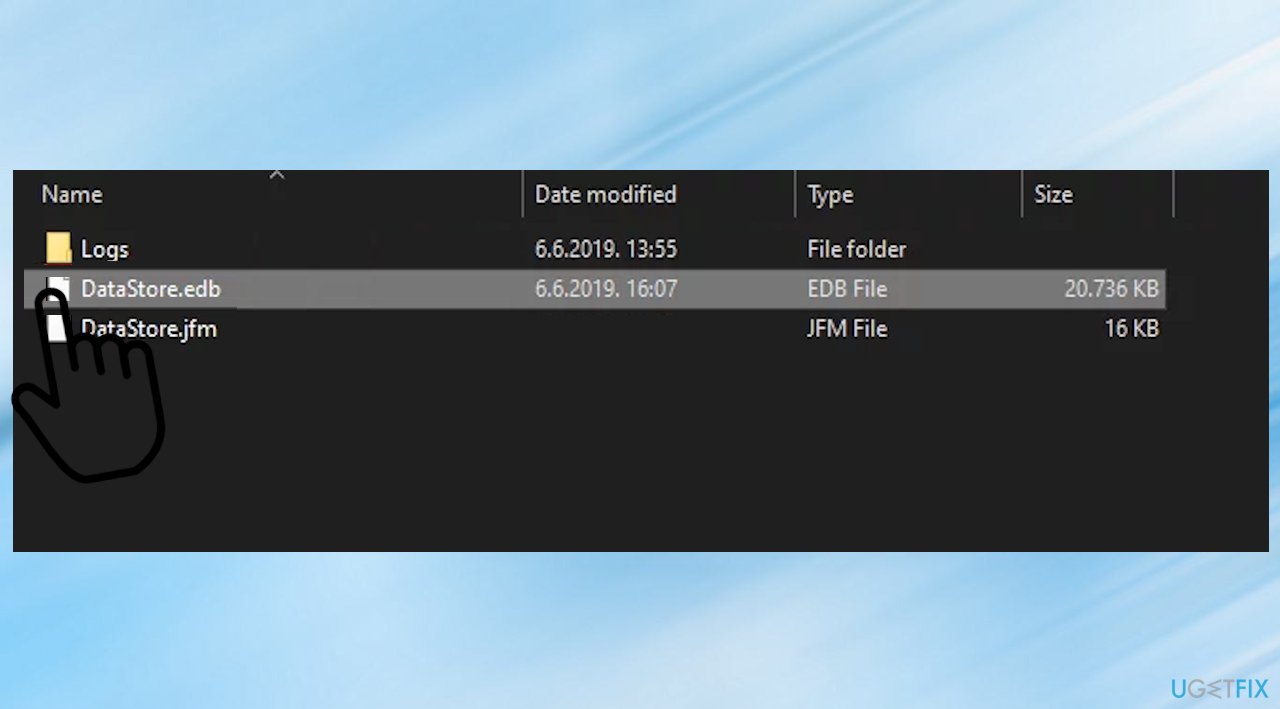
Dont have any applicable devices linked to your microsoft account data store - Next, click on DataStore.edb and delete DataStore.edb
- Once the .edb file is deleted.
- Reboot your computer.
- Start Microsoft Store again and check if the error is fixed.
5. Re-register the Microsoft Store app
- Hit Windows key + R altogether to open the Run dialog box.
- Now in the Run box.
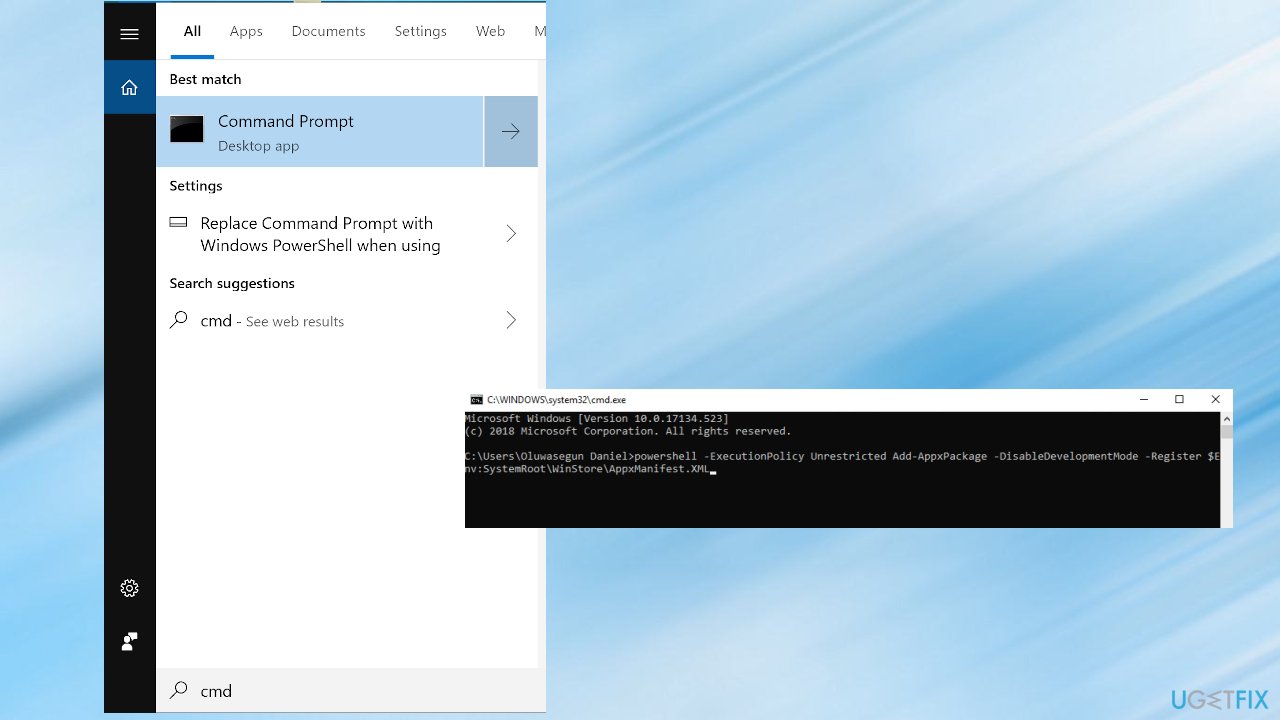
Dont have any applicable devices linked to your microsoft account cmd - Then type cmd.
- Make sure to open the admin Command Prompt.
- Type the following command:
powershell -ExecutionPolicy Unrestricted Add-AppxPackage -DisableDevelopmentMode -Register $Env:SystemRootWinStoreAppxManifest.XML
Bottom line
The error can be fixed by resetting the Microsoft Store or deleting the store database. Additionally, ensure your operating system is updated and that you are logged in with the correct account. If none of these solutions work, consider checking for malware or contacting Microsoft support.
Frequently asked questions
First, ensure that your Microsoft account is properly linked to your device by checking the account settings in Windows 10. If the issue persists, try signing out and back into your Microsoft account or resetting your Microsoft Store app.
To link your device, go to Settings > Accounts > Your info, and verify that your Microsoft account is listed. If it isn't, sign in with your Microsoft account to establish the connection.
Yes, you can run the Windows Store Apps troubleshooter from Settings > Update & Security > Troubleshoot to identify and fix issues. Additionally, ensure that your Windows 11 is fully updated to avoid compatibility problems.




Report an issue
What's wrong with this guide? We review every report and update or remove content.
Report received — thank you. We'll review and fix it.
You need a free account to submit a report.
Be the first to comment