How to fix
Security Error “This publisher has been blocked from running software on your machine“
on Windows
Resolve the "This publisher has been blocked" error on Windows 10/11 easily and safely. Get expert-tested solutions that fix the issue in minutes.

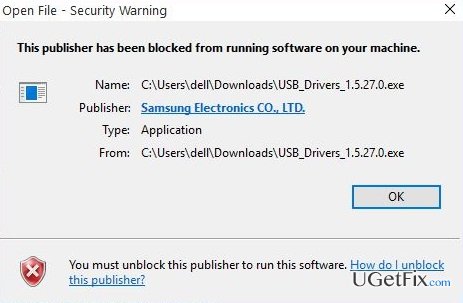
What causes How to Fix Security Error “This publisher has been blocked from running software on your machine“ on Windows?
- Performance issues after upgrading Windows
- Previous installation of the software
- System administrator settings blocking the publisher
- User attempting to run a setup file
- Operating system version compatibility
Repairs Windows system files, removes malware, and restores a clean OS state — without reinstalling.
Long story short, a couple of month ago I’ve upgraded Windows 7 to Windows 10. I had lots of performance issues with this OS and thought about going back to Win 7. Nevertheless, after fixing the last issue everything went smooth for quite a long time up till now. Yesterday, when I tried to run the setup file for Chrome, I received an error message that reads: "This publisher has been blocked from running software on your machine." The only option is to click "OK". I’ve tried to boot Windows in Safe Mode and run the setup file again, but the same message occurred. Feeling frustrated. Could you please help?
Many people have encountered a Security Warning when trying to open a file, application or install a piece of software. The message reads: “This publisher has been blocked from running software on your machine“. The pop-up error gives an “OK” option or “How do I unblock this option” link at the bottom. Unfortunately, but neither OK nor the link to the web browser really helps to solve the issue.
“This publisher has been blocked from running software on your machine“ does not occur on Mac OS, but can pop-up on all Windows OS versions, including Windows 10, 8, 8.1 and older. According to Windows enthusiasts, this bug may occur due to several reasons. In case you are trying to run a setup file of particular software, you should better check if you haven’t installed that software previously. If that’s not the case, then the core may be related to organization of the system’s administrator, which blocks that particular publisher. Luckily, “This publisher has been blocked from running software on your machine“ security error can be fixed quite easily. The following are the fixes:
Fix 1. Run an elevated Command Prompt
- Right-click on the file or application that you cannot run and select Properties.
- Find and copy its target.
- After that, click Win key or Start, type cmd, and press Enter.
- When a Command Prompt option shows up, right-click it, and select Run as Administrator.
- Paste the target you’ve just copied and press Enter.
- The program should open without “This publisher has been blocked from running software on your machine“ pop-up.
Fix 2. Disable Untrusted Publishers option
- Right-click on Win key and select Control Panel.
- Select Network and Internet and navigate to Internet Options.
- After that, open Content and choose Certificates.
- Using the right pane, scroll down and select Untrusted Publishers.
- Mark the publisher of the software that you attempt to run and select Remove.
Fix 3. Run PC optimization tool
In case “This publisher has been blocked from running software on your machine“ error shows up due to some system malfunctioning, you can also try to run a system scan with [d1]. That’s a quick and easy solution, which may help to fix “This publisher has been blocked from running software on your machine“ bug and prevent similar problems in the future.
Bottom line
To fix the security error, you can run an elevated Command Prompt and check for previous installations of the software. If these solutions do not resolve the issue, further investigation may be needed to identify additional underlying problems.
Frequently asked questions
This error typically occurs when Windows Defender SmartScreen or your system's security settings block an application due to an unrecognized publisher. This is a protective measure to prevent potentially harmful software from running.
To unblock a publisher, right-click on the blocked application, select 'Properties', and then under the 'General' tab, check the 'Unblock' box before clicking 'OK'.
It is generally not safe to ignore this error, as it indicates that Windows is preventing an application from running due to security concerns; always ensure that the software is from a trusted source before bypassing this error.




Report an issue
What's wrong with this guide? We review every report and update or remove content.
Report received — thank you. We'll review and fix it.
You need a free account to submit a report.
Be the first to comment