How to fix
EA Play error code 0xa3ea00ca
on Windows
Resolve EA Play error code 0xa3ea00ca on Windows 10 and 11 easily. Follow our expert-tested guide for a quick solution and enjoy seamless gaming!

![[Fix] EA Play error code 0xa3ea00ca on Windows](https://ugetfix.com/wp-content/uploads/articles/askit/fix-ea-play-error-code-0xa3ea00ca-on-windows_en-768x432.jpg)
What causes [Fix] EA Play error code 0xa3ea00ca on Windows?
- Glitch on the system
- Network issues
- Game Pass app communication failure with EA servers
- Damaged system components
- Registry issues
Repairs Windows system files, removes malware, and restores a clean OS state — without reinstalling.
Hello. I am trying to install multiple EA Play apps through the Game Pass PC app and I am getting the error code 0xa3ea00ca. Any help would be appreciated.
PC gaming has evolved immensely in the past decade, every game is now available online. Gaming platforms allow you to buy, download, and play your favorite games without ever leaving your home, as long as you have a good connection. Electronic Arts Inc. - a global leader in digital interactive entertainment develops and delivers games, content, and online services for Internet-connected consoles and mobile devices.
EA has more than 450 million registered players around the world and has introduced an EA app which is the newest iteration for the Windows PC platform. Even though the application is currently still in beta, it includes new features and overall improvements to power a faster, smarter, more connected desktop experience. Using the EA Desktop app, players can subscribe to EA’s game’s subscription services, download games onto their PC, and play them for as long as they hold the subscription.
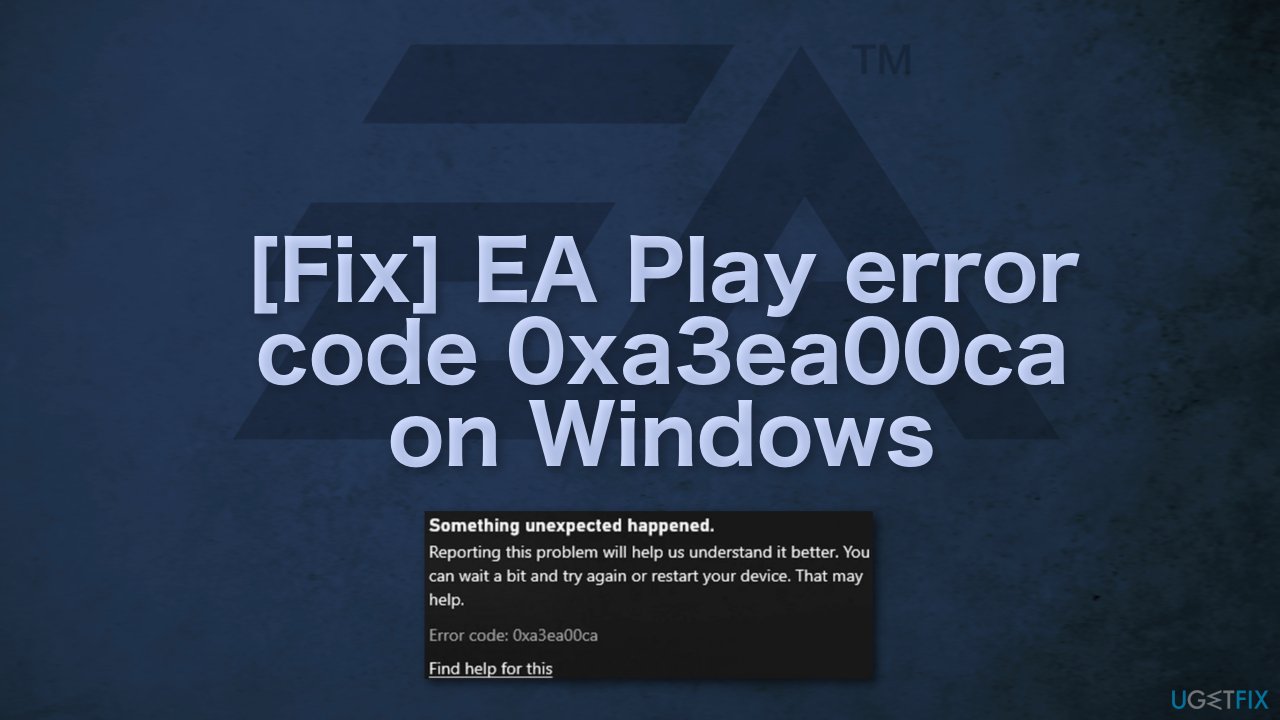
Recently, there were a lot of frustrated EA users because they were unable to install any games and received an error code 0xa3ea00ca. The full message they encountered reads as follows:
Something unexpected happened.
Reporting this problem will help us understand it better. You can wait a bit and try again or restart your device. That may help.
Error code: 0xa3ea00ca
Find help for this
The error seems to appear because of a glitch on your system or network, or due to the Game Pass app on your system not being able to communicate with the EA servers.
The troubleshooting process is tedious and may take a while, so you can try using a repair tool like [d1]. It can automatically identify the damaged system components, fix BSODs,[ref en-1] and registry issues[ref en-3] by scanning the system. This software could also be used to free up space by clearing cookies and cache,[ref en-2] which should boost the device's performance.
Below you will find a few manual methods that helped some players fix the 0xa3ea00ca error and let them continue downloading video games. Note that this could take a while, so please follow all of the steps very carefully:
Method 1. Relink Your EA Account
- Go to the official EA website
- Log in and click on the user icon in the top right
- Click on Account Settings and in the left pane, head to the Connections tab
- In front of the Xbox, choose Unlink and checkmark the I Understand and Wish to Continue box
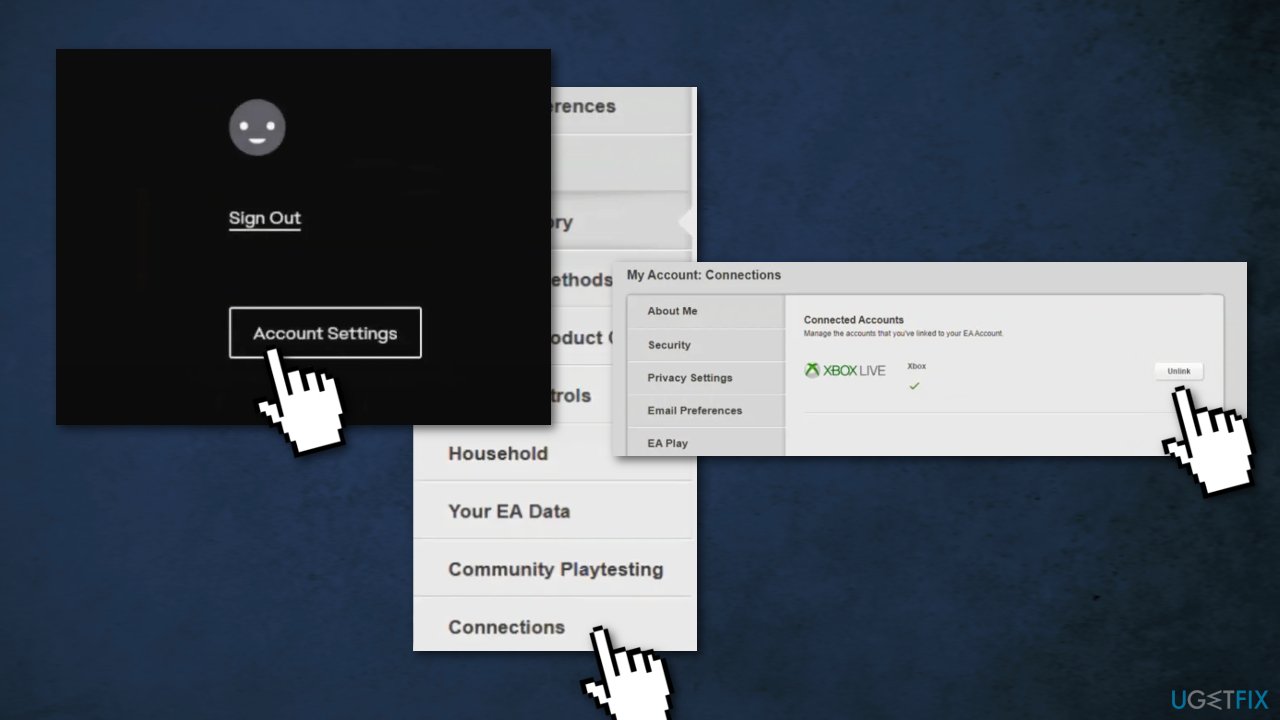
- Click on Unlink and once unlinked, restart your device
- Relink the accounts again and check if the 0xa3ea00ca error is cleared
Method 2. Enable user account control
If UAC was disabled either on your own or by third-party software, you need to turn it back on. UAC disabled is also the reason the Xbox app won't run in the background:
- Type UAC in the search field on your taskbar
- Click Change User Account Control Settings in the search results
- To turn UAC on, drag the slider up to the desired level of security and click OK
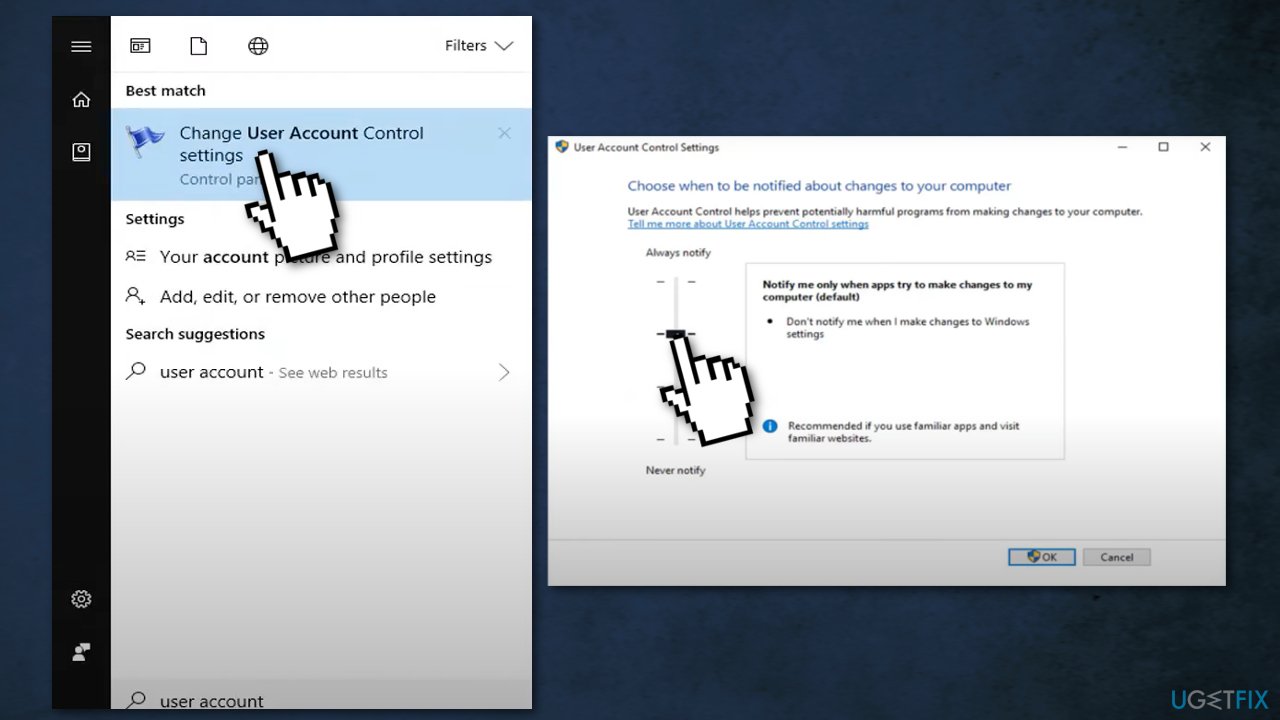
- You may be prompted to confirm your selection or enter an administrator password
- Restart your computer
Method 3. Use EA Desktop App
- Go to the EA app page of the EA website
- Click on Download
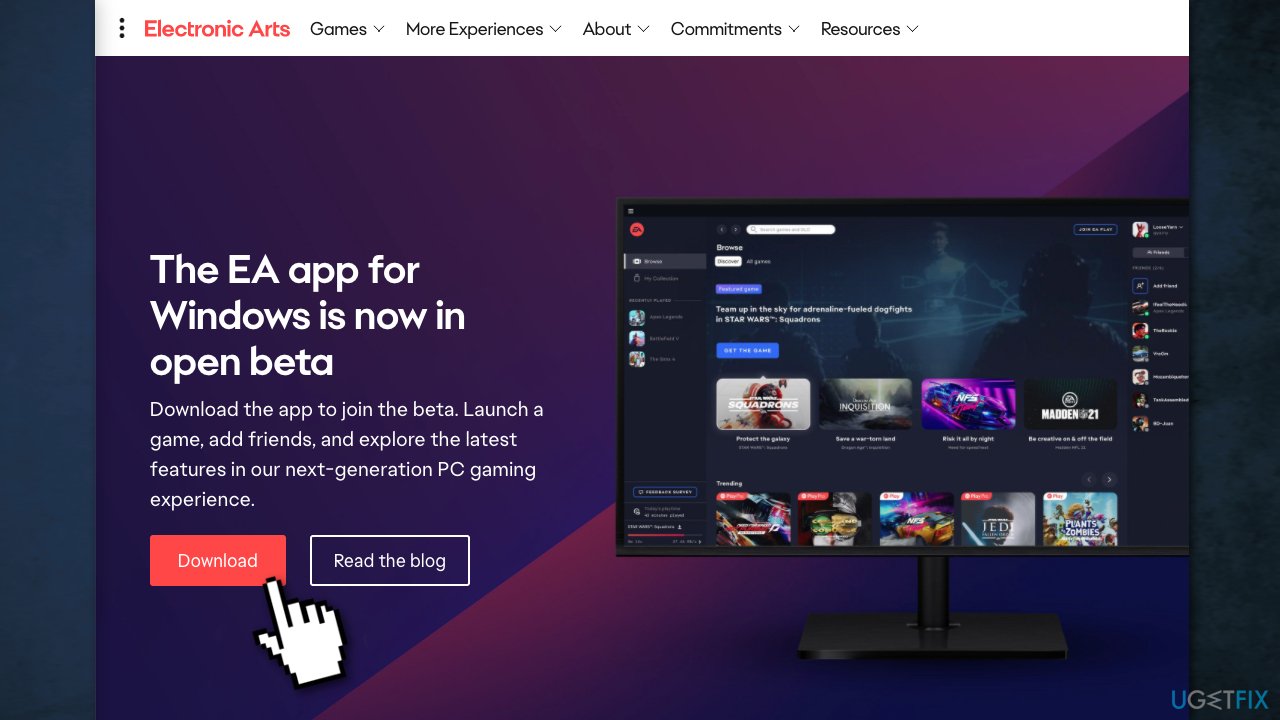
- Launch the EA app’s setup and follow the prompts to install the EA App
- Launch the EA desktop app and log in
- Click on Link Accounts and then link your Xbox account to the EA account
- Try to install a game through the EA app
Method 4. Install available Windows updates
When you update, you will get the latest fixes and security improvements, helping your device run efficiently and stay protected:
- Type Updates in Windows search and press Enter
- On the right side of the window, click Check for updates
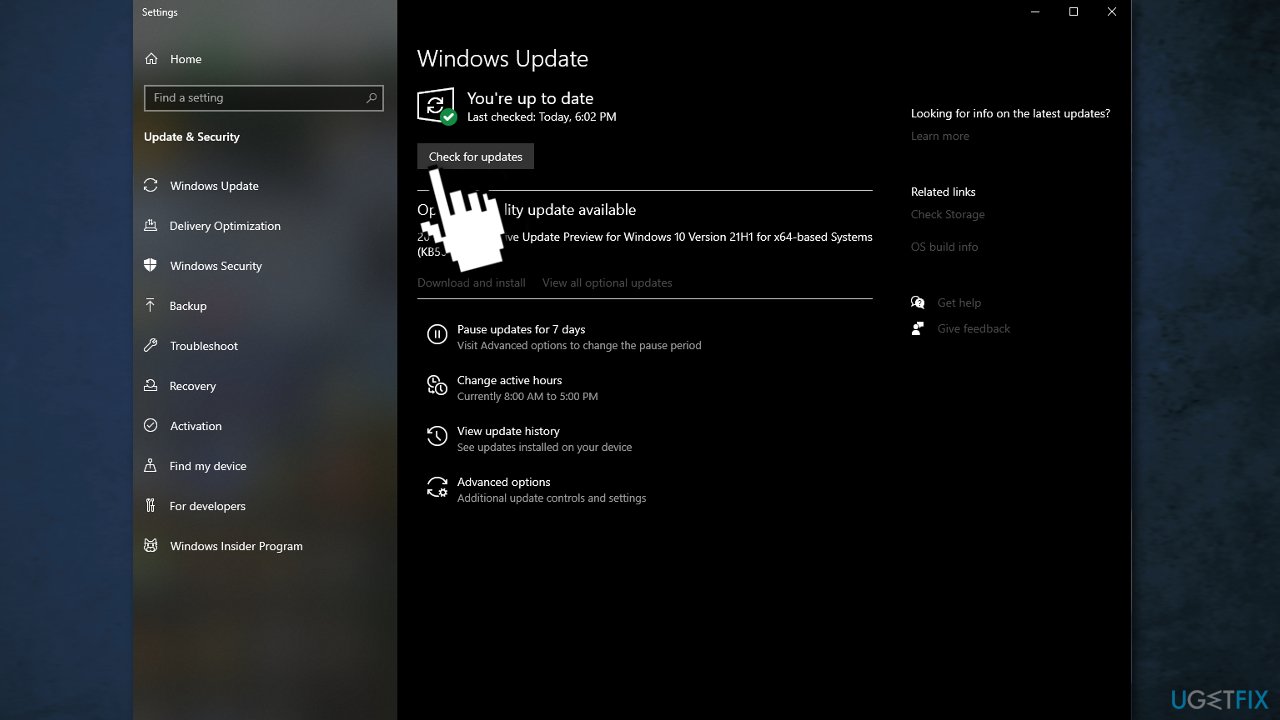
- Install all the optional updates as well
- Restart your PC
Method 5. Clear the EA application cache
From the EA Desktop app
- Select the three dashes in the far-left corner of the EA Desktop
- Scroll to Help
- Click App recovery
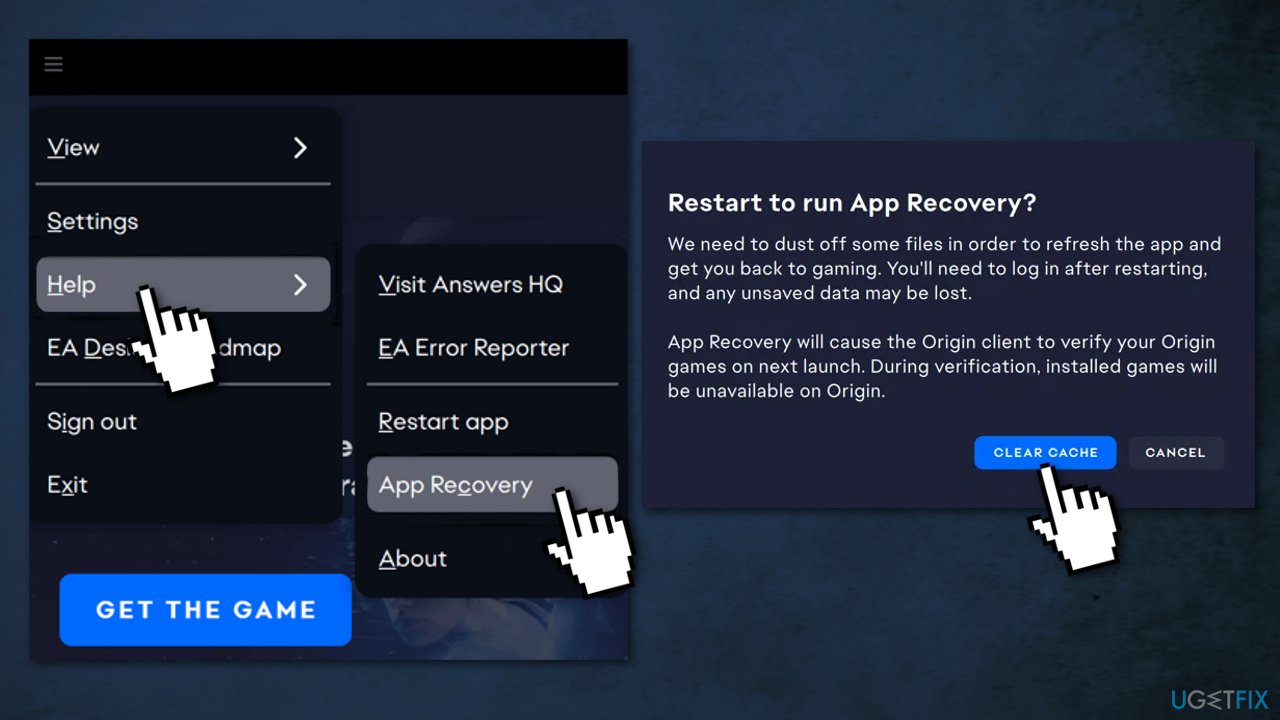
- Select Clear cache
From Windows 10
If you can’t open EA Desktop, you can also follow these steps to clear your cache.
- Open the Start menu
- Find EA and click the downward arrow to expand
- Select App Recovery
- Click Clear Cache
Method 6. Run EA Desktop in Administrator Mode
EA Desktop can sometimes face issues with app permissions, especially if you’re trying to run the app with a local user account that lacks administrator privileges:
- Select the Start menu
- Locate EA Desktop app
- Right-click and select Run as administrator
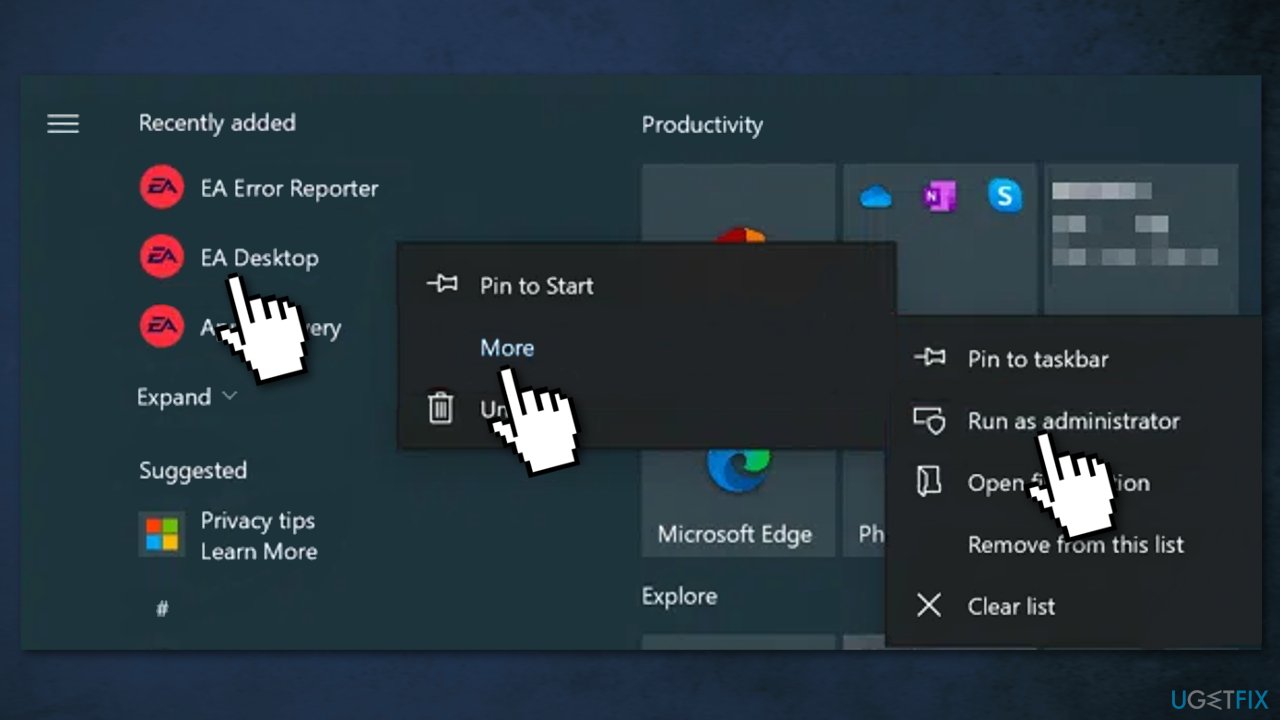
If your current user account is not an administrator on your PC, you may need to type in the username and password for an account for this to work.
Bottom line
To fix the error code 0xa3ea00ca, you can try using a repair tool to identify and fix system issues, or manually clear cookies and cache to improve performance. If these methods do not resolve the issue, consider restarting your device or waiting a bit before trying again.
Frequently asked questions
The error code 0xa3ea00ca typically indicates issues with the EA Play application or problems with the Xbox app and its services on Windows. This can prevent users from accessing EA Play games and features.
To fix this error, try resetting the EA Play app and the Xbox app via the Settings menu, and ensure that your Windows 10 or Windows 11 is up to date. Additionally, clearing the Microsoft Store cache may help resolve the issue.
Yes, ensure your internet connection is stable and consider switching to a wired connection if you are using Wi-Fi. Additionally, resetting your router or checking for VPN issues can also help resolve the error.




Report an issue
What's wrong with this guide? We review every report and update or remove content.
Report received — thank you. We'll review and fix it.
You need a free account to submit a report.
Be the first to comment