How to fix
Rtwlane.sys Blue Screen error
on Windows
Resolve the rtwlane.sys Blue Screen error on Windows 10 and 11 with expert-tested solutions. Get your PC running smoothly again, fixed in minutes.

What causes How to fix rtwlane.sys Blue Screen error in Windows?
- Hardware problems
- Outdated firmware
- Corrupt drivers
- Software-related issues
- Missing or corrupt rtwlane.sys file
Repairs Windows system files, removes malware, and restores a clean OS state — without reinstalling.
Hello. My Windows operating system keeps crashing and displays rtwlane.sys Blue Screen error at least once a day. I cannot seem to find the solution, so would appreciate any tips on how to fix it.
Windows is one of the most popular operating systems created by Microsoft. It is user-friendly and has many customization options. But that sometimes can bring problems like software or hardware incompatibility. The operating system has a built-in troubleshooter designed to quickly locate various problems, but sometimes they cannot prevent serious system errors.
Windows has an error called the Blue Screen of Death.[ref en-1] It is generally caused by problems with a computer’s hardware or drivers. The rtwlane.sys BSOD is something users come across, and it is not a fun experience. Some users were able to use their machine after, but the error keeps crashing their system almost daily and they cannot seem to stop it.
Realtek PCIE NDIS Driver 47261 20277 files such as rtwlane.sys utilize the SYS file extension,[ref en-2] which is considered a Win64 EXE (driver) file. The first version of rtwlane.sys was released for the Windows 8 OS, and there are a number of reasons why users could be encountering issues with it. These types of rtwlane.sys errors can be caused by hardware problems, outdated firmware, corrupt drivers,[ref en-3] or other software-related issues. Some of these errors include:
rtwlane.sys failed to load.
Windows failed to start - rtwlane.sys.
The file rtwlane.sys is missing or corrupt.
rtwlane.sys could not be found.
Normally, this error is accompanied by the code "DRIVER_IRQL_NOT_LESS_OR_EQUAL". The system file might have something to do with the Realtek PCIE Wireless LAN PCI-E NIC driver.
Going through all the possible solutions could take a while, so you can try using an automatic solution [d1] - the repair tool that can identify the damaged system components, fix BSODs, and registry issues potentially saving you from having to reinstall Windows completely. This software could also be used to free up space and boost the machine's performance.
Below you will find a few manual methods that could fix the rtwlane.sys Blue Screen error. Keep in mind that this could take a while, so be patient and follow the steps carefully:
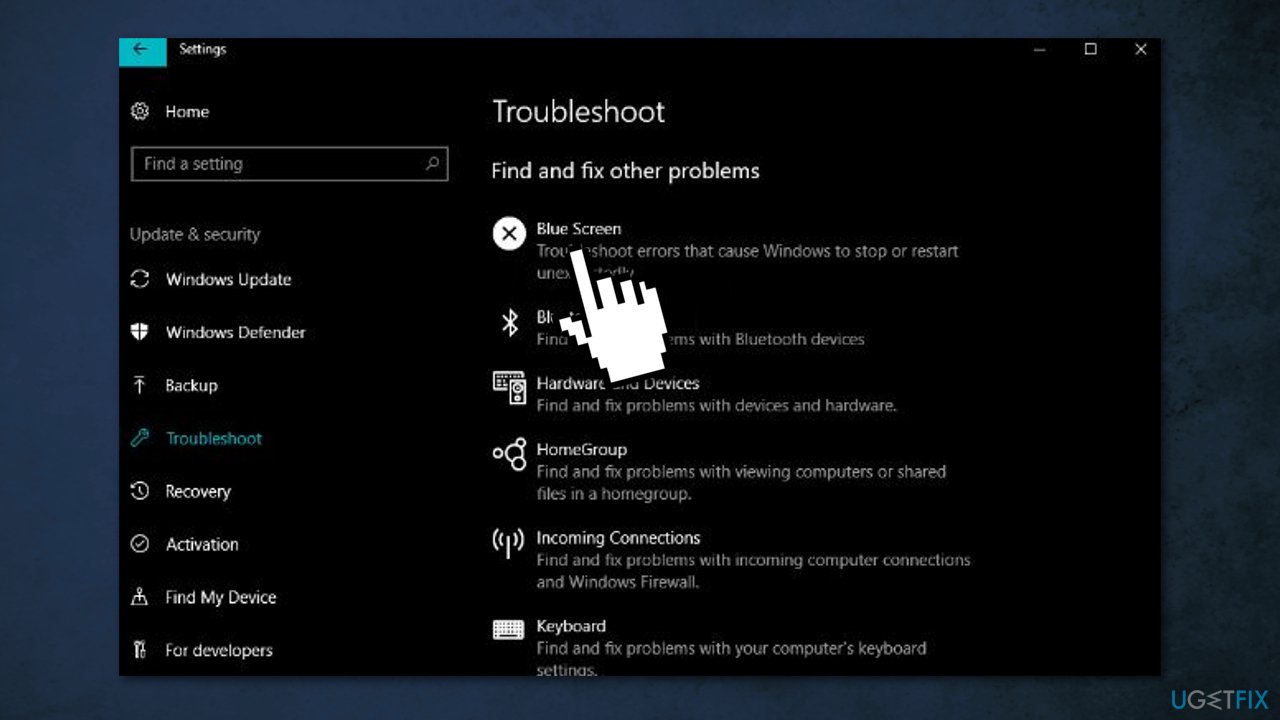
Solution 1. Use Blue Screen Troubleshooter
- Go to Settings and find Updates and Security
- Press on Troubleshoot and run the Blue Screen troubleshooter
Solution 2. Check Windows drive for errors
- Press Windows key + E to open File Explorer
- Choose This PC
- Right-click on the drive where Windows is installed on your computer and then select Properties
- Go to the Tools tab
- Under Error Checking section, click on Check
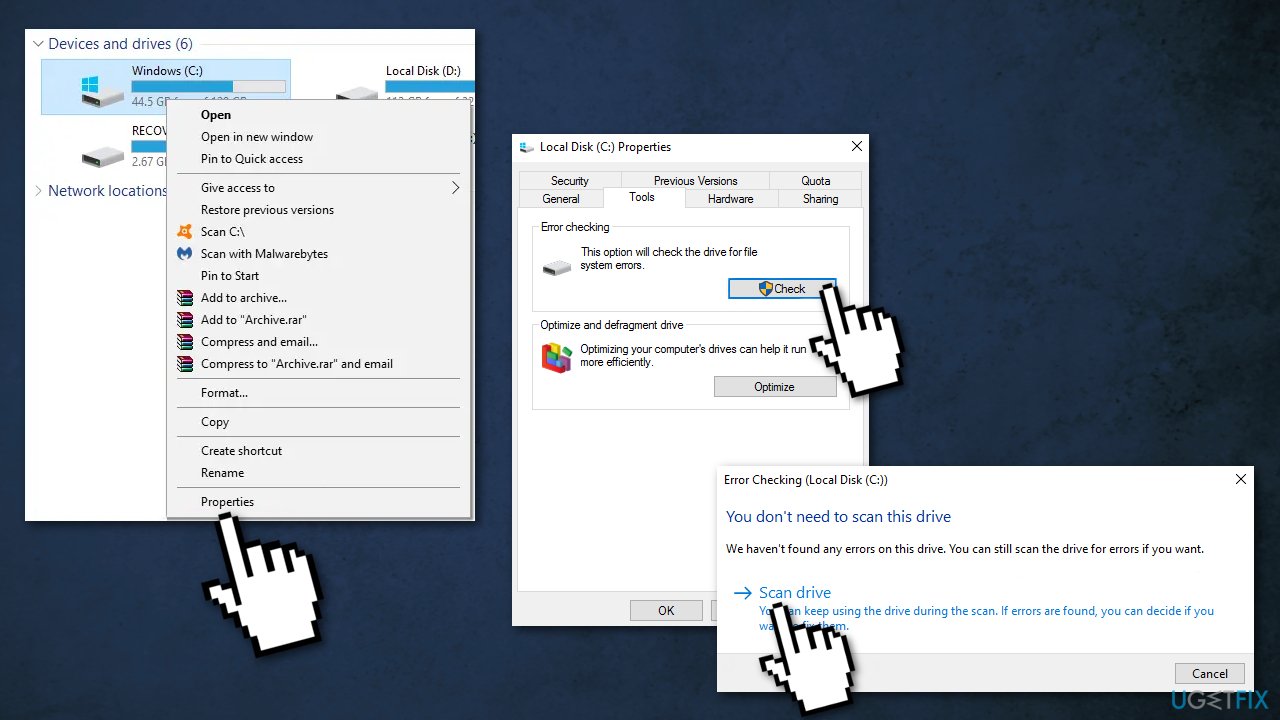
- Choose Scan drive
- Once the repair process is over, click on Close
- Try to access the drive again
Solution 3. Run Memory Diagnostic Tool
This error is associated with corruption system memory:
- Press Windows key + R to launch the Run dialog
- Type in mdsched.exe and hit Enter
- In Windows Memory Diagnostic window, click on Restart now and check for problems (recommended)
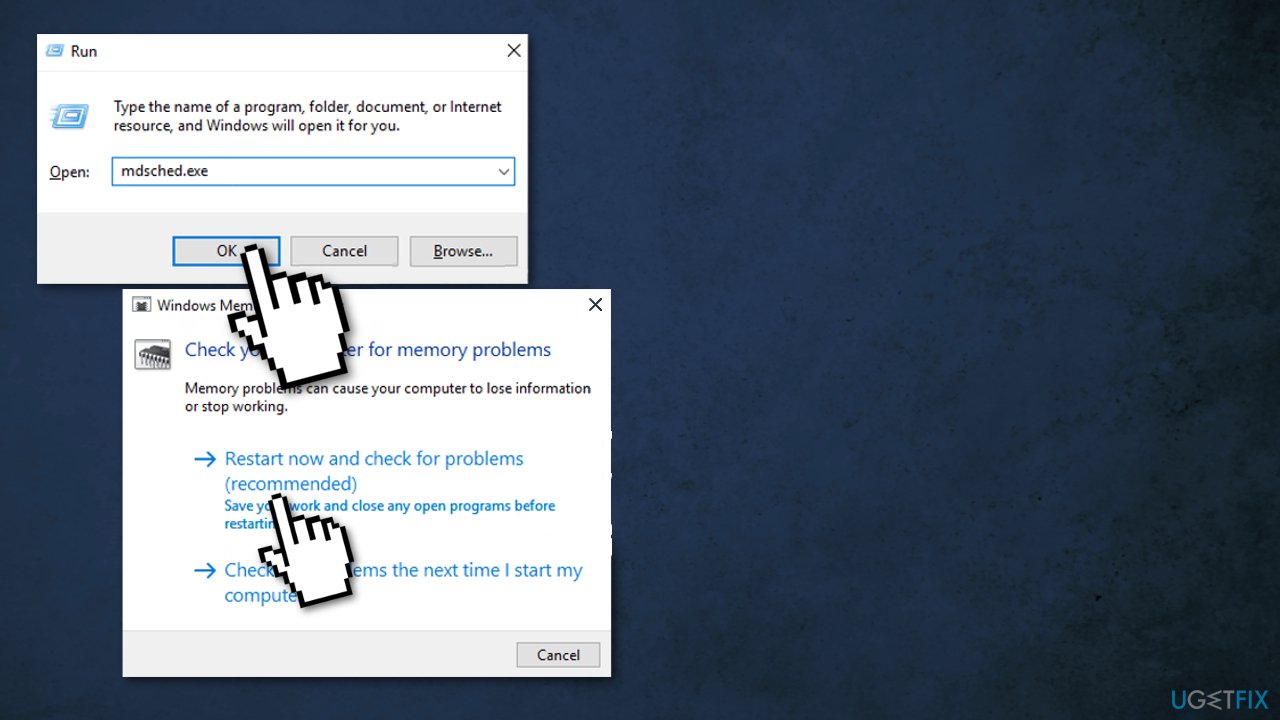
- Upon completion of the process, your computer will be rebooted
Solution 4. Update your Realtek PCIE Wireless LAN PCI-E NIC Driver
We advise using a reliable program like [rev id="DriverFix"]. It will automatically detect your system and look for the latest drivers for it, so you can expect your PC to perform more efficiently. You can also use the Device Manager on your computer:
- Right-click the Windows icon on your taskbar
- Select Device Manager
- Look for Network Adapters
- Right-click the Realtek PCIE Wireless LAN PCI-E NIC driver, then select Update Driver
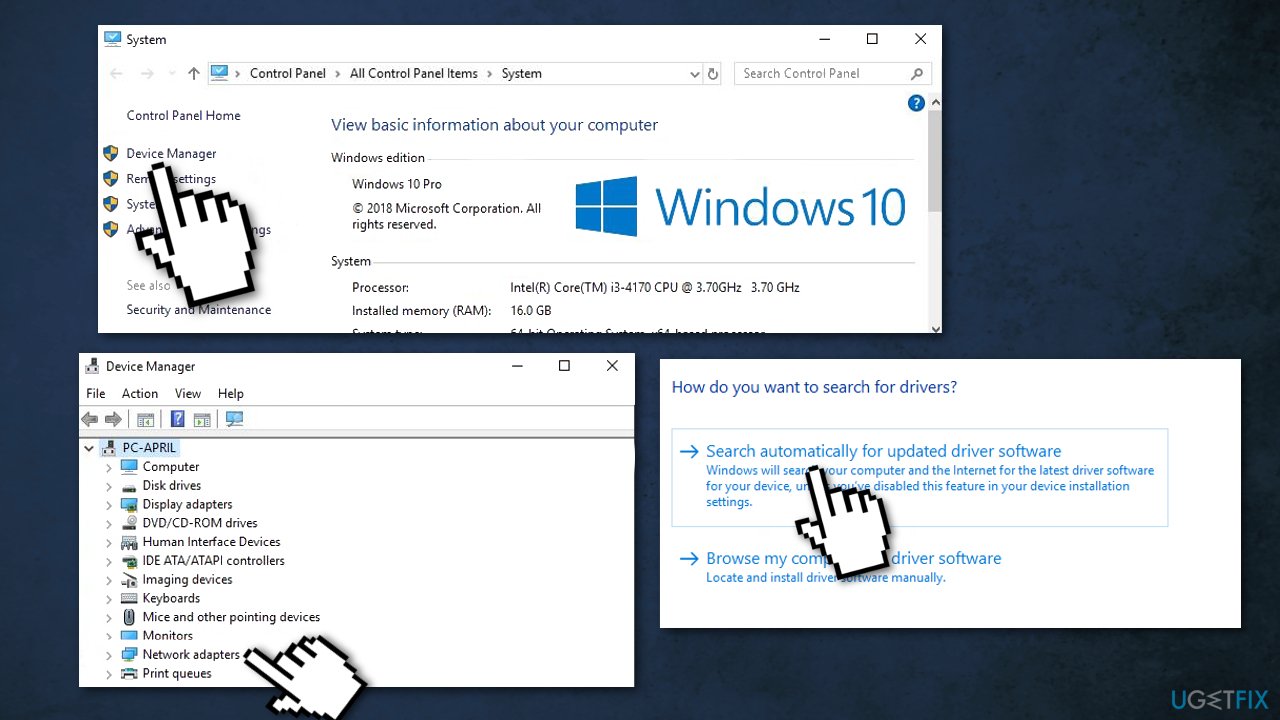
- Choose the Search automatically for updated driver software option
Solution 5. Check Disk
Ensure that your disk is not damaged. You can perform checks using Administrative Command Prompt:
- Type cmd in Windows search
- Right-click on Command Prompt and select Run as administrator
- If User Account Control shows up, click Yes
- If you are using an HDD as your main driver (where your operating system is installed - C: by default), use the following command and press Enter:
chkdsk c: /f
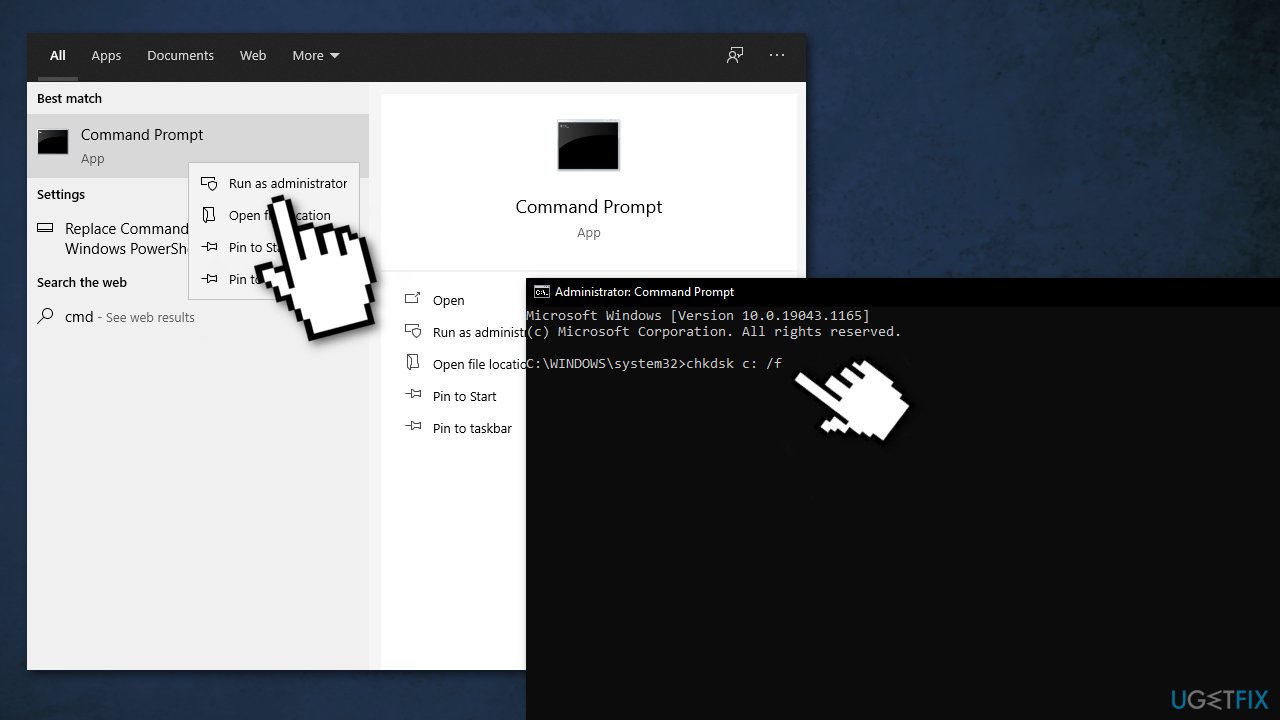
- If you are using SSD, use this command:
chkdsk c: /f /r /x - If you receive an error, type in Y and hit Enter
- Restart your device to perform the check
Solution 6. Change hard disk policies
- Press Windows key + R to launch the Run dialog
- Type in devmgmt.msc and hit Enter
- In the Device Manager window, expand Disk drives
- Right-click on the HDD/SSD drive and then on Properties
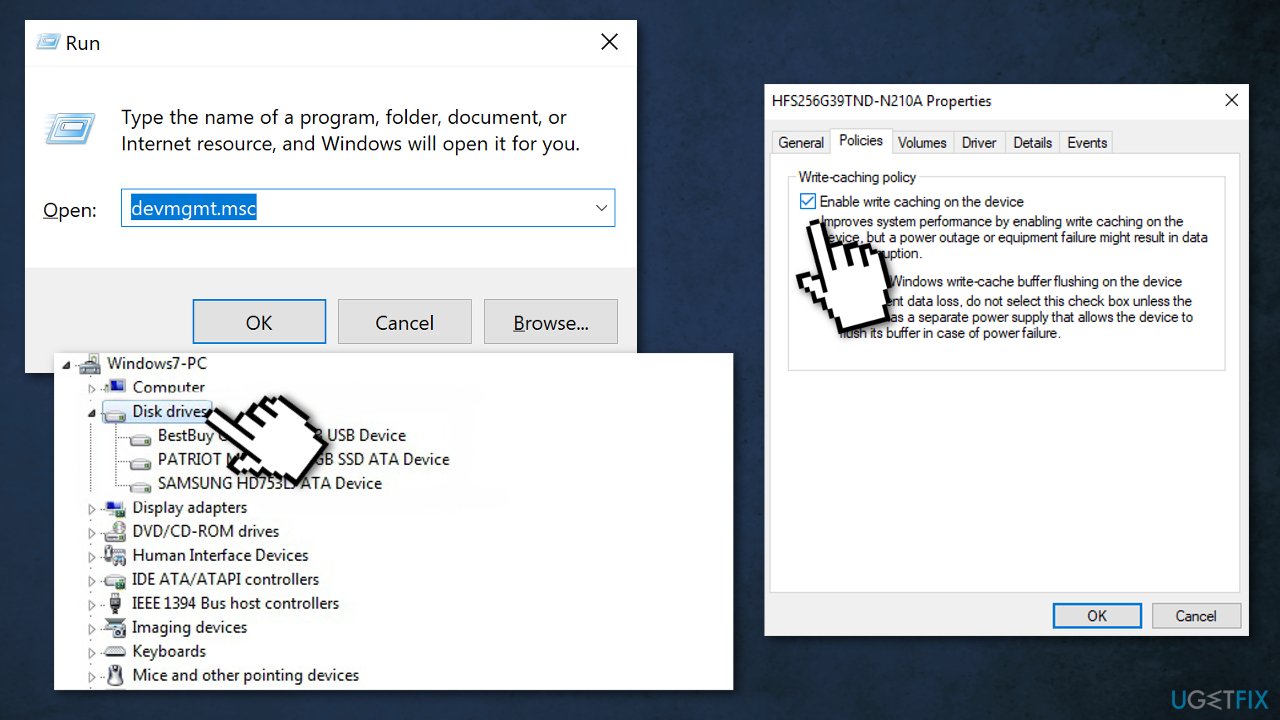
- In the Properties window, go to the Policies tab
- Tick the option Enable write caching on this device
- Click OK to save the changes
- Close Device Manager window
- Reboot your computer
Solution 7. Update network adapter
An outdated network adapter driver could be the cause of the error. In this case, you can fix it automatically by using [rev id="DriverFix"], which will scan your PC for missing and out-of-date device drivers. Or you can update your network driver to the latest version manually:
- Press Windows + R keys to open the Run box
- Type devmgmt.msc and hit Enter to open the Device Manager
- Expand the Network Adapter category
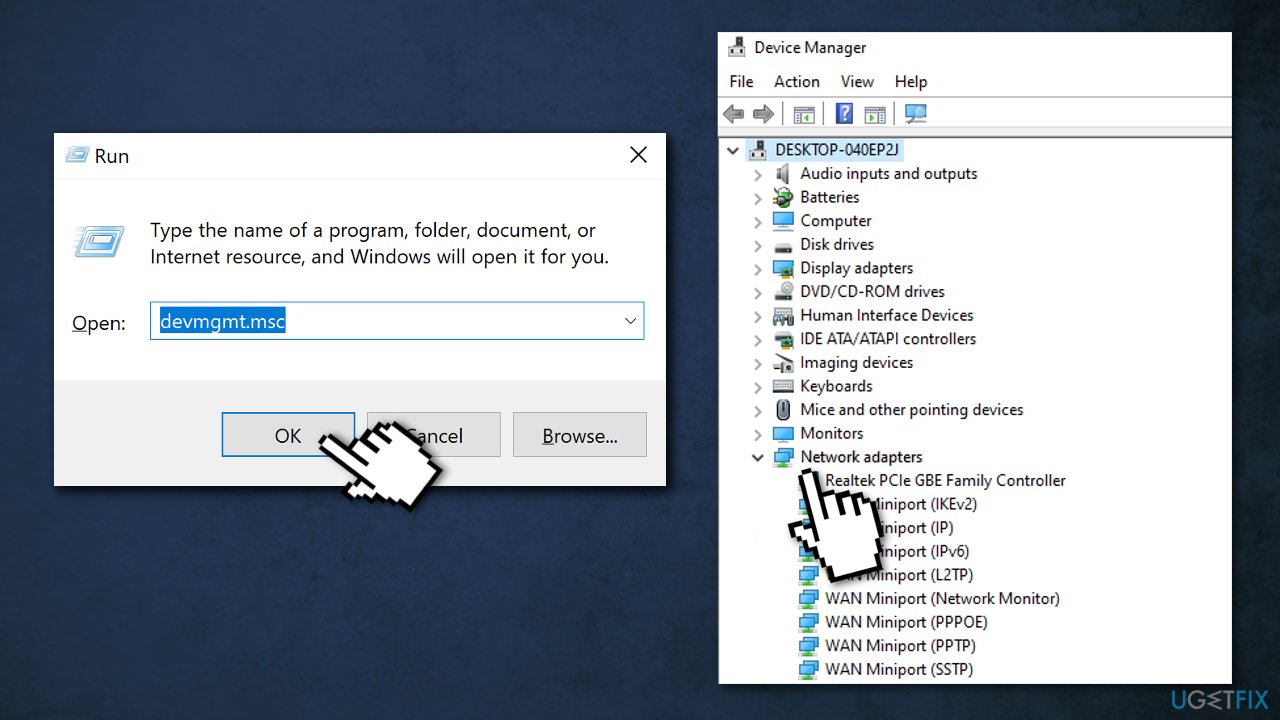
- Right-click the network adapter driver and select Update driver
- Select the Search automatically for updated driver software option and follow the on-screen instructions
Solution 8. Reset Windows
If you’ve tried our solutions above and the error still persists, your last resort is to reset your operating system. You must know that this solution will delete all the files in your system drive. So, we recommend creating a backup first:
- Click the Windows icon on your taskbar, and click the Power button
- Hold the Shift Key while clicking Restart
- Choose Troubleshoot, Reset this PC, and Remove Everything
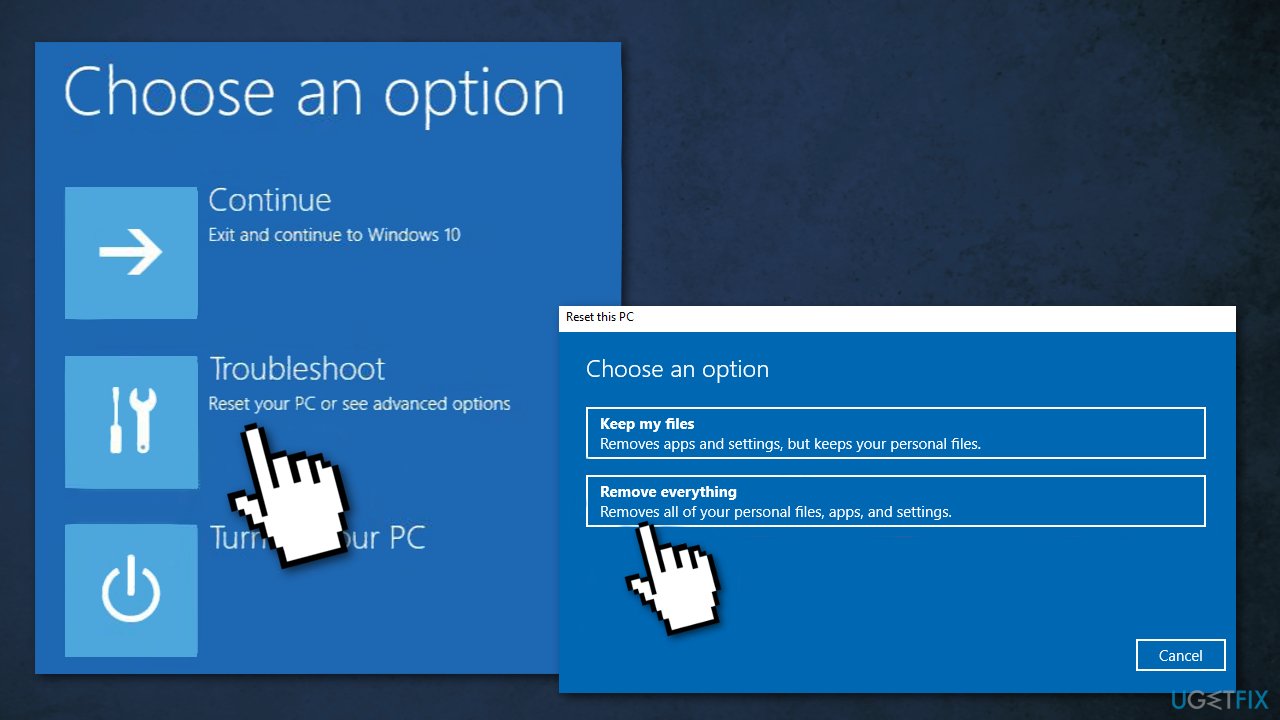
- If prompted, insert the Windows 10 installation media
- Choose your Windows version, then select the Only the drive where Windows is installed option
- Select Just Remove Files
- Reset
- Follow the instructions to complete the process
Bottom line
To fix the rtwlane.sys Blue Screen error, you can try using an automatic repair tool to identify and fix damaged system components. Additionally, consider updating drivers or checking for hardware issues. If none of these solutions work, you may need to reinstall Windows.
Frequently asked questions
The rtwlane.sys Blue Screen error is typically related to issues with the Realtek wireless driver, causing your system to crash. This can occur during boot or while using Wi-Fi features.
To update the rtwlane.sys driver, go to Device Manager, locate your network adapters, right-click on the Realtek wireless adapter, and select 'Update driver'. Follow the prompts to search automatically for updated driver software.
If updating the driver doesn't work, try uninstalling the driver and then reinstalling it, or consider rolling back to a previous version if the issue started after a recent update.




Report an issue
What's wrong with this guide? We review every report and update or remove content.
Report received — thank you. We'll review and fix it.
You need a free account to submit a report.
Be the first to comment