How to fix
Vanguard Anti-Cheat error in Valorant
on Windows
Troubleshoot Vanguard Anti-Cheat errors in Valorant on Windows 10 and 11. Get expert-tested solutions to fix it quickly and enjoy seamless gaming!

What causes How to fix Vanguard Anti-Cheat error in Valorant?
- Some process on your system is interfering with the software
- Third-party antivirus software is installed
- Vanguard software itself could be corrupted
- Issues with Riot Vanguard - the anti-cheat software
- False positive triggered by system scans
Repairs Windows system files, removes malware, and restores a clean OS state — without reinstalling.
Hello. I started playing Valorant and about 5 minutes after the game starts, it stops working and I get a message saying "Vanguard Anti-Cheat has encountered an error". How could I fix this?
Valorant is a free-to-play team-based tactical first-person shooter developed and published by Riot Games, for Microsoft Windows. It was released just recently and is already highly rated among gamers. There are many different modes players can choose - the standard mode is played over 24 rounds and the first team to win 13 rounds wins the match. The Spike Rush mode is played over 7 rounds and the first team to win 4 rounds wins.
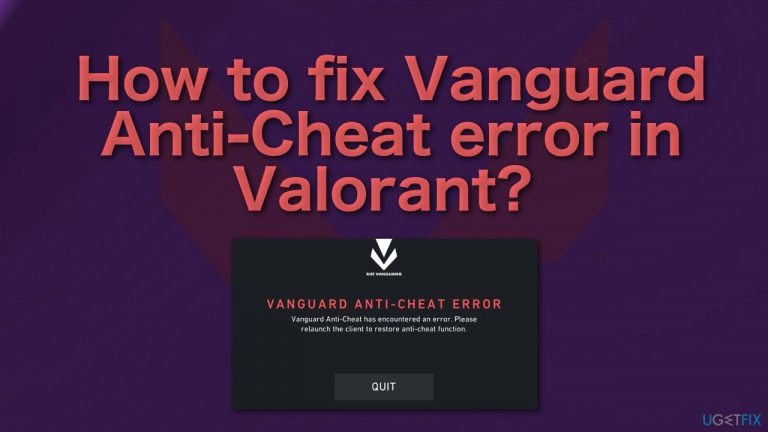
But as always, while playing games, encountering errors is inevitable. Gamers started getting the Vanguard Anti-Cheat error that says:
Vanguard Anti-Cheat has encountered an error. Please relaunch the client to restore anti-cheat function
The error usually occurs because of issues with Riot Vanguard - an anti-cheat software that aims to protect Valorant from wall hackers and aim botters.[ref en-1] Valorant was already previously criticized for this software as it was revealed to run on a kernel driver,[ref en-2] which allows access to the computer system. Players were concerned that Riot Games and Tencent,[ref en-3] could spy on players. However, Riot Games assured that the driver does not send any information back to them, and launched a bug bounty program to offer rewards for reports that demonstrate vulnerabilities with the software.
Gamers usually encounter the error message when they are trying to launch the game as Vanguard is started automatically in the background and the game does not start when the anti-cheat software is not running properly.
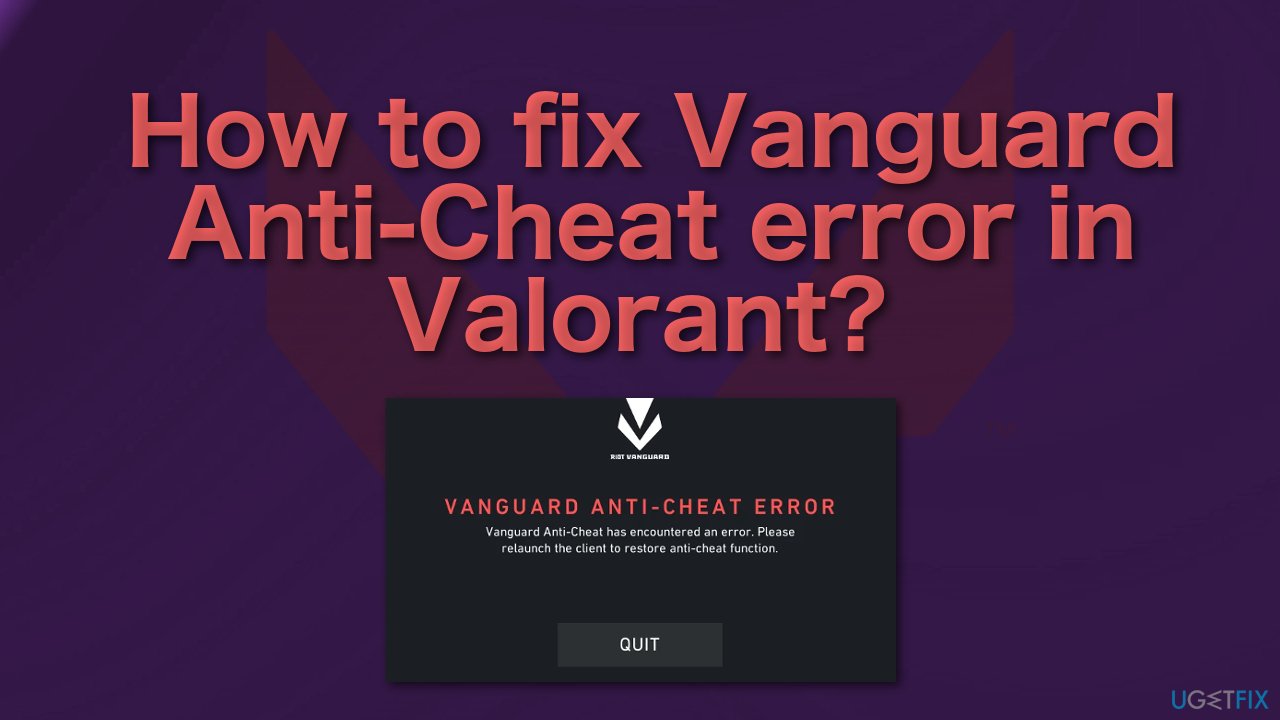
The most likely reason you are getting this error is because some process on your system is interfering with the software. Vanguard scans your system for any hacks or malicious files that might put the integrity of the game at risk, so it can trigger a false positive especially if you have third-party antivirus software installed. Also, the Vanguard software itself could be corrupted.
As there are many potential causes for this problem we suggest using a repair tool [d1] that can scan your system automatically to avoid going through all of the solutions. This software can identify the damaged system components, fix BSODs, and registry issues, free up the space, and boost the machine's performance, so you will be able to potentially get more out of your device while gaming.
If you want to start with manual solutions to the Vanguard Anti-Cheat error in Valorant you can start here. Make sure to go through all the steps carefully:
Solution 1. Run the Game as an Administrator
The first thing you should do is make sure that no background process is interfering with the Vanguard service:
- Open the Start Menu and search for Valorant
- Click on the Run as an administrator option
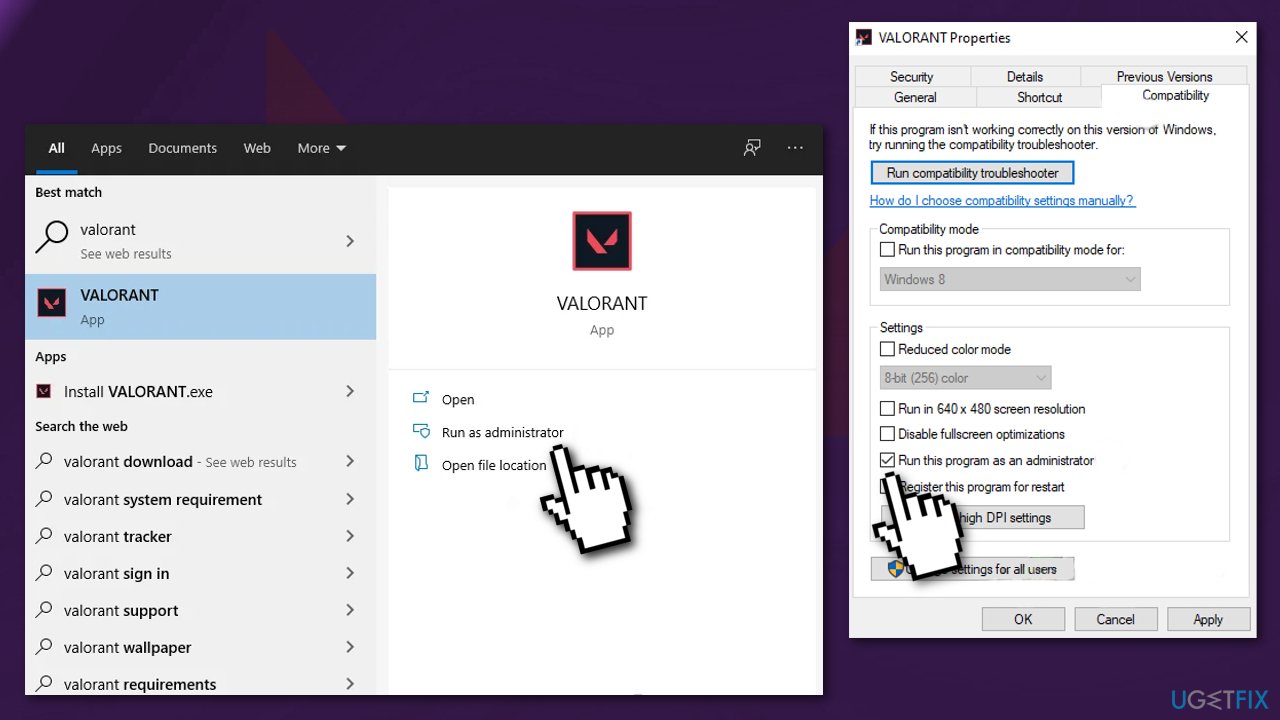
- If this fixed the error, search for Valorant again in the Start Menu and choose Open File Location option.
- Right-click on the Valorant shortcut and go to Properties
- Switch to the Compatibility tab and tick Run this program as an administrator
- Hit Apply and OK
Solution 2. Reinstall Vanguard
- Go to Settings in your PC after exiting Valorant completely
- Go to the Apps menu
- Find Riot Vanguard and click Uninstall
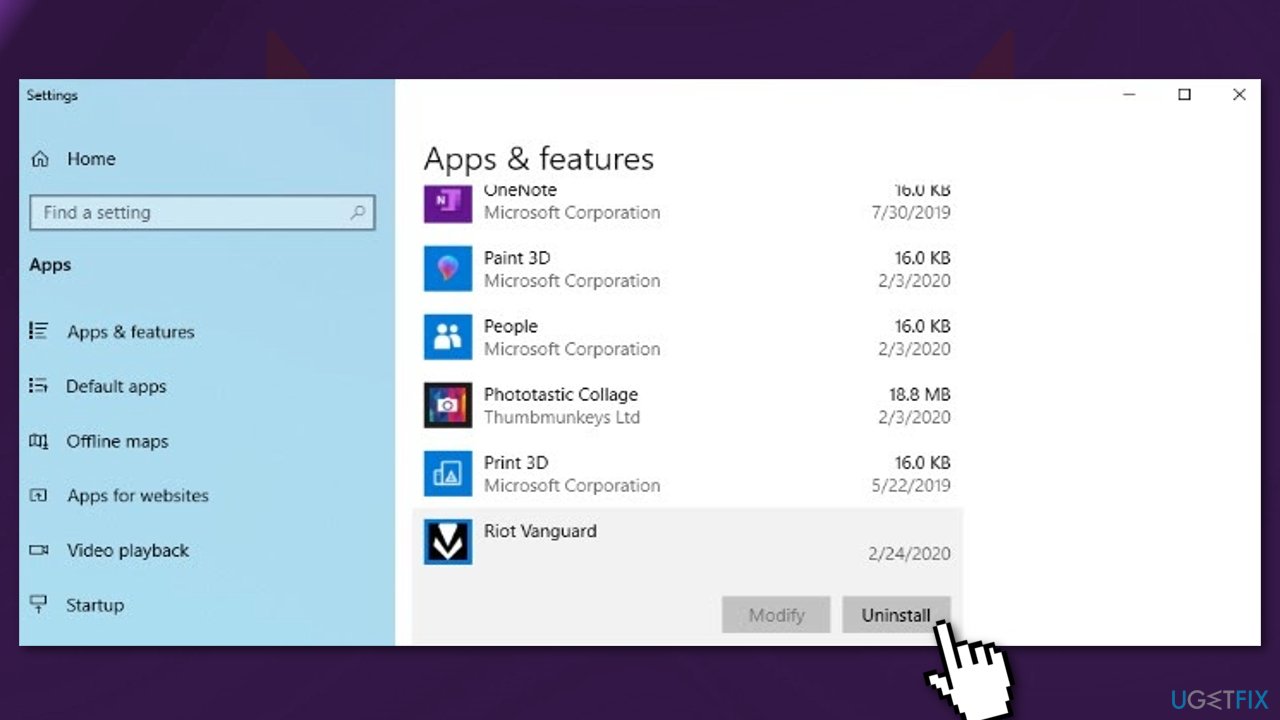
- Then launch the Valorant client, which should prompt Vanguard to reinstall
Solution 3. Disable Third-Party Antivirus
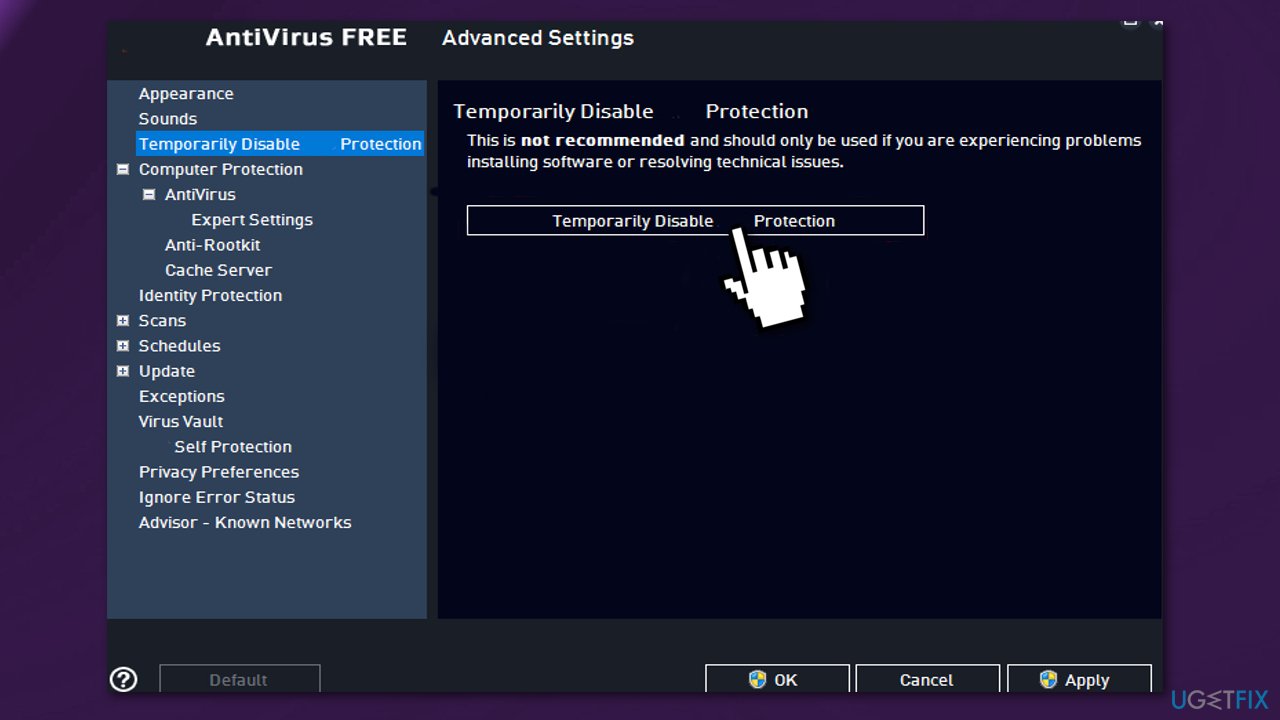
If you have any third-party antivirus software installed on your system, you should try disabling it and then giving the game a shot. In case Vanguard starts properly with the antivirus software disabled, it’ll become obvious that the issue was caused by your antivirus. In such a scenario, if you wish to continue using antivirus software, you can simply whitelist the Vanguard process.
Solution 4. Allow apps through Windows Defender Firewall
The Firewall could be blocking the Vanguard service or the game so try allowing the Valorant and Vanguard services through the Windows Defender Firewall:
- Open the Start Menu and search for Windows Defender Firewall
- When Windows Defender Firewall window is open, click the Allow an app or feature through the Windows Defender Firewall option
- Click on the Change Settings button
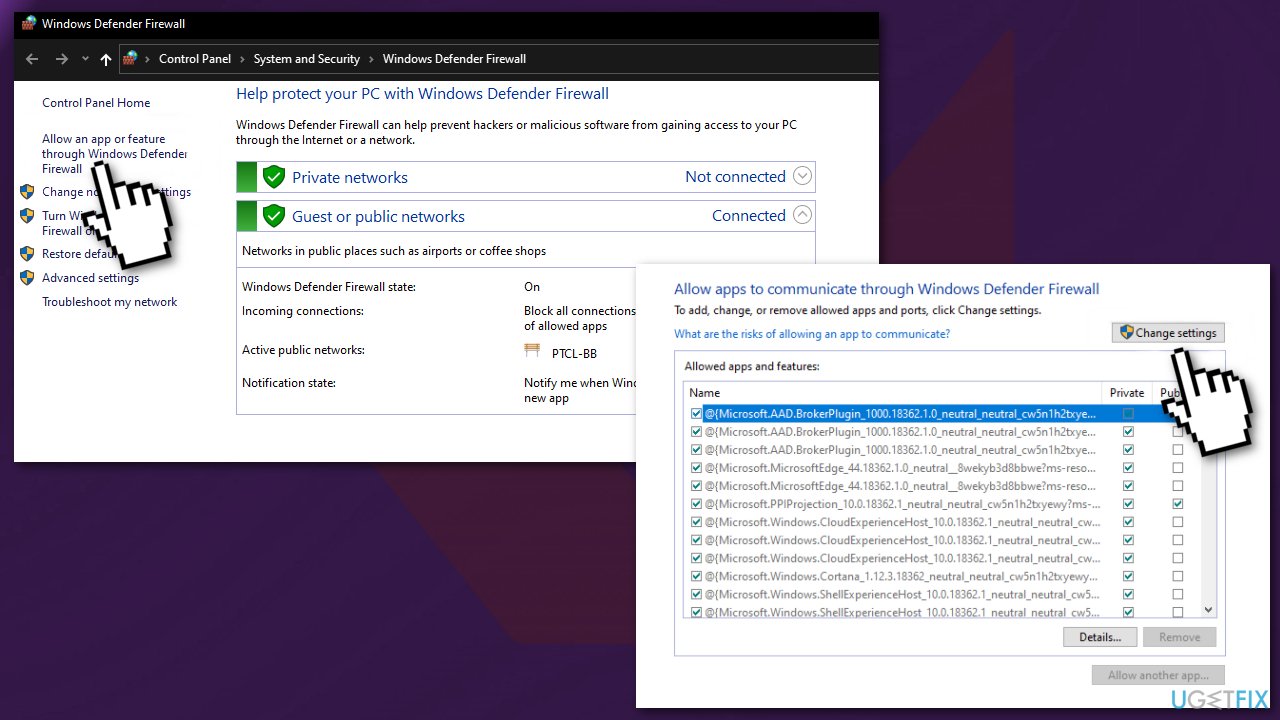
- Choose to Allow another app
- Click the Browse button
- Open up the Valorant.exe file
- Click the Add button to add the application to the whitelist
- Tick the Private and Public boxes in front of it
- Click on the Allow another app button again and then click Browse
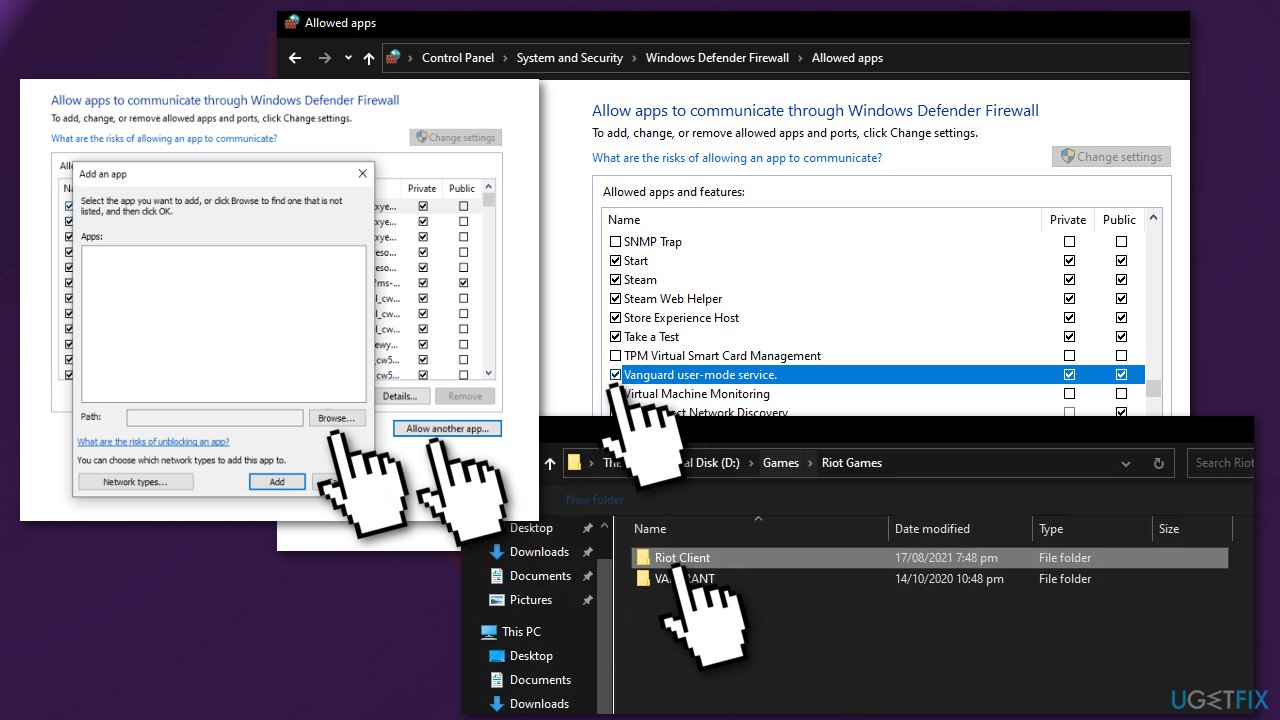
- Go to C:\\Program Files\\Riot Vanguard\\vgc.exe and open it
- Click the Add button and tick the Public and Private checkboxes
- Do the same thing for Riot Client Services by going to the Riot Client folder
- Click OK at the bottom of the Windows Defender Firewall window
Solution 5. Change VGC service settings
Vanguard seems to rely on a service called VGC, so try to change the settings. Keep in mind that you will have to do this every time you want to play the game since it has to be started manually:
- Press Windows + R and type services.msc in the Run box
- Scroll down the list and find the service with the name VGC
- Right-click and go to Properties
- Change the startup type to manual
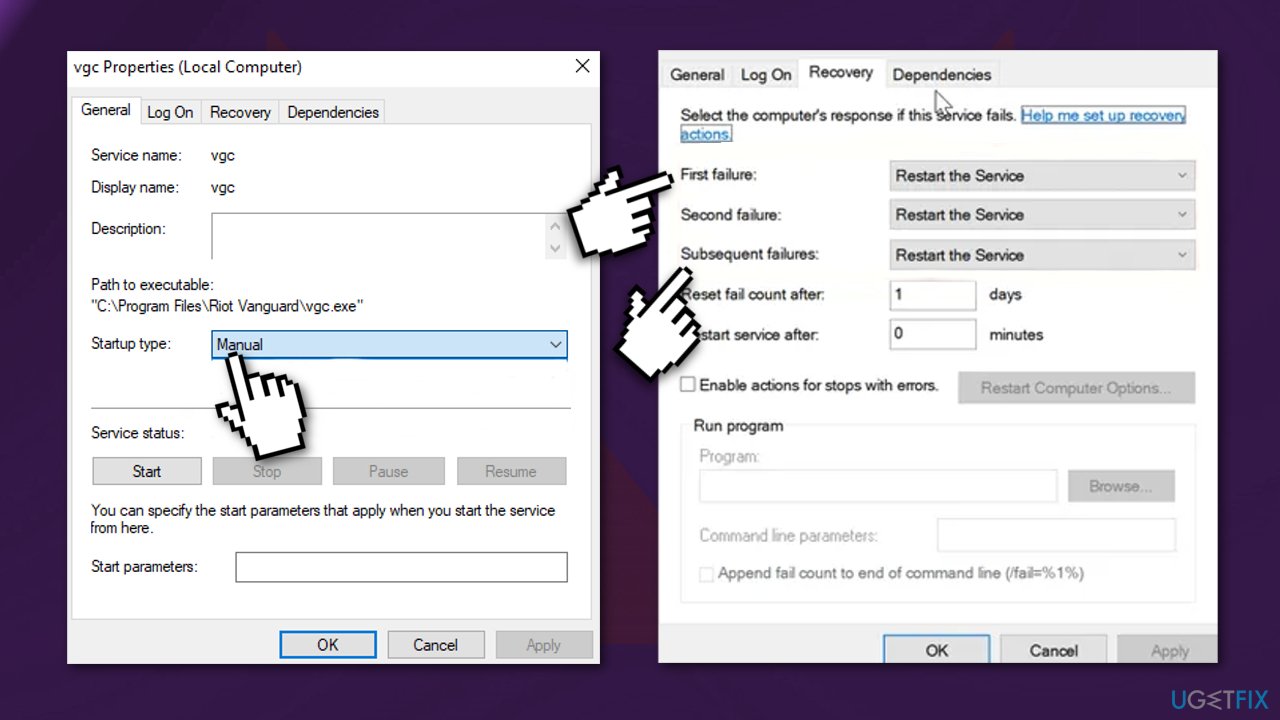
- Under the Recovery tab change the First Failure and Subsequent Failures to Restart the Service
- Apply it all then start VGC
- Keep the Services window open and run Valorant as admin
Solution 6. Disable the Intel Virtualization Technology
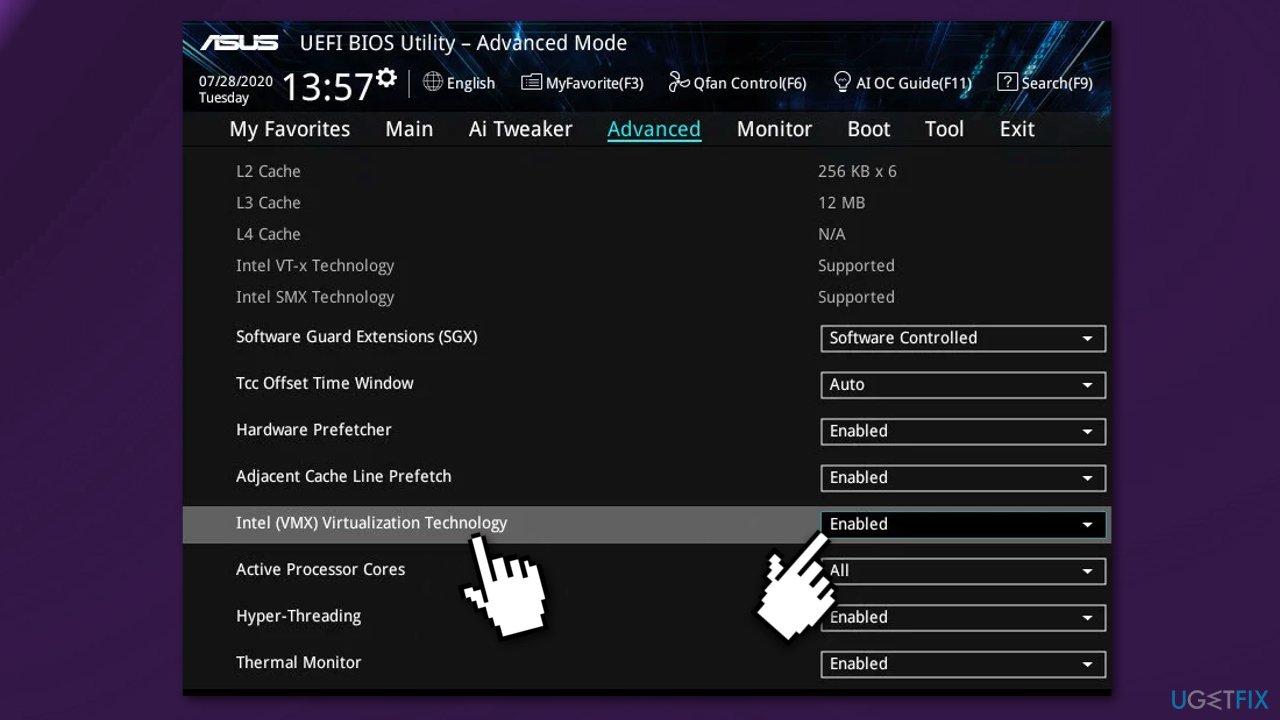
The Intel Virtualization Technology is primarily used for virtualization purposes. If you have an Intel processor try disabling it from your BIOS configuration. The process may differ depending on your motherboard.
Bottom line
To fix the Vanguard Anti-Cheat error, you can try repairing the Vanguard software, disabling any conflicting antivirus programs, or ensuring that no other processes are interfering with it. If none of these solutions work, consider reaching out to Riot Games support for further assistance.
Frequently asked questions
First, ensure that your Windows 10 is fully updated and then try reinstalling the Vanguard anti-cheat software from the Valorant installation directory.
This error can occur due to compatibility issues or corrupted files; make sure your Windows 11 is updated and run the game as an administrator to fix potential permission issues.
You can check the Task Manager to see if the Vanguard service is active, and if it's not listed, reinstalling Valorant and its anti-cheat component should resolve the issue.




Report an issue
What's wrong with this guide? We review every report and update or remove content.
Report received — thank you. We'll review and fix it.
You need a free account to submit a report.
Be the first to comment