How to fix
Error # 365838f52de30
on Windows
Resolve Error # 365838f52de30 swiftly on Windows 10 or 11 with our expert-tested solutions. Get back to smooth operation in minutes!

What causes How to Fix Error # 365838f52de30?
- Infected website
- Adware on the system
- Clicking on a malicious link
- Rogue technical support scam
Repairs Windows system files, removes malware, and restores a clean OS state — without reinstalling.
A pop-up alert indicating Error # 365838f52de30 showed up on the screen this morning. It says that I have to call for professional technician to prevent damage to my PC. Can’t close the message and web browser. Please advice.
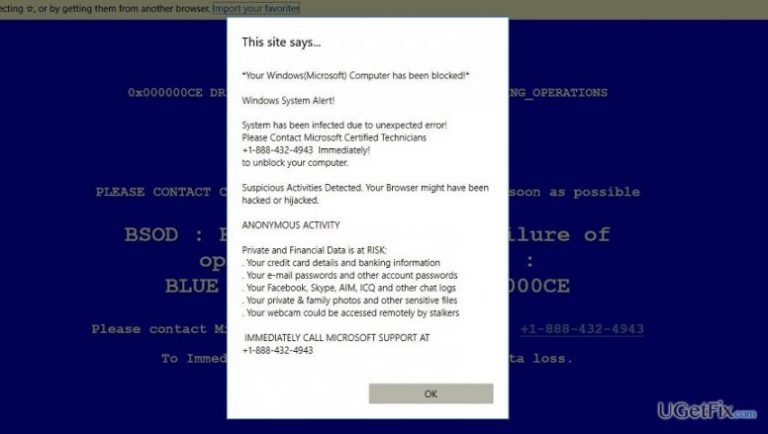
Error # 365838f52de30 is a fictitious pop-up alert that emerge on a web browser and free it up. While it claims that the access to the computer will be denied and personal information, such as Facebook login, credit card details, photos, etc. will be stolen if a PC owner closes the window. As a solution for this situation, the user is asked to call for engineers using the provided telephone number (877 565 5587). The design of the message is though out carefully. Error # 365838f52de30 is usually displayed in a BSOD (Blue Screen of Death) environment. Besides, the font and the informative writing style looks like a genuine error message brought by Microsoft or another trusted organization. Nevertheless, there is nothing trustful with regards to # 365838f52de30 error alert. It’s one of the rogue technical support scam pop-ups that is actively circulating on the Internet. It is spread by scammers who seek to gain financial profit by deceiving inexperienced PC users. Therefore, unless you don’t mind paying money for the useless services or aren’t afraid of being scammed, you should ignore this fake alert and close web browser by force. Once done, we would recommend scanning your PC with [d1] or another trusted security tool. Well explain why this should be done.
Why Fake Error # 365838f52de30 Pop-up Shows up on My Screen?
Error # 365838f52de30 pop-up message can emerge on all popular web browsers, but mainly Google Chrome. It may originate from an infected website or it may be triggered by an adware, which is lurking on the system. If you have been exposed to Error # 365838f52de30 alert immediately after clicking on a link, then probably you’ve clicked on the infected one and experienced redirect to this fake Error # 365838f52de30 page. In case the pop-up shows up out of nowhere, it’s advisable to check the list of programs installed on your PC and look for the questionable software that has been installed lately. As you may already know, ad-supported programs, namely adware, are spread as default freeware attachments, which is why they are often passed over. All in all, to put this annoying experience to an end, you have to remove malware from the system and stay away from doubtful websites. The following guide will explain what steps should be performed.
How to Fix Error # 365838f52de30?
To remove # 365838f52de30 error virus from your web browser, you have to delete malware from the system and reset web browser's parameters. However, before you do so, you should check if the verification of websites (phishing sites or full of malware) haven't been disabled. For this purpose, perform these steps:
- Open Google Chrome and click More More at the top right corner of the screen.
- Open Settings and click Show advanced settings.
- Under Privacy, tick the box next to Protect you and your device from dangerous sites.
If this option hasn't been disabled, it means that your web browser wouldn't have let you access a compromised web page. Therefore, it can be assumed that your PC's system is infected with an adware. To remove it and fix #365838f52de30 support scam, you can either run a scan with [d1] or initiate these steps manually:
- Click Start and navigate to Control Panel.
- Open Programs and Features and select Uninstall a Program.
- Find all suspicious programs on the list, click on them, and select Uninstall.
After that, reset Google Chrome's settings. The following instructions will help you to do so:
- Open Google Chrome, click on three-bar button at the top of the screen to open Menu.
- Select Tools and then go to Extensions.
- Look for suspicious browser extensions, mark them and click on Trash icon.
- Open menu again and go to Settings. Find On startup part, and click Set pages next to Open a specific page or a set of pages option.
- Remove suspicious websites by clicking on X next to them. Then enter a URL of the site that you would like to set as your homepage.
- Then go to Menu → Settings → Manage Search engines.
- Remove all suspicious entries and leave only the search engine that you would like to use.
- After that, go to Menu → Settings, and click on Reset Browser Settings..
- Once Reset browser settings window appears, click Reset to proceed.
- After you fix Google Chrome, do the same with the other web browsers.
Bottom line
To fix Error # 365838f52de30, you should ignore the pop-up and close the web browser by force. It is also recommended to scan your PC with a trusted security tool. If these steps do not resolve the issue, further investigation into your system may be necessary.
Frequently asked questions
Error # 365838f52de30 typically signifies a system or application malfunction, often related to missing files or corrupted settings in Windows 10 or Windows 11.
To fix Error # 365838f52de30 on Windows 10, try running the System File Checker tool by executing 'sfc /scannow' in the Command Prompt as an administrator.
Yes, in Windows 11, you can use the built-in Troubleshooter or the DISM command to repair system images, which may help resolve Error # 365838f52de30.




Report an issue
What's wrong with this guide? We review every report and update or remove content.
Report received — thank you. We'll review and fix it.
You need a free account to submit a report.
Be the first to comment