How to fix
DISM Host Servicing Process high disk and CPU usage
on Windows
Resolve high disk and CPU usage from the DISM Host Servicing Process on Windows 10 and Windows 11 with expert-tested solutions for efficient performance.


What causes How to fix DISM Host Servicing Process high disk and CPU usage?
- High disk usage due to DISM Host Servicing Process
- Corrupted system files
- Malware posing as DISM process
- Self-replication of DISM process in temp folders
- Excessive CPU usage from background processes
Repairs Windows system files, removes malware, and restores a clean OS state — without reinstalling.
Hello, I have been experiencing performance issues with my PC and I noticed that some kind of process called "DISM Host Servicing Process" is pretty much using up all of my CPU power. I have not been able to locate the file or figure out how to disable it. Any tips would be appreciated.
Windows is one of the most popular operating systems developed by Microsoft. It relies upon thousands of processes running in the background to keep everything operational. However, it’s not uncommon for Windows users to see these processes go rogue, use too many system resources, or even malware pose as these processes.
DISM (Deployment image servicing and management) is a command-line tool used to create Windows Preinstallation Environment.[ref en-1] DISM can be used to enable and disable Windows services, mount and unmount Windows Image files while installing critical system updates.
The DISM Host Service process or DismHost.exe can also be dangerous because it can self-replicate in temp folders.[ref en-2] As a result, the system can slow down because of high disk usage. This is not a standard behavior of this file. Some people say that it is an important component of the OS, while some security tools mark it as a threat.
Besides malware taking over the DISM host services process, many other things could be causing it to use too much of your CPU power. Maximum CPU and disk usage for a prolonged period of time could lead to overheating issues and a significant decrease in performance, so we suggest you investigate this problem as soon as possible.

One of the other possibilities is that some of your system files are corrupted. These kinds of issues are hard to point out, so we recommend using a powerful repair tool [d1] if you want to avoid going through all the possible fixes. This software can find the underlying problems on a PC, replace the damaged system components within just a few minutes, and fix BSODs,[ref en-3] registry issues, and errors. Besides, the app can be used as a maintenance utility for freeing up space, and increase the performance of the machine.
If you experience DISM Host Servicing Process high disk and CPU usage, you need to try to fix it immediately. Make sure to follow the guides step-by-step carefully:
Solution 1. Check DismHost.exe for malware
- Head to C:\\Windows\\Temp and check how many DismHost.exe you can see; if you see multiple DismHost.exe files, it is most likely infected
- If you see hundreds of unknown files in \\Users\\<username>\\appdata\\local\\temp then that is also a sign of an infection
- If programs run automatically and you are unable to close them that is most likely happening because of malware
If you experience any of these problems, certainly there can be malware disguising as DismHost.exe file. You need to take care of the threat urgently. You can do that by using Windows built-in security system Windows Defender.
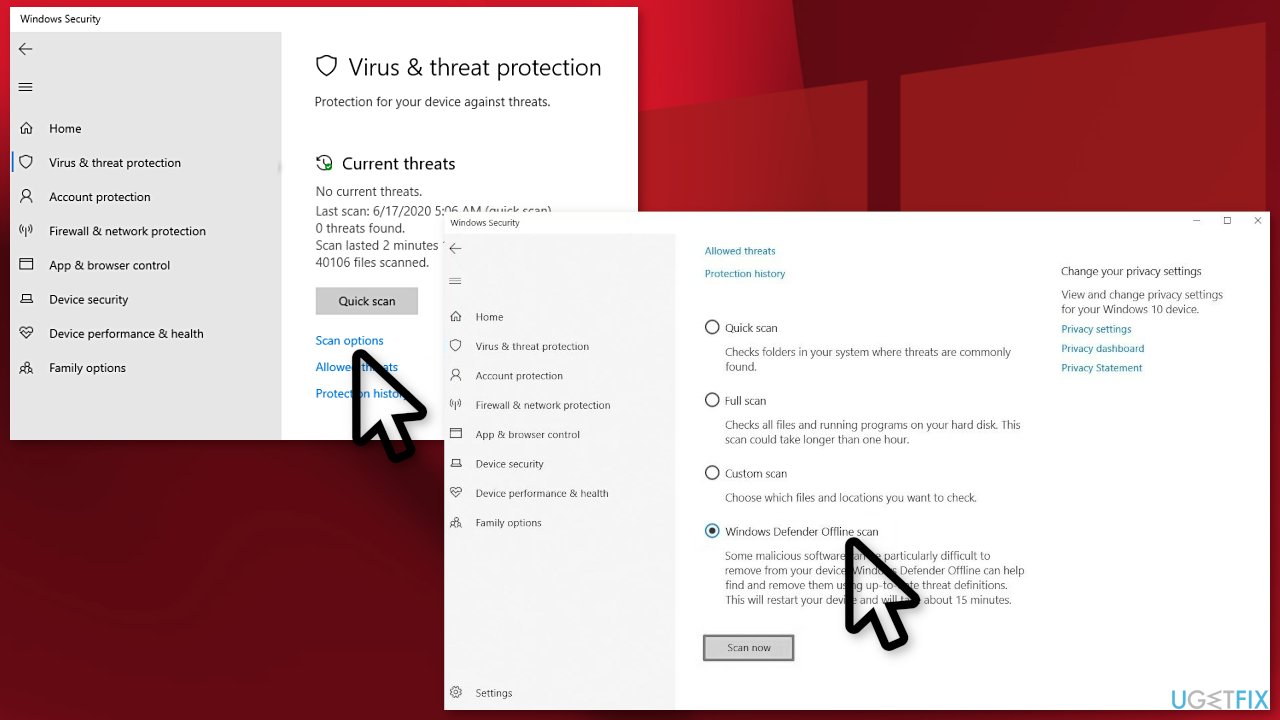
- Open your Windows Security settings
- Select Virus & threat protection > Scan options
- Select Windows Defender Offline scan, and then select Scan now
The Windows Defender Offline scan takes about 15 minutes to run, after that your PC will restart.
Solution 2. Repair and Restore System Files
Use Command Prompt commands to repair system file corruption:
- Open Command Prompt as administrator
- Use the following command and press Enter:
sfc /scannow - Reboot your system
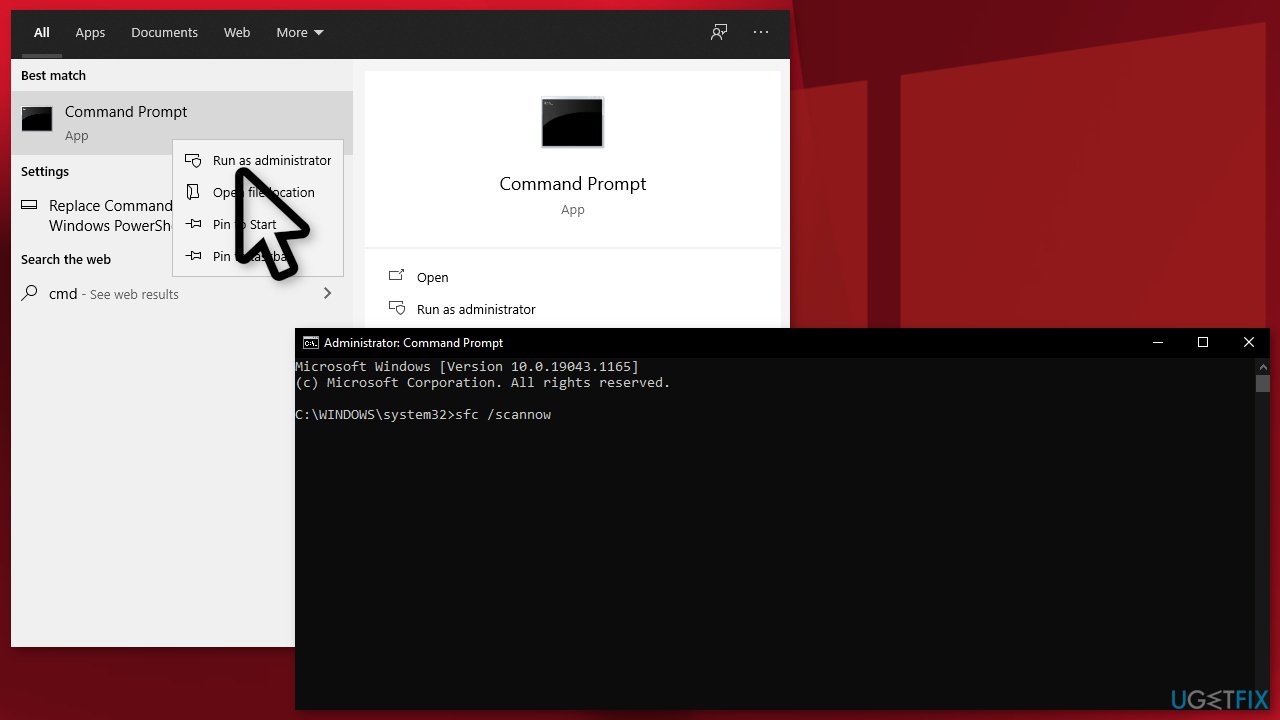
- If SFC returned an error, then use the following command lines, pressing Enter after each:
DISM /Online /Cleanup-Image /CheckHealth
DISM /Online /Cleanup-Image /ScanHealth
DISM /Online /Cleanup-Image /RestoreHealth
Solution 3. Deactivate the Superfetch Service
- Press Windows + R
- In the Run dialog type in services.msc and click Ok
- Under the Windows Services tab look for Superfetch Service
- Right-click on it, select Properties and Stop
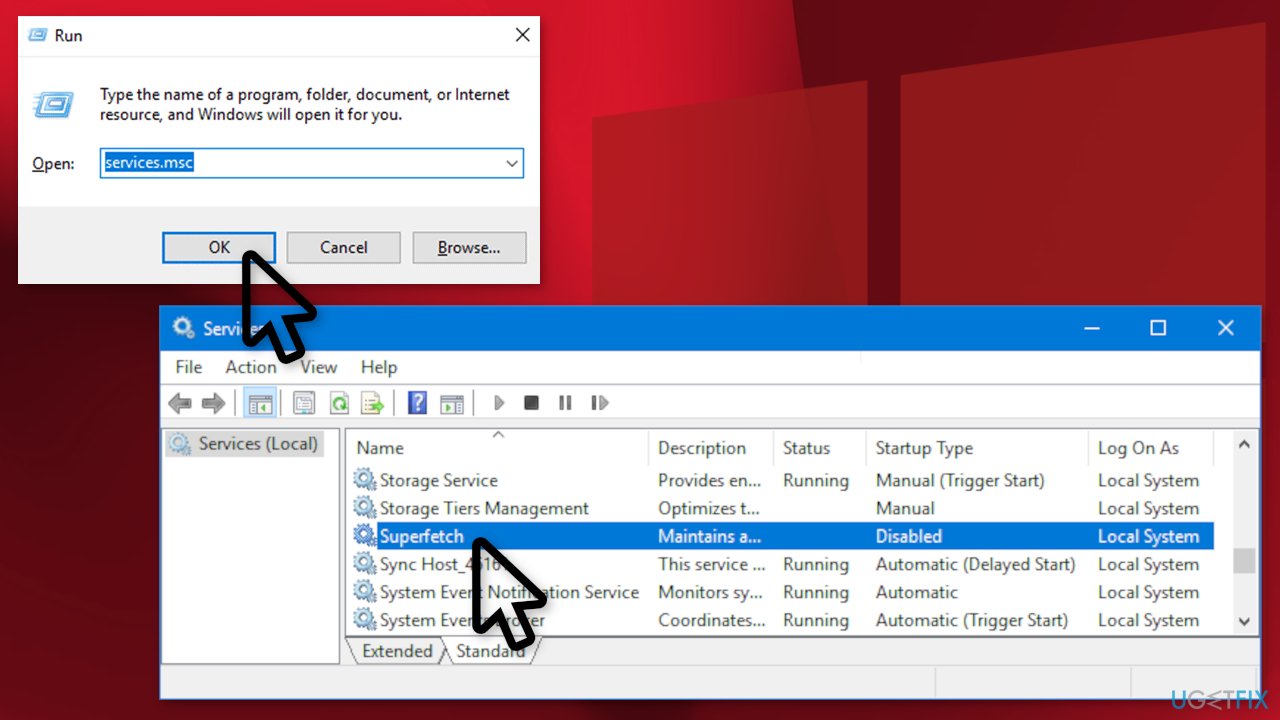
- Press on the arrow next to Startup type and select Disabled
- Press Apply and Ok
- Restart
Solution 4. Disable the BIT Service
One more way to fix the DISM host servicing process is to disable the BITS service. A service used to transfer files online. To deactivate it, follow the steps below:
- Type Services in the Windows search bar and press on it
- Look for Background Intelligent Transfer Service
- When you find it, right-click and choose Properties
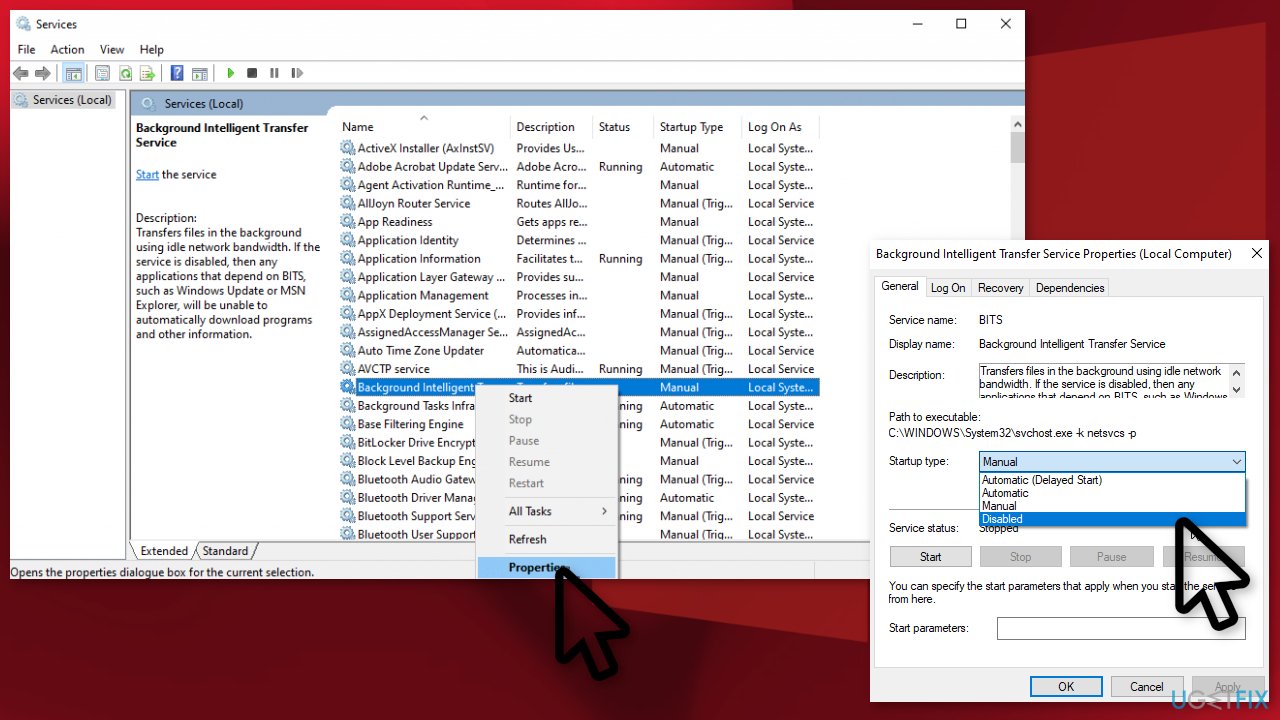
- If the service is running, click the Stop button
- Now click on the Startup type and select Disabled
- Press Apply and Ok
- Reboot
Solution 5. Delete DismHost.exe
- Type Control Panel in the Windows search bar
- Click Uninstall a program under the Programs section
- Uninstall all unknown applications
- To check if DismHost.exe is removed head to C:/Program Files and search for the file
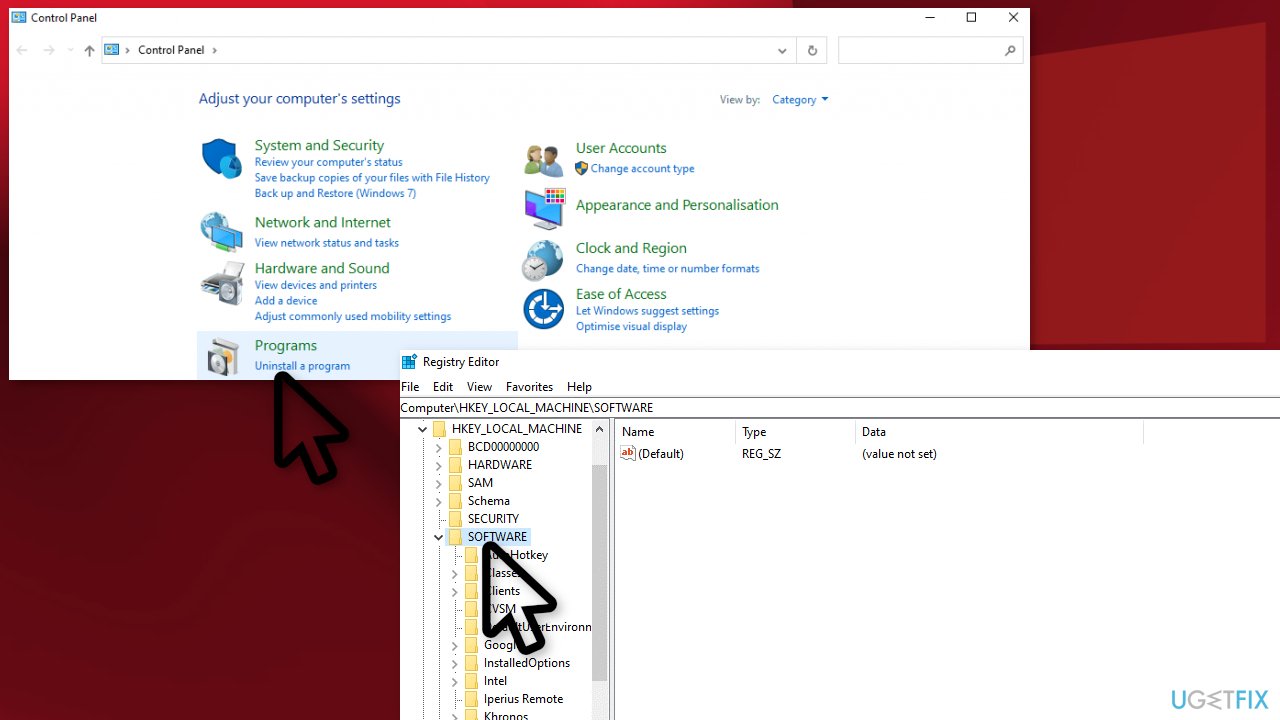
- Open the Windows Registry Editor by pressing Windows + R and typing Regedit in the Run dialog
- Click HKEY_LOCAL_MACHINE key and then Software
- Look for the DISM Host Servicing Process and delete it
Solution 6. Clean Boot
Clean boot is one of the troubleshooting techniques that help identify if an app is causing the issue. It is usually performed when non-Microsoft products cause software conflicts. A clean boot helps in the easy start-up of OS by only loading essential files and programs:
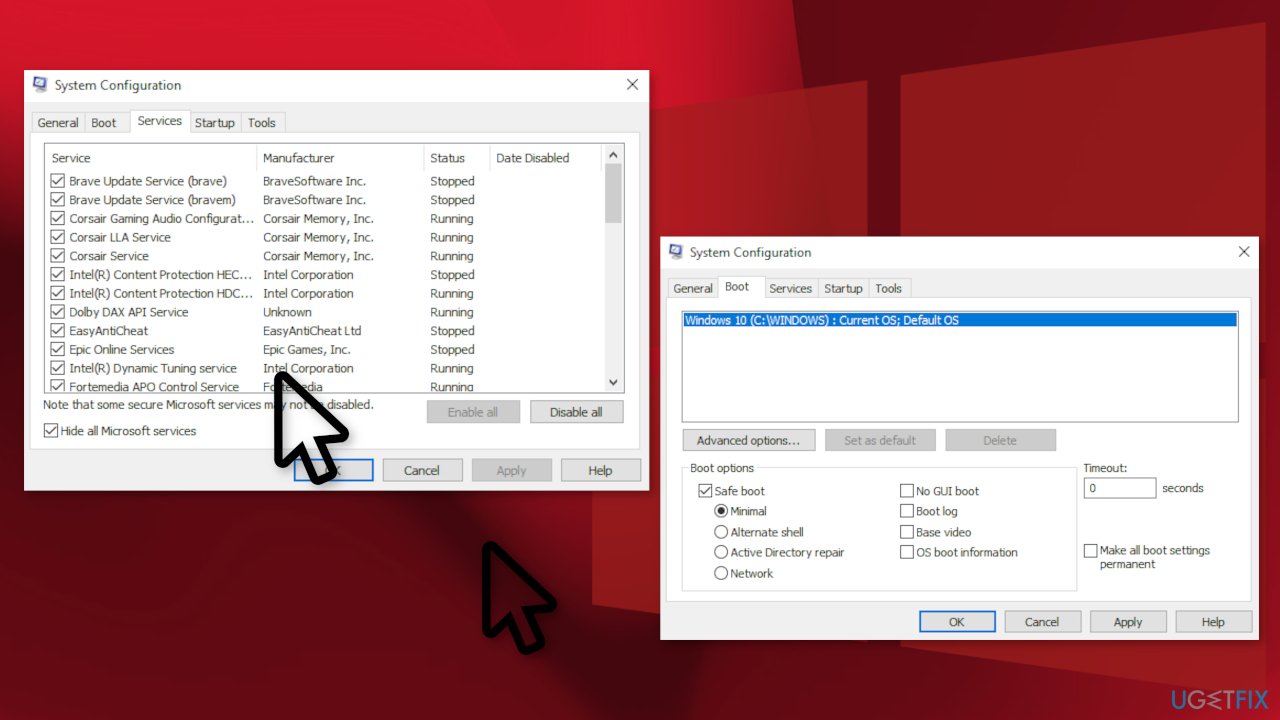
- Press Windows + R, type msconfig, and hit Enter
- Go to Services tab and tick the Hide all Microsoft services checkbox
- Select Disable all
- Go to Startup tab and click Open Task Manager
- Here, right-click on each of the non-Windows entries and select Disable
- Close down the Task Manager
- Go to Boot tab and tick the Safe boot option
- Click Apply, OK, and restart your computer
Bottom line
To address the high disk and CPU usage caused by the DISM Host Servicing Process, consider using a powerful repair tool to fix corrupted system files and replace damaged components. Additionally, ensure your system is free from malware that may be affecting performance. If these solutions do not resolve the issue, further investigation into system processes may be necessary.
Frequently asked questions
High disk and CPU usage from the DISM Host Servicing Process in Windows 10 can be caused by ongoing system updates, corrupted system files, or conflicts with other software. It often occurs during repair operations or when the system is trying to apply updates.
To reduce resource usage, you can pause Windows updates temporarily or run the DISM tool with the '/Online /Cleanup-Image /RestoreHealth' command to repair any corrupted files. Additionally, ensure that no heavy applications are running simultaneously.
Disabling the DISM Host Servicing Process is not recommended as it is essential for maintaining system health and applying updates. Instead, focus on troubleshooting the underlying issues causing high resource usage.




Report an issue
What's wrong with this guide? We review every report and update or remove content.
Report received — thank you. We'll review and fix it.
You need a free account to submit a report.
Be the first to comment