How to fix
Critical Service Failed BSOD
on Windows
Resolve the Critical Service Failed BSOD error in Windows 10 quickly with our expert-tested solutions. Get back on track without any stress!


What causes How to fix Critical Service Failed BSOD in Windows 10?
- Incompatibility problems with newly installed hardware
- Incompatibility problems with newly installed drivers
- Corrupted system files
- Serious system errors that crash the operating system
- Issues with background processes
Repairs Windows system files, removes malware, and restores a clean OS state — without reinstalling.
Hello. I see a “CRITICAL_SERVICE_FAILED” error message every time I try to boot up my PC. I am completely unable to do anything and I have no idea what caused it. Is there any way I can fix it myself?
Windows is a very powerful and one of the most popular operating systems in the world. It was first introduced by Microsoft in 1985 which has now become a tech giant. Windows is praised for its customization abilities and user-friendly interface. Users can fix most issues by running already built-in automatic troubleshooters. That way users rarely have to do anything and the system diagnoses and finds problems itself.
Sometimes it is possible for people to encounter errors that are much more serious and can crash the entire system. This can happen because there are hundreds if not thousands of processes running in the background, communicating with each other in order to keep everything functional. One of the most serious ones is the Blue Screen of Death[ref en-1] error, which sometimes cannot be fixed and require a full Windows reinstallation.
A Blue Screen of Death is displayed when there is a fatal system error in which the operating system has reached a critical condition where it can no longer operate safely. Some users that have newer versions may see not a blue, but a black screen,[ref en-2] but it is still the same. The Critical Service Failed BSOD can appear when there are incompatibility problems with newly installed hardware or drivers.
There are many different reasons why you could be experiencing this. As we mentioned before, there are thousands of processes that are responsible for keeping the system functioning properly so finding the root of the problem can be complicating.

In this article, we provide a couple of possible solutions for the Critical Service Failed BSOD error. Depending on the severity of your issue, a simple scan for corrupted files[ref en-3] could be enough, or you might have to restore Windows to a certain point. You can try using a repair tool [d1] to avoid going through all the possible fixes. This powerful software can fix various system errors, registry issues, corrupted files, BSODs and optimize the machine for maximum performance.
If you are ready to start the troubleshooting process, make sure to follow the steps carefully and do not miss anything:
Method 1. Use Windows Startup Repair
- Navigate to the Windows 10 Advanced Startup Options menu (on many pc's, hitting F11 as soon as you power on will get you to the Windows 10 Advanced Startup Options
- Once your computer has booted, select Troubleshoot
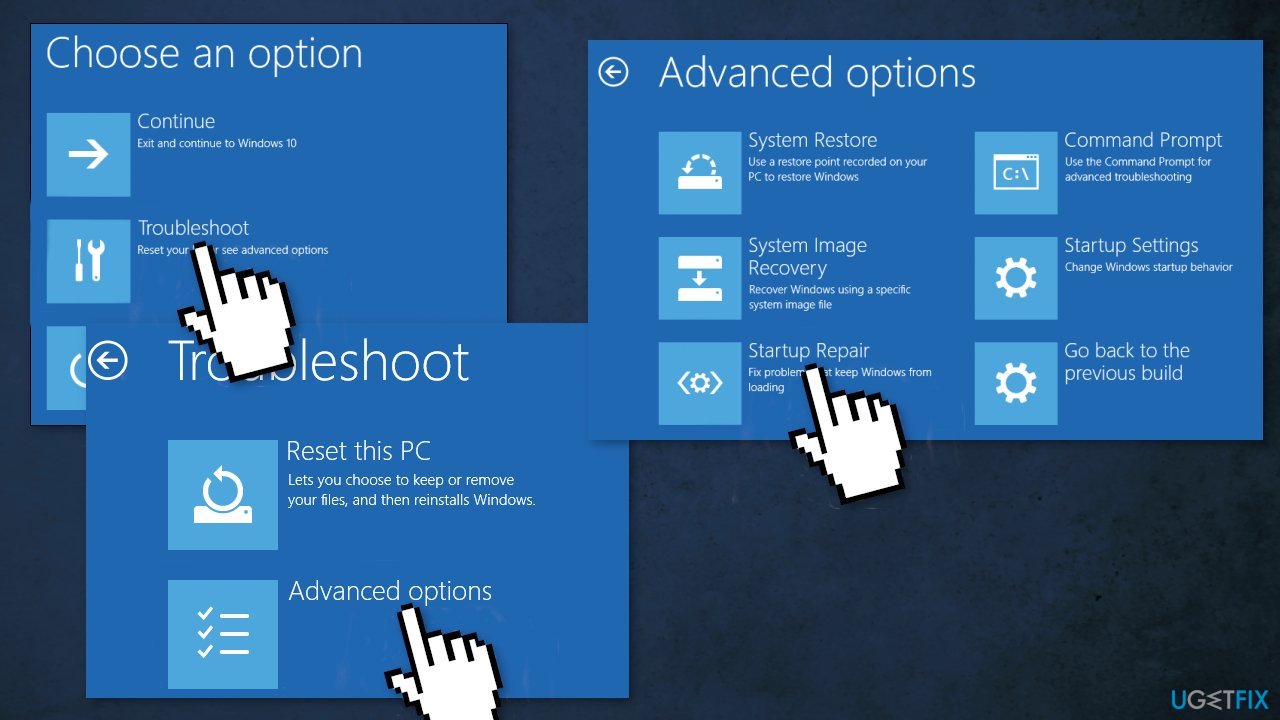
- Click Advanced options
- Click Startup Repair
Method 2. Use Windows Restore
- Click System Restore
- Select your username
- Enter your password
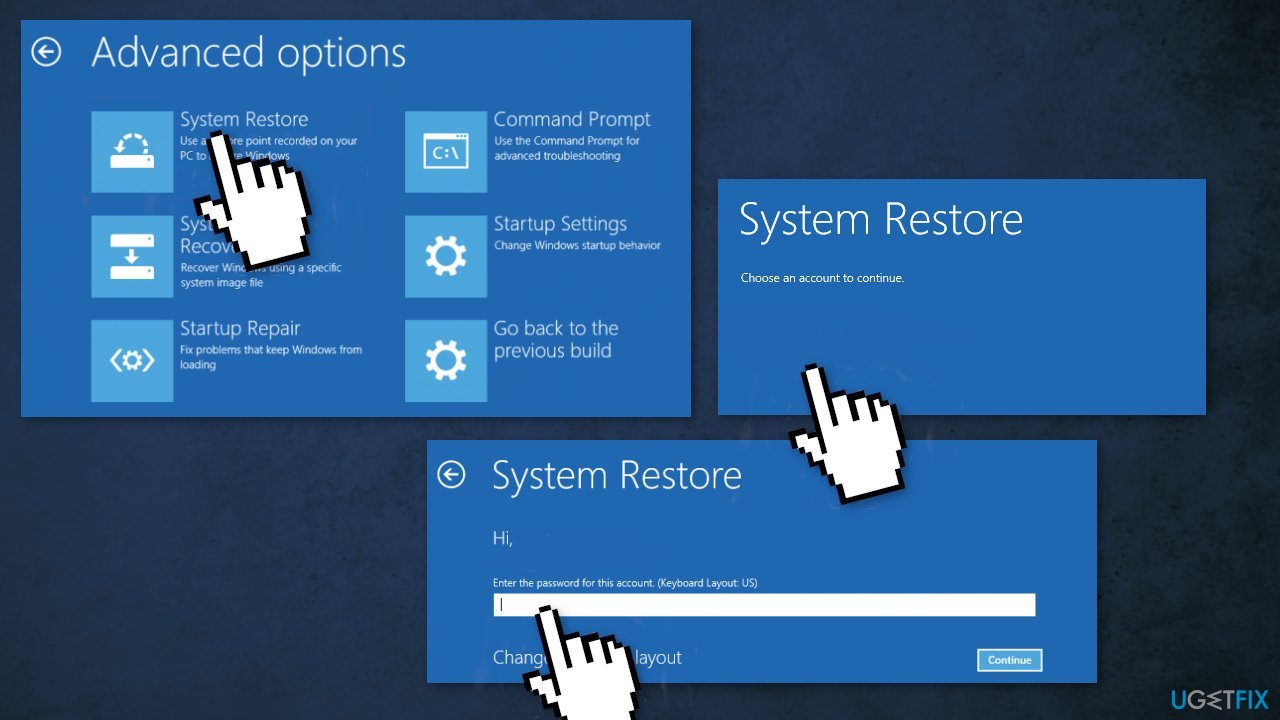
- Select a restore point from the menu and follow the prompts (if you have no restore points, you can't use this method)
Method 3. Repair and Restore system files
Use Command Prompt commands to repair system file corruption:
- Open Command Prompt as administrator
- Use the following command and press Enter:
sfc /scannow - Reboot your system
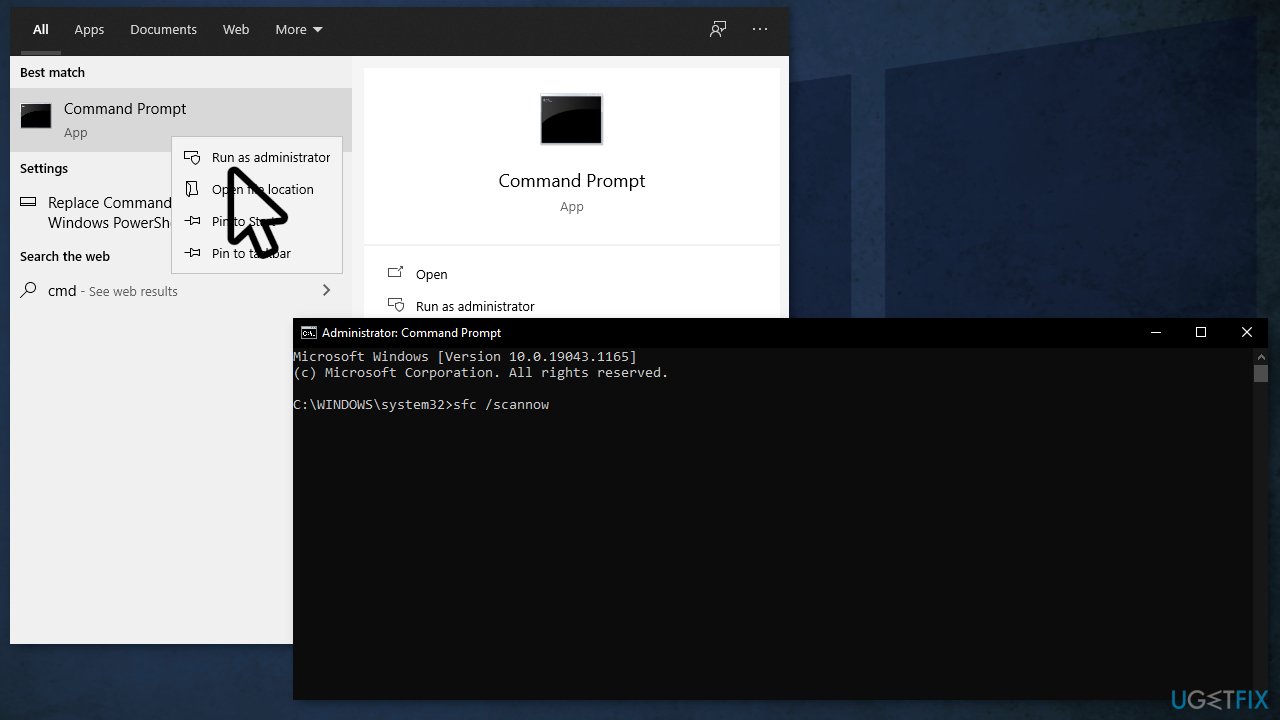
- If SFC returned an error, then use the following command lines, pressing Enter after each:
DISM /Online /Cleanup-Image /CheckHealth
DISM /Online /Cleanup-Image /ScanHealth
DISM /Online /Cleanup-Image /RestoreHealth
Method 4. Update drivers
Hardware driver incompatibility may cause the Blue Screen of Death. You can use a tool called [rev id="DriverFix"] for this, that can locate and install all drivers automatically, or you can manually update graphics card, video card drivers on your computer:
- Press Windows + R to open the Run dialog
- Type in devmgmt.msc, and hit Enter
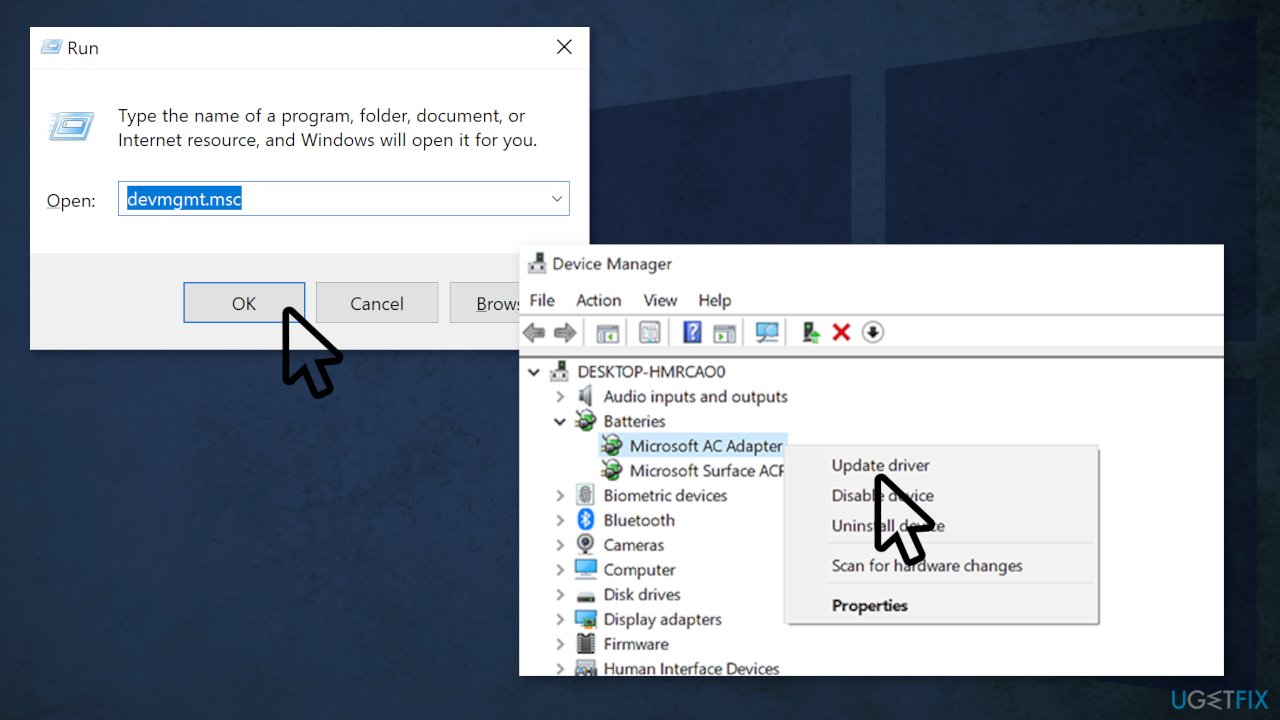
- Right-click and choose Update driver
Method 5. Clean boot
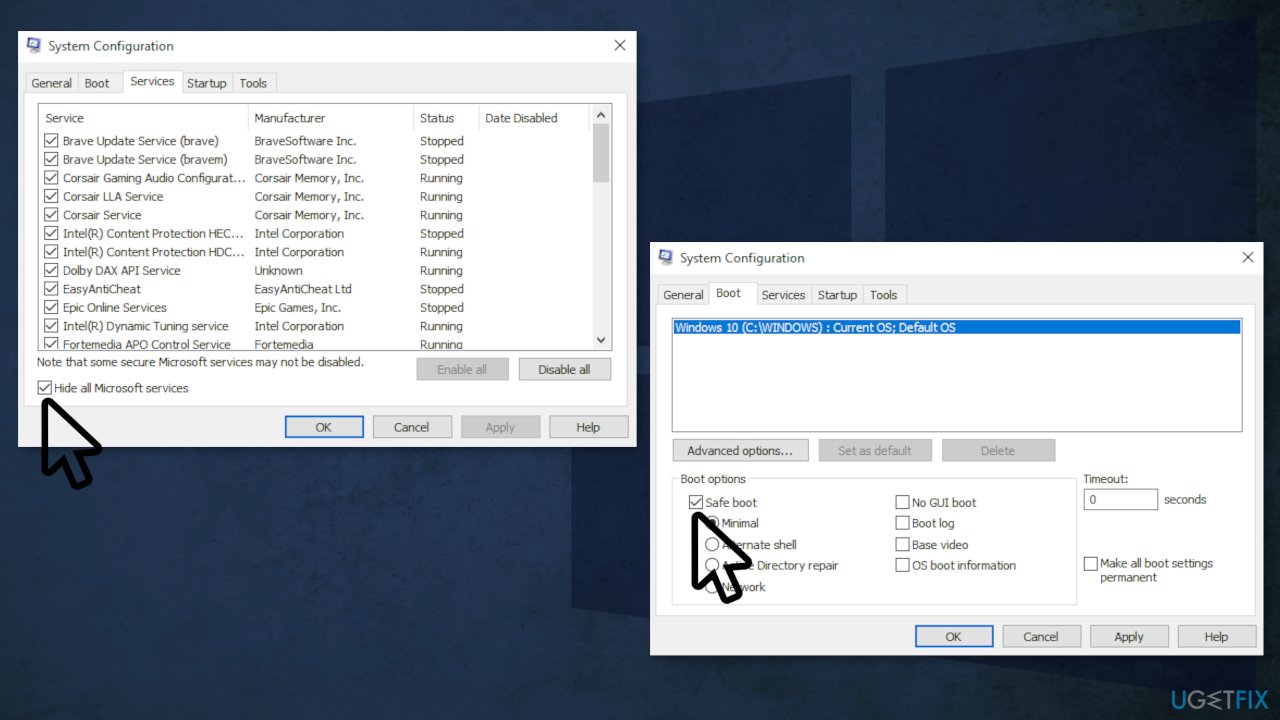
Clean boot is one of the troubleshooting techniques that help identify if an app is causing the issue. It is usually performed when non-Microsoft products cause software conflicts. A clean boot helps in the easy start-up of OS by only loading essential files and programs:
- Press Windows + R, type msconfig, and hit Enter
- Go to Services tab and tick the Hide all Microsoft services checkbox
- Select Disable all
- Go to Startup tab and click Open Task Manager
- Here, right-click on each of the non-Windows entries and select Disable
- Close down the Task Manager
- Go to Boot tab and tick the Safe boot option
- Click Apply, OK, and restart your computer
Method 6. Refresh Your PC
When you are unable to repair your PC using any of the above-mentioned solutions you can use Windows Recovery Environment (WinRE) to perform the automatic repair.
Please follow the following steps to refresh your Windows 10 PC:
- Reboot your PC
- Hit the F8 or F11 key (depending on your system) to open Advanced boot options
- On the next screen select Troubleshoot and then Refresh your PC.
- Follow the instructions to complete the process
Method 7. Reinstall Windows
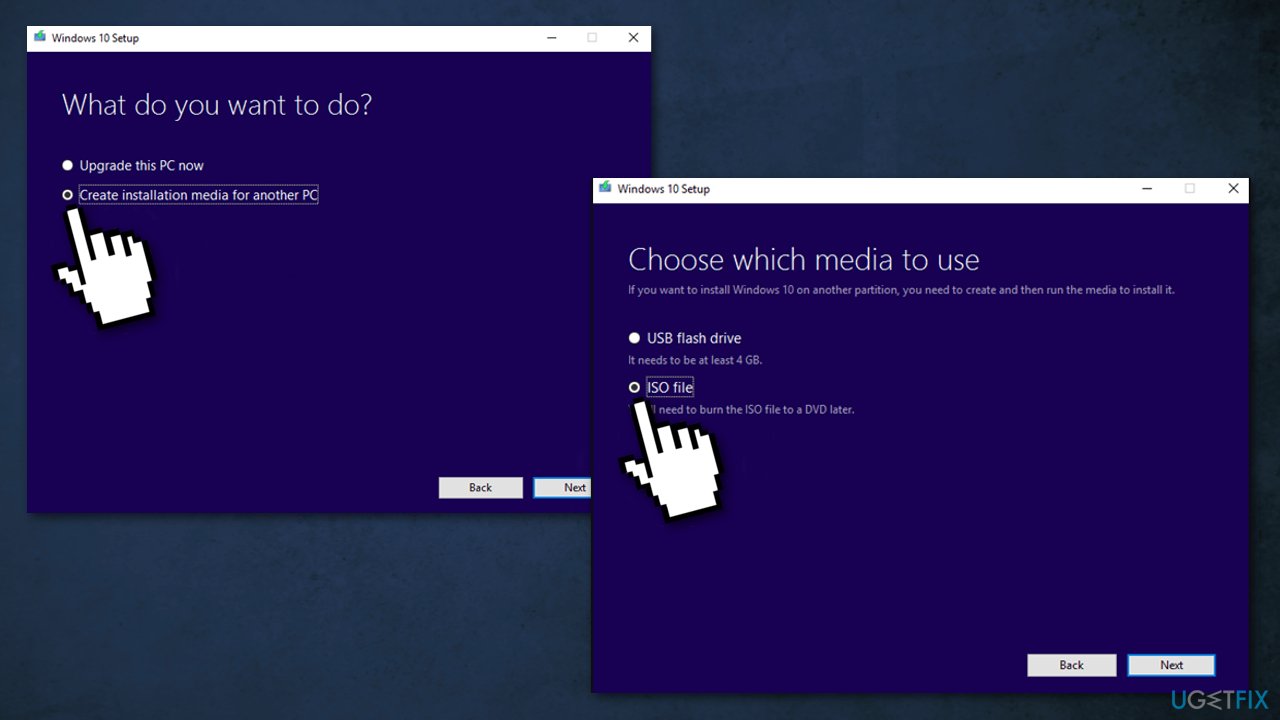
If all else fails and you can't even reset your Windows computer, you can reinstall the OS entirely. You won't even need an activation number or any proof of purchase, either. Just make sure you have more than 4GB of space available, as that's how much space the file you'll download takes up. Here's how to reinstall Windows 10:
- Download the ISO file
- Select Create installation media for another PC and click Next
- Select ISO file and click Next
- Click Finish
- Open the Windows ISO file you downloaded
- Open Setup and click Next
- Click Accept (Be prepared to wait; this next part may take a while)
- Click Install
- Wait for your system to restart and install Windows
Bottom line
To fix the Critical Service Failed BSOD error, you can try scanning for corrupted files or restoring Windows to a previous point. If these solutions do not resolve the issue, consider using a repair tool or performing a full Windows reinstallation.
Frequently asked questions
The Critical Service Failed BSOD is often caused by corrupted system files, incompatible drivers, or issues with Windows updates. Identifying the specific cause can help in applying the appropriate fix.
To access Safe Mode, restart your PC and repeatedly press the F8 key before the Windows logo appears, then select Safe Mode from the menu. Alternatively, you can hold the Shift key while clicking 'Restart' from the login screen.
Yes, if you have System Restore enabled, you can roll back your system to a previous restore point before the error occurred. This can help restore stability and resolve the BSOD issue.




Report an issue
What's wrong with this guide? We review every report and update or remove content.
Report received — thank you. We'll review and fix it.
You need a free account to submit a report.
Be the first to comment