How to fix
Windows Installer error 1619
on Windows
Resolve Windows Installer error 1619 quickly and easily. Follow our expert-tested solutions for Windows 10 and 11 to fix the issue in minutes.

![[Fix] Windows Installer error 1619](https://ugetfix.com/wp-content/uploads/articles/askit/windows-installer-error-1619-fix_en-768x434.jpg)
What causes [Fix] Windows Installer error 1619?
- Incorrect command or .msi file
- Software management policy issues
- Damaged or corrupted system files
- Missing .NET 4.0 Framework
- Missing Windows Installer 4.5 package
- Antivirus compatibility issues
Repairs Windows system files, removes malware, and restores a clean OS state — without reinstalling.
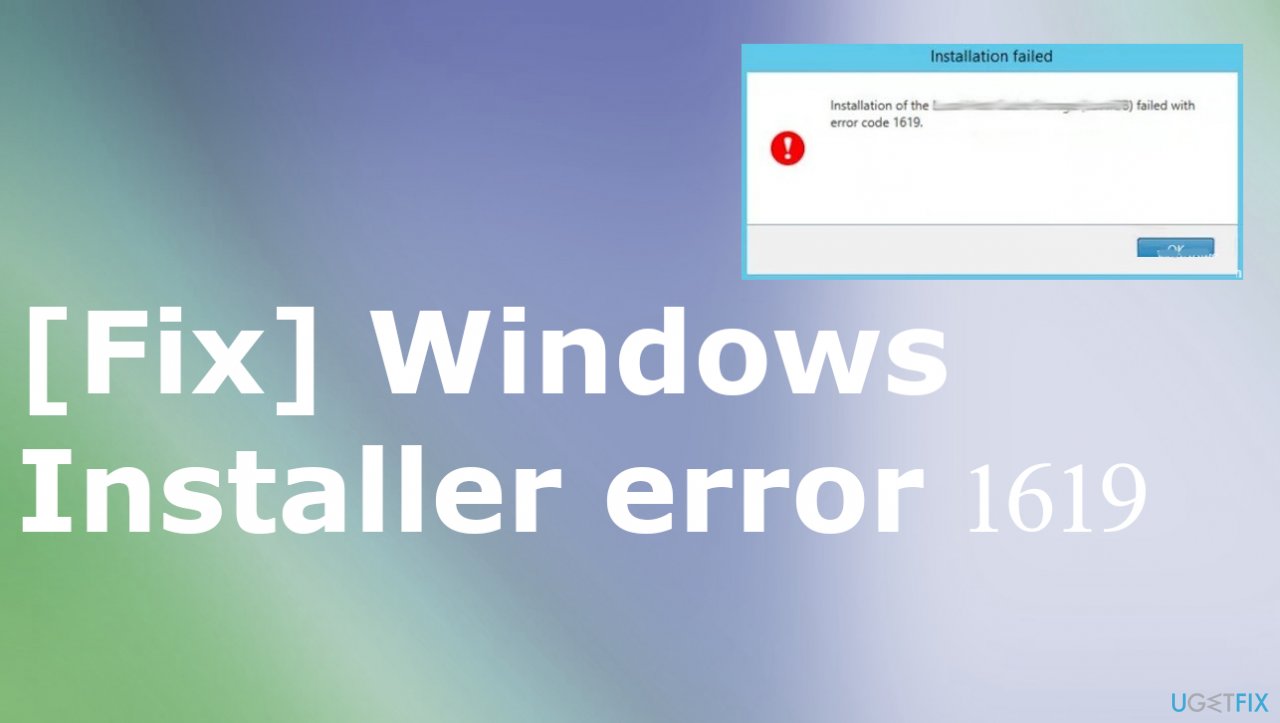
I keep getting the error message, and the installation of the program fails. I use the Windows installer feature, and the error code 1619 appears on the screen. It states that the install failed or that the package is not good. I have no idea what that means. I use Windows 10. How can I correct this myself?
Windows Installer error 1619 is the problem that people encounter[ref en-1] pretty often nowadays. The issue is triggered when the Windows Installer infrastructure is used to install applications on the machine. It can be a problem related to particular applications when the package or the installer file cannot be opened properly. There is a possibility that the issue is caused by the incorrect command or the .msi file.
People encounter the problem when the Software management policy or task is delivered and using the msiexec in the subfolder fails. The error can be caused when the needed package cannot be opened, or the reference is incorrect. Also, in many cases system files that get damaged or corrupted lead to issues like this.
The message that users see:
This installation package could not be opened. Verify that the package exists and that you can access it, or contact the application vendor to verify that this is a valid Windows Installer package.
This Windows Installer error with code 1619 can appear on Windows 7 and on Windows 10 machines. There is no particular relation to updates or OS installation bugs.[ref en-2] There are several particular causes for the issue, so potential culprits dictate the solution.
Missing pieces like .NET 4.0 Framework or the Windows Installer 4.5 Redlist. package. These two can be related to particular applications that users want to install. However, such issues can be fixed by installing the package manually from a reliable source. False positives and compatibility issues with antivirus solutions can also be common.
Some of the security tools have these issues of blocking installations with older security certificates. You can uninstall the software that is overprotective and keeps you from accessing wanted functions. Malware[ref en-3] can also be detected and removed with Microsoft Defender or different, less problematic tools.
If the particular cause for the Windows Installer error 1619 on the machine is related to missing or damaged files on the machine, you can check the system for any data damage or even virus leftovers and fix those problems. The automatic solution would be the scan using [d1] or a different optimization/security program. This is the quick solution; other fixes might take more time and require much more attention.
Fix 1. Uninstall the overprotective security software
- Press Windows key + R to open up a Run dialog box.
- Type appwiz.cpl and press Enter to open up the Programs and Features screen.
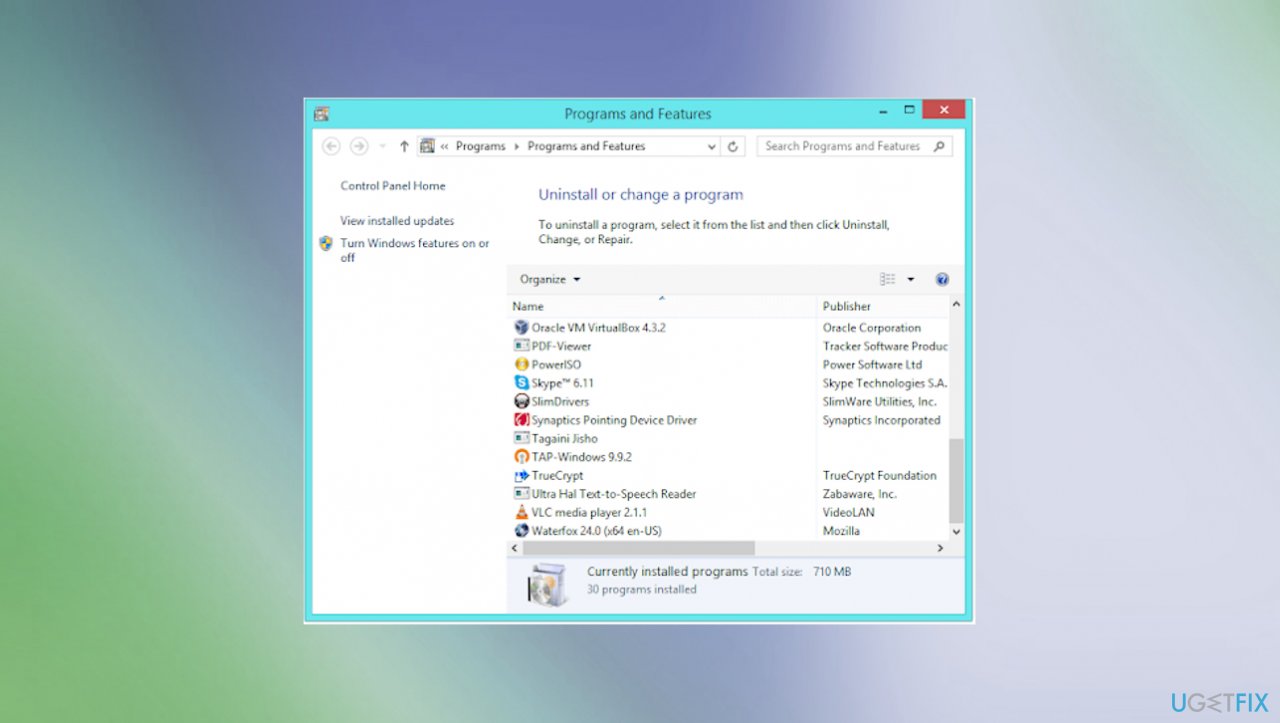
Windows installer error 1619 uninsytall program - Once there scroll down through the list o installed programs and locate the overprotective security suite.
- Right-click on it and choose Uninstall from the context menu.
- Follow the on-screen instructions to complete the uninstallation.
- Restart your computer.
Fix 2. Run disk cleanup
- You should consider backing up your files and freeing up space on your hard drive.
- Open your explorer window.
- Right-click your main directory - this is usually C:.
- Click Properties and then click Disk Cleanup.
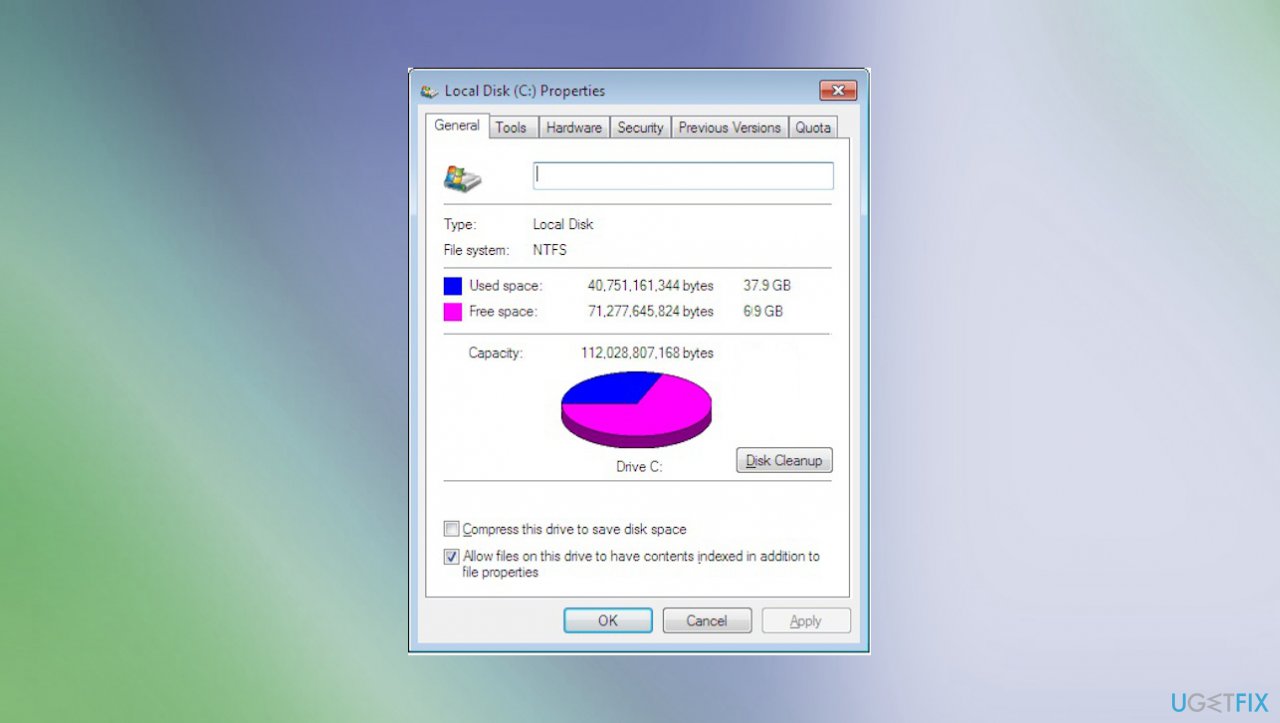
Windows installer error 1619 disk cleanup
Fix 3. Install latest Windows OS update
- Open your Settings.
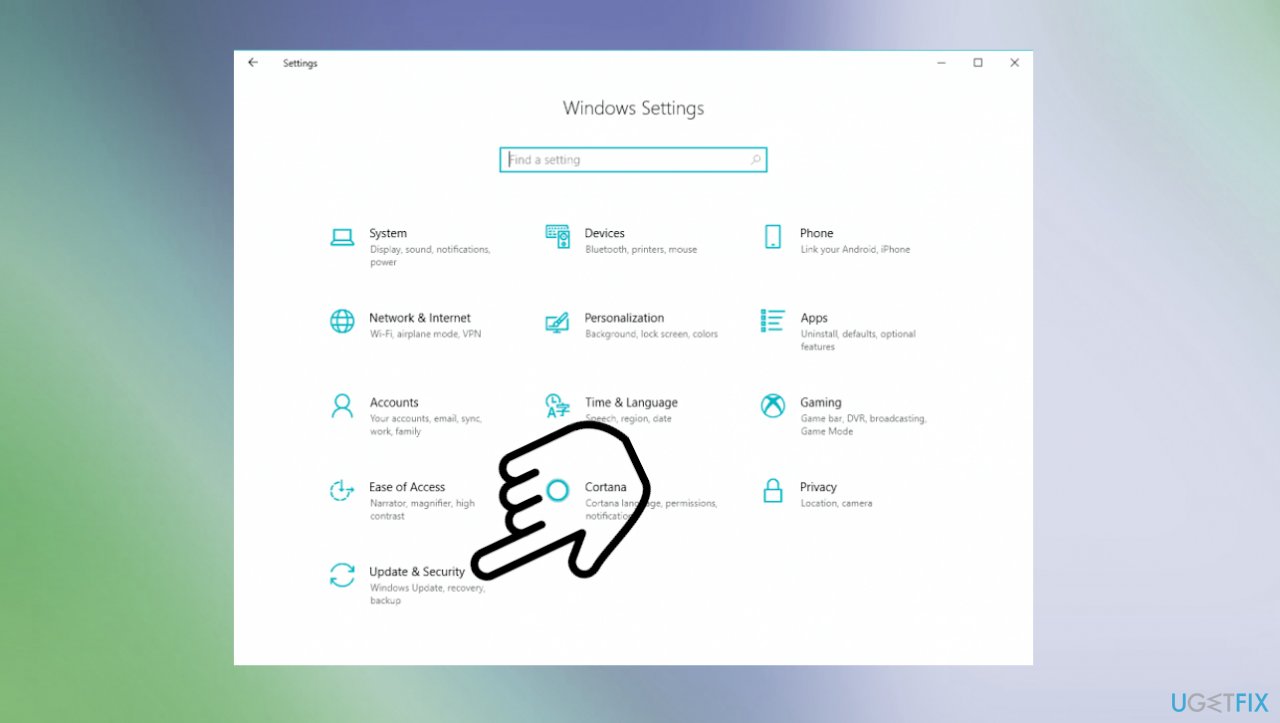
Windows installer error 1619 update security - Choose Update & Security and then locate Windows Update.
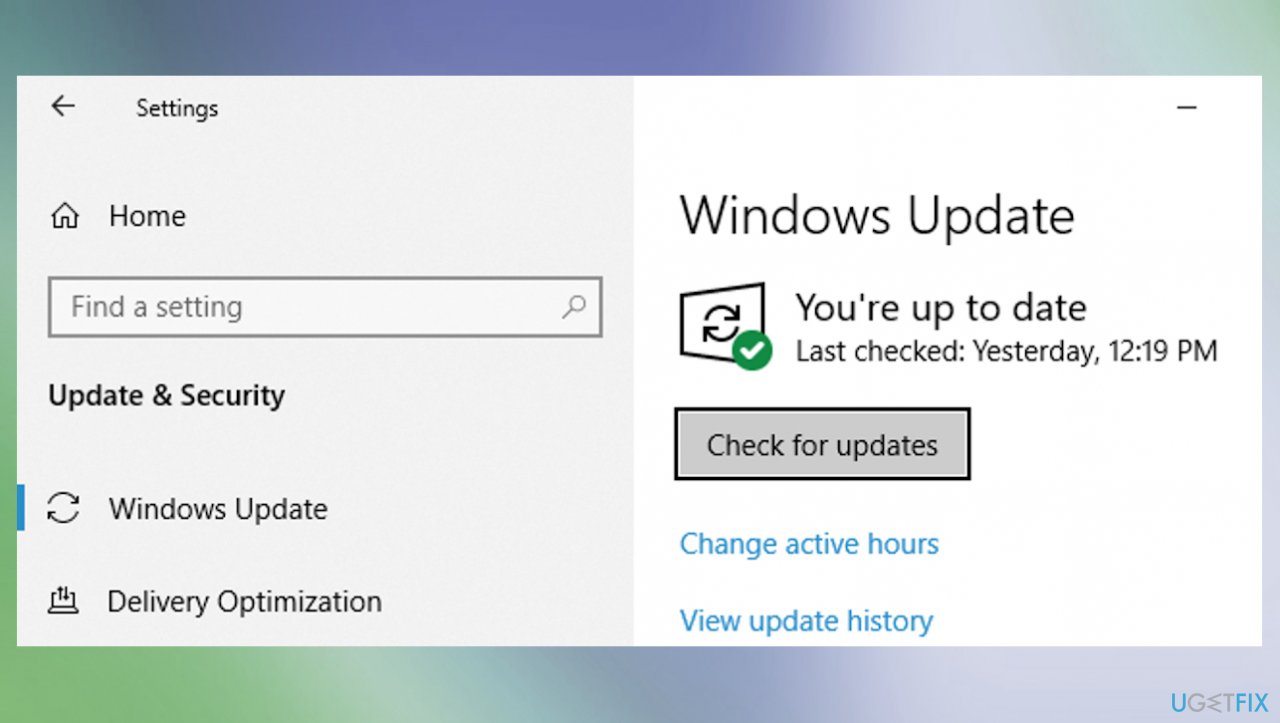
Windows installer error 1619 update check - Click the Check for updates button, and install the available updates.
Fix 4. Reinstall runtime libraries
- Uninstall the package by going to Control Panel.
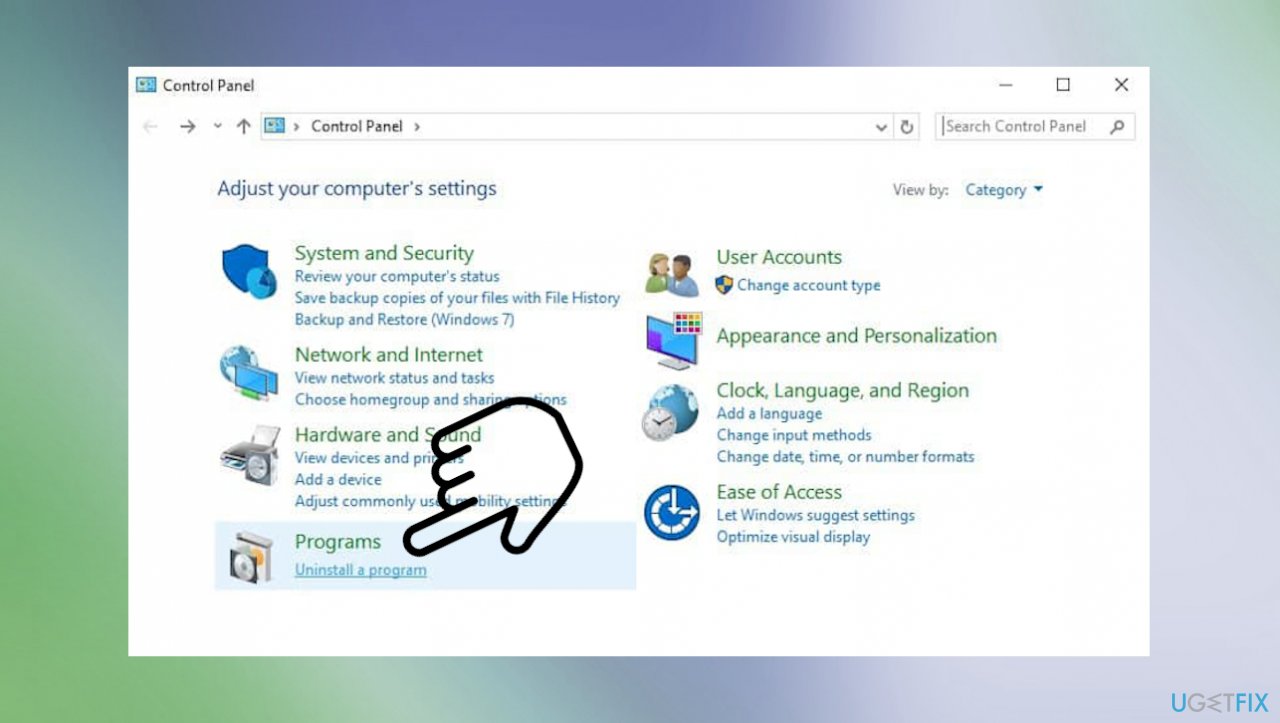
Windows installer error 1619 programs features - Then Programs and Features.
- Find and highlight the Microsoft Visual C++ Redistributable Package.
- Click Uninstall on top of the list.
- When it is done, reboot your computer.
- Download the latest redistributable package from Microsoft, then install it.
Fix 5. Install the .NET 4.8 framework
- Open your default browser, visit this Microsoft official download page and click on the Download .NET Framework Runtime button.
- Double-click on the downloaded file and click Yes when prompted by the UAC (User Account Control).
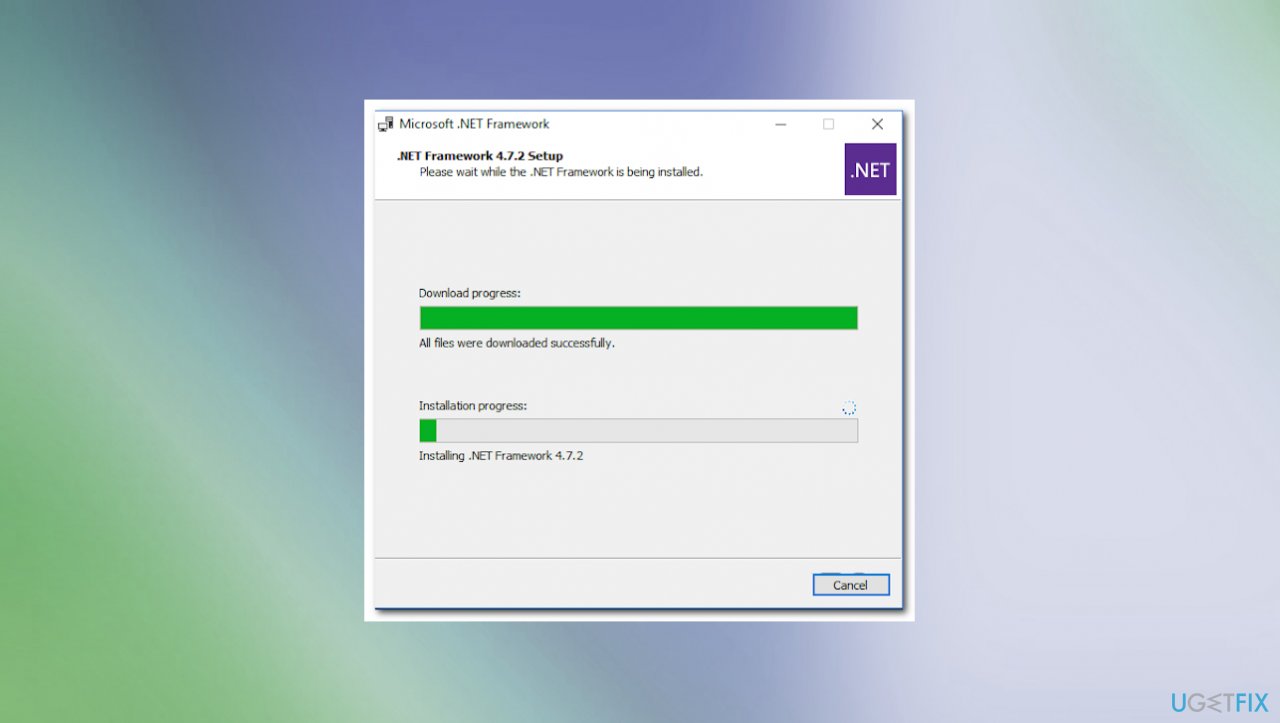
Windows installer error 1619 net framework - Follow the on-screen instructions to complete the process.
- Restart your computer and see if the issue is fixed.
Bottom line
To resolve Windows Installer error 1619, ensure that the necessary packages like .NET 4.0 Framework and Windows Installer 4.5 are installed. Additionally, check for any corrupted system files and consider adjusting your antivirus settings. If these solutions do not work, you may need to contact the application vendor for further assistance.
Frequently asked questions
Windows Installer error 1619 indicates that a specified installation package could not be found, often due to a corrupted or missing MSI file. This error can occur during software installation or updates on Windows 10.
To fix error 1619 on Windows 11, ensure that the installation package is available and not corrupted, or try downloading the latest version of the software. Additionally, running the Windows Installer service in the Services app can help resolve the issue.
Windows 10 users can troubleshoot error 1619 by checking the file path of the MSI package, ensuring it matches the expected location, and using the System File Checker tool to repair any corrupted system files.




Report an issue
What's wrong with this guide? We review every report and update or remove content.
Report received — thank you. We'll review and fix it.
You need a free account to submit a report.
Be the first to comment